A bad dye job can ruin more than just your hair—it can ruin your mood too. When a hair color doesn’t turn out the way you imagined, it can feel frustrating and expensive to fix.
That’s why more and more people are using AI to preview hair colors before committing to a dye job. With virtual AI hair color try-on tools, you can quickly see how different shades would look on you without ever stepping into a salon.
Today, we’ll show you how to use PicLumen to try on hair colors online, so you can quickly discover which shades suit you best before making the change.
How to Try on Different Hair Colors Online
Step1: Upload Your Photo
Before trying different hair colors with AI, the first step is uploading a suitable photo. The quality of your photo directly affects how realistic the virtual hair color results will look. Here are a few tips to make sure the AI can generate the best results:
1️⃣Use a clear photo: Choose a high-resolution image where your face and hair are sharp and easy to see. Blurry photos can lead to inaccurate color placement.
2️⃣Avoid obstructions: Make sure your hair is not covered by hats, sunglasses, hands, or other objects. The AI needs to clearly detect your hair area.
3️⃣Face the camera: A front-facing photo works best. Try to keep your head straight so the AI can map the hairline and hair shape accurately.
4️⃣Good lighting matters: Natural lighting or evenly lit indoor lighting helps the AI recognize your hair texture and color more accurately. Avoid photos that are too dark or heavily shadowed.
5️⃣Keep your hair visible: If possible, use a photo where most of your hair is visible—especially around the sides and top of your head. This allows the AI to apply color more naturally.
6️⃣Use a natural hairstyle: Avoid photos where your hair is tightly tied up or heavily styled. Loose, natural hair makes it easier for the AI to simulate different hair colors realistically.
With a good photo uploaded, the AI will be able to generate much more realistic hair color previews for you.
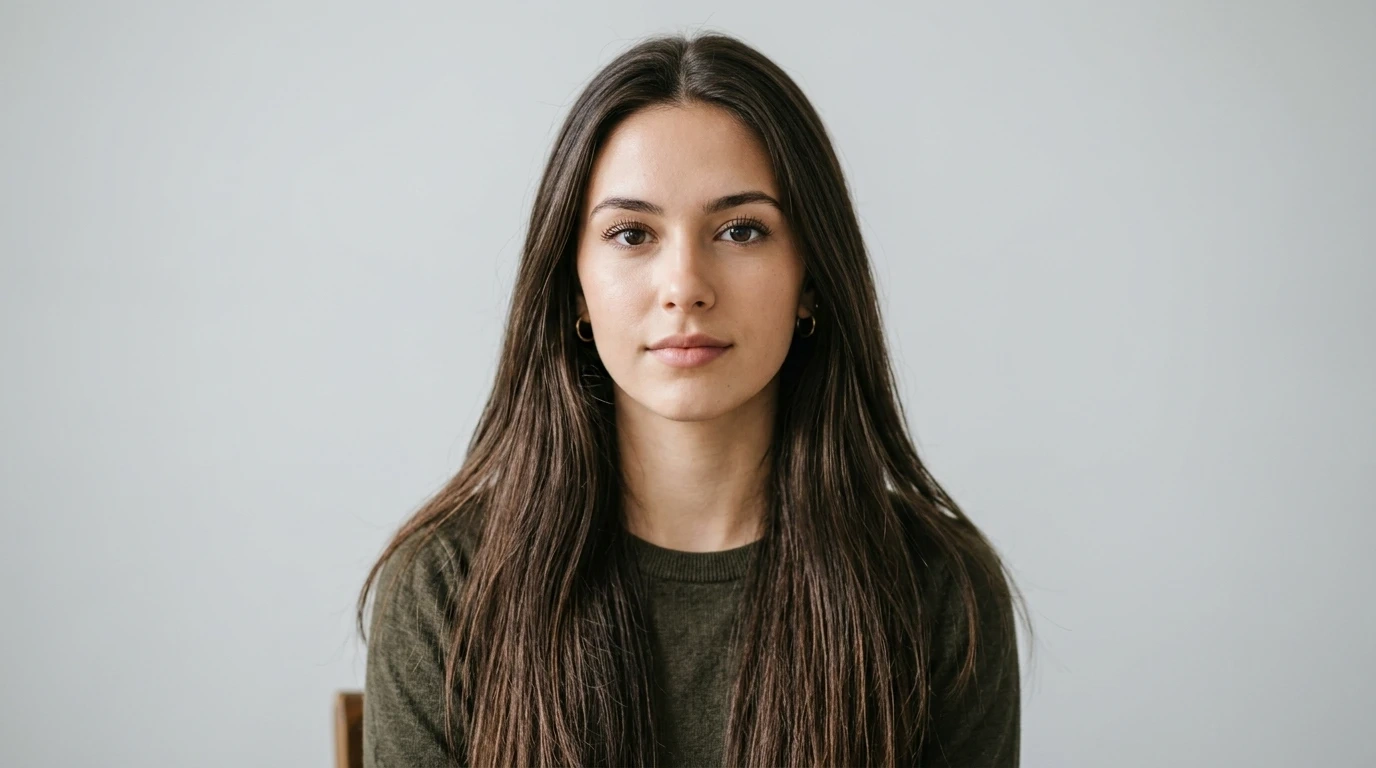
I used Nano Banana 2 to generate a model photo as an example to show the hair color change.
Prompt
a beautiful young woman with long, straight, dark brown hair, detailed hair texture, individual strands visible, soft natural lighting, studio photography, plain light gray background, highly detailed, photorealistic, shot on 85mm lens, f/2.8, looking at camera, neutral expression.
Step 2: Enter the Prompt
Next, your should choose a hair color and enter your prompt.
You can also upload a hair color photo as a reference to guide the tool and achieve a more accurate result.
Here, I’ve selected a few popular colors as examples.
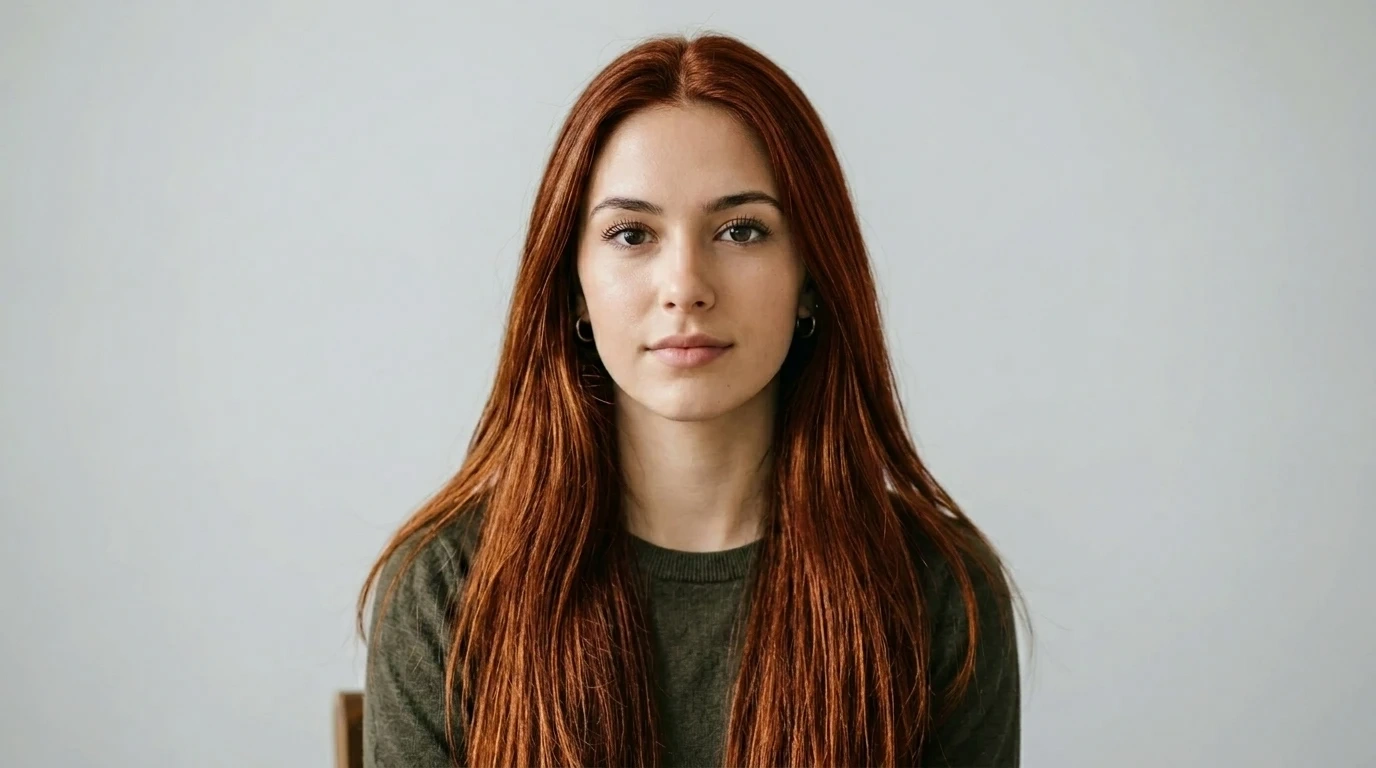
1. Copper Red
Prompt: Change the hair color to copper red, rich warm copper tone, natural shine, realistic hair texture.
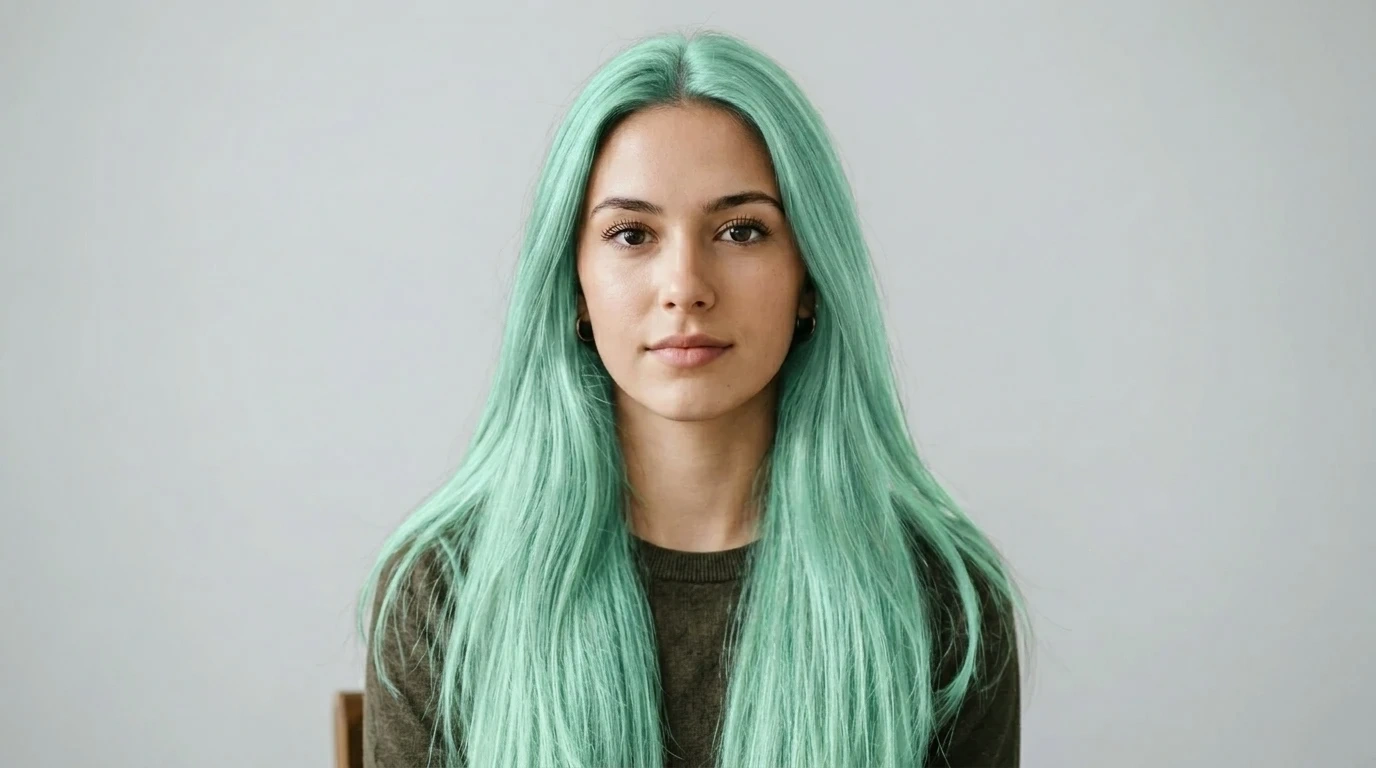
2. Mint Green
Prompt: Change the hair color to mint green, soft pastel mint tone, smooth and vibrant, natural-looking hair texture.
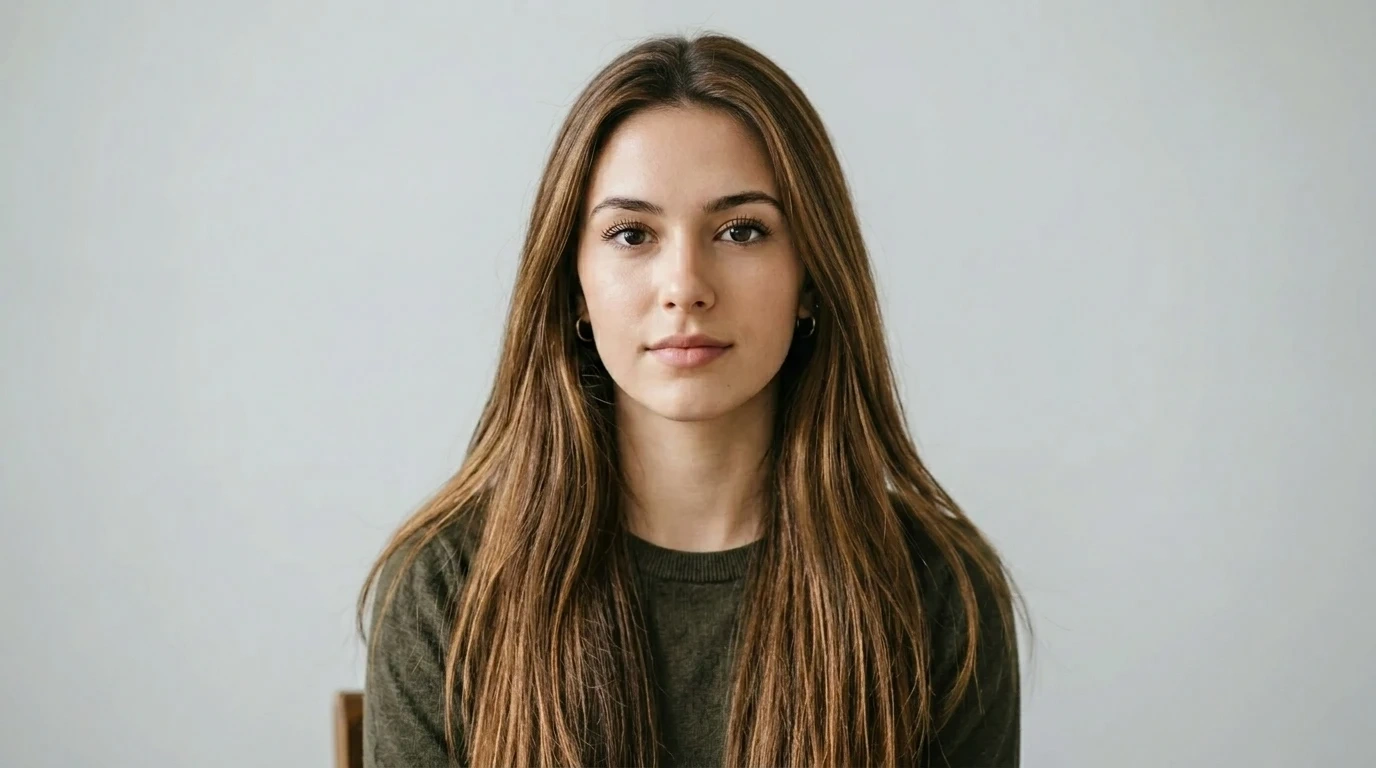
3. Lived-In Caramel
Prompt: Change the hair color to lived-in caramel, warm caramel brown with soft natural highlights, dimensional and realistic.
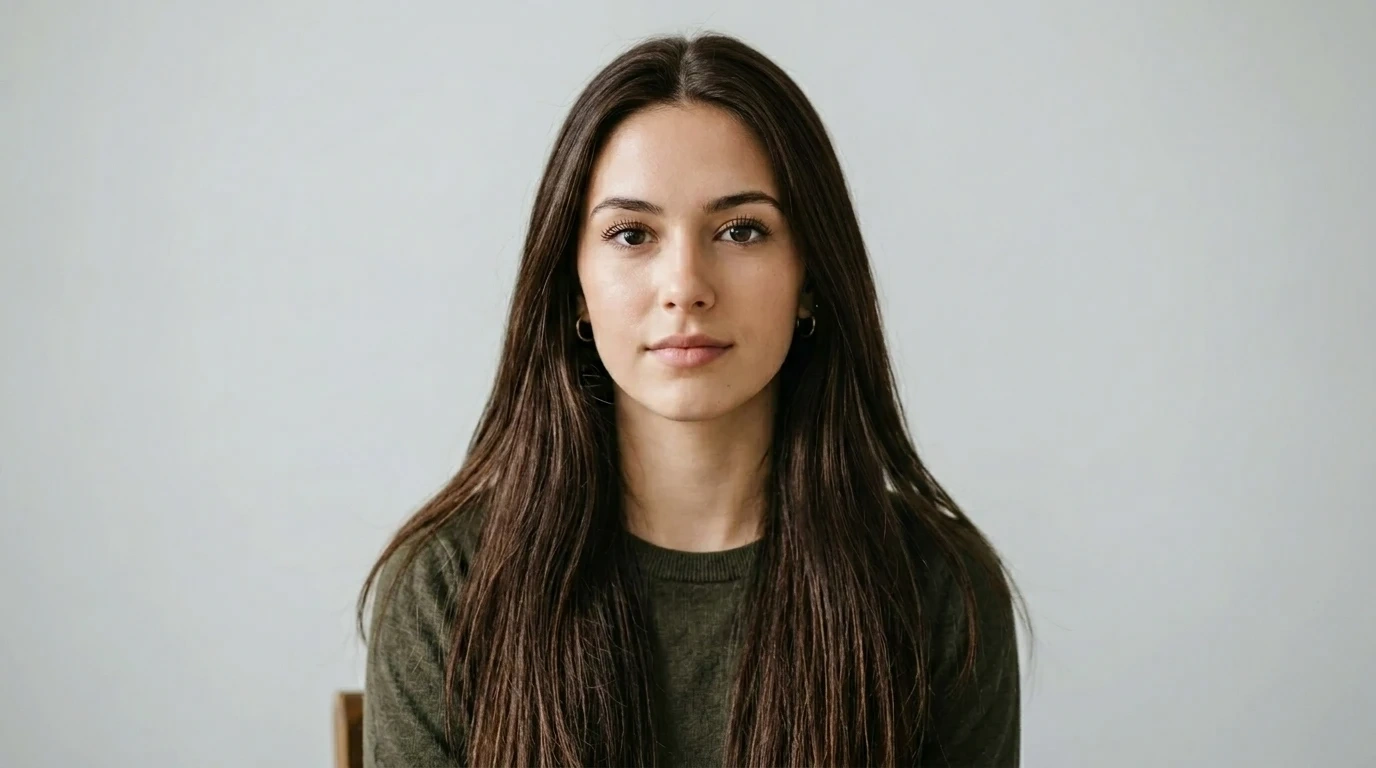
4. Deep Brunette
Prompt: Change the hair color to deep brunette, rich dark brown tone, glossy and natural-looking.
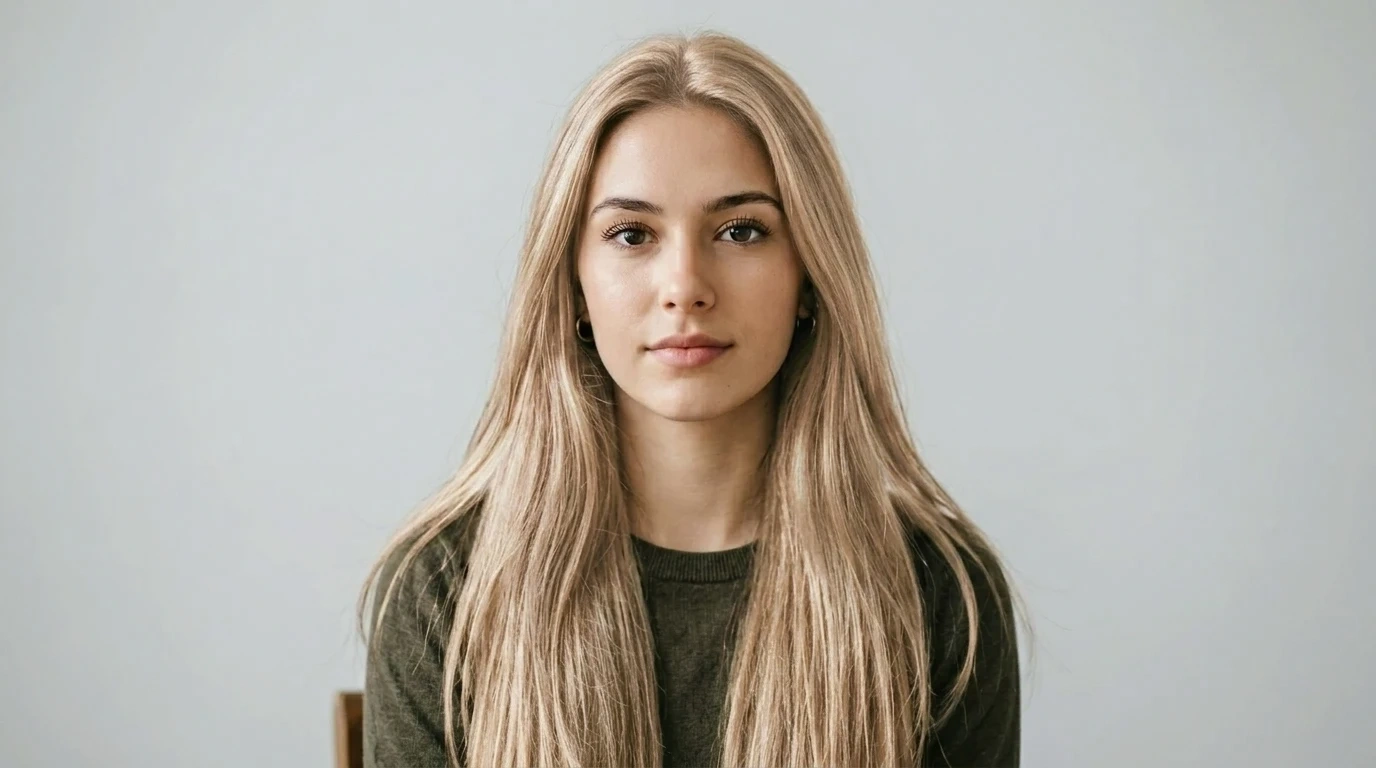
5. Soft Champagne Blonde
Prompt: Change the hair color to soft champagne blonde, light blonde with soft golden champagne undertones, smooth and luminous.
Step 3: Click Generate and See Your New Hair Color
Once you’ve chosen a hair color and entered the prompt, simply click the Generate button.
In just a few seconds, PicLumen AI image generator will create a preview showing how that hair color might look on you. You can quickly compare different shades and see which ones complement your skin tone, style, and overall look.
If you’re not satisfied with the first result, feel free to try other colors or adjust the prompt slightly. The great thing about AI is that you can experiment with as many hair colors as you like—without any risk.
AI Hair Color Try-On FAQs
1. Do I need a professional photo to try hair colors?
No. A clear selfie taken with your phone usually works perfectly. Just make sure your face and hair are visible and the lighting is good.
2. Will the AI result look exactly the same as real hair dye?
AI previews are meant to give you a realistic idea of how a color might look on you, but the final salon result may vary depending on your natural hair color and dye process.
3. What kind of photo works best for virtual hair color try-on?
A front-facing photo with good lighting and visible hair works best. Avoid blurry images or photos where your hair is covered.
4. Can I try bold or fantasy hair colors?
Absolutely. Besides natural shades, you can experiment with fun colors like pastel pink, lavender, mint green, or even bright blue.
5. Can I use the result to show my hairstylist?
Yes. You can save the AI-generated image and show it to you hairstylist as a reference for the desired color.
6. Does my natural hair color affect the result?
Yes. Dark hair may require bleaching before achieving lighter colors in real life, even if the AI preview shows it instantly.
Final Thoughts
With AI tools, trying on different hair colors has never been easier. You can quickly experiment with a variety of shades and see which ones match your style and skin tone best.
Once you find a color you love, simply save the result and bring the image to your hairstylist. Your stylist can use it as a reference and help recreate a version that works best for your hair type and real-life color process.
Trying your hair color in advance not only saves time, but also helps you walk into the salon with more confidence about your new look.
👉 Try your new hair color on PicLumen now.