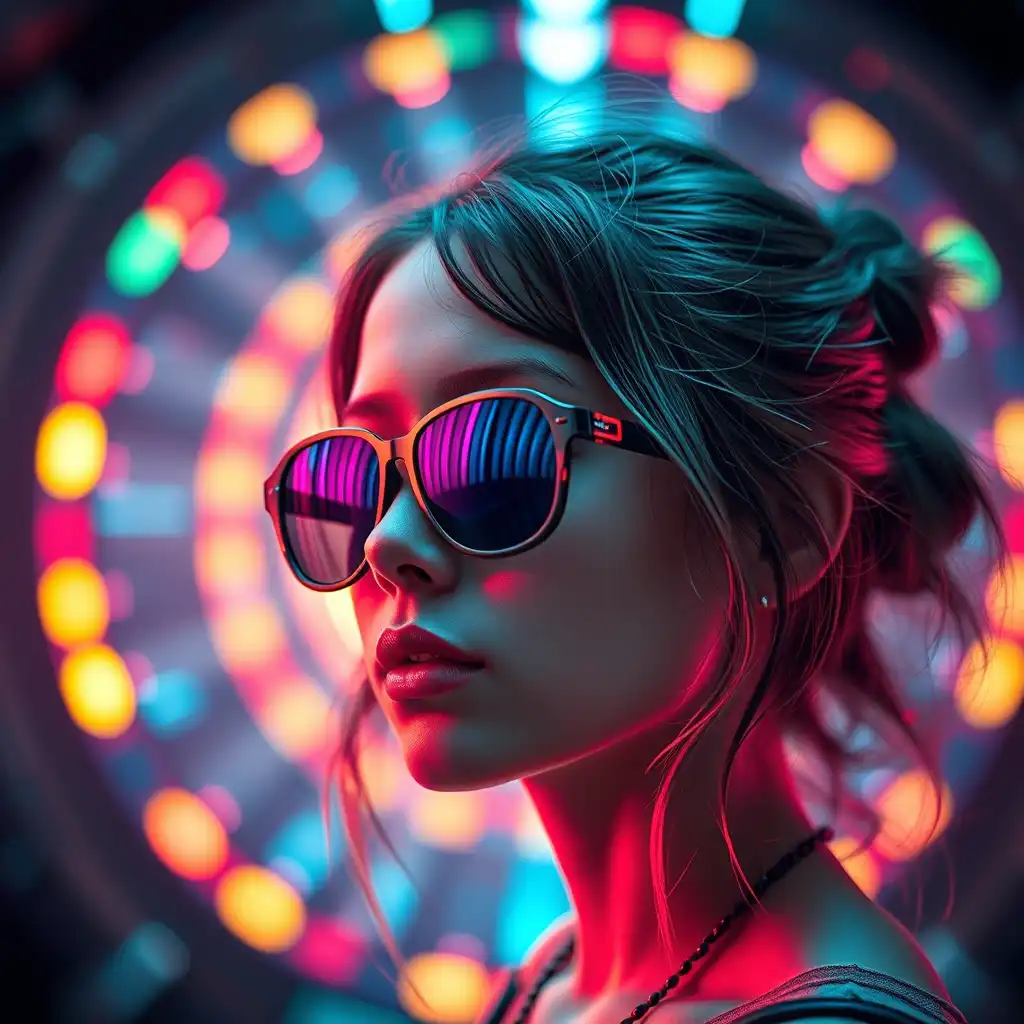
Creating a professional AI YouTube banner is easier than ever. Google’s official Nano Banana 2 model, accessible via Piclumen, lets you quickly generate high-resolution banners with sharp text, precise layouts, accurate colors, and polished details — all from simple text prompts or image references.
Whether you’re launching a gaming channel, a tech review series, or a personal brand on YouTube, this guide will show you how to create a professional AI YouTube banner step by step.
Why Use AI to Create a YouTube Banner?
Many creators ask:
"Can AI create a YouTube banner for me?"
The answer is yes. With advanced AI models, you can: Generate high-resolution visuals, render clear and readable text, follow layout instructions accurately, enhanced image quality and maintain consistent color schemes.
AI-generated banners allow for more originality and visual impact compared to template-based tools.
How to Design a High-Quality AI YouTube Banner with Nano Banana 2
Step 1: Understand the Correct YouTube Banner Size
Before generating your banner, you should know the official specifications:
Recommended size: 2560 × 1440 pixels
Safe text area: 1546 × 423 pixels (central zone visible on all devices)
Placing titles or logos outside the safe area may result in cropping on mobile or TV displays. Make sure your text and key elements stay within the safe zone.
Step 2: Access Piclumen and Select Nano Banana 2
Open Piclumen and choose the Nano Banana 2 model. It allows you to quickly generate banners by entering text prompts or image references without needing technical setup.
Step 3: Write Effective Prompts
The quality of your banner depends on your prompt. Here’s a basic template:
YouTube banner, 2560x1440, modern channel art, [theme description], bold readable title text “Channel Name” centered in safe area, clean typography, cinematic lighting, high resolution
Example Prompts:
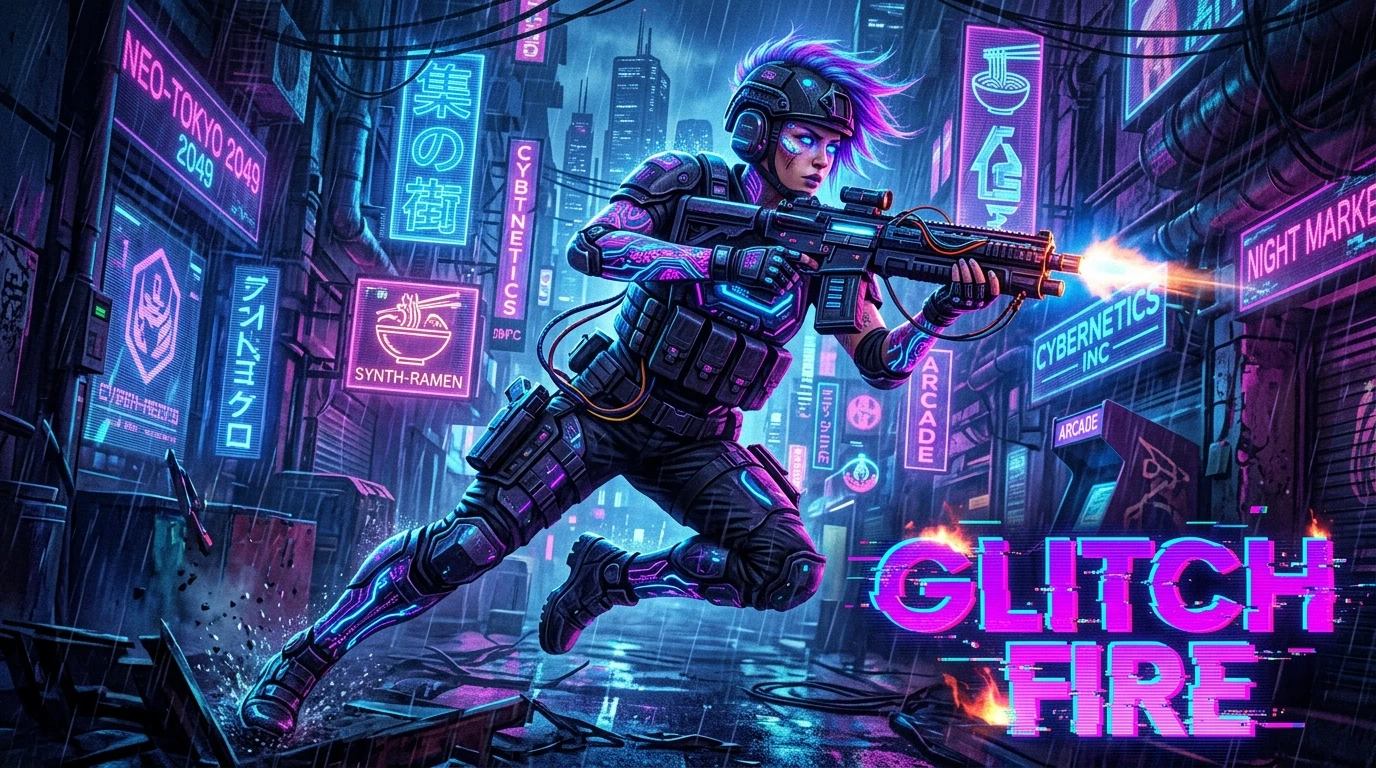
Gaming Channel
“A wide YouTube banner in a futuristic, cyberpunk style. A female cyborg soldier with a high-tech rifle and glowing neon tattoos is in a dynamic action pose. The background is a dark, neon-lit alley with holographic advertisements. The text "Glitch Fire" is written in a glitchy, distorted digital font in the bottom right corner. Vibrant colors like electric blue, purple, and pink dominate the scene.”
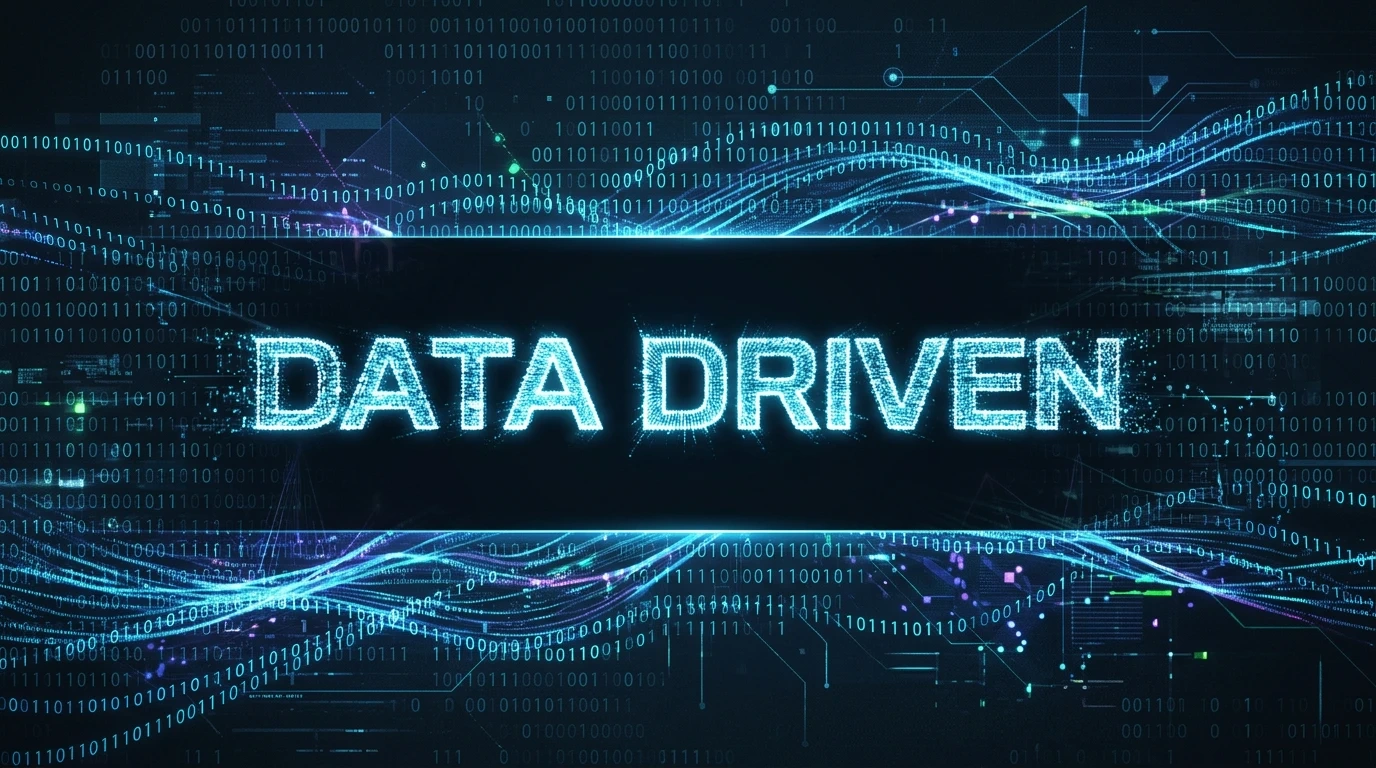
Tech Review Channel
“An abstract, dark-themed YouTube banner. Glowing streams of binary code (0s and 1s) flow across the screen, forming a complex data visualization. A bright, central area is cleared to prominently feature the title "Data Driven" in a sharp, modern, digital block font. The text itself appears to be constructed from light particles.”
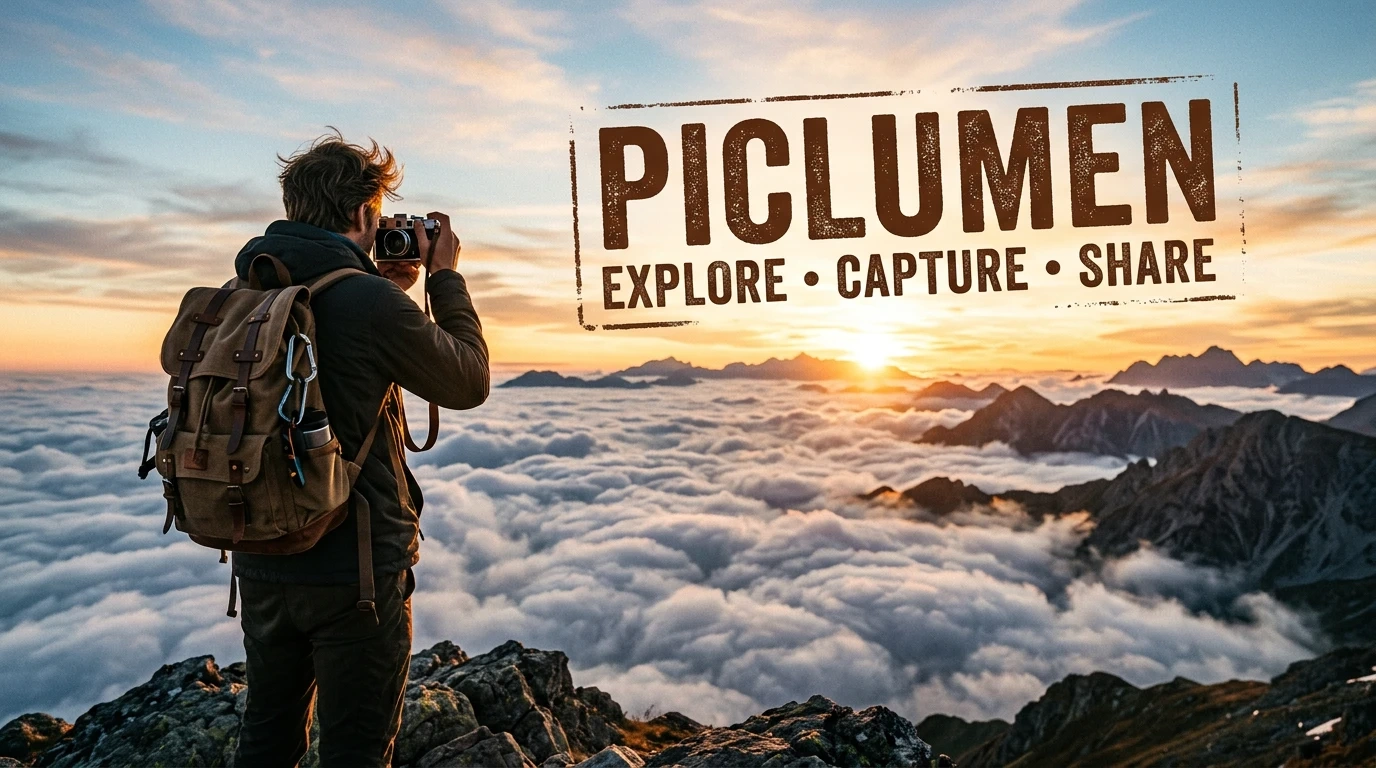
Lifestyle / Personal Brand
“Cinematic YouTube banner. A person wearing a backpack stands on a mountain peak at sunrise, looking out over a sea of clouds. They are holding a vintage film camera. In the sky, the channel name "Your brand name is written in a bold, rustic, stamp-like font, as if stamped onto a travel journal. The atmosphere is adventurous, inspiring, and full of wonder. Golden hour lighting, highly detailed.”
Step 4: Generate and Refine
After generating your first version, you can refine: Adjust font weight, style, or effects, Increase contrast for readability, Fine-tune lighting and colors, Ensure all elements remain in the safe area
Use enhancement tools if available: Upscaler for sharper output, Image Extender to expand background, AI Replace for editing specific elements
Step 5: Export and Upload
Download the final banner at full resolution (2560 × 1440).
Upload in YouTube settings: Channel → Customize → Branding → Banner image.
Preview across: Desktop, Mobile, TV.
Ensure titles and logos are visible on all devices.
5 Pro Tips for a Professional AI YouTube Banner
Keep titles short (2–5 words max)
Use high contrast between text and background
Avoid cluttered visuals
Align with your video thumbnail style
Maintain consistent brand colors
FAQ: AI YouTube Banner Creation
Can AI create a YouTube banner for me?
Yes. Modern AI models can generate fully customized banners with readable text and proper dimensions.
What is the best AI YouTube banner generator?
The best tools deliver high-resolution output, accurate text rendering, and strong layout control. Piclumen with Nano Banana 2 is optimized for this.
What size should an AI YouTube banner be?
Recommended size: 2560 × 1440 pixels, with a safe text area of 1546 × 423 pixels.
Are AI-generated YouTube banners copyright-free?
AI-generated designs from original prompts are generally safe for commercial use. Avoid using copyrighted logos or characters.
How can I make my AI YouTube banner look more professional?
Give clear layout instructions; Keep text in the safe area; Enhance clarity using available tools; Maintain consistent brand colors.
Final Thoughts
Creating a high-quality AI Youtube banner is fast, easy, and effective. With Piclumen providing access to Google’s Nano Banana 2, you can design high-quality, professional banners without advanced design skills. AI has become an essential tool for creators who want efficiency, originality, and polished results.
Start creating high-quality AI images for your YouTube banner today using the Nano Banana 2 on piclumen!