Recently, there has been growing discussion on social media about the OpenClaw AI agent accidentally deleting users’ emails.
In fact, OpenClaw operates with high-level permissions. When used to batch-process emails, a misconfigured command or unexpected behavior can lead to unintended consequences — including clearing out an entire mailbox. If OpenClaw deleted all your emails, what can you do to recover them?
In this blog, we’ll walk through how to handle this situation, recover lost emails, and prevent it from happening again.
How to Recover Emails Deleted by OpenClaw: 3 Useful Methods
If your emails were accidentally deleted while using OpenClaw AI agent, don’t panic. Try to get them back.
1. Recover from Trash or Deleted Items
Start with the most straightforward option. Log in to your original email account and check the Trash or Deleted Items folder.
Find the deleted emails, select them, and click Restore or move them back to your Inbox.
If the emails are still in this folder, recovery is quick and easy — this is always the first step you should try.
2. Check Third-Party Automation Backups
If you’ve connected your email to automation tools like IFTTT or Zapier, there’s a good chance your emails were duplicated elsewhere.
For example, you might have set up workflows such as:
- Saving important emails to Notion
- Forwarding messages to Slack
- Creating backups in cloud storage
In these cases, even if the original emails were deleted, their content may still exist on these platforms. Check your automation history or connected apps to locate and restore important information.
3. EaseUS Email Recovery Wizard – A Professional Recovery Software
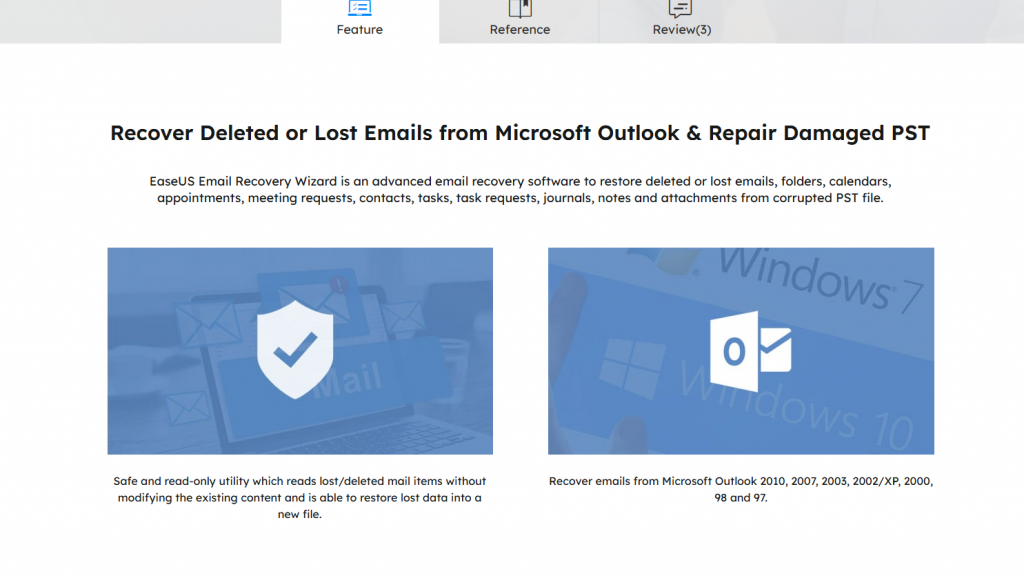
If the emails are no longer in Trash and no backups are available, you can turn to professional tools like EaseUS Email Recovery Wizard.
This type of software is designed to recover permanently deleted emails by scanning local storage or email client data files.
Recovery Scope
- Deleted emails from common email clients (e.g., Outlook data files like PST/OST)
- Lost or corrupted email databases
- Emails removed due to system errors or automation tools
Key Features
- Deep scan to locate lost email data
- Preview recoverable emails before restoring
- User-friendly interface for non-technical users
- Support for multiple email formats and file types
This method is especially useful if OpenClaw has permanently deleted emails and they are no longer accessible through standard recovery options.
5 Tips for Preventing Emails from Being Deleted by OpenClaw
1️⃣ Limit Permissions: Avoid giving OpenClaw full access to your email or file system unless absolutely necessary.
2️⃣ Add Confirmation Steps to Automation: When setting up automated workflows, always include safeguards.Require confirmation before deleting emails.
3️⃣ Create Regular Backups: Backups are your strongest safety net.
4️⃣ Use Automation Tools Carefully: Carefully validate and test automation rules to prevent unintended deletions.
5️⃣ Maintain Clear Rules and Documentation: Keep automation rules well-documented and regularly reviewed to avoid misconfigurations.
Conclusion
Accidentally losing emails due to OpenClaw AI agent can be frustrating, especially when it happens during automated or bulk operations. However, as we’ve covered, deletion doesn’t always mean permanent loss. From checking the Trash folder to leveraging backups, third-party integrations, or professional recovery tools, try to restore your data.
More importantly, prevention is key. When using automation tools, you should be cautious and regularly back up your important emails.