Genera imágenes y vídeos, elige los mejores modelos, utiliza herramientas de edición con IA y copia indicaciones probadas para obtener excelentes resultados rápidamente.
Registrarse / Iniciar sesión (30 segundos)
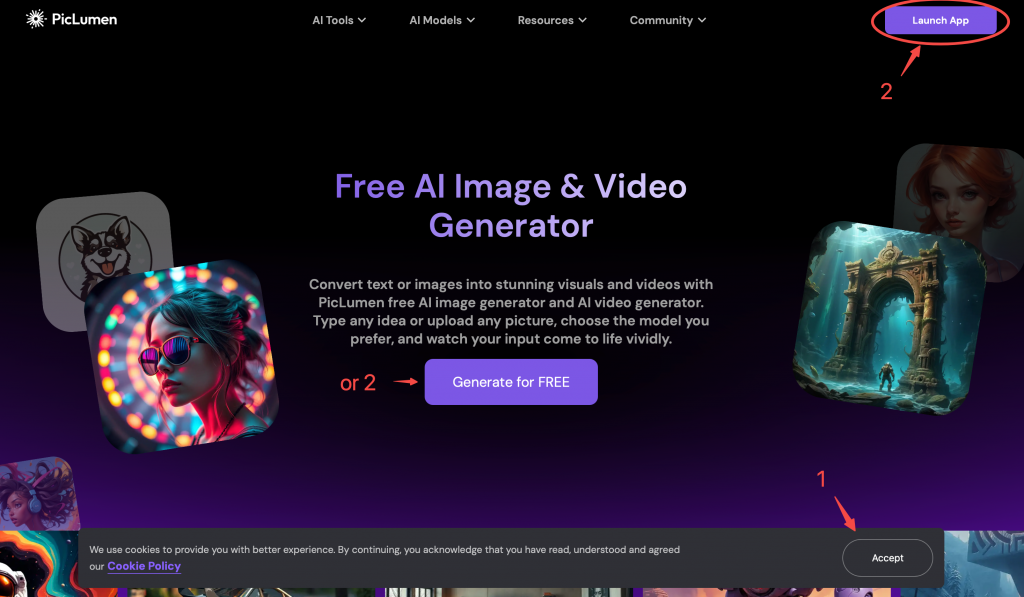
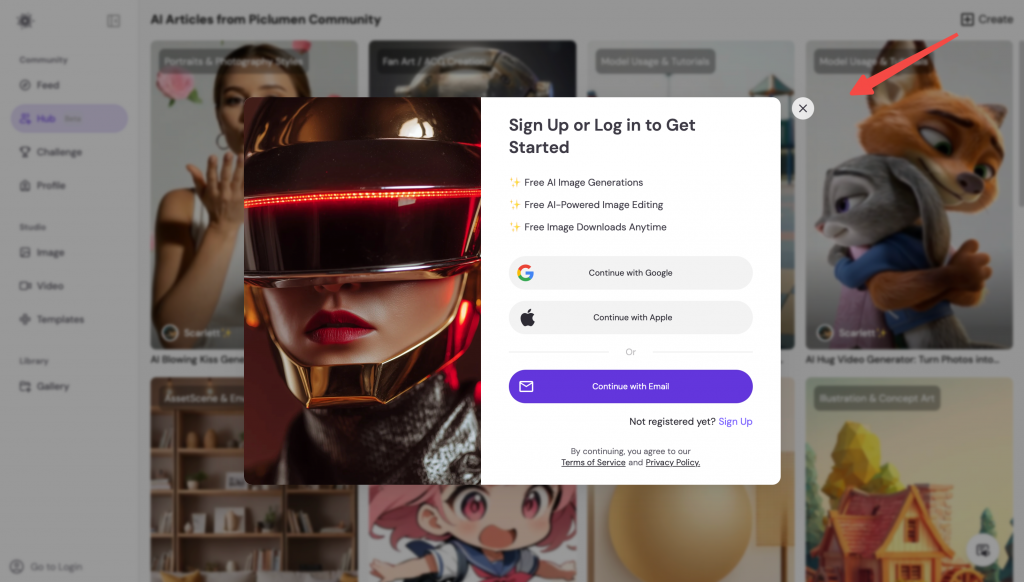
Para utilizar PicLumen, necesitarás una cuenta. Iniciar sesión te permite guardar generaciones, acceder al historial y sincronizar entre dispositivos.
Cómo iniciar sesión
- Haga clic Iniciar PicLumen
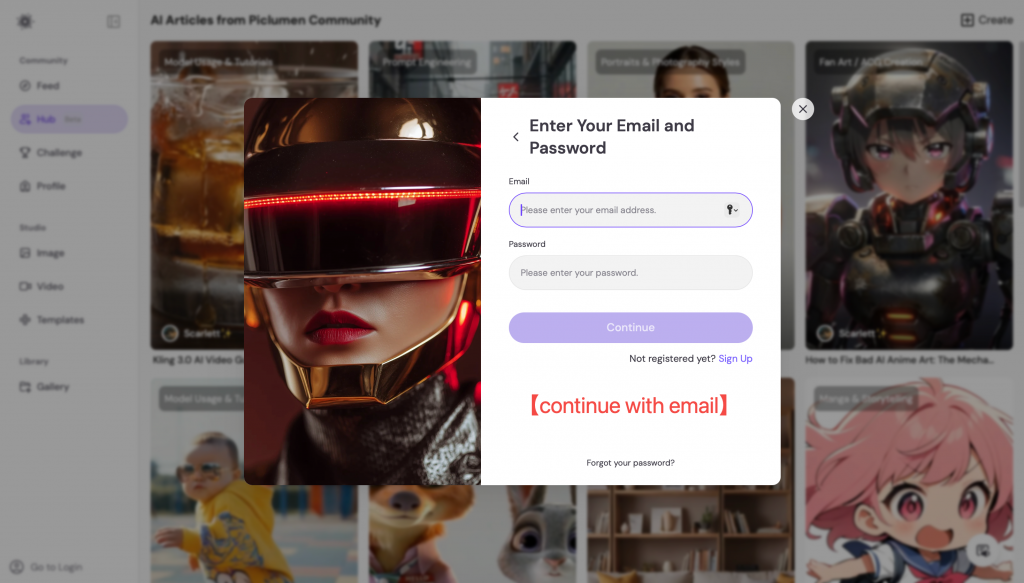
- Seleccionar Iniciar sesión con Google (más rápido) o correo electrónico
- Accederá automáticamente a la página Crear.
Comprender las páginas de PicLumen (para no perderse)
PicLumen tiene algunas páginas clave. A continuación se explica para qué sirve cada una de ellas:
- Inicio: resumen de imágenes, vídeos, modelos y herramientas
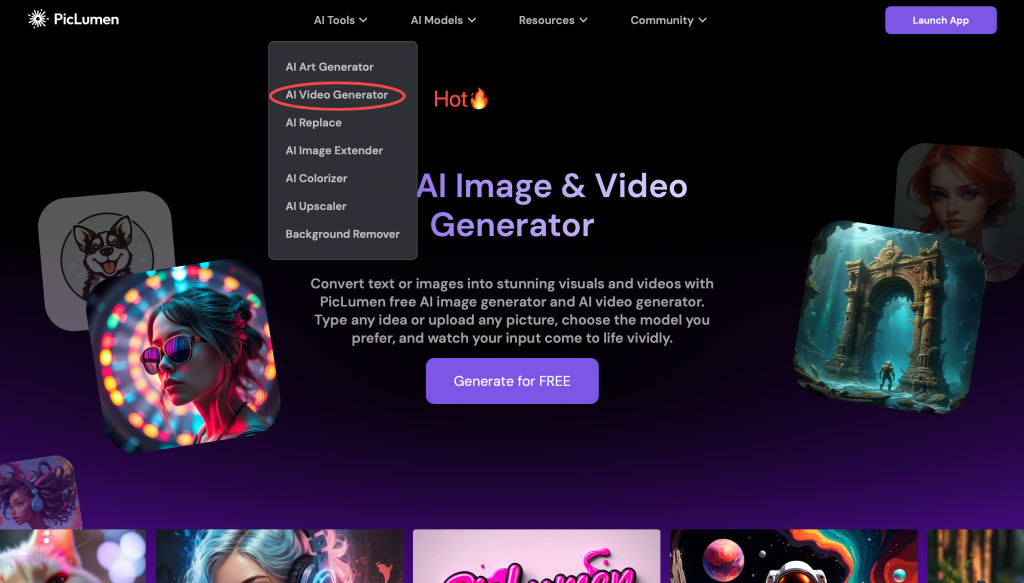
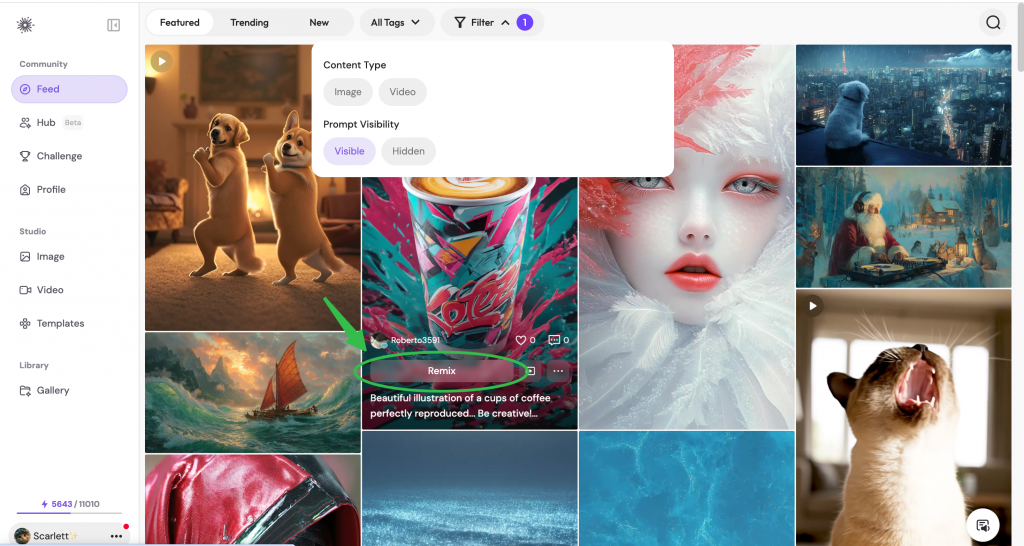
- Estudio (Crear): donde se generan imágenes y vídeos.
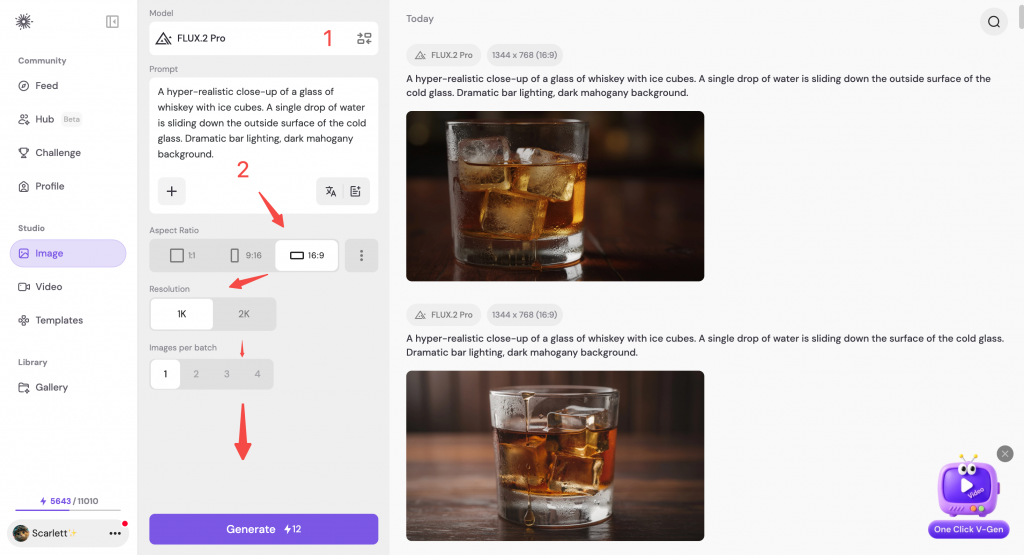
- Hub🔥: guías paso a paso + indicaciones que se pueden copiar
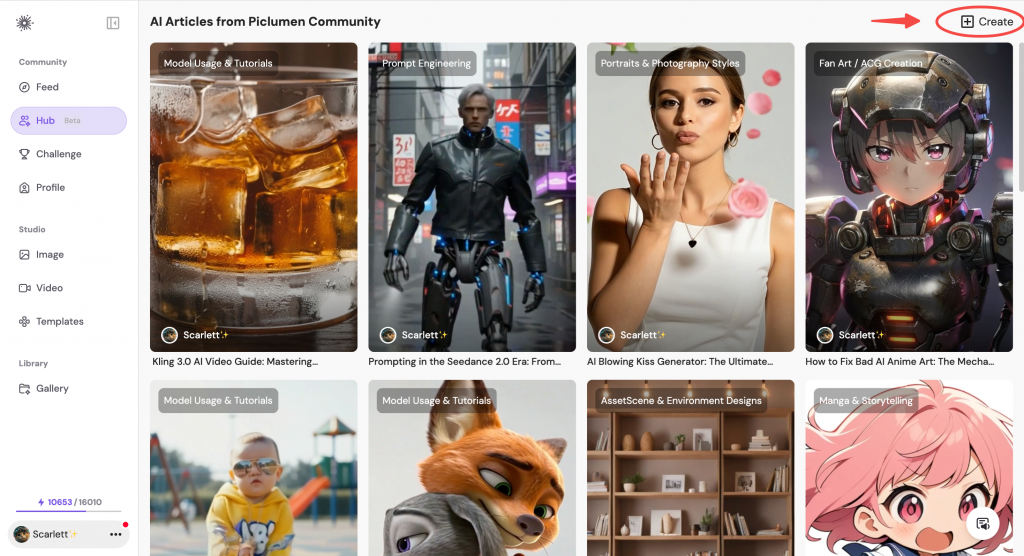
Configuración básica (modelos y parámetros)
Empieza con los valores predeterminados. Si quieres obtener mejores resultados rápidamente, ajusta solo una cosa cada vez.
Modelo (cómo elegir)
Elige un modelo en función de lo que estés haciendo:
- Realista → retratos, fotos de productos, escenas de estilo de vida
- Anime / ACG → personajes, viñetas de manga, dibujos a línea limpia
- Diseño / Ilustración → carteles, iconos, arte conceptual
- Modelos de vídeo → clips con mucho movimiento o narración cinematográfica
Relación de aspecto (selecciones rápidas)
La relación de aspecto afecta a la composición y al lugar donde se utilizará el contenido.
- 1:1 → publicaciones en redes sociales, miniaturas de productos
- 2:3 → personajes de cuerpo entero, imágenes de Pinterest
- 16:9 → Miniaturas de YouTube, banners, escenas cinematográficas
- 9:16 → TikTok / Reels / Shorts
Número de salidas
Genera múltiples imágenes cuando explores ideas. Genera menos cuando ya tengas un objetivo claro.
- 4 salidas → ideal para exploración
- 1 salida → óptimo para velocidad e iteración
Configuración avanzada (opcional)
La configuración avanzada es opcional. Mantenga los valores predeterminados a menos que sepa lo que desea.
- Calidad / Pasos: mayor = más detalle (más lento)
- Orientación / Fuerza de la indicación: mayor = sigue la indicación más estrictamente
- Semilla: reutilízala para mantener la coherencia de la composición.
- Intensidad de referencia (Imagen → Imagen): conserva más detalles de la imagen de entrada.
Parámetros avanzados
- Pregunta negativa: especifique lo que no desea mostrar en la imagen generada.
- Escala de orientación: Controla la intensidad con la que tu indicación de texto afecta a la imagen generada.
- Pasos: Determina el número de pasos utilizados para crear una imagen; un mayor número de pasos puede conducir a resultados más detallados.
- Semilla: El valor de la semilla aleatoria controla el ruido inicial de la imagen latente y, por tanto, la composición de la imagen final. El uso de la misma semilla con los mismos parámetros producirá la misma imagen, lo que permite su reproducibilidad.
Aviso:
- Cada uno de nuestros modelos cuenta con parámetros avanzados originales óptimos bien ajustados que normalmente no es necesario modificar. Si los resultados generados no son los esperados, los usuarios pueden ajustar los parámetros avanzados para obtener mejores resultados.
- IMPORTANTE Si los usuarios hacen clic en remezclar, entonces todas las imágenes generadas mantendrán los mismos parámetros que los elegidos al hacer clic en remezclar. Si necesita que los parámetros avanzados vuelvan a ser los originales, haga clic en "restablecer".
Generar imágenes (2 formas principales)
Texto → Imagen
Utiliza Texto → Imagen cuando quieras crear desde cero.
La mejor estructura de indicacionessubject + style + lighting + camera + background
Imagen → Imagen (Referencia)
Utiliza Imagen (Añadir fotos) → Imagen cuando desees variaciones manteniendo la composición o el estilo.
Ideal para
- personajes coherentes
- variaciones de estilo
- rediseñar una imagen sin perder la estructura
Referencia del contenido:
Mantendrá intacto el contenido central de la imagen cargada, combinando sus indicaciones de texto para cambiar colores, reestilizar la imagen, convertir bocetos en obras maestras, etc.
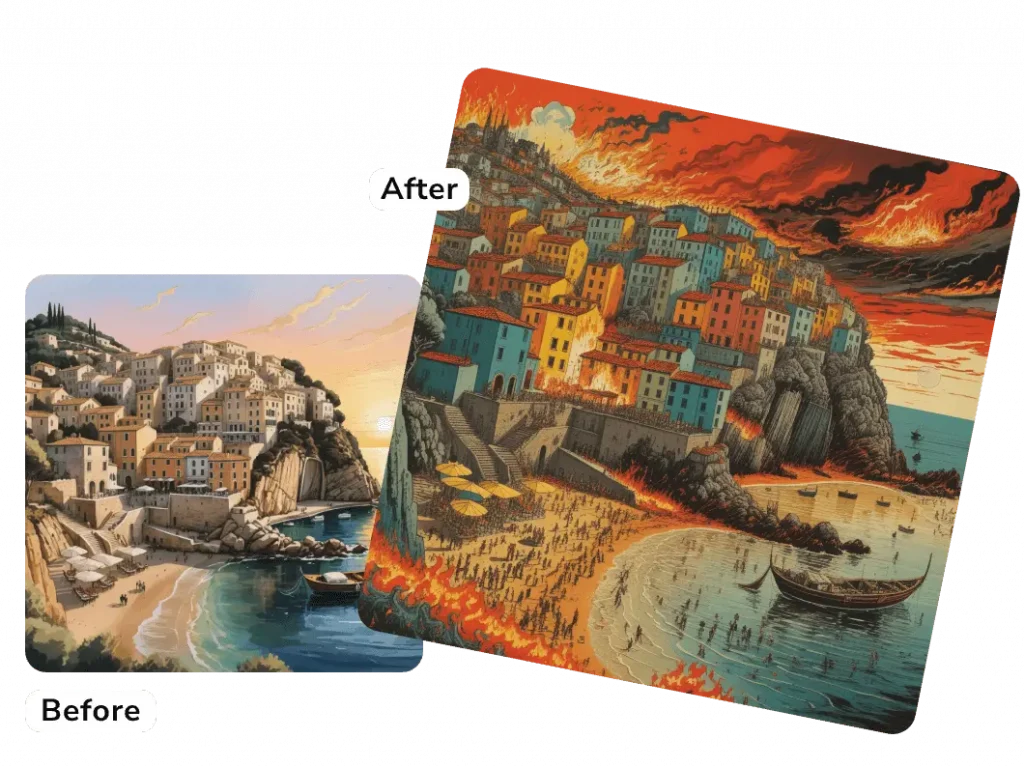
Por ejemplo, a la izquierda está la imagen cargada, y elijo "Ref. contenido", luego introduzco la pregunta "grabado en madera, gente de pie en la playa, colores fuertes y contrastados, una ciudad en llamas". A continuación, obtengo el resultado de la derecha.
Referencia de estilo:
PicLumen imitará el estilo de la imagen cargada, mezclándola con tus indicaciones de texto para generar un nuevo e impresionante arte AI.
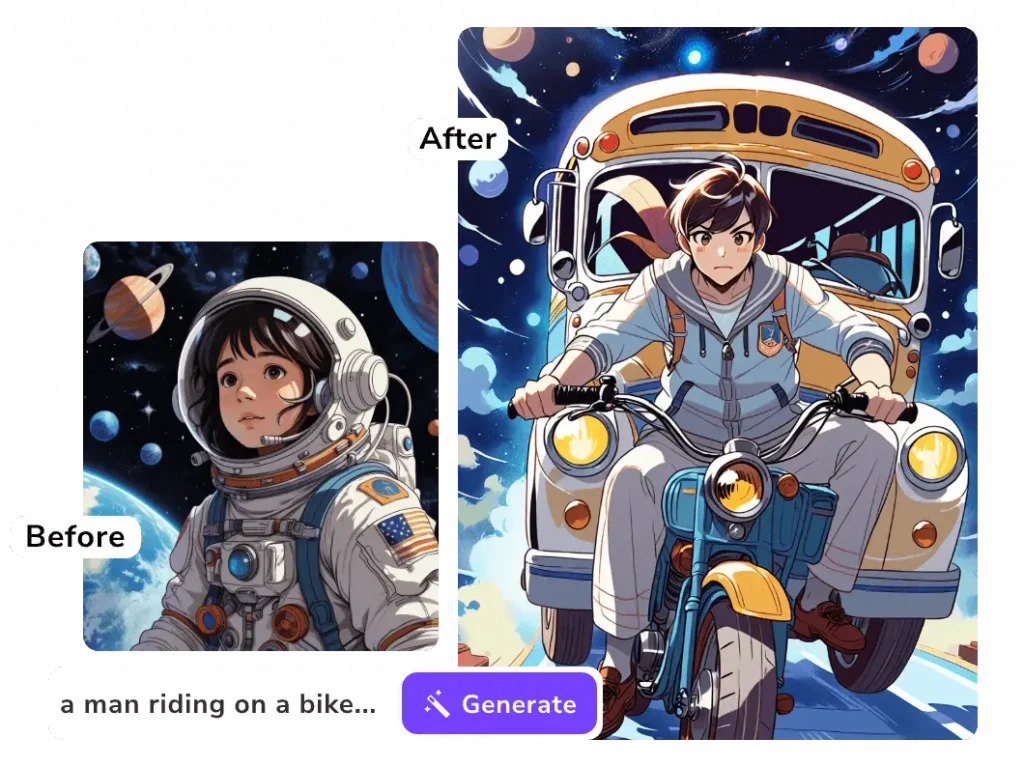
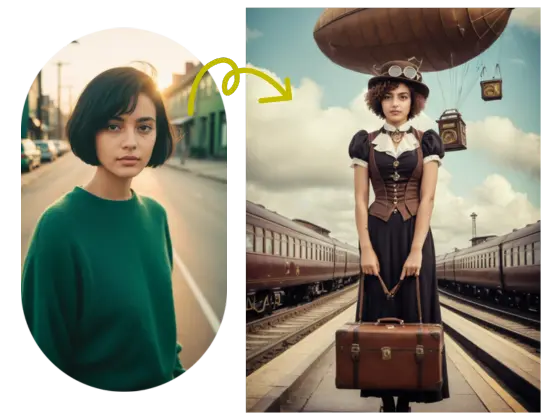
Personaje de referencia:
Esto mantendrá la coherencia de caracteres en todas sus imágenes con facilidad. Utilice nuestro generador ai de imagen a imagen para dar a las imágenes una nueva expresión combinando indicaciones de texto sin cambiar los caracteres.
Nota: Para referencia del personaje, los usuarios deben subir una foto de la cara sin obstáculos.
Generar vídeos: lo más popular🔥 (2 formas principales)
Texto → Vídeo
Describe una escena y genera un breve vídeo con movimiento y estilo cinematográfico.
Imagen → Vídeo
Dale vida a una imagen fija con movimientos sutiles y movimientos de cámara.
Herramientas de edición con IA (pulir resultados en segundos)
No empieces desde cero. Utiliza herramientas para corregir y perfeccionar lo que ya te gusta.
Sustitución de IA
Reemplazar un objeto o área con una instrucción de texto.
Ideal para
- eliminación de elementos no deseados
- cambio de vestuario / fondos
- corregir pequeños errores
Extensor de imagen
CTA: Abrir Image Extender
Eliminador de fondo
Elimina el fondo con un solo clic.
Mejora de la imagen
Aumenta la resolución y la nitidez para la exportación final.
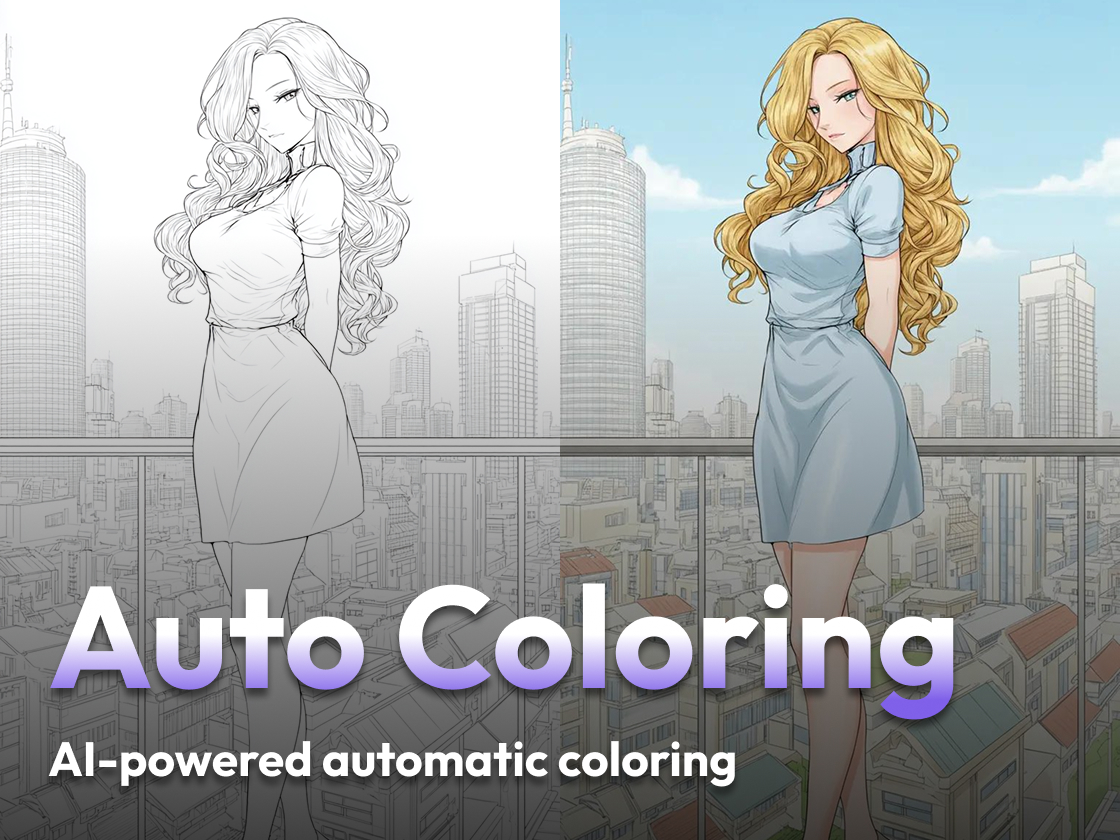
Coloreador de imágenes
Restaure el color de fotos antiguas, bocetos y dibujos lineales.
Remix (iterar más rápido)
Remix te permite reutilizar un resultado como punto de partida, para que puedas iterar más rápido sin tener que reescribir todo.
Ideal para
- Convertir una buena imagen en diez mejores.
- Explorar estilos rápidamente
- mantener la misma idea con diferentes aspectos
Mejora de la velocidad (opcional)
La mejora de indicaciones reescribe tu indicación para que sea más detallada y fácil de usar para el modelo.
Úselo cuando
- eres nuevo en esto de dar indicaciones
- Tu resultado parece demasiado simple.
- Quieres una iluminación y unos detalles más ricos.
Apágalo cuando
- necesitas un control estricto
- estás haciendo coincidir un personaje/estilo existente
Sube tu imagen
Sube una imagen a:
- generar variaciones (Imagen → Imagen)
- animarlo (Imagen → Vídeo)
- editarlo (Reemplazar / Ampliar / Eliminar fondo)
Biblioteca de comandos (copiar y pegar)
Copia una sugerencia probada a continuación, genera un resultado y luego modifica una palabra clave a la vez.
Solicitud 1 — Fotografía del producto (comercio electrónico)
Solicitud
Minimalist product photo of a premium sneaker on a white seamless background, soft studio lighting, crisp shadow, ultra sharp, commercial photography
Recomendado: Modelo de imagen realista y adecuado para el producto.
Sugerencia 2: Personaje 3D adorable (cuerpo completo)
Solicitud
A cute 3D cartoon girl standing full body, soft pastel outfit, gentle smile, clean background with subtle bokeh, studio lighting, high quality
Recomendado: modelo 3D / estilizado
Indicación 3 — Escena cinematográfica
Solicitud
A lone traveler walking through a neon rainy street at night, cinematic lighting, volumetric fog, 35mm film look, dramatic composition, ultra-detailed
Recomendado: modelo apto para cine
Indicación 4 — Diseño gráfico/cartel
Solicitud
A modern event poster design, bold typography, clean grid layout, high contrast, minimal graphic shapes, professional print-ready style
Recomendado: modelo de ilustración/diseño
Sugerencia 5 — Texto → Vídeo (Comida / Estilo de vida)
Solicitud
A hyper-realistic close-up of a glass of whiskey with ice cubes. A single drop of water is sliding down the side of the cold glass. Dramatic bar lighting, dark mahogany background.
Recomendado: FLUX.2 Pro
Sugerencia 6 — Imagen → Vídeo (animar una imagen fija)
Solicitud
The camera slowly pans around the glass in a circular motion. A hand reaches in and drops a fresh ice cube into the liquid, causing a realistic splash and ripples. 4k, cinematic slow motion.Recomendado: Kling 3.0
Preguntas frecuentes y soluciones rápidas
Mi imagen parece «plástica». ¿Qué debo hacer?
Utiliza palabras clave más naturales como:soft natural light, realistic texture, subtle skin details
Evita acumular demasiadas palabras «bonitas».
El modelo ignora mi indicación.
Mantén tu mensaje breve. Pon la información más importante al principio.
¿Cómo elimino el texto o los logotipos no deseados?
Añade aspectos negativos como:no text, no watermark, no logo
¿Cómo mantengo el mismo personaje?
Utiliza Imagen → Referencia de imagen, mantén la estructura de las indicaciones coherente y reutiliza la semilla si está disponible.
El movimiento de mi vídeo se ve raro.
Prueba primero con movimientos sutiles. Evita demasiadas acciones en una sola frase.
La imagen está borrosa.
Utiliza Upscaler y añade:ultra sharp, high detail, crisp edges