OpenClaw is an AI agent that runs on your own device. It can perform tasks like managing files, running commands, and automating everyday work.
While this makes it very useful, its high level of file access can sometimes lead to accidental deletions. If instructions are unclear or automation scripts are misconfigured, important files may be removed by mistake.
In this blog, we’ll go through why data can be accidentally deleted by OpenClaw, how to recover it, and how to prevent such mistakes in the future. Let’s get started.
Why OpenClaw AI Agent Delete My Files by Mistake?
OpenClaw can remove important files by mistake for a few common reasons.
1. Misinterpreted AI Instructions
When prompts are too vague or ambiguous, the AI may make the wrong decision. For example, a command like “remove unnecessary files” does not clearly define what is safe to delete. As a result, important files may be treated as disposable and removed.
2. Misconfigured Automated Tasks
Scheduled tasks can easily go wrong if not set up carefully. OpenClaw may be configured to run weekly cleanup scripts, disk optimization, or archiving jobs. If these rules are too aggressive or incorrectly defined, the agent might execute destructive actions without review.
3. Wide Access to Your System
OpenClaw often operates with broad permissions across folders and directories. This level of access allows it to perform tasks efficiently, but it also increases risk. A single incorrect action can affect multiple locations at once.
4. Fast Automation Speed
Automation removes the natural pause that comes with manual actions. Once a task starts, it executes immediately and continuously. This means a small mistake can quickly escalate from deleting one file to wiping an entire folder.
5. Malicious Extensions or Security Issues
Third-party plugins or skills may introduce hidden risks. If a plugin contains malicious code or behaves unexpectedly, it could trigger unauthorized file deletions or unsafe operations without your knowledge.
How to Recover Files Deleted by OpenClaw
If OpenClaw deletes your files, don’t panic. In many cases, the data is still recoverable—as long as it hasn’t been overwritten. Try the following methods.
Method 1: Check the Recycle Bin
This is the quickest way to recover recently deleted files.
Step1. Open the recycle bin on your Windows PC.
Step2. Search or sort by deletion date to find your file.
Step3. Right-click the file and choose restore.
If the file returns to its original folder, you’re done. If not, move on to the next method.
Method 2: Recover from Existing Backups
If you have backups, recovery becomes much easier.
Common backup sources include:
- Windows File History
- Cloud storage (OneDrive, Google Drive)
- External drives
- Version control systems (like Git)
Step1. Open your backup system.
Step2. Locate the folder or file version before deletion.
Step3. Restore it to your device.
This method works best if backups were enabled before the deletion happened.
Method 3: EaseUS Data Recovery Wizard
If files are no longer in the recycle bin, a professional recovery tool is often the most effective solution. EaseUS Data Recovery Wizard is highly recommended.
Step 1. Install EaseUS Data Recovery Wizard on a different drive from the one where files were lost.
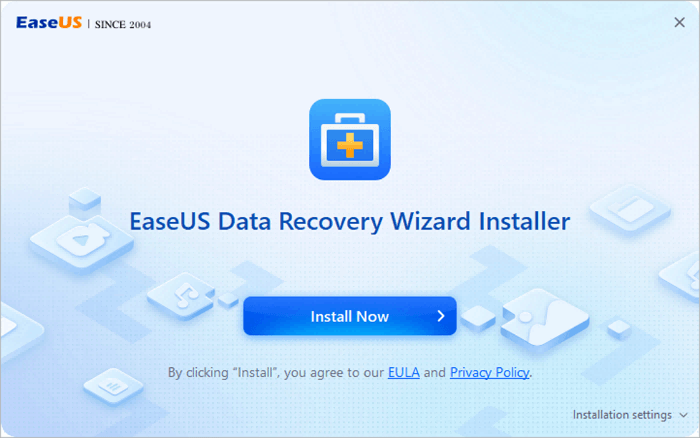
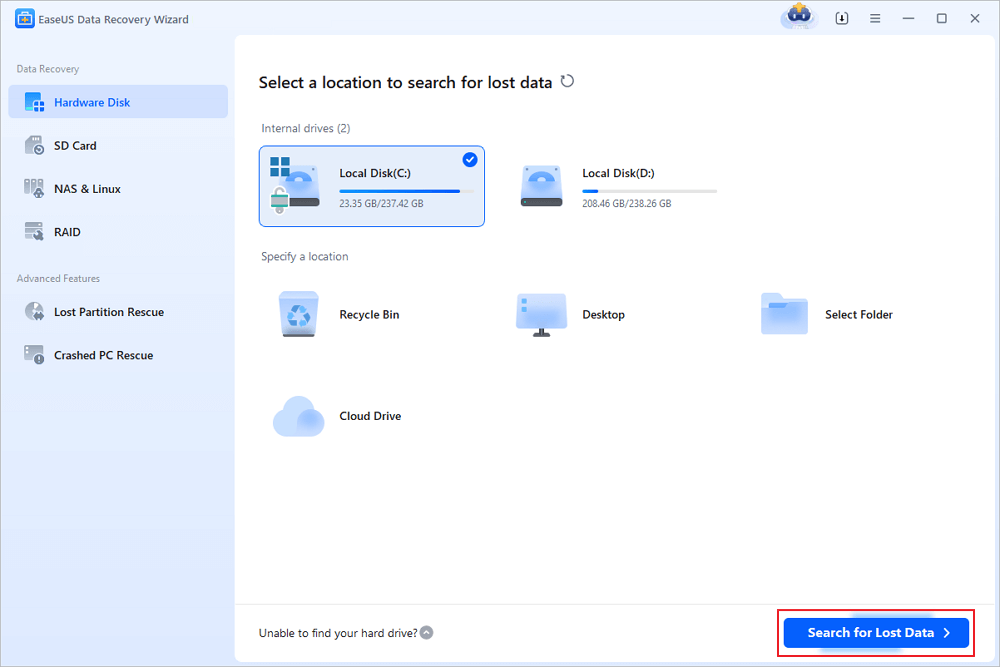
Step 2. Choose the exact drive or partition (e.g., C: drive, SD card, or Recycle Bin) and click “Search for Lost Data.”
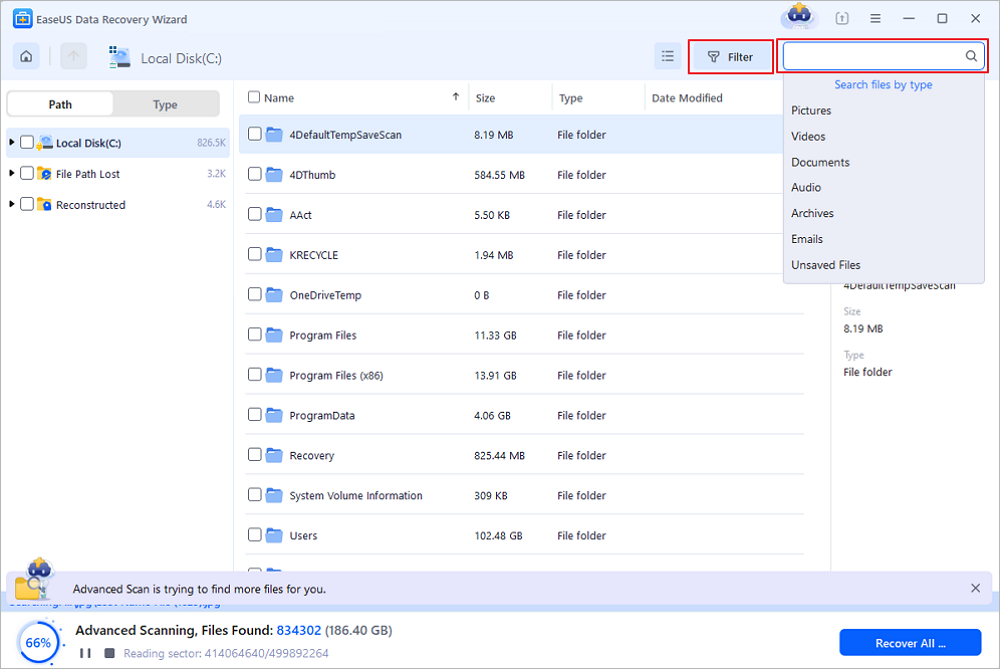
Step 3. Wait for the scan to complete. Use the “Path,” “Type,” or “Filter” features in the left panel to quickly locate your deleted files.
Step 4. Double-click files to Preview them. This ensures the data is intact before you proceed with recovery.
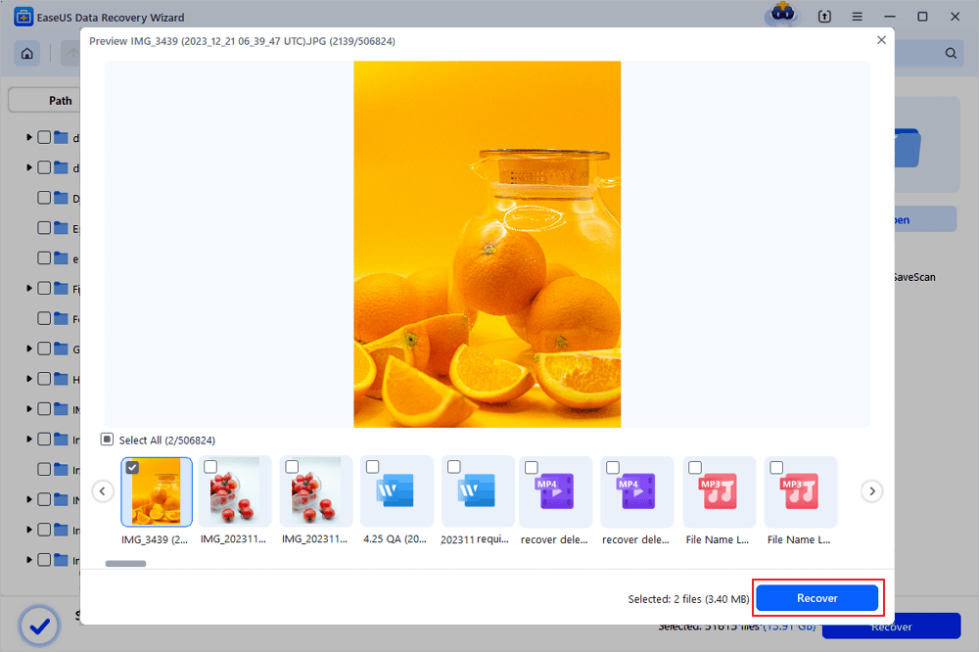
Step 5. Select your files and click “recover.” Save them to a new location (a different drive or cloud storage like OneDrive/Google Drive).
This method is especially useful when entire folders or multiple file types were deleted.
Method 4: Restore Using File History or Previous Versions
Windows may store older versions of files or folders if system protection is enabled.
Step1. Right-click the folder where the file was stored.
Step2. Select Properties.
Step3. Open the Previous Versions tab.
Step4. Choose a version before deletion and restore it.
This works well if the feature was turned on beforehand.
Method 5: Repair the File System
Sometimes files are not deleted but become inaccessible due to system errors.
Steps (Windows):
Step1. Open Command Prompt as administrator.
Step2. Run a command like:
chkdsk X: /f /r (replace X with your drive letter)
Step3. Wait for the scan and repair process to complete.
This can fix disk errors and restore missing or corrupted files.
💡Tip: After accidental deletion, avoid writing new data to the affected drive. This increases the chances of successful recovery.
5 Practical Tips to Prevent File Loss When Using OpenClaw
Avoiding data loss is much easier than trying to recover files later. With a few precautions, you can significantly reduce the risk of accidental deletion.
1. Limit High-Risk Commands
Be careful with commands that can delete or overwrite files. Avoid using broad instructions like “delete all” or “clean everything.” Instead, make commands specific and clearly define what should and should not be removed.
2. Restrict File Access Permissions
Do not give OpenClaw full access to your entire system unless necessary. Limit its permissions to specific folders or directories. This way, even if something goes wrong, the damage is contained.
3. Set Up Consistent Backups
Regular backups are your safety net. Use tools like cloud storage or external drives to keep copies of important files. Automating backups ensures you always have a recent version to restore.
4. Double-Check Automation Rules
Review scheduled tasks and automation scripts carefully. Make sure cleanup jobs, sync tasks, or maintenance scripts are not too aggressive. Test them on non-critical data before applying them widely.
5. Be Cautious with Third-Party Skills
Only install trusted plugins or skills. Some third-party extensions may behave unpredictably or include unsafe code. Always verify the source and review permissions before enabling them.
FAQs
Yes, in many cases. If the files have not been overwritten, you can recover them using the Recycle Bin, backups, or professional recovery tools.
It depends on how the deletion was executed. Standard deletion may send files to the Recycle Bin, but command-line operations or scripts can bypass it and permanently remove files.
Stop using the affected drive right away. Avoid saving new files, as this may overwrite the deleted data and reduce recovery chances.
Yes, if you choose reputable tools. Always download from official sources and install the software on a different drive to avoid overwriting lost data.
Yes. Even with careful usage, mistakes or unexpected behavior can happen. Backups are the most reliable way to protect your data.
It becomes harder over time. The longer you wait, the higher the chance that new data has overwritten the deleted files. Early action gives the best results.
Final Thoughts
Accidentally losing files with OpenClaw can be frustrating, but it’s rarely the end of the story. In many cases, recovery is still possible—especially if you act quickly and use the right methods.
More importantly, this kind of situation highlights a key lesson: powerful AI tools require careful control. Clear instructions, limited permissions, and well-reviewed automation can make a big difference in preventing mistakes.
The safest approach is a combination of prevention and preparation. Use OpenClaw wisely, but always have backups in place. That way, even if something goes wrong, you stay in control of your data.