Product
Reveal Headwear Styles With a Dynamic Display Template
Show Hats and Caps in Motion
The Headwear Reveal template places your product into a composition that implies movement or a reveal. The hat or cap sits at an angle that suggests it is being worn or turned. This helps buyers see the shape and profile of the headwear. You upload a product photo through PicLumen, and the template builds the dynamic environment around the item, giving it a physical presence.
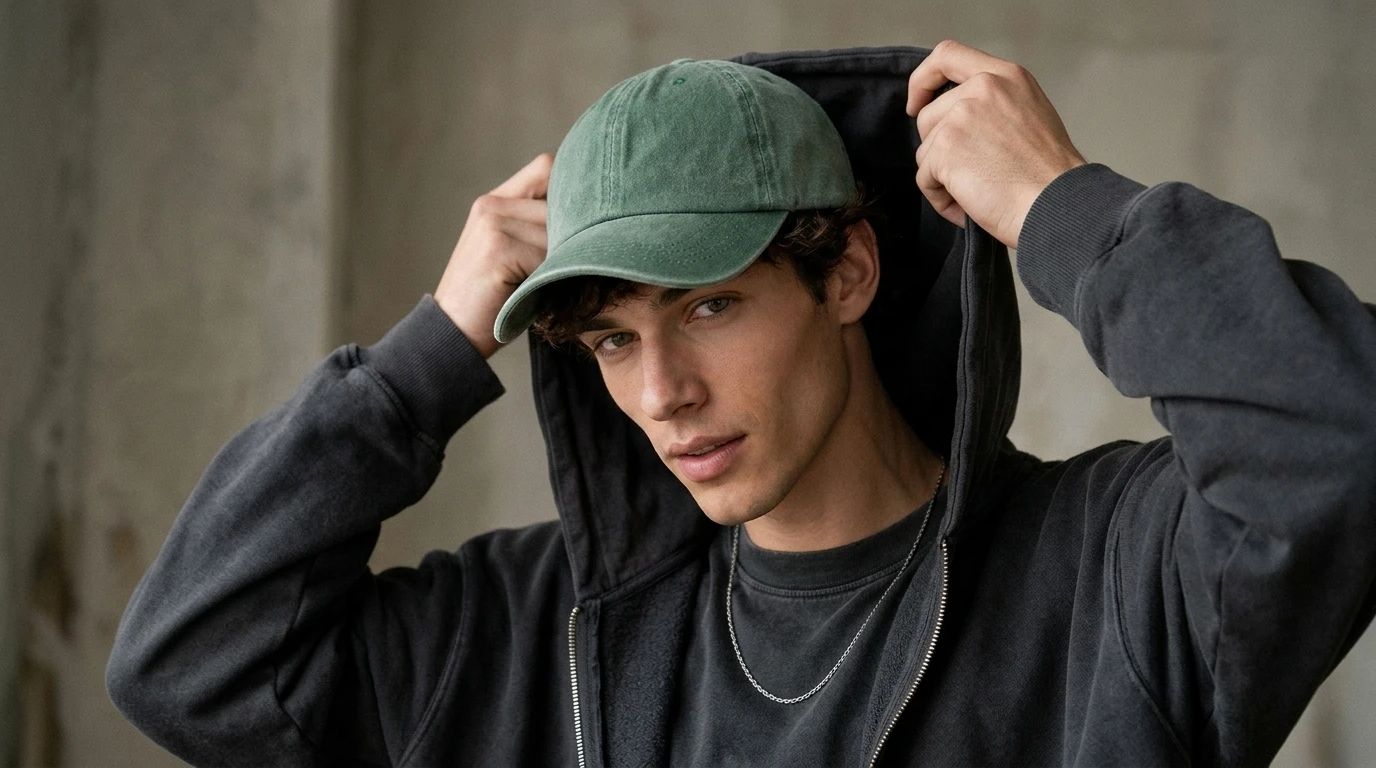
Highlighting Brims and Logos
The value of a hat often comes down to the curve of the brim, the embroidery, or the fit. When preparing your source photo, ensure these key features are sharp. A high-resolution image allows the AI to maintain the stitching and logo details when generating the new angle. If the source photo is blurry, the embroidery may lose its definition in the final reveal.
Matching the Angle to the Style
A snapback or baseball cap looks best with a forward-facing or slightly tilted angle. A wide-brimmed hat might suit a higher angle that shows the crown. Select a template variation that complements the specific headwear. For a bucket hat, a lower angle highlights the downward slope of the brim. This spatial alignment helps the customer understand how the hat sits on a head.
Building a Unified Streetwear Catalog
Brands releasing multiple headwear styles need a consistent look. Using the Headwear Reveal template across a drop keeps the lighting and perspective uniform. Whether you are showing beanies, bucket hats, or trucker caps, the shared dynamic angle ties the collection together. A consistent perspective makes the product grid easier to browse as customers compare different silhouettes.
Ditch Flat Hat Shots With AI Headwear Reveal in PicLumen
Snapback Logo Displays
A streetwear brand needs to show the embroidery on a new snapback. A flat layout hides the curve of the crown where the logo sits. The Headwear Reveal template turns the cap at an angle, bringing the front panels and stitching into focus. This generated view helps buyers see how the fabric stretches over the structure, giving a clearer idea of the fit and build quality.
Bucket Hat Silhouettes
Soft bucket hats can look shapeless in standard product photos. Placing the hat into a dynamic, tilted composition reveals the downward slope of the brim and the relaxed drape of the fabric. Sellers can use this angle to show how the hat sits on a head, rather than just lying on a table. It makes the silhouette much easier to evaluate.
Beanie Texture Highlights
Knit beanies rely on texture, but flat lighting flattens the ribbing. The template positions the beanie at a slight angle, creating subtle shadows that emphasize the knit pattern and the fold of the cuff. For winter collections, this visual approach helps communicate warmth and material quality. You can generate a series of these angled shots to build a cohesive cold-weather catalog.
Trucker Cap Promotions
Mesh-back trucker caps have distinct front and back features. A single straight-on photo can't show both. By using the Headwear Reveal template, you can generate an angled perspective that captures the structured front and hints at the mesh sides. This gives online shoppers a better understanding of the cap's shape. It helps them judge how the cap might look when worn during summer campaigns.
How to Create a Headwear Reveal Visual on PicLumen
Step 1 Upload a Product Photo
1Start with a clear image of the hat. Ensure the brim curve and crown depth are sharply in focus. A clean cutout against a simple background works best. Avoid heavy shadows or cropped edges, as a full silhouette helps the Headwear Reveal template calculate how the fabric sits on a 3D form.
Step 2 Choose a Template or Use the Default
2Review the available angle options or stick with the default layout. The choice depends on the specific style. A flat baseball cap works with a forward-facing tilt, while a wide-brimmed fedora needs a higher angle to show the crown. Select a variation that highlights the hat's structure.
Step 3 Review and Generate
3Inspect the uploaded hat and your template selection. Check that the brim doesn't warp awkwardly and that the embroidery stretches naturally over the panels. Ensure the angle doesn't flatten the crown. Once the shape and fabric tension look correct, click Generate. This produces the final image.


Loved by Creators Worldwide
Real feedback from designers, marketers, and hobbyists sharing their PicLumen experience on Trustpilot.
 chelsienner
This is my favorite AI Image generator
This is my favorite AI Image generator
ClashOf ClansExcellent platform to fantasy
Excellent platform to fantasy
Sara FrandsenExcellent customer service
Excellent customer service! The support team was incredibly fast, polite, and helpful. They handled my request quickly and professionally without any hassle. It is rare to see such great and honest support these days. Highly recommended!
 KIDSCARTOON
This ap great and amazing generate pic
This ap great and amazing generate pic
Brijesh Chikhaliyavery good
very good , Excellent Experience
 Prabhat Ranjan Singh Chauhan
Very smooth and very helpful for…
Very smooth and very helpful for everyonr who have creative mind. Thank you 👍
 Danial Daoud
Great customer support
It's easy to use, they have different AI models, good prices, and a nice community page. I contacted them regarding a bug issue and wasn't expecting much tbh. But they responded within a few hours and hade the issue fixed immediately! Great customer support!
I like this app its a veey good…
I like this app its a veey good experience
amazing image creation app for me-5*…
amazing image creation app for me-5* rating...
 Zain Ali
This is the best ai in the world
This is the best ai in the world
The company responded me with…
The company responded me with responsibility and respect, and solve my problem promptly. I am really impressed with their fast and efficient customer service Thank you very much for your support and help team piclumen I really appreciate it Wish you very good luck
 Shiva Verma
Best app for video editing
Best app for video editing
Frequently Asked Questions
What is Headwear Reveal?
Headwear Reveal is a PicLumen template that places your hat or cap into a dynamic, angled composition. It shifts the product away from a flat, straight-on view, showing the brim curve and crown depth from a more realistic perspective. This helps shoppers see how the hat might look when worn. You upload a product photo, and the template builds the surrounding scene around the item.
What is the best tool for creating Headwear Reveal visuals?
PicLumen provides a direct workflow for this task. You upload your product image, confirm the default angle or select a variation, review the placement, and click Generate. The platform builds the lighting and background around your subject. You can check the brim shape and embroidery details without setting up a physical studio or sourcing a model for a photoshoot.
What kind of source photo works best?
A clean, isolated image of the hat works best. Ensure the brim curve and crown are clearly visible against the background. If the source photo has heavy shadows or cropped edges, the AI may struggle to map the fabric accurately. A sharp, well-lit cutout allows the template to preserve the stitching and material texture when the angle shifts.
Can I use this for different hat styles?
Yes. The template adapts to various headwear types, from flat baseball caps to wide-brimmed fedoras. The visual result depends on the source image you upload. A high-resolution photo of a structured cap will produce a different final look than a soft beanie. You can use the same workflow to process multiple designs, keeping the lighting and perspective consistent across your catalog.
How do I check if the final image looks natural?
Review the generated image and examine the brim and crown. Check that the embroidery hasn't warped and that the hat's shape looks structurally sound. If the brim appears bent at an odd angle or the logo is distorted, try a sharper source photo before generating again. Pay attention to how the fabric stretches across the panels.
Can I use this for seasonal marketing campaigns?
Yes. The dynamic angle suits summer promotions for caps or winter campaigns for knit beanies. You can generate a series of images where different hats are presented at the same tilt, giving your campaign a cohesive visual theme. Using a consistent angle keeps the product grid organized as shoppers browse different styles.