Unblur Images Online for Free


How to Unblur an Image
Upload Your Photo
Upload the blurry image you want to improve. Use the original photo whenever possible to give AI more detail to work with.
Unblur in One Click
Start the AI enhancement to reduce visible blur and improve definition. The simple upload-and-process workflow makes it easy to get started.
Review and Download
Check the enhanced image, paying attention to faces, fine details, and text. Download the result when you’re happy with how it looks.
Why Choose PicLumen to Unblur Images?
Easy AI Enhancement
Upload your photo and start the enhancement in one click. PicLumen uses AI to fix blurry pictures through a straightforward process, making it easy to improve your photos even if you have little editing experience.

Sharper Details
Improve the definition of soft edges and fine details to make your picture clearer. From portraits to product shots, sharper details give your images a more polished appearance for presentations, personal projects, and social posts.

Edit in Your Browser
Use PicLumen’s blur remover directly in your browser. Upload your image, run the enhancement, and download the result through one online workflow, making it convenient to improve photos whenever you’re working on a new project.
Make Blurry Photos Clearer with Natural Results
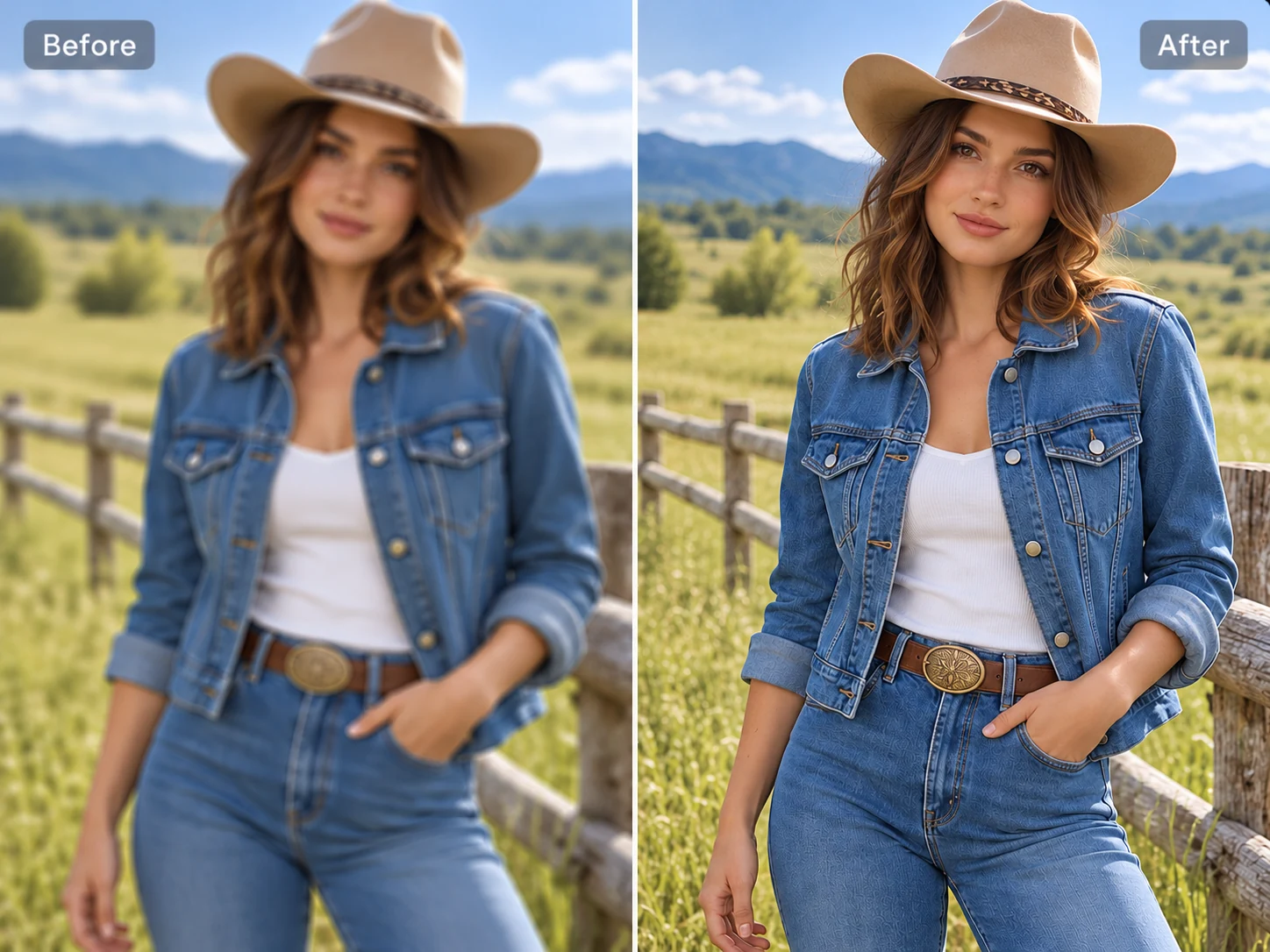
Bring soft photos into focus with an enhancement that keeps the overall appearance natural. PicLumen helps improve edge definition and bring out visible details in portraits, lifestyle shots, and everyday images. Use it to fix blurry photos for your website, presentation, or next social post. The simple workflow takes you from upload to an enhanced image in just a few steps, making photo enhancement easy at any skill level. Whether you’re refreshing a favorite portrait or preparing content for your personal brand, give existing photos a more polished finish and put them to use across more projects.
Show Products in Greater Detail
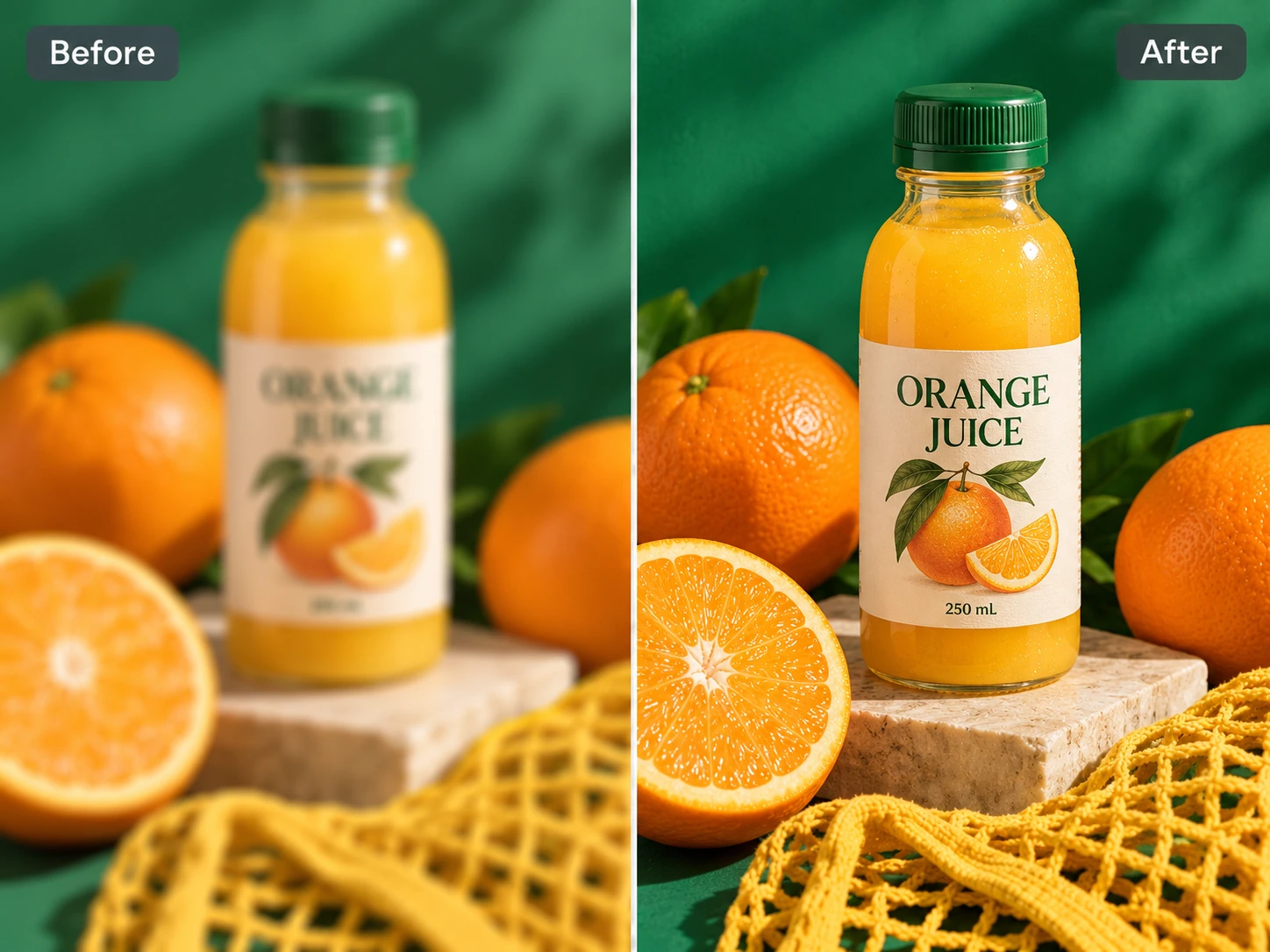
Put product details front and center with images that are easier to examine. PicLumen’s AI photo blur remover improves definition in soft product photos, helping shoppers see textures, outlines, and visible features more clearly. Highlight the stitching on a bag, the shape of a ceramic mug, or the finish of a home accessory. Use enhanced photos across product listings, online catalogs, and promotional graphics to create a more polished storefront. By improving images you already have, you can prepare visuals for new listings, seasonal collections, and everyday marketing with less time spent on manual sharpening.
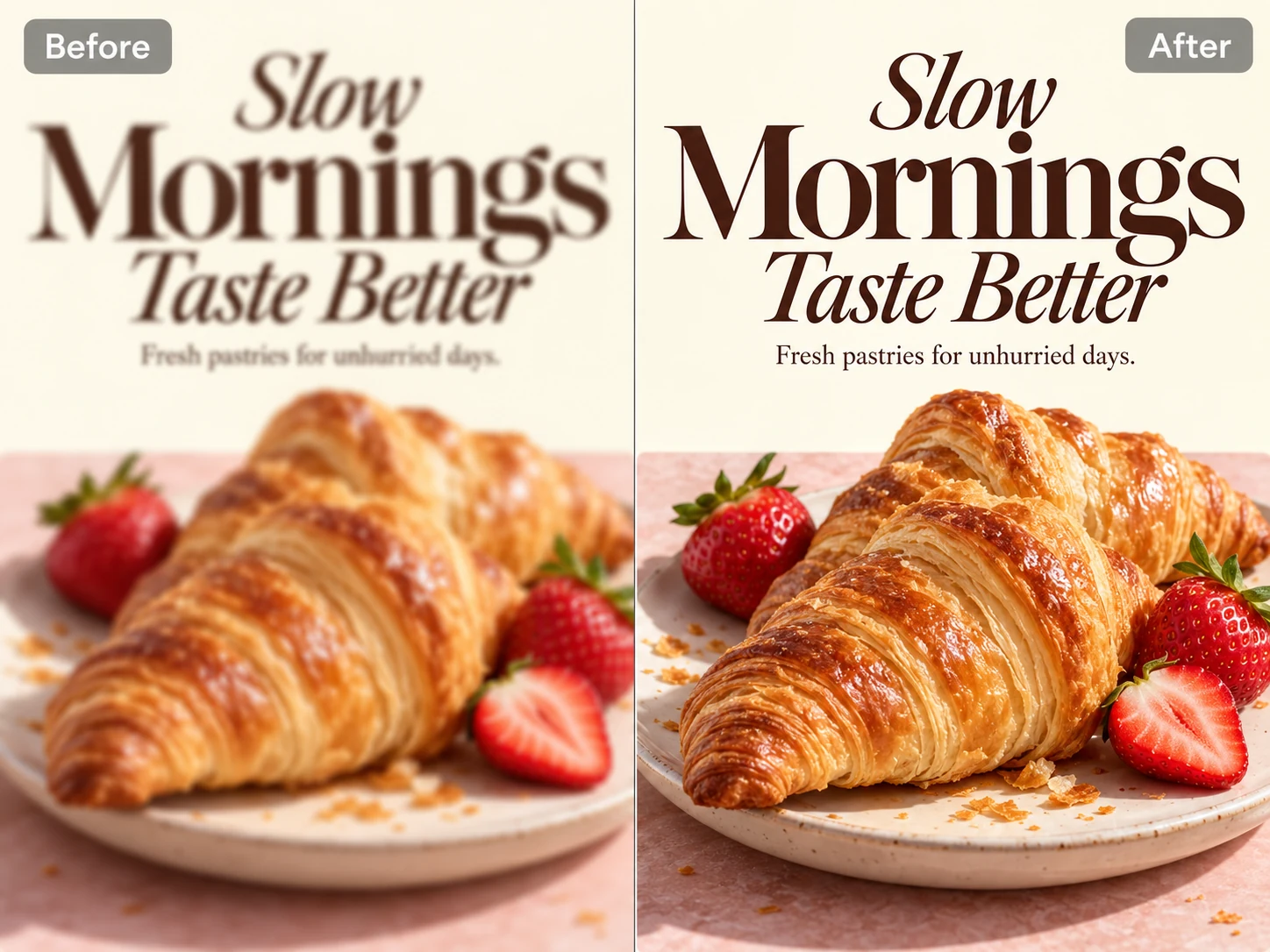
Make Poster Text Easier to Read
Give your message a clearer presentation in posters, flyers, and promotional graphics. PicLumen’s blur remover helps improve slightly blurred lettering, giving headlines, event details, and supporting copy a more distinct appearance. It’s useful for graphics that look soft after saving or photographed posters you want to share online. Upload the image and apply AI enhancement to improve text definition alongside the surrounding design. From a community event announcement to a store promotion, prepare a more readable visual for social posts, website updates, and digital displays, helping viewers focus on the information you want to share.
Go Further with HD Enhancement
Give your enhanced photos more room to shine in larger layouts. After reducing blur, use PicLumen’s image upscaler to enlarge images by up to 8× and prepare an HD version for website banners, presentation slides, and other visual projects. For a cleaner finish, PicLumen’s denoise image tool can also help reduce distracting grain and speckles. Build on your initial enhancement to create photos with better definition, less visible noise, and larger dimensions. Whether you’re designing a product page or putting together a personal portfolio, prepare images that look more polished and suit the scale of your project.

Unblur Images for Personal and Professional Use
A slightly blurry photo may still have a place in your next project. From personal memories to business materials, PicLumen helps improve images you already have. Explore six everyday situations where better definition can make a useful difference.
Refresh Your Profile Photo
Make a favorite portrait a stronger option for your next profile update. A relaxed expression or flattering composition can be difficult to recreate, especially when the original photo came out slightly soft. Use PicLumen to improve definition around visible facial features, hair, and clothing before preparing the image for a professional profile, personal website, or team introduction. Review facial details after enhancement to make sure the result still looks like you, then crop it for your chosen platform. This gives you a practical way to revisit an existing portrait and decide whether it suits your profile before arranging another photo session.
Prepare Secondhand Listings
Give potential buyers a better view of items you’re ready to sell. Photos of used furniture, clothing, electronics, or collectibles may look slightly blurry when taken quickly at home. AI enhancement can help improve visible edges and surface details before you add the pictures to a resale listing. Review the result so scratches, wear, and other condition details remain accurately represented. You can then choose photos that show the item from different angles and include close-ups where needed. It’s a useful finishing step for sellers who want a tidy listing with images that faithfully represent the item being offered.
Revisit Family Snapshots
Bring more definition to family pictures you still enjoy looking at. A birthday photo, a backyard gathering, or a spontaneous snapshot may capture a meaningful moment even when the camera missed focus. PicLumen can help reduce the soft appearance of these images before you add them to a digital album, family slideshow, or keepsake project. Start with the best available copy and inspect faces after enhancement. Older or heavily blurred images may offer limited improvement. Save the version you prefer alongside the original so you can compare them later when choosing photos for albums, slideshows, or prints.
Refine Food and Menu Photos
Give a favorite dish a more defined appearance before featuring it in your content. Slightly soft food photos can make toppings, pastry layers, or the edge of a plate harder to distinguish. Use PicLumen to improve the image before adding it to a digital menu, recipe post, café update, or takeaway promotion. Compare textures and ingredients with the original so the food still looks accurate and appetizing. You can then crop the photo to suit your layout and check it at its final display size. This helps small food businesses prepare existing photos for use across menus, websites, and social posts.
Refresh Your Travel Photos
Keep more of the moments that made your trip memorable. A quick street scene, a landmark photographed in a hurry, or a view from a moving vehicle may look softer than expected. PicLumen can help improve definition in travel photos with mild blur before you select them for an album or trip recap. Look closely at buildings, signs, and people to judge whether the enhanced result feels faithful to the scene. Severe motion blur may remain, but a modest improvement can give an overlooked photo another chance. Choose the version that best captures the moment and include it in your travel collection.
Polish Images for Presentations
Make supporting images easier to view in your next presentation. Photos from past projects, workplace events, or location visits may look slightly soft when placed on a slide. Use PicLumen to improve their definition before building a client proposal, internal update, or project recap. Check each image at the size your audience will see, especially when it contains signage or details that support your message. Sharper photos can help viewers follow visual examples and understand what you’re showing. Once enhanced, place the image in your slide layout and review the overall balance between the photo, text, and surrounding space.


Loved by Creators Worldwide
Real feedback from designers, marketers, and hobbyists sharing their PicLumen experience on Trustpilot.
Zaine JuttAmazing 😍😍😍😍😍😍 freee 😍😍
Amazing 😍😍😍😍😍😍 freee 😍😍
Jon JonVery good website
Very good website. Different models, good job
 chelsienner
This is my favorite AI Image generator
This is my favorite AI Image generator
Good 👍 perfomense web site good images…
Good 👍 perfomense web site good images good
Rishiprasanth BRThis is a great site to create images…
This is a great site to create images as per our mind's wish. Such a great site, loved its response
Really good app and generates good…
Really good app and generates good images!
I like this app its a veey good…
I like this app its a veey good experience
It's very fun to use
It's very fun to use. You can get daily rewards
 GPS BelAR
I tried the tool for fun and only used…
So far, I've only tried PicLumen for fun and used the free ‘basic option’. Even as an AI design novice, you can achieve great results. It should be emphasised here that if you choose a simple AI, the coins are enough to just give it a try (unlike some other tools). I like the community concept; the opportunity to get inspiration for your own ideas in the image gallery, as well as the option to ‘like’ and comment on other users' creations. The result depends, of course, on the quality of the prompt entered, but ‘practice makes perfect, as we all know!’ The only reason for the one-star deduction is that I can't try everything with the free access and can't comment on the paid options.
best of the best
the quick and fast result also too much style and variety is very very astonishing
 Mehdi Sohrabi
good
🔥good best saite and good work and good good good
 Hash Kaz
literally can't complain about…
literally can't complain about anything. Honest to God - amazing
FAQs About Unblurring Images
What does it mean to unblur an image?
To unblur an image means to reduce its blurry appearance and improve the definition of visible edges and details. AI enhancement can make a soft photo look sharper, although the result depends on the quality and amount of detail in the original.
Why do photos look blurry?
Photos often look blurry because of missed focus, camera shake, or subject movement during the shot. PicLumen can help fix blurry pictures by improving edge definition and making visible details easier to distinguish.
How can I unblur a photo with PicLumen?
To unblur a photo, upload your image, start the AI enhancement, and review the result. Once you’re happy with the image, download it. The upload-and-process workflow lets you improve clarity without manually adjusting sharpening settings.
How does unblurring a photo with AI compare to using Photoshop?
Using AI offers a simpler way to unblur an image, especially if you have little editing experience. In Photoshop, you typically use sharpening tools and adjust settings to improve clarity. With PicLumen’s AI photo blur remover, simply upload your photo, start the enhancement in one click, and download the result.
Does unblurring increase image resolution?
Unblurring focuses on improving the appearance of sharpness. Upscaling increases an image’s pixel dimensions. If you need both, enhance the blurry photo and then use PicLumen’s image upscaler to prepare a larger version, with enlargement options up to 8×.
Should I use a blur remover or a denoising tool?
Use a blur remover when edges and details look soft or out of focus. Use a denoising tool when grain, speckles, or uneven noise are the main distraction. Some photos have both issues, so examine the image before choosing your next editing step.
What kind of image should I upload?
Use the original image at its highest available quality. Choose the source file over a screenshot or a repeatedly compressed copy whenever possible. Images with mild blur and recognizable details generally provide a better starting point than severely blurred pictures.
Do I need to install any software?
No. PicLumen’s AI photo blur remover works directly in your browser. You can upload, enhance, and download your image online without installing desktop software.
Explore More AI Image Tools
Upscale photos, reduce noise, refresh backgrounds, and create new visuals with PicLumen. Find more tools for portraits, product images, and everyday creative projects.