PixVerse V6 AI Video Generator for Cinematic Videos
Turn text prompts and images into videos with PixVerse V6 on PicLumen. Direct camera movements, create multi-shot scenes, and generate sound alongside your visuals. Make videos up to 15 seconds in 1080p for product ads, social media, fashion campaigns, and short films.
Hot Video Effects
Turn your photos into fun dance clips, surprising transformations, and shareable moments with trending AI video effects.
Bring More Direction to Your Videos with PixVerse V6
Create Videos with Better Control Over Every Scene
PixVerse V6 makes it easier to turn a simple idea into a directed video. Start with a text prompt or an existing image, then describe how the scene should unfold. Choose the camera movement, guide the subject's actions, and add sound to match the mood. The model also supports multiple shots in one generation, giving you room to build a short story instead of staying on a single view. Whether you're making an ad, a character scene, or a social clip, you can spend more time shaping the result and less time working around a fixed camera angle.
Direct Camera Movements with Your Prompt
Give the camera a clear direction. Ask for a slow push-in to highlight a product, a tracking shot to follow someone walking, or an overhead view to reveal a setting. PixVerse V6 handles changes in camera position and perspective, so you can plan how viewers move through the scene. Describe both the movement and its pace for better results.
Tell a Story Across Multiple Shots
One scene can include several viewpoints. Start with a wide establishing shot, cut to a character's reaction, and finish on a close-up. PixVerse V6 supports multi-shot generation, helping you build short sequences with clearer transitions. Keep the subject's clothing, appearance, and surroundings consistent in your prompt to help each shot feel like part of the same story.
Create Video and Audio Together
Sound can carry a scene as much as the visuals. Add dialogue, background music, or environmental sounds directly to your prompt. PixVerse V6 supports native audio generation, so you can create footsteps, rainfall, traffic noise, or a short conversation alongside the video. This is useful for scenes where timing and atmosphere matter.
Capture Natural Actions and Expressions
A quick glance or a small gesture can say more than a dramatic movement. PixVerse V6 improves how characters express emotions and interact with their surroundings. Describe what the person does, where they look, and how they react. You can build scenes around everyday actions, from someone opening a door to a character pausing before delivering a line.
What Can You Make with PixVerse V6 AI Video Generator?

Product Videos and Commercial Ads
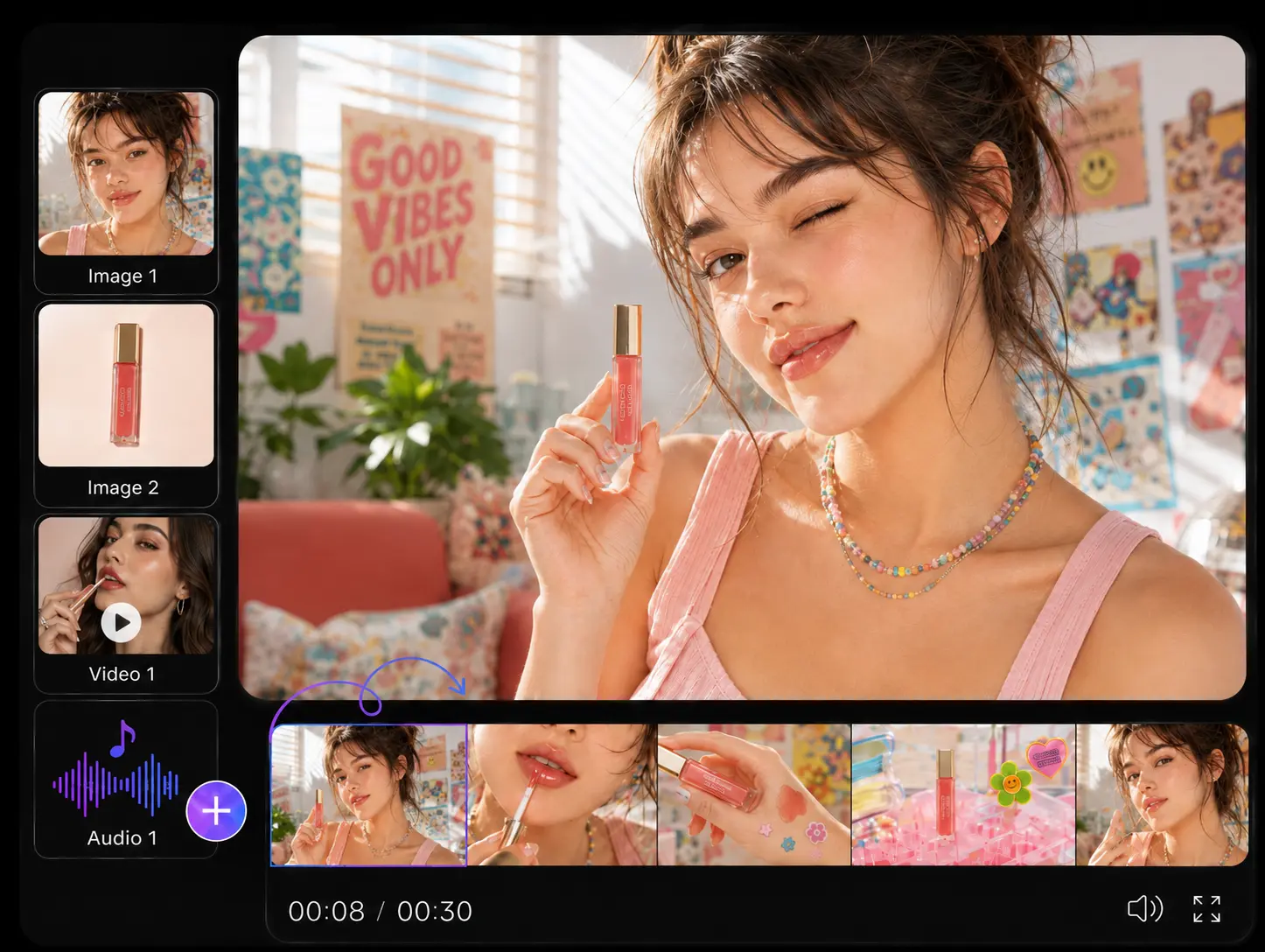
Bring product photos into motion with smooth camera moves and close-up details. Show a watch turning under studio lights, a coffee maker in use, or a skincare bottle surrounded by moving water. Create short advertising concepts for product launches, ecommerce listings, and brand campaigns without filming each variation.

Social Media Reels and Shorts
Make short videos built around a clear visual hook. Try a dramatic reveal, an unexpected transition, or a camera move that changes the viewer's perspective. Add music or sound effects to support the action. Create clips for TikTok, Instagram Reels, YouTube Shorts, and other social platforms.

Cinematic Stories and Short Films
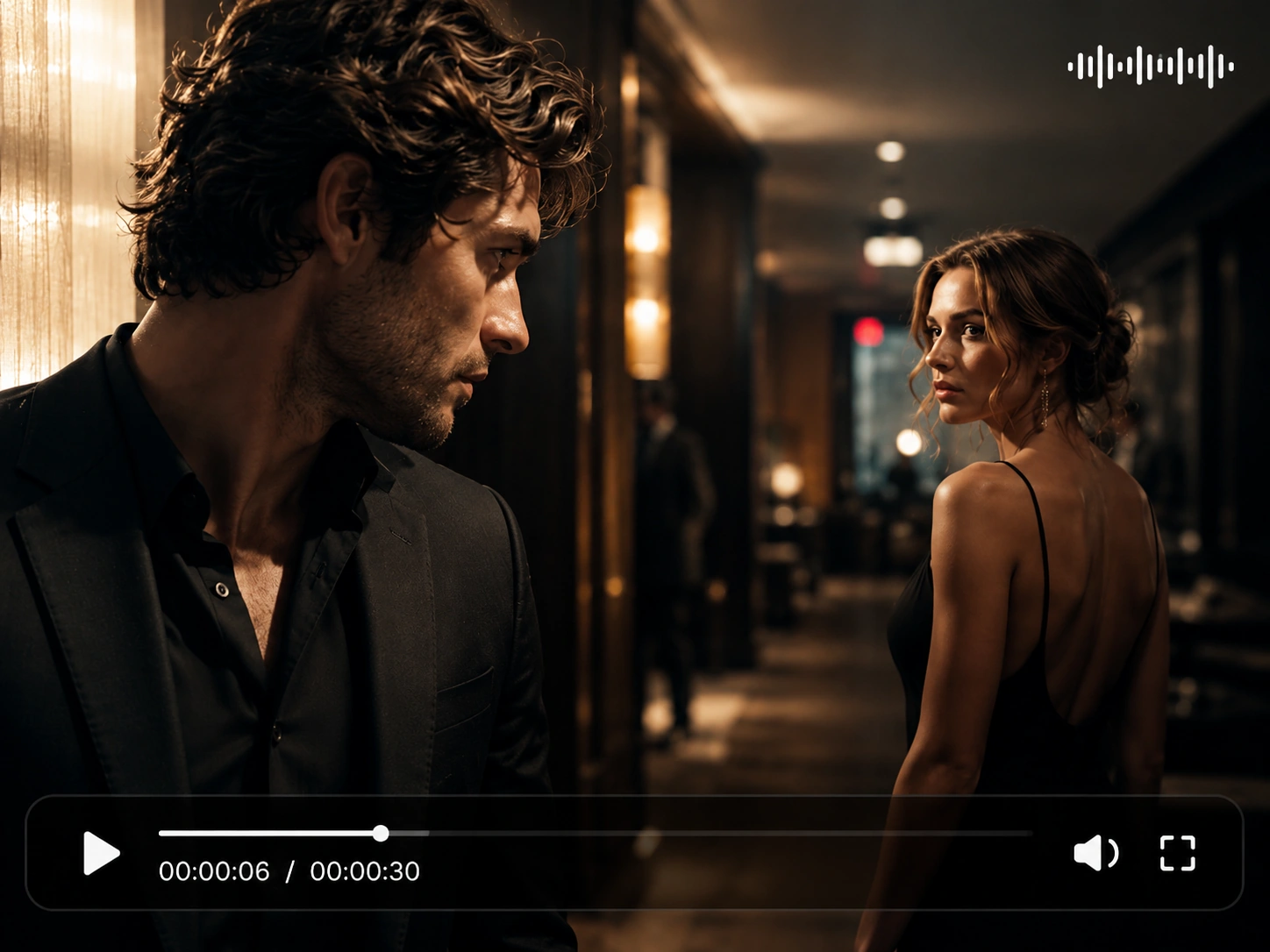
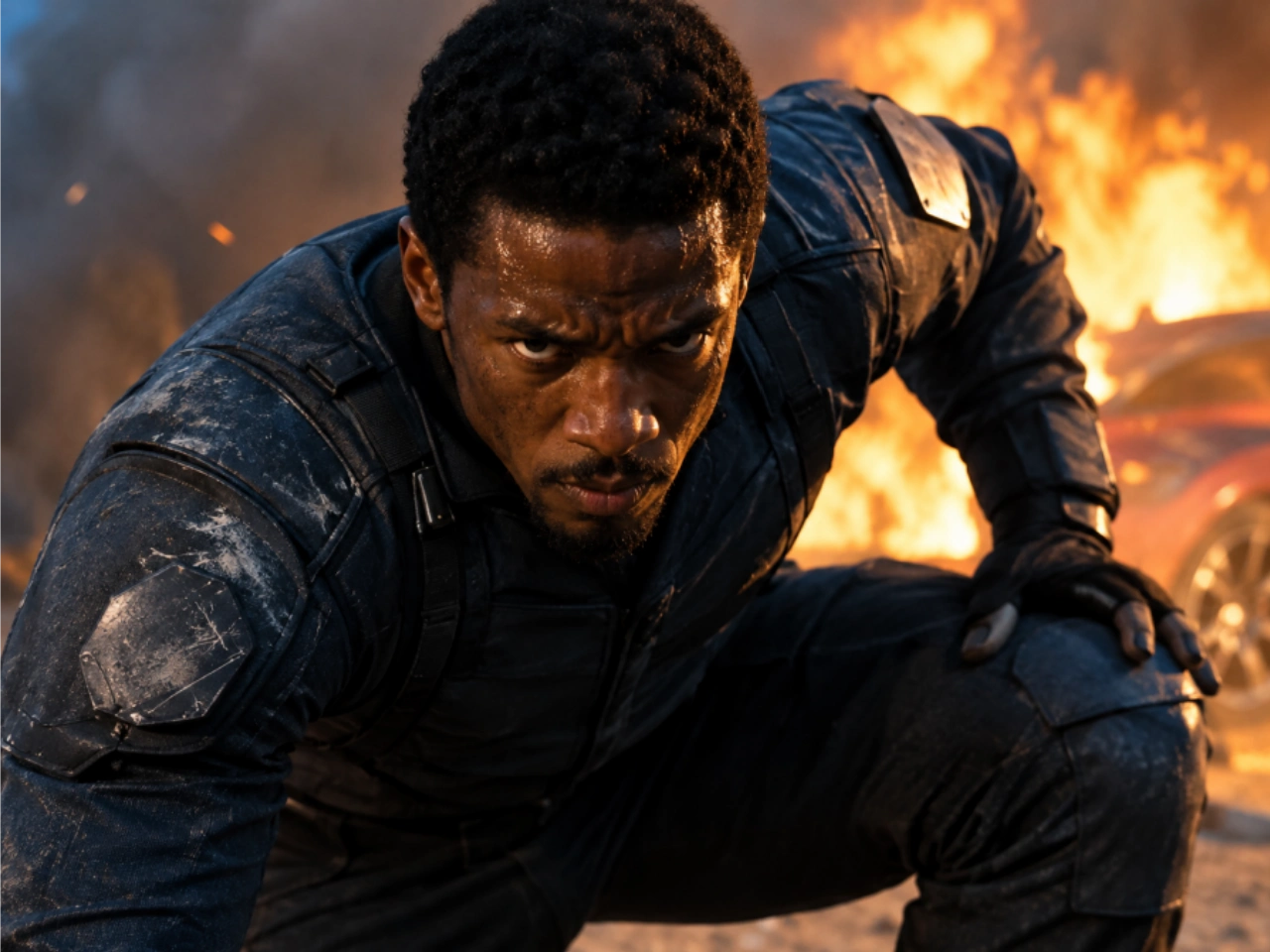
Turn a written scene into a short sequence with camera changes, character actions, and sound. Create a tense conversation, an emotional close-up, or a brief action scene. Use multi-shot prompts to give the story a beginning and an ending. It's a practical way to test scenes, trailers, and AI short film ideas.

Fashion and Lifestyle Videos
Animate portraits, fashion photos, and lifestyle images with natural movement. Show a model walking toward the camera, a dress moving in the wind, or sunlight shifting across a room. Adjust the framing and lighting to suit the look you're after. Use existing campaign images to explore new video concepts.
How to Use PixVerse V6 on PicLumen
Step 1 Choose PixVerse V6
1Open PicLumen's AI Video Generator and select PixVerse V6. Start with Text to Video to create a scene from a written prompt, or choose Image to Video to animate an existing photo or illustration.
Step 2 Add Your Prompt or Image
2Describe the action you want to see and how the camera should move. Include lighting, sound, and shot changes when they matter. If you're using an image, upload it and explain which elements should stay the same and which should move.
Step 3 Generate Your Video
3Choose your preferred duration, resolution, and aspect ratio from the available settings. Generate the video and review the result. If the motion or framing isn't quite right, adjust your prompt and try another version. Download the clip when you're happy with it.


Loved by Creators Worldwide
Real feedback from designers, marketers, and hobbyists sharing their PicLumen experience on Trustpilot.
 Ayan Samanta
Awesome experience just looking wow
Awesome experience just looking wow
 jsbsbsbs hdhdhshwhw
Very cool i like it it's so smooth
Very cool i like it it's so smooth
 Bet AW
Nice good appp creat inmage
Nice good appp creat inmage
 chelsienner
This is my favorite AI Image generator
This is my favorite AI Image generator
My experience
Itis a really good website n really ideal to use theres only one con and that the AIS sometimes create wrong images but that doesnt happen frequently
rockstar gamingValue For Money
its value for money i fully recommend you to try this one time you will like it...
Mike WilsonBanger ai has everything i needed and…
Banger ai has everything i needed and more
 Federico Bidonde
Good app recién probando
Good app recién probando
 Yfad
YfadBest AI generator of all times
Best AI generator of all times
Me May PhimThe new addition of models is excellent.
The new addition of models is excellent.
 Raiden
I haven’t tried yet so wait
Its actually really useful
 Piotrek K
the best app I've ever used
the best app I've ever used
FAQs About PixVerse V6
What Is PixVerse V6?
PixVerse V6 is an AI video generation model developed by PixVerse. It turns text prompts and images into short videos with camera control, multi-shot generation, and native audio. The model supports videos up to 15 seconds long at 1080p, making it suitable for social clips, advertisements, and short cinematic scenes.
Can I Turn an Image into a Video with PixVerse V6?
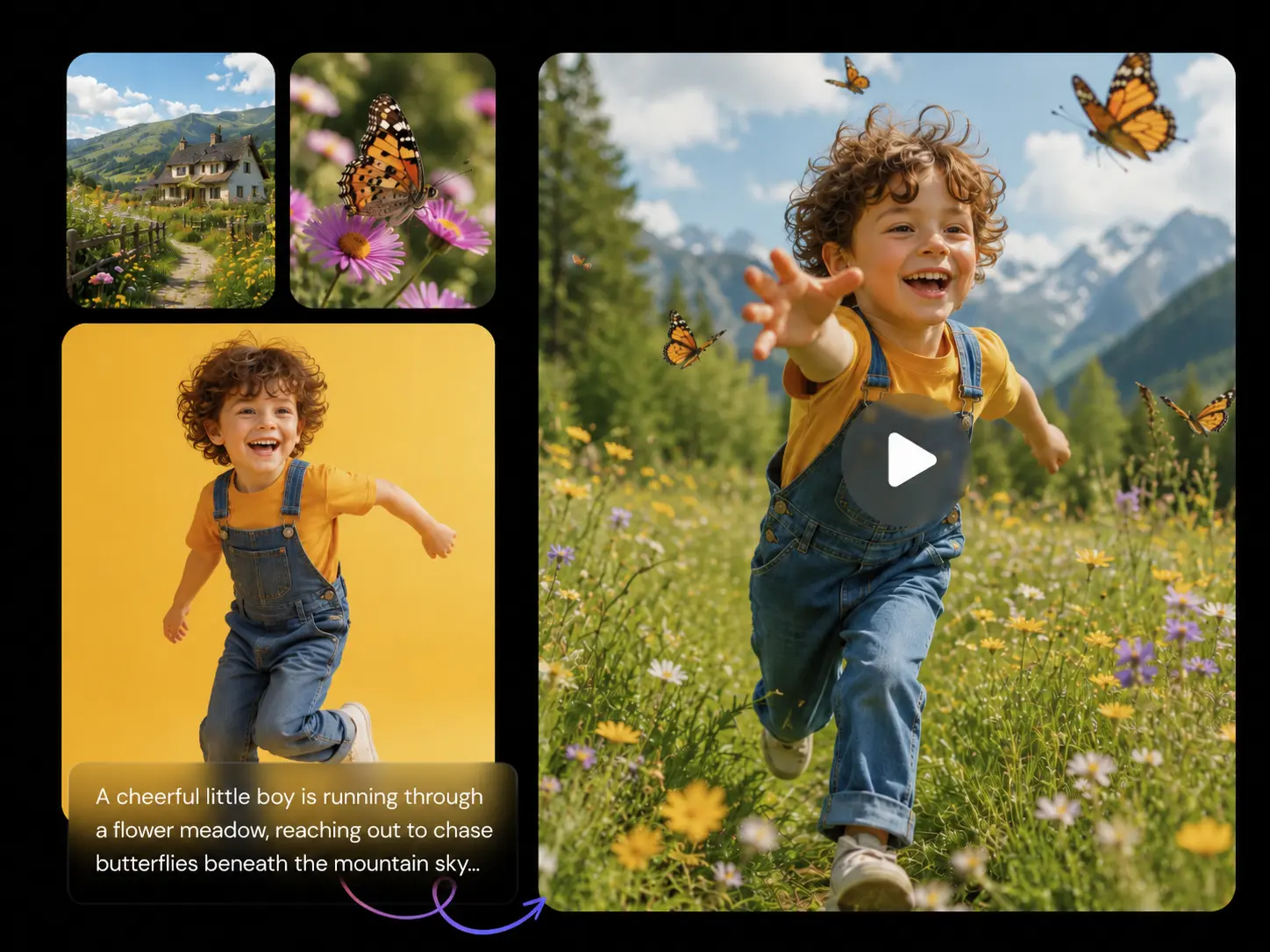
Yes. PixVerse V6 supports image-to-video generation. You can upload a portrait, product photo, illustration, or landscape image and describe how it should move. For example, you can animate a person's expression, add movement to a product shot, or create a slow camera move through a landscape.
How Long Can PixVerse V6 Videos Be?
PixVerse V6 supports video durations from 1 to 15 seconds and resolutions up to 1080p. Available duration and resolution combinations depend on the generation settings. A short clip works well for a single action, while a longer one gives you more room for camera movement and scene changes.
Does PixVerse V6 Support Native Audio?
Yes. PixVerse V6 can generate dialogue, sound effects, background music, and ambient sounds alongside the video. Include audio instructions in your prompt to describe what viewers should hear. For example, you can add footsteps to a walking scene or rain sounds to an outdoor shot.
Can PixVerse V6 Generate Multiple Shots in One Video?
Yes. The model supports multi-shot generation for text-to-video and image-to-video workflows. You can describe a sequence with wide shots, close-ups, and camera changes in one prompt. Keep the main subject's appearance and other important details consistent across each shot.
What Makes PixVerse V6 Different from Earlier Versions?
PixVerse V6 brings improvements to camera control, character expressions, physical interactions, and multi-shot storytelling. It also supports native audio generation. These changes are useful when you need more specific camera movements, expressive character scenes, or a short video with several connected shots.
How Should I Write a Prompt for PixVerse V6?
Start with the subject and setting, then describe the action and camera movement. Add lighting, mood, and sound details if they are important to the scene. For multi-shot videos, explain each shot in order. Avoid adding too many unrelated actions to one prompt. Clear instructions make it easier to refine the result.