Hot Video Effects
Turn your photos into fun dance clips, surprising transformations, and shareable moments with trending AI video effects.
A Retro Camera Wrapped in Rope
Make the Binding Part of the Scene
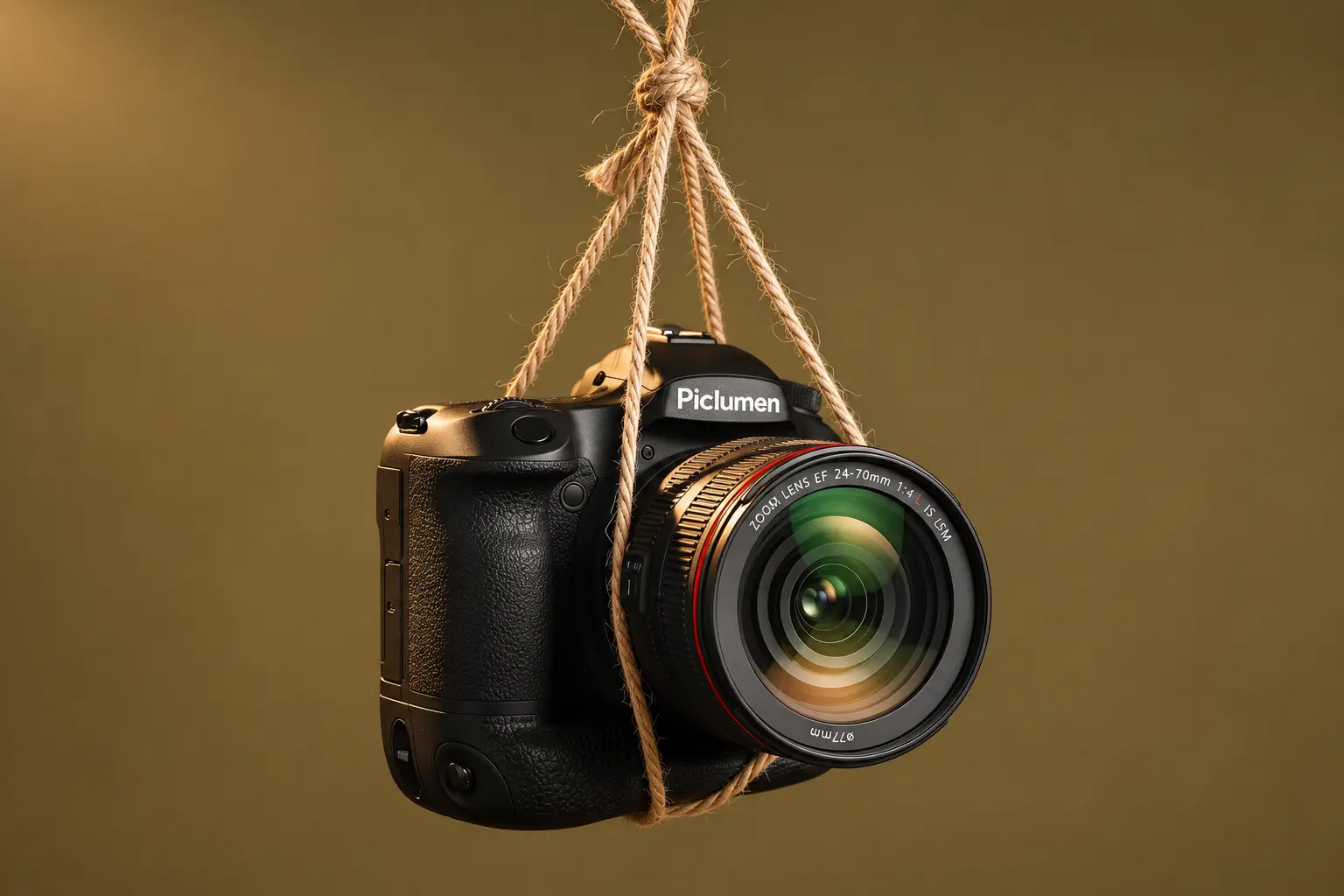
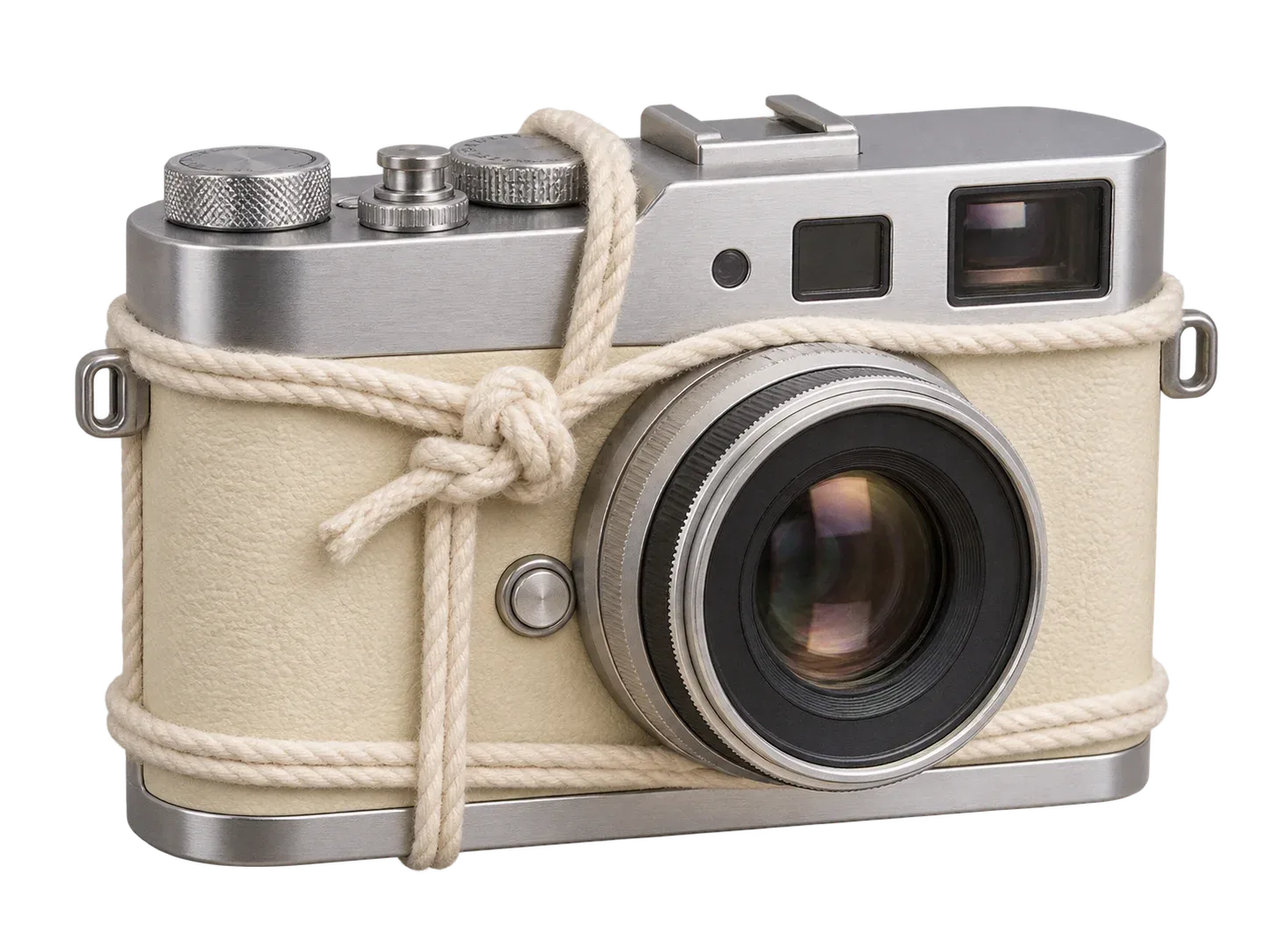
Rope Retro Camera builds its visual around a camera bound with rope. Crossing wraps and visible knots sit against the body, adding a rough texture beside metal edges, glass, and a textured grip. The camera remains the product at the center of the composition. Use a clear product reference to explore this styling for a store feature, a photography campaign, or a collection launch that calls for a more expressive introduction.
A Strong Visual Outline
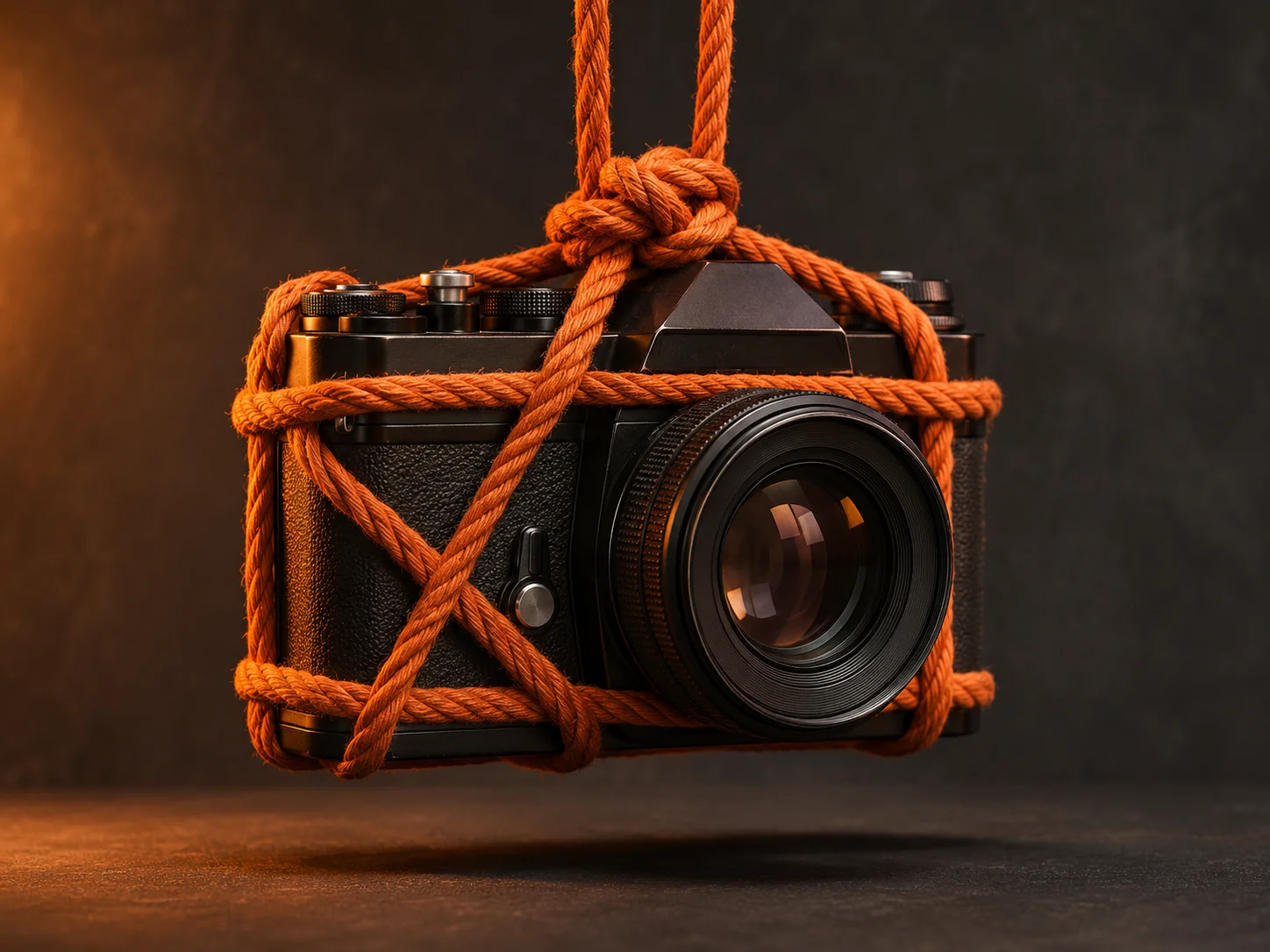
The rope gives the camera a second set of lines to follow. Wraps around the body and a visible fastening knot make the binding easy to understand at a glance. Keep the camera's overall shape readable, with the rope working as part of the composition rather than hiding the product beneath too many layers.
Texture Against Metal
Natural fibers, brushed metal, and lens glass catch light in different ways. That contrast gives the scene its tactile character. Let the knots and rope surface support the presentation while the camera finish remains visible. The resulting visual can introduce the material story before detailed product photographs show the individual surfaces more closely.
Keep the Lens in View
The lens helps viewers recognize the subject immediately. Choose a source photo where the front glass and camera body are easy to distinguish. When reviewing the result, look for a composition that keeps those features visible, with the rope crossing the housing and framing the product's design instead of competing with its identity.
Give the Camera a Distinctive Outline
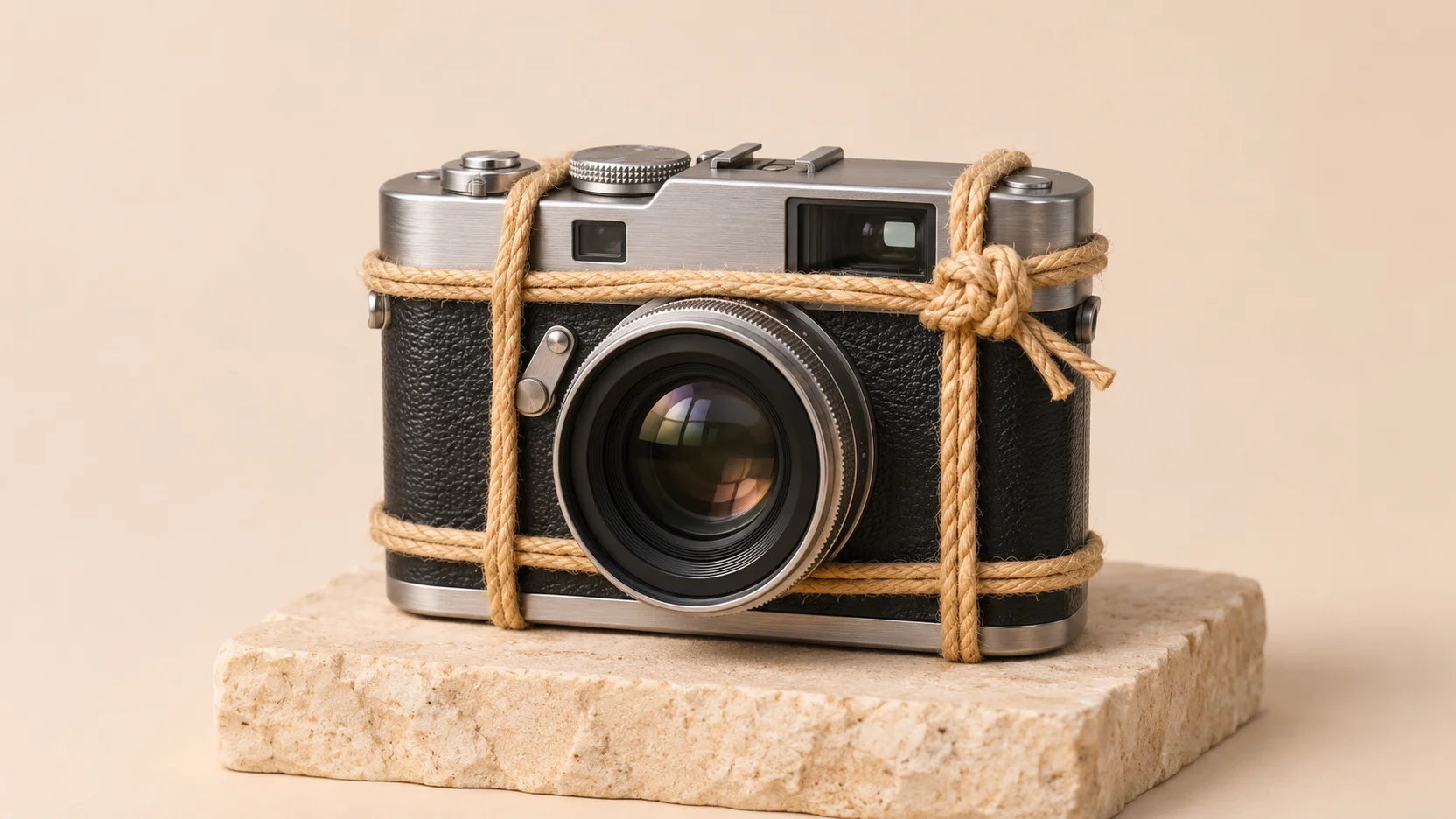
A familiar camera shape takes on a different visual character when rope wraps around its housing. The crossing lines and tied knot create a defined styling idea for your product video. Use the Rope Retro Camera theme to introduce one model or collection, with the camera itself remaining easy to recognize. A clear source image gives the lens, body, and controls a useful starting reference for the composition.
Bring Rope and Camera Materials into Focus
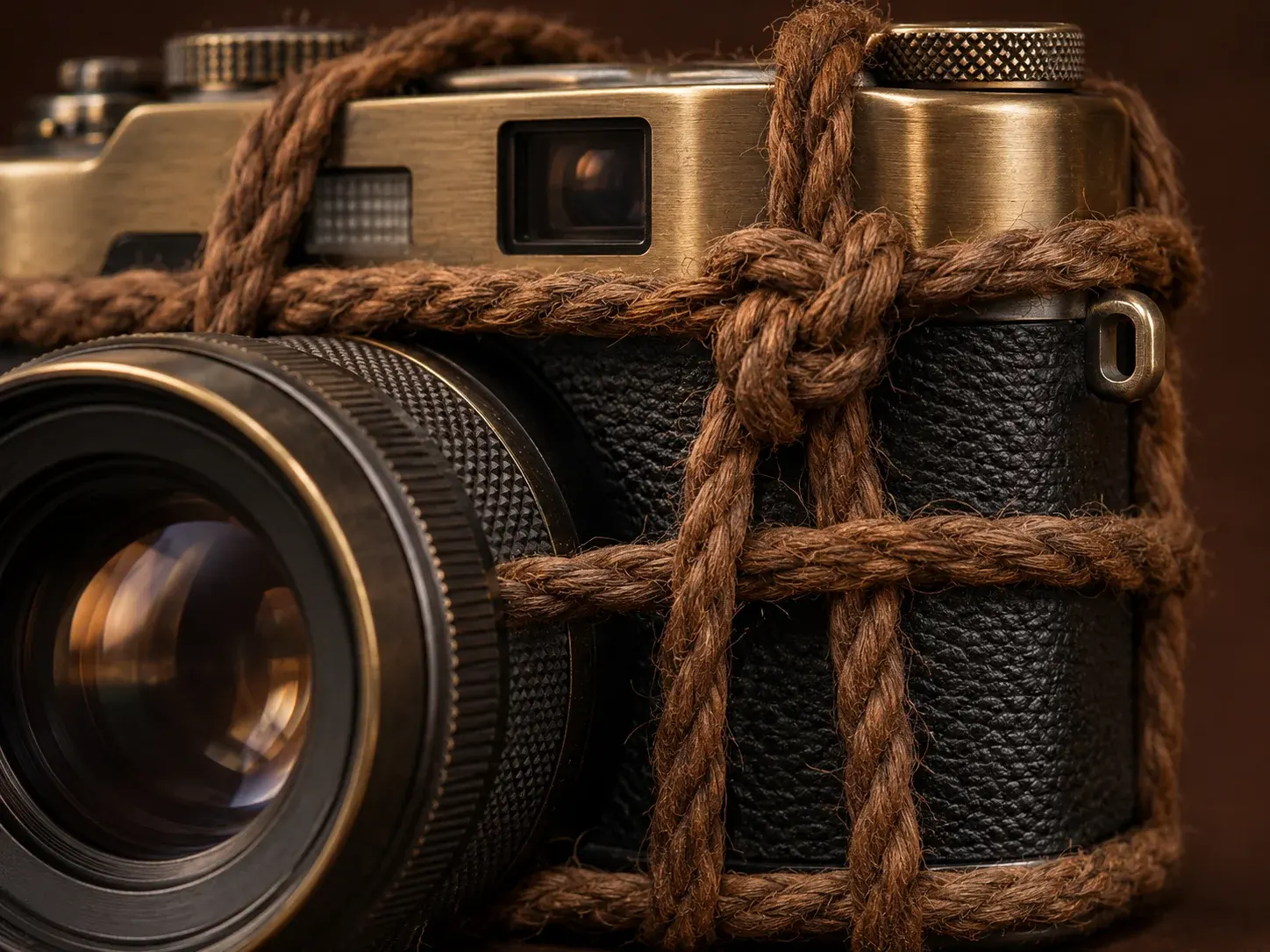
Rough fibers beside a finished camera body give viewers more than one texture to notice. Choose a reference that clearly shows the lens surround, grip surface, and metal edges. In the styled scene, the binding adds another material to that presentation. Use the video as an introduction, then pair it with detailed photographs of the actual camera when shoppers need to inspect the finish and small components.
Keep the Product Recognizable
An expressive scene still needs a clear product focus. Give the complete camera enough room in your reference image, with its distinctive silhouette and front details visible together. Review how the rope sits around the body in the finished clip, then choose a result that introduces your model clearly. Add the product name and campaign message in your final edit to connect the visual with the item you sell.
How to Create a Rope Retro Camera Video
Step 1 Start with the Default Template
1Open Rope Retro Camera and keep the default template selected. Use the preview to check the visual direction and decide which camera-and-strap combination you want to feature.
Step 2 Upload Your Product Photo
2Upload a clear camera photo that includes the rope strap. Keep the lens, camera body, strap ends, and attachment points visible, with enough space around the product to avoid a cramped composition.
Step 3 Click Generate
3Click Generate and review the finished video. Check the strap connections, lens shape, and product colors against your reference, then download the version that fits your store page or campaign.
Where to Use Your Rope Retro Camera Video
Camera Product Listings
Give a featured camera a styled introduction beside its standard product gallery. Use the clip to establish the visual mood, while clear photographs and specifications explain the exact model, condition, dimensions, and included items. Keep the listing details close to the video.
Photography Brand Campaigns
Build a campaign around the contrast between rope and camera materials. The visual can suit a photography brand story, an editorial promotion, or a featured product post. Pair it with a concise headline that explains the campaign’s connection to the camera being shown.
Vintage Collection Launches
Introduce a retro-styled camera or a newly curated vintage collection with a dedicated visual. Give one model the opening moment, then use collection photography to present the wider range. Keep the product reference specific to the camera featured in the campaign.
Social Product Ads
Use the rope-wrapped camera as the main subject of a social ad or launch teaser. Keep the message focused on one product and choose a crop that preserves its outline. Add the offer and next step in your final layout, with the styling carrying the first impression.


Loved by Creators Worldwide
Real feedback from designers, marketers, and hobbyists sharing their PicLumen experience on Trustpilot.
 Ai Hack
Great tool
I would really recommend this website to content creation
Prabhat Ranjan Singh ChauhanVery smooth and very helpful for…
Very smooth and very helpful for everyonr who have creative mind. Thank you 👍
Kura AdityaThe best experience ever w
The best experience ever w
 Narender Khatana
I love this app I love this very very…
I love this app I love this very very much this is help in make a videos
 Menu Lawrence
Very fantastic app
Very fantastic app. I love it. I will like everyone to use this App
Nice creations and bright
Nice creations and bright
Super shuper super ai
Super shuper super ai Thanks for wachong
Love!!
Love!!! Love!!! Love. It. I can get so creative. It pulls my image from my mind.
 Aslam Khan
good have a nice day.meet
good have a nice day.meet
Final ProjectReally good image generation Tool
Really good image generation. I love the way they have daily reward system that help beginners to make creative content before spend money on it. 100% recommended.
 Federico Bidonde
Good app recién probando
Good app recién probando
 Shantell Jordan
LOVE THIS TOOL
Love this app. Its allowed my vision to come to life.
Frequently Asked Questions
What photo should I upload for Rope Retro Camera?
Choose a sharp photo showing the complete camera. A front or three-quarter view can make the lens, grip, top plate, and body shape easy to distinguish. Avoid cropped edges, strong reflections across the lens, or other objects that cover important product details.
Do I need rope in my original camera photo?
Use the template preview and upload guidance to choose your reference. A clear camera-only photo provides a view of the product, while a reference that already includes binding should keep the camera and lens visible. Review the rope placement in the generated result before selecting a take.
Can I use a modern camera with retro styling?
A modern camera with a retro design can be a suitable subject for the theme. Use a reference of the actual model you want to feature, with its appearance clearly shown. Compare the result with the product rather than relying on the styling to communicate its age or specifications.
Can I choose the exact knot and rope placement?
The template follows its preset visual direction. Use the available controls shown in the workspace, and review the result for the binding layout you want. For a different composition, the custom video prompts above offer starting directions outside the default template.
How can I keep my camera’s details recognizable?
Start with a clear reference, then inspect the lens shape, controls, body proportions, and markings in the finished clip. Choose a result where the rope leaves important features readable. Use verified product photographs and separate text for details that need exact reproduction.
Can I use my video on product pages and in social ads?
Use it as a styled introduction alongside the camera’s product photographs and listing details. For a social ad, keep the camera visible in the chosen crop and add the model name, offer, and next step separately. Make the accompanying product information clear about what is included.