.webp)
Eleven v4 AI Voice Generator for Studio-Quality Speech
Turn scripts into natural-sounding speech for videos, audiobooks, and games. Pick a voice that fits the part and guide the performance with short directions in your script.
How to Generate Speech With Eleven v4
Enter Your Script
Type or paste your script into the text box. You can start with a single line of dialogue or a longer passage for a voiceover.
Choose a Voice and Add Direction
Pick a voice that suits your script. If you want a specific reaction or delivery, add a short direction in brackets where it belongs. For example, put [laughs] after a joke.
Generate and Listen
Generate the audio and listen for tone, pacing, and pronunciation. If a line needs a different delivery, adjust the wording or the direction in your prompt and try another take.
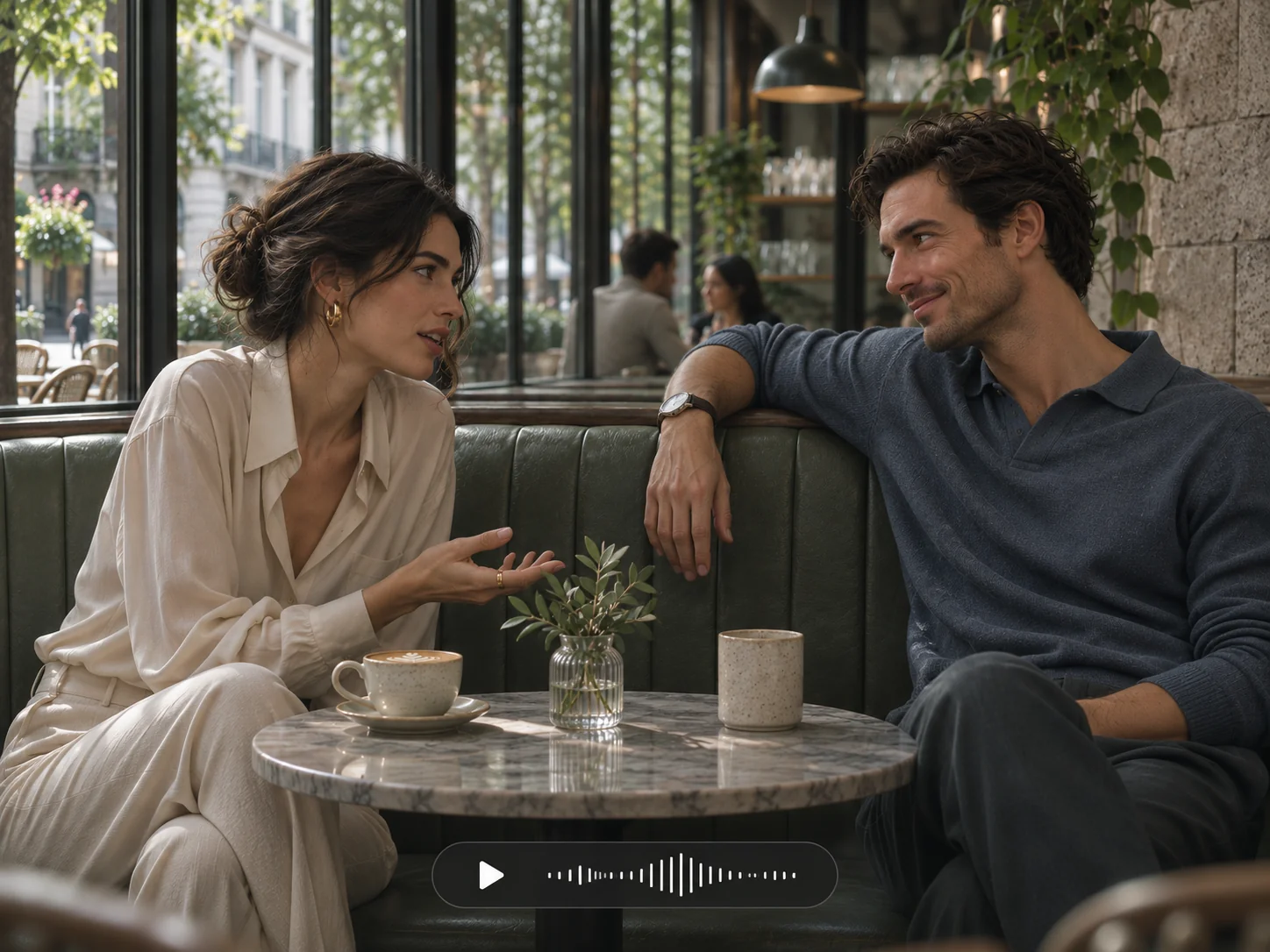
Create Expressive Dialogue With Eleven v4
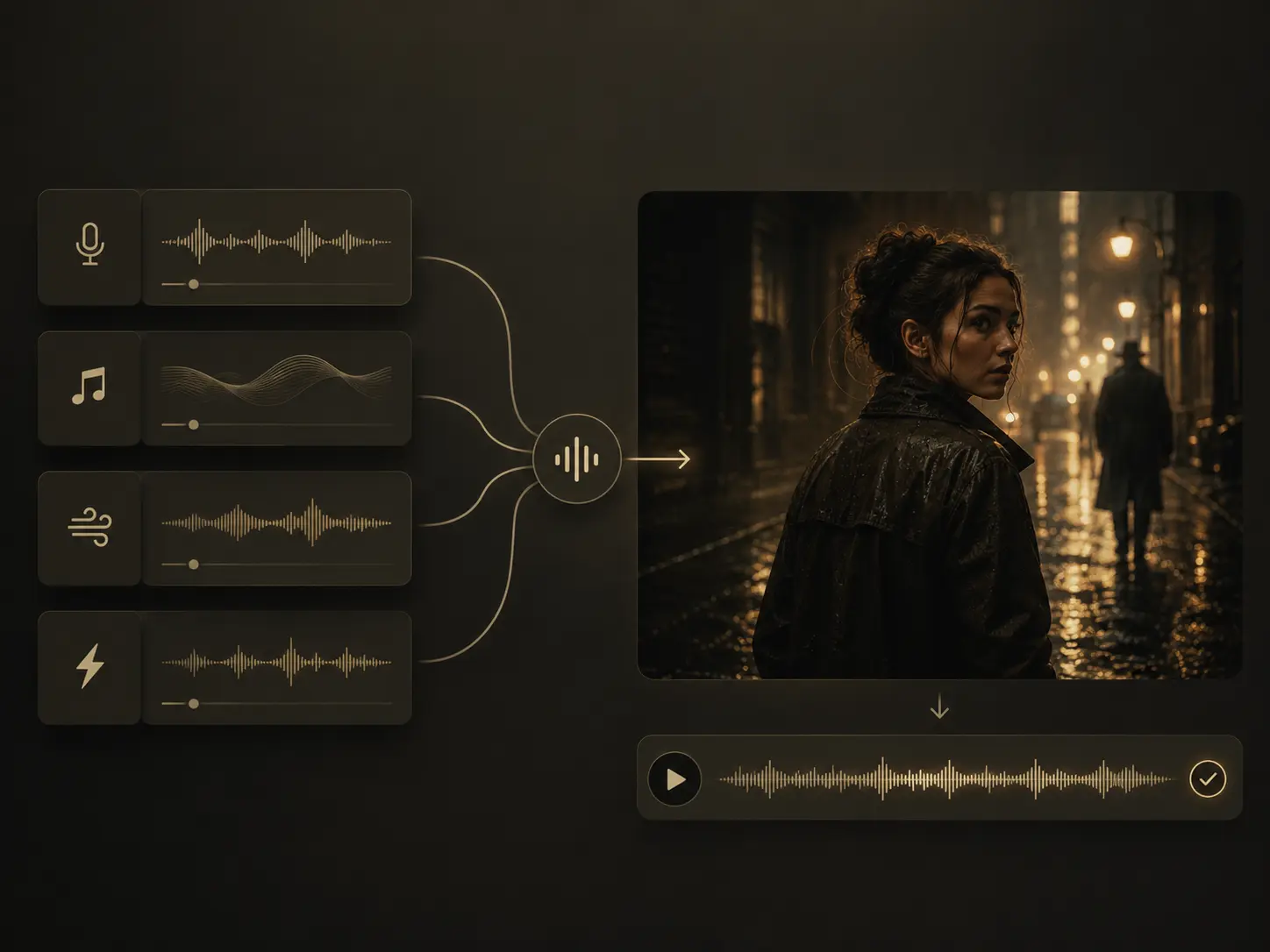
Give each line the delivery the scene calls for. Write the dialogue and performance directions in the same text prompt. Use a quieter delivery for a secret, a quicker read during an argument, or a pause before a reveal. Describe any sound effects at the point they should play. For a game or animated short, these directions help match each character's voice to the action on screen.
19 Languages and 27 Voices for Localized Voiceovers
Reach people in the language they use every day. With Eleven v4 on PicLumen, you can create speech in 19 languages, including English, French, and Spanish, and pick from 27 voices. Start with your script in the language you want people to hear. For a product rollout, you could generate a French introduction for one market and a Spanish walkthrough for another. Keep the same message while adapting local terms, units, and phrasing in each script so the voiceover feels written for the people listening.

Choose Character Voices by Accent, Gender, and Age
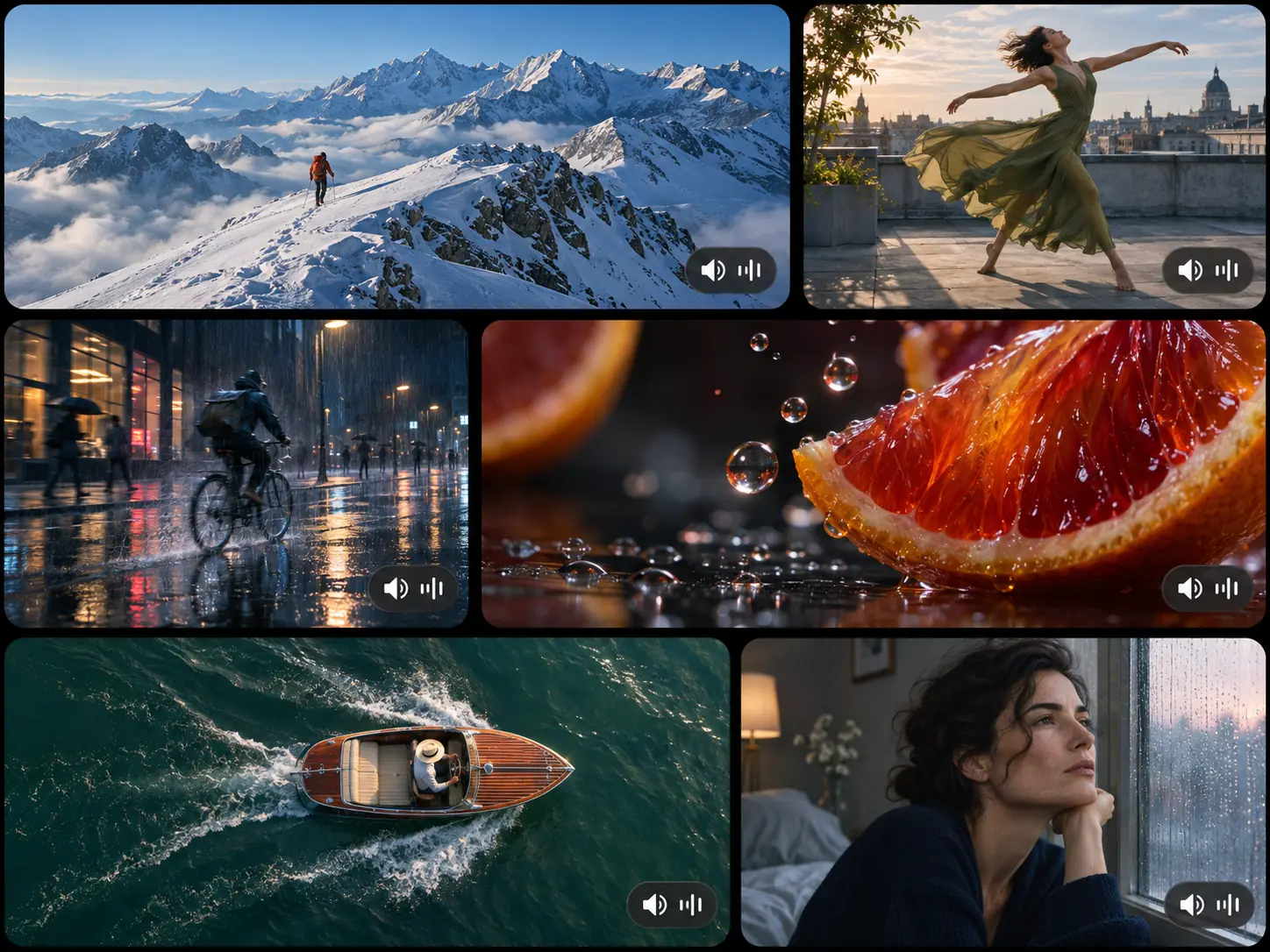
Choose from different accents and genders, with voices that sound younger or older. A younger-sounding voice can suit a first-person coming-of-age story, while a mature narrator can give a documentary a measured delivery. For a scene set in a particular region, try a voice with an accent that fits the setting. Generate the same short passage with a few voices before you commit to a full script. Hearing them read the same words makes it easier to pick the voice that feels right for the part.
Consistent Voice and Pronunciation for Long-Form Narration
Keep a familiar voice throughout an audiobook, podcast, or video series. Use the same Eleven v4 voice when you add a section or update a line so the new audio fits with the rest of your project. If a name or technical term sounds off, adjust how it's written and generate the line again. Once it sounds right, write it the same way in later scripts to help keep the pronunciation consistent.
What Can You Create With Eleven v4?
Turn your script into natural-sounding speech for your next project. With Eleven v4, you can voice a product demo, narrate an audiobook, or bring a game character's dialogue to life. Choose a voice that fits the part and use simple prompts to shape the delivery.
Voiceovers for Social Videos
Open your next Reel or Short with a line that gives viewers a reason to keep watching. Write a quick hook for a recipe, travel recap, or behind-the-scenes clip, then generate a read that sounds like someone speaking directly to the viewer. Leave space between lines for a cut, a caption, or a visual reveal. If the footage ends before the line does, trim the wording and generate another take. Keep the same voice across your series so each video has a familiar sound.
Product Ads and Demos
Show shoppers how a product fits into their day. For a coffee maker demo, open with a line about the morning routine. Let the shots show the setup and brewing while the voiceover explains details like how much coffee it makes or how to clean it. Give the final offer a beat of its own so people can hear it clearly. If a price, feature, or call to action changes, generate a fresh read with the same voice and add it to the next cut of the ad.
Narration for Audiobooks and Stories
Give your audiobook a narrator listeners will recognize from one chapter to the next. Choose a voice that fits the story and generate the audio a chapter at a time. Use a quiet read for a late-night conversation and a quicker rhythm as the action builds. Read each chapter title and leave a beat before the opening sentence, especially when the scene jumps to a new time or place. If you revise a paragraph, generate a new take for that passage and add it back to the chapter.
Training and E-Learning Narration
Help learners follow a process while they watch it happen. Write one spoken instruction per action, then use Eleven v4 to narrate a course, software walkthrough, or employee onboarding video. For a setup lesson, leave a pause after each instruction so viewers can try it before the next step. Write out keyboard shortcuts and menu names as you'd say them aloud. When a screen or procedure changes, update the affected lines so the narration still matches what learners see on screen.
Dialogue for Games and Animation
Give each character a way of speaking that suits their personality. A guide in a game might give directions in a calm voice, then deliver an urgent warning when the player enters a new area. An animated character might lower their voice to share a secret. Generate the lines for each role and arrange the clips so replies and reactions land on cue. Play them against a rough cut or an early game build, then bring back the same voices as you add scenes, side quests, or alternate endings.
Localized Voiceovers for Existing Videos
Bring an existing video to a new audience using footage you already have. Start with a translated script and adapt phrases that would sound awkward in a word-for-word translation. Generate the new voiceover with Eleven v4, then fit each section to the corresponding shot in your edit. Some languages take longer to express the same thought, so shorten a line or hold a shot a little longer when the audio needs room. Use the finished track to release a localized version of a creator intro, webinar highlight, or product walkthrough.
Need Faster Responses? Try Eleven v4 Turbo
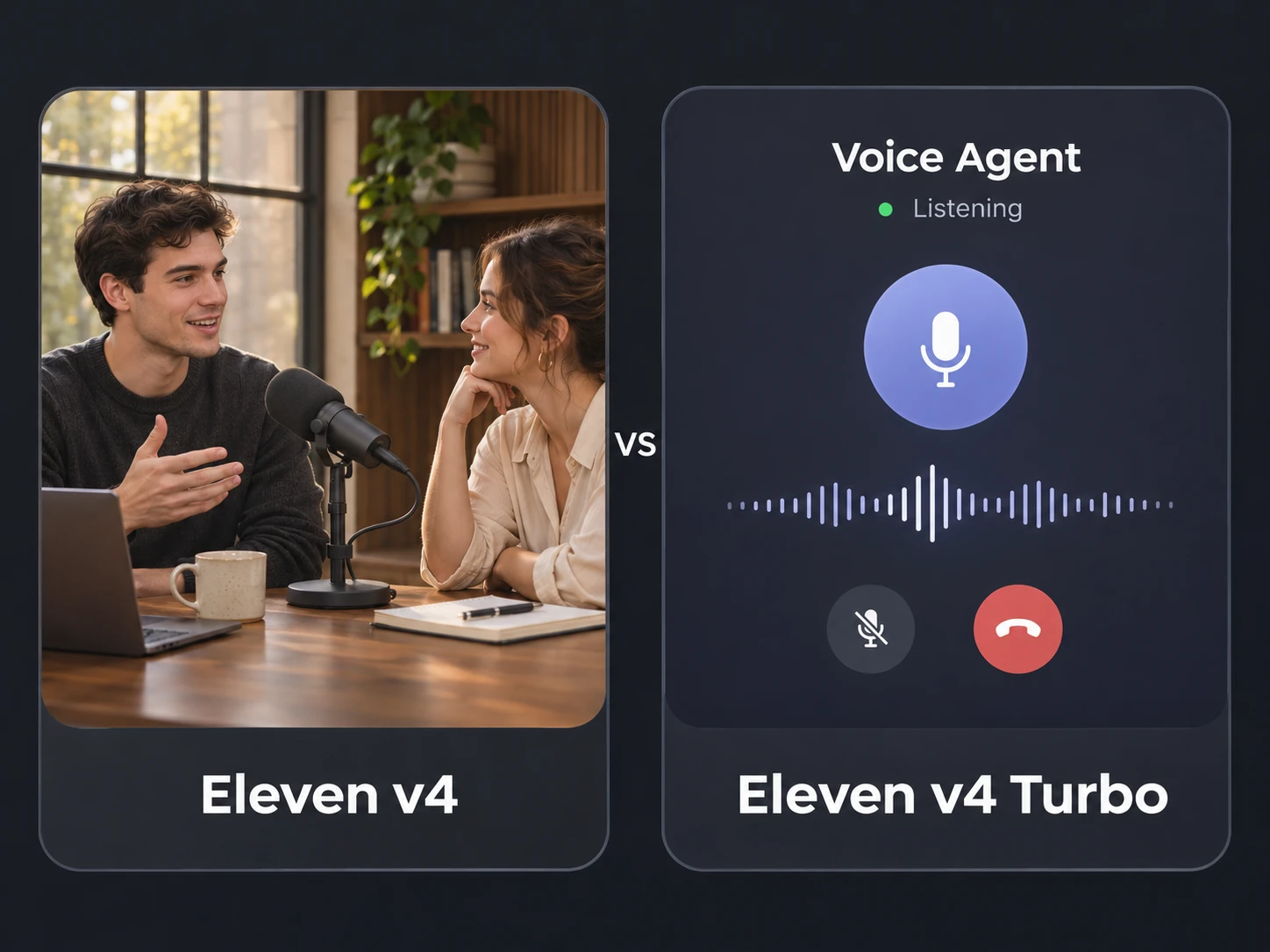
Choose Eleven v4 Turbo when your app needs speech to start quickly. This faster text-to-speech model is built for voice agents and conversational apps, where long gaps can break the flow of a conversation. With streaming, speech can begin while the rest of the reply is still being generated. A booking assistant can read back an appointment time, a support agent can walk a caller through the next step, and an in-game character can answer a player mid-scene. Its expressive delivery suits both a quick confirmation and a longer, more reassuring explanation.
Hot Video Effects
Turn your photos into fun dance clips, surprising transformations, and shareable moments with trending AI video effects.


Loved by Creators Worldwide
Real feedback from designers, marketers, and hobbyists sharing their PicLumen experience on Trustpilot.
Isuru NilankaIt's easy to use
It's easy to use, they have different AI models, good prices, and a nice community page.
Ayan SamantaAwesome experience just looking wow
Awesome experience just looking wow
My experience
Itis a really good website n really ideal to use theres only one con and that the AIS sometimes create wrong images but that doesnt happen frequently
 Rishiprasanth BR
This is a great site to create images…
This is a great site to create images as per our mind's wish. Such a great site, loved its response
Brijesh Chikhaliyavery good
very good , Excellent Experience
 rockstar gaming
Value For Money
its value for money i fully recommend you to try this one time you will like it...
 Zakirya Gabol
Good best
Good best Good good best
Great tool
Great tool, I made fantastic results with it.
Good app and make very good video
Good app and make very good video
 Buzás Lili
Im only doing this for the free stuff
Im only doing this for the free stuff
 Govind Aariya
Naic
Veri nice 👍 Bhot acha ap he
 Hesham Zohny
it is super easy and UI/UXis perfect
it is super easy and UI/UXis perfect
FAQs About Eleven v4
What is Eleven v4?
Eleven v4 is a text-to-speech model from ElevenLabs. It turns written scripts into natural-sounding audio and can vary the tone, pace, and emotion to suit a voiceover, narration, or line of dialogue.
Which languages and voices can I use on PicLumen?
You can create speech in 19 languages, including English, French, and Spanish. PicLumen offers 27 voices for Eleven v4, with a range of accents, genders, and ages.
Can I generate speech from plain text?
Yes. Eleven v4 can read your script as written. Add short directions if you want more control over how a particular line sounds.
Can Eleven v4 add sound effects to dialogue?
Yes. Describe the sound in brackets where it should occur in your script, such as [phone buzzing] between two lines of dialogue.
Can I use Eleven v4 for long-form narration?
Yes. Generate a longer script chapter by chapter or section by section. Use the same voice and similar delivery cues for passages you want to sound like parts of the same recording.
How do I make a voiceover in another language?
Start with a script written or translated into the language you want your audience to hear. Then choose a voice and generate a separate track for that version.
What's the difference between Eleven v4 and Eleven v4 Turbo?
Eleven v4 is designed for expressive voiceovers, audiobooks, and scripted dialogue. Eleven v4 Turbo is optimized for quicker speech generation in live voice agents and conversational apps.
Can I add an Eleven v4 voiceover to an existing video?
Yes. Write the script to match the shots in your video, then generate the voiceover and add it in your video editor. If a line runs long, shorten it and generate a new take.