Hot Video Effects
Turn your photos into fun dance clips, surprising transformations, and shareable moments with trending AI video effects.
Why Choose PicLumen for Robot Launch Videos?

Start with an Existing Product Photo
Use a robot reference you already have to explore an unboxing-style clip before arranging a full product shoot for the new release.

Give One Model a Focused Introduction
Keep the launch centered on a single robot, with a visual that helps viewers recognize the product before reading the rest of the page.

Reduce the Setup Around the Reveal
Begin with the template’s direction instead of planning the entire unboxing set, camera position, and product presentation from an empty starting point.

Work on Launch Content Earlier
Prepare an introductory visual while your team gathers the detailed demonstrations, specifications, and other assets needed to explain the robot’s actual functions.

Keep the Next Step Straightforward
Review the clip, choose a useful take, and build the campaign around it. The product name and verified benefits can follow in your final edit.
Shape a standout robot reveal
Create a memorable robot unboxing scene
Robot Unboxing turns a product reveal into the centerpiece of a playful, tech-focused presentation. Use the Robot Unboxing template to create visuals that frame a robot as the featured item, with the moment of opening adding a sense of discovery and scale. This approach suits concept previews, product announcements, and creative pitches where viewers should notice both the machine and the experience around it. PicLumen supports the creative process, while your choices about framing, setting, and visual tone help shape an unboxing scene that fits the robot's personality.
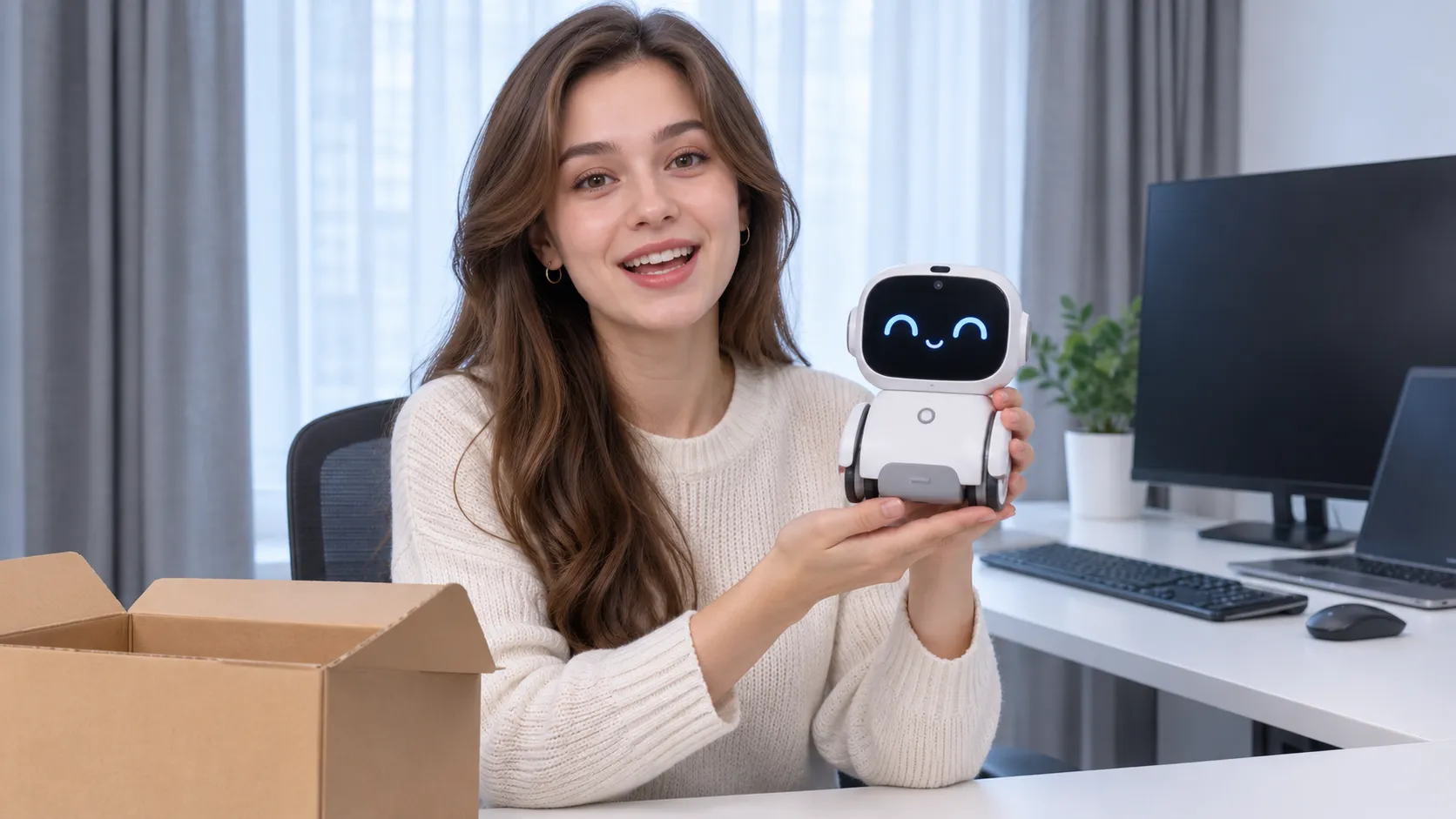
Frame the moment of discovery
Build the composition around the instant the robot emerges, keeping the product as the clearest point of attention. A partial view of its container or a visible opening can suggest the reveal without crowding the frame. Consider the robot's position, the frame edges, and how much surrounding space the scene needs. A clear focal area helps viewers understand the unboxing at a glance.
Bring the robot’s features forward
Give the robot enough visual presence to make its shape and defining features easy to notice. A closer crop can emphasize its face, limbs, or distinctive outline, while a wider view can show how it sits within the reveal. Choose the emphasis to match the story: a compact companion may benefit from an expressive portrait. Keep the presentation focused on the product rather than decoration.
Set a fitting scene
Use the setting to establish a mood without letting it compete with the robot. A clean, minimal backdrop can make the reveal feel sleek, while a more imaginative environment can suggest a playful or futuristic world. Treat these as creative directions, not fixed requirements; the best choice depends on the audience and the product’s character. Keep background details in service of the reveal.
Choose a visual tone
Decide what the unboxing should communicate before settling on its visual tone. A lighthearted reveal can make a friendly robot feel approachable; a restrained presentation may suit a more technical concept. Use color, contrast, and the amount of surrounding detail as cues for that mood. Consistent choices make the image feel intentional and keep attention on the product.
How to Create a Robot Unboxing Video
Step 1 Start with the Default Template
1Open Robot Unboxing and keep the default template selected. Review the preview’s reveal style, then decide which robot product should be the subject of your launch or store-page video.
Step 2 Upload Your Robot Photo
2Upload a clear photo showing the complete robot. Keep the face panel, wheels or feet, arms, and body edges visible where applicable. Avoid hiding important parts behind packaging or other objects.
Step 3 Click Generate
3Click Generate and inspect the result. Check the body proportions, face panel, and visible components against your reference, then download the take that introduces your robot most clearly.
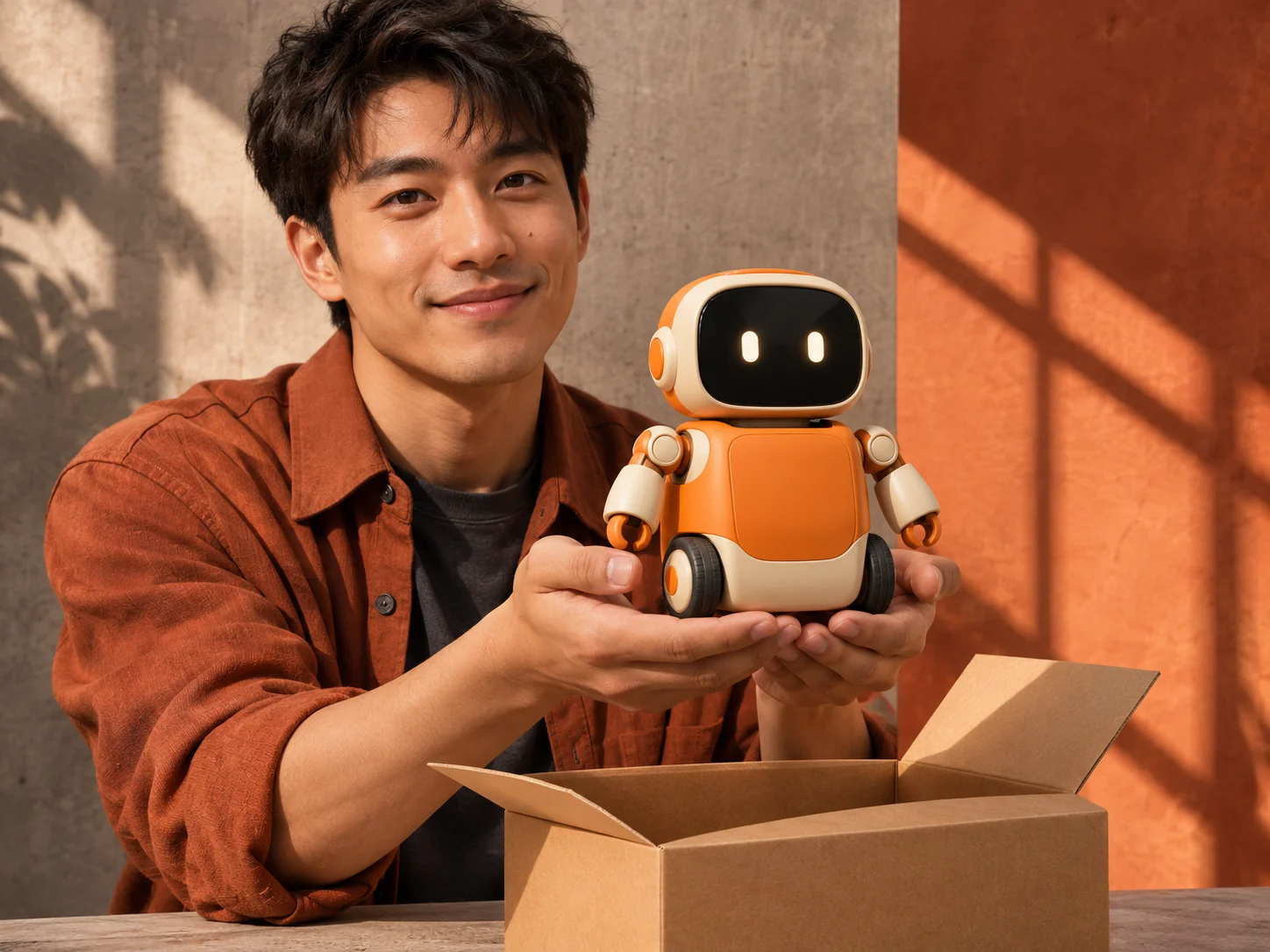
Give the Product a Clear Arrival
Introduce one robot as the subject of your launch. The unboxing theme gives a new arrival, toy release, or gift campaign a defined opening, with the product at the center of the scene. Start with a reference showing the full body and distinctive parts. The finished clip can establish the design before the rest of your post explains the model name and offer.
Show the Design Buyers Will Recognize
A face panel, wheel arrangement, joint shape, or compact silhouette can help distinguish your robot. Choose a photo that shows those features clearly, with enough separation from the background to follow the body outline. Use the video to introduce the product’s appearance, then pair it with detailed photographs of the actual components when shoppers need to inspect the design before deciding on a purchase.
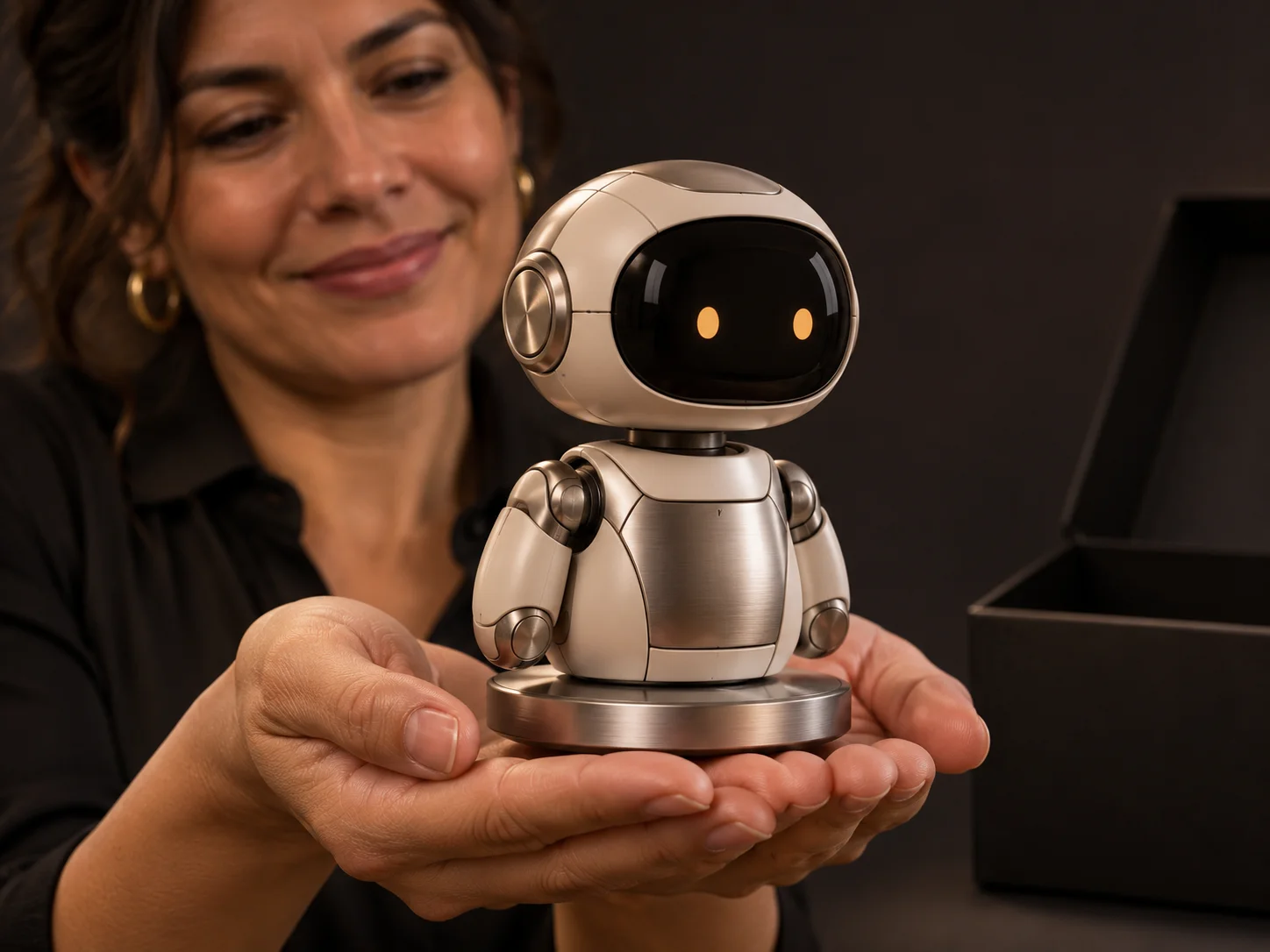
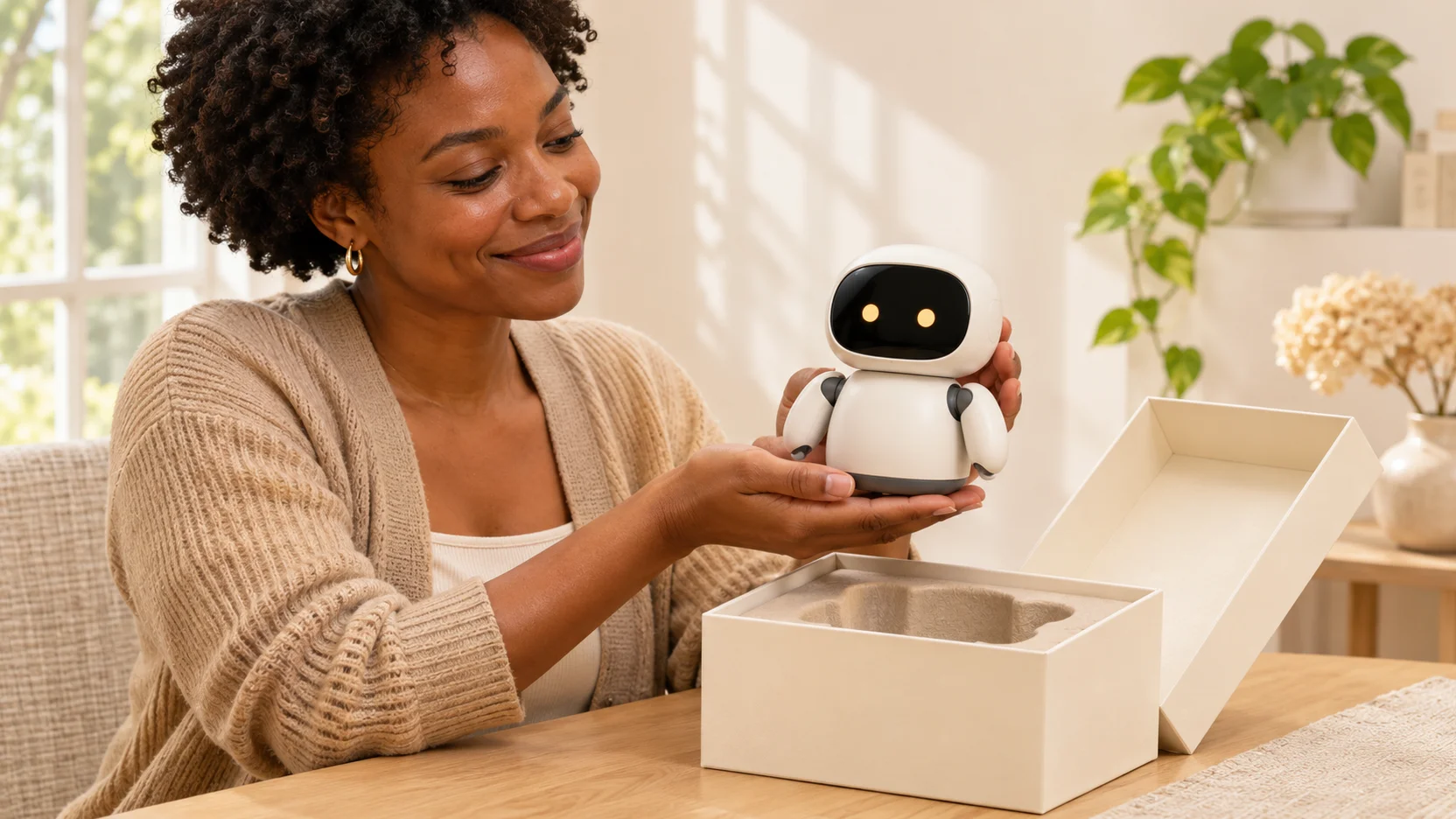
Make the Robot the Center of the Launch
Give the reveal a focused role in your product campaign. Feature the robot shown in your reference, then add its model name and next step in the final edit. This makes the clip useful as a storefront introduction, launch post, or new-arrival visual. Use separate demonstrations and product information to explain the device’s operating features while the unboxing scene carries the first impression.
Create AI Robot Unboxing Scenes with PicLumen
Collectible Launch Reveal
Independent toy makers need launch imagery that shows a new robot as an exciting object to discover, not just another catalog item. Robot Unboxing can frame the reveal around an opened box, protective inserts, and the figure emerging into view. That scene suits a product announcement, collector newsletter, or launch page hero image, where the first impression should communicate the model's character and make the release feel like a considered addition to a collection.
Home Robot Product Pages
A small robotics brand introducing a home assistant needs a scene that helps shoppers picture the device arriving in their home. An unboxing composition can place the robot beside its carton and accessories, giving a product page or retail pitch deck a tangible, welcoming context. This is useful when clean studio renders feel too abstract and buyers need to understand the item as a complete purchase, including the anticipation of opening it and seeing what comes inside.
Classroom Robotics Kits
Robotics kit makers often need to show that a box contains an inviting starting point, rather than a pile of technical parts. A staged unboxing can place the beginner robot, controller, and learning materials in a classroom or workshop setting. The resulting image can support a catalog entry, teacher-facing brochure, or STEM program proposal, helping educators and parents picture how the kit could be introduced during a hands-on lesson as a practical activity.
Robot Review Thumbnails
Tech reviewers and hobby channels need cover art that tells viewers what the video is about before they press play. A robot emerging from its box gives a review thumbnail or episode card a clear subject and a built-in reveal moment. The scene can distinguish a first-look video from a generic product shot, while keeping attention on the model, included accessories, and the hands-on experience the review will discuss on camera.


Loved by Creators Worldwide
Real feedback from designers, marketers, and hobbyists sharing their PicLumen experience on Trustpilot.
Zaine JuttAmazing 😍😍😍😍😍😍 freee 😍😍
Amazing 😍😍😍😍😍😍 freee 😍😍
Good 👍 perfomense web site good images…
Good 👍 perfomense web site good images good
 Brijesh Chikhaliya
very good
very good , Excellent Experience
 Prabhat Ranjan Singh Chauhan
Very smooth and very helpful for…
Very smooth and very helpful for everyonr who have creative mind. Thank you 👍
Mubashir AhmedThis web is very help and free
This web is very help and free
 Alexsander Luís
cool it's a good ai creator but create…
cool it's a good ai creator but create imagens for cinema
 Sndhjks Bwjskb
franchement c formidable
franchement c formidable
 kola wole
Amazing
Amazing, and easy to use features
 Buzás Lili
Im only doing this for the free stuff
Im only doing this for the free stuff
Aditya Yadav“A tired Indian farmer standing beside…
“A tired Indian farmer standing beside his small dry farmland at sunrise, wearing a simple dhoti-kurta and turban, holding a rusted plough. The field is cracked and dry. Soft golden light, realistic r
I love it
I love it. amazing image generator.
like is aesy to used
like is aesy to used i like, im new on this site and i love how is all. thanks
Frequently Asked Questions
What product photo should I upload for Robot Unboxing?
Use a sharp photo where the complete robot is visible and separated from the background. Keep its distinctive parts in view, such as the face panel, wheels, feet, or arms. A simple three-quarter angle can show more of the body than a tightly cropped front view.
Can I use this template for toy robots and desktop gadgets?
The theme can suit compact robots whose design is easy to show in a single product frame. That includes toy robots and some desktop devices. Review the template preview before choosing a reference, since a large industrial system or multi-part kit may need a different presentation.
Do I need a separate packaging image?
Follow the upload fields available in the template. Provide a separate box reference only when the form requests or supports one. If the packaging design is part of the campaign, check it carefully in the result. Use actual product images to establish the included items and printed information.
Can I use the clip to demonstrate the robot’s functions?
Use the generated video to introduce the product visually. It does not establish that a real robot can walk, speak, recognize objects, or perform another task. Demonstrate those functions with genuine product footage and verified information, then place the unboxing clip alongside that material if it supports the campaign.
How can I keep the robot’s parts from changing in the video?
Start with an unobstructed reference and review the result before choosing a take. Pay particular attention to limb count, joint placement, wheels, face panels, and small attachments. A clear source helps communicate the design, but you should still compare the generated product against the item you actually sell.
Can I make a second video with the same robot?
Yes. Use the reference in PicLumen AI Video for another product scene. Describe a simple camera move and specify which parts should remain unchanged. The prompt examples above keep the device still, offering supporting product shots without adding unverified operating behavior.