Make an AI Trouble Maker Video From Two Photos
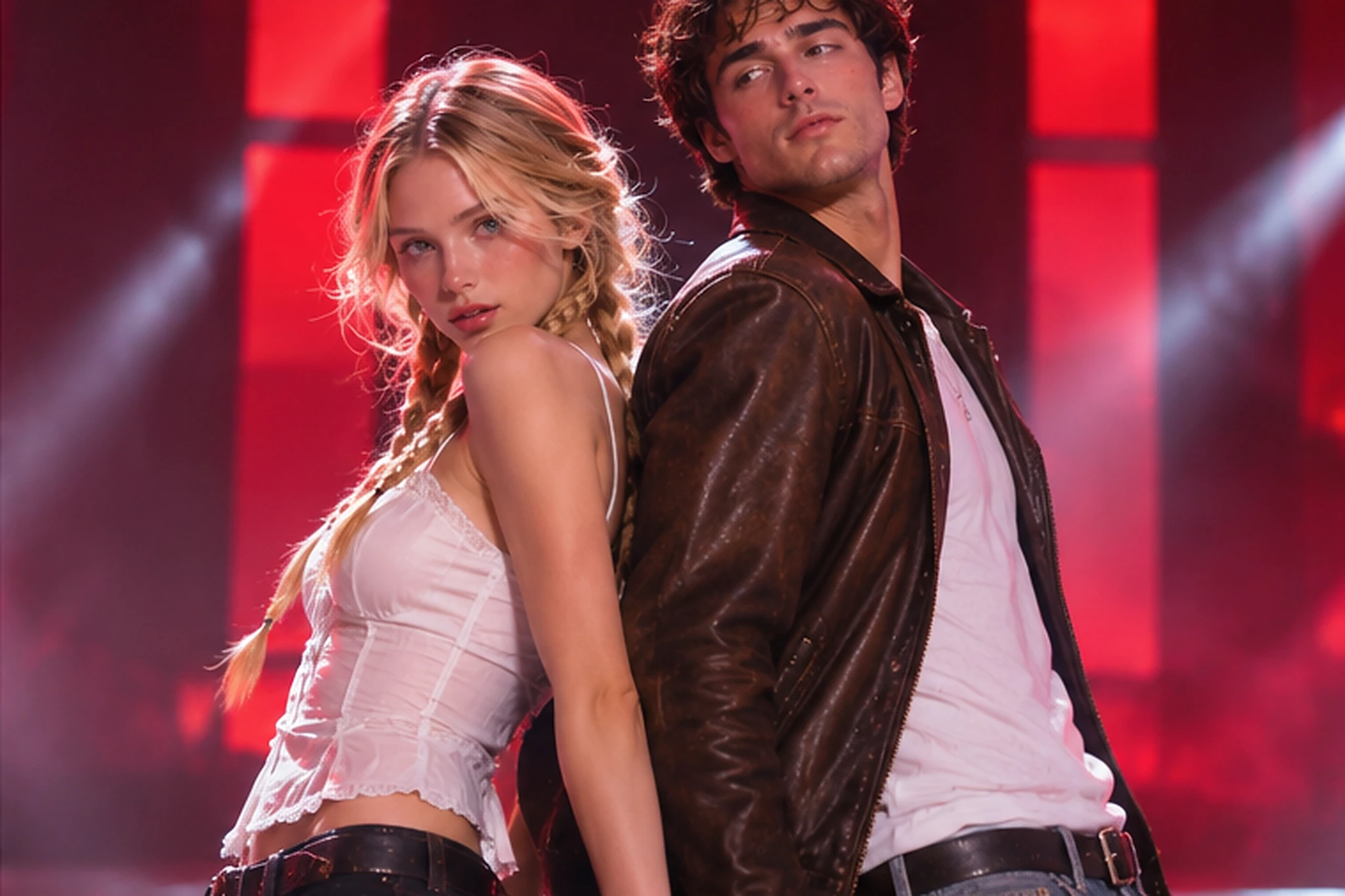
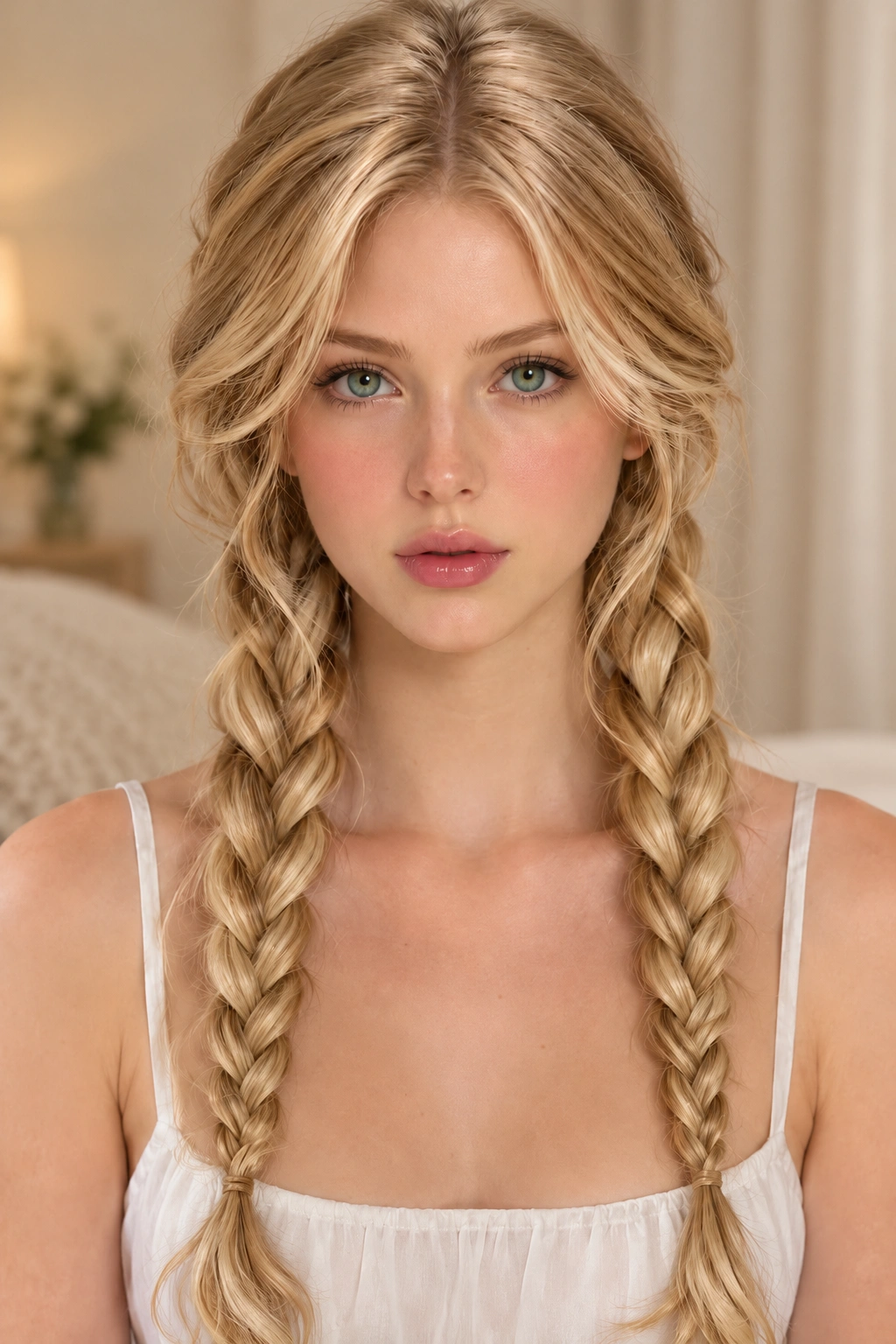
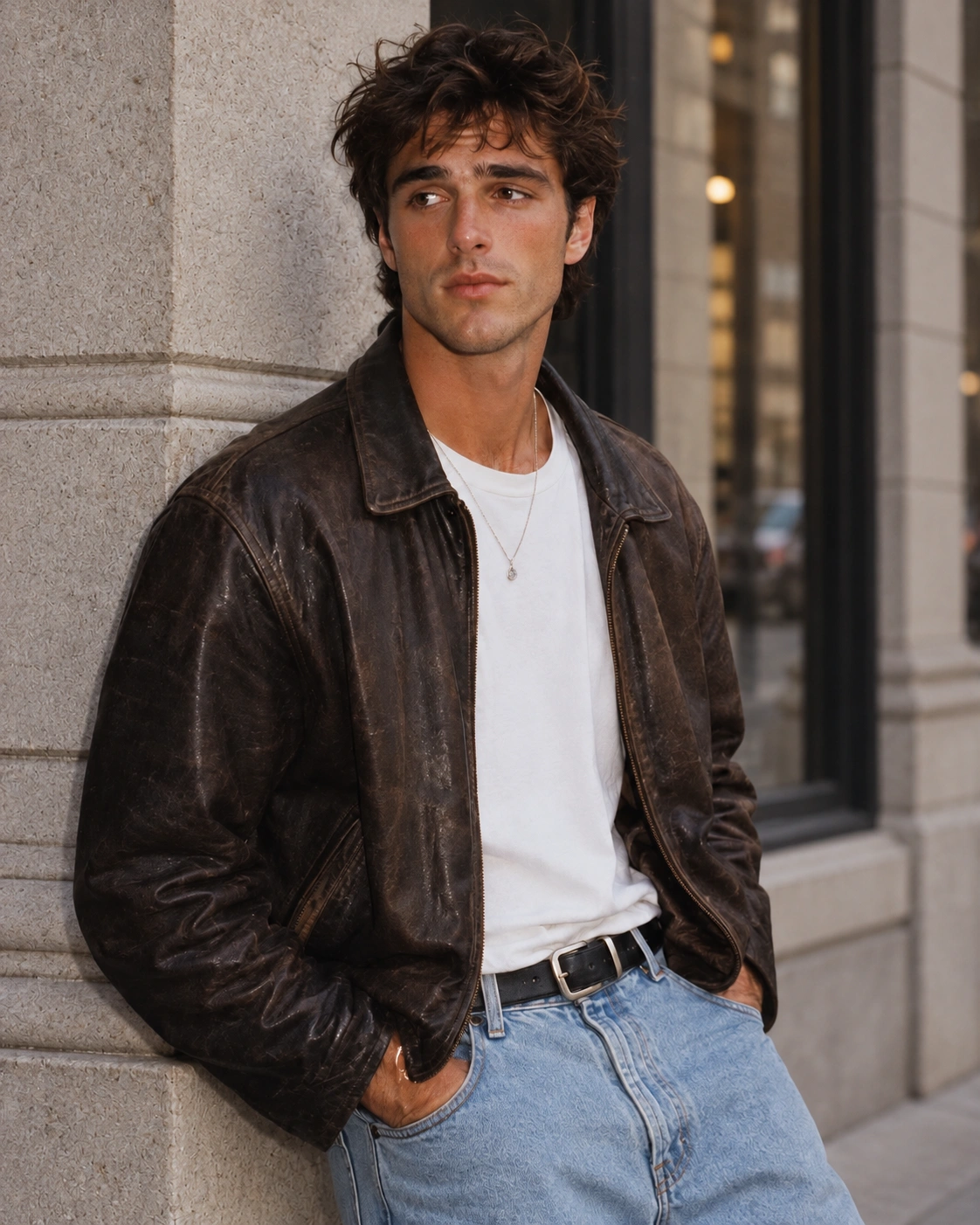
Hot Video Effects
Turn your photos into fun dance clips, surprising transformations, and shareable moments with trending AI video effects.
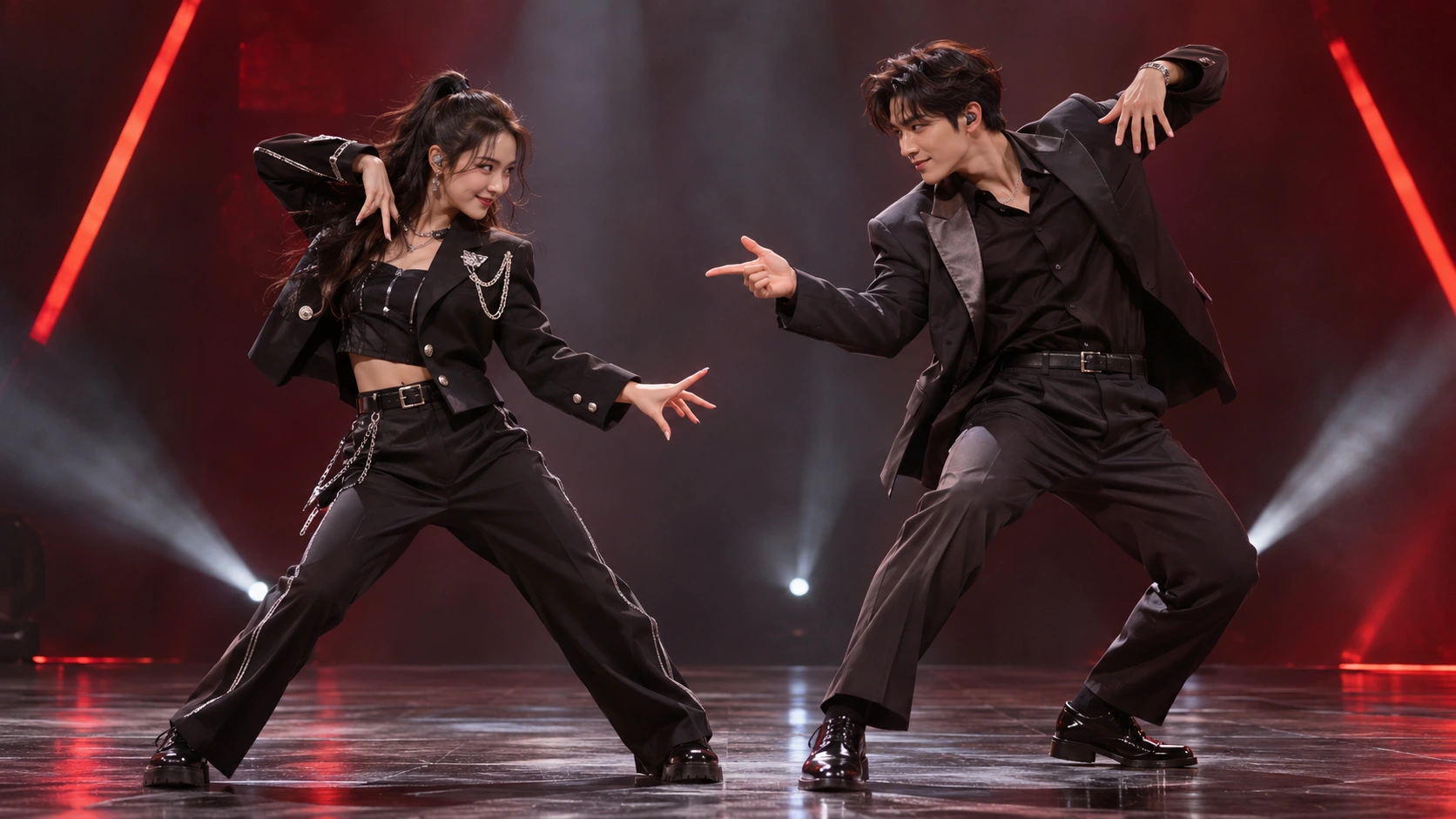
Put Your Own Duo in the Trouble Maker Dance
Cast Both Dancers From Separate Photos
Pick who you want to see onstage together. Use a photo from your camera roll and one your dance partner sends you, or cast two original characters you’ve always wanted to put in the same scene. PicLumen uses each portrait for a different performer in the AI Trouble Maker Video, so the two photos can come from different places, occasions, or shoots. A selfie and a studio headshot can work as a pair. Choose one clearly visible face per image so each dancer has a distinct reference.
Keep the Choreography, Stage, and Camera Cuts
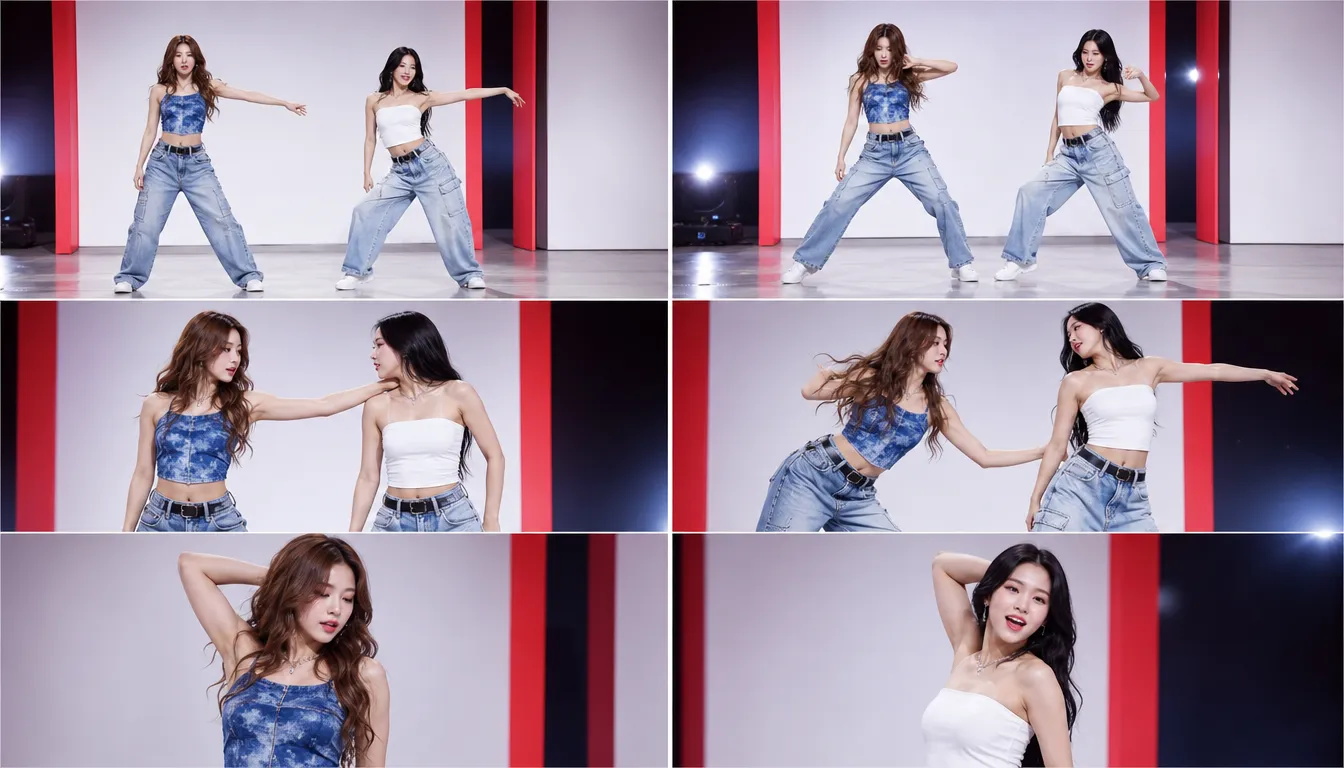
The built-in dance reference gives the two performers a routine they can do together. It guides when they step toward each other, turn, and move apart, while the preset keeps the stage and the timing of the camera cuts. Those details matter in a partner dance: a turn makes sense in relation to what the other dancer is doing, and a cut shows the next part of the routine. You choose who performs, and the template supplies how the performance unfolds.
Hear the Original “Trouble Maker” Song
The original “Trouble Maker” track is already part of the generated clip. Play it back with sound on to hear the same track that comes with the downloaded duet. That means the song is there for the reveal, whether you’re showing a friend their first take or comparing two different pairings. If you add a title card or a photo reveal in a video editor, keep the generated clip and its audio together so the music enters with the performance.
Start With Portraits Alone
Open the AI Trouble Maker Video template and add one portrait to each Upload Dancer field. The Reference Video is built in, so you can see the routine the template follows before you generate. There’s no separate dance clip to find or prompt to write. If you want to see how a different pairing looks, swap one portrait and generate another take with the same preset. To try a different routine altogether, explore PicLumen's AI Dance Video Generator.
How to Create the AI Trouble Maker Video Effect
Step 1 Open the Trouble Maker Template
1In PicLumen, select AI Trouble Maker Video. Play the built-in Reference Video and look for a shot where you can see both dancers. Watch each performer for a few seconds to get a feel for their role in the duet. If you already have a pairing in mind, this is a good time to decide who you want in each role.
Step 2 Upload the First Dancer
2Use the first Upload Dancer field to add one performer’s portrait. A head-and-shoulders photo is a good starting point. If you’re choosing between a close-up and a full-body shot, use the one where you can see the eyes and facial features more clearly. If someone else is in the frame, crop the photo around your dancer before uploading it.
Step 3 Upload the Second Dancer
3Use the second Upload Dancer field to add the other performer’s portrait. The photos can come from different places, so focus on picking a clear shot of each person. Check the two previews side by side before you generate. If you’re working with similar-looking selfies or several versions of the same photo, this is an easy way to catch a duplicate or a mix-up.
Step 4 Generate and Download Your Duet
4Once both portraits are in place, click Generate. Play the finished AI Trouble Maker Video with the sound on to hear the original song alongside the performance. If you want to try the two people in each other’s roles, swap the portraits in the upload fields and generate a second take. Download the version you want to keep.
Four Ways to Cast Your Trouble Maker Duet
Give Your Group Chat a Surprise Dance Reveal
Pair the friend who’s always first on the dance floor with the one who usually guards everyone’s coats. Pick a portrait of each, then drop the AI Trouble Maker Video into your group chat with a caption like “Guess who finally got up to dance?” For a birthday version, cast the birthday friend alongside the person who always talks them into one more song. The joke works because everyone already knows how that pairing would play out in real life.
Turn Two Favorite Photos Into an Anniversary Dance Video
Pick one portrait from early in your relationship and another from a recent trip, date night, or milestone. An old photo of you and a newer photo of your partner can give the duet a fun then-and-now angle, even if you rarely take photos together. For an anniversary Reel, add the year to each portrait before cutting to the dance. A caption like “2018 me finally got a dance with 2026 you” gives the clip a story that’s specific to the two of you.
Put Two Cosplay Looks on the Same Stage
Bring together two cosplay looks from separate conventions or shoots. Try a hero and their longtime rival, or two characters from different fandoms who would never share a scene. Choose portraits that show what fans recognize first, like a signature wig, bold makeup, or a distinctive collar. If the pairing crosses fandoms, name both characters in the caption and give viewers a reason to watch, like “They settled it with a dance-off.”
Tease Your Next Project With a Long-Distance Creator Duet
Trade portraits with a creator you usually work with remotely and turn them into a Trouble Maker duet to announce what you’re making together. For a podcast guest reveal, you might cast the host and guest, then put the episode title and release date on an end card. For a joint stream, use the dance as the announcement and give each creator a different caption from their side of the collaboration. Both posts can point viewers to the same premiere.
Turn the Trouble Maker Dance Into a Recurring Series
Give each episode one rule your audience can follow. In a “Who’s Dancing Next?” series, keep one dancer in every AI Trouble Maker Video and cast a different partner each week. If you draw comics or make short films, put two characters who rarely share a scene onstage together. Introduce the pair in a single line, like “The detective finally caught the thief. They’re settling it on the dance floor.” The preset gives each episode the same choreography and original song, so viewers can recognize the format as soon as the dance starts. Let them vote between two possible pairings at the end of one post, then open the next with the winner. If one duo gets people talking, bring them back for a rematch with portraits from a different chapter of their story.


Loved by Creators Worldwide
Real feedback from designers, marketers, and hobbyists sharing their PicLumen experience on Trustpilot.
 jsbsbsbs hdhdhshwhw
Very cool i like it it's so smooth
Very cool i like it it's so smooth
Ibrahim OnuhSo very powerful and interesting
So very powerful and interesting
 Brad the Bibliothecary
Great service with ease of use and…
Great service with ease of use and generous free offerings.
Really good app and generates good…
Really good app and generates good images!
ZaraPiclumen still remains the best…
Piclumen still remains the best with image references. I don't have any complains using Piclumen. It makes my work easier
 Pino Calambrogio
Good over other applications
Good over other applications
 GPS BelAR
I tried the tool for fun and only used…
So far, I've only tried PicLumen for fun and used the free ‘basic option’. Even as an AI design novice, you can achieve great results. It should be emphasised here that if you choose a simple AI, the coins are enough to just give it a try (unlike some other tools). I like the community concept; the opportunity to get inspiration for your own ideas in the image gallery, as well as the option to ‘like’ and comment on other users' creations. The result depends, of course, on the quality of the prompt entered, but ‘practice makes perfect, as we all know!’ The only reason for the one-star deduction is that I can't try everything with the free access and can't comment on the paid options.
 Alishba Mukhtar
Wonderful experience I’ve ever had
Wonderful experience I’ve ever had
Charan BalivadaIt's a good ai and create to make ai…
It's a good ai and create to make ai pic in different ways and different styles
 Nagavali Srinivas
excellent images are generated
excellent images are generated
 Le crouton enragé
Very good application to do whatever…
Very good application to do whatever you want
 Eri Sudirjo
First
First, I thought Piclumen not too populer because people never talk about it. But now more more I love it. Like canva, Piclumen also all in one (sora, banana, and midjourney inside). Thanks for make it easier
Frequently Asked Questions
What does the AI Trouble Maker Video effect do?
PicLumen replaces both performers in a preset “Trouble Maker” dance clip with the people or characters in your portraits. The duet follows the original stage setup, choreography, and camera cuts, including the moments when the dancers move toward each other or trade places. You can put two people onstage together even if they’ve never met or filmed a dance.
Can I make a Trouble Maker dance video from a photo of two people?
Yes. Make two separate crops from the group photo, with one person in each crop, then add one image to each Upload Dancer field. Leave a little room around each face so the hairline and jaw are visible. If the faces overlap or one person looks soft and pixelated after cropping, use a separate portrait of that person. You can still use the group-photo crop for the other dancer.
Do I need full-body photos for the Trouble Maker AI dance?
No. A clear head-and-shoulders portrait is enough to get started because the dance movement comes from the template. Choose a front-facing or slightly angled photo with both eyes visible and even light across the face. If you’re deciding between a sharp selfie and a full-body shot taken from across the room, use the selfie. It gives the template a clearer view of the person’s features.
What is the Reference Video field for? Do I need to upload anything there?
The Reference Video is already included with the template. It shows the routine PicLumen follows, including when the dancers turn, cross paths, and move into the next shot. You only need to fill the two Upload Dancer fields, one portrait per performer, then click Generate. There’s no separate dance clip to find and no prompt to write.
Does the downloaded video come with the original “Trouble Maker” song?
Yes. The original “Trouble Maker” track is included in the generated duet and stays with the video when you download it. If you add an intro or a photo reveal in a video editor, keep the clip and its audio together when you trim. Play the edited version with sound on to check that the music still lines up with the dance.
Can I use illustrated characters in an AI Trouble Maker Video?
Yes. Upload one portrait per character, such as two leads from your comic or two mascots from your channel. Pick images that show the details viewers use to recognize them, like a signature hairstyle, face markings, or a distinctive collar. If your only image shows both characters together, crop it into separate portraits and make sure each face still has enough detail at the cropped size.
Can I change the choreography in the Trouble Maker template?
The template uses a fixed routine from its built-in Reference Video. Changing a portrait changes who performs the dance, while the choreography, timing, and camera cuts still follow the preset. If you want to compare two pairings, keep one dancer’s portrait and swap the other. You’ll be able to see how each pair looks performing the same moves.