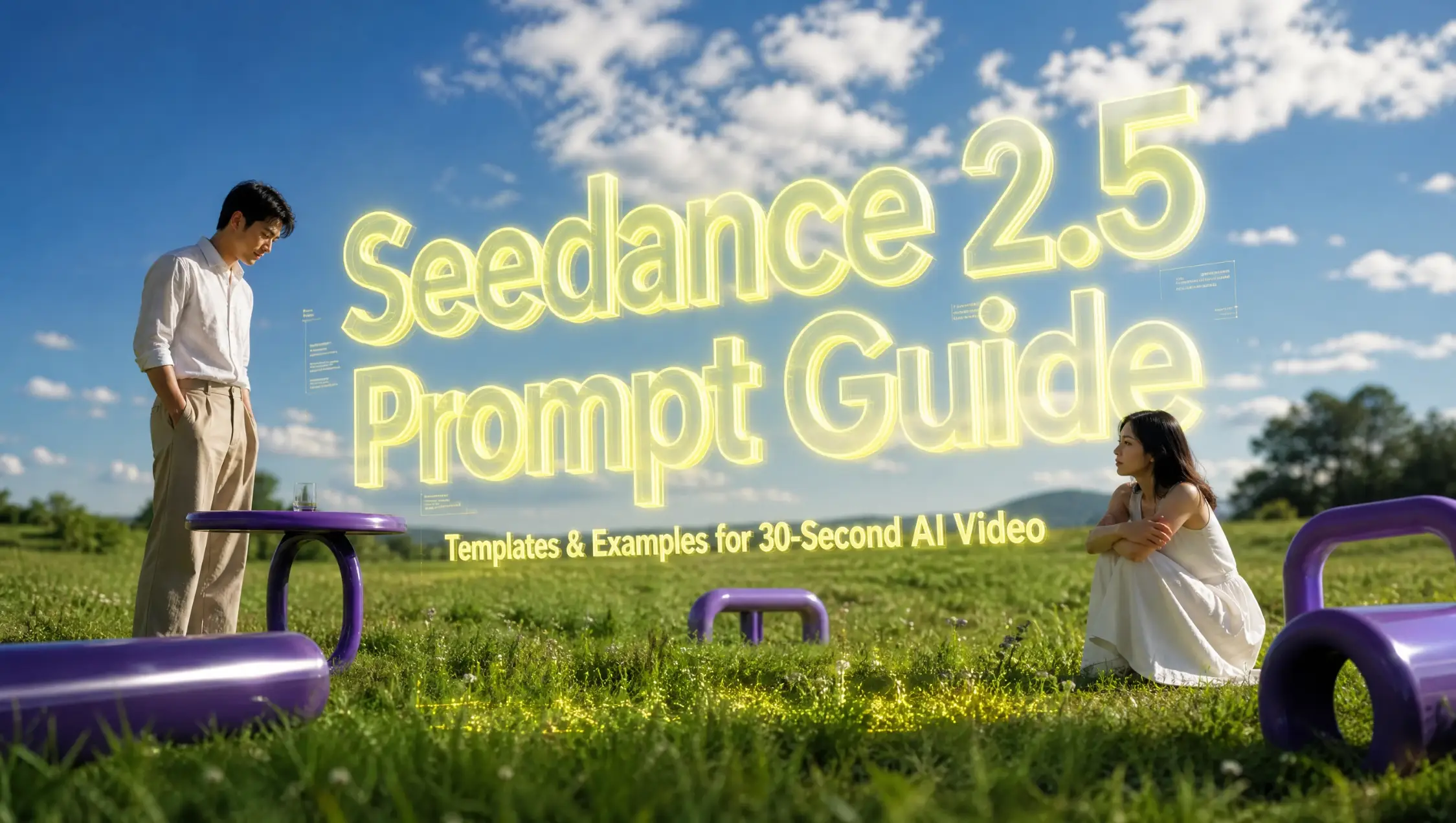
Making AI video used to mean generating numerous clips until one worked, then stitching them together and hoping the transitions would be natural. Seedance 2.5, ByteDance's latest AI video model, changes that workflow: a single prompt turns into a finished 30-second scene. The output includes cuts, pacing shifts, and synchronized audio all at once. This guide covers what the model does, how it compares to Seedance 2.0, why prompts matter more than ever, and the template plus prompt library you can copy today.
Before the theory, here's the proof: this 30-second video was generated with the template below.
What Is Seedance 2.5 and What Are Its Core Features?
Seedance 2.5 is ByteDance's next-generation AI video model and it is the successor to Seedance 2.0. It is built around one idea: a single generation should complete a scene, not just a clip. Where earlier video models treated references as loose inspiration, Seedance 2.5 treats strictly them as production inputs, which is exactly why prompts behave differently here.
Capability | Specs | Why it matters |
Single-pass generation | Up to 30 seconds per prompt, scene changes & tempo shifts included | One prompt, one complete scene, no stitching, characters stay consistent for the whole run |
Multimodal references | Up to 50 role-tagged assets: 30 images + 10 videos + 10 audio | Mood boards, product shots, and voice samples become the creative brief instead of paragraphs of description |
Region-level editing | Change one element per edit, timestamp-level control | Fix that element without re-rolling the clip |
Native 4K output | 3840×2160, 10-bit color | Sharper textures and cleaner grading, with less upscaling in post |
Co-generated audio | Synchronized in the same pass — dialogue, ambience, pacing | Sound becomes part of the direction, not an afterthought |
Prompt adherence | Complex multi-beat instructions land more reliably | Fewer re-rolls, results closer to what you meant |
What Makes a Good Prompt Now: Text + References
What makes a good prompt for AI video generation has changed. It used to be just a well-written text. A good text prompt can still get you where you want to go. That part hasn't changed.
What's new is that you now have more options. Text is no longer the only way to describe a scene. You can also hand the model a reference (images, video clips, audio clips) and let that carry some of the weight.
References are good at the details that are hard to put into words. Give the model an image, and it keeps the face, the wardrobe, the whole visual style. Give it a video clip, and it follows the motion and the camera work. Give it an audio clip, and the sound matches what you had in mind.
Meanwhile, the text prompt still does what it's always done best: describing what happens in the scene. In this setup, the reference handles the "who" and the "how": identity, appearance, movement, voice. The text handles the "what happens."
That's why the ideal workflow is to put them together. When you combine the two, you're holding more creative control. Here's a prompt template that might help:
The Seedance 2.5 Prompt Template
Prompt:
[Format & camera]: [16:9, cinematic texture, one continuous take / timed cuts] (optional)
Use @Image1 for [character], @Image2 for [location], @Audio1 for [voice/music],
@Video1 for [choreography and camera movement].
[Story]: [what happens, start to end — one paragraph, or timed beats:
0–5s: … / 6–12s: …]
Keep: [identity, wardrobe, style, sound]. No: [readable text, logos, extra people]
Three rules that make it work: every reference gets exactly one job (face, outfit, voice, or motion); identity lives in references, not in paragraphs; the Keep/No line is important as well.
Examples:
16:9 widescreen, cinematic texture, single continuous take, smooth camera movement, no cuts.
Use @Image1 for the stage scene, @Image2 for the male warrior, @Image3 for the Overlord, @Image4 for Consort Yu.
0–5s: open with a close-up of the Overlord from @Image3; the camera slowly circles his upper body and transitions into a medium shot. He spins and turns, his body and back flags sweeping past the lens to form a natural occlusion, and the camera follows through to Consort Yu's side in @Image4.
6–10s: the camera steadily circles Consort Yu in a medium shot, following her water sleeves through the arc. She raises her arm, flicks her wrist, unfurls the sleeves; then draws them back, holds the pose, and looks sideways toward the Overlord.
11–20s: the male warrior from @Image2 enters with an aerial flip. The Overlord takes center stage while the warrior advances and retreats on the opposite side in a combat exchange; Consort Yu stands slightly behind and to the side. The camera slowly pulls back from a medium-close shot of the warrior to a full stage view. At the end, all three face the audience and strike a synchronized Peking opera finale pose.
More Prompt Examples by Use Case
Same template, eight workflows. Each example fills the template from top to bottom.
1. One-take storytelling — backstage to runway
One-take handheld gimbal tracking shot, 16:9, cinematic texture. Use @Image1 for the model's face and body, @Image2 for the runway venue, @Video1 for the handheld pacing. The camera follows a young model through a dark backstage corridor, her dress trailing; a stylist fixes her collar, a staff member hands her a headset. She pauses at the curtain, breathes, and steps onto the runway. The camera arcs around her as she walks the catwalk — warm spotlights, haze, reflective black floor — then pulls out to a wide shot of the applauding front row.
Keep: model's look, venue, one continuous take. No: readable text, logos.
2. Multi-character scene — jazz club
16:9 widescreen, cinematic realism, warm amber stage lighting, smoky late-night atmosphere. Use @Image1 for the club venue, @Image2 for the trumpet player, @Image3 for the double bass, @Image4 for the drummer, @Image5 for the singer, @Images 6–9 for the audience tables. Open with a slow crane-down wide shot of the full stage. The trumpet player steps forward for a solo as the camera tracks across bass and drums; the singer leans into the mic, the front tables nod along. Closing: the camera pulls back as the song ends and the room joins in the applause.
Keep: each musician's look, the venue's lighting. No: readable text, logos.
3. Multi-round extension — beach kite
Extend @Video1: continue from its visuals and subjects, generate another 30-second clip. Use @Video1 for characters, scene, style, and sound. The girl's paper kite dips onto the beach fence. She runs to it, tugging the string, but it's stuck. A boy jogs over, climbs the fence, and lifts it free; he hands it to her with a grin. The two fly the kite together as the camera pulls back to a wide shot of the empty beach at sunset.
Keep: characters, scene, visual style, and sound effects consistent across clips. No: text, logos.
4. Timed multi-shot scene — lion dance
16:9 widescreen, cinematic texture, smooth camera movement. Use @Image1 for the street scene, @Image2 for the first lion head, @Image3 for the second lion head.
0–5s: close-up of the first lion, camera slowly circling its mane as it sways to the drumbeat.
6–12s: camera drops low to follow the dancers' footwork as the lion leaps onto a stack of stools.
13–22s: the second lion enters from the left; the two circle each other in a coordinated exchange, the camera tracking sideways.
23–30s: both face the audience and strike a synchronized final pose as the drum ends; camera pulls back to the full street view of the crowd.
Keep: lion designs, costumes, drum rhythm. No: readable text, logos.
5. Green screen editing — fitness instructor
Edit @Video1: keep the instructor's identity, wardrobe, and motion unchanged; replace only the green-screen background. Use @Video1 for the instructor and her movement.
0–4s: outdoor training — a park running path at dawn, trees passing behind her.
4–10s: a bright living room with a yoga mat; her movements unchanged.
10–15s: a rooftop at sunset, city skyline behind her; hair and clothes respond naturally to the breeze.
Keep: identity, wardrobe, motion exactly as in @Video1. No: new objects, text.
6. Camera-movement-only edit — cocktail
Edit @Video1: keep characters, actions, and visual style unchanged; adjust only the camera movement. Use @Video1 for the bartender, the action, and the bar scene.
0–4s: a micro-FPV move skims along the bar edge, follows the spirit pour, and whip-pans to the shaker.
4–7s: push in and track laterally along the shaker as the bartender shakes.
7–11s: rise to a top-down view, then descend steadily across the glass and garnish.
11–15s: a handheld close-up follows the hands with a fast lateral whip, then pulls back to a medium two-shot of bartender and customer.
Keep: the whole sequence smooth, continuous, and stable. No: changes to characters or objects.
7. Clay render → photorealistic product — watch assembly
Use @Clay Render 1 for camera work, composition, shot scale, part positions, assembly order, and motion paths; use @Image1 for materials, lighting, color, reflections, and atmosphere. Turn the clay render into a high-end, photorealistic mechanical watch assembly sequence. Story beats: macro opening on the dial → gears clicking into place → case, crown, and strap assembling → final wrist shot as the watch catches the light.
Keep: assembly order and motion paths from the clay render; materials and lighting from @Image1. No: text, logos.
8. Education — physics lesson
Expressive clean-illustration style, bright classroom, gentle camera push-in. Use @Image1 for the teacher's appearance and outfit, @Image2 for the classroom, @Audio1 for the teacher's voice. The teacher demonstrates gravity: she drops an apple, and it falls in slow motion as white force arrows trace its path. The children watch, wide-eyed; one raises a hand to ask a question. Labels fade in and out: GRAVITY, FALLING, FORCE. The camera gently pushes in as she smiles and the lesson ends.
Common Mistakes & How to Fix Them
Mistake | What happens | The fix |
Re-describing what references already carry | Conflicting instructions; identity gets muddled | References hold identity; the prompt holds action |
No timestamps on multi-beat actions | Pacing feels random | Use 0–5s: … 6–12s: … or STAGES |
Dumping references without roles | The model averages them into mush | Give every reference exactly one job |
Ignoring audio direction | Co-generated sound fights the scene | Name what you hear and what you don't (no music) |
Re-rolling a 90%-right shot | You lose the take that worked | Use region-level editing instead |
No constraints | Random text, logos, extra characters appear | End with: no readable text, no logos, no extra people |
Seedance 2.5 vs Seedance 2.0
Compared to the previous model, Seedance 2.5 has some significant advantages.
Capability | Seedance 2.0 | Seedance 2.5 | What it means |
Max clip length | ~15 seconds | 30 seconds, single pass | Longer stories in one shot |
Resolution | 1080p | Native 4K (3840×2160), 10-bit | Sharper detail and richer color |
Reference inputs | ~12 combined | Up to 50 multimodal, role-tagged | More control over identity, style, motion, audio |
Audio | References can shape pacing | Co-generated and synchronized | Sound naturally matched to the visuals |
Multi-round extension | — | Yes; maintains character & environment consistency | Keep extending the same story seamlessly |
FAQ
What's the maximum clip length on Seedance 2.5?
30 seconds in a single pass, with multi-round extension for multi-minute output.
How many reference inputs can Seedance 2.5 accept?
Up to 50. 30 images, 10 video clips, and 10 audio clips — each taggable with a role.
Can I use Seedance 2.5 for social media content?
Yes. The 30-second single-pass generation makes it well-suited for platforms like TikTok, Instagram Reels, and YouTube Shorts, especially when you need a complete scene in one take.
How do I keep characters consistent across shots?
Upload the reference photos of your characters and their props from multiple angles.
Is Seedance 2.5 available on PicLumen?
Yes, Seedance 2.5 is available on PicLumen right now. You can start creating 30-second video with up to 50-references right away.