GPT Image 2.5 Prompt Guide: How to Write Better Prompts for AI Image Generation
summary: A good GPT Image 2.5 prompt should include the task, key visual details, and what to remain or change especially for image editing, while adding constraints when needed.
When important visual details are unclear, getting the result you want from GPT Image 2.5 can be really difficult. Here, we’ll look at the key elements of an effective prompt and how to use them in different image-generation tasks.
What Makes a Good GPT Image 2.5 Prompt?
GPT Image 2.5 can generate images from natural-language instructions, but the way a prompt describes the task still affects how clearly the model can interpret the request.
A useful starting point is to regard a prompt as a short visual brief rather than a list of keywords. The prompt does not need to be long, but important information should be stated clearly.
Define the Task and the Key Visual Details
Start by explaining what you want the model to create or change. Then add the visual details that are really important to the result.
A simple structure can be:
Task + Subject + Key Visual Details
Depending on the image, useful visual details can include:
subject appearance
clothing or materials
environment
lighting
visual style
text or layout
For example:
Create a realistic editorial photo of a young woman standing on a quiet city street at golden hour. She is wearing a white blouse, dark blue jeans, and white sneakers. Show her in a full-body vertical composition, positioned slightly to the left of center. Warm sunlight comes from the side, with soft shadows and a natural urban background. Use realistic skin texture, natural facial features, and a clean cinematic photography style.
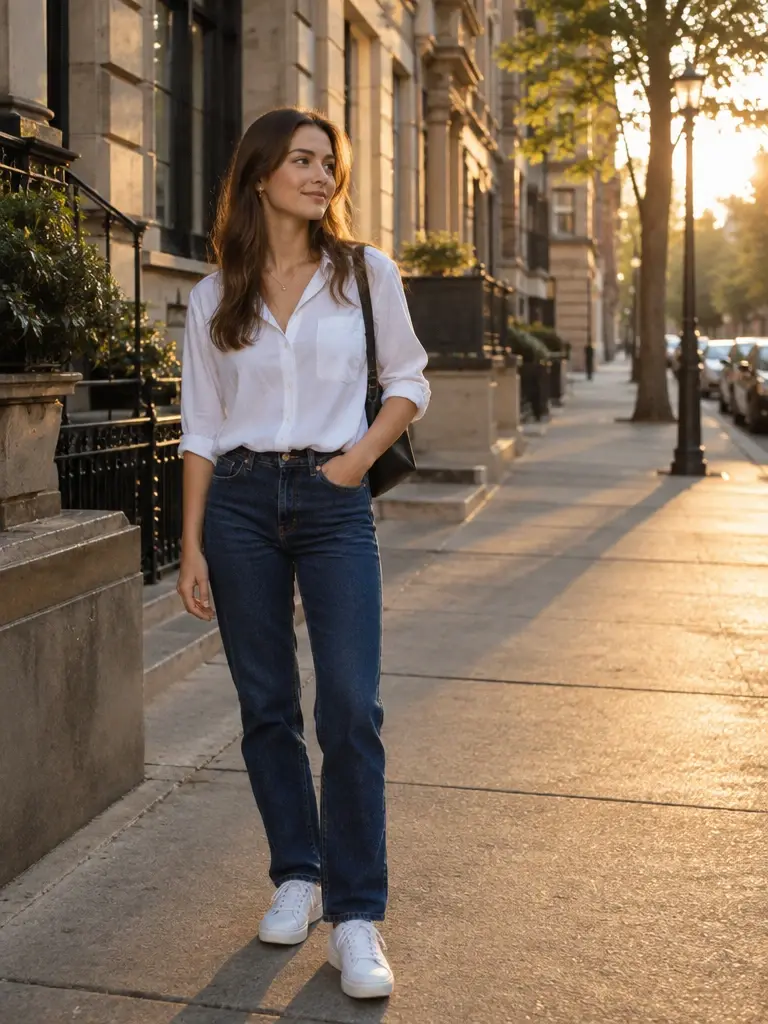 | 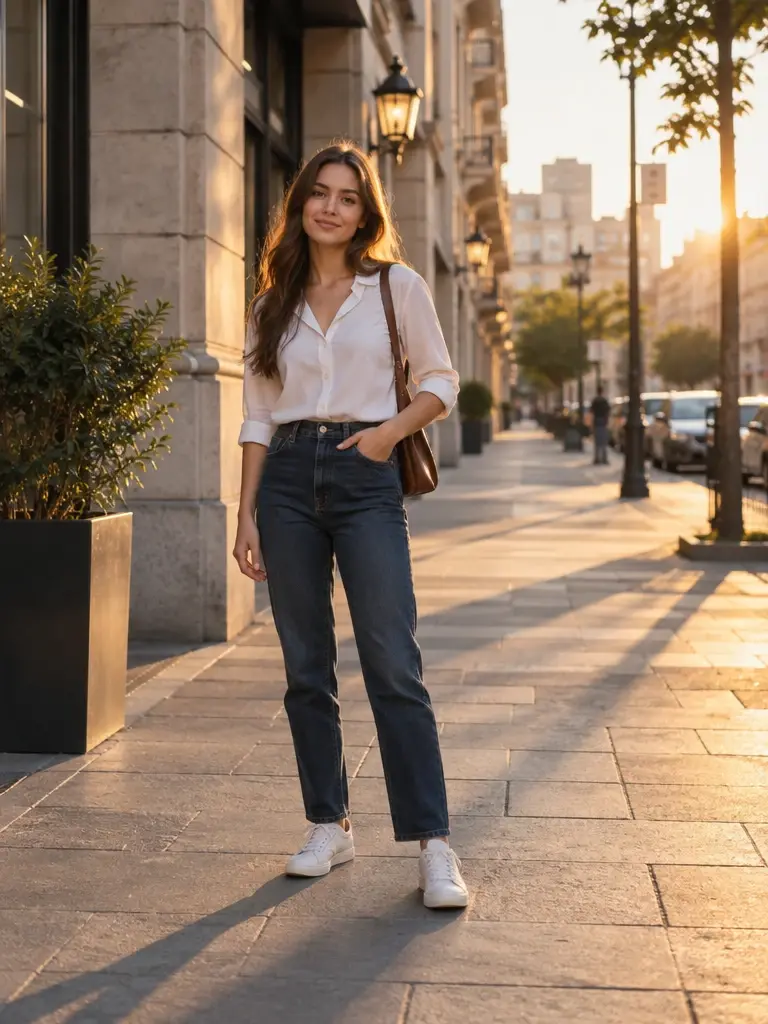 |
GPT Image 2.5 Flare(left) and Sunburst(right) text-to-image results using the same prompt
In my test, “quiet” was not clearly reflected in either result. This suggests that, for qualities that are important to the final image, more concrete visual descriptions may be useful.
For example, instead of relying only on "quiet," a prompt could describe what makes the street look quiet, such as fewer people, limited traffic, or a calm background.
Specify What to Preserve and What to Change
For image editing, the prompt should make the requested change clear and also state which parts of the original image should remain unchanged.
A useful pattern is:
Change A + Preserve B
For example:
Only change the person's clothing. Replace the current outfit with an olive-green blazer over a white crew-neck shirt, paired with black straight-leg trousers and clean white sneakers. Preserve the person's facial identity, hairstyle, body proportions, pose, camera angle, framing, background, lighting, and overall composition.
This approach is especially useful when the goal is to make a precise edit instead of recreating the whole image. GPT Image 2.5 is designed for more precise editing and better preservation of details across the editing workflows.
In my image-editing test, both Flare and Sunburst changed the clothing as requested while preserving the person's identity, pose, composition, background, and lighting.
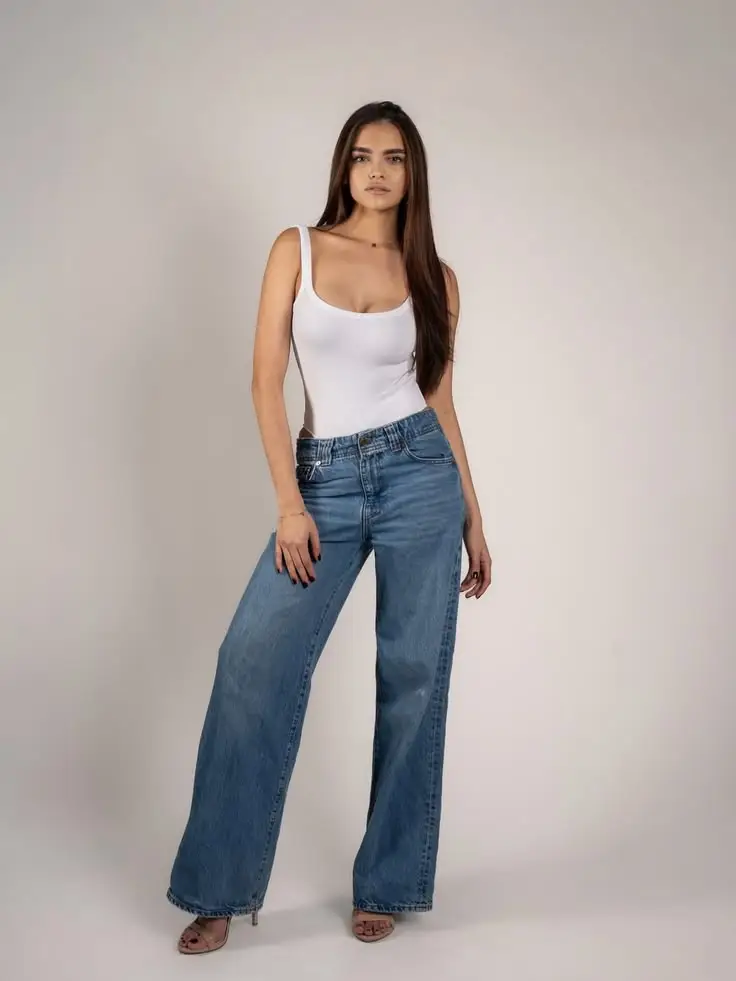
Reference image used for the GPT Image 2.5 image-editing test.
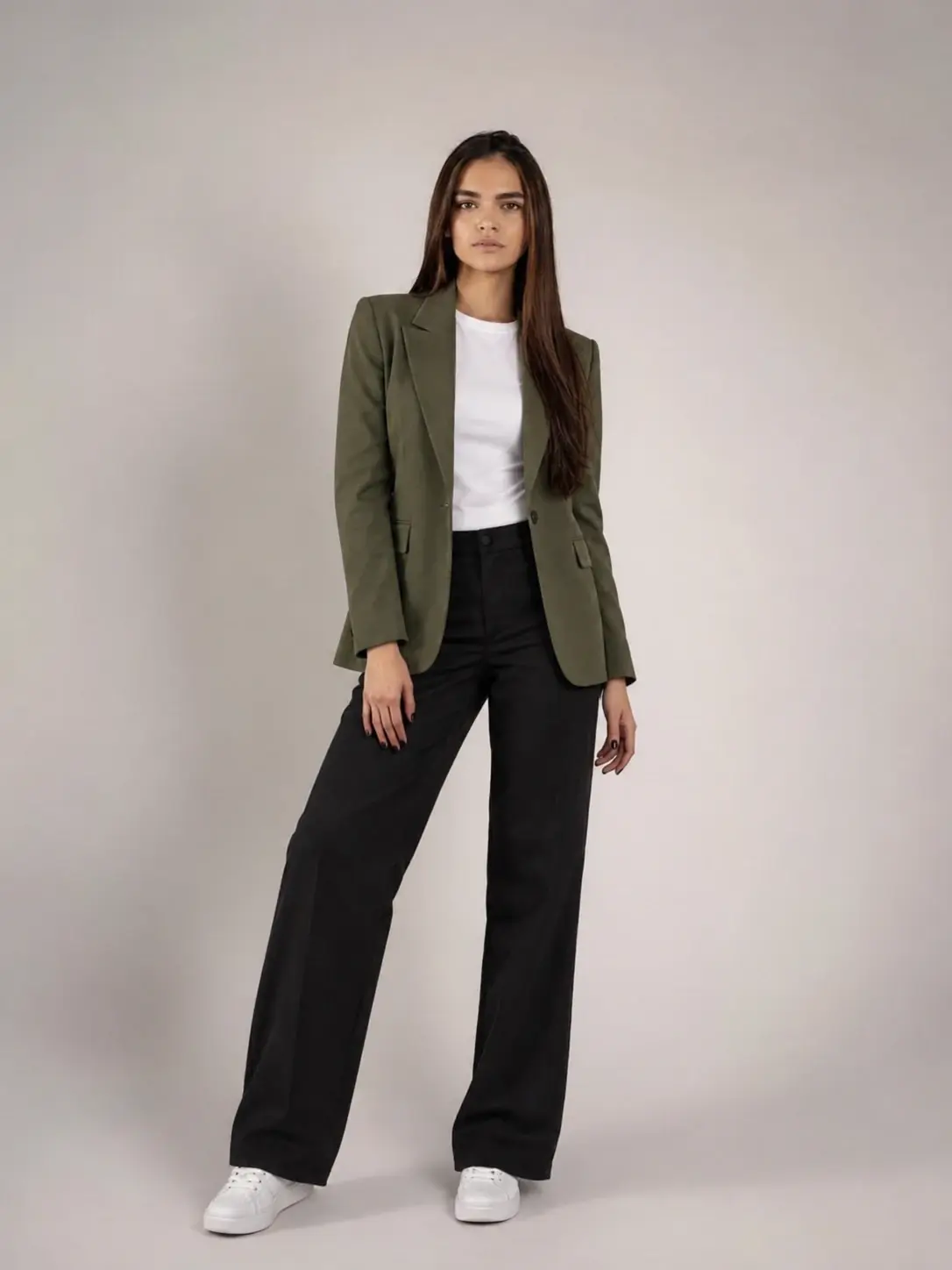 | 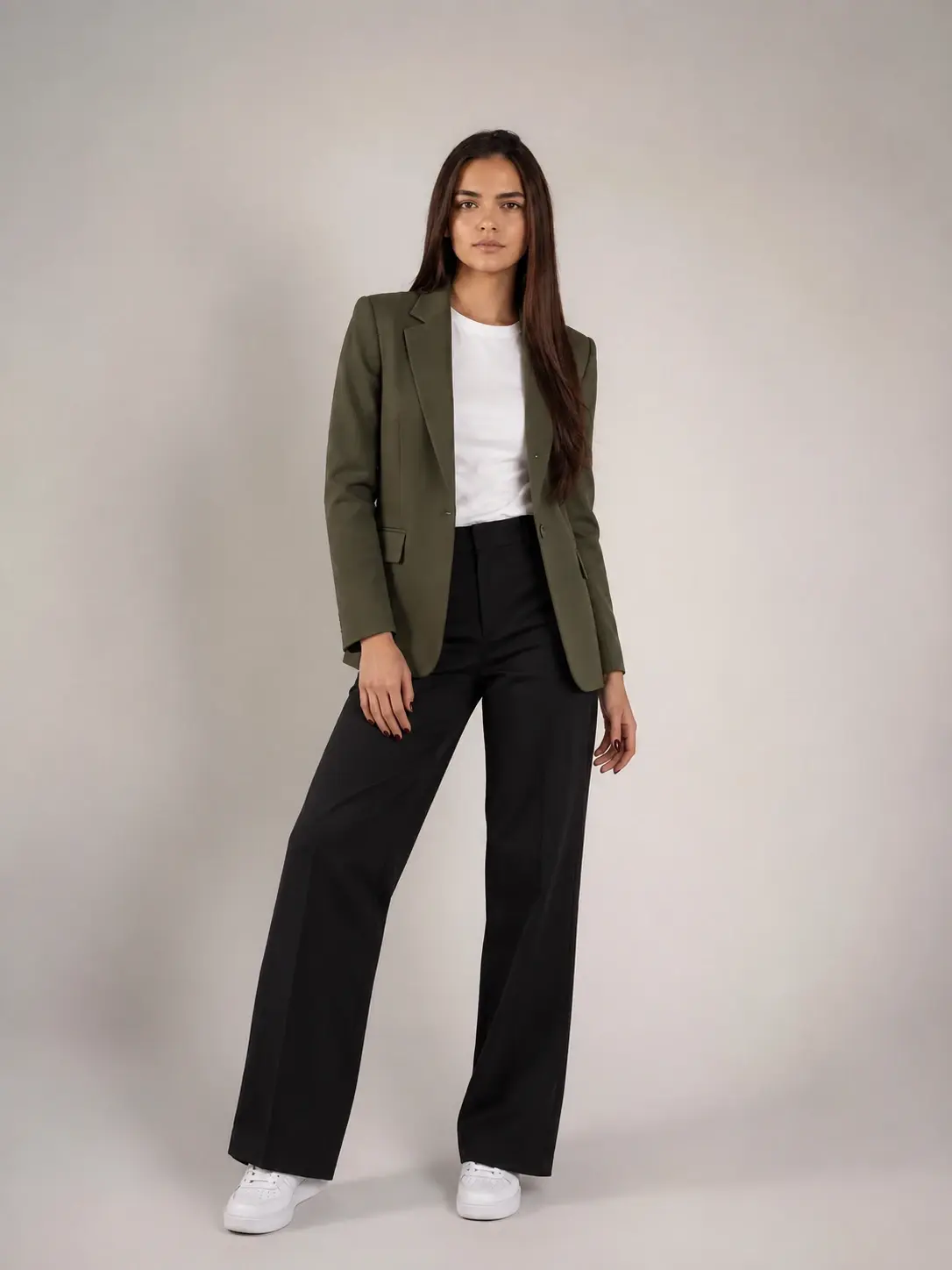 |
Flare(left) and Sunburst(right) results after changing the clothing while preserving the original subject and scene.
However, preserving everything is not always ideal. In the Sunburst result, the original foot position was retained after the clothing was changed. The original pose worked with high heels, but looked slightly unusual after the shoes were changed into sneakers. This shows that the details you choose to preserve can also affect the new result to some extent.
So for editing tasks, it is useful to think carefully about:
What should change? What should stay?
Add Constraints When They Matter
Constraints can help reduce unwanted changes when a visual detail is important.
For example, a prompt can use constraints to specify:
elements that should not be added
objects that should remain complete
parts of the original image that should stay unchanged
In one of my text-to-image tests, both models added an armpit bag even though the prompt did not mention one. However, this did not have a significant impact on the final generated results, but enhanced the sense of realism.
So this does not mean that every prompt needs a long list of restrictions. The key rule is:
Add a constraint when it solves a specific problem.
For example:
Display the exact text "TOKYO SPRING" as the main title at the top of the poster. Do not add any other words, letters, captions, logos, or watermarks.
GPT Image 2.5 Prompt Templates You Can Use
The following templates are simple starting points rather than fixed formulas.
Text-to-Image Prompt Templates
[Type of image / purpose] + [Main subject] + [Environment] + [Key visual details] + [Composition / lighting / style] + [Important constraints]
For example:
Create a realistic editorial photo for a fashion campaign. Show a young woman standing in a modern city street. She is wearing a tailored black blazer, white shirt, and wide-leg trousers. Use a full-body composition with the subject slightly off-center. Use soft afternoon light, natural skin texture, and a clean editorial photography style. Keep the background simple and do not add text.
The template can be shortened when some elements are not important. The goal is to describe the information that actually affects the image rather than filling every section for every prompt.
Image Editing Prompt Templates
Use the uploaded image as the visual reference.
Change [specific element] to [new result].
Preserve [identity / composition / background / pose / other important details].
Do not change [specific elements that must remain unchanged].
For example:
Use the uploaded image as the visual reference. Change only the jacket to a dark brown leather jacket. Preserve the person's facial identity, hairstyle, pose, body proportions, background, lighting, and camera angle. Do not change the person's face or add accessories.
This structure makes the boundary between the requested change and the preserved image content very clear.
Image-to-Image Prompt Templates
For style or visual transformation, the prompt can focus on the source image and the target visual direction:
Use the uploaded image as the visual reference.
Transform the image into [target style or visual direction].
Preserve [important subject / composition / identity details].
Change [specific visual elements] to match the new style.
Maintain [important structural details].
Do not introduce [unwanted changes].
For example:
Use the uploaded image as the visual reference. Transform the image into a vintage 1970s editorial photograph. Preserve the person's facial identity, pose, and overall composition. Change the color palette, lighting, and film texture to create a warm analog look. Keep the main subject recognizable and do not add new people.
This type of structure is particularly useful when the goal is not to replace the entire image, but to change its visual treatment while keeping important source details.
GPT Image 2.5 Prompt Examples You Can Copy and Use
Photorealistic Prompts
Use the uploaded photo as the exact identity reference. Create a cinematic studio portrait of the same woman in two layers: a full-body figure in the foreground and a large, softly blended close-up portrait in the background. Preserve her facial identity, hairstyle, clothing, proportions, and overall composition.
Cinematic Prompts
Use the uploaded photo as the identity reference. Place the person at the center of a busy urban crowd during golden hour. Keep the main subject sharp and natural while surrounding people show strong motion blur. Preserve realistic facial identity and body proportions, with warm cinematic lighting and a film-like editorial photography style.
Illustration and Anime Prompts
Create a detailed anime-style illustration of a young girl standing on a rooftop at sunset. Her long dark hair moves gently in the wind, and she wears a simple white dress with blue accents. Use warm orange light, soft clouds, clean linework, and a calm atmospheric mood.
3D and Stylized Prompts
Create a stylized 3D render of a modern desk setup with a silver laptop, a small desk lamp, a notebook, and a glass of water. Use clean geometry, soft studio lighting, subtle reflections, and a minimal product-visualization style.
Vintage and Artistic Prompts
Use the uploaded photo as the identity reference and transform it into a vintage editorial photograph. Preserve the person's facial identity, pose, and overall composition. Use faded warm tones, subtle film grain, soft contrast, and natural imperfections to create an authentic analog photography look.
Ready to try these GPT Image 2.5 prompts? You can test them on PicLumen with GPT Image 2.5 Flare and Sunburst, then compare and refine the results based on your needs.
Try GPT Image 2.5 Prompts on PicLumen
How to Refine GPT Image 2.5 Prompts
A first prompt does not always produce the exact result you want. When a specific problem appears, refining the relevant part of the prompt can be more useful than rewriting the entire instruction.
How to Optimize a GPT Image 2.5 Prompt
A simple refinement process is:
Generate → Identify the specific problem → Change the relevant instruction → Generate again
When refining a prompt:
Identify the specific problem in the result.
Make the related instruction more specific.
Add a clear constraint when needed.
Keep the rest of the prompt unchanged and test again.
For example, if an object is partly missing, describe its position or visibility more clearly instead of rewriting the whole prompt.
In my test, the General Prompt produced Tokyo Tower with a noticeably missing lower section in two models, Flare and Sunburst. I then added instructions requiring the complete tower to remain visible from top to bottom and telling the model not to crop or obscure any part of it.
Prompt Comparison: Before vs. After
General Prompt
Task / Goal: Create a modern travel poster for Tokyo in spring.
Subject description: Show Tokyo Tower, cherry blossoms, and a few people walking through the city.
Text instruction: Include the text "TOKYO SPRING" in the poster.
Use a clean, modern, colorful travel-poster style.
Refined Prompt
Task / Goal: Create a modern travel poster for Tokyo in spring.
Subject description: Show a complete Tokyo Tower as a prominent landmark, with the entire tower visible from top to bottom and its full structure clearly preserved.
Constraints: Do not crop, cut off, or obscure any part of the tower.
Text instruction: Include the exact text "TOKYO SPRING" in the poster.
Show cherry blossoms and a few people walking through the city.
Use a clean, modern, colorful travel-poster style.
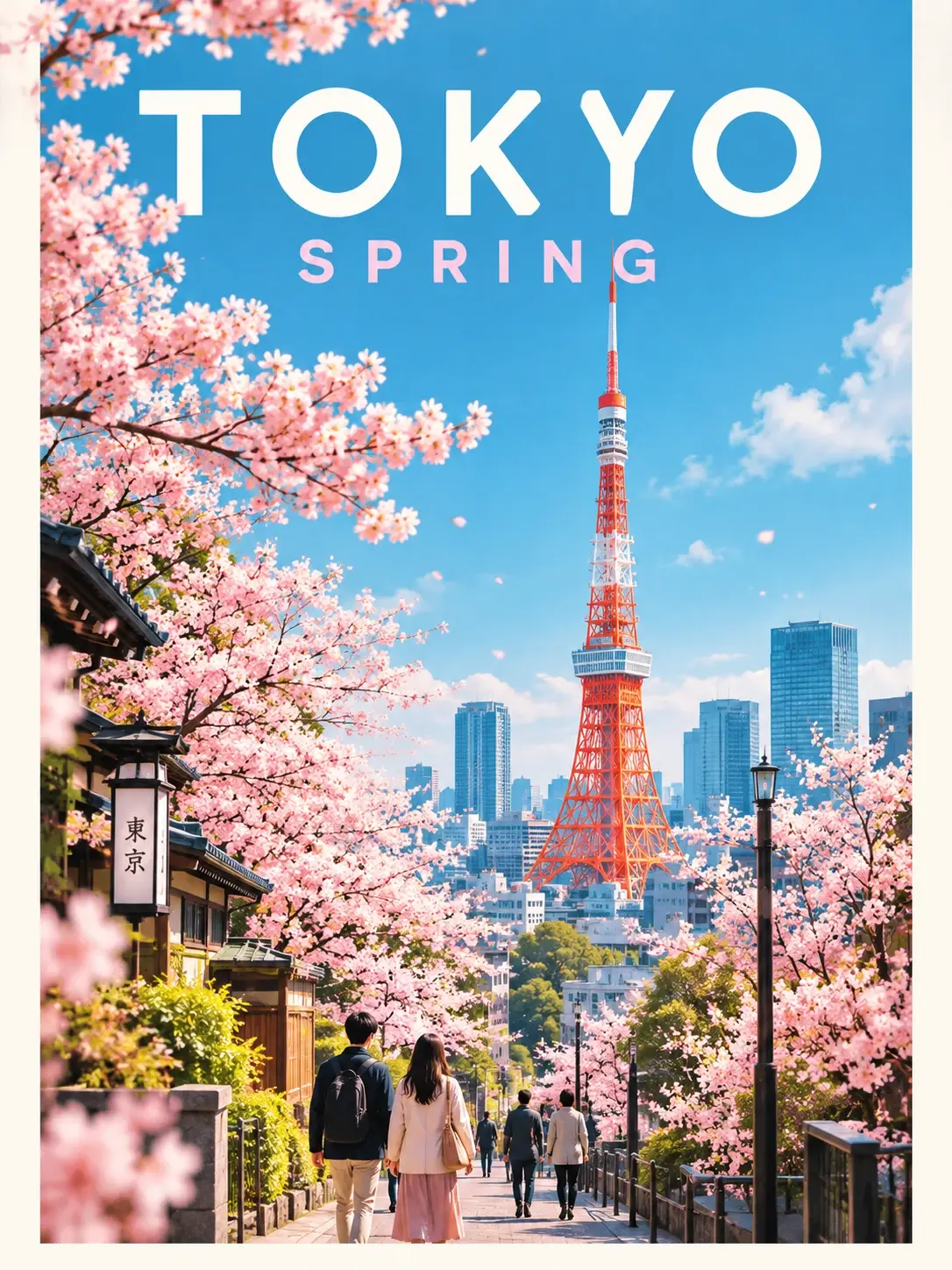 | 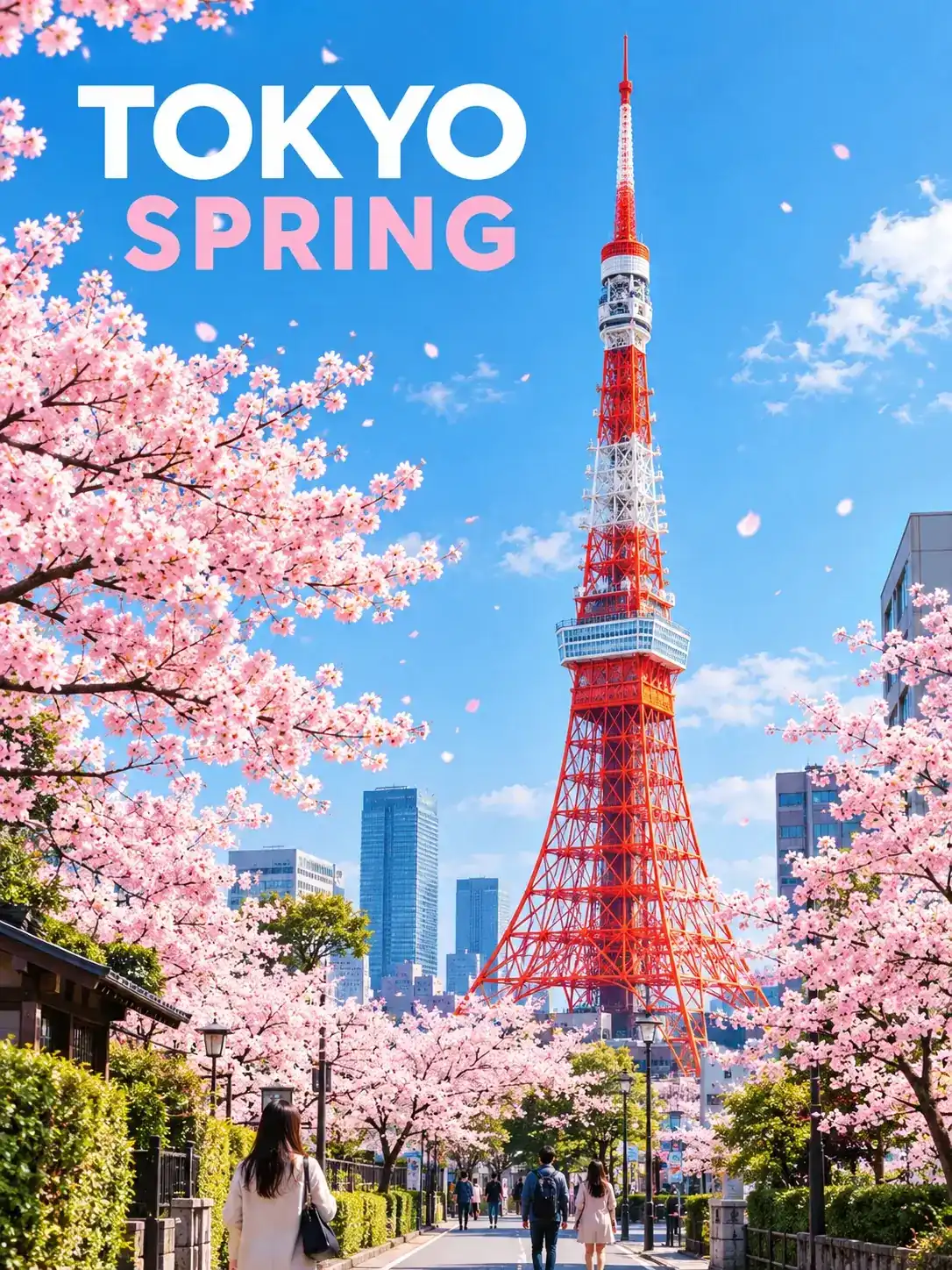 |
General vs. refined prompt results from GPT Image 2.5 Flare
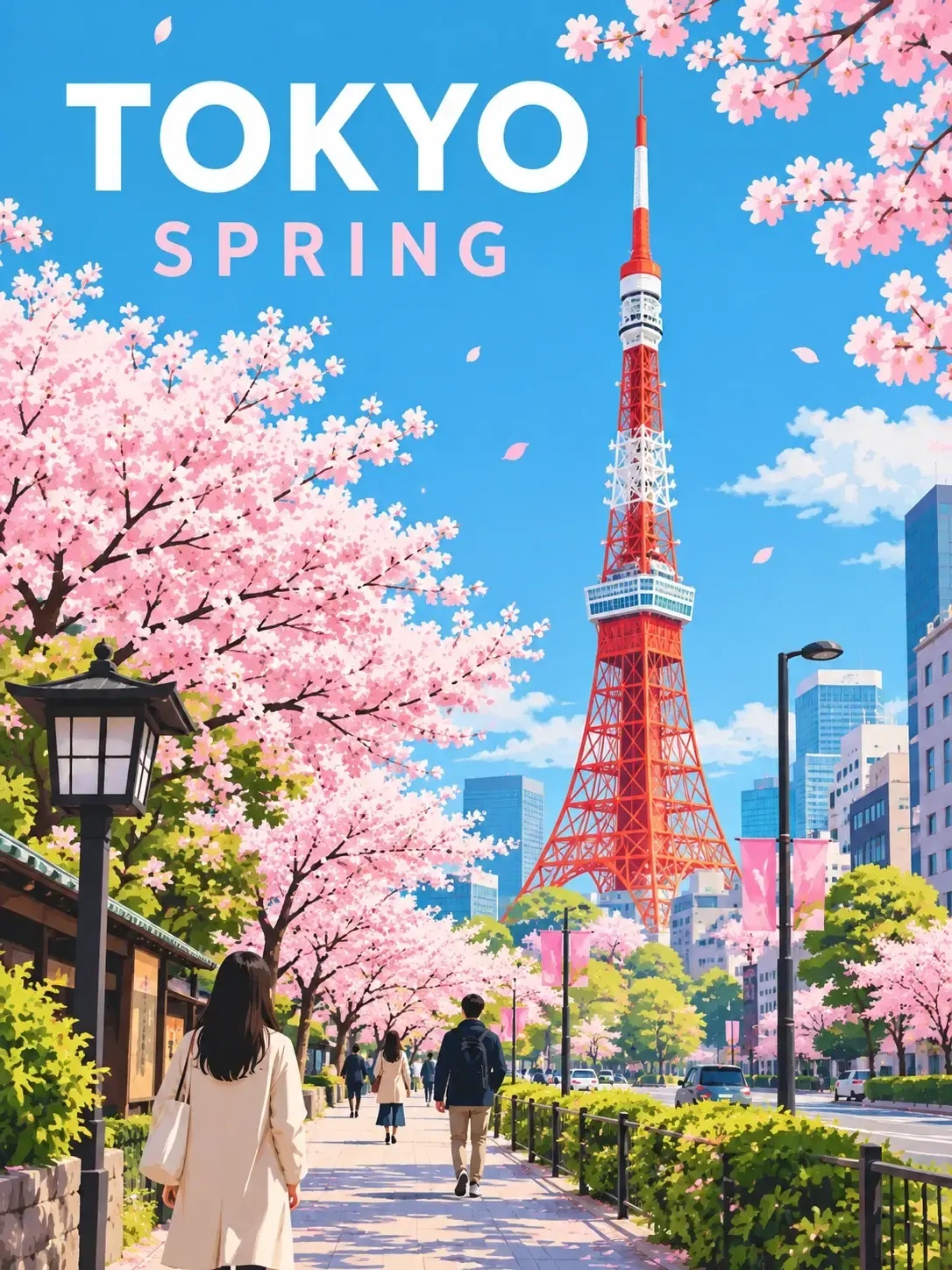 | 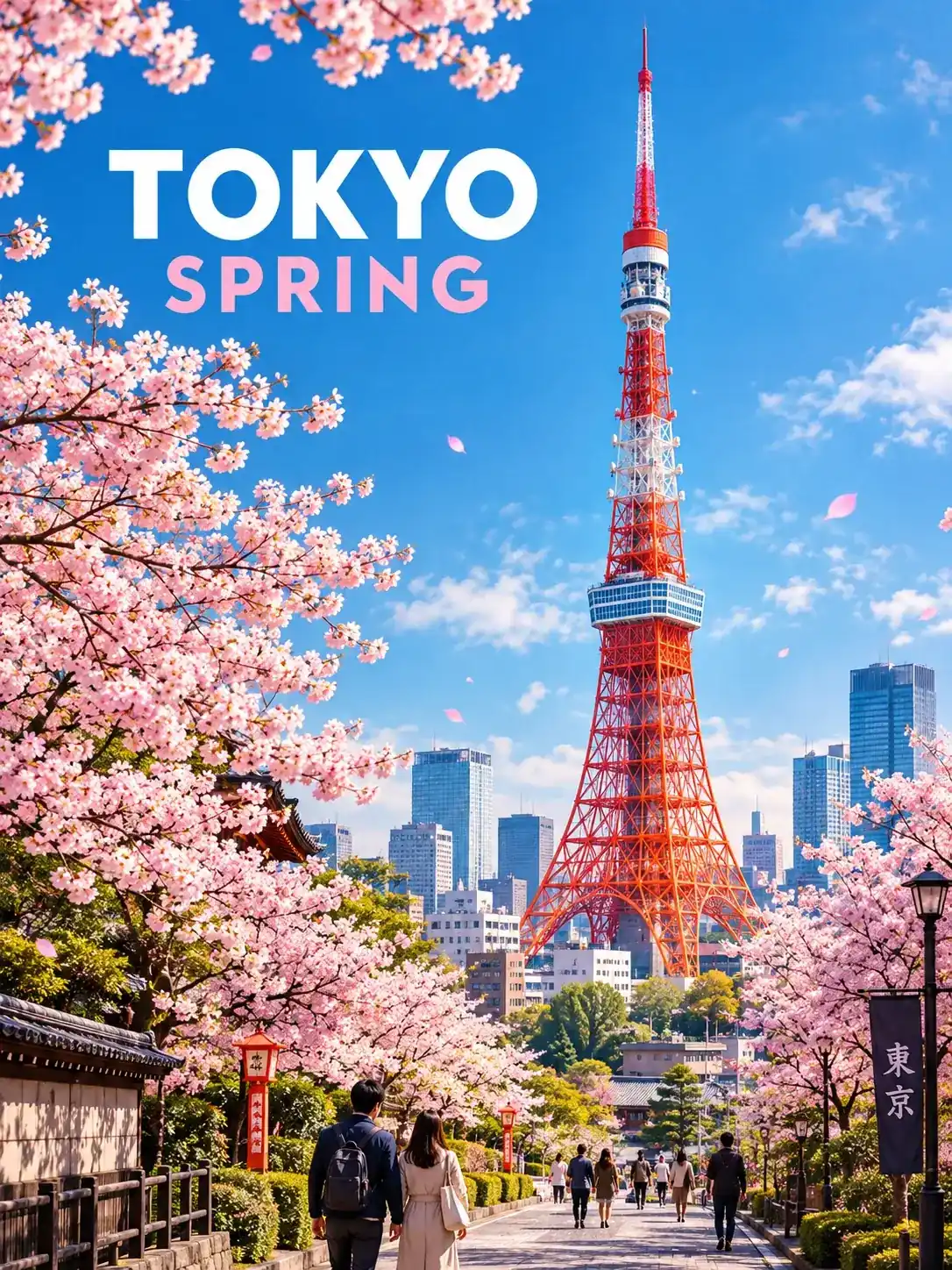 |
General vs. refined prompt results from GPT Image 2.5 Sunburst
Prompt Element | General Prompt | Refined Prompt |
|---|---|---|
Task / Goal | Create a modern travel poster for Tokyo in spring. | Create a modern travel poster for Tokyo in spring. |
Subject description | Show Tokyo Tower, cherry blossoms, and a few people walking through the city. | Show a complete Tokyo Tower as a prominent landmark, with the entire tower visible from top to bottom. |
Constraints | No specific constraint for Tokyo Tower. | Do not crop, cut off, or obscure any part of the tower. |
Text instruction | Include the text “TOKYO SPRING” in the poster. | Display the exact text “TOKYO SPRING” as the main title at the top of the poster. |
Conclusion
Writing effective GPT Image 2.5 prompts is more about clarity than simply making them longer. A good prompt should clearly describe the task and important visual details, while image-editing prompts should specify what to change and what to preserve. When the first result does not match your expectations, refining the prompt around a specific problem can help improve the result.
In my tests, both Flare and Sunburst followed most of the main instructions well, but some details still required more specific control, such as unwanted objects, unclear visual descriptions, and partially missing elements.
FAQ
What Are the Best GPT Image Prompts?
There is no single best prompt for every task. A good GPT Image 2.5 prompt should clearly describe the task, key visual details, and any important constraints.
How Can I Prompt GPT for Images?
Start with the main task and subject, then add the visual details that matter, such as composition, lighting, or style. Add constraints when you need more control.
How Long Should a GPT Image Prompt Be?
A GPT Image prompt does not need to be long. Focus on clear, relevant details rather than adding extra words that do not affect the desired result.
Can I Use Reference Images with GPT Image 2.5?
Yes. You can use reference images for image generation and editing. Clearly describe what should be preserved and what should be changed.
Where Can I Use GPT Image 2.5?
You can use GPT Image 2.5 on PicLumen, with both Flare and Sunburst available for testing and image creation. It is also available through other GPT Image experiences.