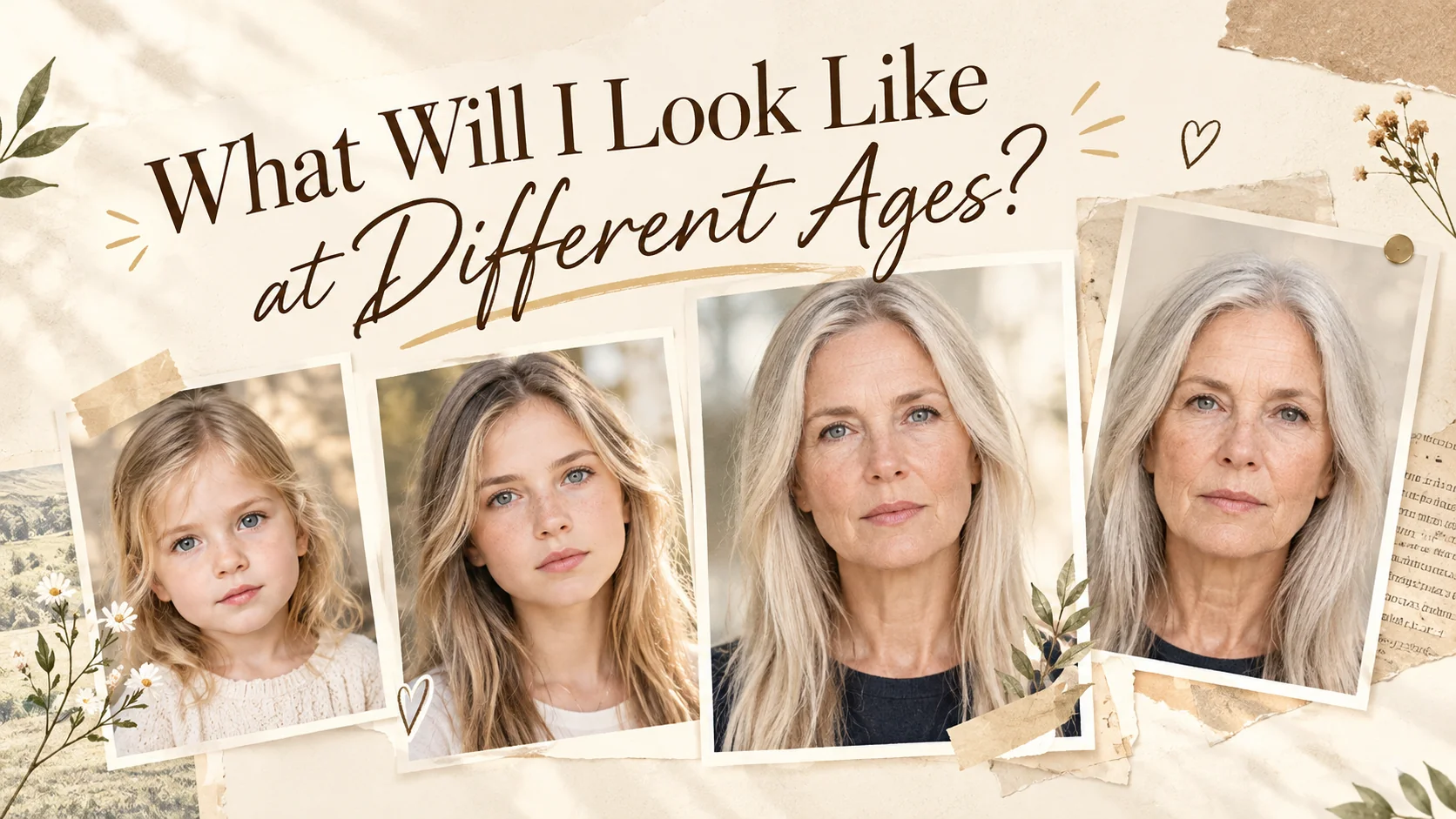
Have you ever wondered what you’d look like at different ages? With AI age progression, you can turn a current photo into a younger or older version of yourself and compare the changes.
In this guide, I’ll show you how I used PicLumen for AI age progression and what the results looked like at four different age stages.
Quick Answer
AI age progression can show a plausible version of how you might look at different ages, but it isn’t a literal prediction of your future appearance. To try it, upload a clear portrait to PicLumen, enter an age stage such as Baby, Teenage, Middle Age, or Elderly, and generate the image.
How AI Age Progression Works
AI age progression keeps the main facial features recognizable, then adjusts things that can change with age.
The eyes, nose, mouth, and face shape usually stay similar, while the hair, skin, wrinkles, and facial contours can change. The changes are also more noticeable when the target age is further from the original photo.
How to Use AI Age Progression on PicLumen
Step 1. Choose a Clear Photo
Start with a clear, front-facing portrait where the face is easy to see. Good lighting also helps keep the facial details clear.
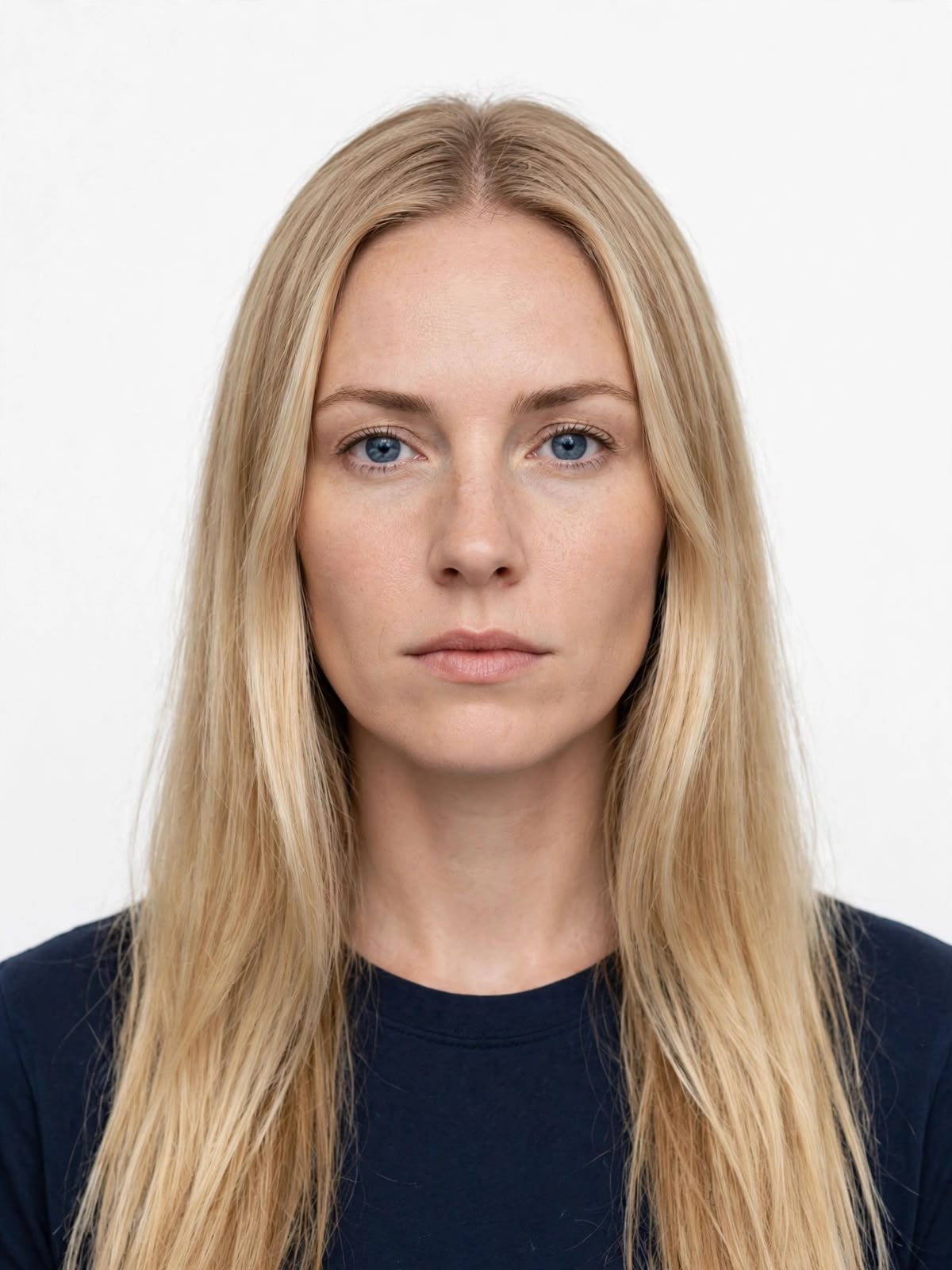
The original portrait used for my AI age progression test
Step 2. Upload Your Photo to PicLumen
Open PicLumen's AI Age Progression tool and upload your portrait. It supports images in multiple formats, but a single image should not exceed 5MB.
Tip: Since you're working with a personal photo, it's also worth checking the privacy information before uploading it.

Upload your portrait to start the age progression
Step 3. Describe the Age You Want to See
The input box already suggests different age stages. For my test, I used the suggested wording:
Baby
Teenage
Middle Age
Elderly
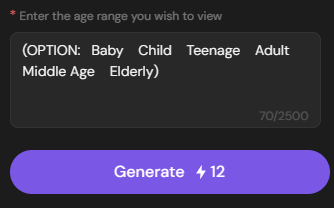
Enter the age stage you want to generate
Step 4. Generate and Check the Result
Click Generate and wait for the result. Once it’s ready, check whether the age change looks clear and whether the main facial features still look like the same person.
Want to try it yourself right away?
Try AI Age Progression on PicLumen
My PicLumen AI Age Progression Test
What the Results Look Like
I used the same portrait for all four tests and only changed the age-stage prompt. This made it easy to compare the results across different ages.
original portrait (Adult) | Baby | Teenage | Middle Age | Elderly |
|---|---|---|---|---|
| 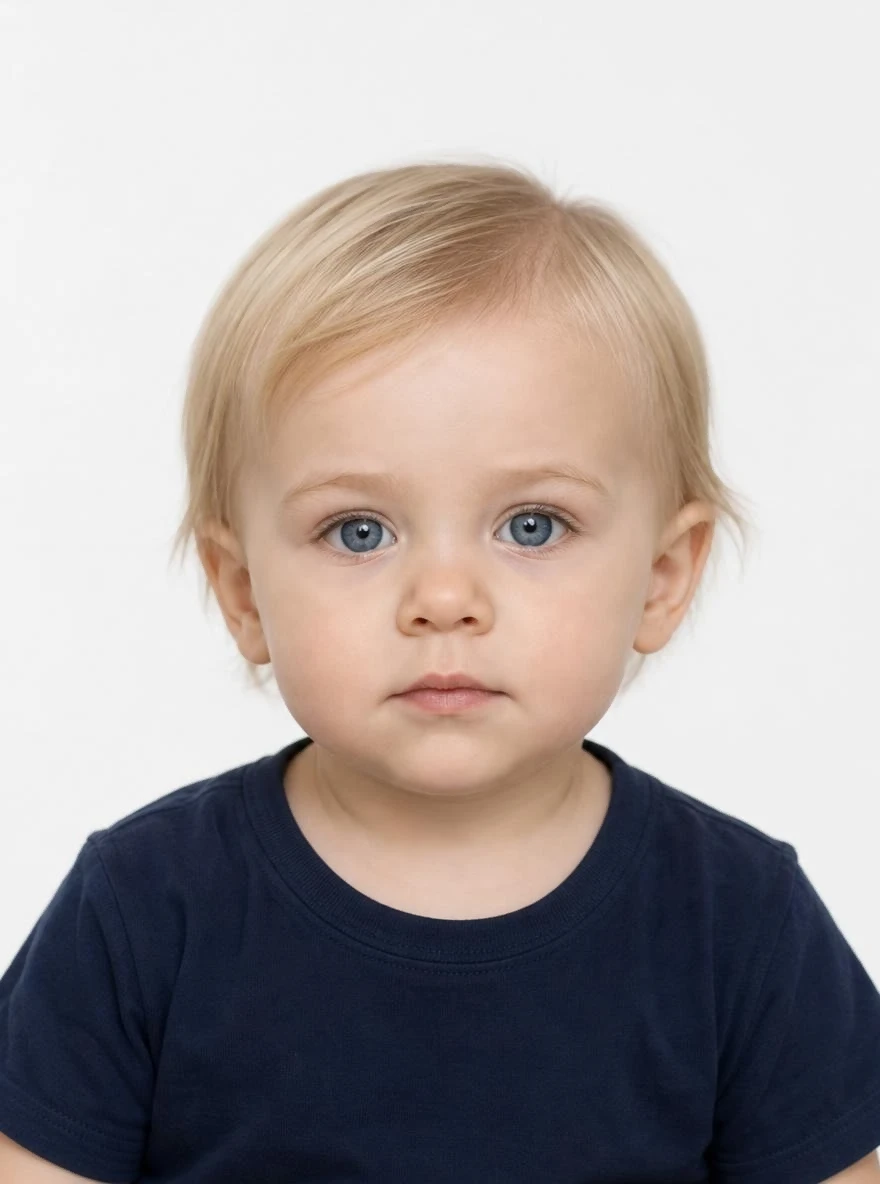 | 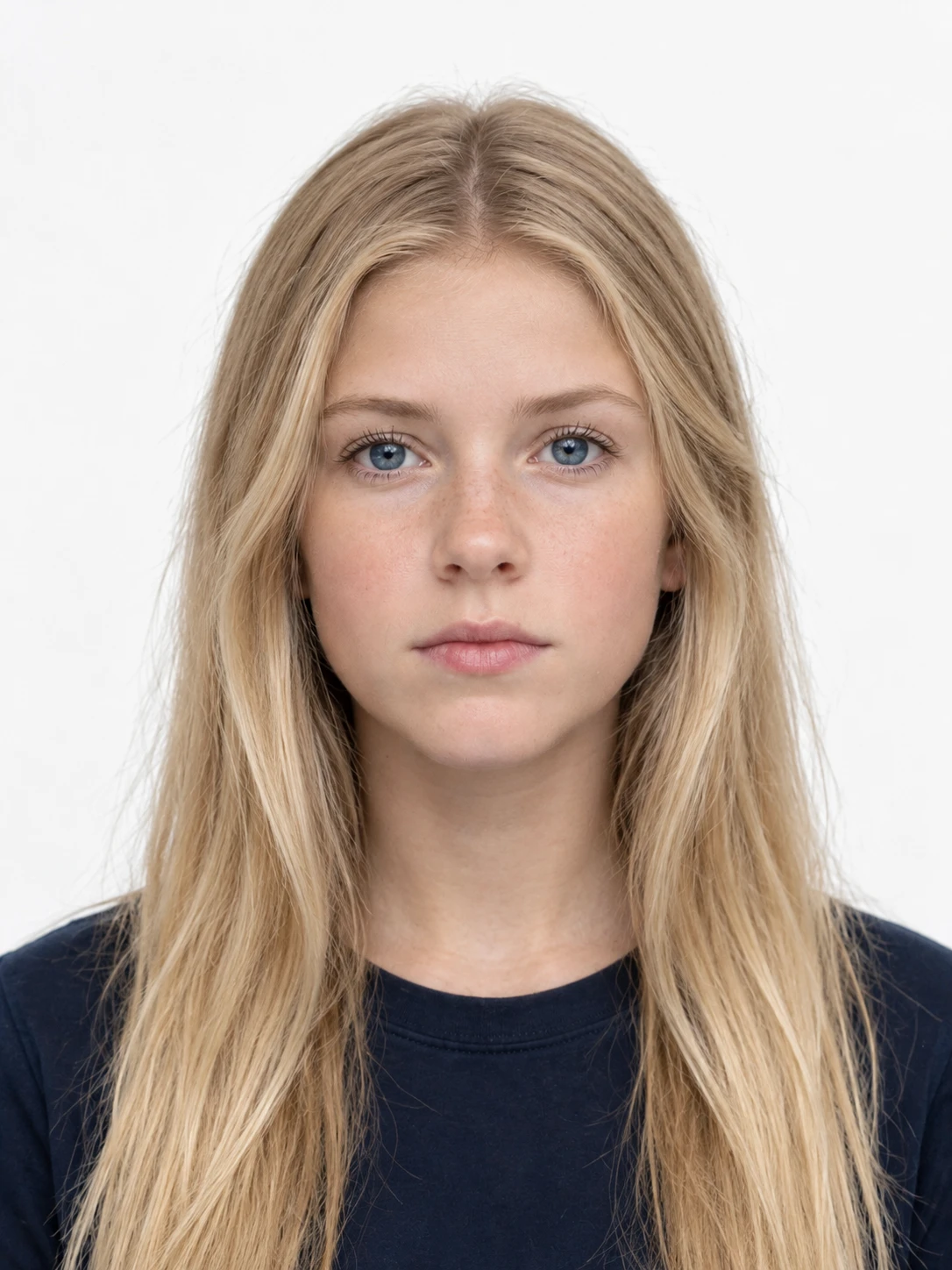 | 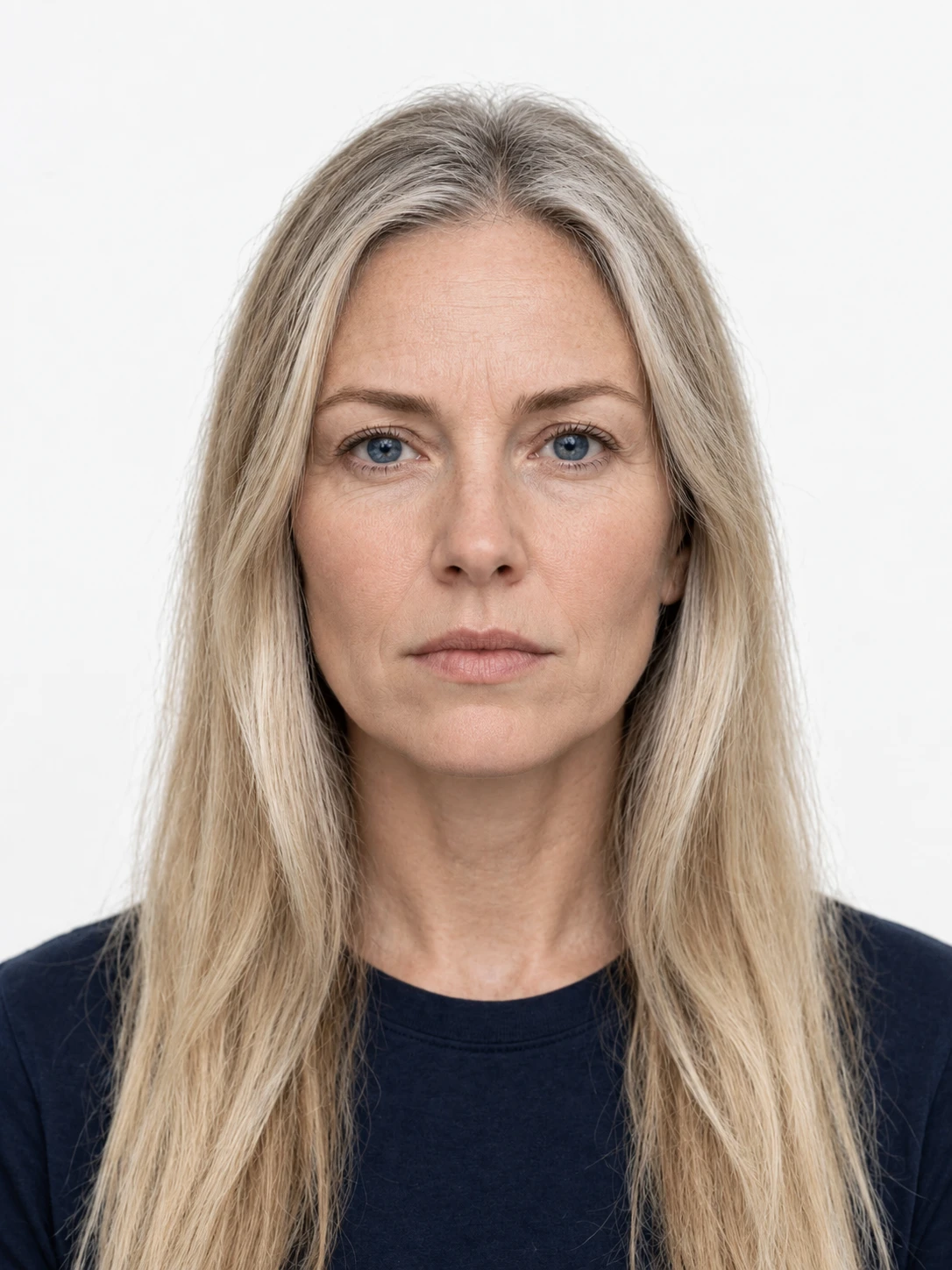 | 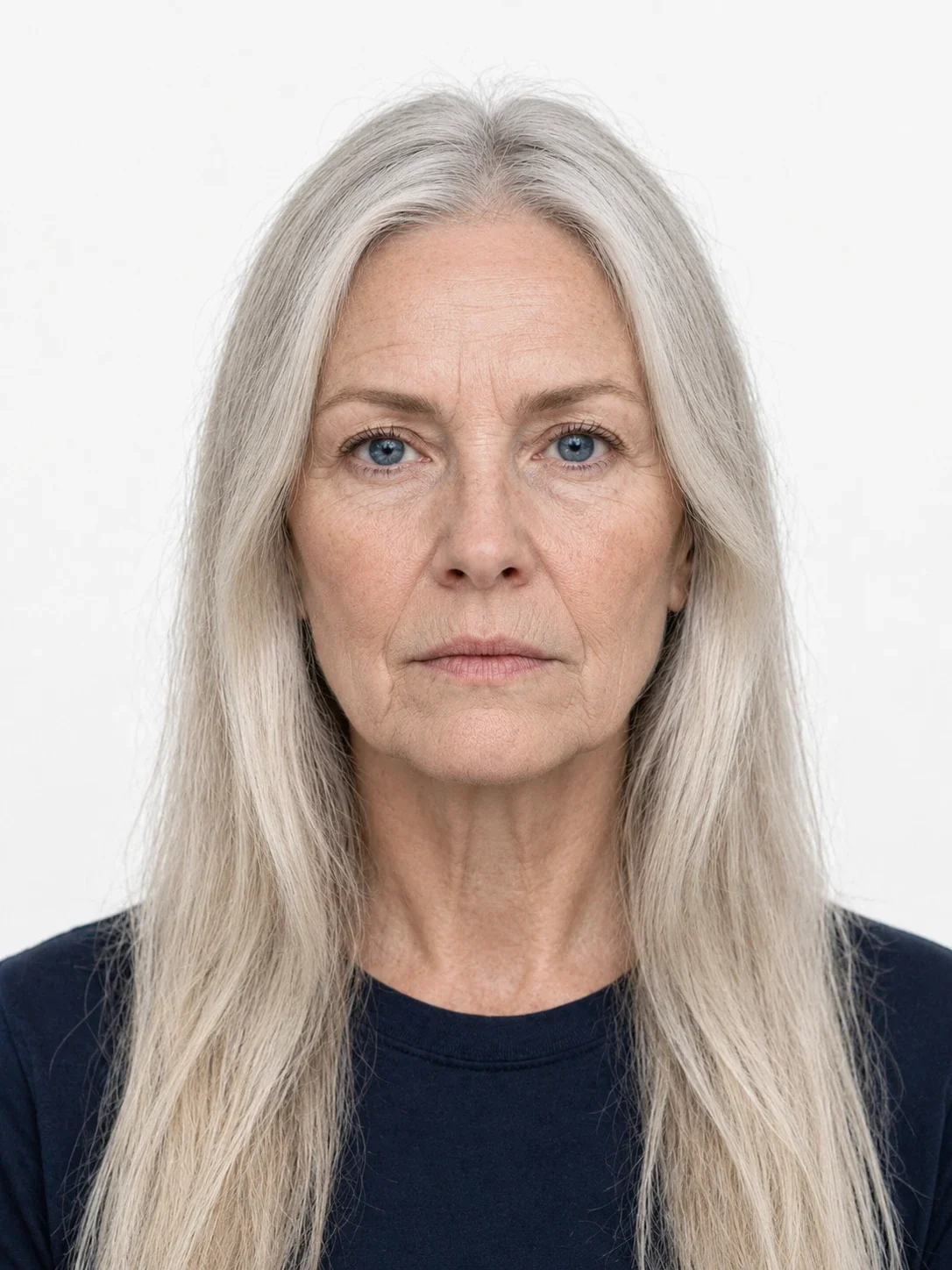 |
The same portrait generated at four different age stages with PicLumen
Test 1: Baby
Baby version generated from the original adult portrait
The result looked like a 2–3-year-old child, with much shorter hair and smoother, softer-looking skin. The hair and eye color were still the same, and the slight asymmetry in the eyebrows and eyes was also preserved.
Test 2: Teenage
Teenage version generated from the same portrait
The Teenage result looked noticeably younger, but the main facial features were still easy to recognize. The hair also became slightly fuller and more wavy, which fit the teenage look.
Test 3: Middle Age
Middle Age version showing subtle age-related changes
The Middle Age result looked noticeably older. A small amount of gray hair appeared around the top of the head. Fine lines also appeared around the eyes, cheeks, lips, and neck, while the skin looked slightly looser.
Test 4: Elderly
Elderly version with more pronounced age-related changes
The Elderly result looked much older. Most of the hair became gray or white, with some thinning around the part. Wrinkles were more visible around the eyes, mouth, and neck, and the skin around the lower face and jawline looked looser.
What Changed and Stayed Consistent
Age Stage | Main Changes | Identity Consistency |
|---|---|---|
Baby | Softer skin, shorter hair, younger proportions | Moderate |
Teenage | Younger contours, fuller hair | Strong |
Middle Age | Fine lines, gray hair | Strong |
Elderly | Wrinkles, gray hair, looser jawline | Strong |
Across the four results, the main changes were in the hair, skin, and other age-related details. The main facial features remained recognizable, although the Baby version showed a bigger visual gap from the original portrait.
What I Learned From the Test
1. Short prompts were enough
I only entered simple age-stage keywords such as Baby, Teenage, Middle Age, and Elderly, and each one produced a clearly different result. I didn’t need a long prompt to get started.
2. Generation time varied by age stage
The Teenage, Middle Age, and Elderly results each took around 2–3 minutes to generate. The Baby result took longer, at about 6 minutes. Each generation used 12 credits in my test on September 28, 2026.
Conclusion
After testing the same portrait at four different ages, I was able to get clearly different results without using detailed prompts. The facial features stayed recognizable, while the hair, skin, and other age-related details changed with each stage.
FAQ
Can AI really show what I will look like when I'm older?
It can create a visual approximation of an older version of yourself, but the result depends on the photo and how the AI interprets the target age.
How accurate is AI age progression?
The result depends on the starting photo and the target age. In my test, PicLumen kept many of the original facial features while making the age changes easy to notice.
What kind of photo works best for age progression?
A clear, front-facing portrait with visible facial features is a good starting point.
Is my personal photo protected when I use PicLumen?
PicLumen uses security measures such as data encryption and access controls to help protect personal information and uploaded files. You can also review our Privacy Policy for details on how your data is collected, used, and handled.
Is there a free AI age progression tool?
There are many free AI age progression tools online, but PicLumen isn’t completely free. In my test, I used 12 credits for each generation. You can earn credits through registration, check-ins, tasks, and other rewards.
.png)


 (1)_compressed.jpg)