I recently had to process huge batches of raw product photos for an online store catalog. I needed a faster way to get this work done. Photoshop manual editing wastes hours on repetitive clicks. I decided to test an AI image editor. I wanted it to cut out backgrounds, fix lighting, and delete extra text with zero obvious flaws. I used Clipdrop's built-in editing tools. I uploaded groups of photos for this test. I zoomed in to check every pixel and sharp edge. I also noted how long each file sat in the processing queue. This review lays out my real, unedited experience. All notes come straight from heavy-duty bulk editing with this tool.
What Is Clipdrop?
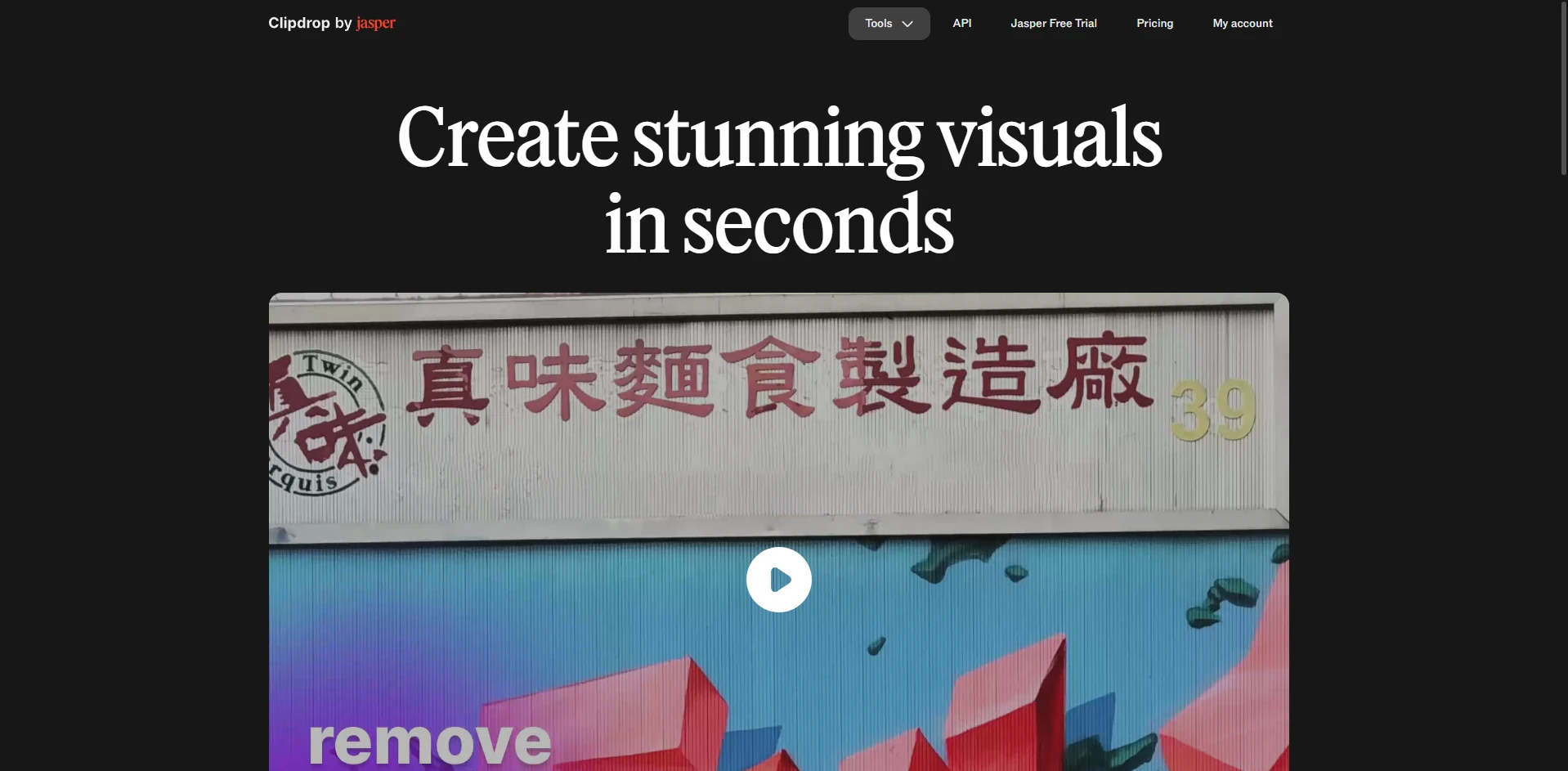
Clipdrop runs as a cloud-powered AI photo editor. Its core strength lies in computer vision and quick asset edits. Jasper AI currently manages this platform. Inside its dashboard sits a set of simple, task-specific tools. You can tweak targeted parts of any uploaded photo within seconds, using intuitive sliders and brush strokes.
Core Features Evaluation: Breaking Down the Editing Suite
I ran my source photos through Clipdrop's main tools to see if the outputs could handle real professional scrutiny.
Background Removal and Text Remover Review
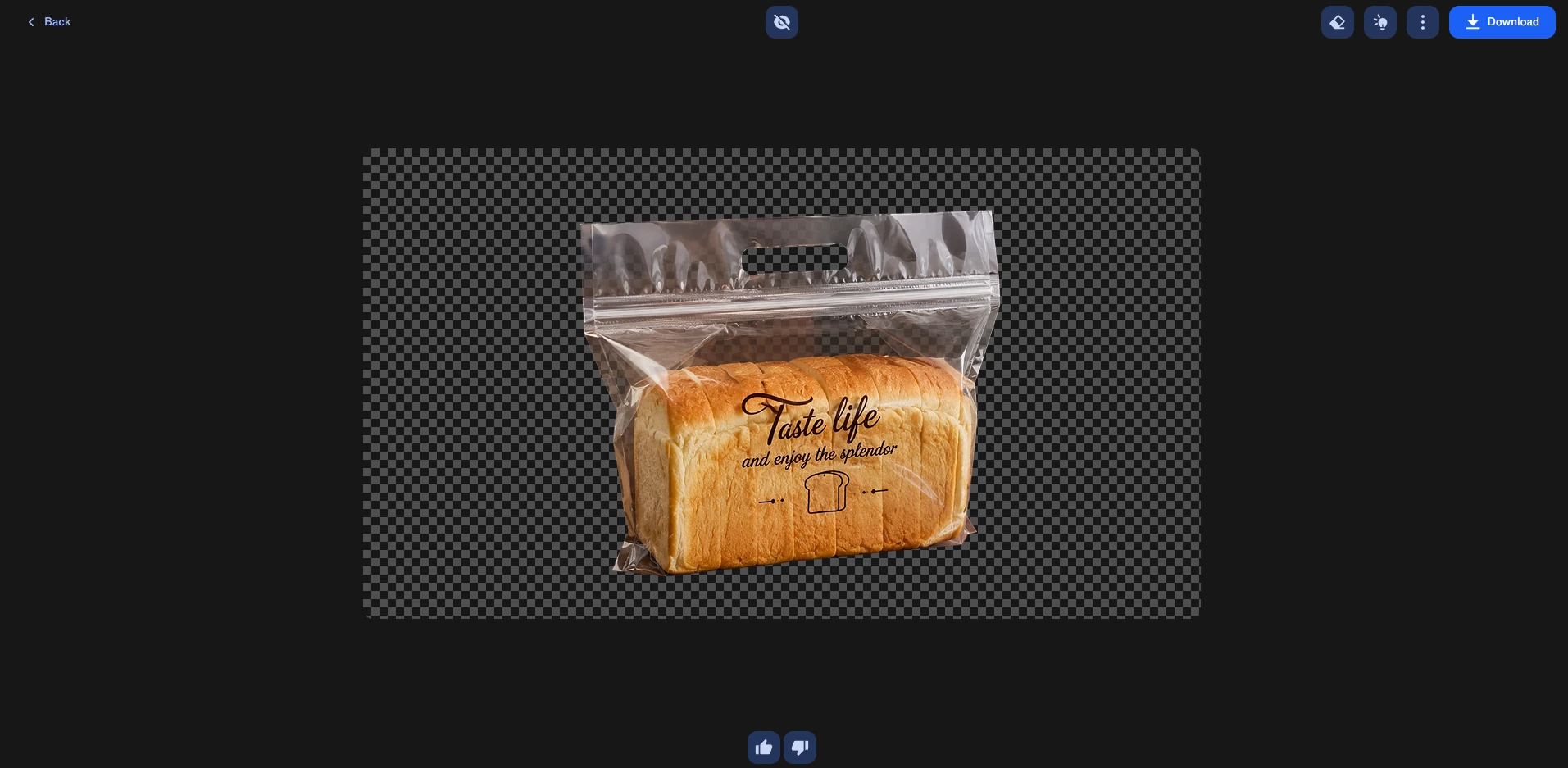
I started with the Background Remover on a difficult product photo featuring transparent plastic packaging. The AI isolated the main object in less than five seconds. It kept the plastic edges clean without making them look jagged.
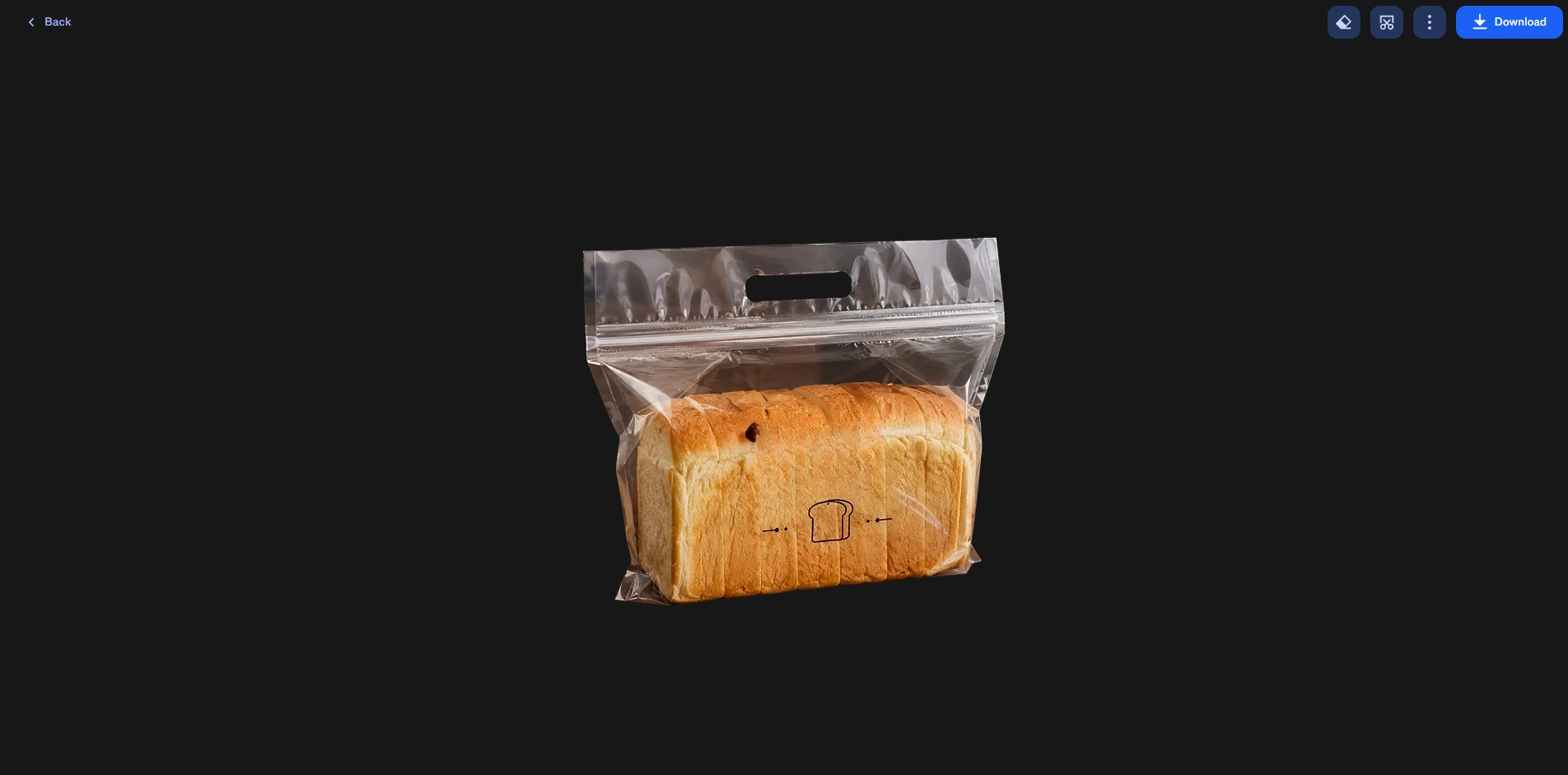
Next, I used the Text Remover to eliminate the text on the product's plastic packaging bag. The tool works quickly, but the final result varied. For small text blocks, it painted over the letters seamlessly. When I tried to remove a large, thick font, it left behind a blurry smudge that ruined the fabric pattern underneath.
Relight Review
The relight tool is highly impressive. It lets you drop virtual light bulbs onto a 2D image to change the atmosphere. I added a cool blue ambient light from the left side of a warm studio portrait. The AI successfully calculated the curves of the person's face. The new highlights mapped naturally over the cheekbones without flattening the image structure.
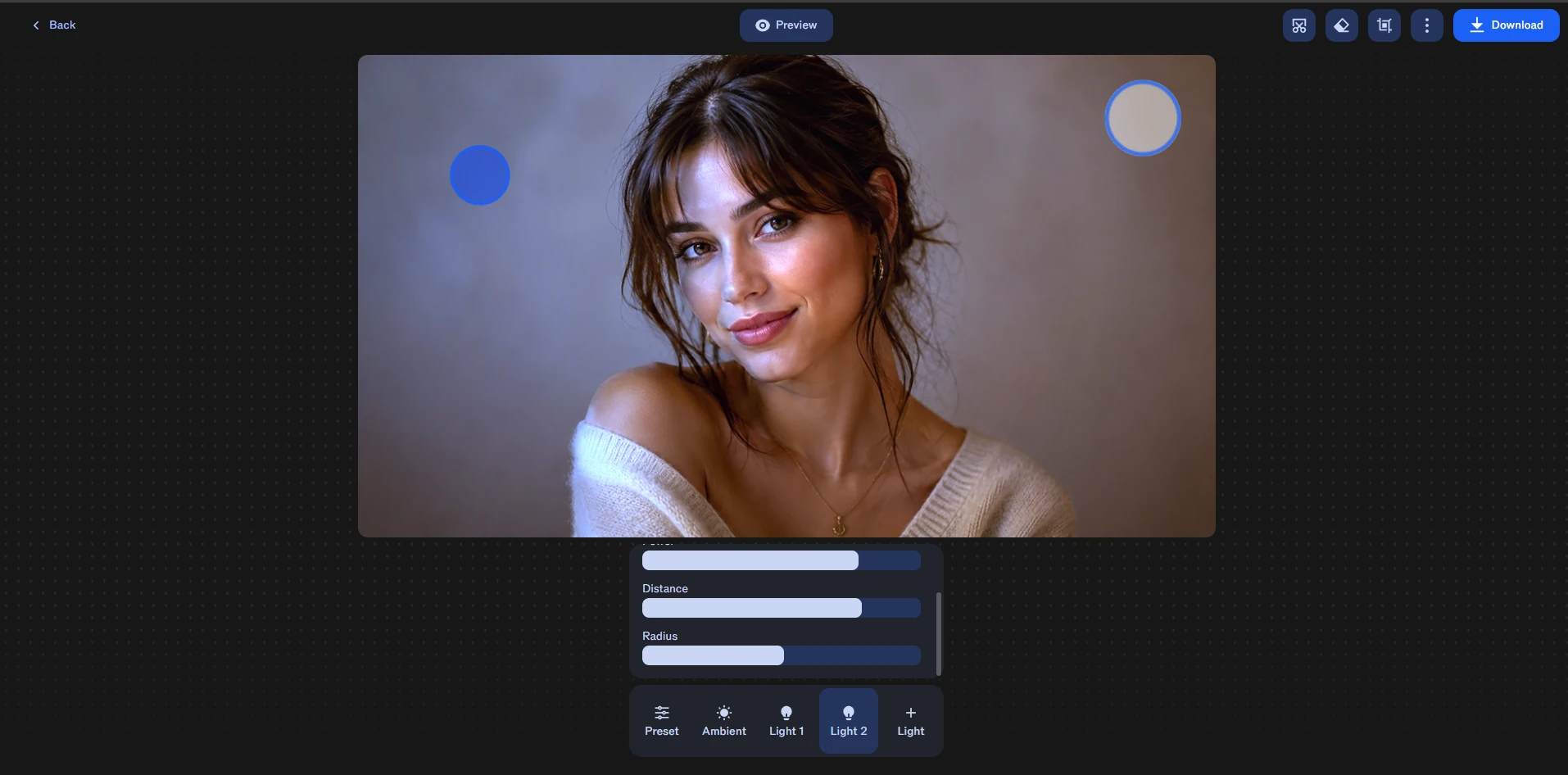
Image Upscaler Review
I uploaded a blurry, low-resolution JPEG to test the upscaler. I chose the standard 2x option. The AI did a solid job sharpening fuzzy text and smoothing out pixel blocks. However, when I pushed it further, it began adding artificial noise reduction patterns. The final image looked slightly too smooth, giving fabric textures an unnatural, waxy appearance.
Text-to-Image Generation Performance
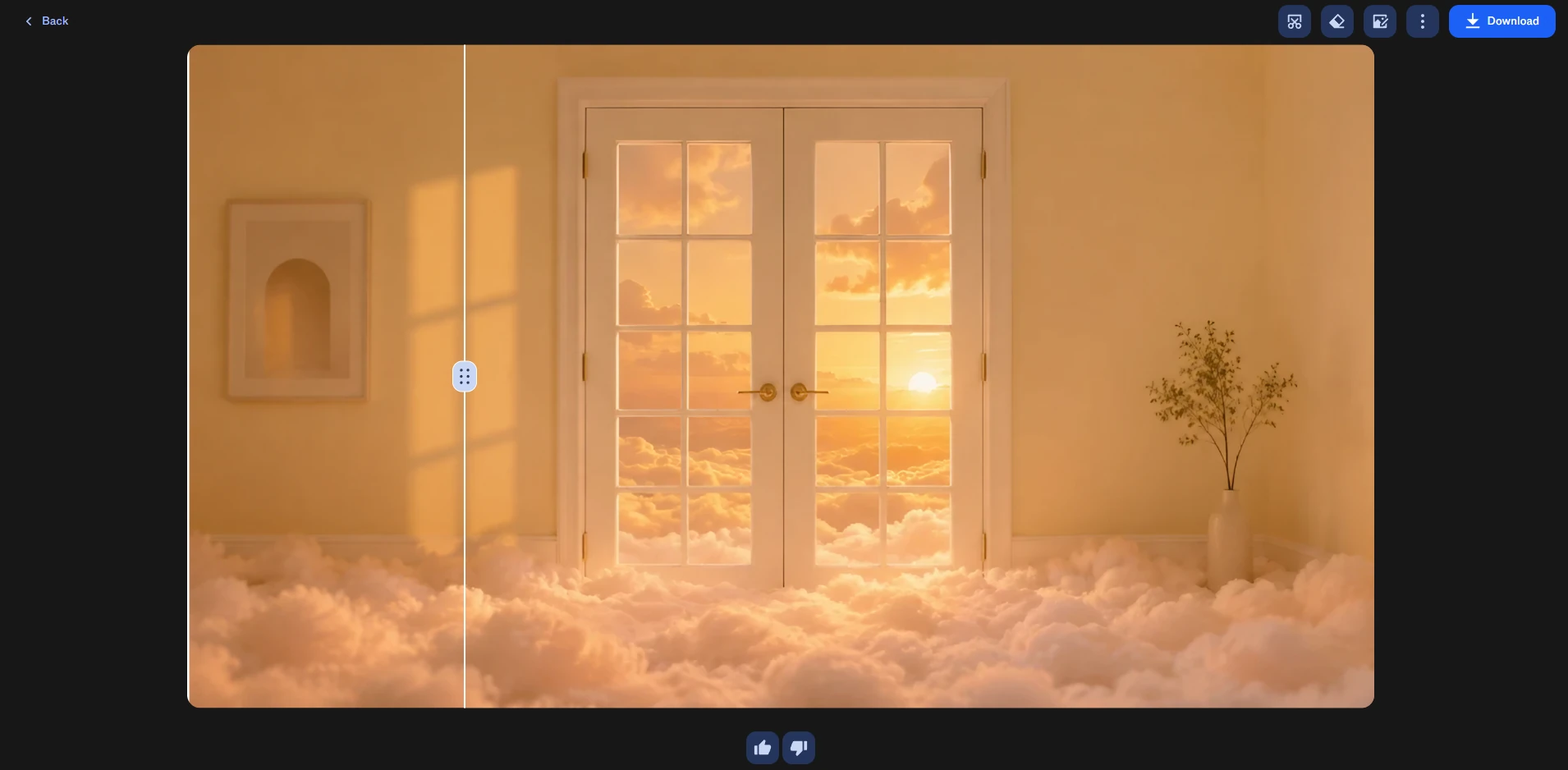
Clipdrop also includes a text-to-image generator powered by Stable Diffusion. I wanted to see how well it builds clean commercial assets from a raw text prompt. Prompt : "A studio photograph of an elegant leather handbag placed on a minimalist concrete pedestal, dramatic side lighting, sharp focus."
.webp)
My Take: The model is very fast, delivering the image within seconds. The concrete pedestal and side lighting looked highly realistic. But when I zoomed in on the handbag itself, I noticed flaws. The strap attachment placement was slightly uneven. It works well for early conceptual brainstorming, but you will need editing tools to fix the technical bugs before using it in a real ad campaign.
Clipdrop Pricing 2026
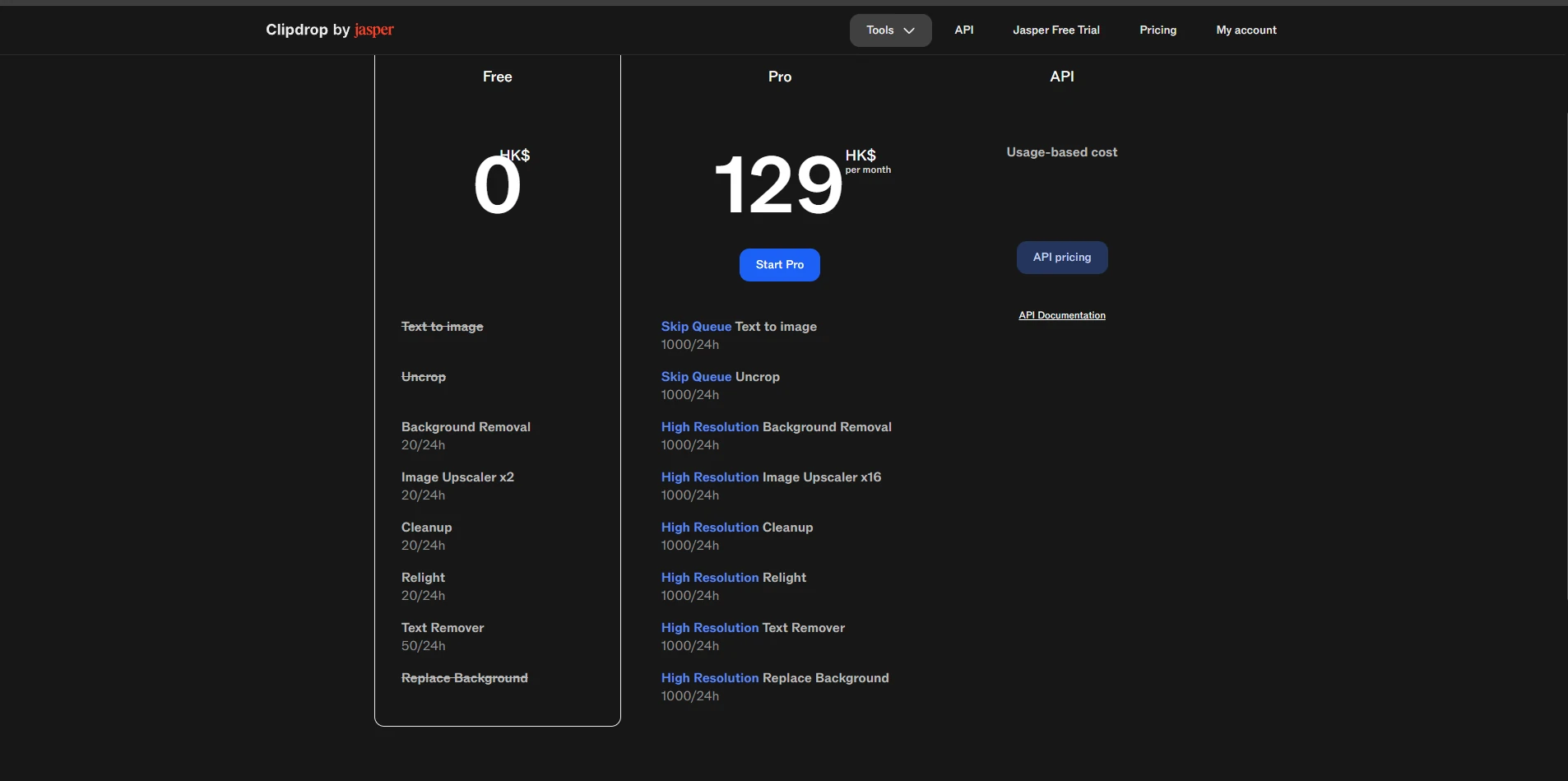
Clipdrop's free tier restricts daily access to its main editing tools.You get 20 daily uses apiece for background removal, object removal and relighting. Text removal allows up to 50 uses per day. However, there are strict limitations: exported images are downsampled in resolution, and tools such as text removal add watermarks to the final output. Besides, Text-to-image generation, background swap and uncrop features are not included in the free plan.You must upgrade to a paid version to unlock these functions. From my hands-on testing, Clipdrop's free tier is great for individual users, with enough daily quota for basic image edits. Its Pro version is worthwhile for e-commerce and marketing professionals doing bulk photo retouching. However, the paid plan is less cost-effective for users seeking all-in-one image and video creation tools, due to its narrow, single-function design.
Pros and Cons of Clipdrop
Pros: Excellent Edge Segmentation: Isolates complex shapes and fine hairs from busy backgrounds quickly. Realistic Lighting Simulation: Relight adds natural 3D highlights and shadows over flat 2D portraits. Zero-Install Workflow: Runs smoothly inside your web browser without draining your local computer hardware. Cons: Large Object Blur: Leave blurry artifacts when erasing thick fonts or large background items. No Native Multi-Modal Tools: You cannot generate motion or edit native video timelines. Free Account Watermarks: Low-resolution limits and watermarks restrict free files to basic personal tests.
Clipdrop vs. PicLumen: Retouching Existing Photos vs. Creating New Visuals
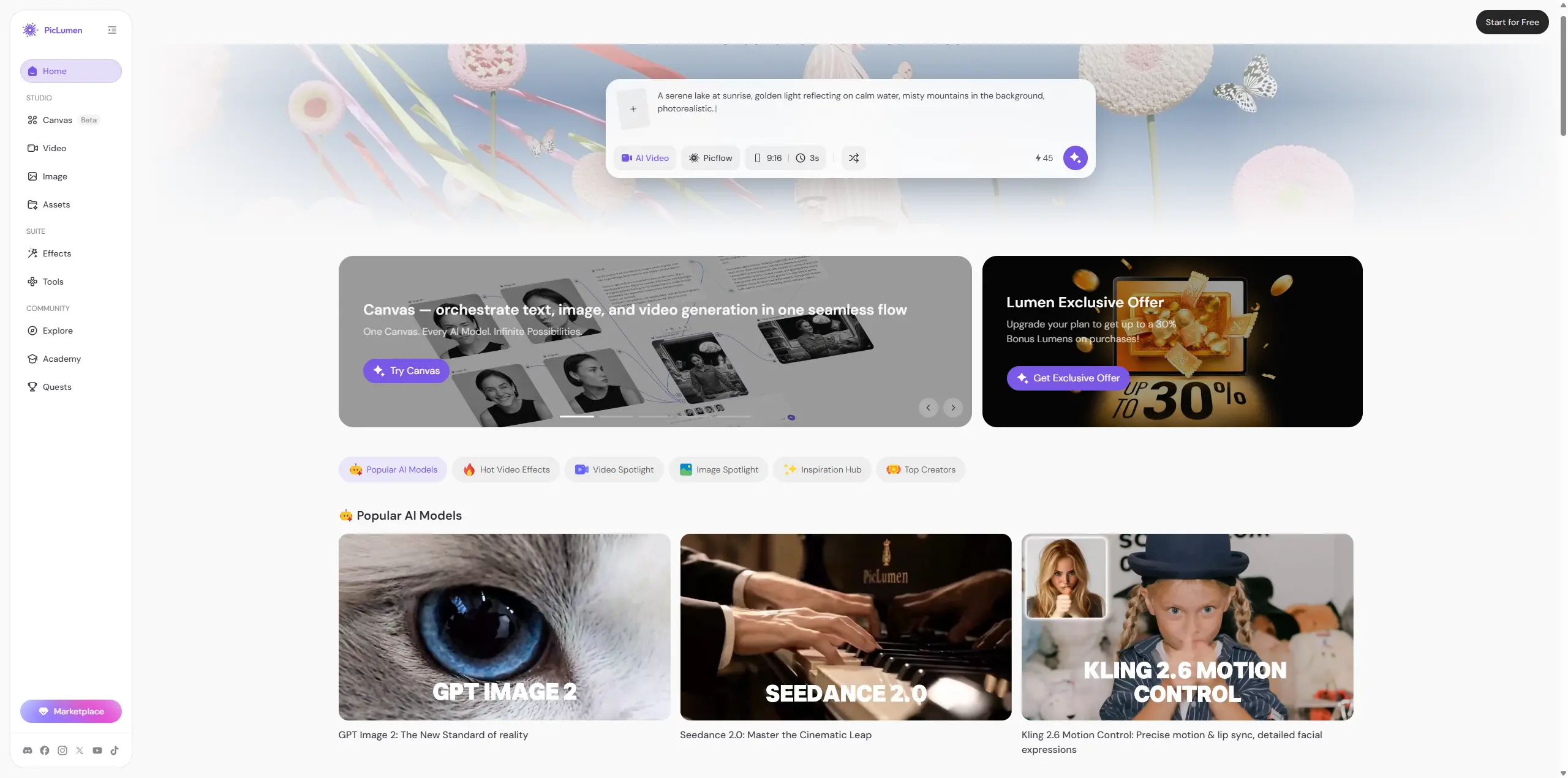
Clipdrop is fantastic for polishing existing visuals. If you've got a whole folder of product photos and just need to remove backgrounds, fix uneven lighting, or clean up unwanted text, Clipdrop's simple, targeted tools get the job done fast and well. Even so, Clipdrop only lets you edit images you already have — it can't expand your creative options beyond existing photos. It has no multi-modal features, so you can't create cinematic videos or build detailed layered scenes purely from text prompts. That's where PicLumen stands out. It combines speedy AI image generation and powerful video tools all in one place. You no longer need to jump between multiple apps. You can create complete, high-quality multimedia content entirely from scratch. For designers and marketers who need quick, original, watermark-free visuals, PicLumen offers a much smoother and more flexible workflow.
Final Verdict: Who Should Use Clipdrop?
After thorough testing, Clipdrop is a handy pick for quick, simple edits on existing photos.It lacks original content creation and video features, so it only works well for basic retouching tasks. Best for: E-commerce shop managers, photo editors, and product marketers who need rapid background removal, object cleanup, and virtual image relighting. Skip if: You are a creator or brand manager who needs to generate native cinematic videos, complex inline text designs, or want an all-in-one generative suite .
FAQ
Is Clipdrop entirely free to use?
No. There is a free tier, but it limits you to 20 uses per 24 hours for core features. Free files are downloaded at lower resolutions, and tools like the cleanup brush leave a visible watermark on the final output.
Can I use images generated or edited by Clipdrop for commercial work
Yes, but only if you are on a paid Pro plan. Free accounts restrict image outputs to personal testing use only. Always verify model licensing rules if you use community assets.
Does Clipdrop support native AI video generation?
No. Clipdrop is strictly a static image editing toolkit. It does not contain an AI video timeline, text-to-video tools, or animation controls.
What is the best Clipdrop alternative for integrated image and video generation?
PicLumen is the top alternative. It bypasses the micro-tool clutter of Clipdrop, offering a unified, high-speed platform to generate both high-quality imagery and video clips within a simplified user workspace.