Grok Imagine is getting attention in 2026 because it does more than create still AI images. It supports both image generation and video generation, including text-to-image, image-to-image, text-to-video, and image-to-video workflows. For creators, that means a prompt or reference image can quickly become a portrait, poster, product visual, short video effect, ad clip, or scene extension.
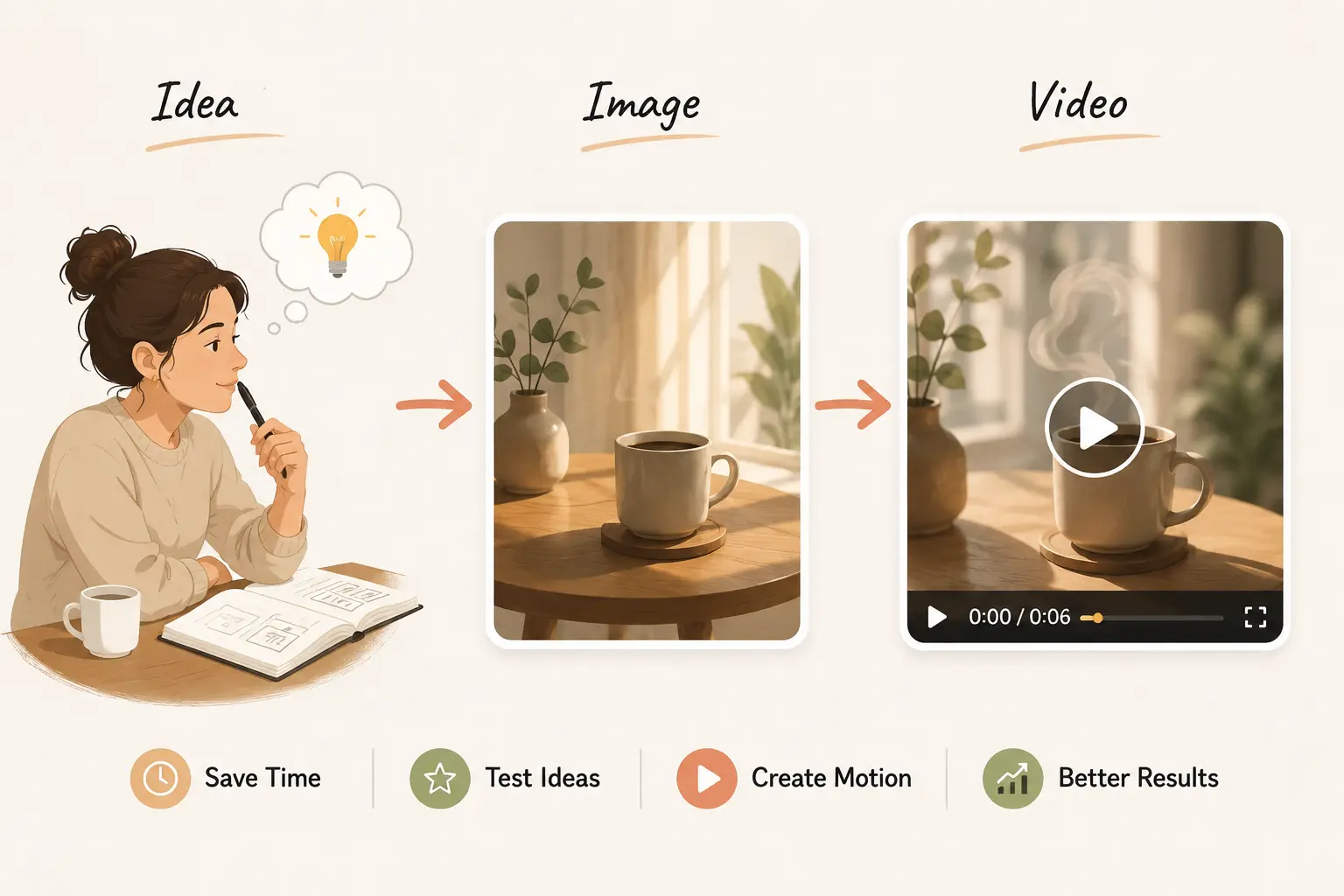
 That matters because short-form visual content is no longer a side format. HubSpot’s 2026 marketing statistics report that short-form video is the most leveraged media format by marketers, and that short-form video, long-form video, and live-streaming video are the top three ROI-driving content formats. For creators, marketers, and small teams, tools like Grok Imagine make sense because they help move from idea to image to video much faster.
This guide breaks down Grok Imagine video generation capabilities first, then covers image generation, prompt examples, limits, and a practical way to try Grok inside PicLumen later in the workflow.
That matters because short-form visual content is no longer a side format. HubSpot’s 2026 marketing statistics report that short-form video is the most leveraged media format by marketers, and that short-form video, long-form video, and live-streaming video are the top three ROI-driving content formats. For creators, marketers, and small teams, tools like Grok Imagine make sense because they help move from idea to image to video much faster.
This guide breaks down Grok Imagine video generation capabilities first, then covers image generation, prompt examples, limits, and a practical way to try Grok inside PicLumen later in the workflow.
Quick Answer: What Is Grok Imagine?
| Question | Quick Answer |
|---|---|
| What is Grok Imagine? | Grok Imagine is xAI's visual generation feature for creating AI images and videos. |
| What is Grok image generation best for? | Realistic portraits, creative posters, marketing visuals, style rewriting, and social content. |
| What is Grok video generation best for? | Short video effects, ad clips, character animation, scene motion, and reference-image camera extension. |
| How long can Grok videos be? | Grok videos can range from 6 seconds to 30 seconds. |
| What resolutions are available? | Grok video supports 480p and 720p. |
Grok Imagine Video Generation Capabilities
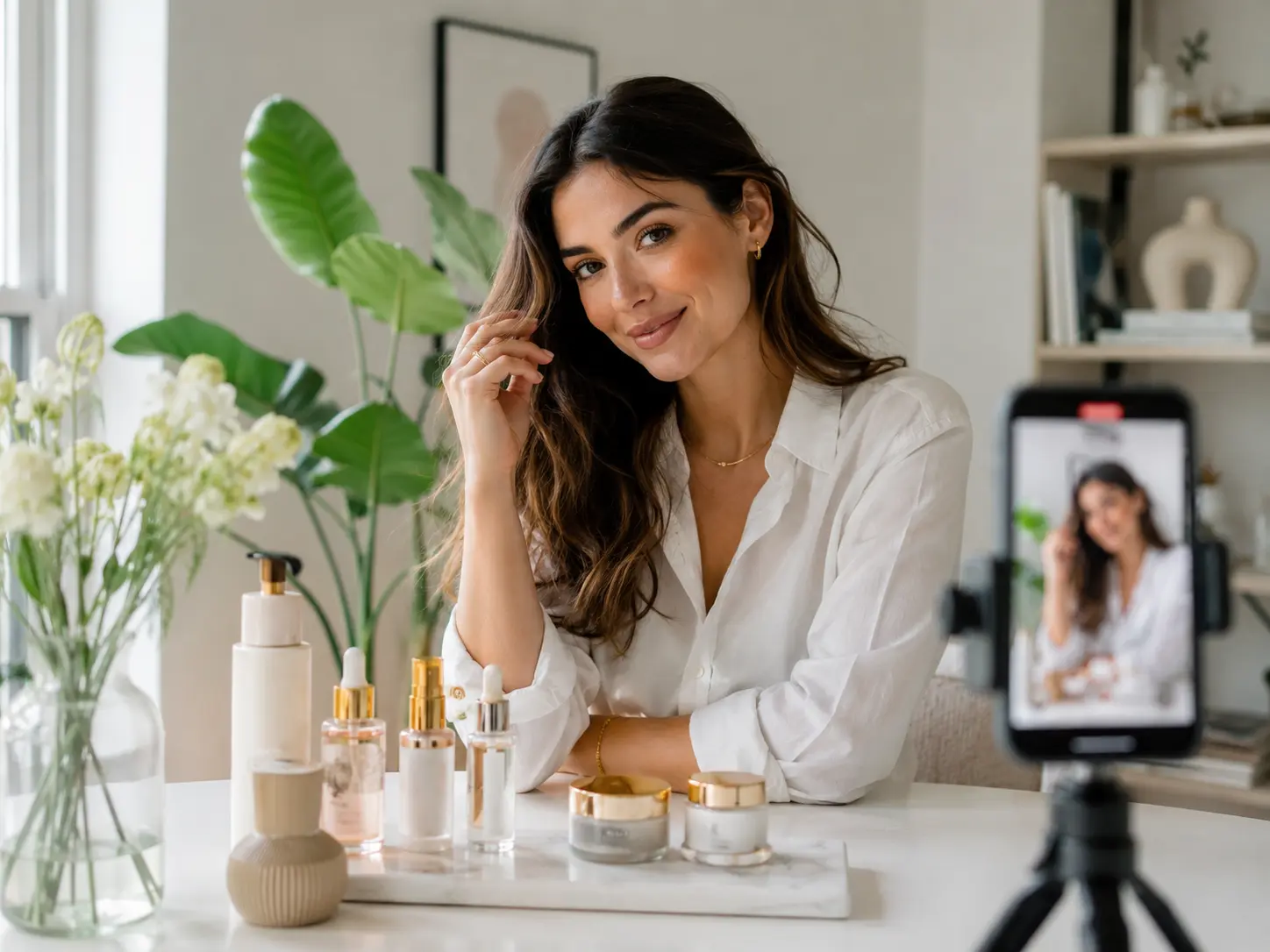
Grok Imagine video generation supports both text-to-video and image-to-video workflows. You can create a clip from a prompt, or animate an existing image with clearer visual control. Use text-to-video for short ideas built from scratch, such as social hooks, ad clips, character moments, or stylized video effects. Use image-to-video when you already have a strong image and want to add motion, extend the scene, or create a more controlled clip. 👉Grok video is well suited for:
- short video effects
- ad materials
- character or scene animation
- product reveals
- reference-based camera extension
Supported Grok Video Ratios
| Ratio | Best For |
|---|---|
| 2:3 | Portrait-style motion |
| 3:2 | Lifestyle clips, scene extension |
| 1:1 | Square feed videos |
| 9:16 | TikTok, Reels, Shorts |
| 16:9 | YouTube, landing pages, wide ads |
Grok Video Modes
| Item | Options | Best For |
|---|---|---|
| Text-to-video modes | Fun, Normal, Spicy | Fun for playful or exaggerated motion; Normal for cleaner product reveals, scene extension, and balanced movement; Spicy only where available and appropriate. |
| Image-to-video modes | Fun, Normal | Fun for lively character actions and casual social clips; Normal for product reveals, realistic motion, scene extension, and more controlled clips. |
| Duration | 6s to 30s | Short-form content, ad drafts, social hooks, and motion tests. |
| Resolution | 480p, 720p | Drafts, lightweight campaign assets, and social media videos. |
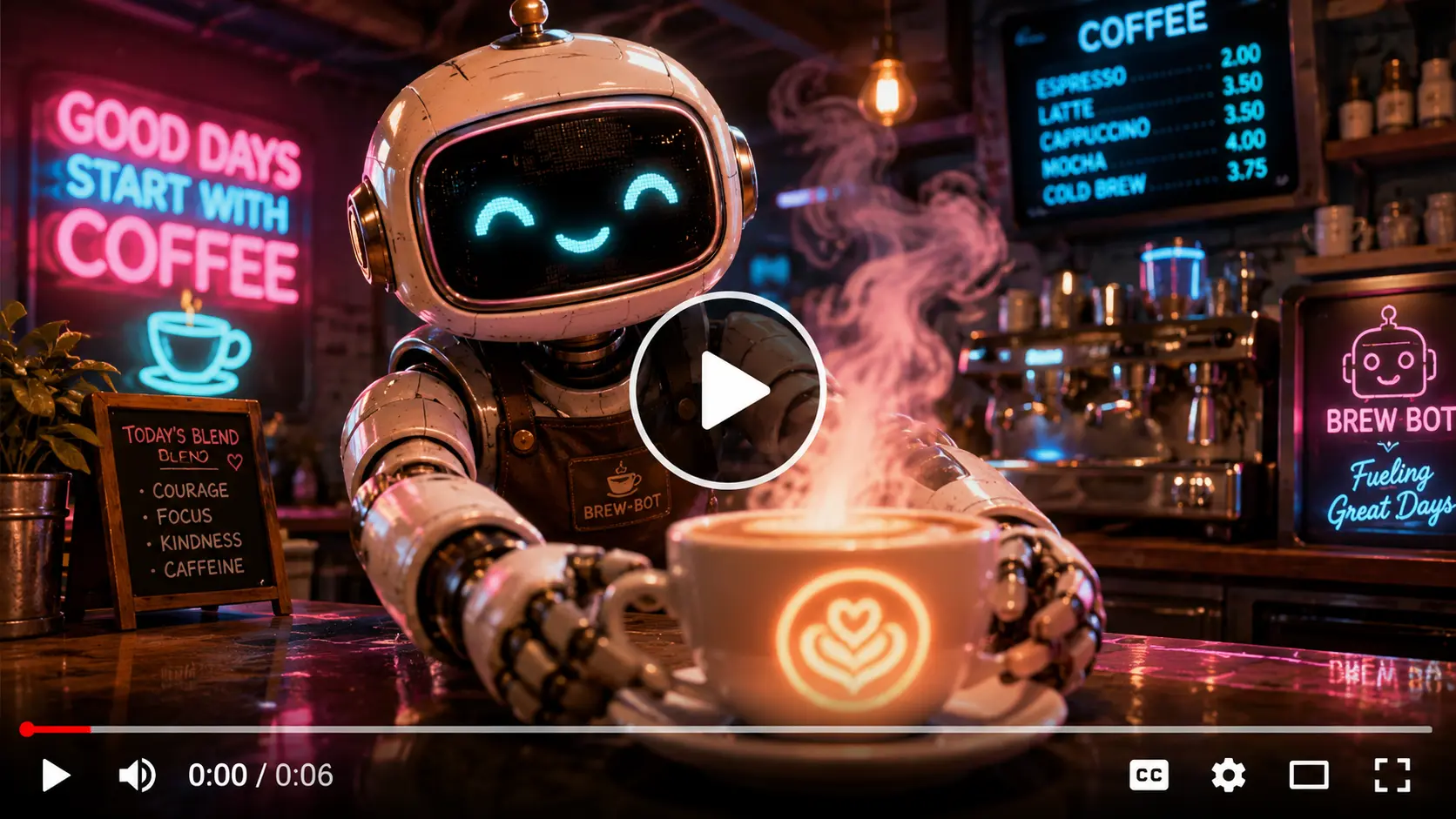
A simple video prompt formula is: Subject + Action + Camera Movement + Motion Detail + Mood + Duration ✍️Prompt example:"A tiny robot barista slides a glowing coffee cup toward the camera, steam rises dramatically, neon café background, playful motion, Fun mode, 6-second video."
Grok Imagine Image Generation Capabilities
Grok Imagine image generation supports both text-to-image and image-to-image workflows. You can start from a written prompt, or upload a reference image to keep a certain subject, pose, style, or composition. Use text-to-image for new ideas such as realistic portraits, creative posters, product visuals, social images, and campaign concepts. Use image-to-image when you want to restyle an existing image, polish a rough concept, or create a new variation without losing the original structure. 👉Grok image generation is especially useful for:
- realistic portrait-style images
- creative posters
- marketing materials
- style rewriting
- product and social visuals
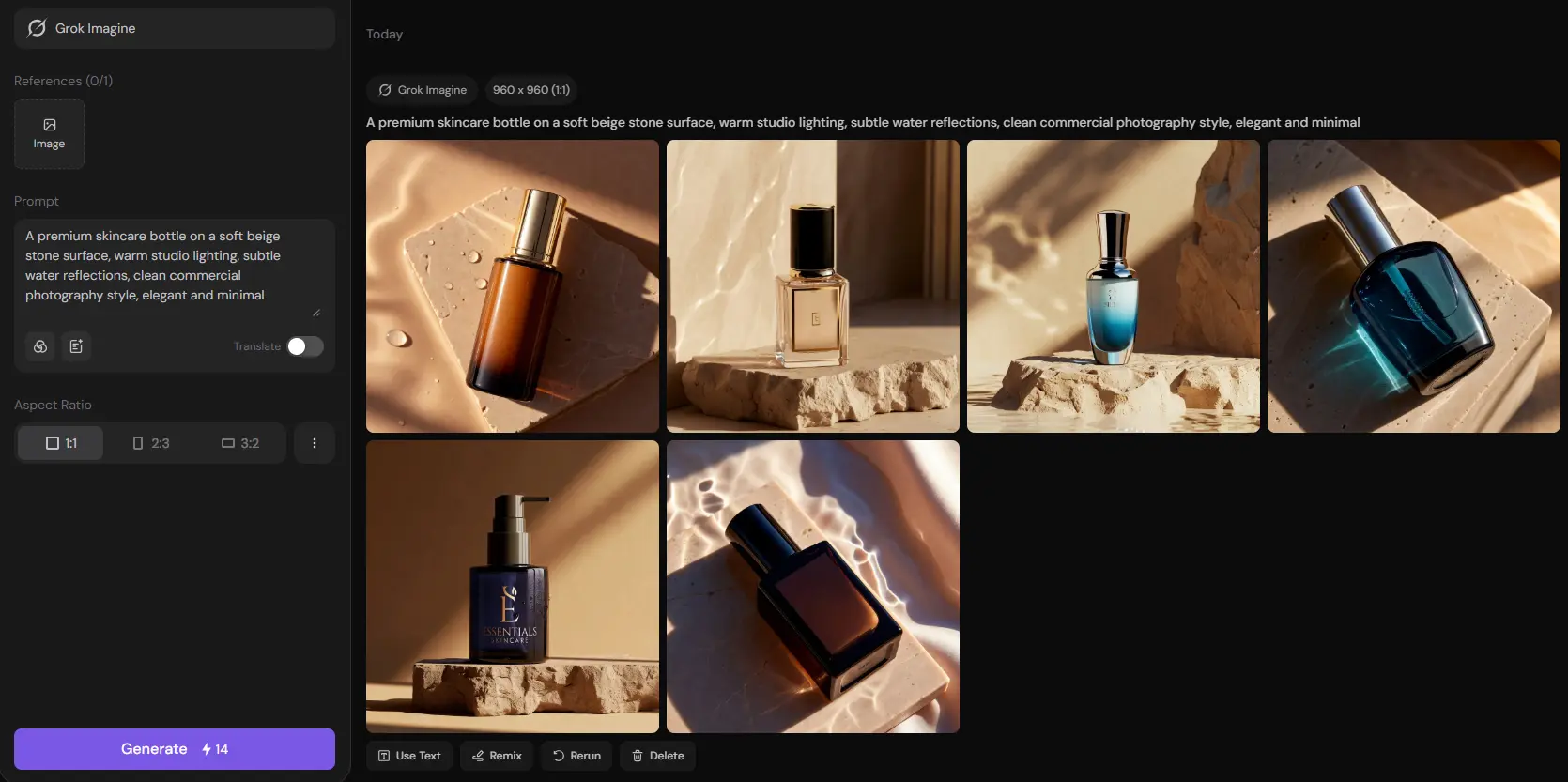
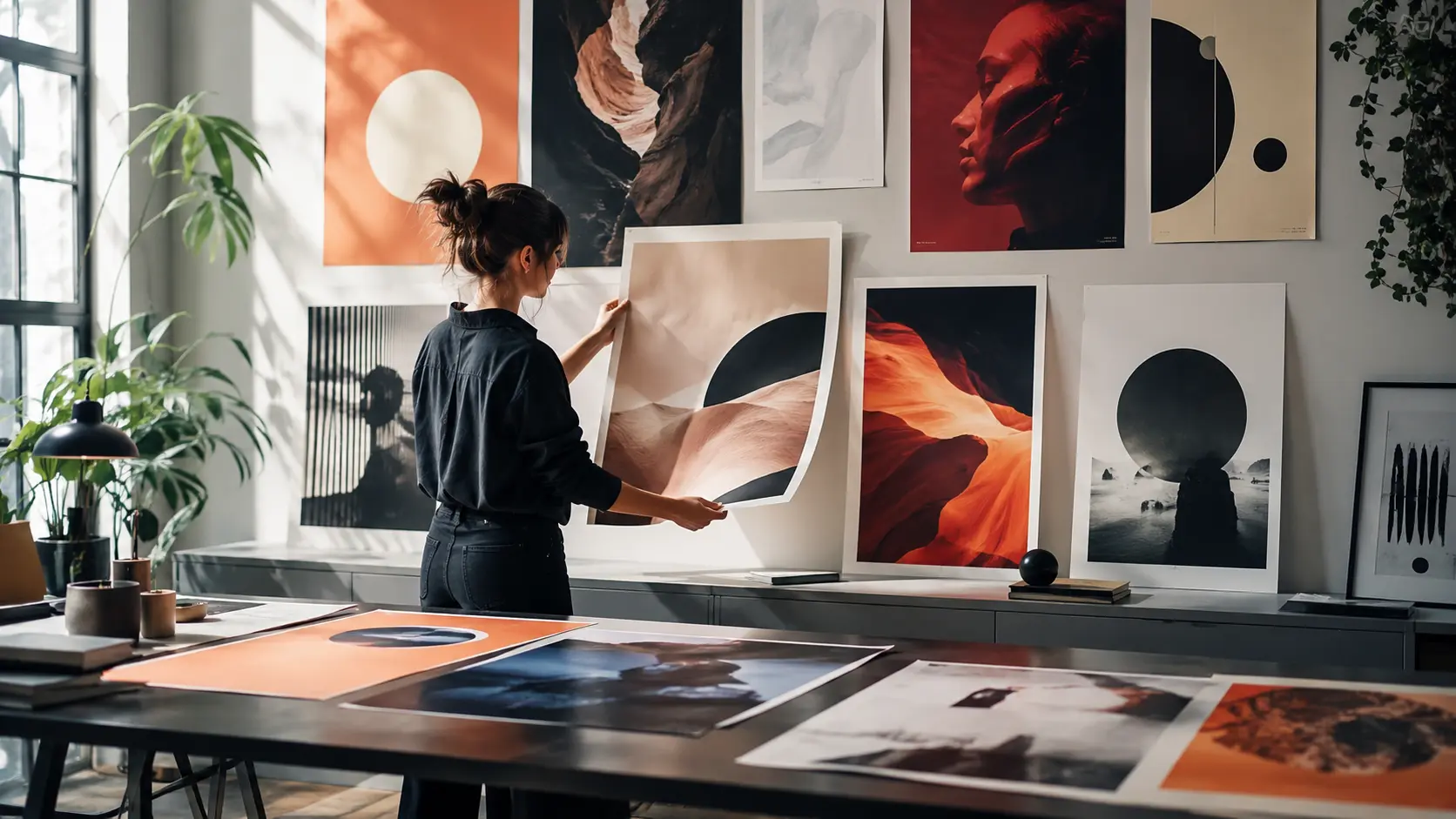 It returns six images by default, which makes comparison easier. You can quickly choose the best composition, lighting, product angle, or character expression before refining the result or turning it into a video.
Supported Grok Image Ratios
| Ratio | Best For |
|---|---|
| 2:3 | Portrait posters, fashion visuals, character images |
| 3:2 | Lifestyle images, wider scenes, blog visuals |
| 1:1 | Square social posts, profile images, product visuals |
| 16:9 | Blog covers, YouTube thumbnails, banners |
| 9:16 | TikTok, Reels, Shorts, vertical story content |
A good Grok image prompt usually follows this structure: Subject + Scene + Style + Lighting + Mood + Aspect Ratio
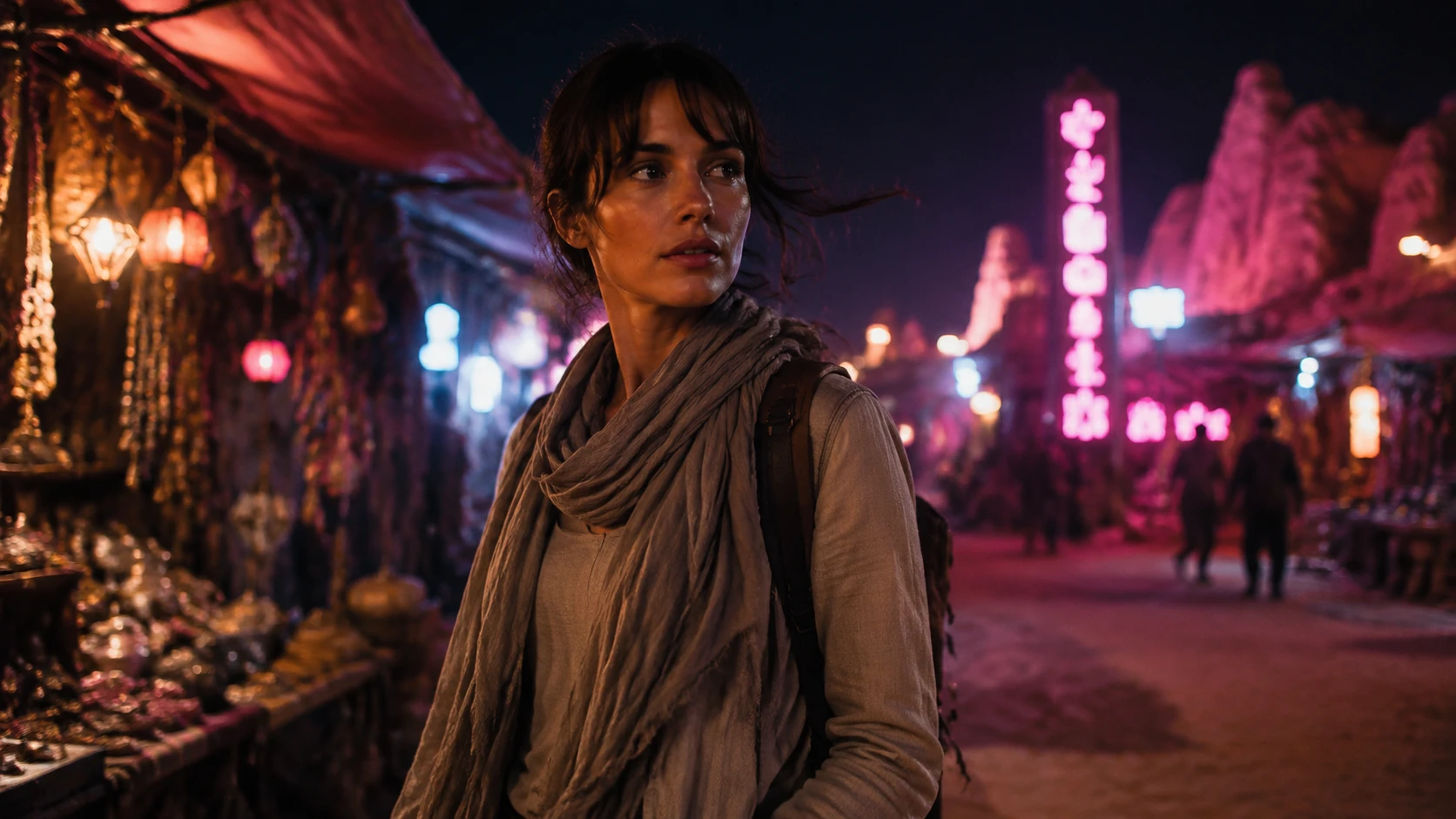
✍️Prompt Example:"A realistic young explorer standing in a neon desert market at night, soft wind moving through a light jacket, cinematic lighting, shallow depth of field, natural skin texture."
Where Grok Imagine Still Has Limits
Grok Imagine is useful, but it is not a one-prompt solution for every project. For images, you may still need several attempts to get the right face, product detail, text space, or brand mood. For videos, 480p and 720p are practical for drafts, social clips, and quick motion ideas, but polished brand assets may still need editing or upscaling. The 6–30s video range also makes Grok better for hooks, teasers, and motion tests than long narrative videos. That said, Grok's advantages are bigger than its limits for most creative workflows. It is fast, flexible, and strong for concept testing, short-form content, ad drafts, character animation, scene motion, and image-to-video experiments. Use it to find the direction quickly, then refine the best result when the project needs a more polished finish.
A Practical Grok Imagine Workflow for Images and Videos
PicLumen is an all-in-one AI creative platform for generating images and videos from text prompts or reference images. Besides Grok Image and Grok Video, it also supports other popular models such as Seedance 2.0, Kling3.0, GPT Image 2.0, Nano Banana 2, Midjourney, and more, giving creators more room to compare styles and continue an idea in different directions. Once you know whether your idea needs a still image or a moving clip, using Grok on PicLumen is simple. The image workflow is better for portraits, posters, product visuals, and style rewrites. The video workflow is better for short motion, ad clips, scene animation, and reference-based camera extension.
How to Use Grok Imagine on PicLumen
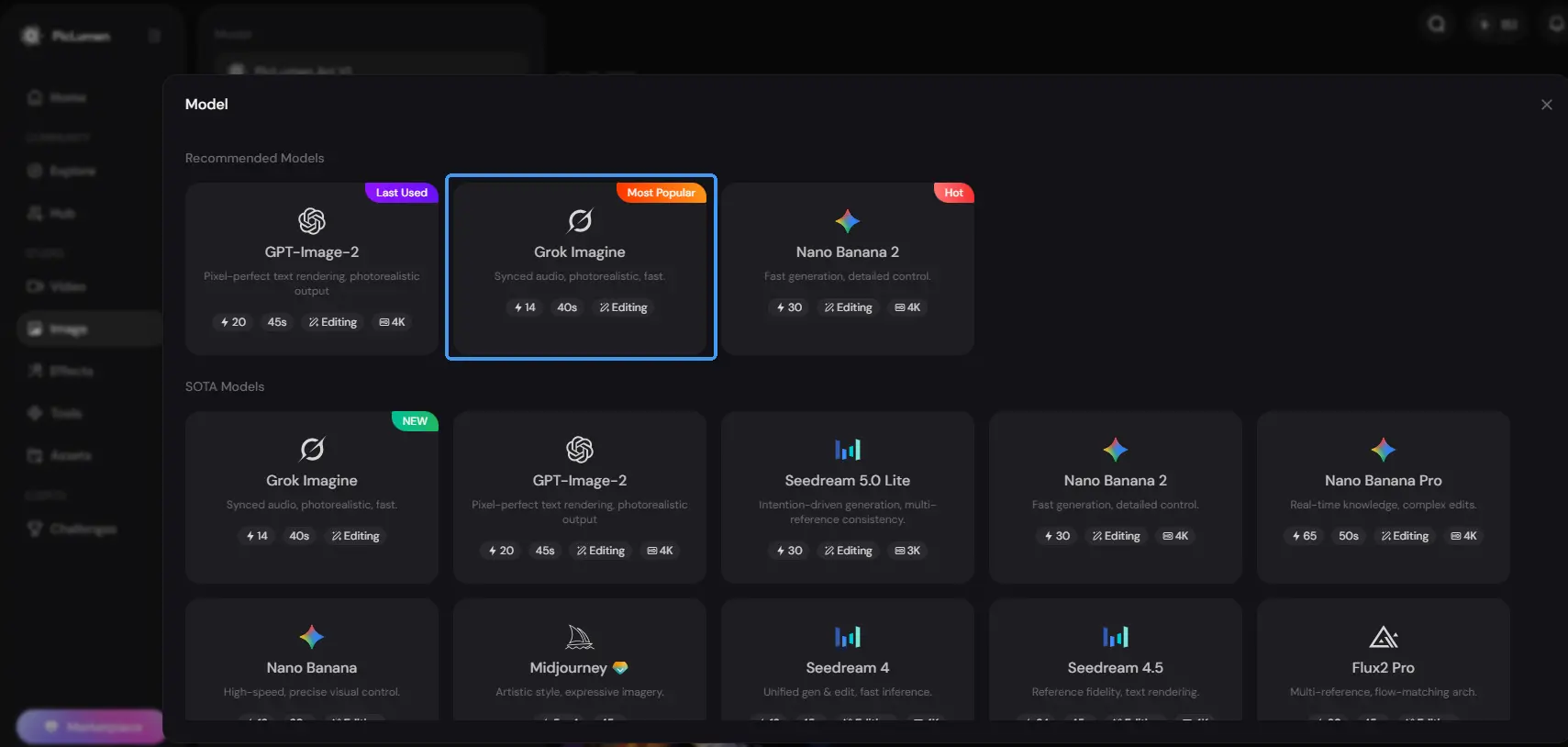
Step 1. Choose the Grok Imagine model Open PicLumen and select the Grok Imagine model from the generation options.
 Step 2. Enter a prompt or upload a reference image
Start with a text prompt if you want to create from scratch, or upload a reference image if you want to keep a certain subject, style, pose, or composition.
Step 2. Enter a prompt or upload a reference image
Start with a text prompt if you want to create from scratch, or upload a reference image if you want to keep a certain subject, style, pose, or composition.
Step 3. Select the right image ratio Choose a ratio based on where the image will be used, such as a square social post, vertical story image, blog cover, poster, or product visual. Step 4. Generate, download, or share Generate the image, compare the results, and keep the version that works best. You can download it for your project, share it on social media, or post it to the PicLumen community for inspiration and feedback.
FAQs About Grok Imagine
What is the difference between Grok image generation and Grok video generation?
Grok image generation creates still visuals from prompts or reference images. Grok video generation adds motion, camera movement, and scene changes to create short clips. A common workflow is to generate a strong image first, then animate it with Grok video.
What can I use Grok Imagine for?
Grok Imagine can be used for AI image generation and AI video generation. It works well for realistic portraits, creative posters, marketing visuals, social media images, short video effects, ad clips, character animation, scene motion, and reference-based camera extension.
Why use Grok Imagine on PicLumen?
PicLumen is useful when you want more than a single generation result. You can test Grok, compare it with other popular models like Seedance, Kling, GPT Image, Nano Banana, and Midjourney, then download your work or share it on social media and the PicLumen community.
How long can Grok videos be?
Grok video generation supports short clips from 6 seconds to 30 seconds. This makes it more suitable for social hooks, ad drafts, product teasers, motion tests, and short-form content than long narrative videos.
What are Grok video modes?
For text-to-video, Grok supports Fun, Normal, and Spicy modes. For image-to-video, it supports Fun and Normal modes. Fun is better for playful or exaggerated motion, Normal works better for cleaner and more balanced results, and Spicy should only be used where available and appropriate.

.png)