.png)
Have you ever wanted to put two separate photos into one image?
Maybe you want to place a person into a new scene, combine a product with a different setting, or bring two separate shots into the same image. A simple collage can place the photos together, but it does not blend their elements into one scene.
In this guide, I’ll show you how to combine two photos in one frame with AI, from choosing the right images to generating the final result.
Quick Answer
To merge two photos in one frame online with AI, upload both images to an AI image combiner and describe how you want them combined. The AI uses your photos and prompt to generate a new composition.
Use clear source images and describe what you want to see in the final photo.
What Does Combining Two Photos Actually Do?
There are two ways to combine two photos.
A traditional photo combiner puts the images next to each other, stacks them, or arranges them in a collage. The original photos stay as they are.
An AI image combiner works differently. It uses both photos as visual references to create a new image. The subject from one photo can appear inside the scene from another. You can also use a prompt to guide the lighting, style, and overall look.
With an AI image combiner, the two photos can become part of a new composition instead of simply being placed side by side.
What Can You Create by Combining Two Photos?
Two photos can be put together in many ways. Each one can contribute a subject, a scene, or a visual element.
Combine Two People Into One Photo
You can bring two people from separate photos into the same image.
For example, you can combine two individual portraits into a group photo or create a scene where the two people appear together.
Combine a Subject With a New Scene
One photo can provide the main subject, while the other provides the setting.
Use this to place a person in a different location, or to put a product into a new environment.
Combine Two Photos for Creative Edits
The two photos do not have to play fixed roles. You can use them to create before-and-after images, mix different visual elements, or build a new composition from separate references.
How to Choose the Right Photos Before Combining Them
he source photos have a direct impact on the final image. Before uploading them, check that each photo gives the AI enough information to identify the subject and scene.
Use Clear Photos With Matching Lighting
Choose photos where the main subjects are easy to see. Avoid heavily blurred or cropped images.
Lighting also matters. If one photo is bright and the other is very dark, the difference can make the combined result harder to control. Photos with similar lighting conditions are usually easier to blend.
Check the Framing and Main Subject
Similar framing on both photos makes combining easier. If one photo is a close-up and the other is a wide shot, the AI has to guess how to scale the subject.
With two portraits, photos where each person is clearly visible usually work better. When combining a product with a background, a product that is not heavily cropped or blocked by other objects gives the AI more to work with.
How to Combine Two Photos in One Frame Online
Once you have two photos ready, here's how to combine them in one frame. The steps below use PicLumen's AI Image Combiner, which handles both the photo upload and the AI blending in one place.
Step 1: Choose a Template
Open the AI Image Combiner and check the Template menu in the top-left corner.
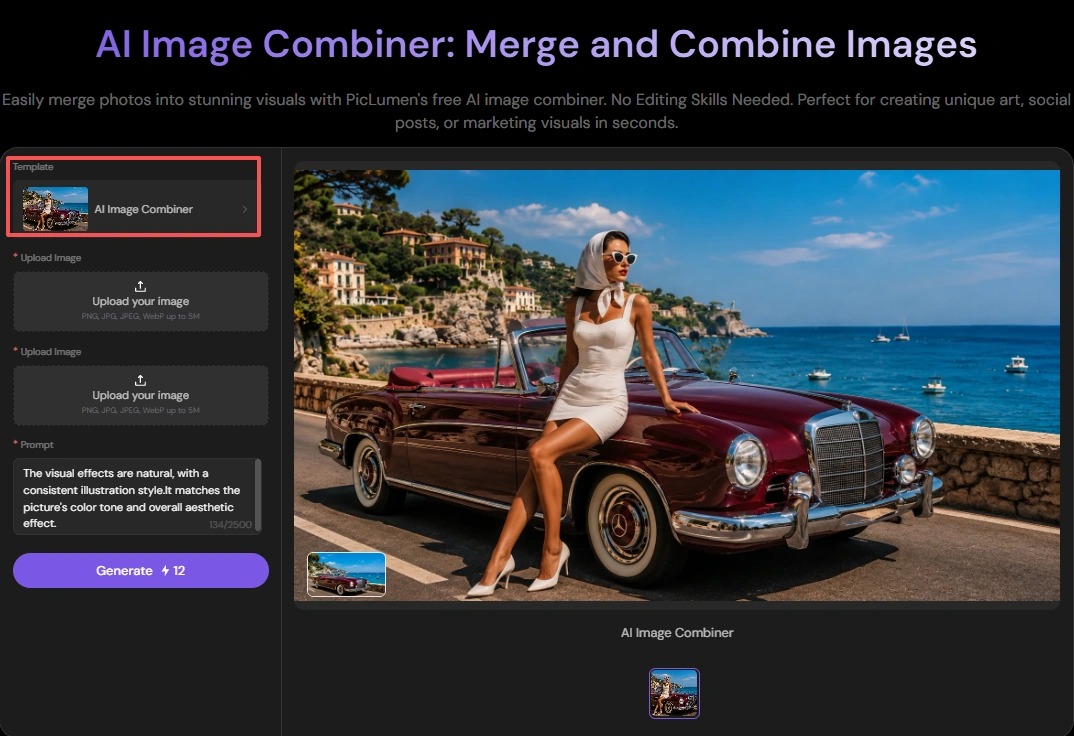
The tool template is selected by default. Keep it selected for this workflow. It is the template used to upload two photos and combine them into one image.
Step 2: Upload Two Photos
There are two Upload Image boxes on the page.
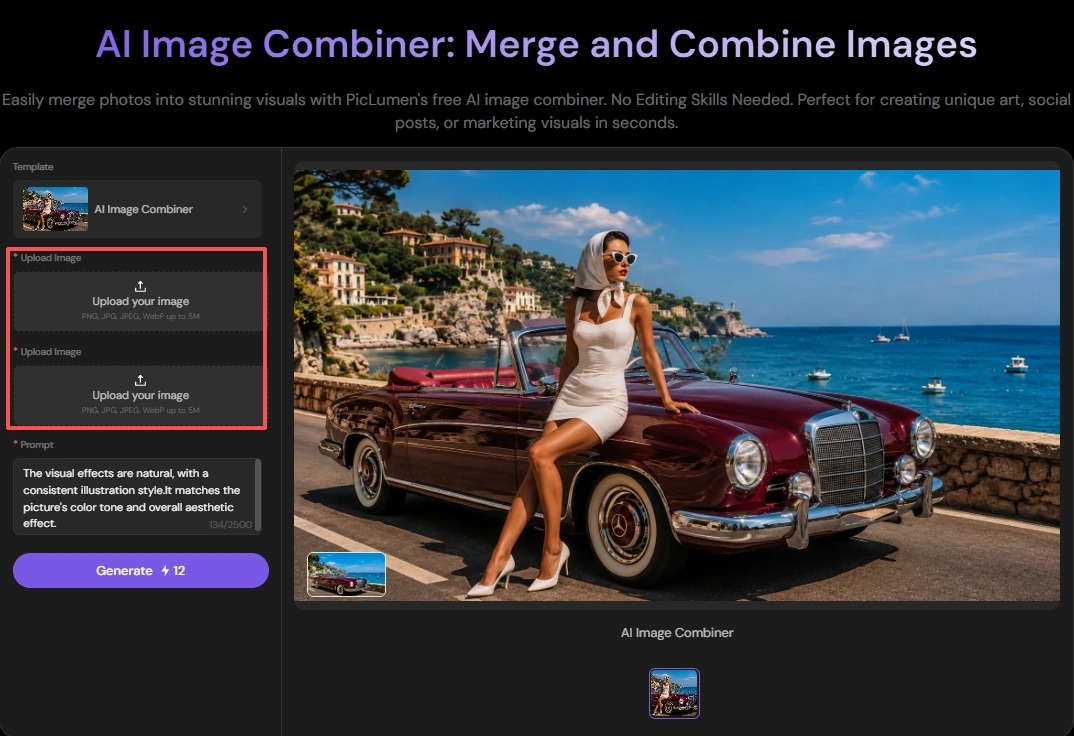
Click Upload your image in the first box and add your first photo. Then upload the second photo in the other box.
Both image fields are required. Supported formats include PNG, JPG, JPEG, and WebP, with a maximum file size of 5 MB per image.
Step 3: Describe How You Want to Combine the Photos
Enter your instructions in the Prompt box. Mentioning the position, action, lighting, and style usually gives better results.
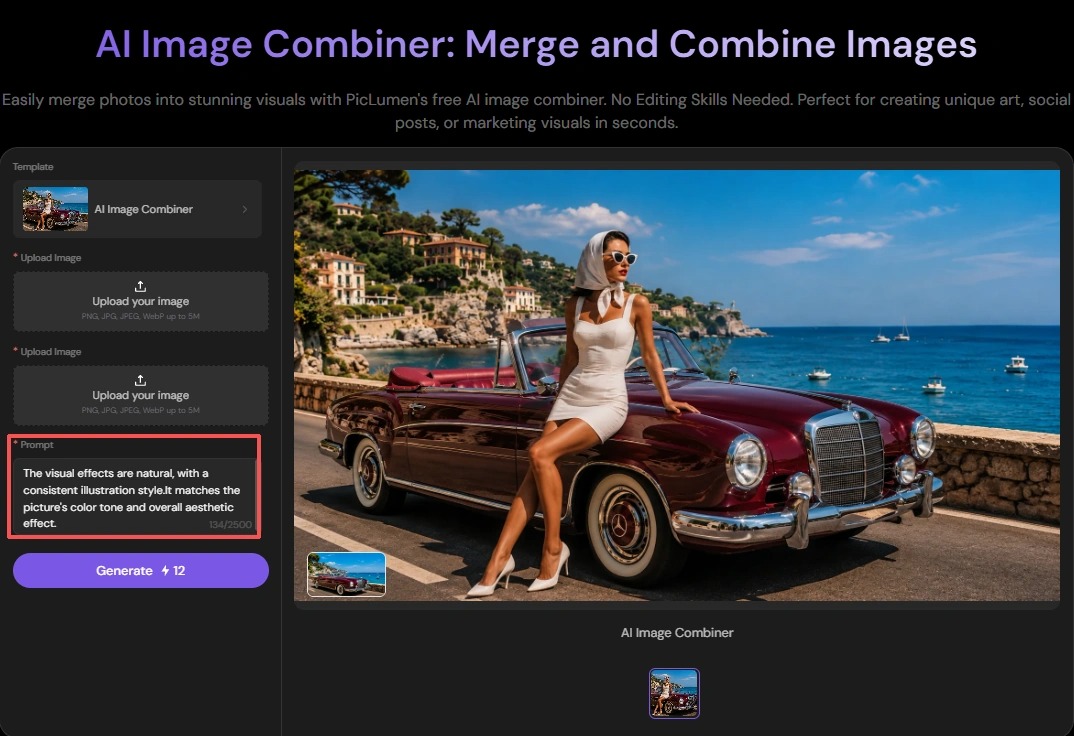
A common prompt looks like this: Place the two people next to each other in the same scene, both facing the camera. Match the lighting and color tone.
If you want to control the visual style, you can add details such as "consistent illustration style" or "warm color tone."
Step 4: Generate the Combined Image
Once both photos and your prompt are ready, click the purple Generate button.
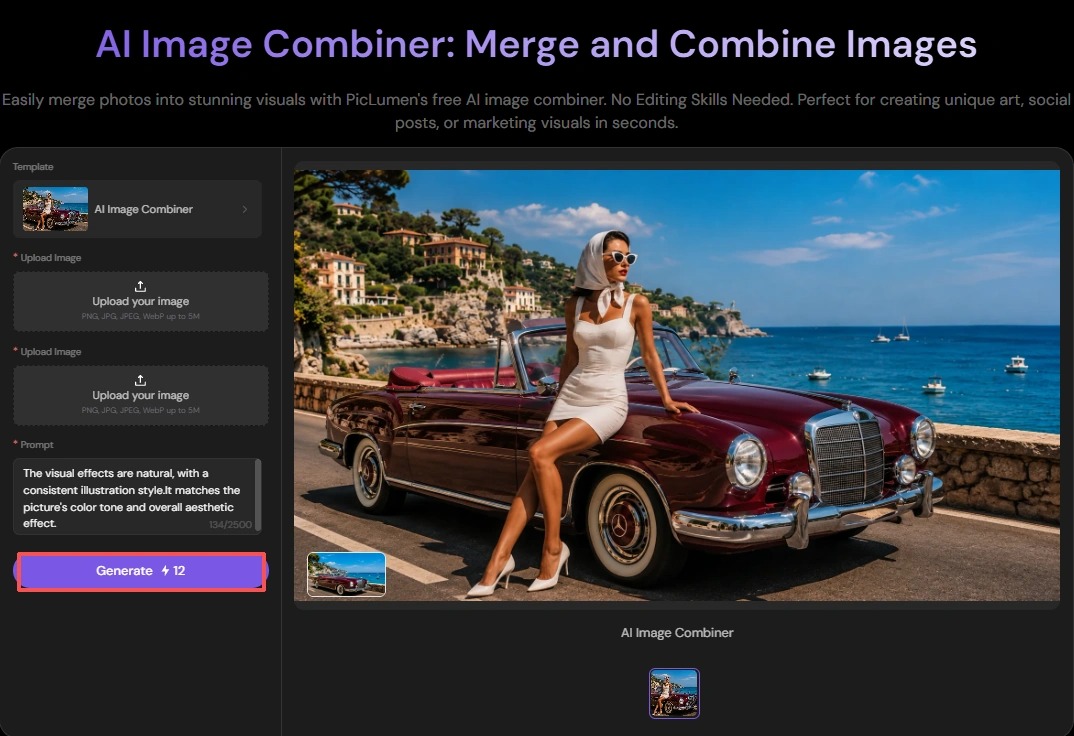
The combined image will appear on the right side of the page after a few seconds. In my test, the result appeared after a few seconds.
Step 5: Review and Download
Check whether the main subjects look natural and whether important details are still correct.
If something looks off, adjust the prompt and generate another version. You can clarify the subjects' position, lighting, or visual style.
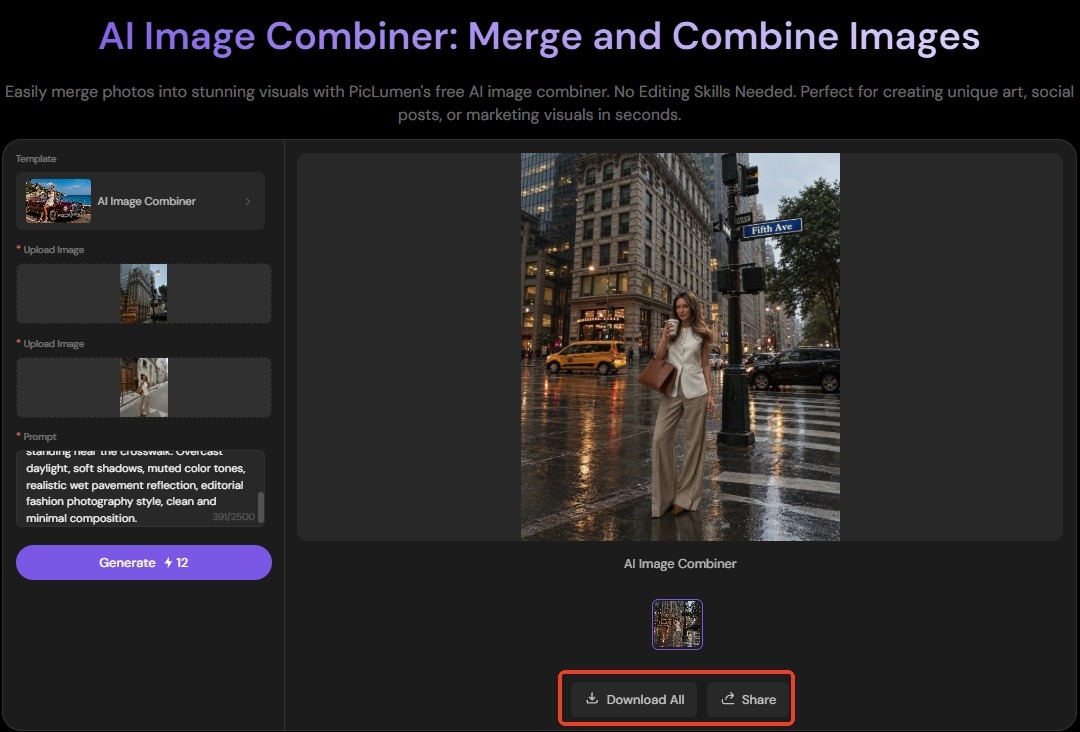
When the image looks right, download it. You can use Download All to save it, or Share to post it directly.
Create Your First Combined Image
How to Write a Prompt for Combining Two Photos
A useful prompt tells the AI what to combine and how the final image should look.
When writing a prompt, be specific about how the two photos should come together. Start with the position or action, then add details about lighting and style.
Describe the Position and Action
Tell the AI where the people or objects should appear, and what they should be doing. If you are combining two people, describe how they relate to each other: standing next to each other, sitting together, or facing one another. If you are combining a product with a scene, describe where the product should sit.
Instead of writing "combine these two photos," try "place the two people next to each other in the same scene, both facing the camera."
Match the Lighting and Style
The two source photos often differ in lighting, color tone, or style. Tell the AI how to bring them together.
For example: "Match the lighting and color tone of both photos. Keep a consistent illustration style throughout the final image."
You can also specify the visual style, such as a realistic photo or a consistent illustration style. If the two photos have different colors, describe the tone you want the final image to follow.
How to Fix Common AI Photo Combining Problems
Problem | Why It Happens | How to Fix It |
The two photos don't blend naturally | The lighting or perspective differs between the two photos. | Describe the lighting direction, shadows, and perspective. Try: "soft light from the left, with a natural shadow under the subject." |
The result changes details you wanted to keep | The prompt did not say which details should stay the same | Name what should stay the same. Try: "keep the face, hair, and clothes unchanged." For product shots, list the details that must match: shape, color, logo, packaging. |
The subject is too large or too small | The prompt does not specify the subject's position or scale. | Describe the position and scale in the prompt. Try: "the person takes up about half the frame, standing on the left side." |
The colors don't match between the two photos | The two source photos have different color tones | Tell the AI which image's color tone to follow. Try: "match the warm tone of the second photo." |
FAQs
Can I Combine More Than Two Photos Into One Image?
The AI Image Combiner is designed for combining two uploaded photos in this workflow. If you need to combine more photos, you can create the image in stages or use a collage tool. For two-photo merges, PicLumen's AI Image Combiner covers the full process.
Can I Combine Two Photos Without Photoshop?
Yes. An AI image combiner can handle the image combining process without Photoshop or manual layer editing. You only need to upload the photos and describe the result you want.
Can I Combine Two Photos Without Losing Quality?
The result depends on the source images and the AI generation. Use clear, high-quality photos and check important details after generation. If something changes, refine the prompt and generate another version.
Can I Combine Two Photos Online for Free?
Yes. Some AI image combiners offer free credits or free plans. Check the tool's current limits before generating multiple images.
What Types of Photos Work Best for Combining?
Photos with a clear subject and even lighting. Similar lighting conditions on both photos also help the result look natural.
 (1)_compressed.jpg)