Grok Imagine is no longer limited to turning a short prompt into a new image. It can also edit uploaded pictures, replace visual elements, apply a different style, combine reference images, and refine an earlier result through follow-up instructions. Still, "image editing" covers a wide range of tasks. Replacing a full background is much easier than correcting one product label while keeping every nearby detail untouched. This guide breaks down the main Grok Imagine image editing capabilities, image quality, practical limits, and prompt methods that can make the results easier to control.
TL;DL: Yes. Grok AI has image generation capabilities in 2026 through Grok Imagine. It supports text-to-image generation, natural-language image editing, style changes and multi-turn refinement. xAI's current Quality model also supports 1K and 2K image output.
Does Grok AI Have Image Generation Capabilities in 2026?
Yes. Grok Imagine can generate a completely new image from text or use an existing image as the starting point for an edit. For text-to-image generation, you can describe the subject, location, lighting, materials, mood, and composition. Grok Imagine then builds the scene from scratch. Its current generation API also provides aspect-ratio and resolution controls.
Here is a simple product-image prompt:
A close-up product photograph of a transparent perfume bottle on wet black stone, early morning fog, controlled studio lighting, realistic glass texture, soft reflections, premium fragrance campaign.
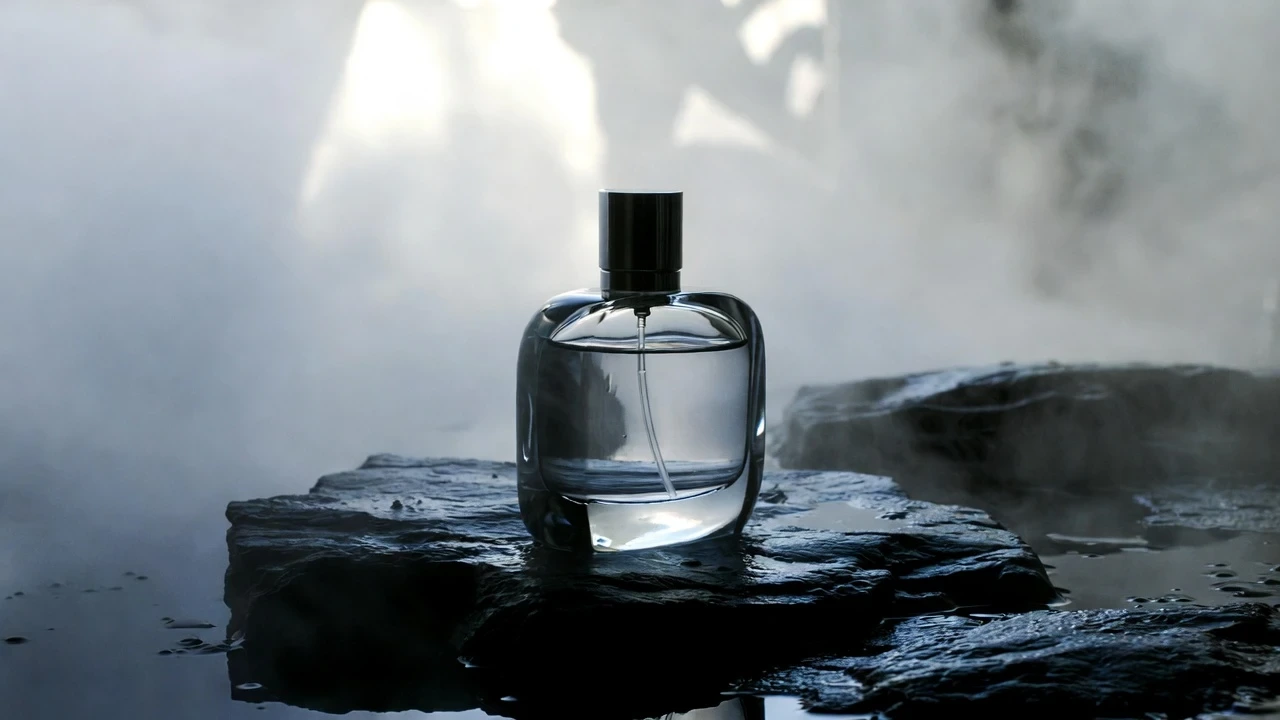
The prompt works because every phrase describes something visible. It identifies the product, surface, atmosphere, light, material, and format without filling the prompt with vague words. The main Grok Imagine image generation capabilities can be summarized as follows:
| Capability | What It Does | Useful For |
|---|---|---|
| Text-to-image generation | Creates a new image from a written prompt | Product concepts, posters and social visuals |
| Natural-language editing | Changes an uploaded image through written instructions | Background, object and lighting edits |
| Style transformation | Recreates an image in another visual direction | Anime, painting and editorial styles |
| Multi-image editing | Uses up to three source images in one edit | Combining a subject, outfit and setting |
| Multi-turn refinement | Uses an earlier result as the next input | Correcting one detail at a time |
| Quality output | Supports documented 1K and 2K options | Online visuals and higher-detail exports |
These functions are available through the current Grok Imagine generation and editing APIs. The difference between generation and editing is mainly the starting point. Generation begins with a written idea. Editing begins with a source image and a requested change.
What Are the Main Grok Imagine Image Editing Capabilities?
The main Grok Imagine image editing capabilities range from broad scene changes to more focused edits involving objects, materials, styles, and references.
1. Edit Images With Natural-Language Instructions
You do not need to describe an edit with technical design language. You can explain the change in a normal sentence. A useful editing prompt should tell the model: what needs to change; where the target is; what the new result should look like; which details must remain unchanged. For example:
Turn the daytime street into early evening. Add warm light from the shop windows and subtle reflections on the road. Keep the person, face, clothing, pose, buildings, and camera angle unchanged.
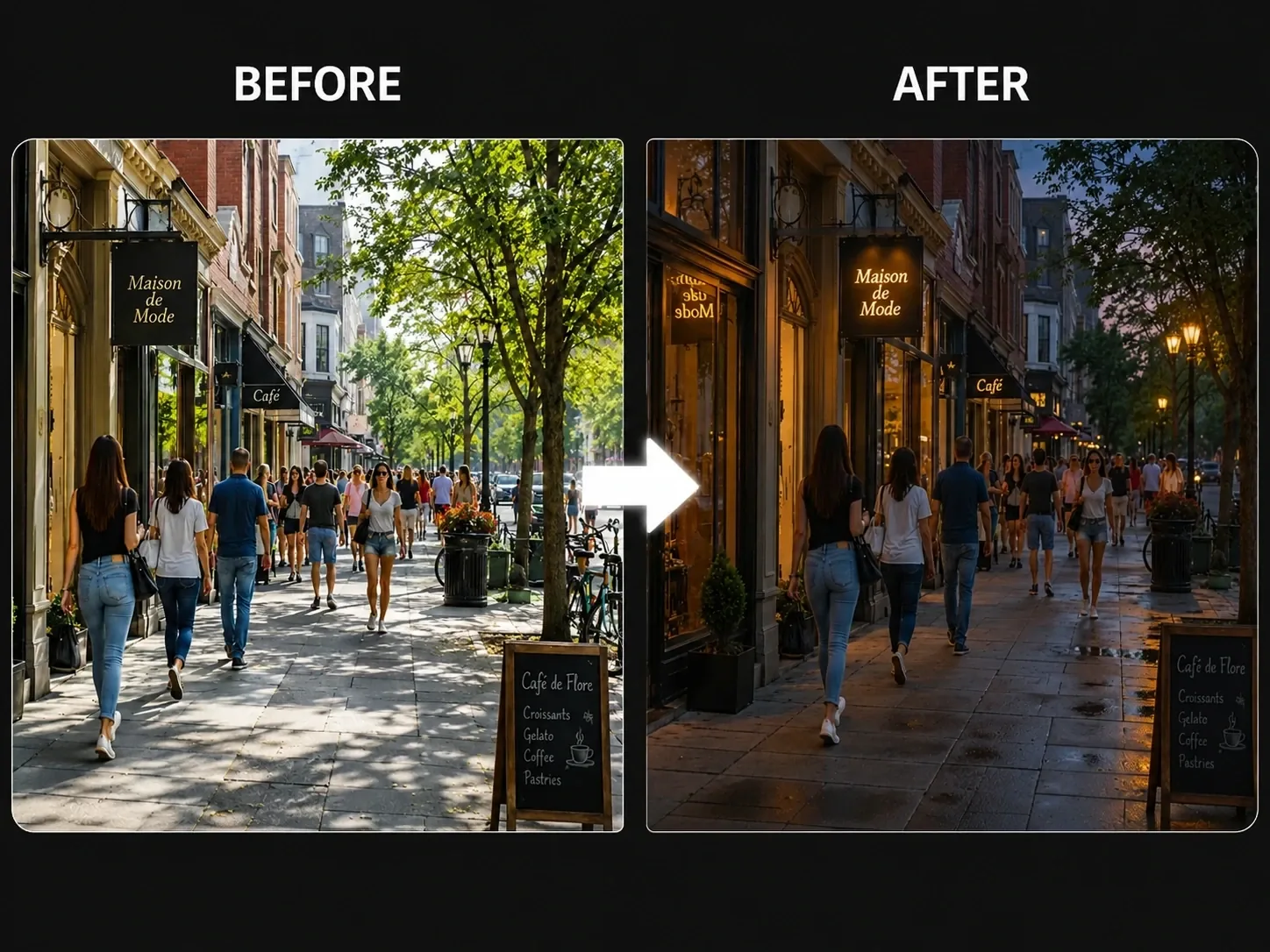 The first part defines the new scene. The last sentence reduces the chance of unrelated changes.
Without preservation instructions, a generative editor may treat the prompt as permission to rebuild more of the image than you intended.
The first part defines the new scene. The last sentence reduces the chance of unrelated changes.
Without preservation instructions, a generative editor may treat the prompt as permission to rebuild more of the image than you intended.
2. Replace a Background or Change the Setting
Background replacement is one of the most practical uses of Grok Imagine. You can move a portrait into another location, change the weather, or turn a plain indoor image into a more polished campaign scene. For example:
Replace the office background with a minimalist photography studio in soft beige tones. Match the original light direction and depth of field. Keep the woman’s face, hairstyle, outfit, hands, pose, and body proportions unchanged.
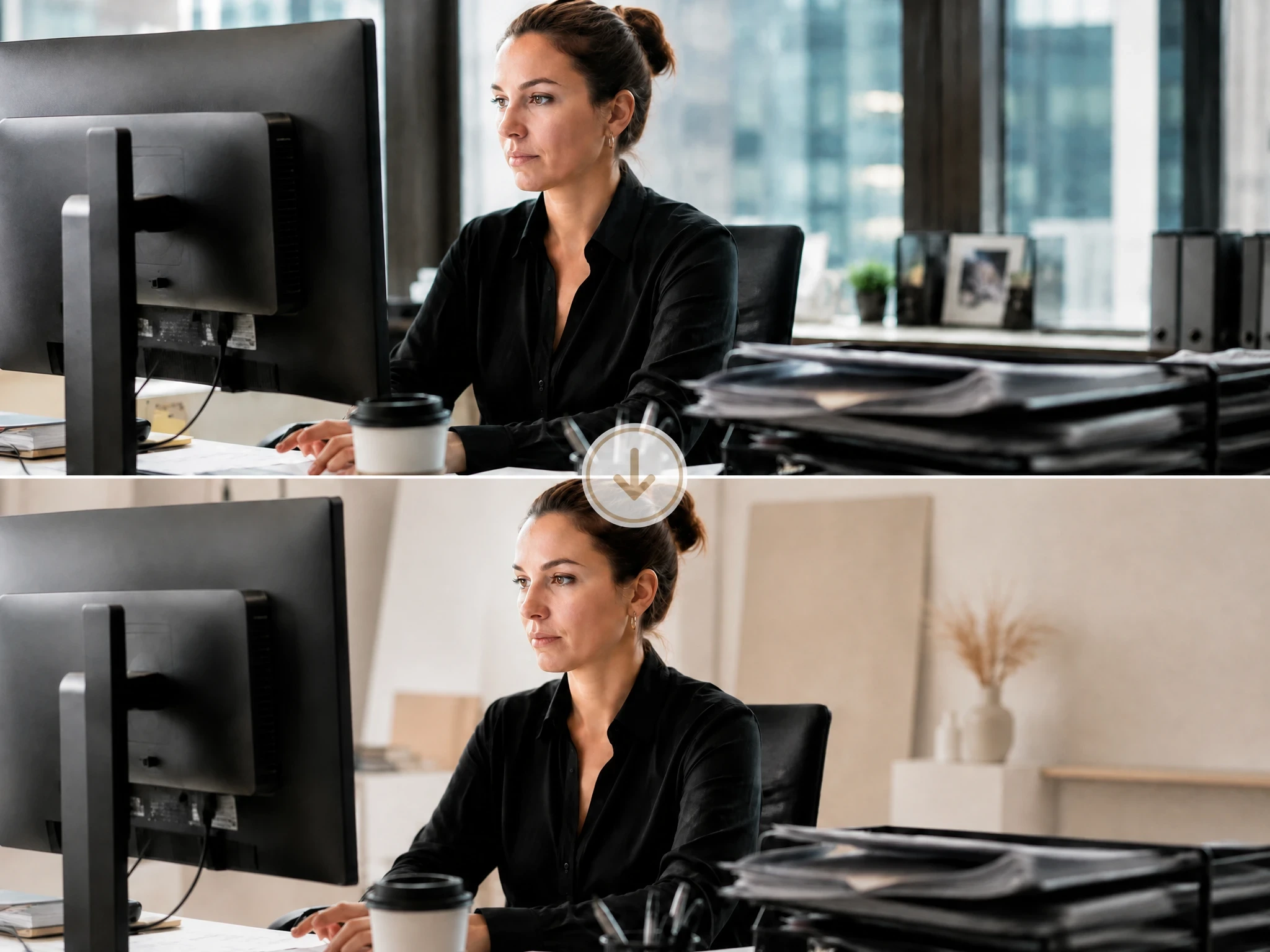 Matching the light direction is important. Even a well-generated background can look artificial when the subject is lit from the left but the new environment suggests light coming from the right.
Detailed edges such as hair, glass, fur, and smoke may also need a closer check after generation.
Matching the light direction is important. Even a well-generated background can look artificial when the subject is lit from the left but the new environment suggests light coming from the right.
Detailed edges such as hair, glass, fur, and smoke may also need a closer check after generation.
3. Add, Remove, or Replace Objects
Grok Imagine can remove an unwanted item or replace it with another object. The instruction works better when the target and its position are easy to identify.
For example:
Replace the ceramic coffee cup on the right side of the table with a clear glass of iced matcha. Keep the laptop, hands, table surface, shadows, framing, and background unchanged.
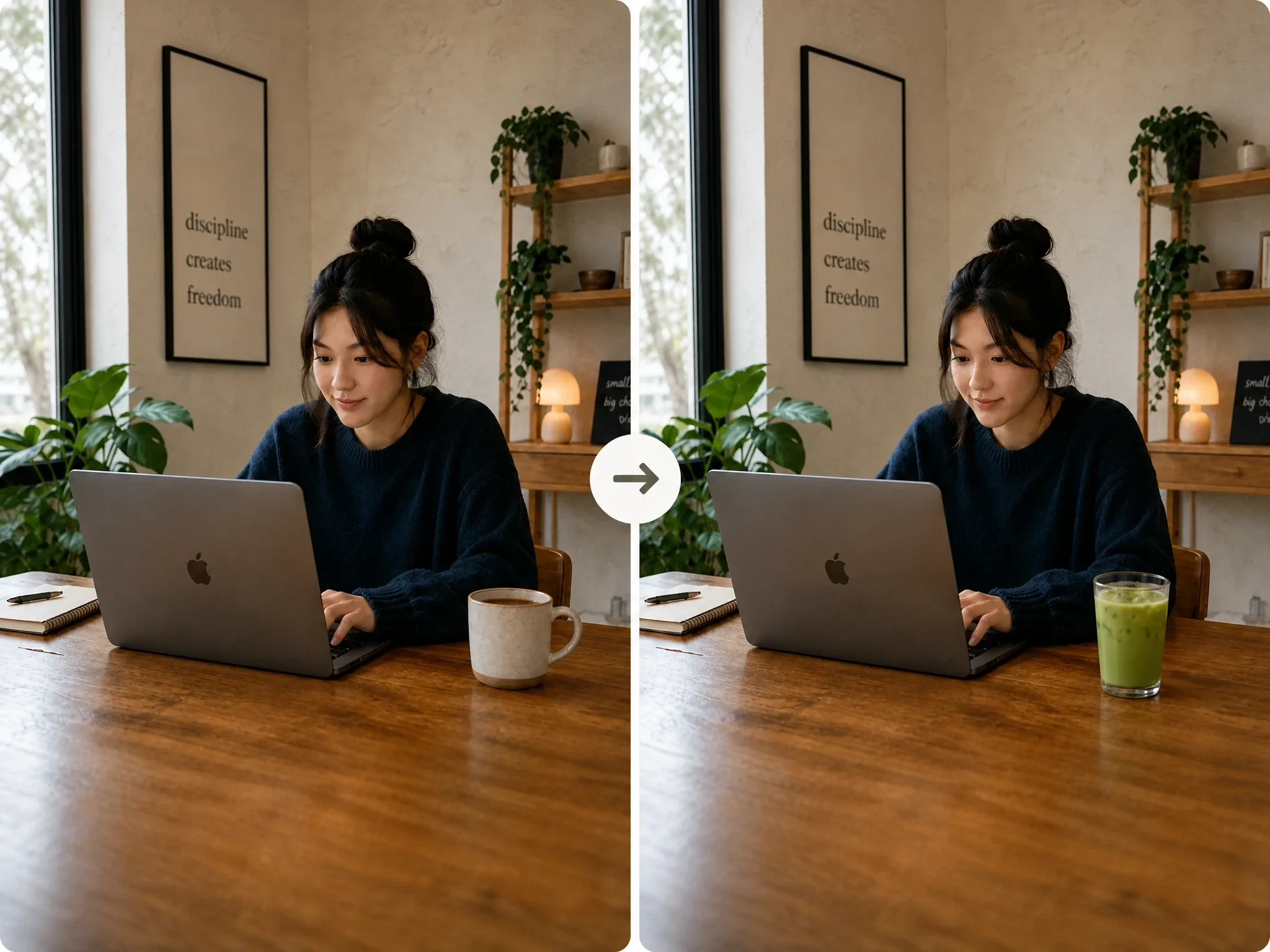 This is more precise than simply saying "replace the cup." It tells the model which cup to change and which surrounding elements should stay in place.
The model may still redraw nearby shadows, reflections, fingers, or parts of the table. Grok Imagine is generating a revised scene rather than cutting one object out and pasting another into the exact same pixels.
This is more precise than simply saying "replace the cup." It tells the model which cup to change and which surrounding elements should stay in place.
The model may still redraw nearby shadows, reflections, fingers, or parts of the table. Grok Imagine is generating a revised scene rather than cutting one object out and pasting another into the exact same pixels.
4. Change Clothing, Color, and Materials
You can also use Grok Imagine to modify clothing, packaging colors, surfaces, and materials. For example:
Change the black leather jacket into an oversized dark olive cotton jacket with a matte texture. Preserve the person’s face, body shape, pose, hands, background, and original lighting.
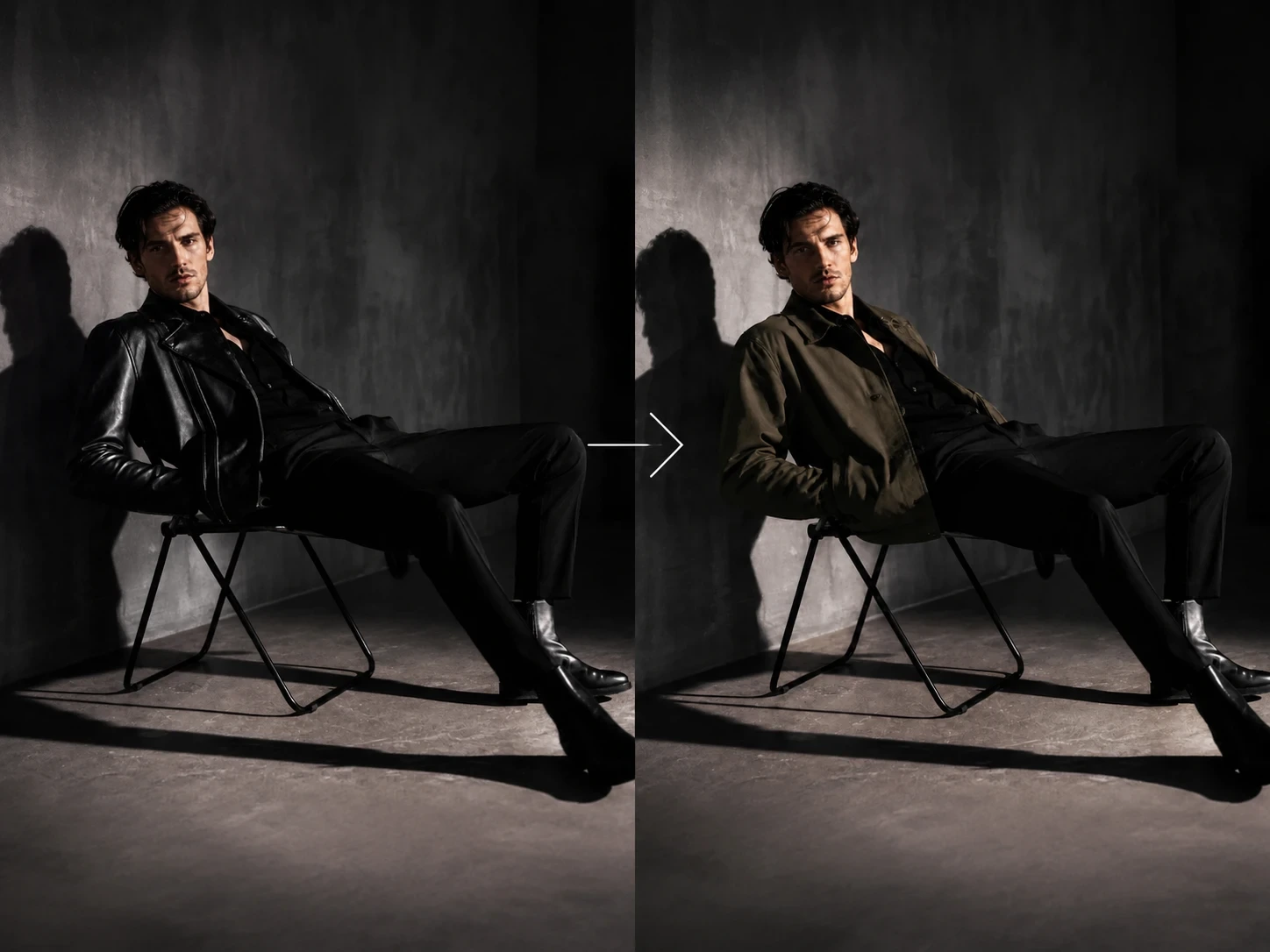 Words such as "cotton," "matte," "brushed metal," and "clear glass" are useful because they describe visible properties. Terms such as "better," "luxurious," or "high-end" leave more room for interpretation.
Product labels, logos, and small packaging details still need to be reviewed after an edit. The overall image may look convincing even when one letter or graphic element has changed.
Words such as "cotton," "matte," "brushed metal," and "clear glass" are useful because they describe visible properties. Terms such as "better," "luxurious," or "high-end" leave more room for interpretation.
Product labels, logos, and small packaging details still need to be reviewed after an edit. The overall image may look convincing even when one letter or graphic element has changed.
5. Transform an Image Into Another Style
Style transformation is part of Grok Imagine’s documented editing support. The Quality model can handle directions such as realistic photography, anime, oil painting, pencil sketch, pop art, and watercolor. A style prompt can include limits on how much the model should reinterpret:
Recreate this portrait as a 1990s Japanese fashion magazine photograph, with natural film grain, direct flash, muted colors, and a clean editorial composition. Keep the subject recognizable and preserve the original pose and facial expression. Do not add text.
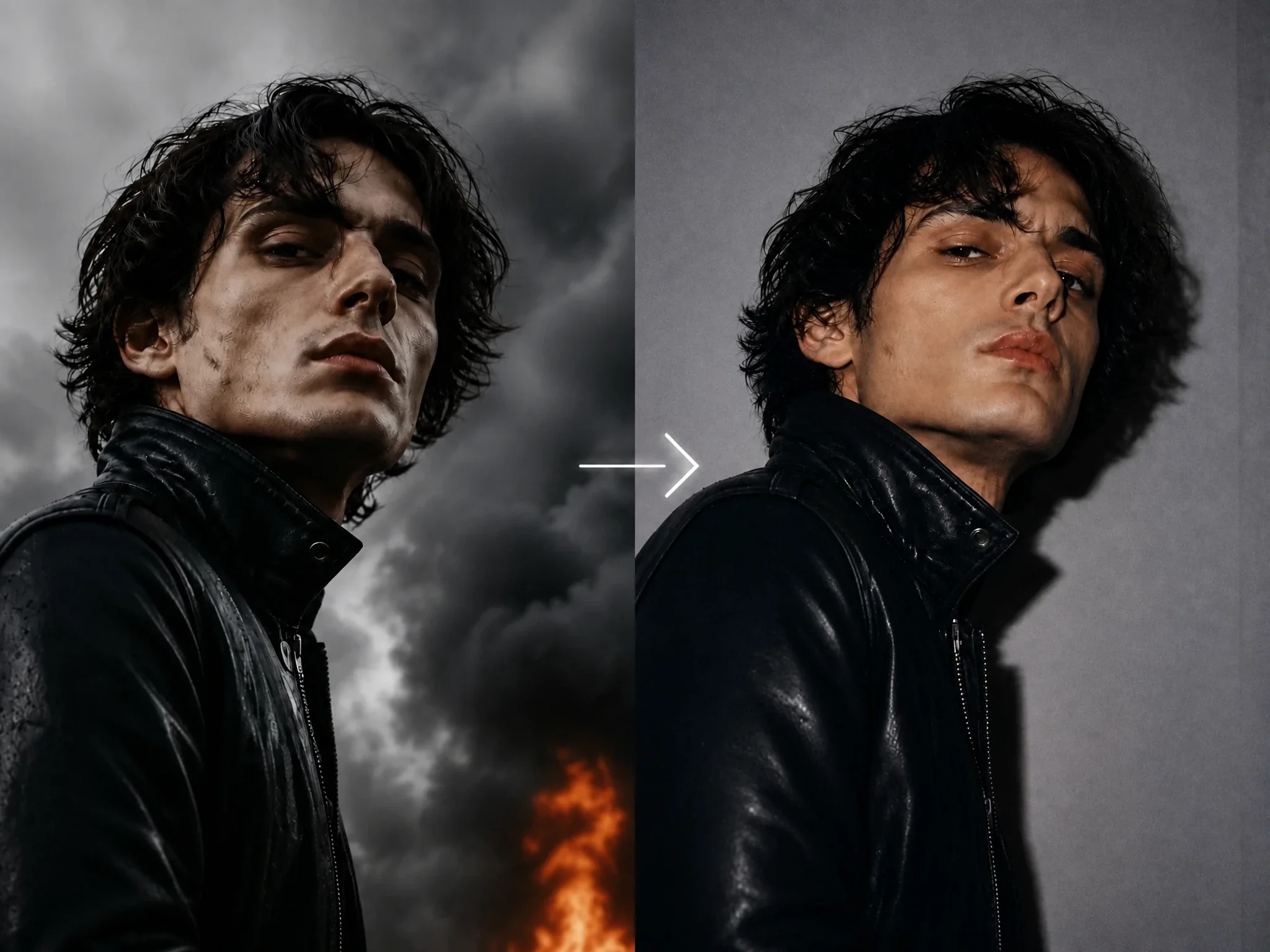 A light editorial treatment may preserve the original person closely. A stronger anime or painted style is more likely to change facial proportions and smaller details.
6. Combine Multiple Reference Images
Grok Imagine supports editing with up to three source images. Each image can contribute a different part of the result, such as the character, clothing, product, or setting. For example:
Use the person from Image 1, the silver jacket from Image 2, and the neon subway setting from Image 3. Keep the face and hairstyle from Image 1. Match the jacket shape and material from Image 2 without changing the person’s body proportions.
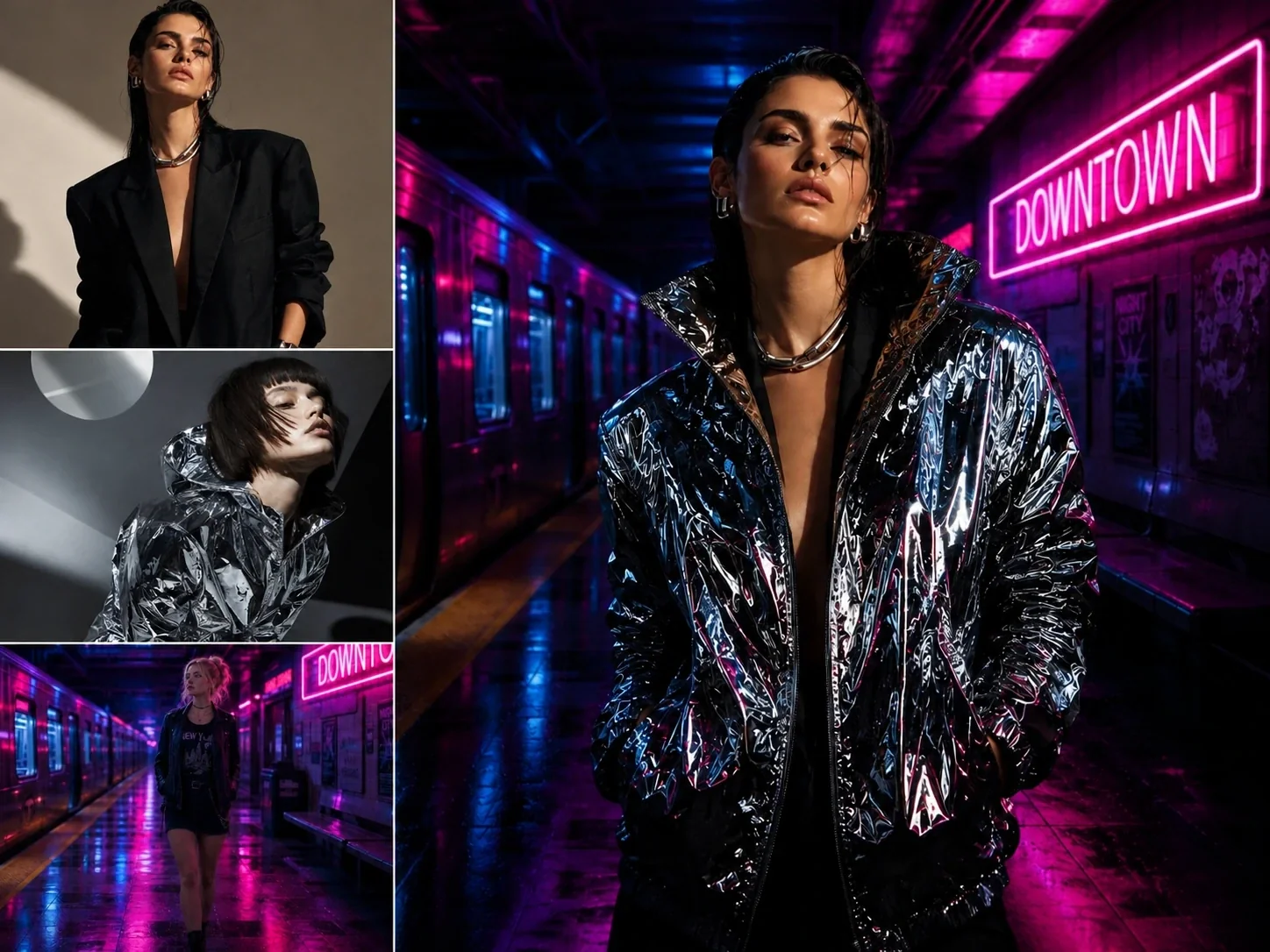 This is clearer than asking the model to “combine these images.” Each reference has a specific role.
References with similar camera angles and lighting are generally easier to combine. Large differences between the source images can lead to awkward proportions or inconsistent shadows.
This is clearer than asking the model to “combine these images.” Each reference has a specific role.
References with similar camera angles and lighting are generally easier to combine. Large differences between the source images can lead to awkward proportions or inconsistent shadows.
7. Refine an Image Through Follow-Up Prompts
Grok Imagine supports multi-turn editing, meaning that one result can become the source for the next change. A simple workflow might look like this:
- First edit
Replace the background with a rainy Tokyo street at night. Keep the person unchanged.
- Follow-up edit
Reduce the neon light on the face and make the skin tone more natural. Keep the hairstyle, expression, clothing, pose, and background composition unchanged.
Separating the tasks makes the workflow easier to control. It also helps you identify which instruction caused an unwanted change.
How Good Is Grok Imagine Image Quality?
The current Quality model focuses on stronger realism, prompt adherence, text rendering, and editing control. It supports image generation and editing for enterprise developers and teams through the Grok Imagine API. The final quality still depends on the image type and how closely the output must match the source.
| Quality Area | Where It Can Work Well | What You Should Check |
|---|---|---|
| Prompt understanding | Clear subjects, scenes and style instructions | Missing secondary details or added objects |
| Image realism | Lighting, materials, atmosphere and portraits | Hands, repeated patterns and object contact |
| Subject consistency | Simple background and lighting changes | Face drift after strong or repeated edits |
| Text rendering | Short, prominent headl | Small labels, long copy and spelling |
| Local editing | Large, clearly identified objects | Nearby areas being redrawn |
| Reference blending | References with similar angles and lighting | Mixed proportions and inconsistent shadows |
What Are the Main Grok Imagine Image Limits?
1. It Is Not a Pixel-Level Photo Editor
Grok Imagine rebuilds content based on the image and prompt. It does not work like a locked Photoshop mask or exact clone tool. Changing one object may affect its shadow, the surface beneath it, or a nearby hand. That flexibility is useful for creative work, but it is less suitable for edits that cannot alter a single surrounding detail.
2. Faces and Small Details Can Drift
A new background may slightly change the hair. A clothing edit may affect the hands. A product replacement may alter the table or reflections around it. Clear preservation instructions can reduce the problem, but they cannot guarantee pixel-level consistency.
3. Reference Images Are Limited
The current xAI API accepts up to three source images for a multi-image edit. Three references are enough for a subject, outfit, and environment. They may be restrictive for campaigns that depend on a larger mood board, several product angles, or many character references.
4. Output Resolution Has a Ceiling
The documented Quality model supports 1K and 2K output. That is suitable for many online visuals, blog covers, social posts, and concept drafts. Large-format print assets may require upscaling and manual finishing.
How Can You Access and Use Grok Imagine?
Grok Imagine can be accessed through Grok on X, Grok.com, the official mobile apps, or the xAI API. These routes work well for users who mainly want to stay inside the Grok ecosystem or developers who need direct API integration. Creators who regularly compare different image models may prefer a multi-model AI art generation platform instead of moving between separate tools.
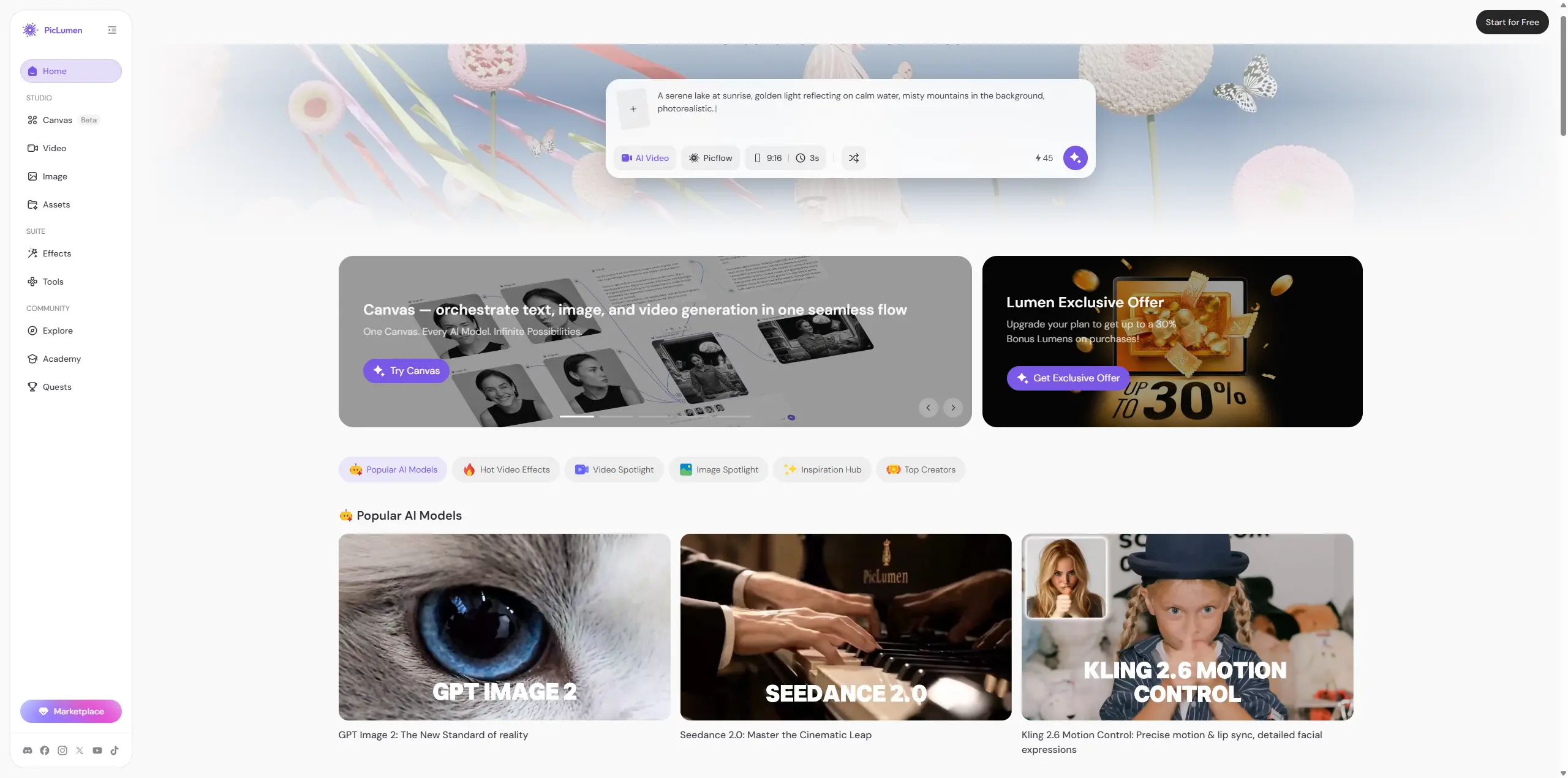
Use Grok Imagine on PicLumen
PicLumen brings Grok Imagine into the same creative platform as popular models such as GPT Image 2, Nano Banana 2, Midjourney, and Seedream. Users can switch models based on the visual style, prompt, or type of project rather than building the same workflow again on another site.
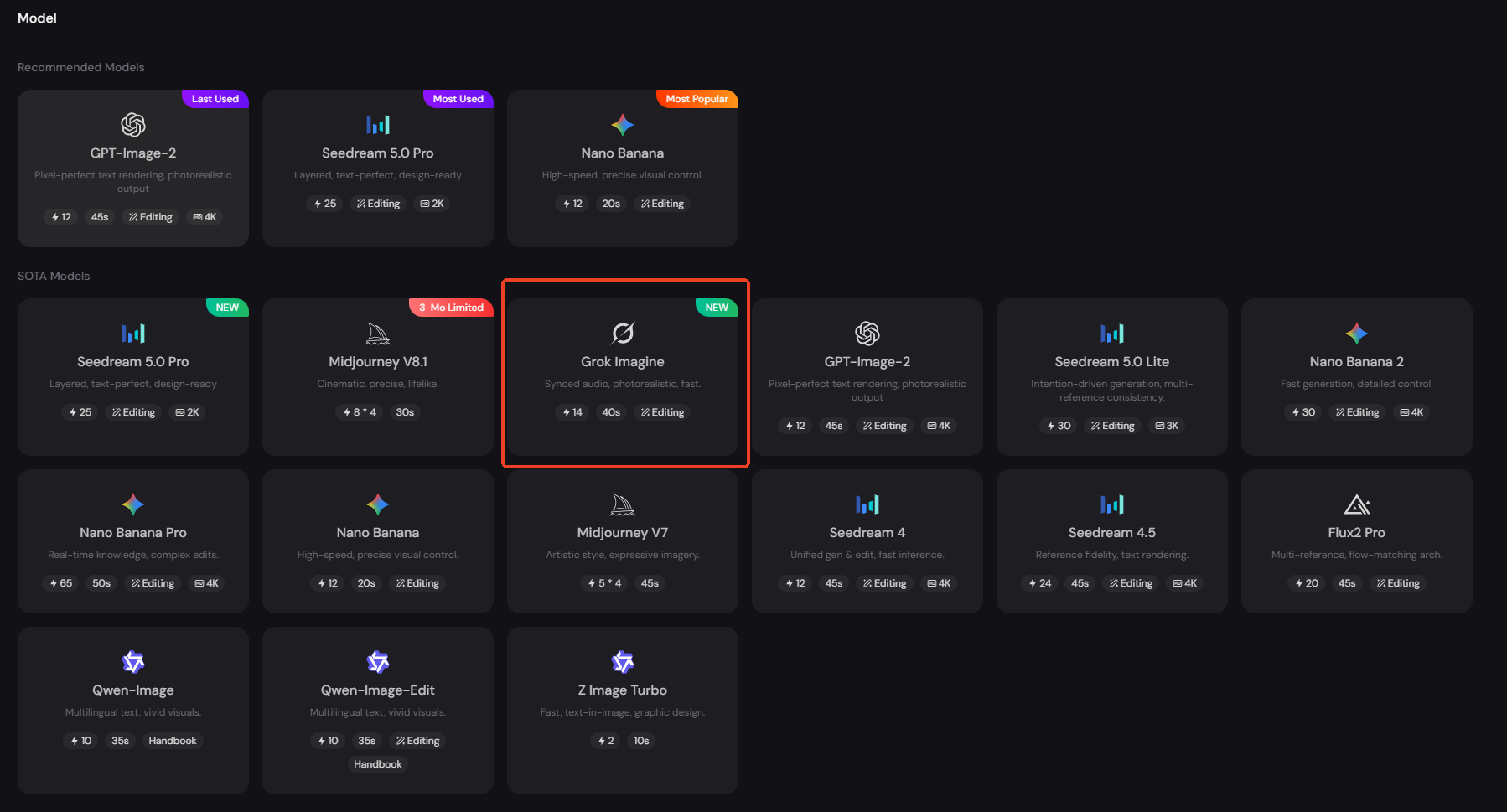
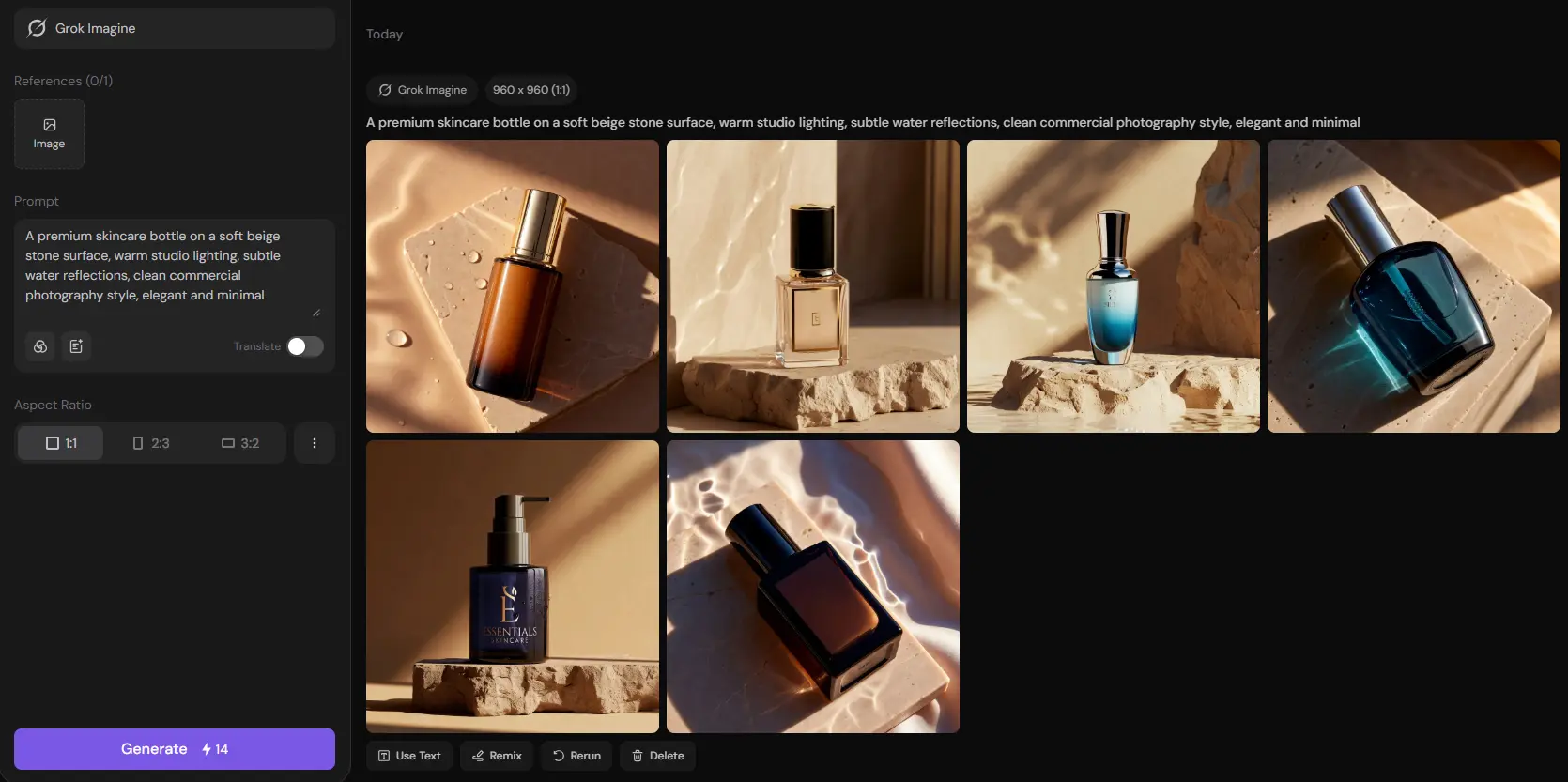
Step 1: Select Grok Imagine
Open the image generator and choose Grok Imagine from the available models. Enter a text prompt when you want to create something from scratch. Upload a source image when you want to follow an existing subject, style, or composition. Step 2: Add a Clear Prompt For a new image, describe the subject, scene, lighting, composition, and style. For an edit, state what needs to change and what must stay untouched. Step 3: Choose a Ratio and Generate Select a ratio that matches the final use, then generate the image. Check the face, hands, text, product shape, object edges, and background.
How to Write Better Grok Imagine Prompts
A clear image-editing prompt usually follows this order:
Action + target + desired result + preserved details + visual constraints
For example:
Remove the flowers on the left side of the table and replace them with a small chrome desk lamp. Keep the laptop, coffee cup, person, background, shadows, and camera angle unchanged. Match the lamp reflections to the existing window light.
Frequently Asked Questions
Does Grok AI have image generation capabilities?
Yes. Grok AI can generate images through Grok Imagine. It can create images from text and edit existing images provided by the user.
Can Grok Imagine edit an existing photo?
Yes. You can provide a source image and describe the change in natural language. The edit can involve the background, objects, clothing, lighting, materials, or overall visual style.
How do I write a better Grok Imagine editing prompt?
State what should change, identify the target clearly, describe the intended result, and list the parts of the source image that must remain unchanged. For a complex edit, divide the work into several shorter prompts.

.png)