A photo that should have captured a perfect moment ends up disappointingly blurry, it’s a common frustration. Maybe it’s a travel shot taken in a hurry, a family picture where someone moved at the wrong second, or an old image you’re trying to restore but lacks clarity.
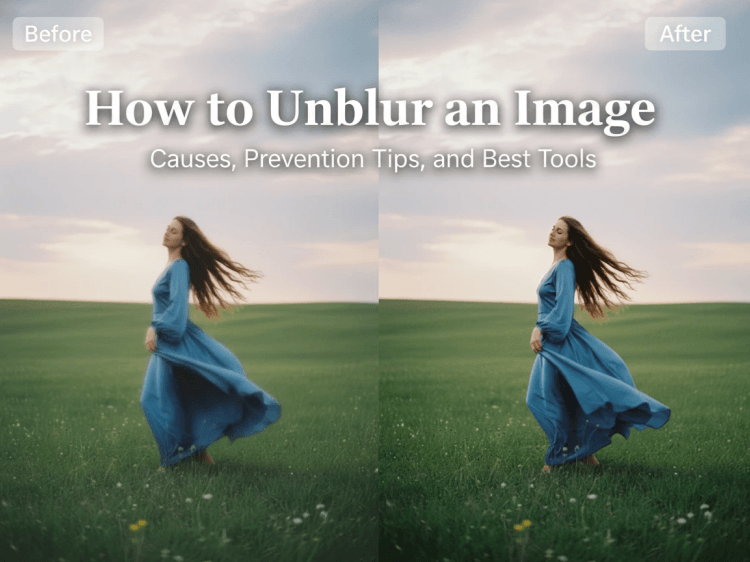
In this blog, we’ll walk through the causes of image blur, practical ways to avoid it, and most importantly, how to unblur images online using AI image tools that can significantly enhance clarity in seconds.
Why Your Photos Turn Out Blurry
Blurry photos can happen for a variety of reasons, and understanding the root cause is the first step toward fixing or preventing the problem. Whether you're using a smartphone or a professional camera, different technical and environmental factors can affect image clarity. Below are the most common types of blur and what causes them.
1. Motion Blur
Motion blur occurs when either the subject or the camera moves while the photo is being taken. This is especially common in low-light situations where the camera uses a slower shutter speed, causing moving elements to appear streaked or smeared.
2. Out-of-Focus Blur
This type of blur happens when the camera fails to focus correctly on the subject. It can be due to incorrect autofocus settings or manual focus errors, resulting in a soft, unclear image where important details are lost.
3. Low Resolution / Compression
Images with low resolution lack sufficient detail, making them appear blurry when viewed at larger sizes. Additionally, heavy compression (such as from messaging apps or web uploads) can degrade image quality and introduce blur-like artifacts.
4. Noise & Lighting Issues
Poor lighting conditions often force cameras to increase ISO sensitivity, which introduces digital noise. This noise can obscure fine details and create a grainy, blurry appearance, especially in darker areas of the image.
5. Camera Shake Blur
Camera shake blur is caused by slight, unintentional movement of the camera during exposure. Even small vibrations, like hand tremors, can reduce sharpness, particularly when shooting handheld without stabilization.
How to Avoid Blurry Photos
By mastering a few basic photography principles and making small adjustments while shooting, you can significantly reduce the risk of blurry photos.
1️⃣Use a faster shutter speed: A higher shutter speed helps freeze motion, reducing the risk of motion blur, especially when shooting moving subjects. 2️⃣Keep your camera steady: Hold your device firmly or use a tripod to minimize camera shake, particularly in low-light conditions. 3️⃣Ensure proper focus: Tap or manually adjust focus on your subject before taking the shot to avoid out-of-focus blur. 4️⃣Improve lighting conditions: Shoot in well-lit environments or add external light sources to reduce the need for slow shutter speeds and high ISO. 5️⃣Avoid excessive zoom: Digital zoom can reduce image quality and introduce blur; try to move closer to your subject instead. 6️⃣Use image stabilization: Enable built-in optical or digital stabilization features if your device supports them. 7️⃣Clean your lens: A dirty or smudged lens can soften details and make images appear blurry.
How to Unblur an Image: 3 Powerful Tools Recommendation
These tools are especially useful for quick fixes, old photo restoration, or improving images for social media and presentations. Below is one of the most accessible options to get started.
1. Unblurimage
Unblurimage is a straightforward online tool designed for simplicity and speed. One of its biggest advantages is that it requires no sign-up, making it ideal for users who want a quick solution without creating an account. It offers a basic free unblur feature, while additional capabilities can be unlocked through payment.
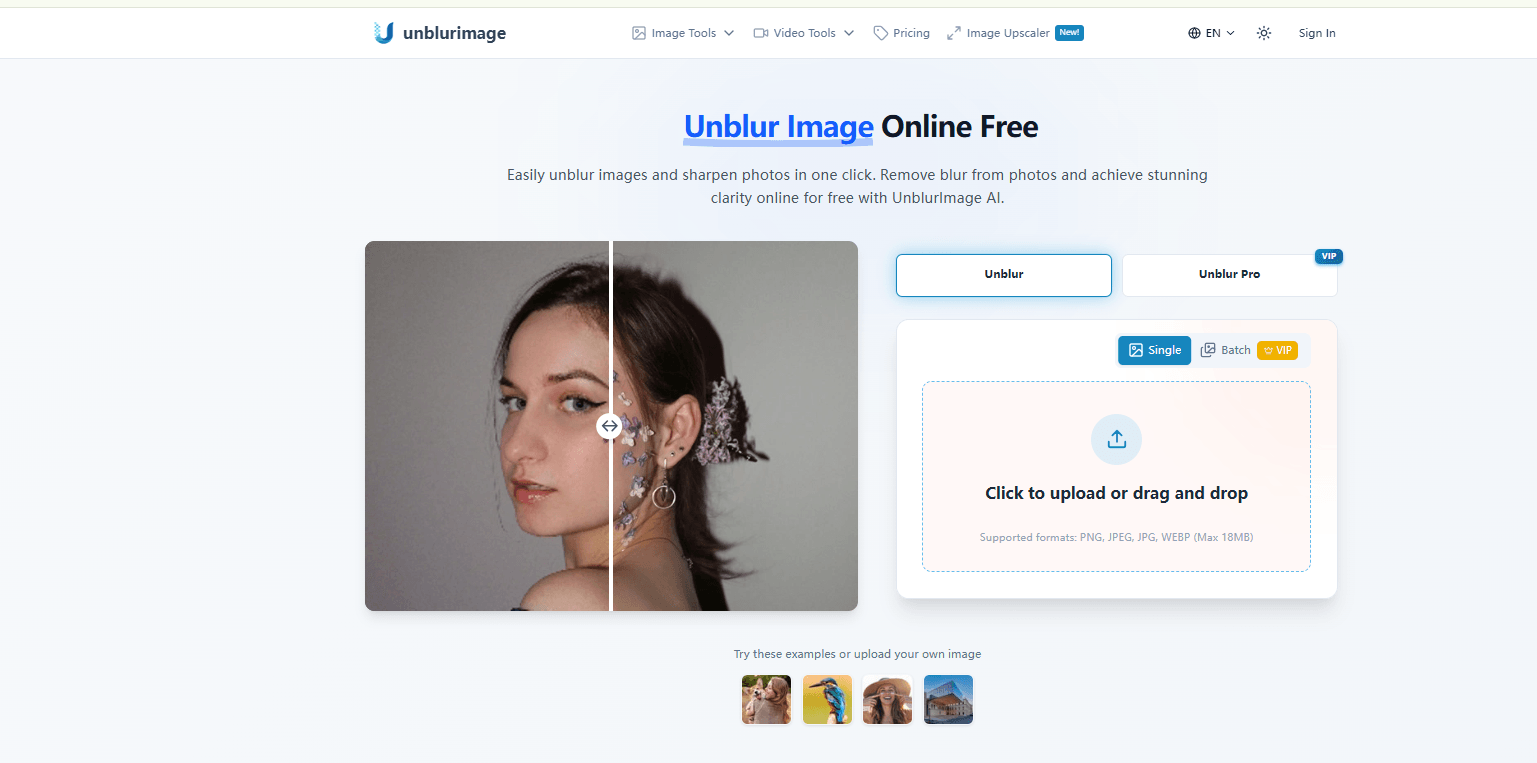
How to Unblur an Image With Unblurimage
Step1: Upload your photo: Select and upload the blurry image from your device. Step2: Click the “Unblur” button: Let the AI automatically process and enhance the image. Step3: Preview the result: Check the improved version and compare it with the original. Step4: Download the image: Save the enhanced photo to your device. Key Takeaway
Unblurimage allows you to process one image at a time for free, and its one-click unblur feature makes it extremely convenient for beginners. However, it offers limited control over the final result. Batch processing and more advanced features are available, but they require a paid upgrade.
2. PicLumen
PicLumen is a powerful platform for generating and editing both images and videos. It offers more control and flexibility. Users receive free “Lumens” (credits) every day, which can be used to try features like image unblurring. Once the free credits are used up, you’ll need to upgrade to a paid plan or purchase additional Lumens to continue.
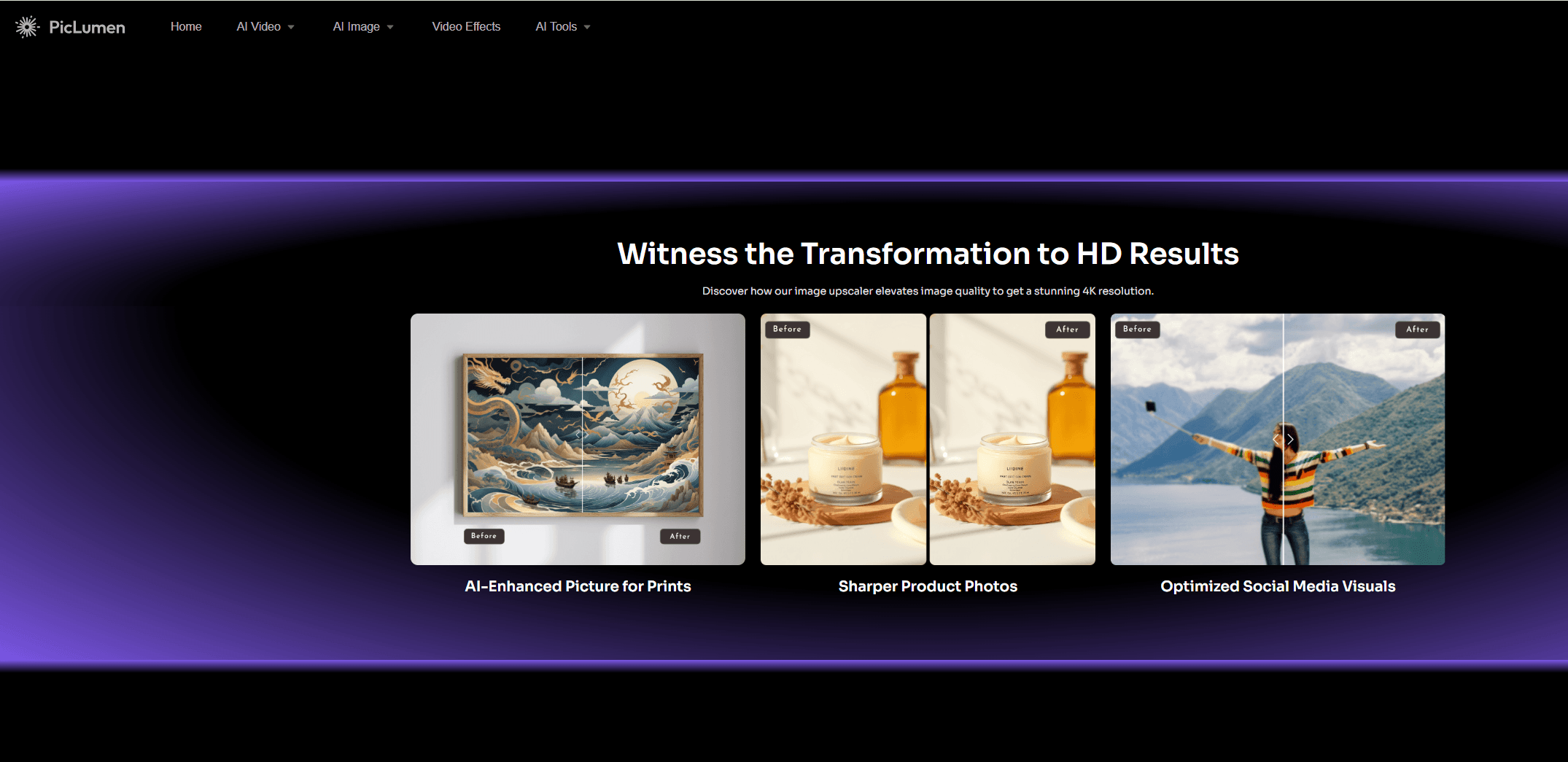
How to Unblur an Image With PicLumen
Step1: Choose a model: Select an appropriate AI model based on your needs (e.g., enhancement or restoration). Step2: Upload your photo: Add the blurry image you want to improve. Step3: Enter a prompt: Describe how you want the image to be enhanced (e.g., “sharpen details,” “restore clarity,” “improve resolution”). Step4: Generate and download: Let the AI process the image, then download the final result.
Key Takeaway
Although PicLumen does not currently support one-click unblur, it offers much greater control over the output. You can refine results through prompts, adjust image quality, and perform additional edits, making it a better option for users who want more customization and higher-quality results.
3. Canva
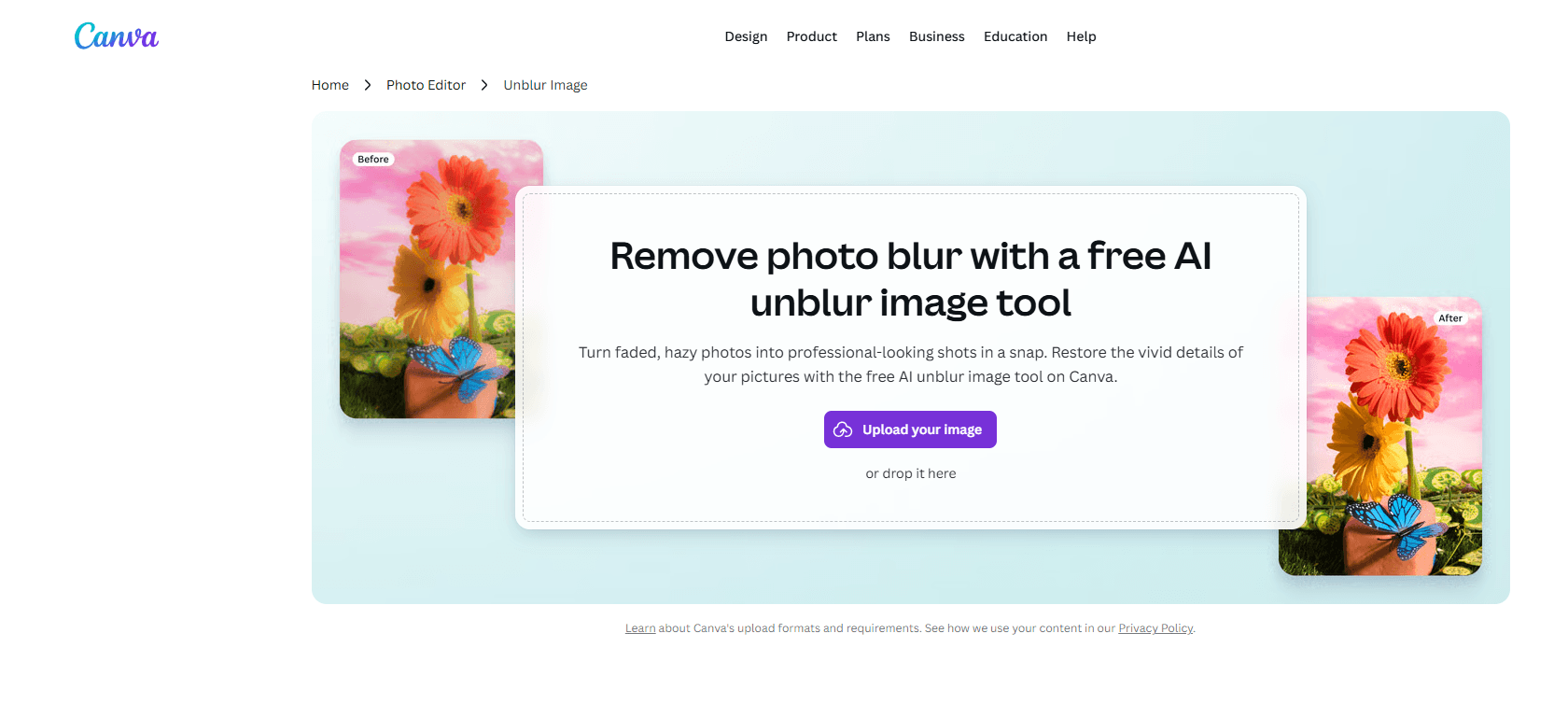
Canva is a widely used, beginner-friendly design platform that is completely free to get started. It works seamlessly across your browser, desktop app, or mobile device, making it very accessible for quick edits. In addition to design templates, Canva also offers basic AI-powered image enhancement features, including an Upscale tool that can help unblur photos.
How to Unblur an Image With Canva
Step1: Open Canva: Launch it on your browser, desktop, or mobile device, then start a new design or open an existing one. Step2: Find the Upscale feature: Upload your image or click on a photo in your design, then select “Edit” from the top toolbar and locate the Upscale option under “Tools.” Step3: Enhance the image: Apply the Upscale feature to automatically improve clarity and reduce blur using AI. Step4: Export your image: Download the enhanced photo in formats like JPG, PNG, or PDF, or share it directly.
Key Takeaway
Canva lets you use the Upscale feature for free to improve image clarity, along with offering simple editing options such as adding text or changing backgrounds. However, compared to PicLumen, it provides less control over the final output and fewer advanced customization capabilities.
Wrapping Up
When blur does happen, modern AI tools make it easier than ever to recover clarity. Simple options like one-click tools are great for quick fixes, while more advanced platforms offer greater control and higher-quality results. The right choice depends on how much flexibility and precision you need. In the end, the best approach is a combination of both: apply good shooting practices to prevent blur whenever possible, and rely on AI-powered tools like PicLumen to enhance and restore images when needed.
FAQS:
1. What’s the best way to avoid blurry photos?
Use proper lighting, stabilize your camera, ensure correct focus, and avoid fast movement or excessive zoom when taking photos.
2. Does unblurring reduce image quality?
It depends. AI tools can not only unblur images but also enhance overall image quality. However, over-processing may sometimes lead to unnatural or overly smooth results.
3. When can unblur tools be used?
Unblur tools can be used in a wide range of scenarios, including restoring old family photos, improving travel or social media pictures, enhancing product images for e-commerce, clarifying screenshots or scanned documents, and even refining visuals for presentations or marketing materials.
4. Can AI unblur old or damaged photos?
Yes, AI can improve old or low-quality photos, but results depend on the severity of damage and original image quality.
5. Is it possible to unblur an image for free?
Yes. Many tools offer free tiers or credits, allowing you to enhance images without payment, although advanced features may require a subscription.
.png)