Chatbots and all sorts of AI multimedia generators are no mysteries these days. Elon Musk decides to do it differently and introduces Grok. As part of X (formerly Twitter), Grok brings a unique combination of AI features, say, chatbots, image generators, and video generators directly to users in a way that integrates seamlessly with social media.

If you are ready to explore this ultimate AI assistant, as Elon Musk claims, this is it. A complete guide on how to use Grok, reaching details about the spicy mode and voice mode.
What Is Grok AI
Grok AI, developed by xAI, is an AI chatbot and assistant designed to help users ask questions, generate content, create images, write code, and search for real-time information. One of Grok’s biggest advantages is its connection with real-time knowledge from the web and X, which makes it especially useful for users who want fast, up-to-date answers about current events, breaking news, and trending topics. In addition to its integration with X, Grok comes with several distinct features that help it stand out from traditional AI tools, including:
- Voice interaction is supported to have a more seamless, hands-free conversation.
- Image understanding and generation, depending on the model, platform, and access level.
- A more playful personality, often described as more humorous, direct, and less formal than many traditional AI assistants.
- Normal and fun modes, where normal mode keeps responses more balanced and straightforward, while fun mode adds a lighter, more creative, and personality-driven tone.
- Grok Imagine, xAI’s image and video generation experience, with advanced generation features for content creators. Want to experience the fun of Grok? Follow along.
How to Use Grok on X: Step-by-step Tutorial
Using Grok on X is quite easy because the AI assistant is built directly into the X experience. All you need is an X account, and here you go.
Step 1: Log in to Your X Account
Open X on desktop or mobile and log in to your account. Since Grok is integrated into X, you need to be signed in before you can access it inside the platform.
Step 2: Navigate to the Grok Icon or Grok Tab
After logging in, look for the Grok option in the X sidebar, navigation menu, or app interface. On desktop, it is usually displayed as a dedicated Grok tab in the left-side menu. On mobile, you may find it in the bottom navigation bar or inside the main menu, depending on your app version.
If you do not see Grok, update your X app first. If it still does not appear, the feature may not be available for your account, region, or subscription tier yet.
Step 3: Open Grok and Start a New Chat
Click or tap the Grok icon to open the chat interface. You will see a message box where you can type your question or request. Alternatively, you can try the voice mode on Grok to have a hands-free conversation. Simply press and hold the Volume icon on the menu bar and speak to Grok directly.
Tips: Have no idea what to ask? Grok is especially useful for topics that are currently being discussed online. Ask it to explain what’s trending on X!
Step 4: Try Grok AI Image Generation on X
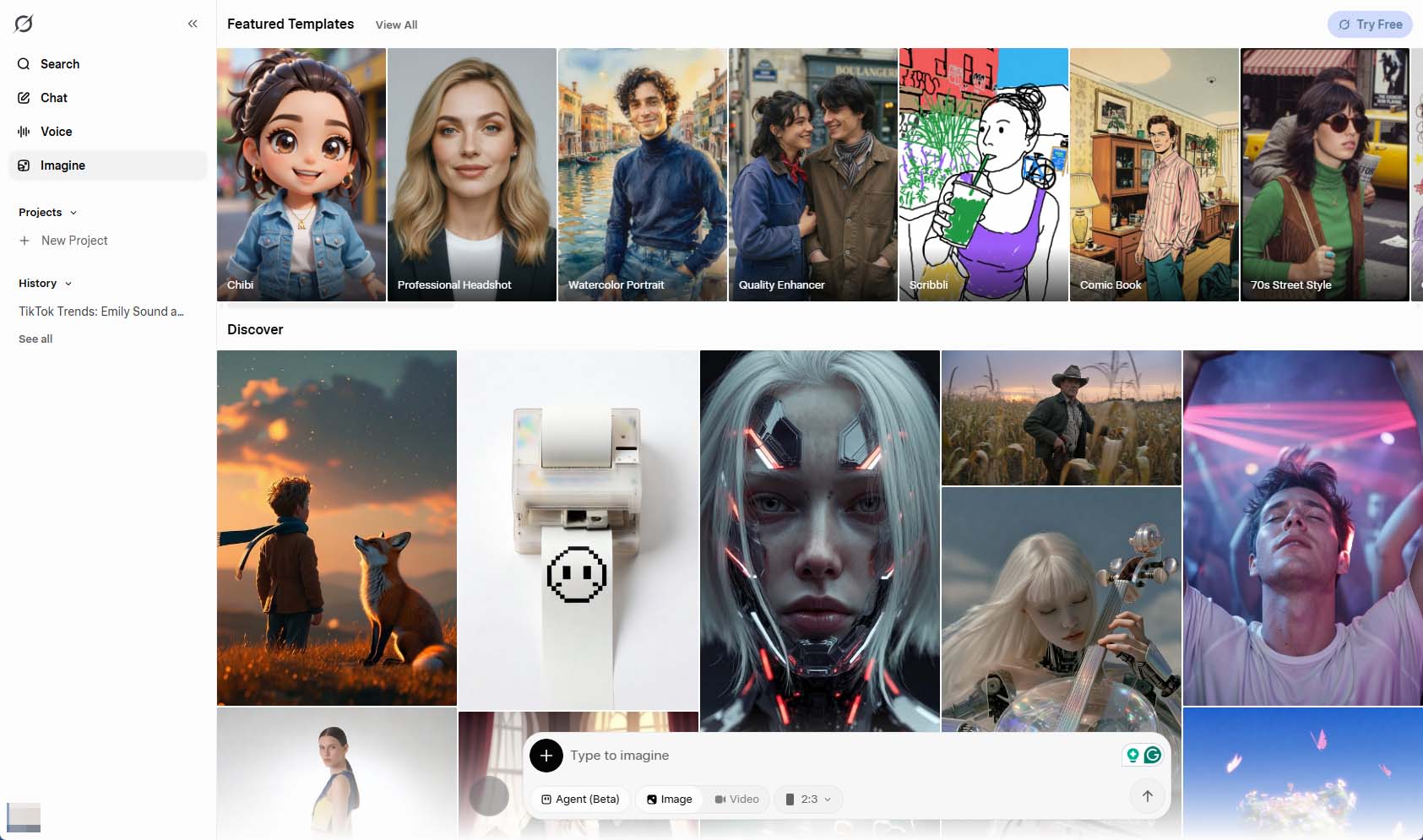
If you’d like to explore more than chatbots on Grok, try creating visuals directly inside X. Hit the Create Images button and enter a prompt for image generation, say,
- A futuristic city at sunset with flying cars and neon lights
- A cute cartoon cat wearing sunglasses and sitting on a beach chair
- A realistic mountain lake surrounded by pine trees in the early morning
And let Grok do the trick for you. Once done, you can share it on X with one click.
If you want access to a more dedicated creative workspace, Grok Imagine is the next step. Available on grok.com, it lets you go beyond quick image creation on X and explore more advanced AI image and video generation features. Let’s take a look.
How to Use Grok Imagine to Create AI Images & Videos
Step 1: Go to Grok.com and Sign In
Open grok.com in your browser and sign in to your account. You can also redirect to the official site via X. Then, sign in to Grok using either your X account, email, Google, or Apple account.
Step 2: Open Grok Imagine
Once you are logged in, the Imagine feature is right on the list. This is where you can create AI image generation and AI video generation from prompts.
Step 3: Enter Your Prompt
Type a prompt describing the image or video you want Grok to generate. You can keep it simple or add more detail for better results. For example:
- A cinematic sci-fi city with glowing skyscrapers and flying cars at night
- A cozy coffee shop in rainy weather, realistic photography style
- A short video of ocean waves crashing on a tropical beach at sunset
The more specific your prompt is, the easier it is for Grok Imagine to understand your idea. You can include details such as style, lighting, color, mood, background, camera angle, or motion.
Step 4: Generate, Review, and Share Your Work
Click the generate button and wait for Grok Imagine to create your visual. Once the result appears, review it carefully. If it is not exactly what you want, you can refine the prompt and try again. Last, don’t forget to share your creation with your followers on X.
How to Use Grok Spicy Mode
Let’s be frank - spicy mode is no longer supported in Grok Imagine. In the past, users could toggle on Spicy Mode when generating AI images or videos, but now this option is gone, even when NSFW is turned on, and age verification is complete. If you still want to create some spicy content, some users have reported that a more reliable workflow is to first transform a photo into a stylized anime or illustration look with an image-to-image editor, then use that stylized image as the input for Grok Imagine, since Grok appears more likely to accept stylized content than raw photos.
Alternatives to Grok Imagine
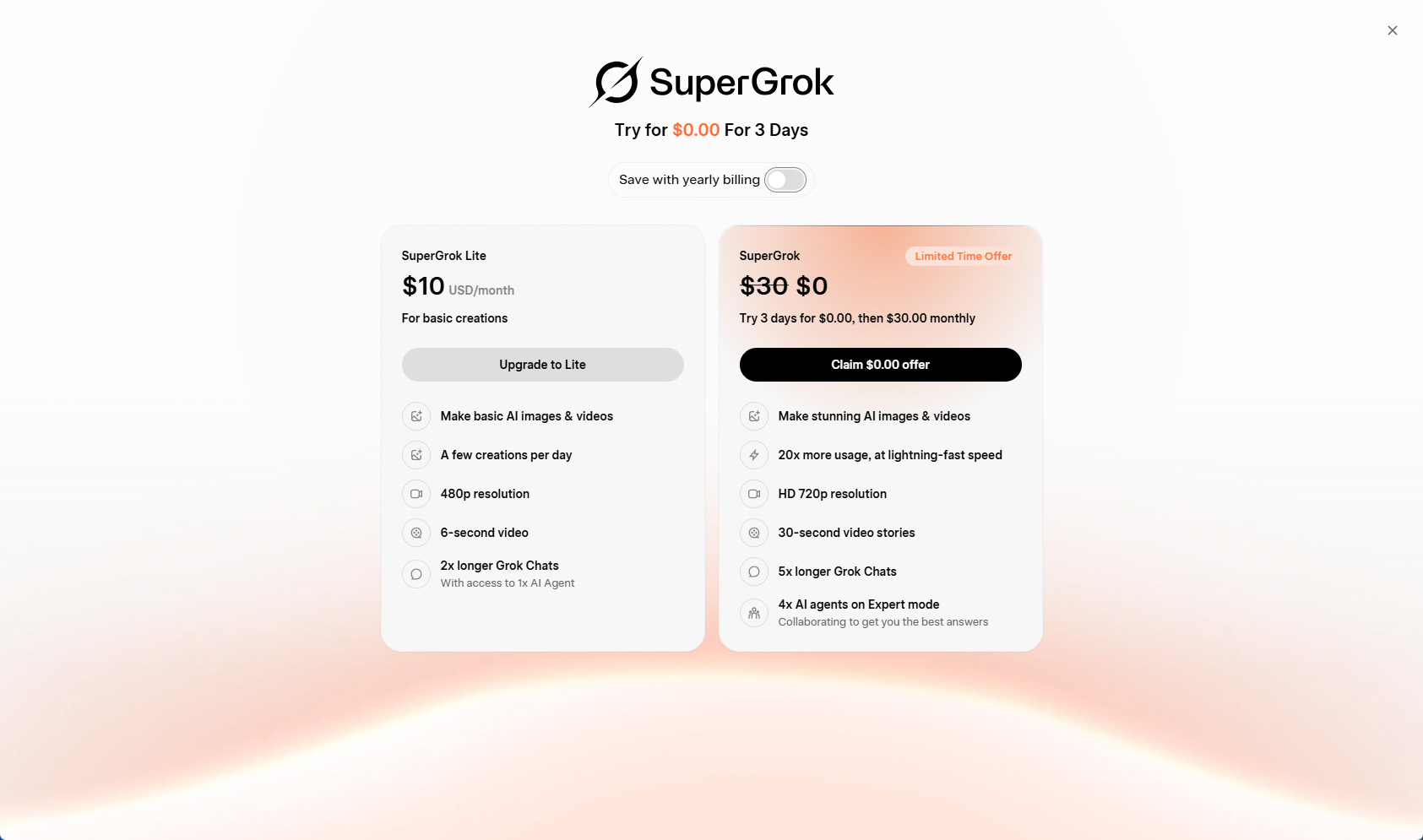
Grok is useful, but it is not the most accessible option for everyone. Some of its more advanced features are tied to paid access or X membership, and the free version can feel limited, especially if you only want to experiment with image or video generation without subscribing.
 Compared with that, PicLumen offers a more flexible starting point. It gives users completely free access to AI image and video creation, offering daily free credits so users can explore the platform, and supports multiple advanced models in one place: Nano Banana, ChatGPT Images 2.0, and Seedance 2.0, you name it - all for free.
What’s more, PicLumen also has a built-in community where creators from all over the world share their work, exchange tips, and engage with each other through likes, comments, and following features. This social layer turns the platform into more than just a generation tool, but a space to find inspiration and showcase your own creative projects.
If you are looking to take your AI creativity to the next level without the limitations of a subscription, give PicLumen a try today and start exploring the full potential of AI generation.
Compared with that, PicLumen offers a more flexible starting point. It gives users completely free access to AI image and video creation, offering daily free credits so users can explore the platform, and supports multiple advanced models in one place: Nano Banana, ChatGPT Images 2.0, and Seedance 2.0, you name it - all for free.
What’s more, PicLumen also has a built-in community where creators from all over the world share their work, exchange tips, and engage with each other through likes, comments, and following features. This social layer turns the platform into more than just a generation tool, but a space to find inspiration and showcase your own creative projects.
If you are looking to take your AI creativity to the next level without the limitations of a subscription, give PicLumen a try today and start exploring the full potential of AI generation.
FAQs about How to Use Grok Imagine
1. How to use Grok voice mode? Open the Grok app or website, sign in, and tap the microphone or voice icon in the chat bar. Then speak to Grok naturally, and it will respond in real time. Some mobile setups also let you long‑press the voice button to start a voice-to-voice conversation. Plus, you can select personality types like Meditation, Romantic, or Storyteller to tailor the talk. 2. How do I use the Grok AI chat app? Download the Grok app from the App Store or your device’s store, install it, and log in with your X, Google, or Apple account. After that, you can type prompts into the chat box, upload files if needed, or use the voice mode to start a chat. 3. How to use Grok to edit images? Upload an image into Grok Image Edit or Grok Imagine, then describe the changes you want with simple text commands, such as remove the background or colorize the object, Grok will apply the edits in seconds and let you download or share the result. 4. How to Grok Imagine video?
In Grok Imagine, select the video option, upload a starting image if you want a consistent style, write a prompt describing the motion or scene, choose a resolution and duration, then click Generate. After the video is ready, you can preview, download, or share it directly.


.png)