Here's what I wanted to know: I have a pile of existing images that need quick fixes — removing backgrounds, cleaning up product shots, adding text, testing AI variations. I also want to generate a few images without jumping between five different tools. Can Pixlr actually do both without feeling like two separate products awkwardly glued together? And more importantly — am I paying $20+ a month for features I'll use, or just for AI credits that sit there unused? I spent an afternoon testing the way I'd actually use it: basic edits on real content, AI cleanup on product images, image generation with practical prompts (not fantasy castles), and the video tool. Then I checked the pricing and honestly assessed whether the free version could handle most of my work.
The bottom line: Pixlr is best when you already have images to improve. It's less convincing if generation is your main workflow. Whether to upgrade depends entirely on whether you'll actually burn through the AI credits they're selling. Here's what I found.
So, What Is Pixlr Now?
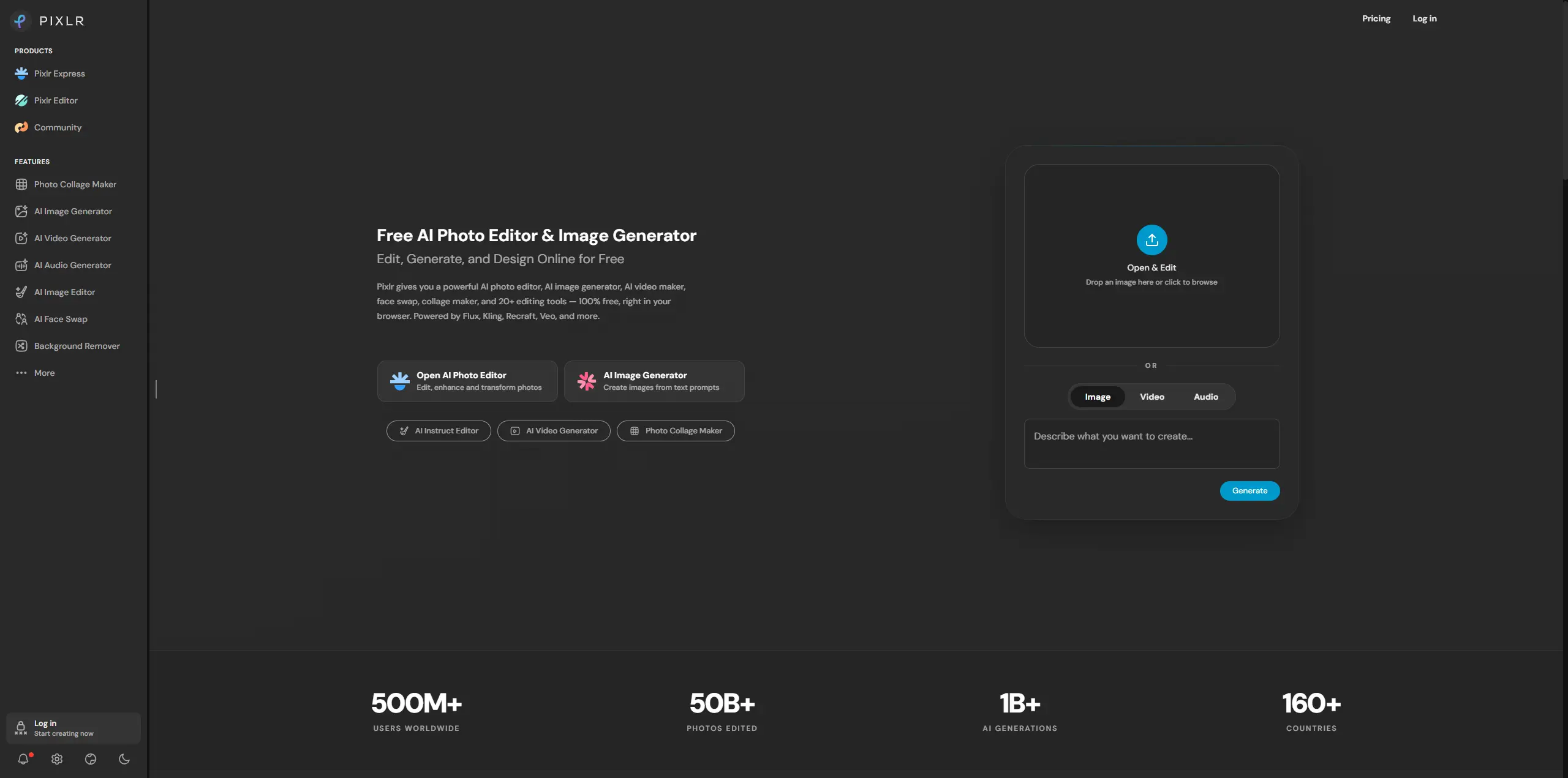
Pixlr is no longer just a browser-based photo editor. It feels more like an online creative workspace with AI tools built around the editor: background removal, object removal, generative fill, AI image generation, face swap, and AI video generation. That matters because upgrading Pixlr is not only about editing features. It is also about whether you will use the AI credits, extra models, generation tools, and export options often enough. My first impression: Pixlr still feels editor-first. It is strongest when you start with an existing image and want to fix, clean, resize, or redesign it. If your main goal is creating AI images or videos from scratch, I would test the workflow more carefully before paying.
Basic Editing: Functional, Not Minimal
I started with the basics—crop, resize, text overlay, brightness adjustment. Nothing surprising here. The tools work, and there's a real advantage to not installing software for quick blog graphics or social media thumbnails. The catch is that Pixlr doesn't feel lightweight. The interface is crowded with tools and AI options. It's not messy, just busy. For someone who only crops images occasionally, the visual clutter might be a friction point.
AI Cleanup Tools Are the Most Practical Feature
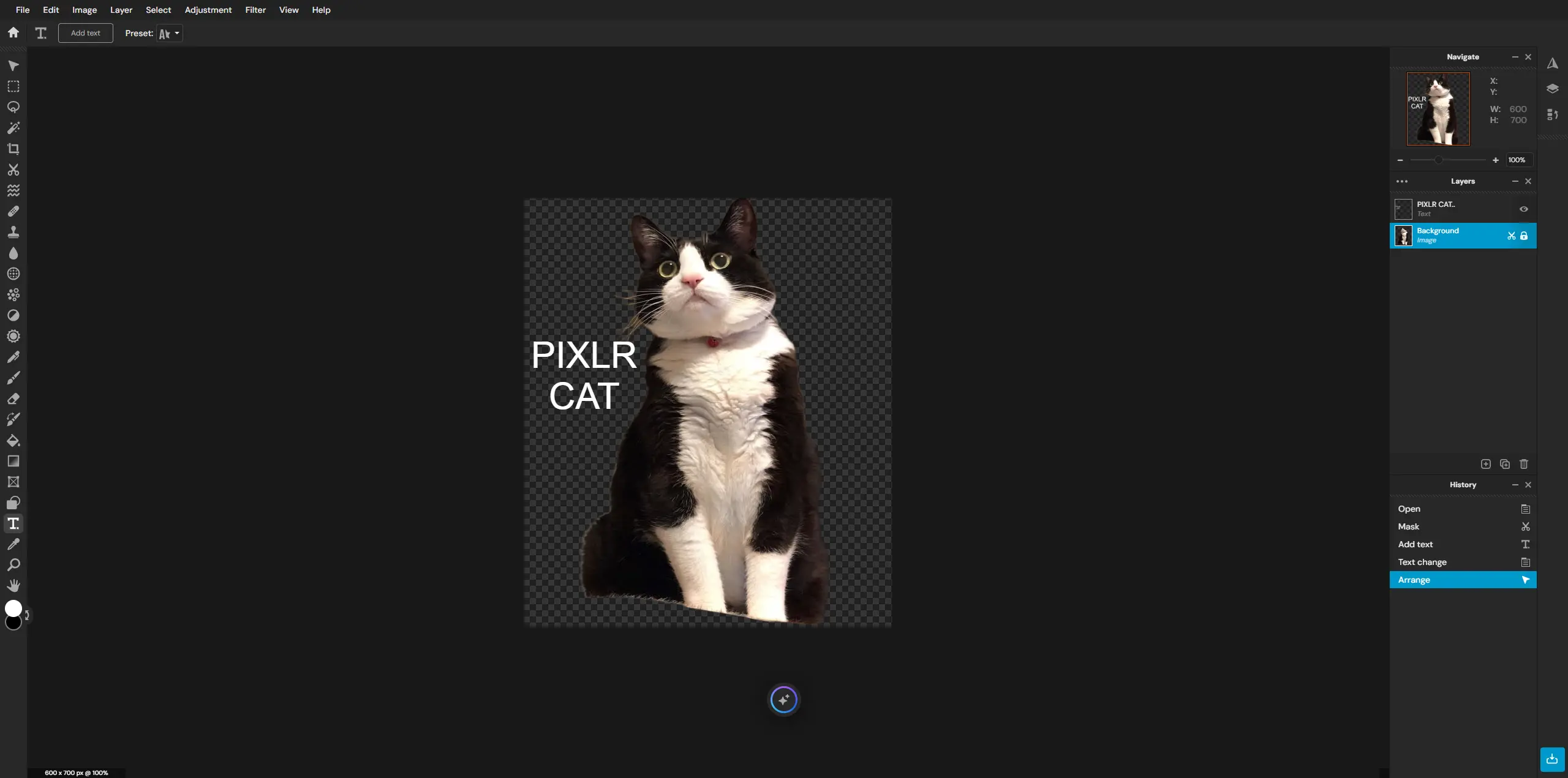
The background removal and object removal tools felt more useful than basic editing. These are actual tasks I encounter when making blog images, product visuals, and social posts. The results looked serviceable at first glance. But I zoomed in to check edges, shadows, and fine details. For casual content, it was fine. For product images or paid ads, I'd inspect more carefully before exporting. This part actually solves a real problem, even if it's not flashy.
Pixlr AI Image Generation Review: Good for Drafts, Not Final Assets
I tested with two real-world prompts instead of generic "beautiful fantasy castle" stuff. Test 1: Product Image "A cinematic product photo of a glass skincare bottle on a wet stone surface, soft morning light, shallow depth of field, realistic reflections, premium editorial style."
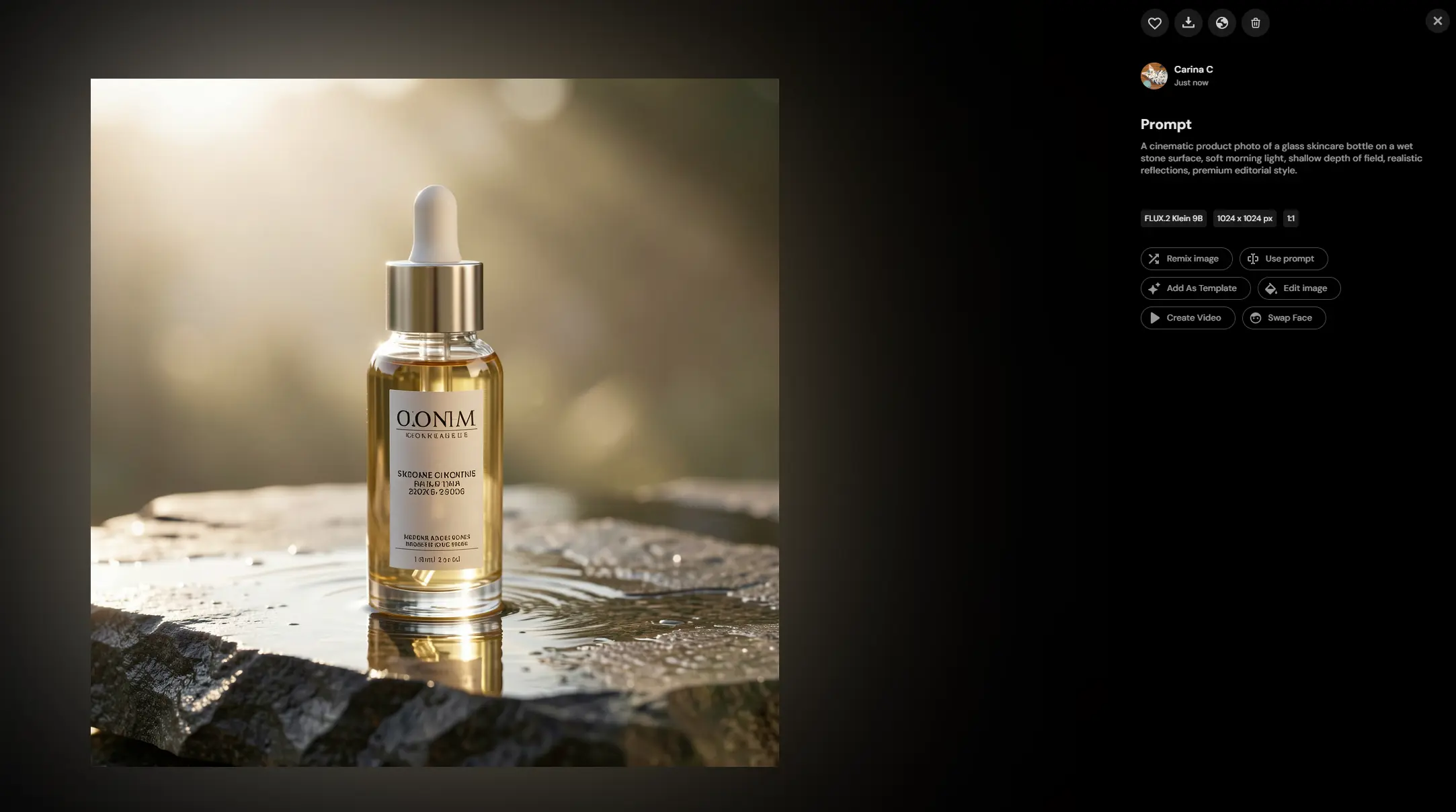
The bottle shape held up reasonably well, but zoom in and the reflections get weird. The edges tend to blur together in that way AI-generated product images do. I'd use this as a mood board to set direction quickly, but not drop it straight into an ad. This isn't unique to Pixlr—it's just how I evaluate AI product visuals now. Test 2: Lifestyle Portrait "A lifestyle portrait of a young creator editing photos in a cozy studio, natural window light, realistic skin texture, warm color grading, editorial photography."
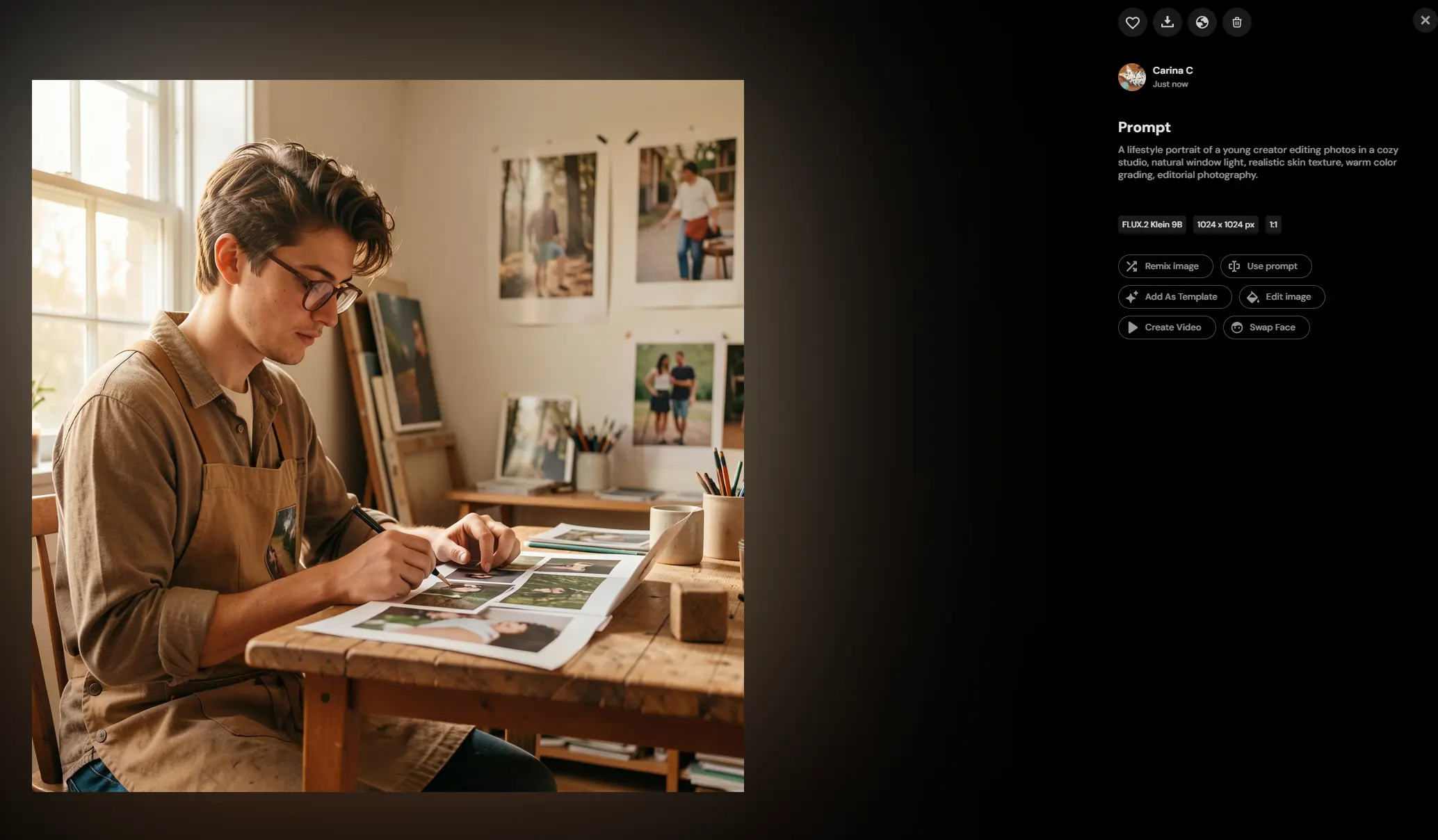
Portraits are a stress test for AI—faces, hands, skin texture, background objects, lighting. If any one element feels off, the whole image reads as fake. Pixlr's output is usable for blog headers or social content, but I'd definitely check the hands first. Always the hands. Then the face, skin texture, and whether background objects start blending together unnaturally. If something looked off, I'd regenerate or rework the prompt rather than use the first attempt. Verdict: Acceptable for blog visuals, concept images, and social content. Not for direct commercial use without careful inspection.
I Also Tried Pixlr Face Swap: Fun but Limited
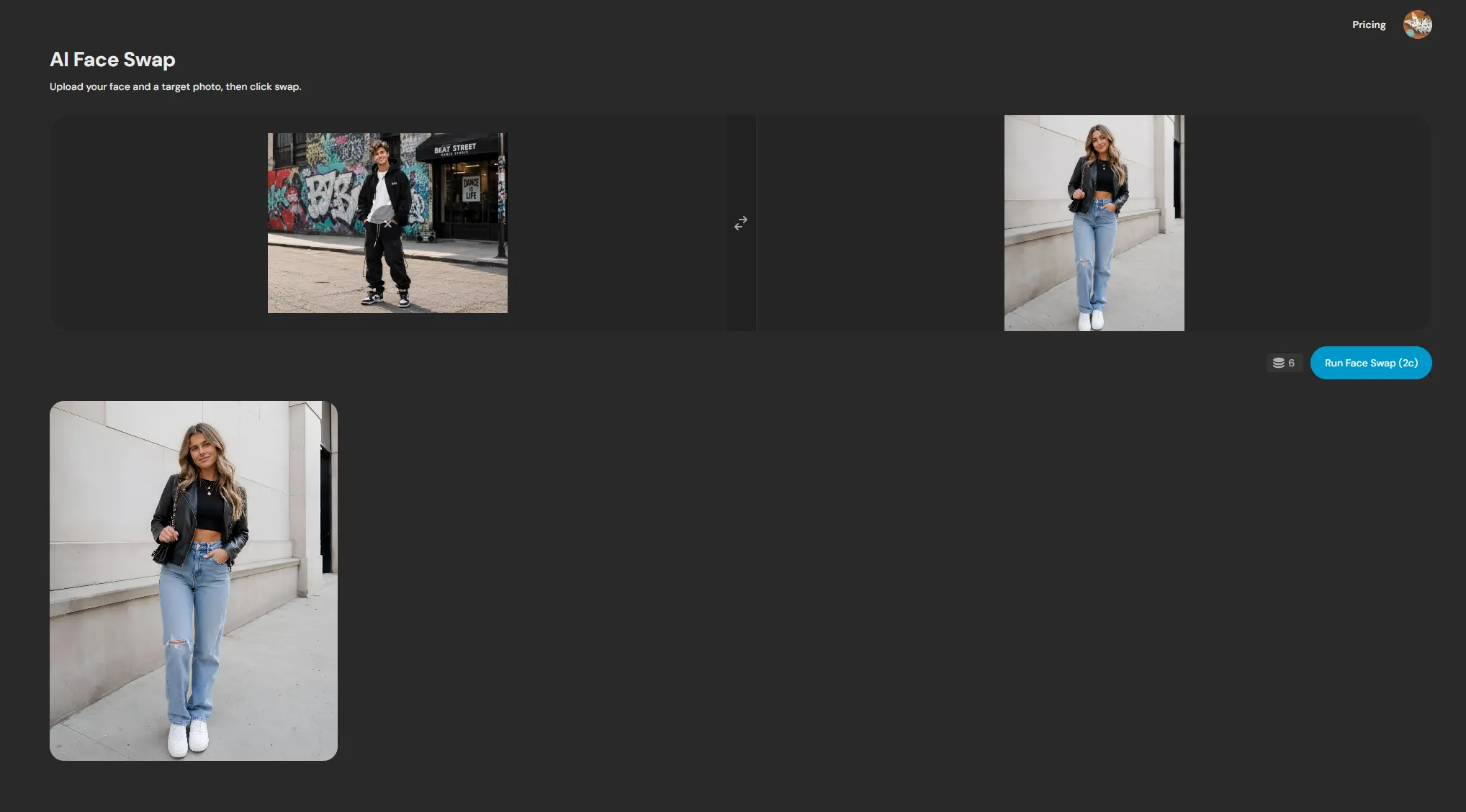
The workflow is simple: upload source face, upload target image, run swap, review. It works quickly. Thumbnail-sized results can look better than they are. Zoom in and you'll spot blending issues around the jawline, skin tone inconsistencies, and lighting mismatches. Good for casual avatars and fun social posts. For branded visuals, I'd be cautious unless the lighting and angle match well.
Pixlr AI Video Generation Review: Consistency Is the Challenge
Pixlr now supports AI video generation, which pushes it beyond a photo editor. I tested image-to-video with a product image and motion prompt: "Animate this product photo with a slow cinematic push-in, soft light reflections moving across the glass bottle, subtle background steam, realistic motion, premium skincare ad style."
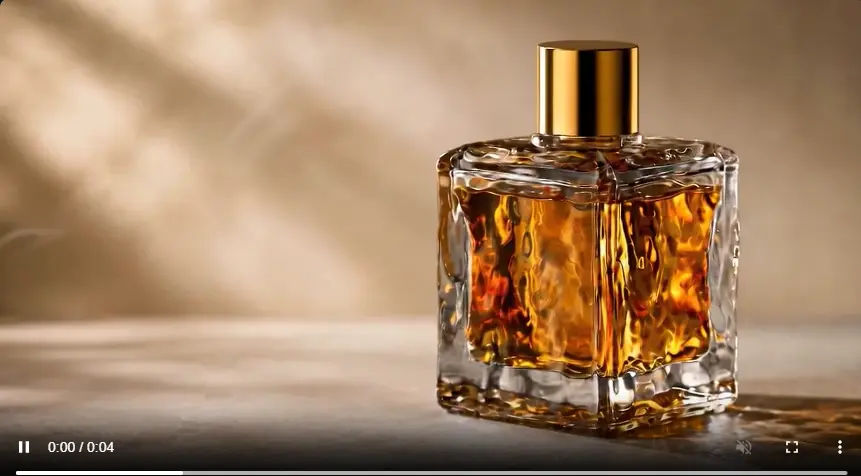
Video is less forgiving than static images. A single frame only needs to look good once. A video has to keep the subject stable while things move—and that's where small problems become obvious fast. Pixlr's performance here was middling. For a short social media draft, this could work. But I wouldn't trust the first generation. Product edges, label stability, background motion—all of these need careful review before using the clip in any campaign. I'd generate a few versions and compare them first.
What Actually Worked and What Didn't
After testing, here's what stuck with me: Basic editing tools were reliable for blog graphics, thumbnails, and quick social visuals. No hesitation there. AI cleanup (background and object removal) solved real problems, even if they're not the flashiest features. AI image generation delivered usable drafts and visual direction. Better for concept work than final commercial assets. Faces, hands, products, and text always need detail checking. Face swap was quick and fun but stays casual unless the result is genuinely clean. AI video generation is the feature I'd test most carefully before paying. It can make static images feel more alive, but multiple generations and careful review are necessary.
Pixlr Pricing: What I Checked Before Deciding
I checked pricing at the end because I did not want the pricing table to shape my opinion too early. At the time I checked Pixlr's pricing page, it listed Plus, Premium, and Ultra plans. Plus fits lighter editing and limited AI use. Premium is the plan I would look at if I planned to test AI images and videos regularly. Ultra feels more like a plan for people who already know they will generate a lot.
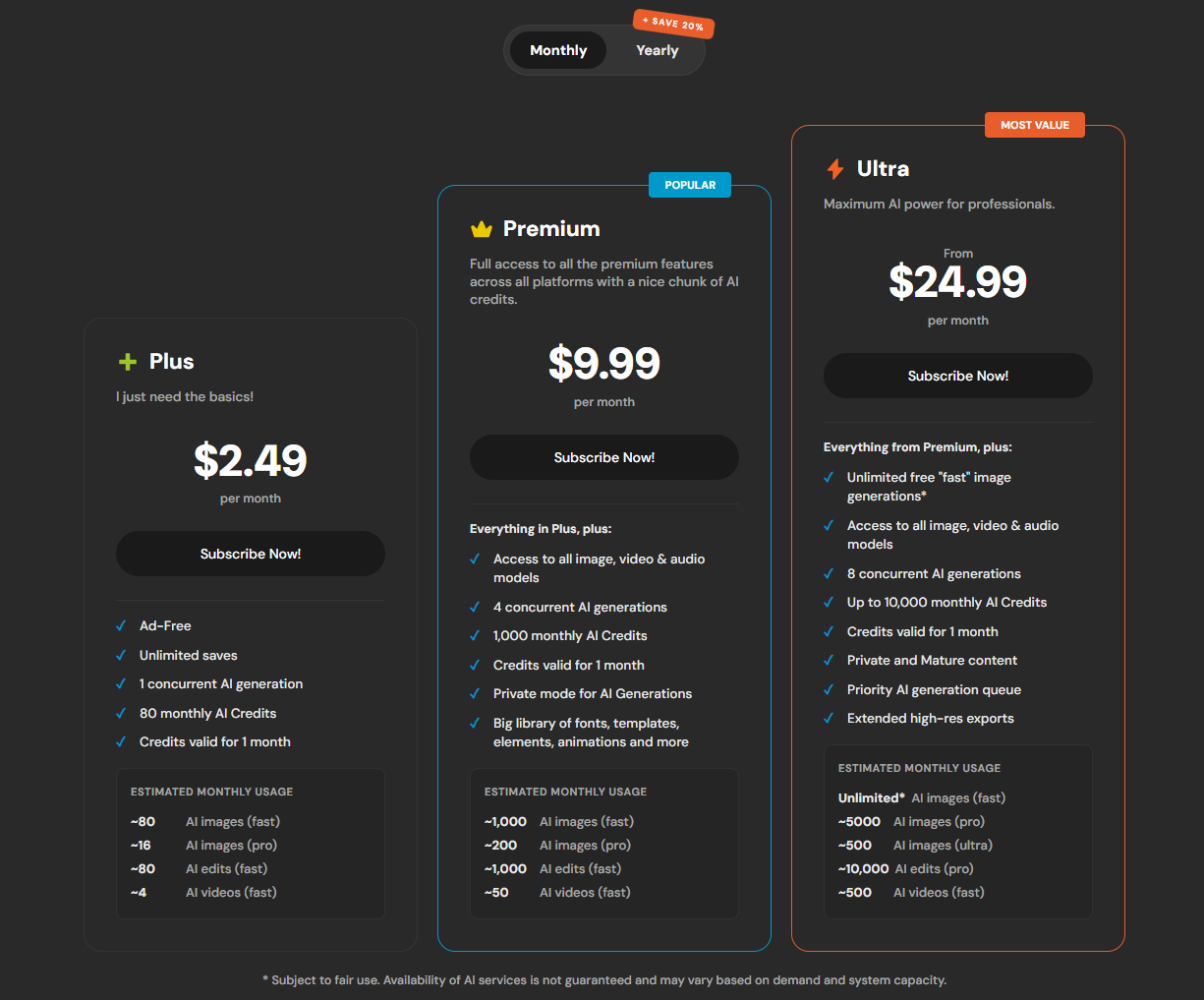
My pricing take is simple: do not upgrade just because the plan table looks nice. Upgrade when credits, ads, exports, concurrent generations, or model access actually start slowing down your work. I would still check the official pricing page before subscribing. Credit rules, model access, and export limits can change, and with AI tools, those details matter more than the headline price.
Is Pixlr Worth Upgrading?
Pixlr is worth paying for only if you'll actually use it regularly. If you only need occasional crops, resizes, background cleanup, or quick edits, stick with the free version. No need to overcomplicate it. I'd upgrade if I hit the limits on ad-free editing, AI credits, concurrent generations, model access, or export resolution. The real test is simple: use the free version for a week and see if those limits actually block your workflow. If you're not burning through 80 monthly credits on Plus, Premium doesn't make sense. Don't upgrade just because AI features exist. Upgrade when the free tier stops you from doing actual work.
Pixlr vs PicLumen: Which Workflow Fits You Better?
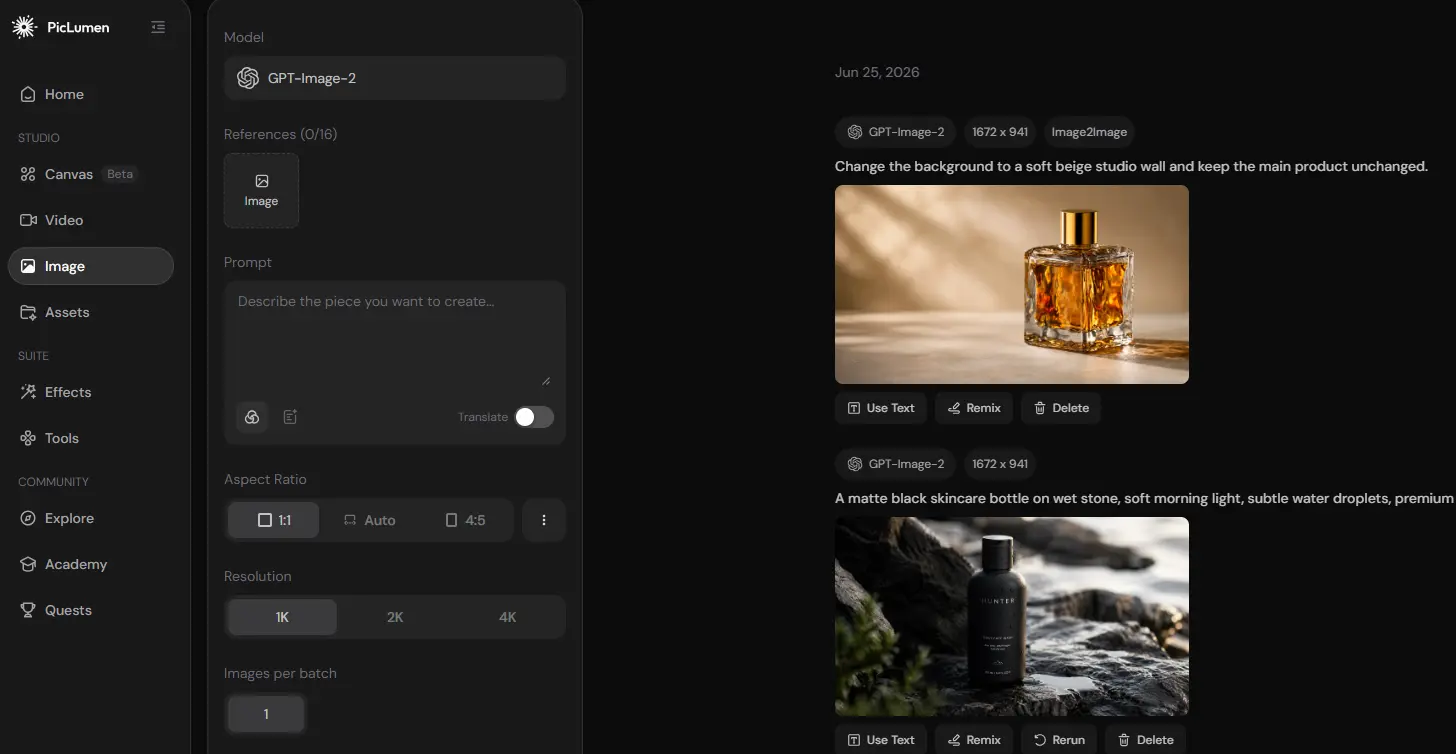
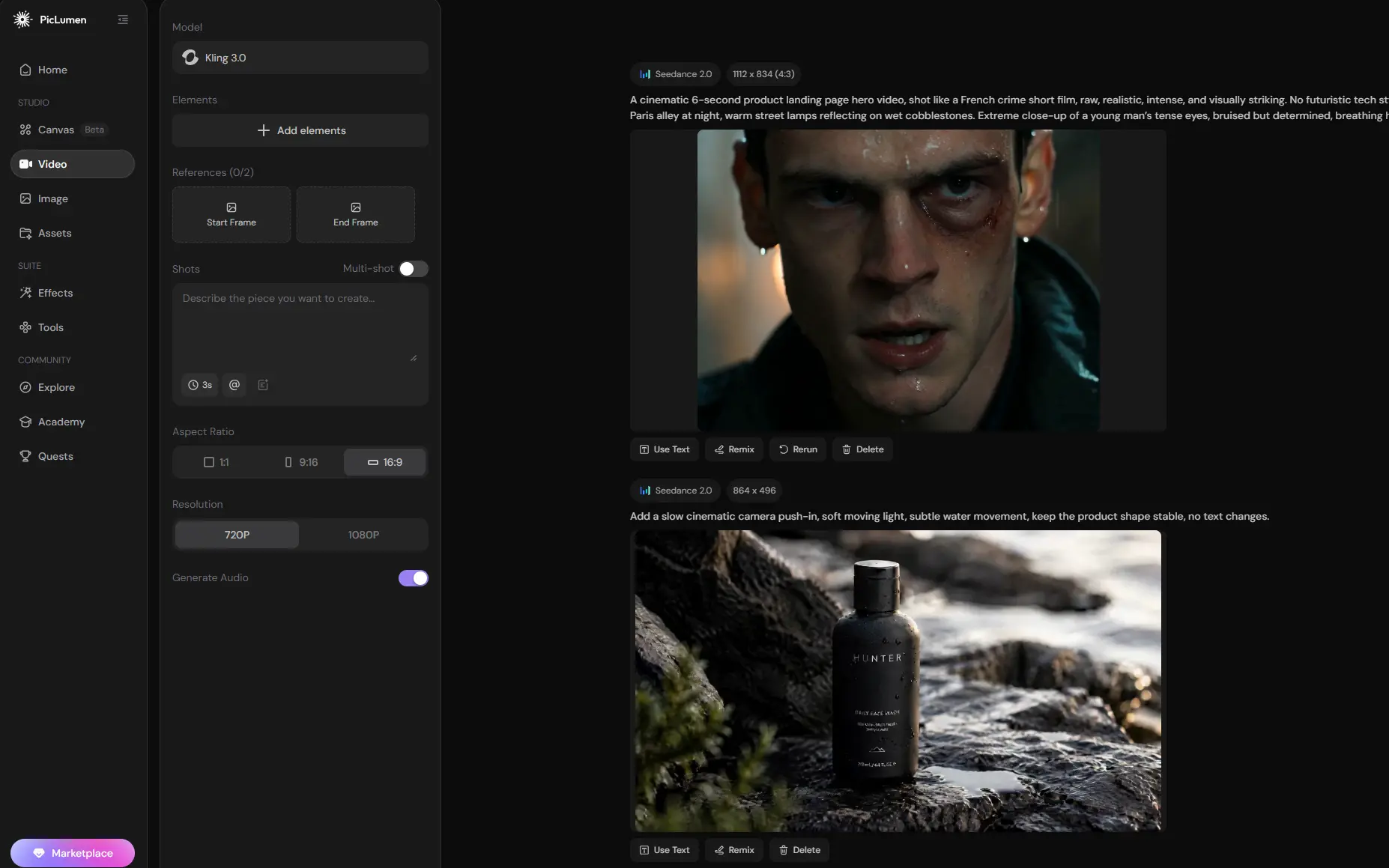
Pixlr works well when your workflow is edit-focused: open a photo, clean it up, remove something, add text, try a quick AI variation, or turn it into a short video. That's the sweet spot.Pixlr works well when your workflow is edit-focused: open a photo, clean it up, remove something, add text, try a quick AI variation, or turn it into a short video. That's the sweet spot. But if I were looking for the best Pixlr alternative for AI image and video creation, I would compare it with PicLumen. The reason is simple: PicLumen is built more directly around generation. Instead of starting from a photo editor, the workflow starts from a prompt, reference image, or creative idea. PicLumen also brings multiple popular AI image and video models into one place. That helps when I want to test different styles, compare motion results, or move from image generation to video generation without jumping between several tools. I would not frame this as “Pixlr is bad, PicLumen is better.” That feels too simple. I would put it this way: Pixlr is stronger when you need quick online editing with some AI tools included. PicLumen is a better Pixlr alternative when your main goal is to generate AI images and videos faster, with more creative flexibility from the start.
FAQ About Pixlr
Is Pixlr worth it in 2026?
Pixlr is worth it if you use online editing and AI tools often enough to hit the limits of the free version. If you only need occasional edits, I would start free and upgrade later only if ads, exports, credits, or model access become a real problem.
Is Pixlr good for AI image generation?
Pixlr is good for fast AI image drafts, blog visuals, social posts, and concept images. I would still check details like hands, faces, product edges, reflections, and text before using the output for serious marketing work.
Does Pixlr support AI video generation?
Yes. Pixlr supports AI video generation, including text-to-video and image-to-video workflows. I would test motion consistency carefully before using the result in polished marketing content.
What is the best Pixlr alternative for AI image and video creation?
For AI generation-first work, PicLumen is one of the best Pixlr alternatives to consider. Pixlr is better for editing-first tasks, while PicLumen is stronger when you want to generate images, test different AI styles, and create AI videos from prompts or reference images.