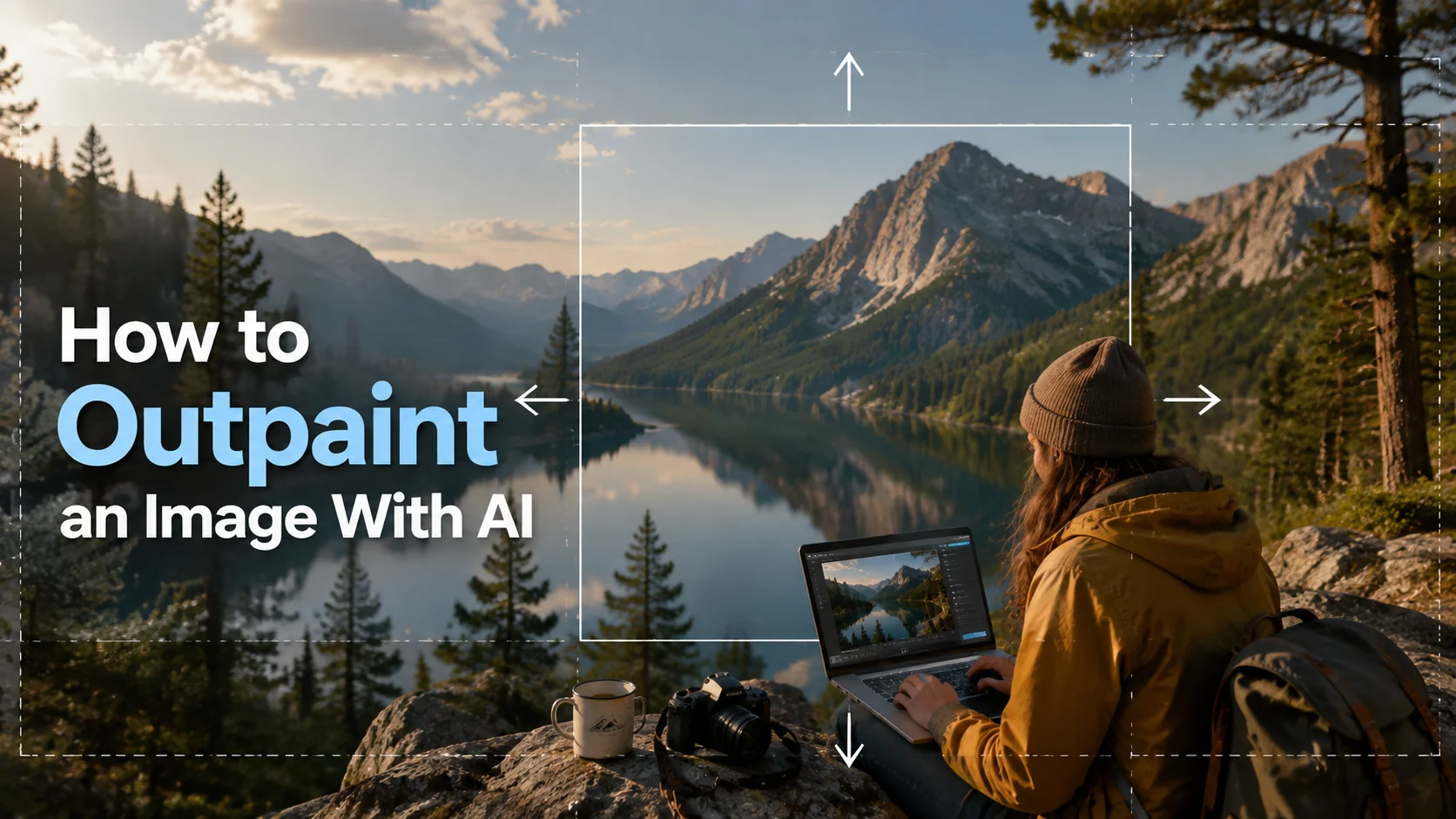
Want to know how to outpaint an image with AI online? The process is simple: upload your image as a reference, describe how you want to expand the scene with a prompt, choose your desired aspect ratio, and then wait for your outpainted image.
In this guide, you will learn what AI outpainting is, how it works, common use cases, and how to create better results with the right prompts. We will also walk you through a simple step-by-step process using an online outpainting tool.
What Is AI Image Outpainting?
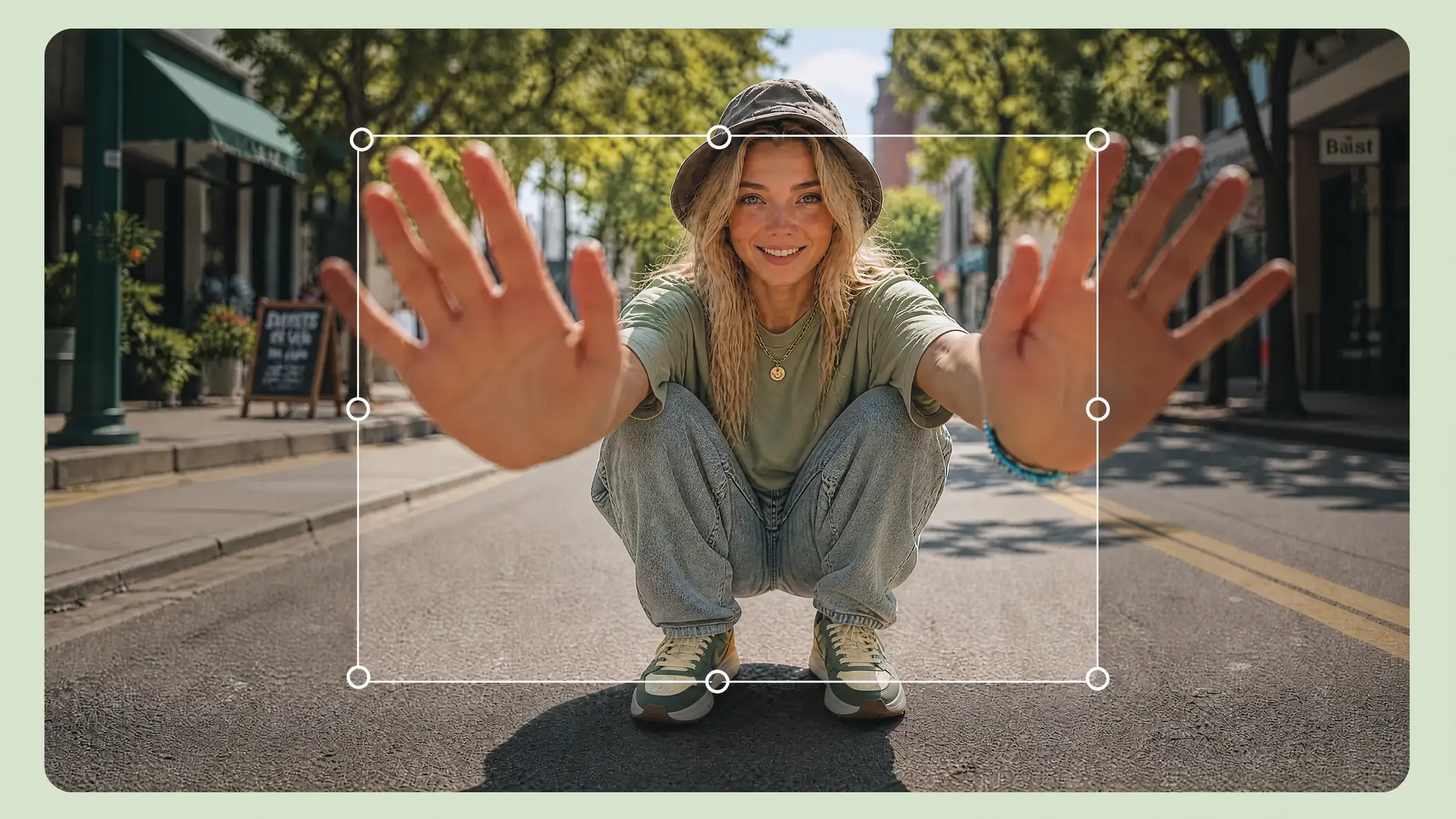
AI image outpainting is an AI editing technique. Most AI outpainting tools work through an image-to-image workflow. It can expand an image beyond its original borders. Instead of cropping the image, it generates new content around the edges. At the same time, image outpainting can also keep the original subject, style, and details consistent. Compared with traditional image resizing, an AI outpainting tool does not simply stretch pixels. It uses AI models to understand the image context and create details that match the original image.
Outpainting vs Other AI Image Editing Methods
You may feel confused between AI outpainting and inpainting or AI image generation. Simply put, all three use AI to create or modify images, but they're designed to solve different kinds of problems.
Feature | Outpainting | Inpainting | Image Generation |
Purpose | It can expand an image beyond its original frame | It's aimed at editing or replacing parts of an image | It can create a completely new image from text or references |
Changes to the original image | No, it keeps the original content | Yes, it modifies selected areas | No original image is required |
Best for | Adding backgrounds, changing ratios, or extending scenes | Removing objects, fixing details, editing specific areas | Creating new artwork or visuals |
What Can You Do With AI Outpainting?
After you have a basic understanding of what outpainting is, you may wonder where you need this AI outpainting in your daily life. Here are the most common ways to use it:
Use Case | Your Problem | How AI Outpainting Helps | Best For |
Change Image Composition | The subject is too close to the edge, and the photo looks imbalanced | Adds a matching background around the image while keeping the main subject unchanged. | It's the best tool to adjust posters, social media posts, or ads. |
Adjust Image Size | The image does not fit the required format | Outpainting online helps expand the canvas and fills missing areas. | This function is commonly used for YouTube thumbnails, website banners, and blog covers. |
Create Suitable Scenes | The picture is narrow or lacks background. | Creates more environment, such as extra sky, landscapes, or cinematic scenes. | Artwork, storytelling images, concept designs |
Extend Cropped Old Photos | Old photos may be cropped or missing parts of the scene. | Extends the edges and adds natural details while preserving the original style. | Family photos, photo restoration, digital albums |
How to Outpaint an Image With AI
Step 1: Open Image workspace & select an AI model
There are many stable diffusion outpainting tools. Here, we take PicLumen as an example. On its left menu, you can click the Image tab. At the top of the Image panel, you can see the Model dropdown, and it shows PicLumen Art by default.
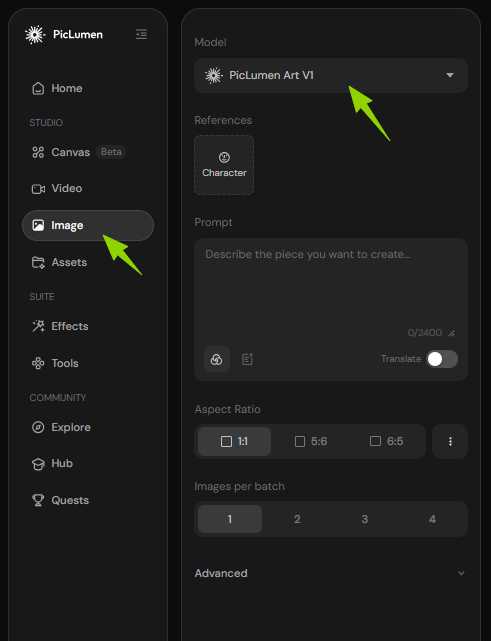
There are dozens of specialized AI models—from native PicLumen Art V1 to popular third-party models like Midjourney and GPT-Image-2. Each model is designed for a distinct visual style, and if you're unsure which to choose, use the most popular one.
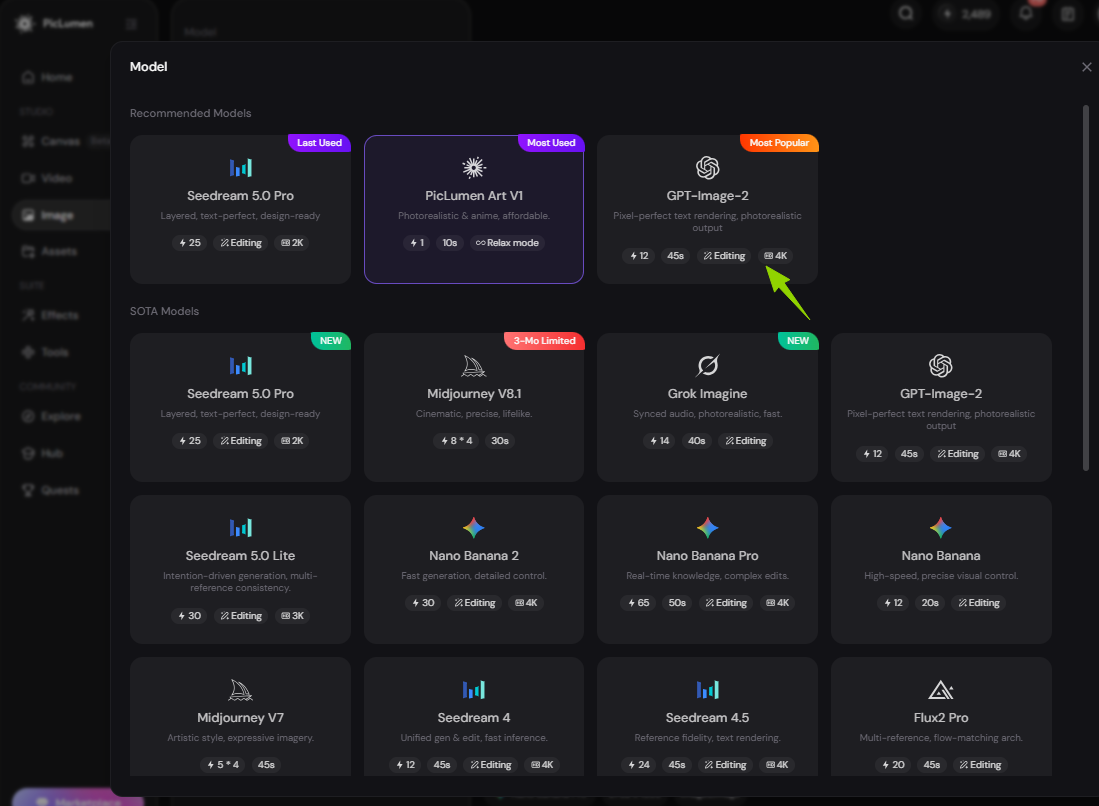
Step 2: Upload your base image & adjust core settings
Then, under References, you need to upload the photo you want to outpaint. This photo will be the base for outpainting.
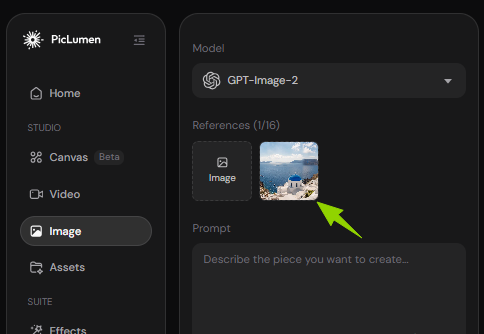
Next, you need to write your prompt, in which you can describe how you want your image to be outpainted. After finishing your prompt, you need to adjust the image settings based on your needs:
Aspect Ratio: It's up to on which platform you want to share your image.
Resolution: If you pursue a high-quality image, choose a higher resolution.
Image Per Batch: You can choose the most satisfying image from the batch.
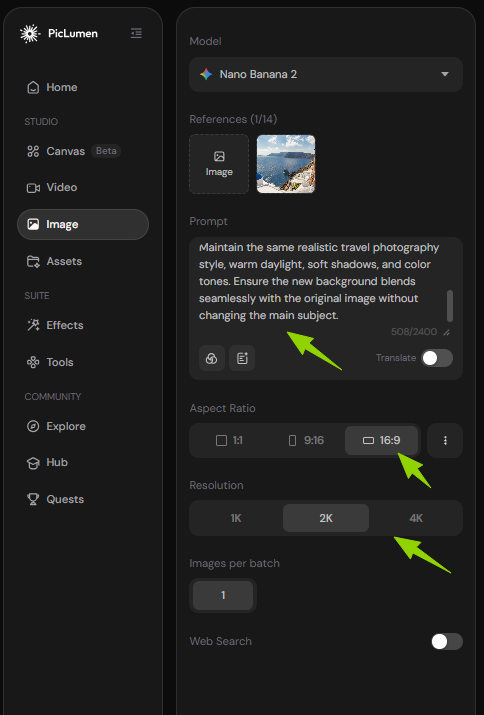
Step 3: Generate, refine, and share your outpaint
Next, click Generate to outpaint your image. In just a few seconds, your image will be ready.
After generation finishes, your expanded image loads with a handy tool panel on the right. Remix lets you rework or extend the frame again easily. Extra quick tools like upscale and background removal sit nearby. Once happy with your work, you can post it directly to the PicLumen community for sharing.
If you are not satisfied👉Click Remix to update your prompt and try again, or you can try Extra Quick Tools such as Edit and Remove Bg
If you love the result👉 Download your image or directly share it on social media and the PicLumen community.
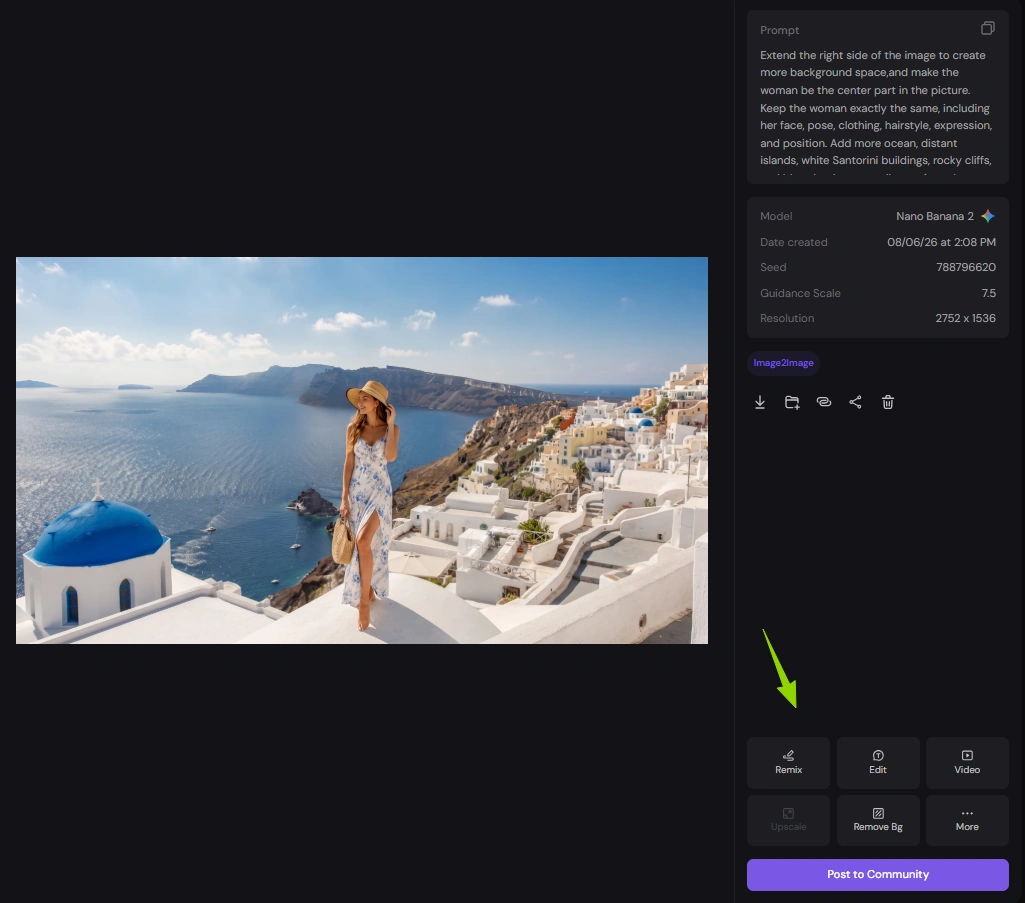
Try Image Outpainting With PicLumen
Best AI Outpainting Prompts
The whole process is pretty easy, right? Actually, the key lies in the prompt. You should write a more specific prompt so that AI outpainting can better understand your needs and deliver a more natural result for you.
AI Outpainting Prompt Formula:
A useful AI outpainting prompt usually contains five parts: where to extend the image, what is already in the scene, what should appear in the new area, the visual style, and the lighting.
Prompt Part | What to Describe | Example |
Extend | Decide which area should be expanded? | Extend the left side of the image. |
Original Scene | Briefly describe the current image. | A woman standing on a seaside cliff. |
New Elements | Describe what should appear in the new area. | Add more ocean, white buildings, and flowers. |
Style | Keep the image's current style. | Natural travel photo. |
Lighting | Don't change the current lighting and colors. | Warm afternoon sunlight, soft. |
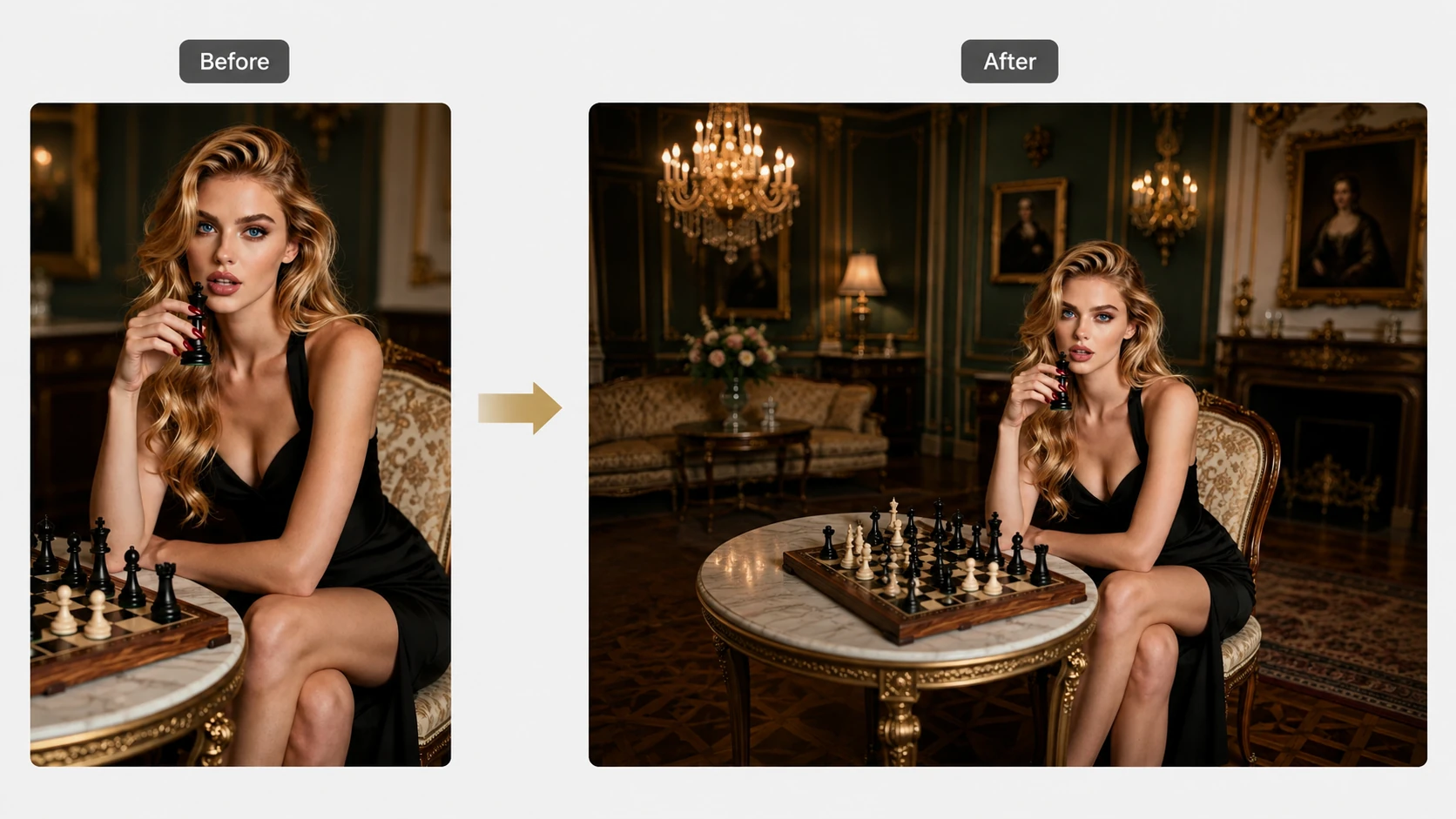
Prompt Example: Add More Background
One of the most common uses of AI outpainting is adding more background. When your photo feels too tight, it is very useful to add background.
In this example, there is no room for any background, and the woman cover the most canva. Now we want to use AI to expand the scene.
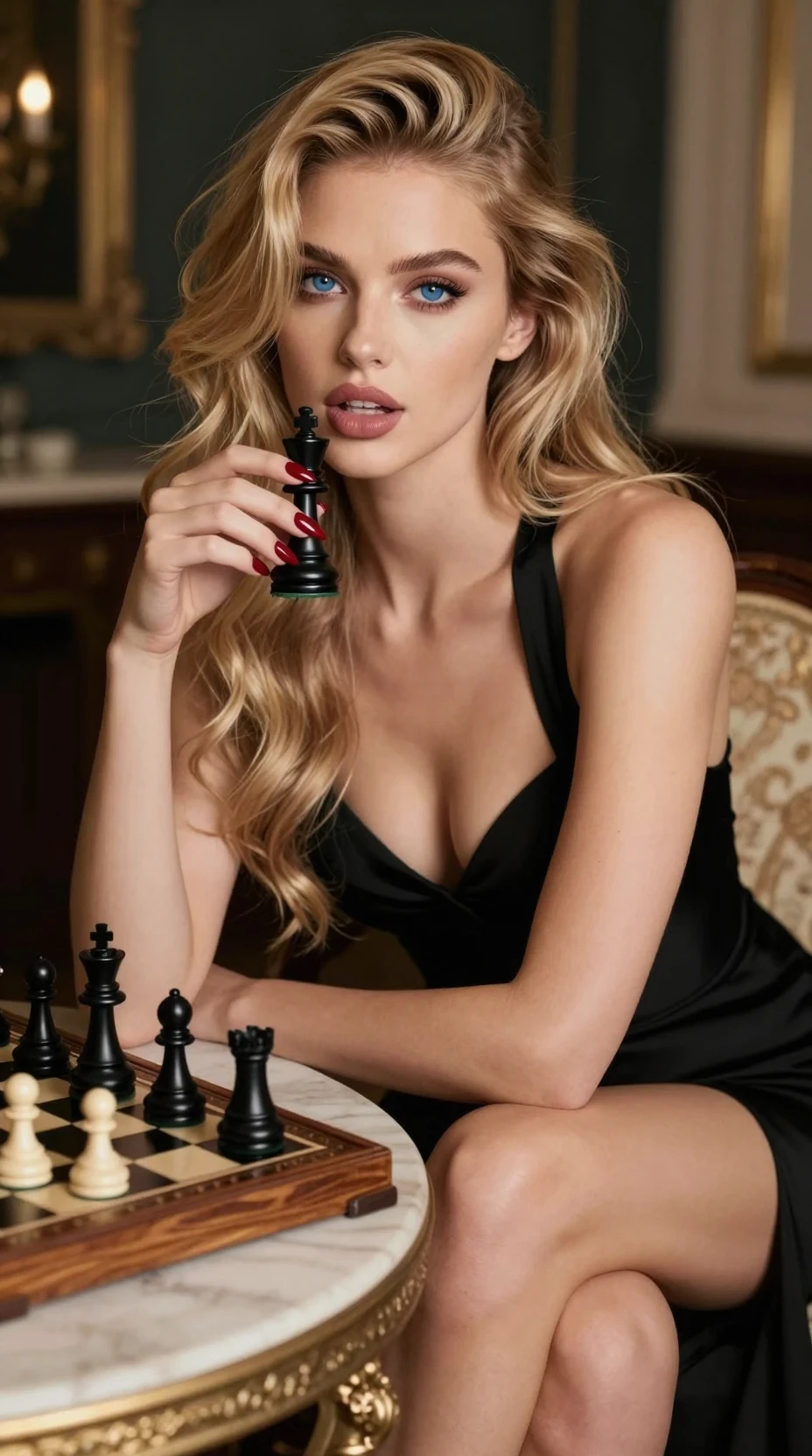
Prompt Breakdown
Key Factor | Example |
Extend | Extend the left side of the image so that there is more background space. |
Existing Scene | There is a blonde woman in a black dress. She is sitting at a table with a chessboard in a classic room. |
New Elements | Add more of the luxurious room, including a chandelier, paintings, a fireplace, a sofa, wooden flooring, and decorative furniture. |
Style | Realistic high-end fashion photography with a cinematic look. |
Lighting | Warm indoor lighting with soft shadows. |
Case 1: Expand a Landscape Photo
Test Scenario
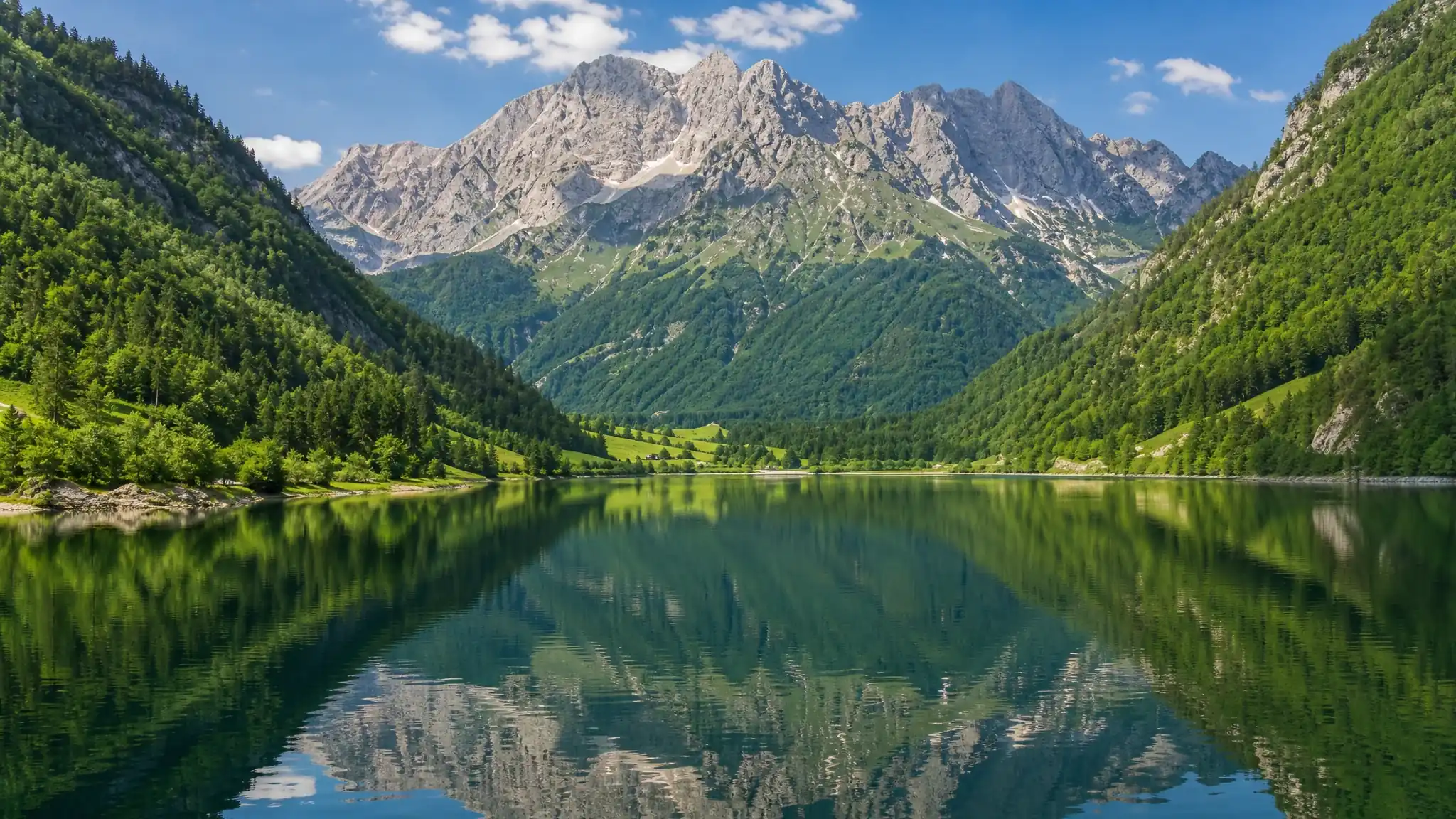
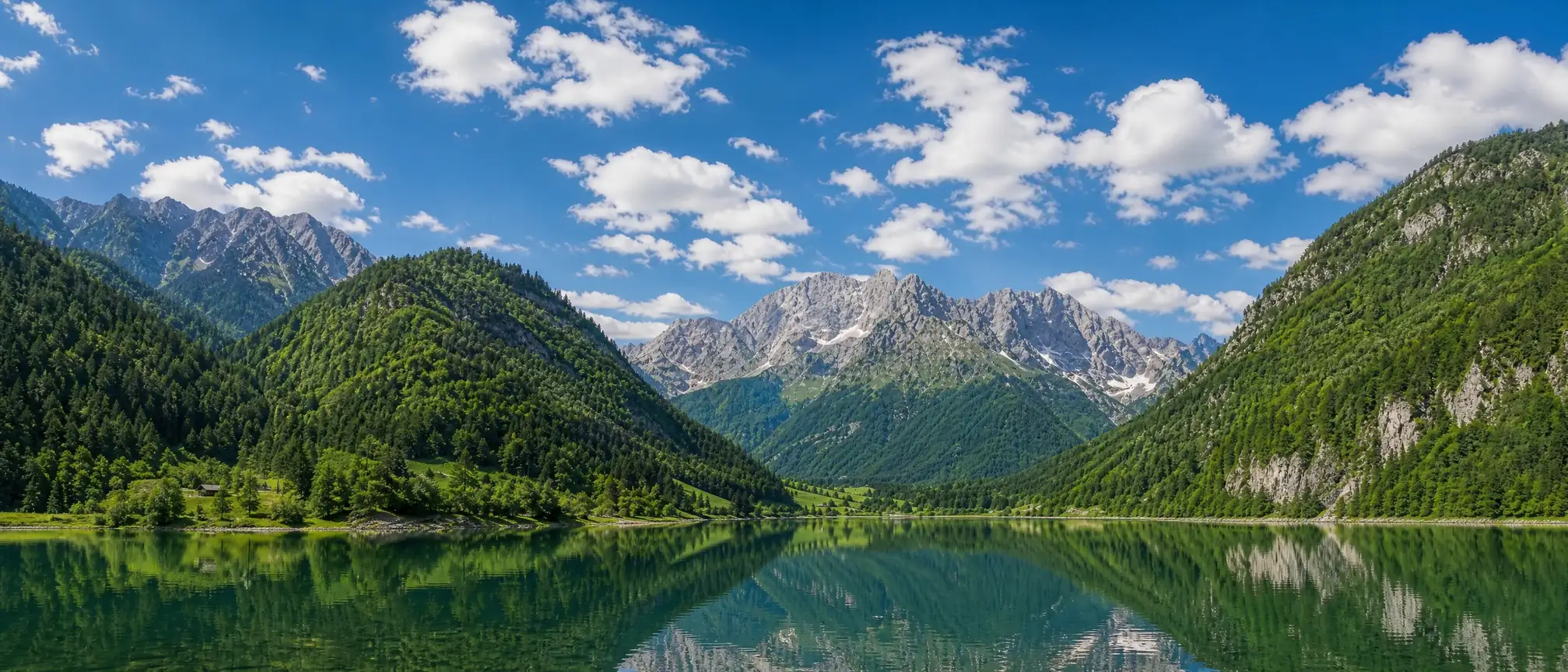
You captured a beautiful landscape photo, but the composition feels too tight. You want to expand the scene and create a wider view.
Prompt Used:
Extend the top and sides of the image to create a wider cinematic landscape. Don't change the mountains, lake, and scenery. You can add more blue sky and soft clouds that fit the existing environment. Please maintain the same landscape style and natural daylight.
Before:16:9
After:21:9
Case 2: Expand a Product Image for a Marketing Banner
Test Scenario
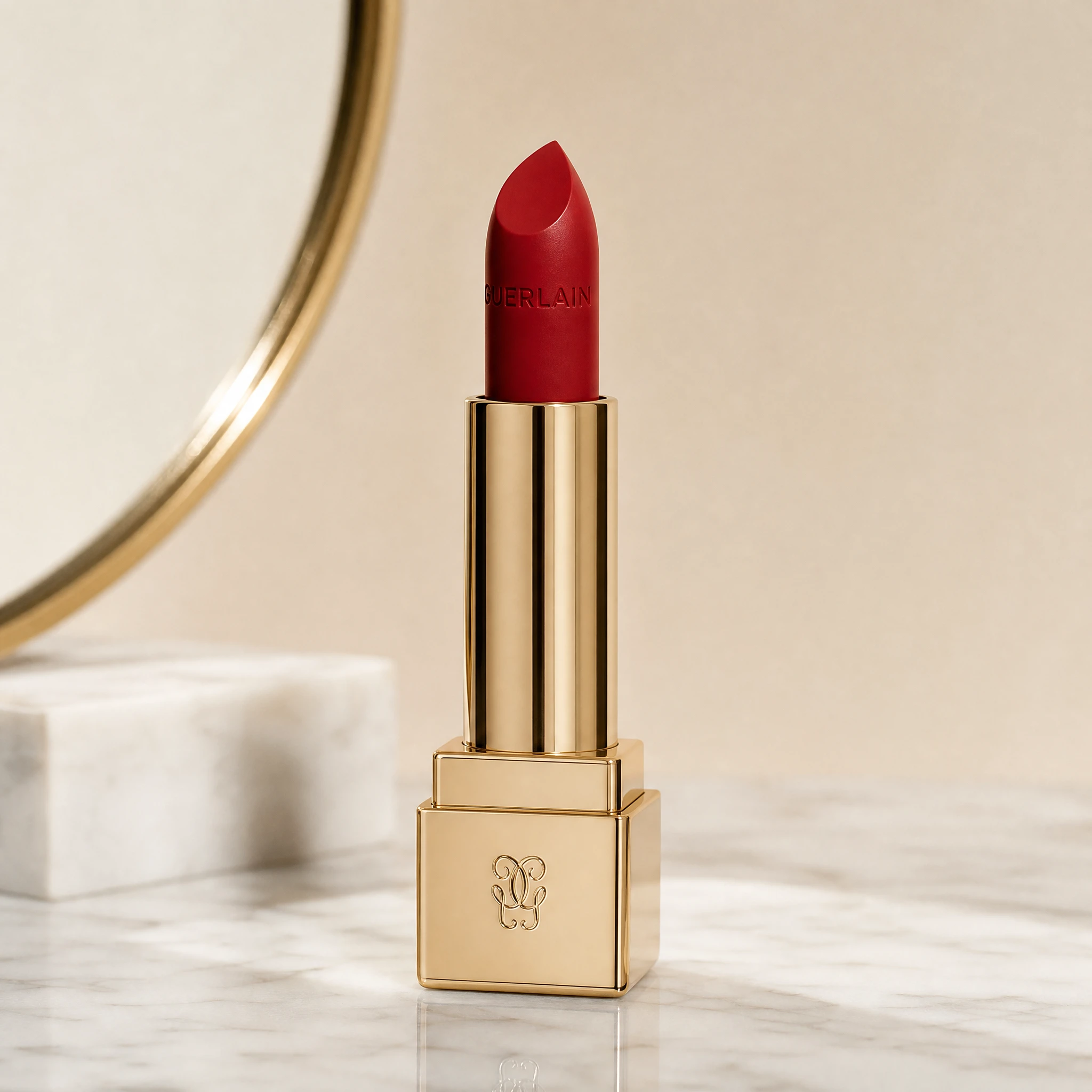
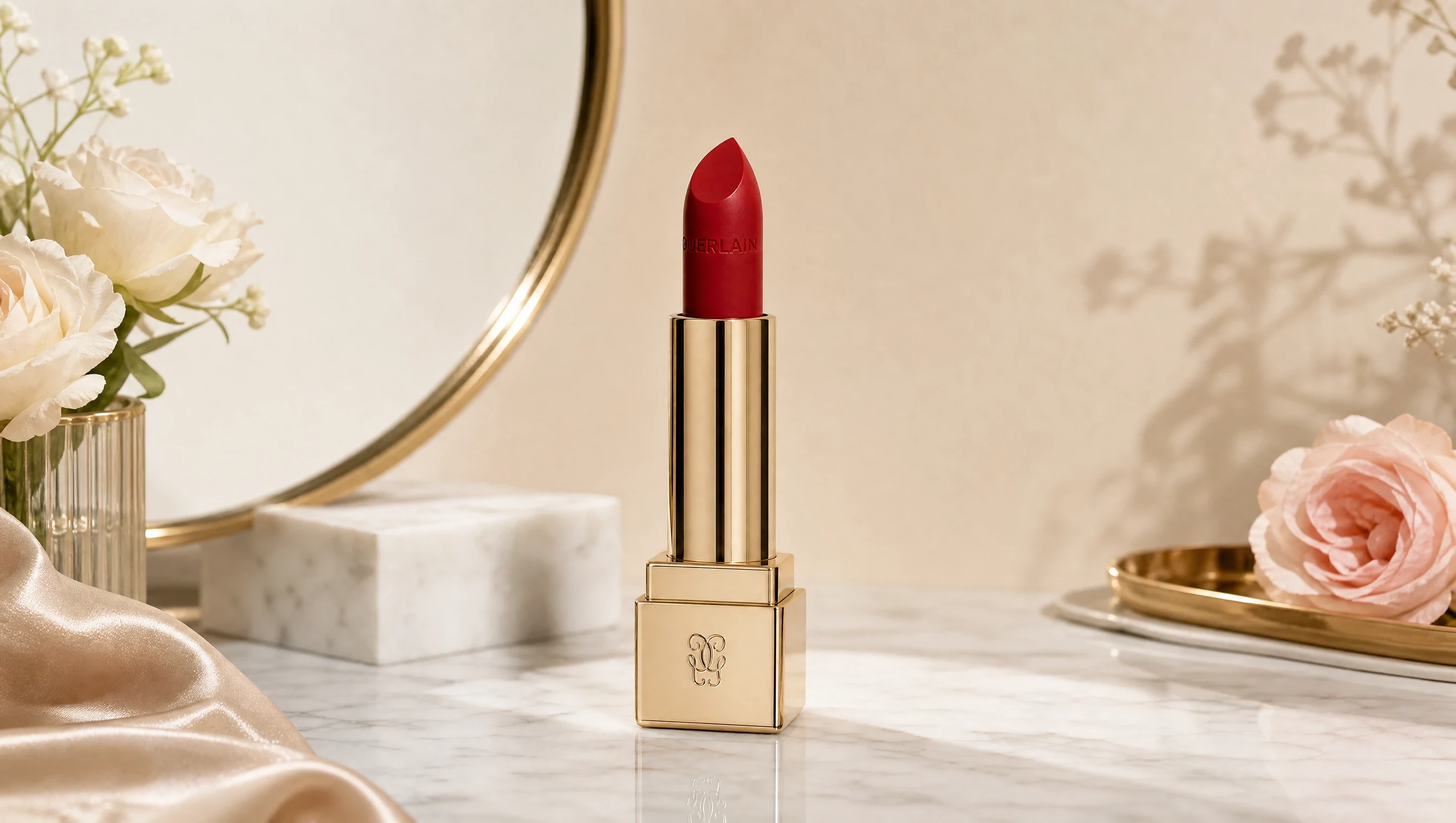
You have a beautiful product photo, but the square format does not work well for a website banner or advertisement. You want to expand the background, add more visual space for text, and keep the product the same.
Prompt Used:
Extend the left and right sides of the image. You need to keep the lipstick the same. Add a luxurious background with elegant decorative elements. Maintain the same beauty photography style with soft studio lighting and realistic details.
Before:1:1
After:16:9
Frequently Asked Questions
What is AI outpainting?
AI outpainting is an AI image editing technique. It expands an image beyond its original borders. This technique is commonly used to add backgrounds, change image ratios, and create wider scenes.
How to outpaint an image with AI online?
To outpaint an image online, there are three main steps: First, you need to upload your image to an AI outpainting tool; Second, write a prompt to describe your needs; Third, click generate, and you can remix the result. For better results, you need to ask AI to keep the original subject unchanged and make sure the new content matches the image style.
How accurate is AI outpainting?
AI outpainting can create realistic results in many cases, especially when the original image has clear backgrounds and distinctive styles. However, the results may not be satisfying with a general prompt or an immature tool.
What is the best AI outpainting tool for beginners?
The best outpainting model depends on your needs. Models with strong image editing can create more natural extensions. For beginners, an all-in-one AI image tool like PicLumen is a good choice. It combines image expansion, editing, and generation features in one workflow.
.png)
 (1)_compressed.jpg)