Turning a photo into a clean line drawing is one of those tasks that sounds simple but eats up hours. You sketch the outlines, erase the mistakes, redraw the broken strokes, and somehow the subject still doesn't look right. Coloring book creators, tattoo artists, illustrators, and teachers know this struggle well.
With AI Image to Image feature, the whole process of converting image to line drawing only takes seconds. You only need to upload a photo, write one short prompt, and the AI converts it into a crisp line drawing — contour, cross-hatch, anime sketch, engraving style, you name it. No tracing paper, no steady hand, no design skills required.
In this guide, we'll cover:
The 6 most popular line drawing styles and how to pick one
A 5-step workflow to convert any image to line art
6 copy-paste prompts for different use cases
Advanced tips, common mistakes, and fixes
What Is a Line Drawing? 6 Popular Styles to Know
A line drawing uses strokes to express outline, structure, and shading. It is usually without large areas of solid color. But "line drawing" isn't one single look. The style you choose decides the final result, so it's worth considering a bit before you start.
Style | What it looks like | Best for |
Contour line art | Clean, minimal outlines with no shading | Icons, logos, simple illustrations |
Cross-hatching | Overlapping lines that build up tone | Vintage prints, editorial illustration |
Doodle / Kawaii | Bold outlines, playful and rounded | Stickers, journals, kids' content |
Anime / Manga sketch | Expressive inked lines, no grayscale | Fan art, comics, character design |
Architectural / Technical | Precise, straight-line precision | Blueprints, instruction diagrams |
Engraving style | Dense fine lines, antique texture | Tattoo flash, retro posters, packaging |
What Is the Best Way to Convert an Image to a Line Drawing?
One of the best ways to convert an image to a line drawing is to use an AI Image to Image tool. You upload your photo, and the AI reads its edges, shapes, and composition, then redraws it with strokes in the style you choose — contour, cross-hatch, anime, engraving, and more. You keep everything that makes the original recognizable and swap everything about how it's rendered, all in under a minute. No tracing, no sketching, no design skills required.
Now that you know the best way to do it, let's walk through the exact steps.
How to Convert an Image to a Line Drawing: 5 Simple Steps
Step 1: Prepare Your Reference Image
The quality of your line drawing starts with the photo you feed in. Two quick tips:
Pick a high-contrast photo — subjects with clear edges convert much more cleanly than low-light, blurry shots.
Keep the background simple — a busy backdrop confuses the AI and adds stray lines. Crop close to your subject if needed.
A portrait, a product photo, a pet picture, or even a building shot all work — just make sure the main subject is sharp and easy to identify.
Step 2: Open PicLumen and Upload Your Image
Head to PicLumen and open the Image to Image workspace. Upload your prepared photo as the reference image. The AI image generator will use it as the structural base for the line drawing.
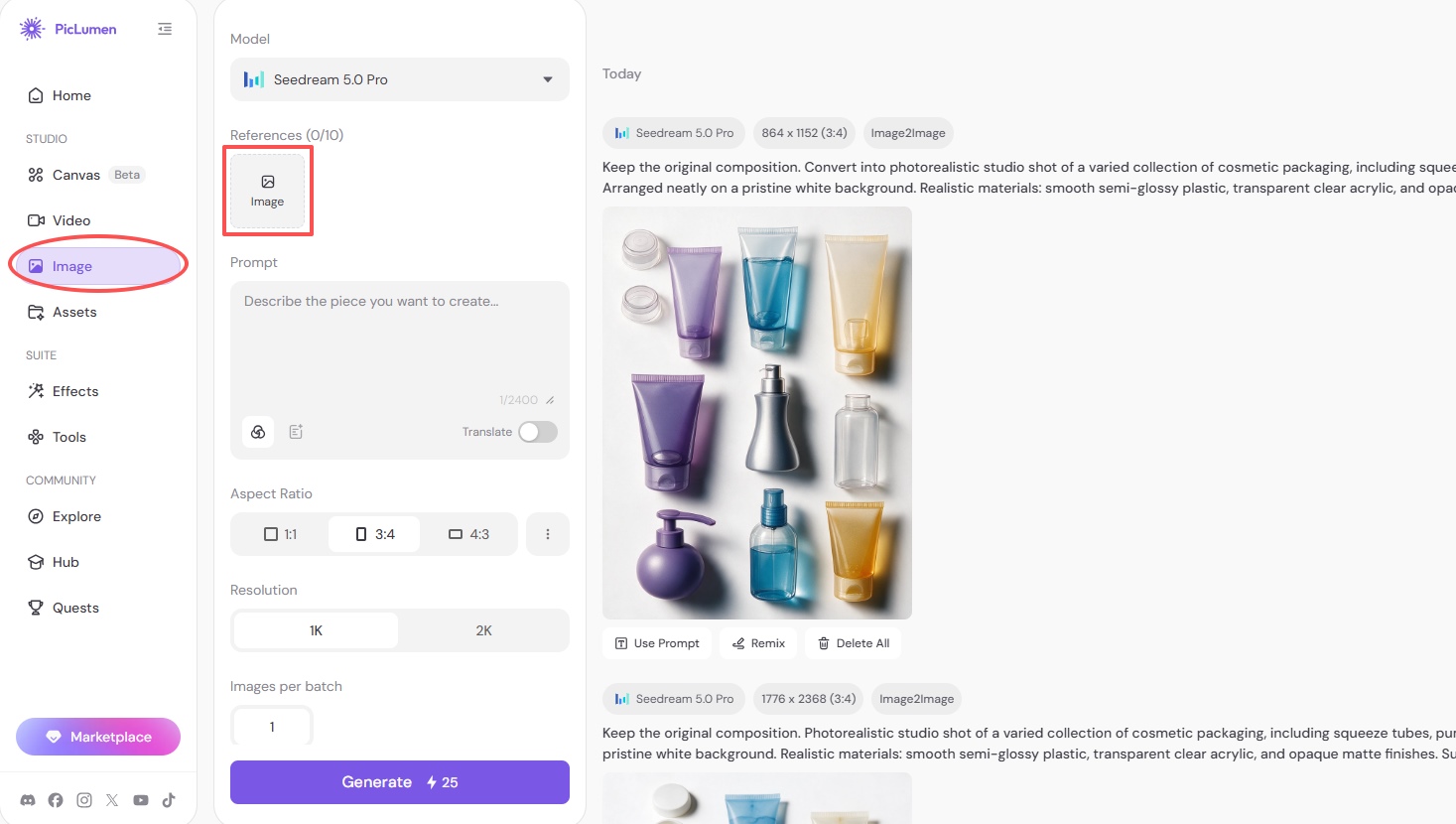
Step 3: Choose Your Model and Adjust the Settings
Pick your model. PicLumen offers several strong options for line drawing work — GPT Image 2.0, Seedream 5.0 Pro, Midjourney V8.1, and Qwen Image — and each one renders lines a little differently.
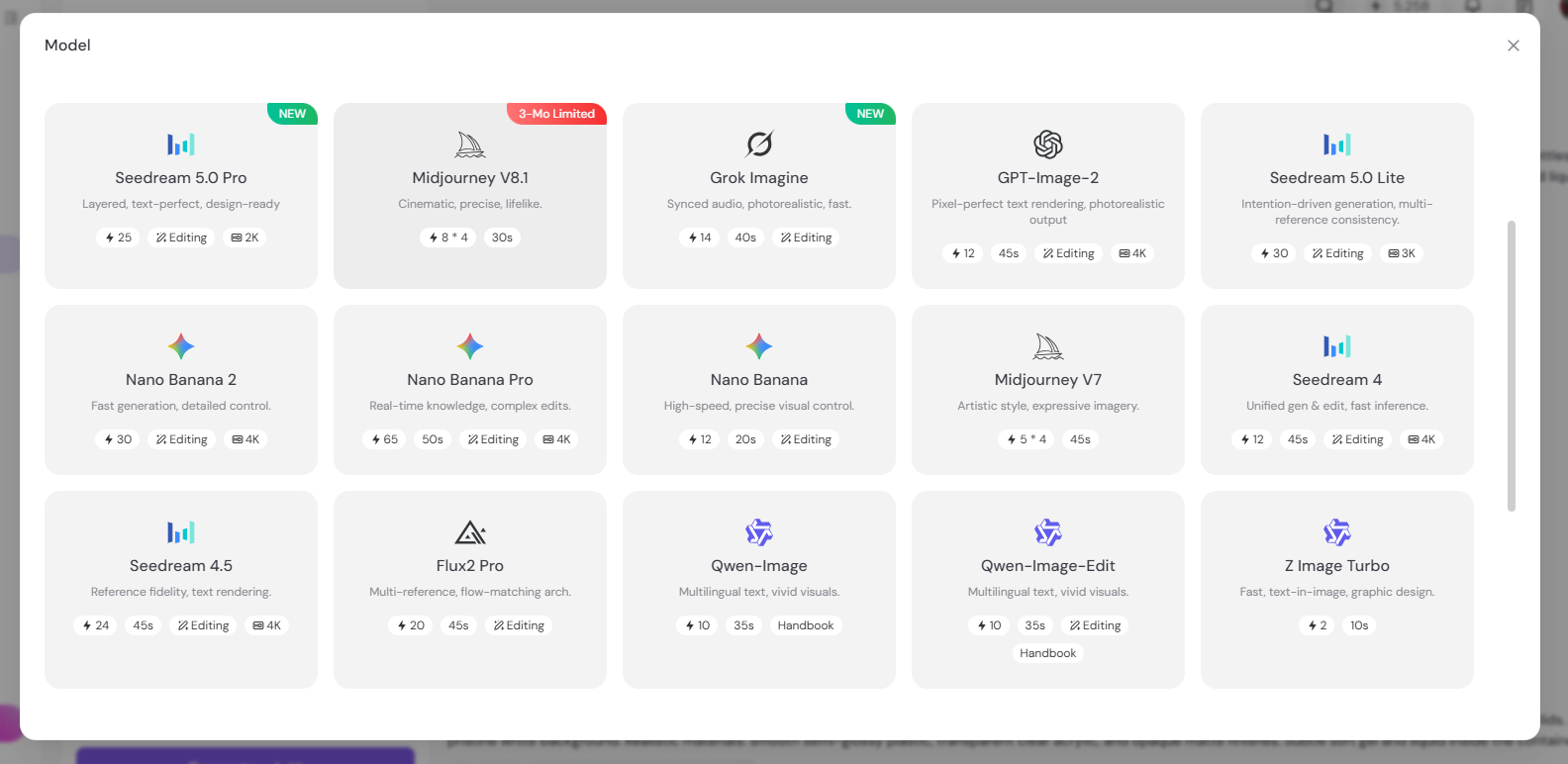
The quickest way to choose is to match the model to the style you picked in the table earlier.
Pro tip from our own testing: for most photo-to-line-art jobs, start with GPT Image 2.0. It produces the cleanest fine lines and follows "keep the composition" instructions most faithfully. If you're after bold cartoon outlines or doodle-style art, go with Seedream 5.0 Pro instead.
If your first result feels off, just switch models and try again. It only takes seconds, and you would land on the model that suits your need in a few tryings.
Then adjust your settings. Before you hit generate, take a few seconds to set things up. It makes a real difference to the output:
Resolution – crank it up if you want cleaner, sharper line work. Higher resolution gives the AI more room to render fine strokes, which matters a lot for detailed subjects like portraits or intricate products.
Number of Images – generate a few versions at once so you can compare different takes side by side. Line art can vary subtly between runs, so having options to choose from saves you time from repeated single tries.
Aspect Ratio – in Image to Image, your uploaded photo already sets this, so you can usually leave it at auto. The output naturally matches the proportions of your reference image.
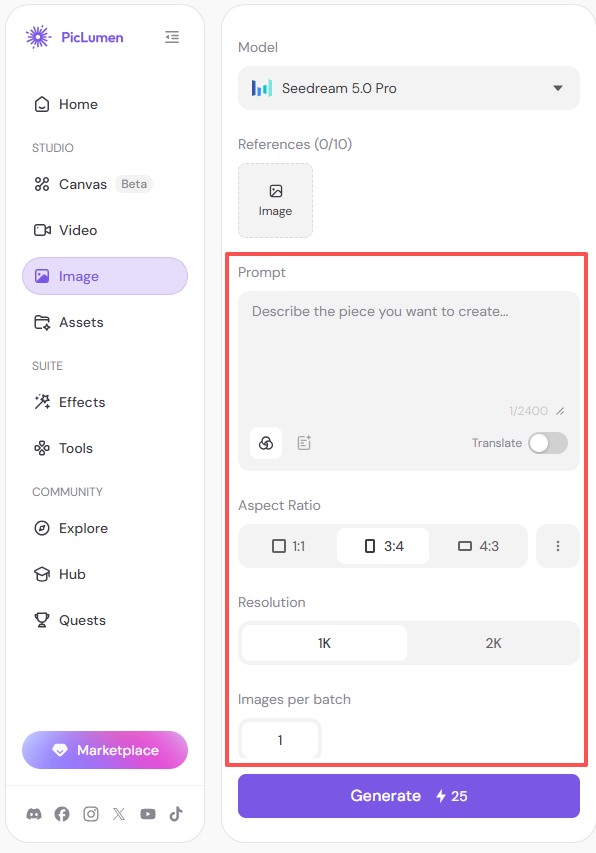
Once the model and settings are in place, you're ready for the most important part: the prompt.
Step 4: Write an Effective Art Prompt
The prompt is where you tell the AI what to keep and what to change. For line drawings, this formula works every time:
[Subject] + keep the original composition + [line art style] + [line weight & density] + [background treatment]
Here's a ready-to-use example:
Keep the original composition, convert the photo into a clean contour line drawing, thin uniform black lines on a plain white background, no shading, no color.
Step 5: Generate and Iterate
Hit generate and wait a few seconds. When the image comes back, check three things:
Lines — are they clean, or broken and messy?
Subject — is it still recognizable as your original photo?
Style — does it match the line art style you picked?
First attempts usually aren't perfect, and that's normal. If the result is close but something feels off, you don't need to start over — just tweak the prompt by adding a style word or specifying line thickness, then generate again. If that doesn't do it, you could always go back to Step 3 and switch to a different model.
Convert Image to Line Art on PicLumen
Line Drawing Prompt Library: 6 Copy-Paste Prompts
These are some examples which may give you some inspiration, or you could tweak the subject to fit your image.
1. Coloring Book Page
Keep the original composition, convert into a coloring book illustration, bold closed outlines with thick uniform black lines, white background, no shading, no grey areas, large empty spaces inside each shape for coloring.
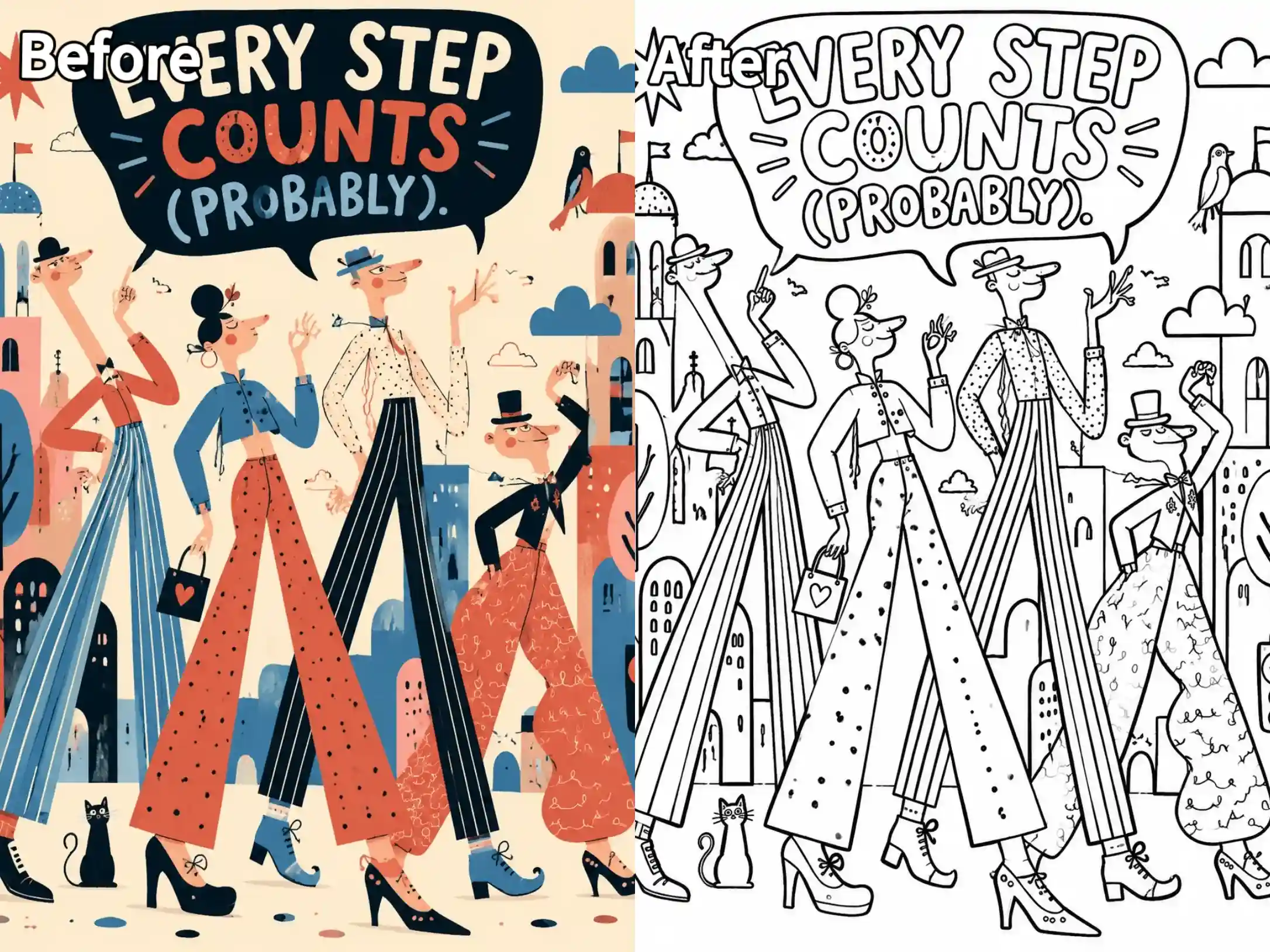
Best for: printable coloring pages, kids' activity sheets.
2. Tattoo Flash Design
Keep the original composition, convert into a tattoo flash design, single-weight clean black line work, solid black fills where needed, plain white background, bold and readable at small size, no grey tones.
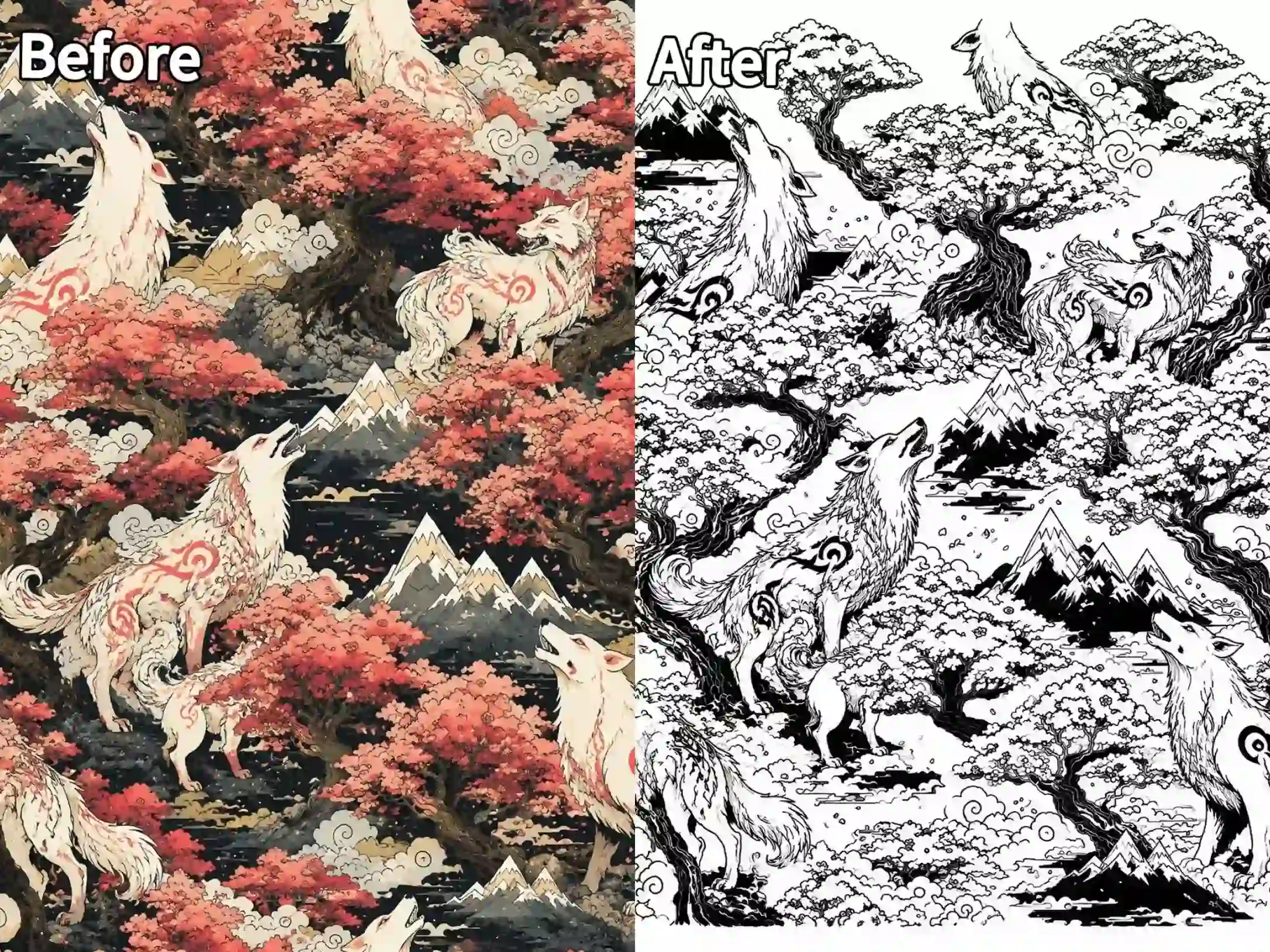
Best for: tattoo artists, custom tattoo mockups.
3. Product / Packaging Line Art
Keep the original composition, convert into minimal product line art, thin fine black lines, white background, clean vector-like edges, no shading, suitable for logo and packaging use.
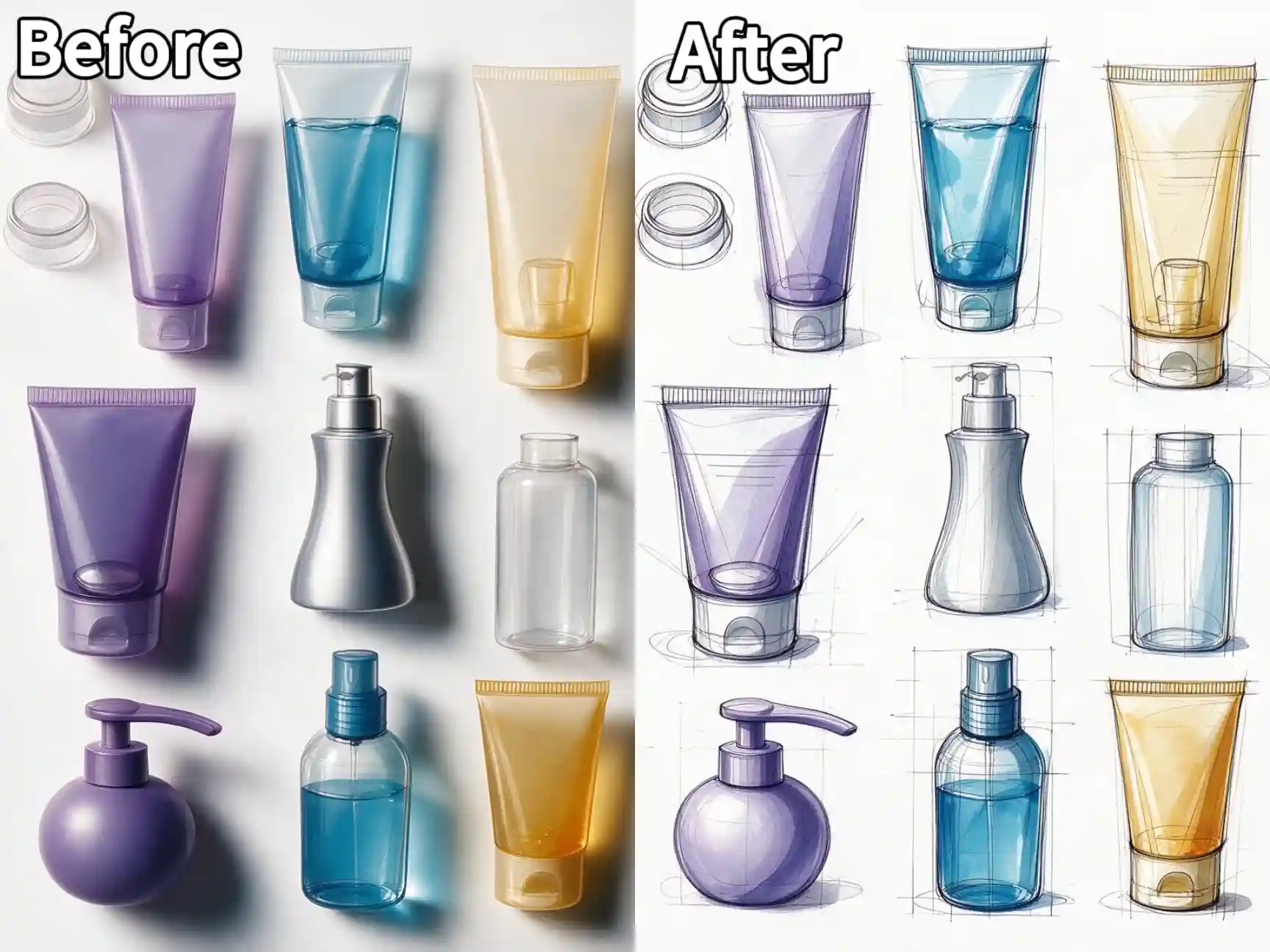
Best for: small businesses, labels, brand assets.
4. Architectural Sketch
Keep the original composition, convert into an architectural pen-and-ink sketch, precise straight lines, light cross-hatching for shadows, white background, technical drawing style.
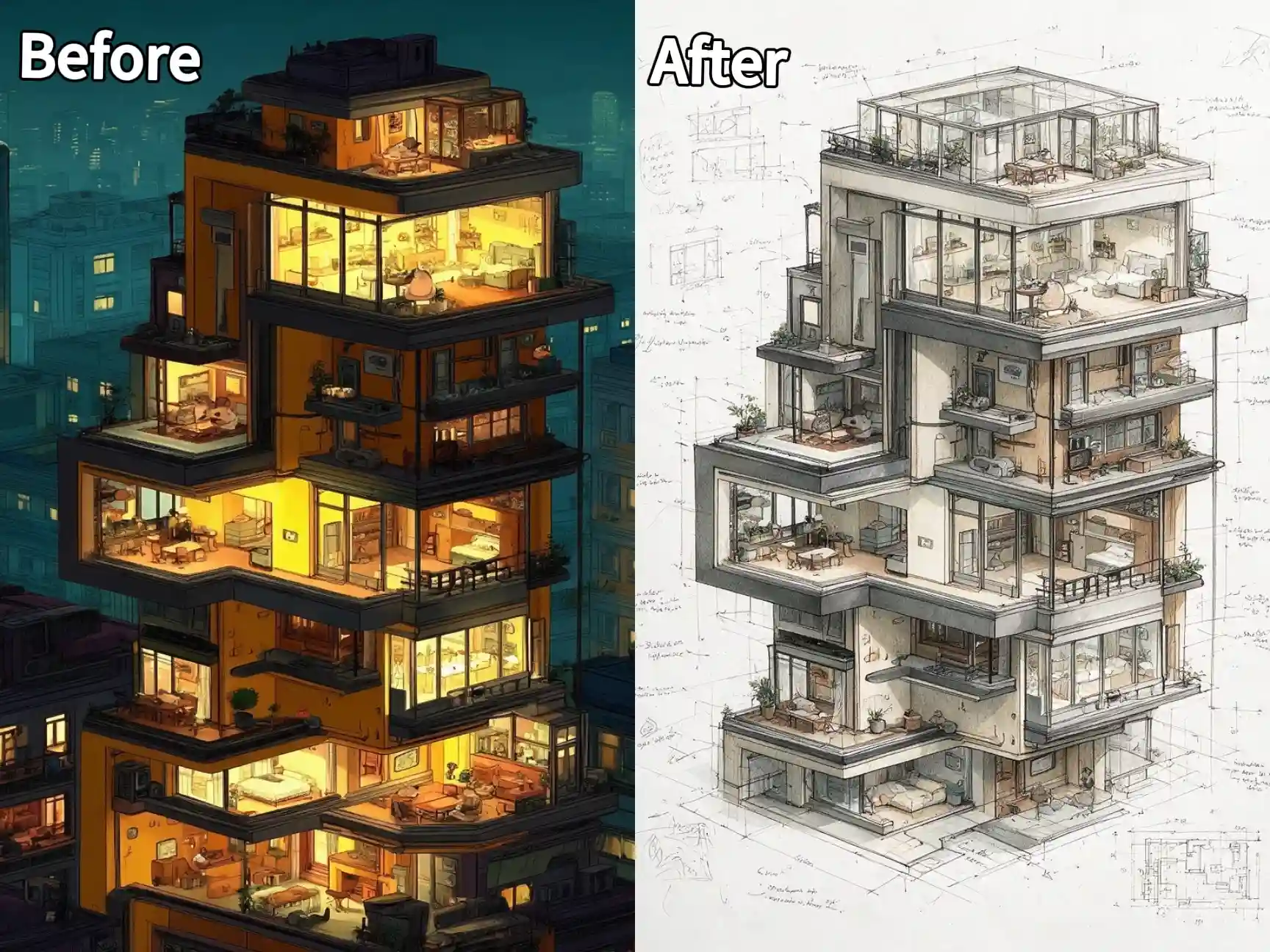
Best for: real estate visuals, concept sketches, blueprints.
5. Anime / Manga Line Art
Keep the original composition, convert into anime manga line art, bold expressive ink outlines, dynamic strokes, no grayscale, no color, plain white background.
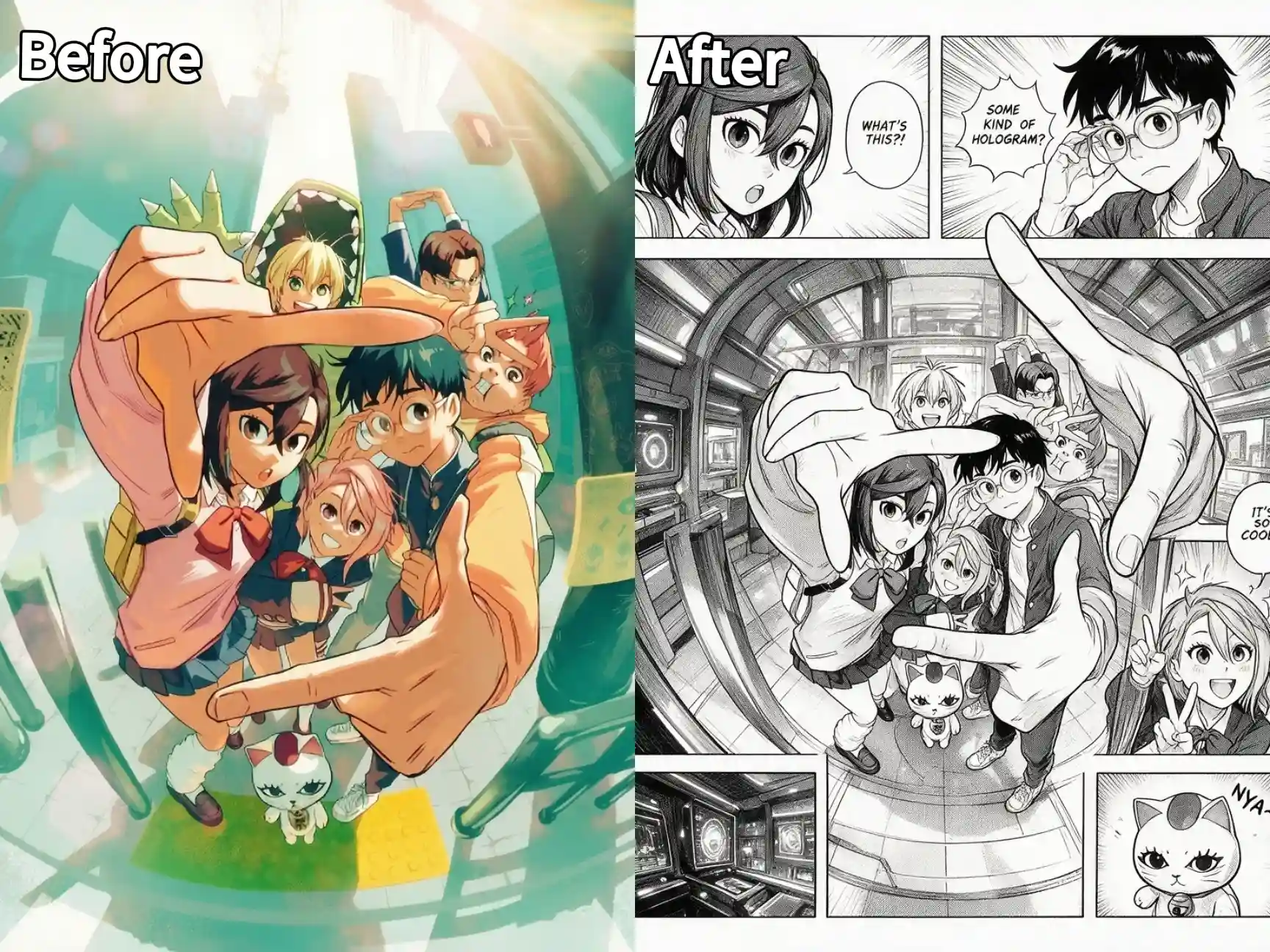
Best for: character design, fan art, comic panels.
6. Engraving / Etching Style
Keep the original composition, convert into a vintage engraving, dense fine cross-hatched lines, antique etching texture, black ink on aged white paper background, no color.
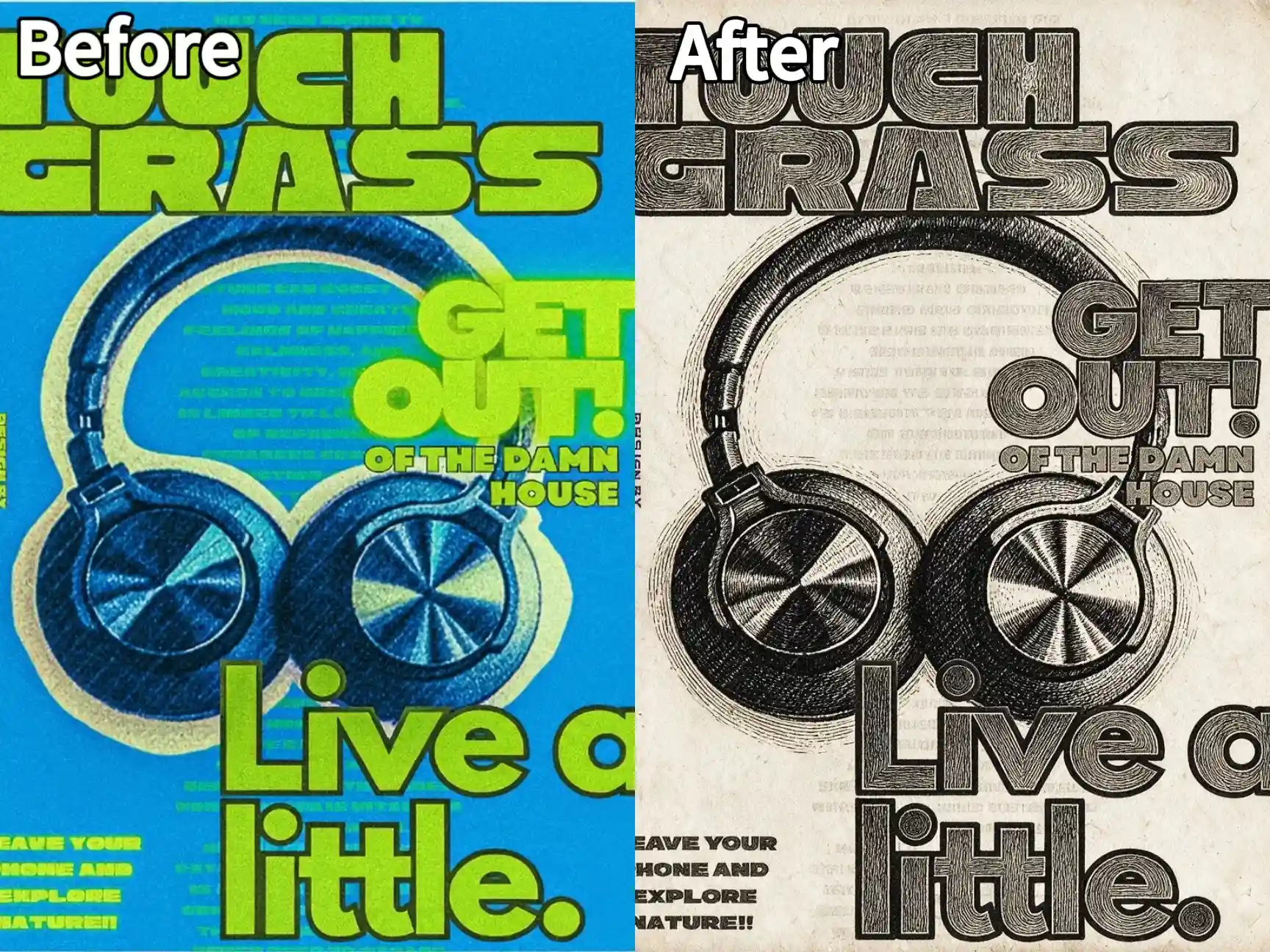
Best for: retro posters, editorial art, unique packaging.
Who Needs Line Art, and Why It Matters?
Line art is one of the most versatile visual formats there is. It's cheap to print, easy to recolor, and works everywhere. You could see them from children's books to product packaging. That's why demand for clean, ready-to-use line drawings comes from so many directions at once:
Coloring book creators need bold, closed outlines that are easy to fill — and they usually need dozens of consistent pages, not just a single drawing.
Tattoo artists want single-weight black lines on a clean background, so designs stay readable at small sizes and simple to ink.
Small businesses use product line art for packaging, labels, and logos, because it stays crisp on any material and scales without losing quality.
Teachers turn photos into line drawings for worksheets and coloring activities, giving students clear, uncluttered images to work with.
Artists use converted sketches as references or base layers, saving hours of prep work before they start their own rendering.
Because line art serves so many industries at once, the demand for fast, consistent conversion is real — and hand-tracing simply can't keep up when you need a whole series of matching drawings.
Whatever your goal, you can now produce that line art from any photo in under a minute.
Common Mistakes & How to Fix Them
Problem | Why it happens | What to do |
Lines come out messy or broken | No line-quality keywords in the prompt | Add "clean, continuous, single-weight lines" |
Subject looks distorted | Busy background confuses the AI | Use a simpler reference photo or crop the subject |
Result is too realistic, not line art | Missing a style word | Specify "pure line art, no shading, no color" |
Stroke width is inconsistent | Prompt is too vague | Use "uniform stroke width" |
Output keeps the original colors | No black-and-white requirement | Add "black lines on white background" |
Still not right after several tries | Too many variables changed at once | Change one thing at a time — prompt, model, or settings |
Golden rule: adjust one variable per attempt. If you change the prompt, the model, and the settings all at once, you'll never know which one fixed it.
FAQ
Can I convert a photo to a line drawing for free?
Yes. PicLumen lets you try Image to Image with free credits — upload your photo, add a line-art prompt, and download the result without paying.
Can AI turn any image into a line drawing?
Almost any. AI can convert an image to a line drawing from portraits, products, pets, or buildings, as long as the subject is clear and high-contrast. Low-light or busy photos may produce noisier lines — just use a simpler reference image or run a second pass.
Can I turn a photo into a line drawing for a tattoo design?
Absolutely. You can turn a photo into a tattoo-style line drawing using the tattoo flash prompt above — single-weight black line work that a tattoo artist can refine professionally.
Do I need drawing skills to convert an image to a line drawing?
No. PicLumen's Image to Image feature is designed so anyone can convert image to line drawing without any skills.
What is the best image to line drawing converter?
PicLumen's Image to Image feature is a test-free, beginner-friendly image to line drawing converter and it is one of the best image to line drawing converters. It preserves your original composition, supports multiple line art styles, and lets you refine results with a second pass.
.png)

 (1)_compressed.jpg)