(1)_compressed.jpg)
Still using a casual selfie on LinkedIn? Poor lighting, a messy background, or awkward framing can make even a good photo look unprofessional.
You don't need to book a studio, sit through an uncomfortable photo shoot, or spend hours fixing your lighting at home. With a free AI headshot generator, you can turn a decent selfie into a professional headshot in just a few minutes.
Before getting into the workflow, let's look at what makes a professional headshot. Then I'll show you how to create one with a free AI headshot generator.
What Makes a Professional Headshot?
A professional headshot is a clear, well-lit photo of your face and shoulders. It usually has a clean background, natural lighting, and something you're wearing that is appropriate for your industry.
It's not just a fancy selfie. A professional headshot should look polished, natural, and appropriate for a work setting. Here are a few things that can help you tell if a photo looks professional:
Clear and sharp: Your face should be in focus, with enough detail to see your features clearly.
Balanced composition: Your face should be the main focus of the photo, with a comfortable amount of space around your head and shoulders.
Natural expression: A relaxed expression or natural smile usually looks more approachable than a stiff pose.
Appropriate clothing: What you wear should fit your industry and the image you want to present. Simple, well-fitting clothes are often a safe choice.
Consistent visual style: The photo should look clean and cohesive, rather than mixing a formal outfit with a distracting background or overly dramatic editing.
That's why it matters on LinkedIn, resumes, company websites, and even email signatures. Most people know they need one. The hard part is getting a photo that actually looks professional.
3 Ways to Get a Professional Headshot
Method | Cost | Time | Result | Best For |
DIY at home | Free or low-cost | 1–2 hours | Depends on your lighting, camera, and editing skills | People on a tight budget |
Professional photography studio | Higher | Several hours, including travel and editing | Professional and polished | People who want professional results and have more time |
AI headshot generator | Free or low-cost | A few minutes | Quick results, easy to test different styles | People who want professional results fast |
How to Create a Free Professional Headshot with an AI Headshot Generator
An AI headshot generator saves you the time and effort of a traditional photo shoot. You don't need to book a studio or set up lighting and backgrounds yourself. With one clear selfie, you can create a professional-looking headshot in just a few minutes and try different styles without another photo session.
Step 1: Prepare and Upload Your Photo
There are many AI headshot generators out there. When it comes to template variety and output quality, PicLumen stands out. Start with a clear selfie. Your face should be easy to see. Avoid sunglasses, heavy shadows, or weird angles. A neutral expression or a natural smile works best. Simple clothing works well, and you can change the outfit later with a template.
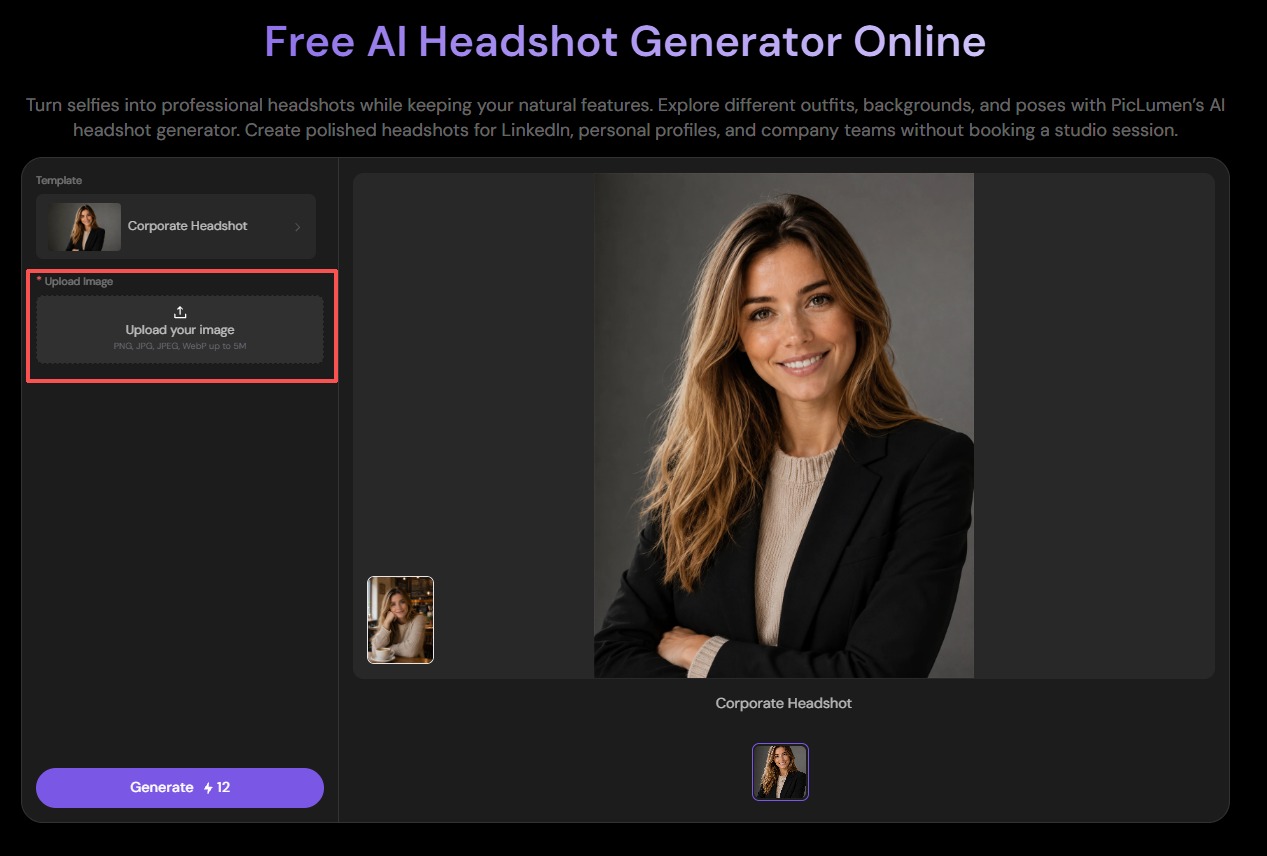
On PicLumen's headshot generator page, click the upload area on the left side. You can upload a PNG, JPG, JPEG, or WebP file up to 5MB. One good photo is enough. You don't need a photo collection.
Step 2: Choose a Headshot Template
Look at the Template section above the upload box. PicLumen offers a full set of professional templates, so you can pick one that matches your industry or goal.
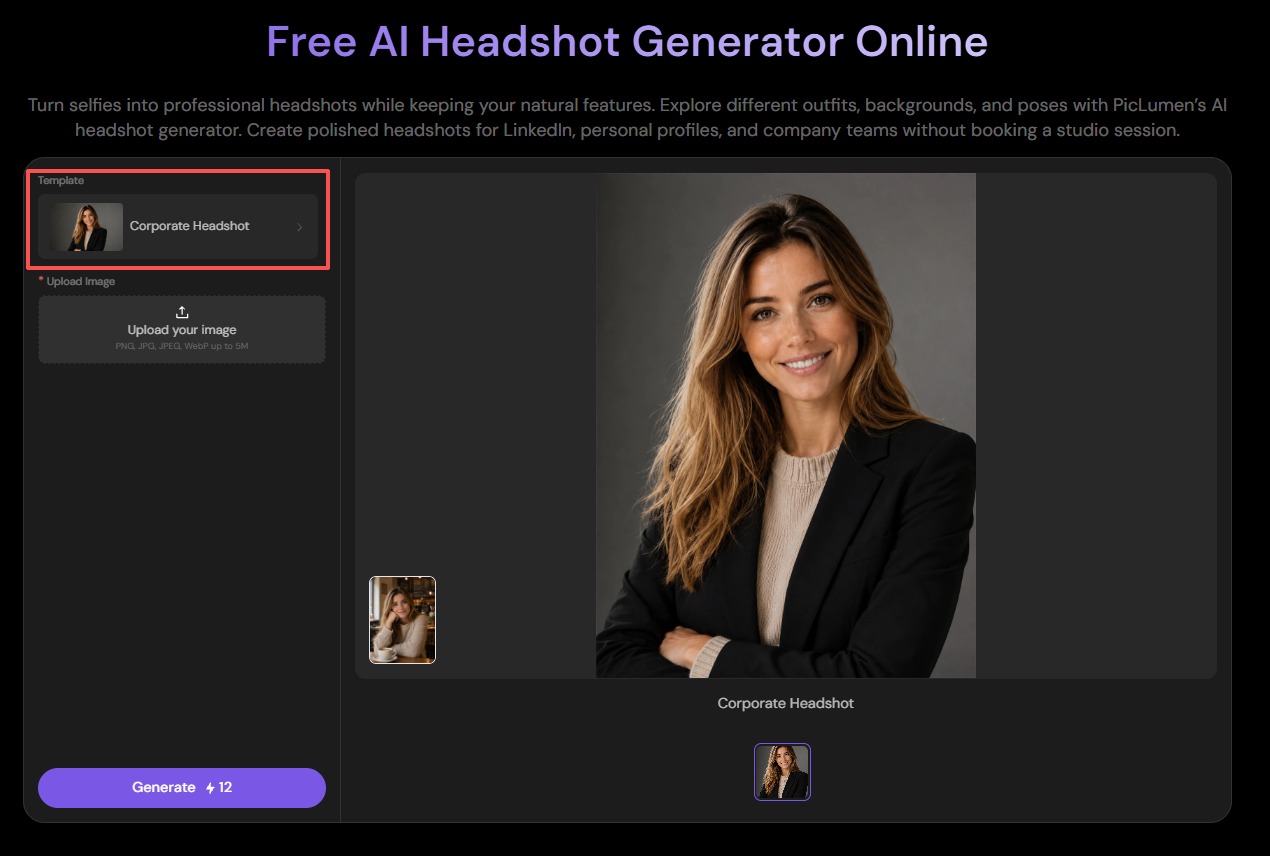
Click the one that fits the look you want. The template handles the styling for you. That means no prompt to write, no settings to adjust, and no design skills needed. You just pick a style, and the AI takes care of the rest.
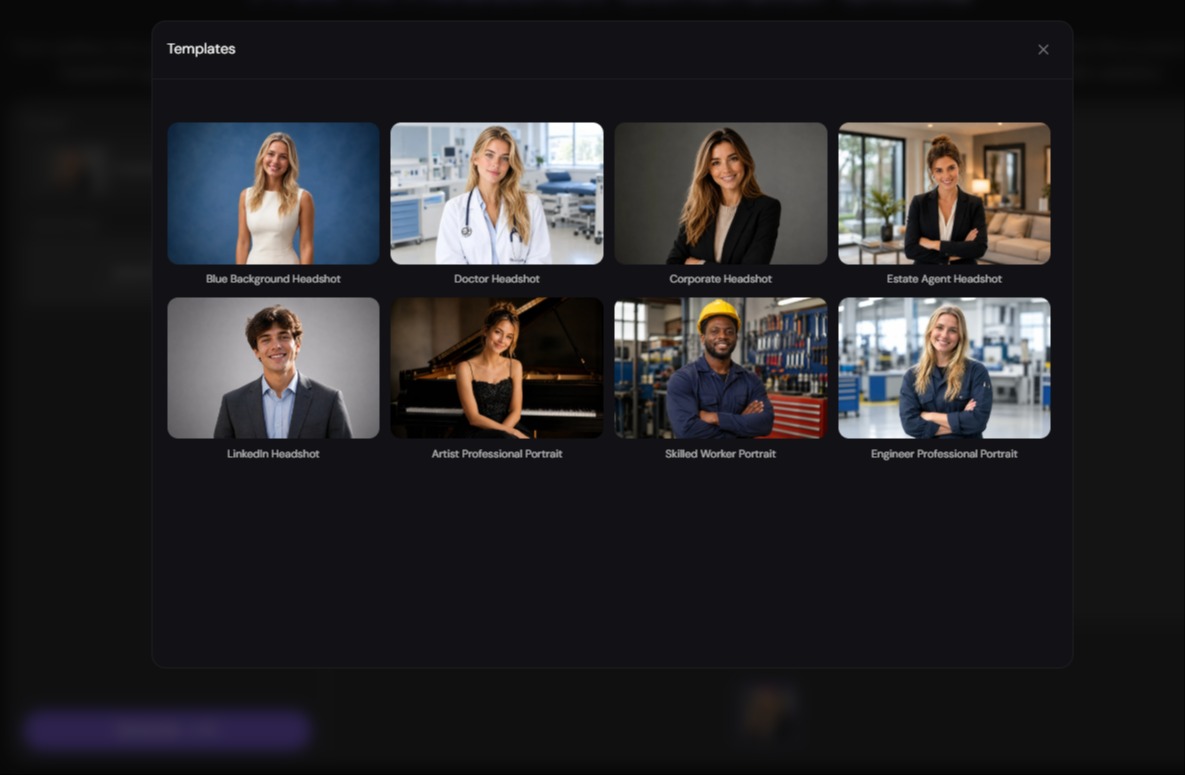
If you're not sure which template fits your goal, the next section breaks down all eight options and who each one is best for.
Step 3: Generate and Review Your Headshot
Click the purple Generate button at the bottom left. Then wait a few seconds. A "Generating…" message will appear on the right side of the screen. When it finishes, your new headshot shows up in the preview area, with the template name below it.
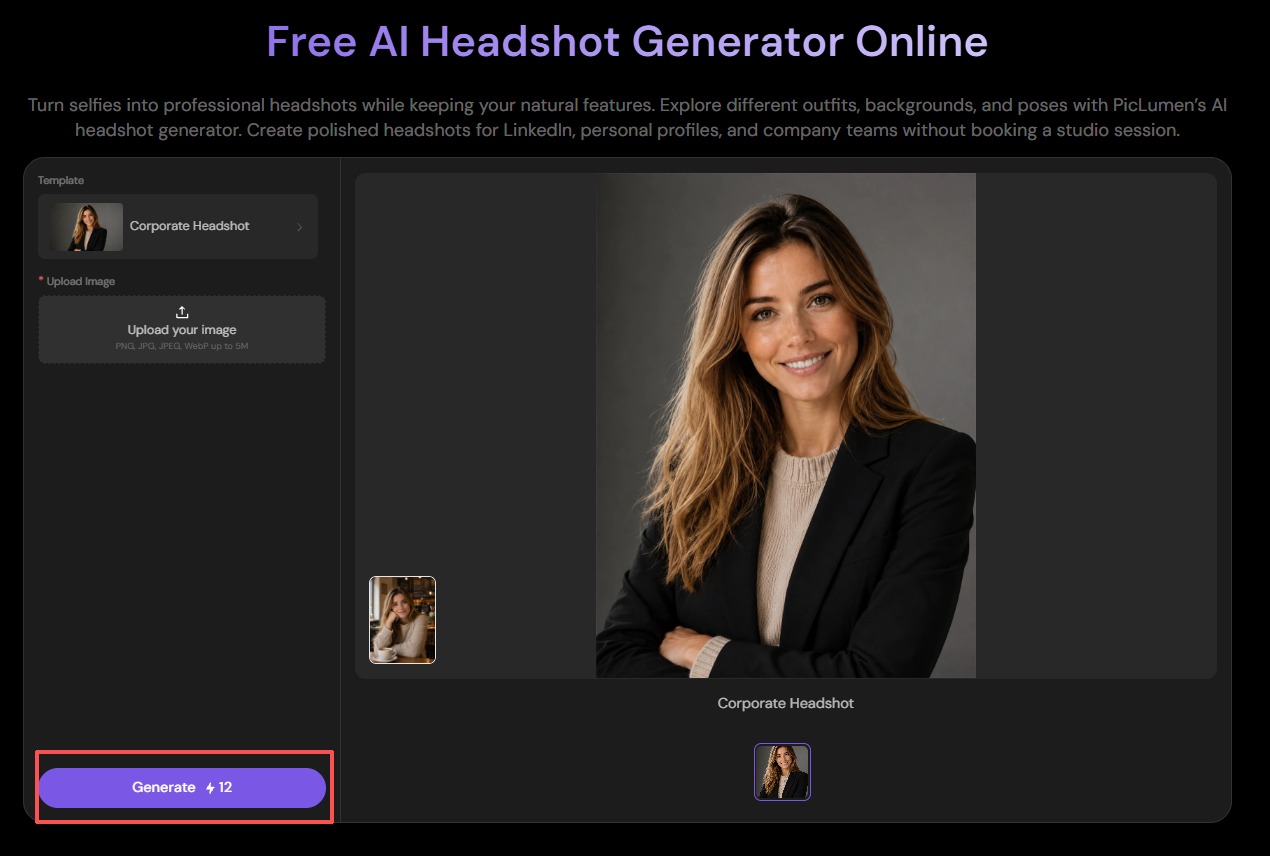
Now take a look at what came back. Check three things: does the face still look like you, is the lighting even and flattering, and is the background clean enough for your use case. If your face still looks natural, the lighting is even, and the background works for your use case, you're done.
If you like the result, click Download All under the preview. If you don't, pick another template and generate again.
Don't expect the first round to be perfect. It usually isn't, and that's normal. You may need two or three tries to get a result you like. The whole process takes less than five minutes.
PicLumen gives you free credits to start, so you can test a few templates without paying anything.
Best PicLumen Headshot Templates for Different Use Cases
Here's a quick guide to each template and who it's best for.
Template | Best For |
Blue Background Headshot | LinkedIn, resumes, general corporate use |
Corporate Headshot | Formal business profiles, CVs, executive roles |
Estate Agent Headshot | Real estate agents, property managers, client-facing roles |
LinkedIn Headshot | Anyone updating their LinkedIn profile |
Artist Professional Portrait | Creatives, musicians, personal brands |
Skilled Worker Portrait | Trades, construction, industrial roles |
Doctor Headshot | Doctors, nurses, healthcare professionals |
Engineer Professional Portrait | Engineers, technicians, technical roles |
If you're still unsure, pick the template that matches where the photo will live. LinkedIn gets the LinkedIn template. A hospital website gets the Doctor template. A construction company page gets the Skilled Worker template.
You can always switch templates and generate again. Just keep in mind that each generation uses credits, so it helps to pick one that fits before you click.
Create My Headshot with PicLumen
AI Headshot Tips: 3 Ways to Get Better Results
AI headshots are convenient to create, but a few simple choices can make the result look much better. Here are three tips to help you get a more natural and professional headshot.
Tip 1: Use a high-quality source photo.
Start with the clearest photo you have. A higher-quality input gives the AI more facial detail to work with and can help produce a more natural-looking result.
Tip 2: Match the template to where the photo will live.
A LinkedIn profile photo and a hospital website photo call for different looks. Pick the template that fits the platform, not just the one you like most. If you're not sure, the table in the previous section shows which template fits which use case.
Tip 3: Change one thing at a time when you retry.
If the first result doesn't feel right, switch the template before generating again. Repeating the same settings may still give you a slightly different result, so it helps to change one variable at a time.
FAQs
How Do I Turn a Photo into a Professional Headshot?
Upload a clear selfie to an AI headshot generator. Pick a template, generate the image, and download the result. The whole process can take just a few minutes.
What Is the Best AI Headshot Generator?
There is no single best tool. It depends on what you need. PicLumen is a good place to start if you want to test the process for free.
What Photo Works Best for an AI Headshot Generator?
Use a clear, front-facing photo with even lighting. Avoid sunglasses, heavy shadows, and tilted angles. A natural expression works best.
Do AI-Generated Headshots Look Real?
They can look very real if you use a good input photo. Small details like hair edges or eye focus sometimes look off. Regenerating usually helps, but it may take a few tries.
Can I Create a Free AI Headshot with PicLumen?
Yes. Upload your photo, choose a template, and generate the headshot. PicLumen provides free credits, so you can test different templates before paying.
.png)