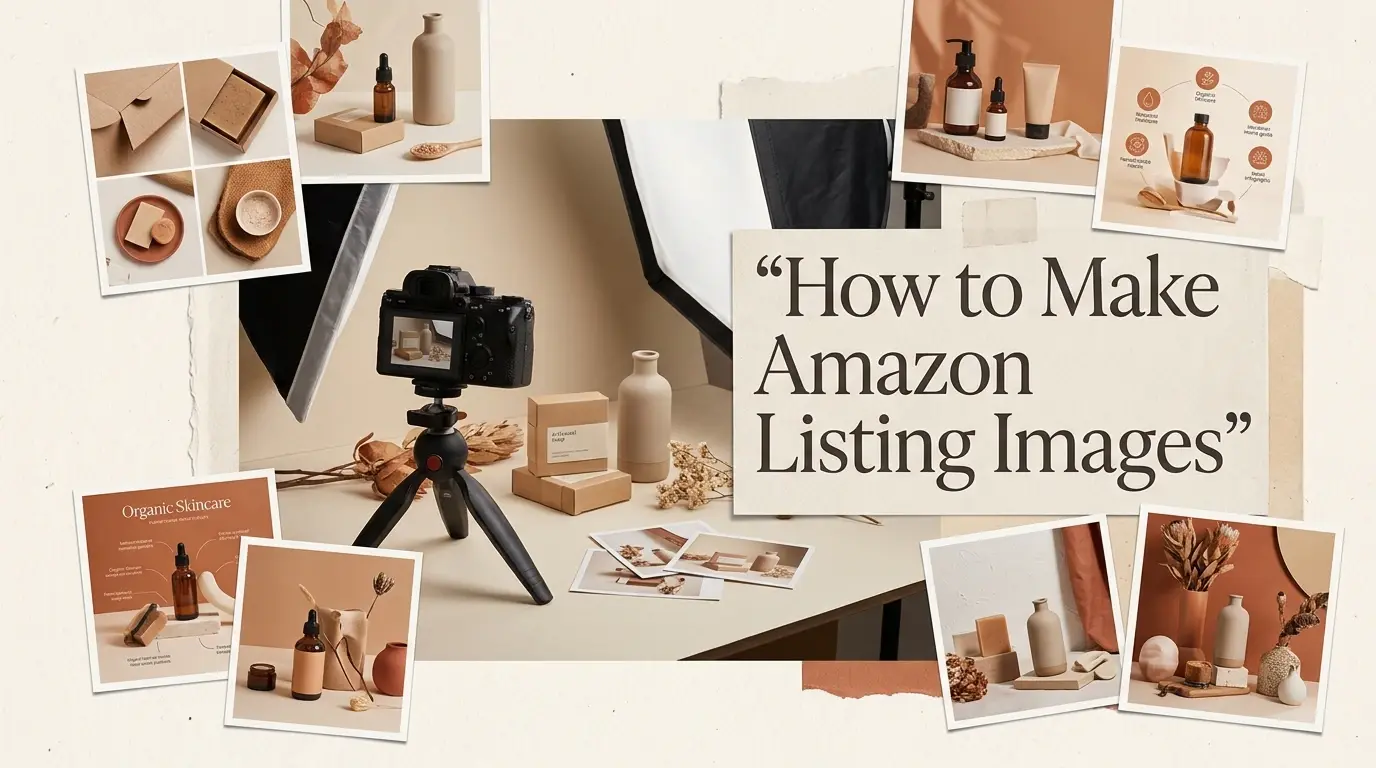
Creating Amazon listing images can take a lot of time. You need a main image, product details, lifestyle scenes, and other visuals. Traditional product photography also requires equipment, a suitable setting, and time for shooting and editing.
AI gives you a faster way to create these visuals. Start with a product reference and create different Amazon listing images from it. You don't need a new photoshoot for every image. In this guide, I'll compare the traditional and AI methods. Then, I'll show you how to create a complete set of Amazon listing images step by step.
What Images Do You Need for an Amazon Listing?
Here's a quick overview of the image types an Amazon listing usually needs.
Image Type | What It Should Show | Question It Answers |
Main Image | A clean, well-lit shot of the product alone | What am I buying? |
Feature Image | A visual of the top benefit in use | Why should I choose this one? |
Detail Image | Close-up of material, texture, or components | Is the quality good enough? |
Size & Specification | Dimensions and scale shown next to a familiar object | Will it fit my space or my needs? |
Lifestyle Image | The product in a real, relatable setting | Where and how would I use this? |
Multi-Angle Image | Multiple sides or angles of the same object | What does the full product look like? |
Brand / Context Image | A scene that shows the brand feel | Who is this product for? |
Traditional vs. AI Methods for Creating Amazon Listing Images
Traditional photography gives you direct control over the camera, lighting, background, and props, but it also takes more preparation. Each photo may need cropping, retouching, or background editing, and new scenes often mean a new shoot.
AI-generated listing images take a different approach. Instead of setting up a new shoot for every creative direction, you can start with one product reference and create different backgrounds, scenes, and compositions from it.
Here’s how the two methods compare at a glance:
Dimension | Traditional Photography | AI-powered Product Visual Solution for Amazon |
Cost | May require photography equipment, location, props, and editing | Can reduce the need for repeated photo production |
Time | Shooting and editing take more time | Multiple visual directions can be generated from one reference |
Equipment | Camera, lighting, background, and other equipment may be needed | Mainly requires a suitable product reference |
Product Consistency | Captures the actual product directly, with accurate shape, color, and material. | Uses one product reference to keep every image visually aligned. |
Best Use Cases | Best for complex products, custom scenes, or high-end brand campaigns | Best for fast, multi-image listings and frequent listing updates. |
Flexibility | New scenes often require new setups | Easier to explore different scenes, backgrounds, and compositions |
How to Create a Complete Set of Amazon Listing Images
Creating a complete set of Amazon listing images does not have to mean starting a new photoshoot for every image. With a product reference and the right setup, you can generate different visuals in one workflow.
For this type of workflow, PicLumen offers a streamlined way to build a complete set of listing images. You can start with a product reference, choose a listing style, and generate multiple image types in one go.
Here’s how the process works step by step.
Step 1: Create Your Product
Start by clicking Select or Create Product, then select New Product to start creating your product.
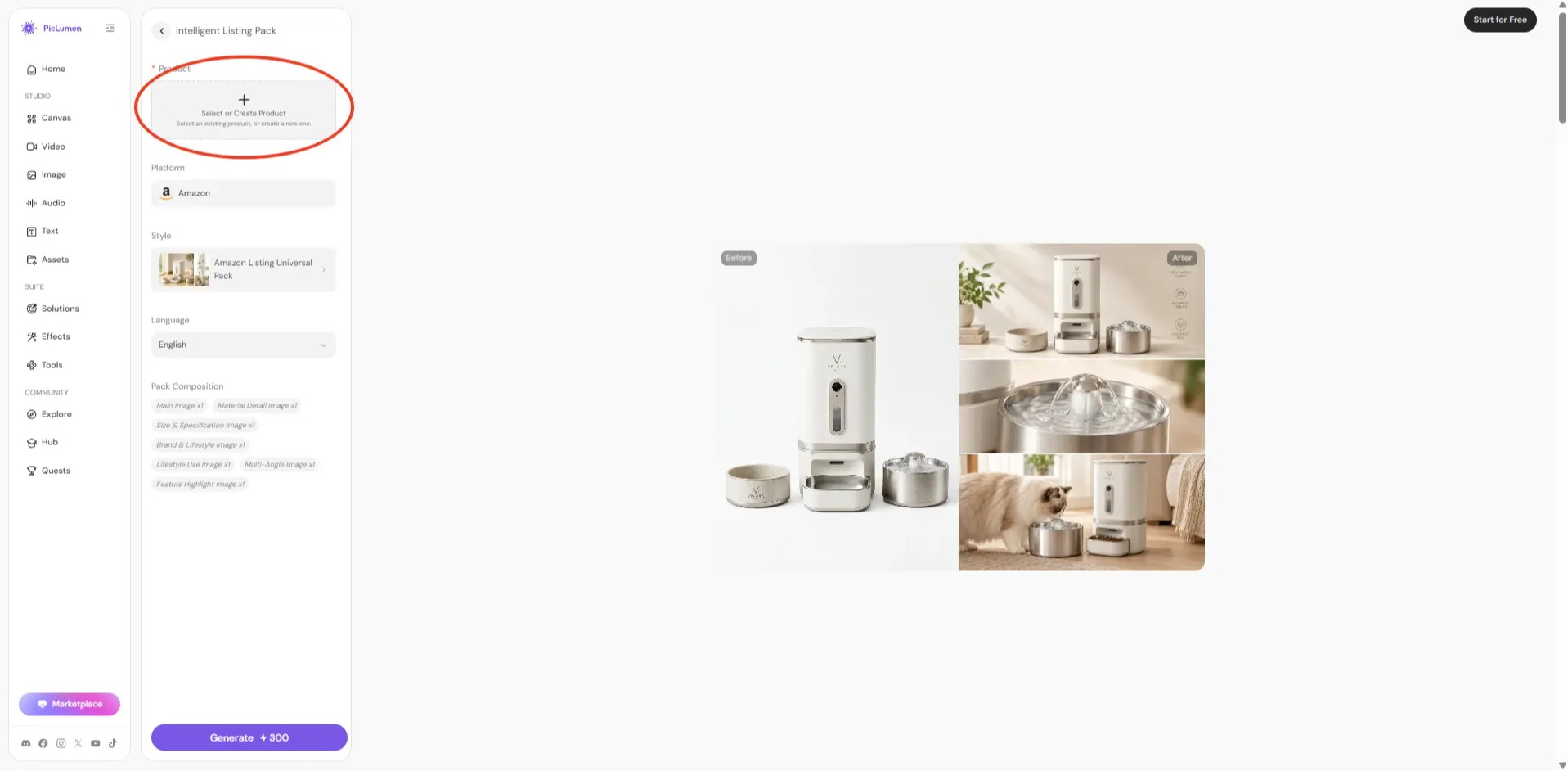
First, upload a product reference image under References. Then enter the Product Name and Description, which are also required.
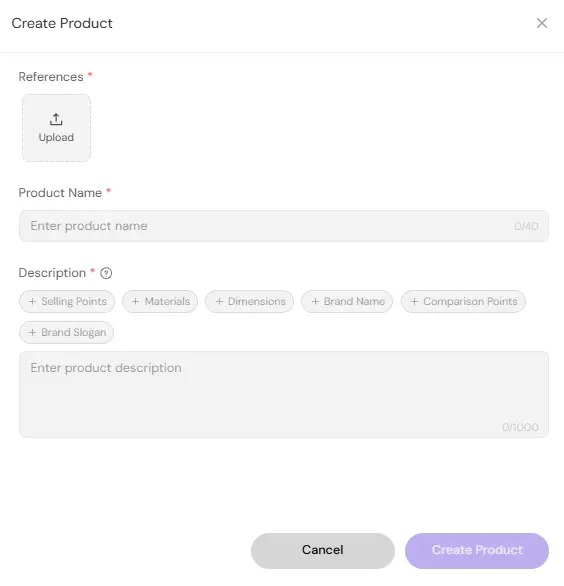
You can add more product information through the optional tags below the description, such as Selling Points, Materials, Dimensions, Brand Name, Comparison Points, and Brand Slogan. Select the tags that are relevant to your product and enter the corresponding details.
Once you have completed the required product information, click Create Product to continue.
Step 2: Choose a Listing Style
After creating your product, go to the Style section. Click the style shown there to browse the available listing styles.
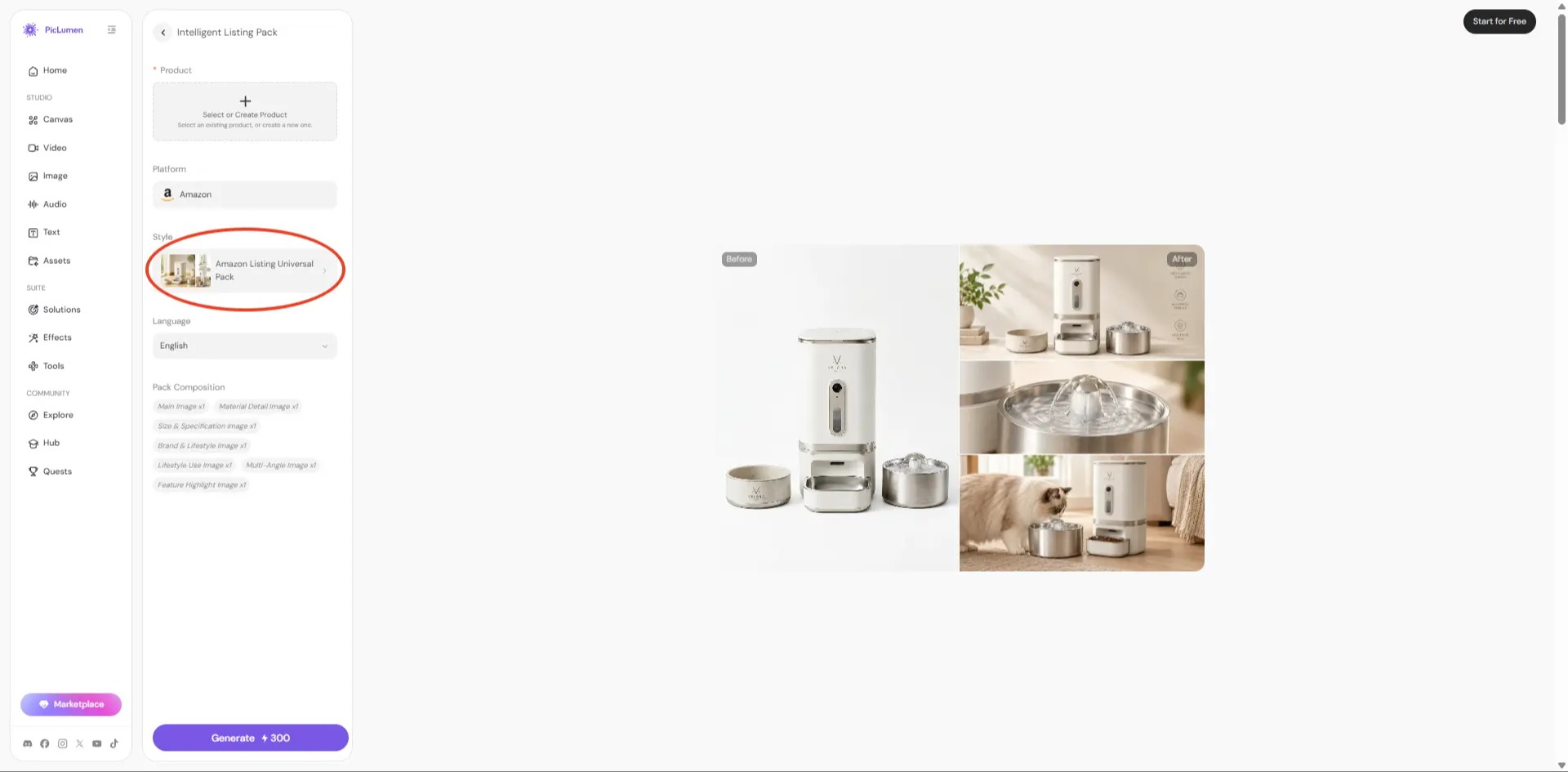
PicLumen provides 12 listing styles designed for different product categories, including options for products such as bags, footwear, beauty products, electronics, home and kitchen items, fashion, sports and outdoor products, and more.
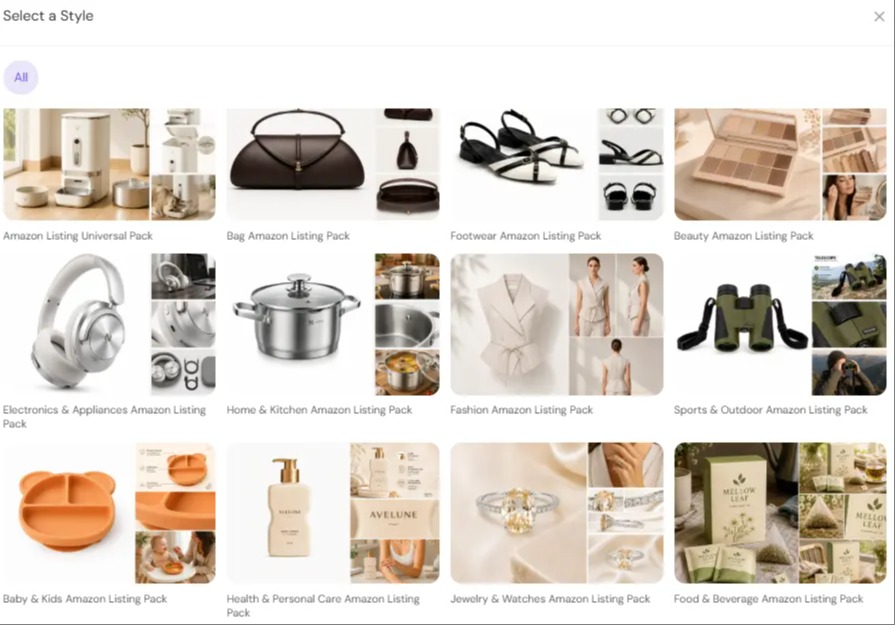
Browse the available styles and choose the one that best matches your product and its visual presentation.
The platform is set to Amazon, and the language is set to English.
Step 3: Generate Your Amazon Listing Images
After choosing a listing style, check the Pack Composition shown below the Style section. This part is fixed, so you do not need to choose or adjust the individual image types yourself.
The pack includes seven image types: a Main Image, Material Detail Image, Size & Specification Image, Brand & Lifestyle Image, Lifestyle Use Image, Multi-Angle Image, and Feature Highlight Image.
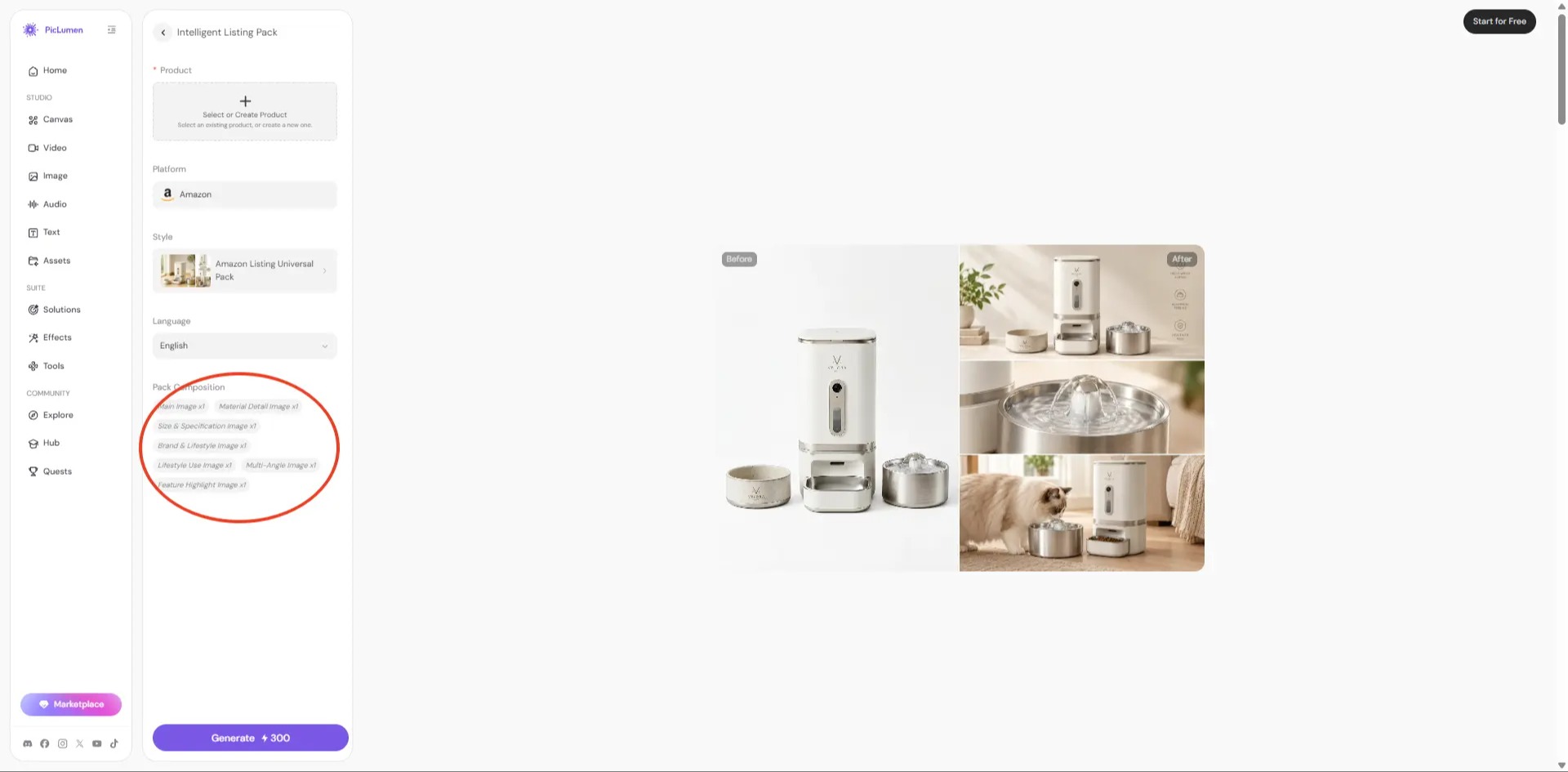
This gives you a coordinated set of visuals for showing the product from different angles, highlighting important details, and presenting it in realistic use cases.
When you are ready, click Generate to create the image set.
Step 4: Review the Generated Images
Once the image set is generated, review each image carefully before using it in your listing. Start by checking whether the product still looks like the original reference. The shape, proportions, color, and other important visual details should remain consistent across the set.
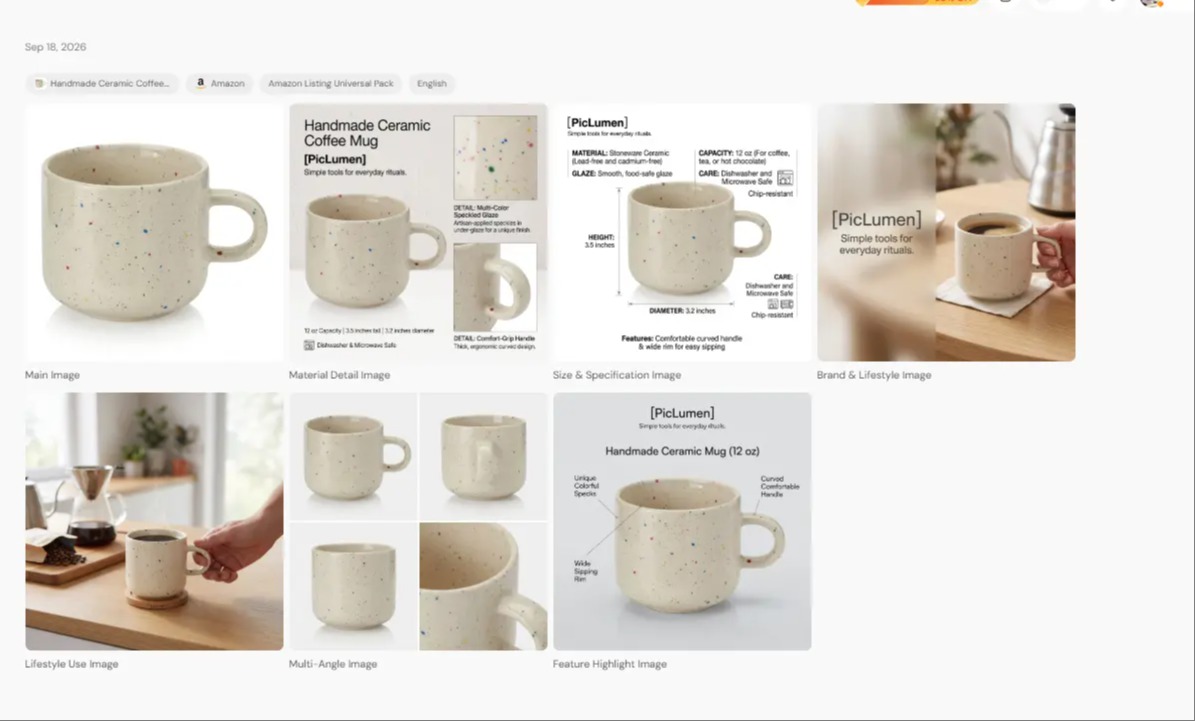
Pay close attention to details such as materials, packaging, logos, and text. These details can affect how accurately the generated images represent the actual product.
You should also check whether each image serves its intended purpose. A detail image should make the relevant product feature easy to see, while an image showing the product in use should present it naturally.
Step 5: Regenerate or Download the Images
If you are not satisfied with a specific image, select it from the generated set. You can then click Regenerate to create a new version of that image.
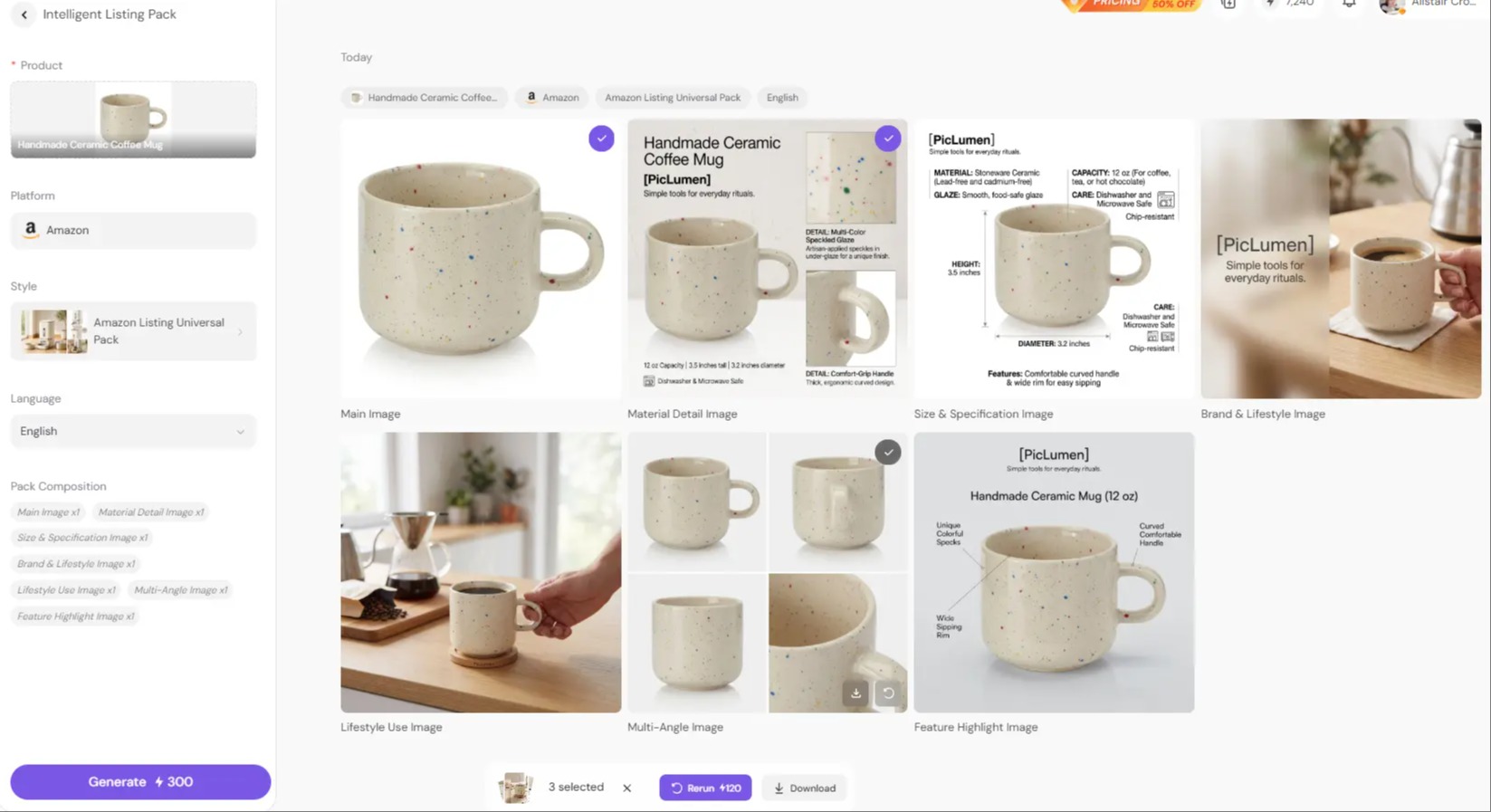
This lets you refine individual images without having to regenerate the entire set. For example, if the main image looks good but one lifestyle image does not show the product as expected, you can regenerate only that image.
When the images are ready, select the ones you want to keep and click Download to save them for your Amazon listing.
👉Want to see your product in a full Amazon listing set before you commit? Start with one reference and preview it in minutes.
Tips for Better Amazon Listing Images
Once your images meet Amazon’s basic requirements, a few simple tips can help you create a clearer and more effective image set.
Check Amazon's Image Requirements Before Publishing
Amazon’s image guidelines state that the main image should show the product on a pure white background, with the product filling at least 85% of the image. It should not contain text, logos, borders, watermarks, or other graphics. For AI-generated images, also check that the product’s shape, color, materials, packaging, and other important details match the actual product.
Design Images Around Buyer Questions
Think about what shoppers want to know before they buy. Use your images to answer questions such as: What am I buying? How big is it? What is it made of? How does it work? Where can I use it?
Use Lifestyle Scenes That Explain the Product
Show the product in a realistic setting. Choose a scene that matches how the product is used. For example, show a kitchen appliance in a kitchen or outdoor equipment in an outdoor setting.
Never Let AI Invent Product Features
Check AI-generated images for invented features, materials, accessories, or functions. If an image shows something the real product does not have, regenerate it before using it in your listing.
Conclusion
Traditional product photography takes more time and preparation. The AI method gives you a simpler way to create different Amazon listing images from one product reference.
If you choose the AI method, PicLumen makes it easy to create a complete set of Amazon listing images from one product reference.
FAQs
How can I create images for my Amazon listing?
You can create Amazon listing images through traditional product photography or AI-generated images. With a product reference, you can create different product visuals without setting up a separate photoshoot for each image.
How to do product photography for Amazon?
To do product photography for Amazon, start with a clear product setup, good lighting, and a suitable background. Take multiple shots from different angles and include detail, scale, lifestyle, or packaging images when they help shoppers understand the product. Make sure the final images meet Amazon’s image requirements.
Can I use AI to create Amazon listing images?
Yes. AI can be used to create product visuals for Amazon listings, including lifestyle scenes, feature images, and other supporting images. However, you should review the generated images to make sure they accurately represent the product and comply with Amazon’s requirements.
What images should I include in an Amazon listing?
An Amazon listing should include a clear main image along with secondary images that show the product from different angles and provide useful information. Depending on the product, you may include detail, scale, lifestyle, packaging, or feature-focused images.
How accurate are AI-generated Amazon listing images?
The accuracy of AI-generated Amazon listing images depends on the product reference and the image generation tool. AI can sometimes change details such as the product's shape, proportions, colors, materials, packaging, logos, or text.
.png)

 (1)_compressed.jpg)