
Start Creating with PicLumen: Beginner's Guide
PicLumen is an all-in-one AI video and image generation platform and community. Use it to create stunning videos and images with ease. Now, let’s take a look at how to use PicLumen.
How to Sign Up/Log In
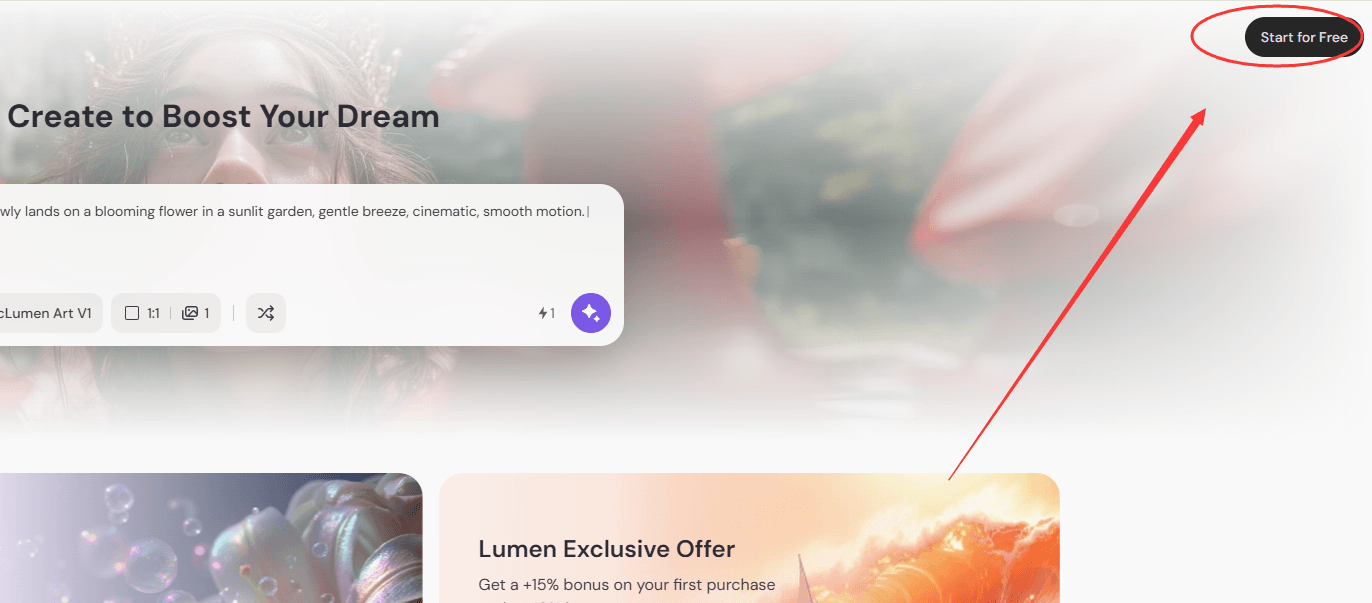
Step 1: Click Start For Free
Click the Start For Free button in the top-right corner of the page. A login pop-up window will appear.
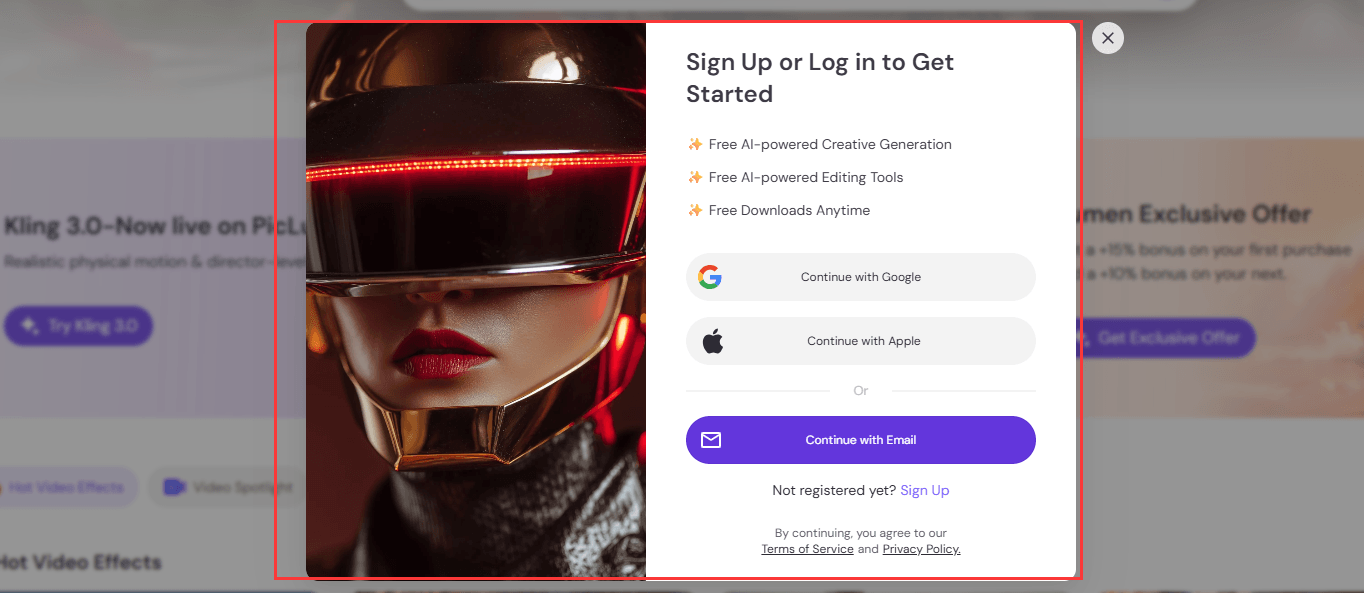
Step 2: Choose Sign Up or Log In
You can sign up or log in using one of the following methods: ● Email & password ● Google account ● Apple account
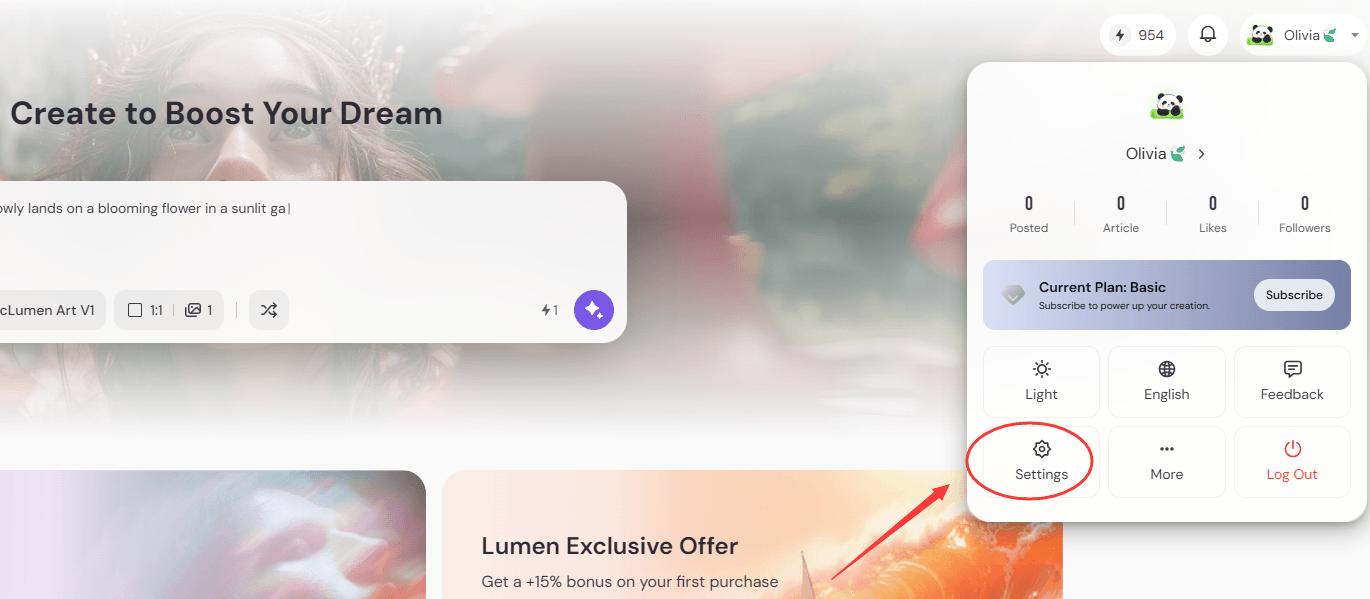
Step 3: Set Up Your Profile
After logging in, click your avatar in the top-right corner and go to Settings. Set your Nickname and Bio to complete your profile.
Welcome to PicLumen Community
Discover, Share, and Get Inspired.
In PicLumen Community, you can showcase your work, explore ideas, and learn from other creators.
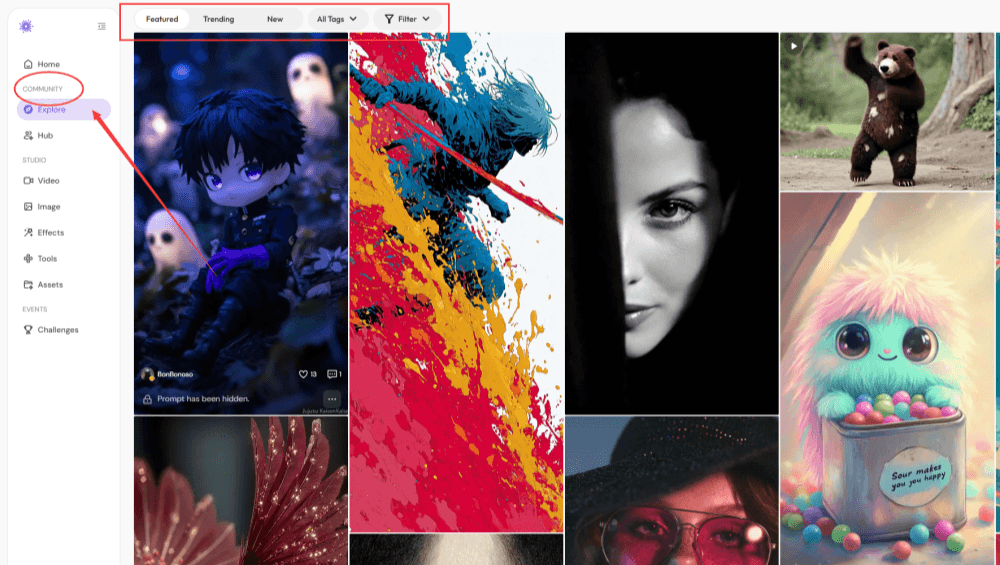
Step 1: Access the Community
You can find the Community section in the left sidebar. It currently includes Explore and Hub, with more features coming soon.
Step 2: Explore - Discover Creations
In Explore, you can browse images and videos shared by other users. View content under Featured, Trending, and New, and filter by tags such as Photography, Anime, and Modern Art.
Step 3: Hub - Learn & Get Inspired
In Hub, you can explore articles, tutorials, and other helpful content shared by the community.
How to Generate AI Videos With PicLumen
Unleash your creativity!
PicLumen makes it easy for you to turn your ideas into videos. Follow these steps and explore what you can create.
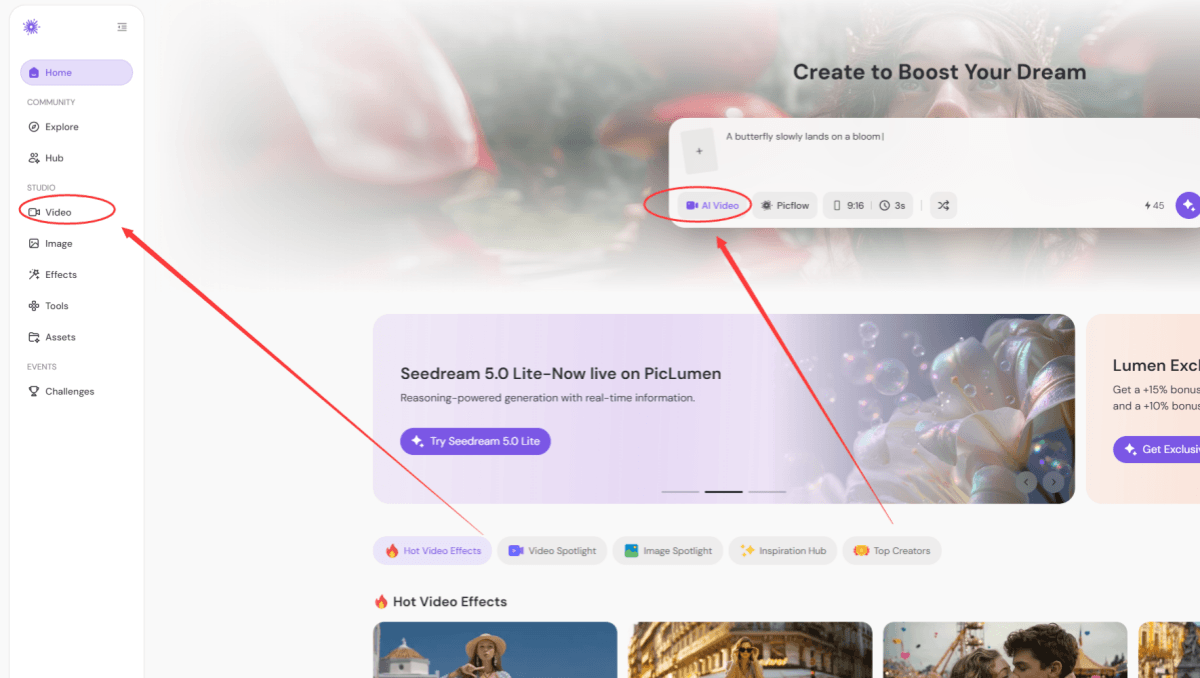
Step 1: Go to the Video Workspace
Click Video under Studio in the left sidebar to enter the video creation page, or use the workspace at the top of the homepage.
Step 2: Choose Your Settings
Select your model, aspect ratio, duration, and other settings based on your needs. PicLumen offers models like Veo 3.1 and Seedance 2.0. Choose the right settings depending on your platform and content goals.
Step 3: Enter Your Prompt
Type your text prompt. You can also optionally add a reference image or video.
Step 4: Generate Your Video
Click Generate to create your video instantly.
How to Generate AI Images in PicLumen
Want to create stunning AI images in just a few clicks?
With PicLumen, you can bring your ideas to life instantly. Follow these simple steps and start generating your own images today.
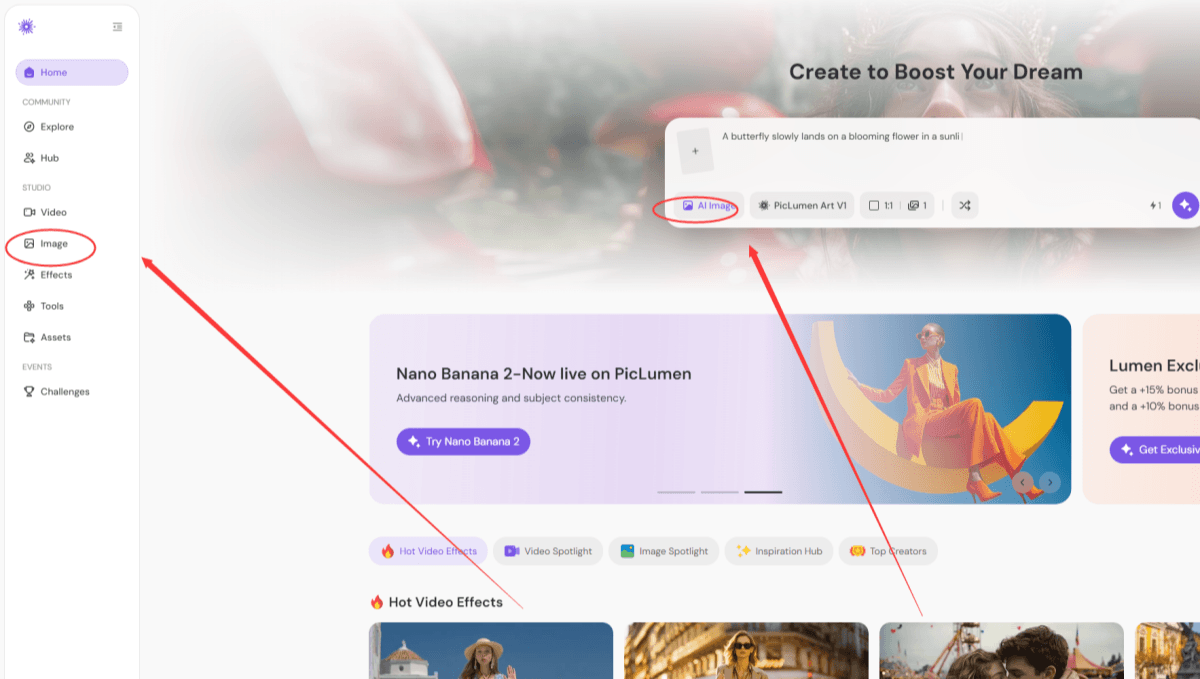
Step 1: Go to the Image Workspace
Click Image under Studio in the left sidebar to enter the image generation page, or use the workspace at the top of the homepage .
Step 2: Choose Your Settings
Select your model, aspect ratio, the number of images and other settings to generate. PicLumen offers models like Nano Banana 2 and Seedream 5.0 Lite. Choose the right settings based on your platform and content goals.
Step 3: Enter Your Prompt
Type your text prompt. You can also optionally add your reference images.
Step 4: Generate Your Images
Click Generate to create images instantly.
Manage Your Account & Track Your Activity
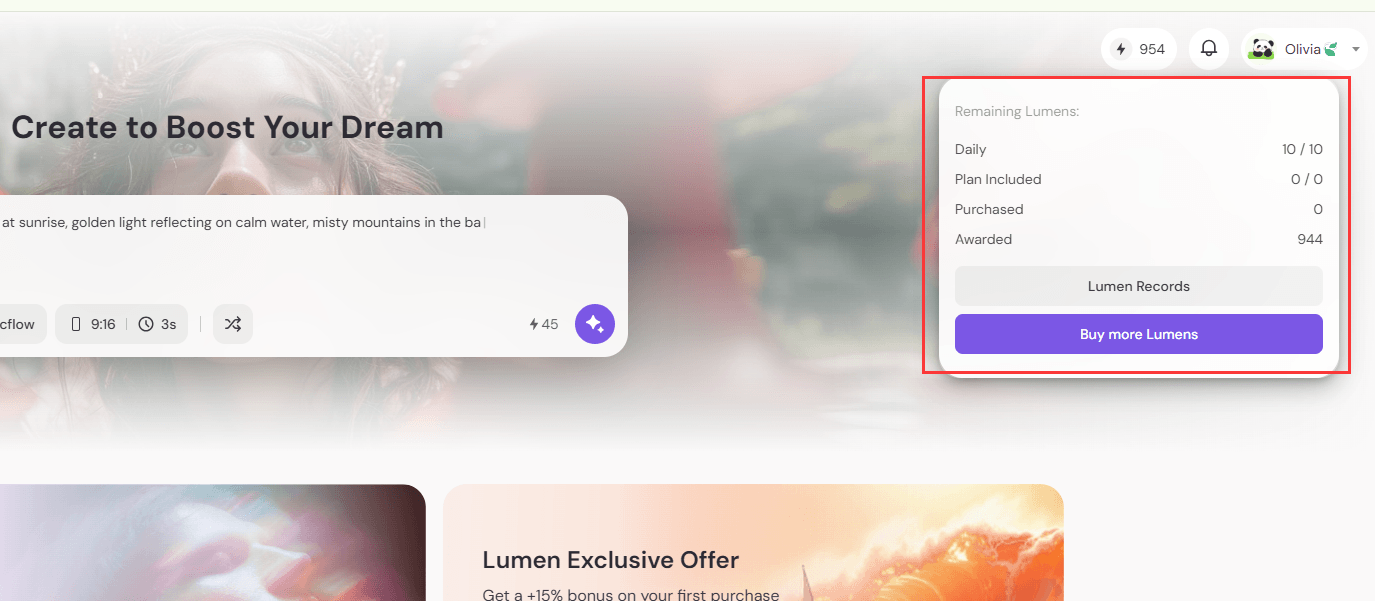
Check Your Lumens Balance
At the top-right corner, you can see your Lumens balance. Hover over the icon to view details, including: ● Daily bonus (10 Lumens) ● Plan Included ● Purchased ● Awarded You can also: Click Lumen Records to view your usage history Click Buy More Lumens if your balance is low
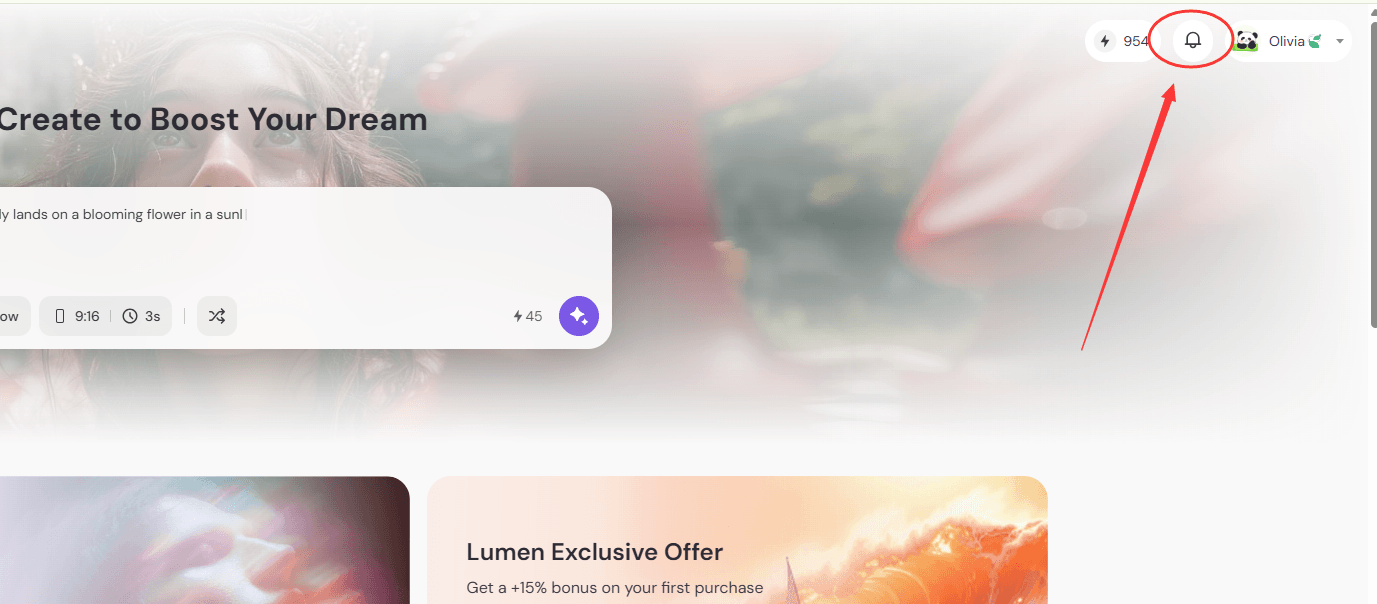
View Notifications
Click the notification icon to check updates, including: ● Likes ● Comments ● System Updates ● Public Notifications ● Personal Notifications
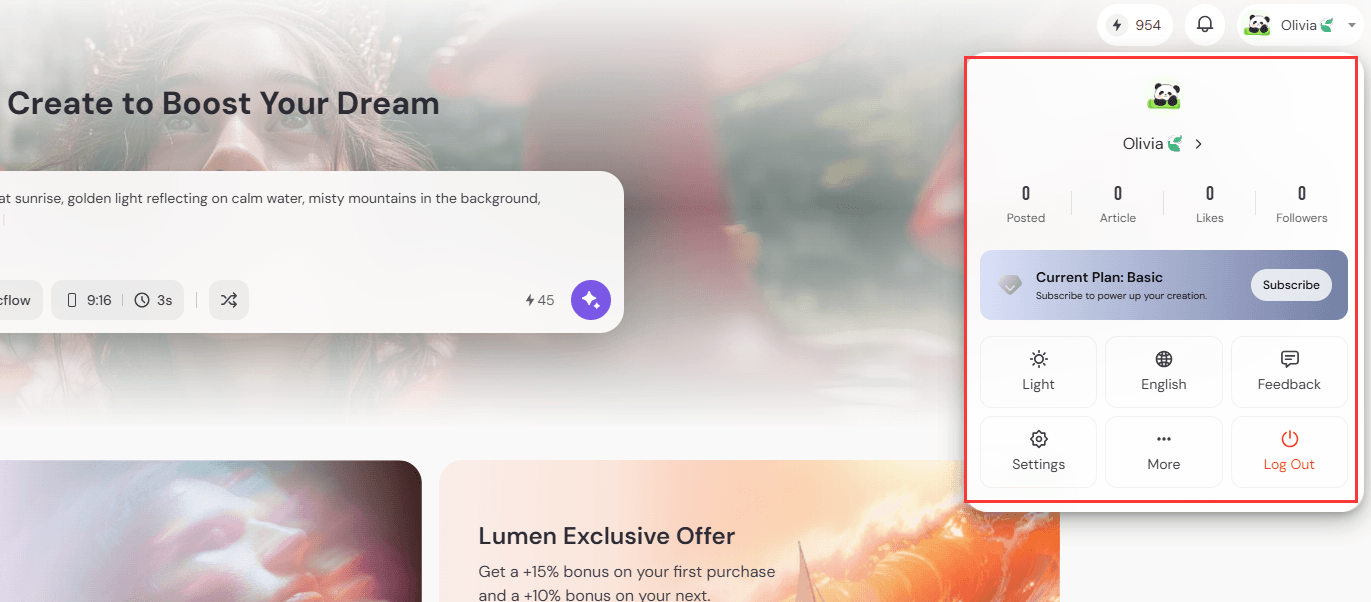
Access Your Profile & Settings
Click your avatar in the top-right corner to open your profile panel. Here you can: ● View your stats: Posted, Articles, Likes, Followers ● Switch between Light and Dark mode ● Submit Feedback ● Go to Settings to update your profile information Under More, you can: ● Change language (English, Japanese, German, Traditional Chinese, Spanish, Portuguese, French, Italian, Korean) ● Import files ● Access Rewards ● View FAQs Click the Log Out to sign out of your account.
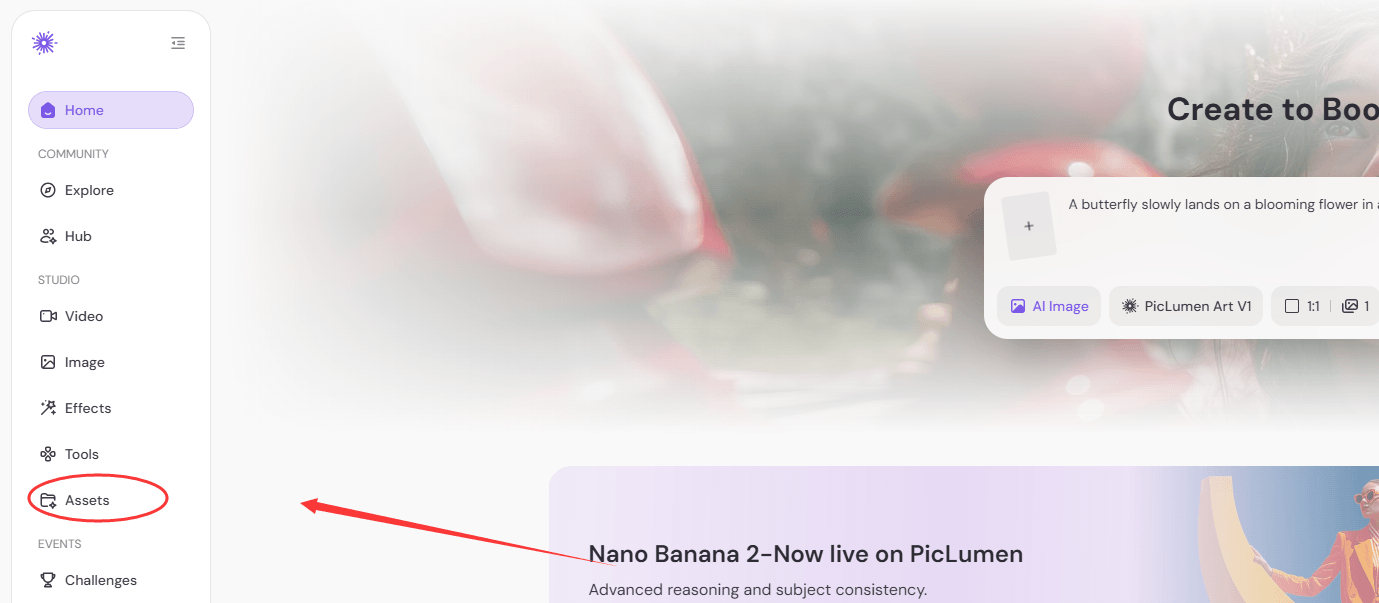
View Generated Content History
In the left sidebar under Studio, click Assets to see your generated video and image history.