Back to school season usually brings a flood of creative tasks. Schools need announcements and posters, teachers prepare classroom decorations. And because of back-to-school sales, brands roll out seasonal marketing campaigns. To do all that work would more often than not take hours of your time.
With an AI image generator, however, you can create back to school images in four simple steps — pick a model, adjust your settings, write an effective prompt, and generate and review your results — no design skills required.
Whether you're after cute cartoon illustrations for a classroom, photorealistic shots for a brand campaign, or clean flat vector designs for social media, AI can produce them all in a matter of minutes.
In this tutorial, we'll walk through how AI streamlines your back to school image design process, and exactly how to create posters, flyers, clip art and social media campaign material, with copy-paste prompts included.
What Is the Best Way to Create Back to School Images?
If you want back‑to‑school images fast, AI is one of the quickest ways to get them. You describe what you want in a text prompt, or upload a reference photo, and get finished posters, clip art, flyers, and classroom decorations in minutes.
There are two approaches, and they work well together:
Text to image — type a description and the AI creates the image from scratch.
Image to image — upload an existing photo or sketch, and the AI transforms it, like turning a product photo into a cartoon promo or a hand-drawn sketch into a finished illustration.
With an AI image generator, the advantages over manual design are clear:
Advantage | What it means for you | Example |
Save time | Skip template hunting, layout editing, and stock image searches | Generate a classroom poster from one prompt in about a minute |
Personalized designs | Tailor every visual to your audience and theme | Match colors and elements to your school's vibe or brand identity |
Endless styles | Turn one idea into many versions | Cartoon, realistic, 3D, minimalist, or modern graphic design |
Easy to iterate | Refine results without starting over | Use Image to Image feature to adjust colors, style, or composition |
Both approaches let you generate multiple versions and switch styles freely, which is exactly what you need when the first day of school is around the corner.
Now that you know why AI is one of the fastest ways to create back to school visuals, let's walk through the exact steps.
How to Create Back to School Designs with AI?
Step 1: Open PicLumen's Image Generation Workspace and Choose a Model
Open PicLumen and head to the image generator, then pick a model. PicLumen offers quite a few good options, including GPT Image 2.0, Seedream 5.0 Pro, Midjourney V8.1, Nano Banana 2, and Qwen Image.
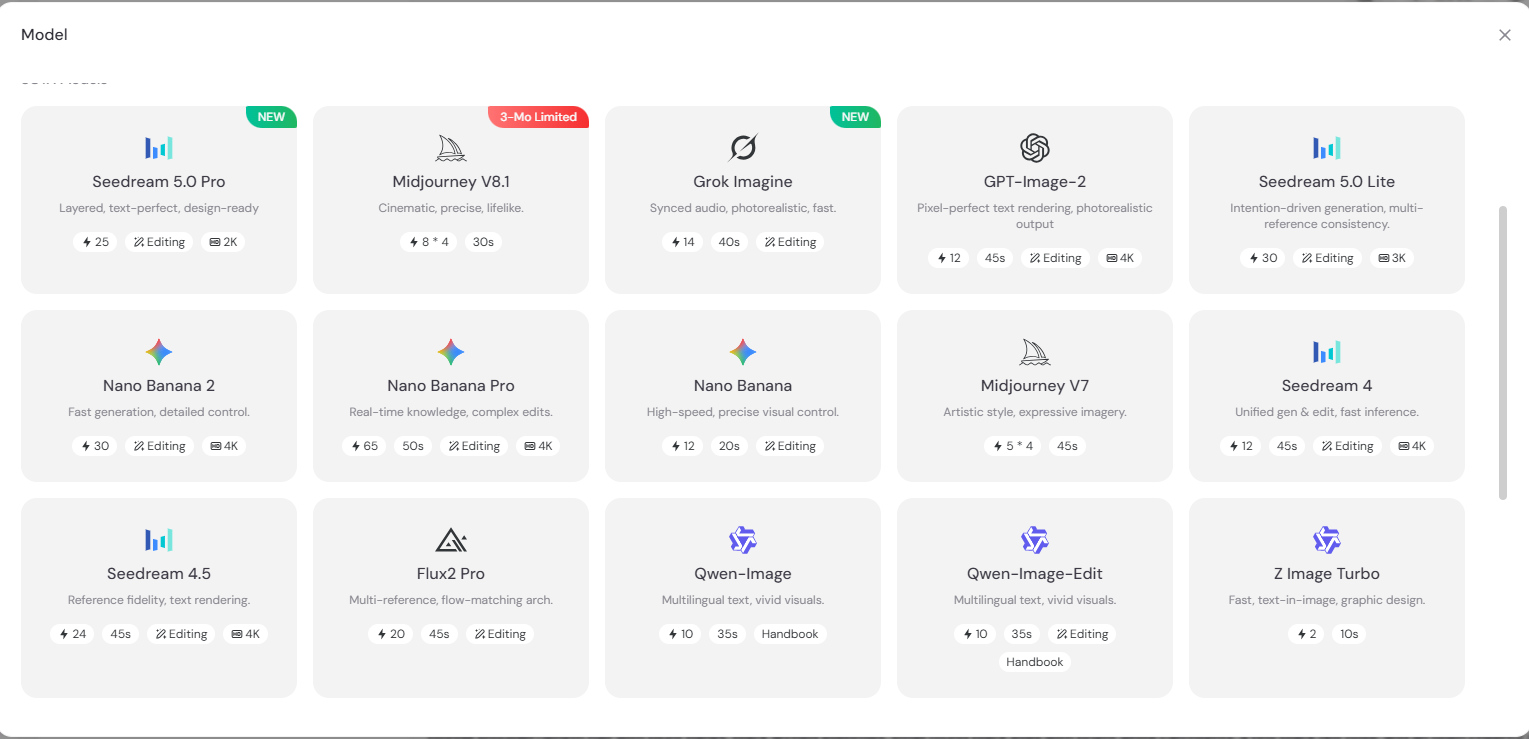
Each model has its own strength. Pick the model that sounds closest to the look you want. And if the result feels off, just switch models and try again. It only takes a minute, and there's no penalty for experimenting.
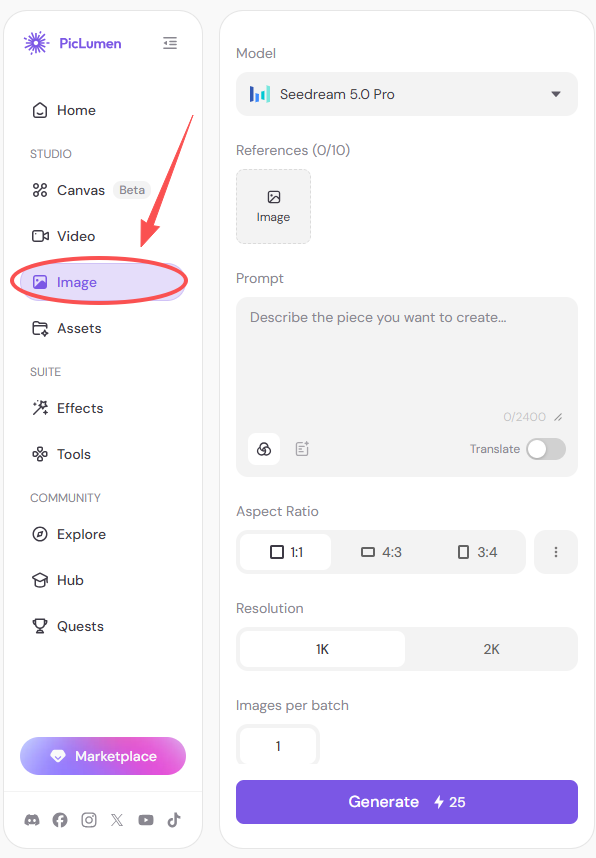
Step 2: Adjust Your Settings
Before you hit generate, take a few seconds to set things up. It makes a real difference:
Resolution – crank it up if you want cleaner details and richer output.
Aspect Ratio – wide ratios like 16:9 suit posters and banners; 4:5 for flyers; 9:16 works better for Instagram or TikTok posts.
Number of Images – generate a few at once so you can compare different takes side by side.
Reference Image (Optional) – upload a photo or sketch if you want to steer the overall vibe.
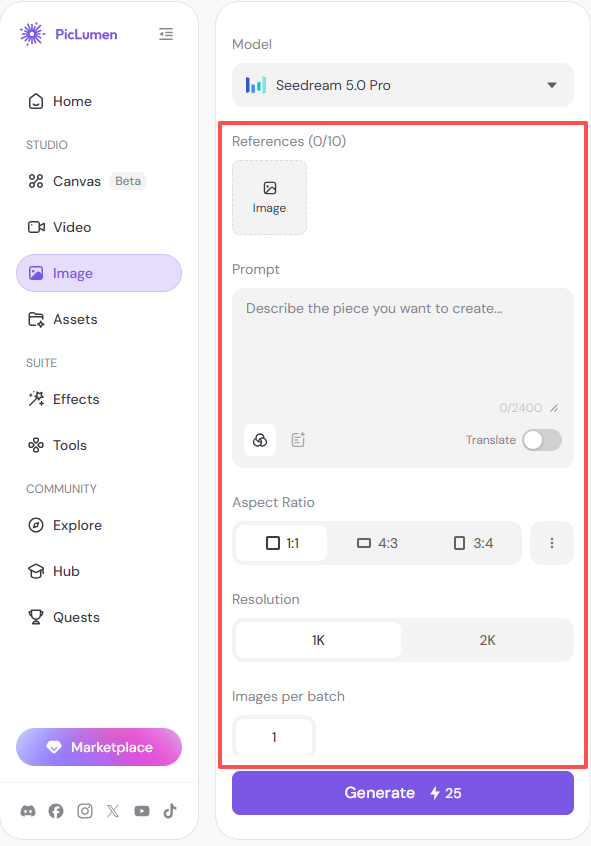
Step 3: Write a Solid Prompt
The prompt is where your idea becomes words. The more specific you are, the closer the result matches what you pictured. A solid prompt covers four things:
Subject – what the image is about
Visual elements – what's in it: books, pencils, students, a school bus
Style – cartoon, realistic, 3D, watercolor...
Mood & color – cheerful, bright, warm...
A simple example:
A cheerful back-to-school classroom poster featuring students, books, pencils, and a backpack, flat cartoon illustration style, bright warm colors
That's really all there is to it. You just need to describe what you want clearly, and the AI handles the rest.
If you're using Image to Image feature, your prompt describes what to change instead ("turn this photo into a cartoon, keep the composition").
Step 4: Generate and Review Your Images
Once your prompt is ready, hit generate and wait a few seconds and that's it. You'll get one or more images, depending on the number you set in Step 2.
Now take a look at what came back. Three things worth checking:
Composition – are the elements arranged the way you wanted?
Style – does it match the look you had in mind?
Details – are the key pieces actually there (books, students, backpack)?
But don't expect the first round to be perfect. It usually isn't, and that's normal. If it's close but something feels off, you don't need to start over. Just tweak the prompt a little (add a detail, swap a style word) and generate again. If it's way off, try a different model or go back to Step 2 and adjust the settings.
Regenerating is fast and costs little, so you could always retry if the result is something you're not happy with.
Create Back to School Images on PicLumen
Back to School Prompt Library
Here are multiple ready-to-use prompts that perhaps could give you some inspiration. Copy, paste, and tweak the details to fit your brand.
For Marketers: Promo Photos
1. Back to School Sale Banner (for store campaigns or web banners)
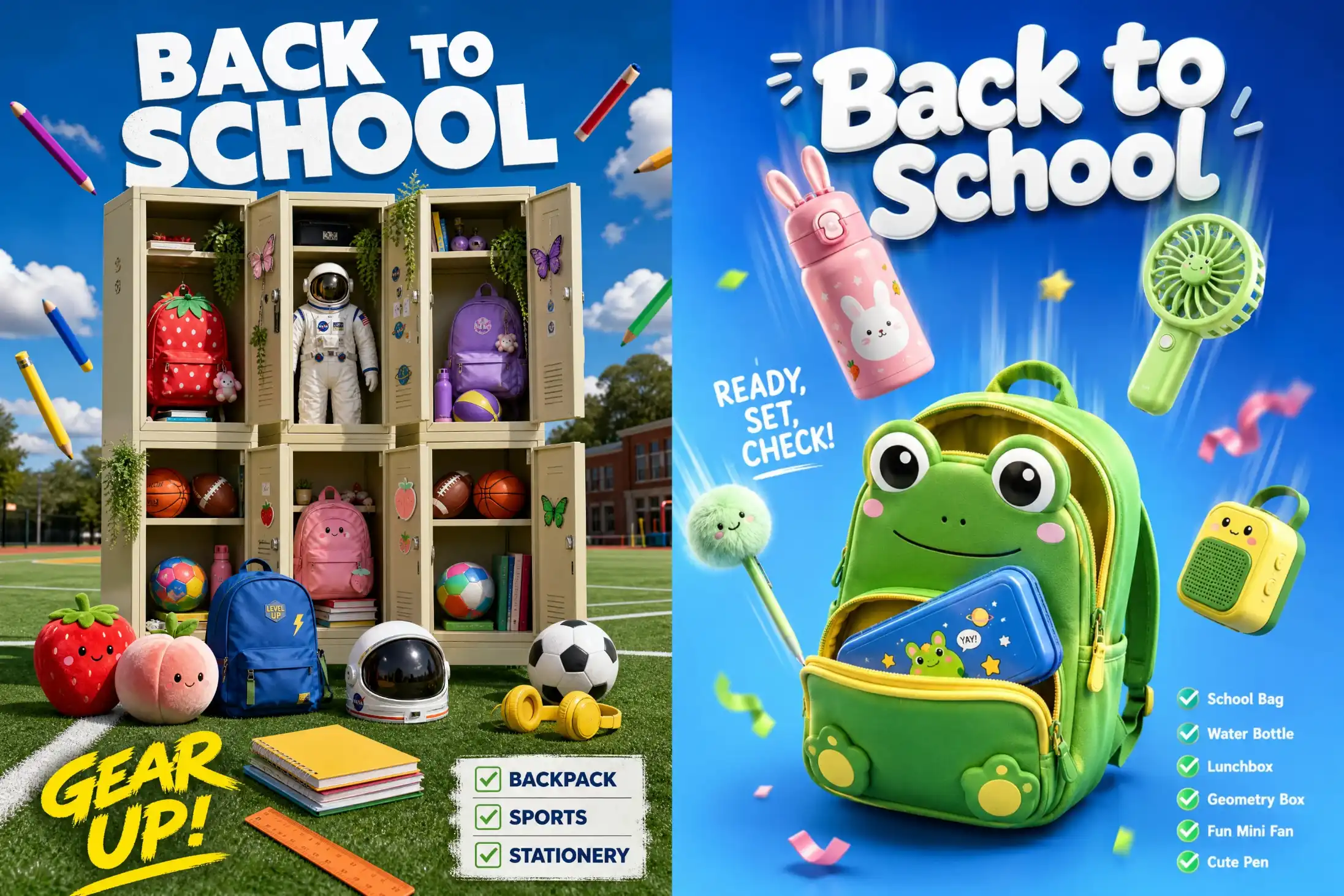
3D commercial product photo, 2x3 grid of open beige metal lockers on a green sports field, filled with colorful backpacks (strawberry, astronaut, purple and pink), sports balls, hanging plants and butterflies, extra floating pencils, ruler and notebooks on the grass, bright sunny daylight with clear blue sky, vivid glossy textures, "BACK TO SCHOOL" bold white text top center, "GEAR UP!" yellow text bottom left, promotional checklist overlay bottom right with "BACKPACK / SPORTS / STATIONERY".
3D product photo, cute green frog-shaped school backpack with yellow interior and big cartoon eyes in the center, floating around it with motion blur — pink bunny-eared water bottle, green mini fan, fluffy pen, yellow-green toy speaker — clean gradient blue background, bright studio lighting, glossy plastic textures, white "Back to School" title top center, "READY, SET, CHECK!" text middle left, checklist bottom right with "School Bag / Water Bottle / Lunchbox / Geometry Box / Fun Mini Fan / Cute Pen".
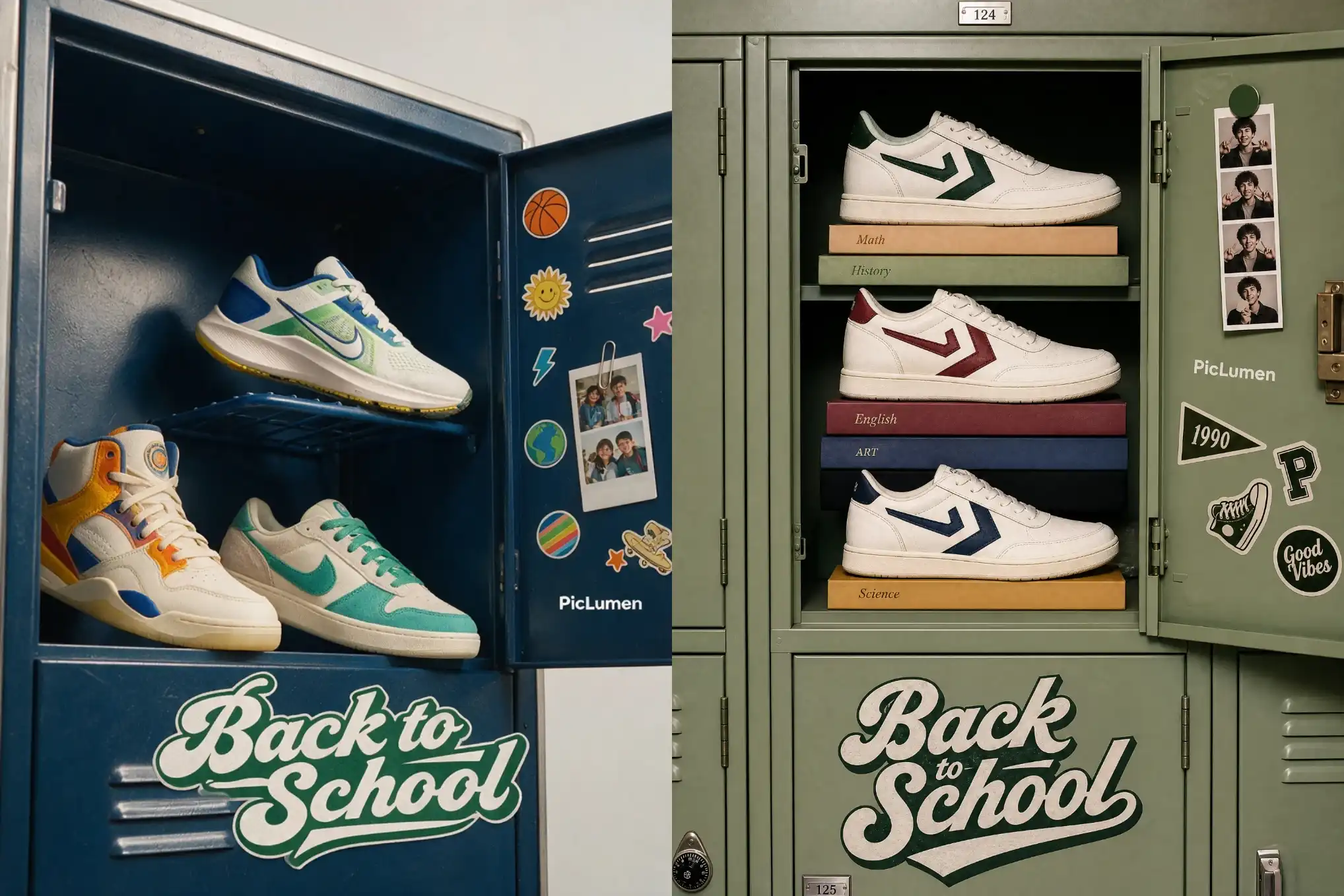
Editorial shoe campaign photo, front-facing shot of an open sage-green locker with stacked color-blocked hardcover books displaying three vintage white retro sneakers with chevron logos, open door decorated with stickers and a hanging photo booth strip, "PicLumen" logo on the door, large bold retro athletic "Back to School" typography on the locker panel, soft natural studio light, muted pastel palette, high-end ad layout. --ar 3:4 --v 6.0 --style raw
2. Lifestyle Promo Photo (for ads or social media)
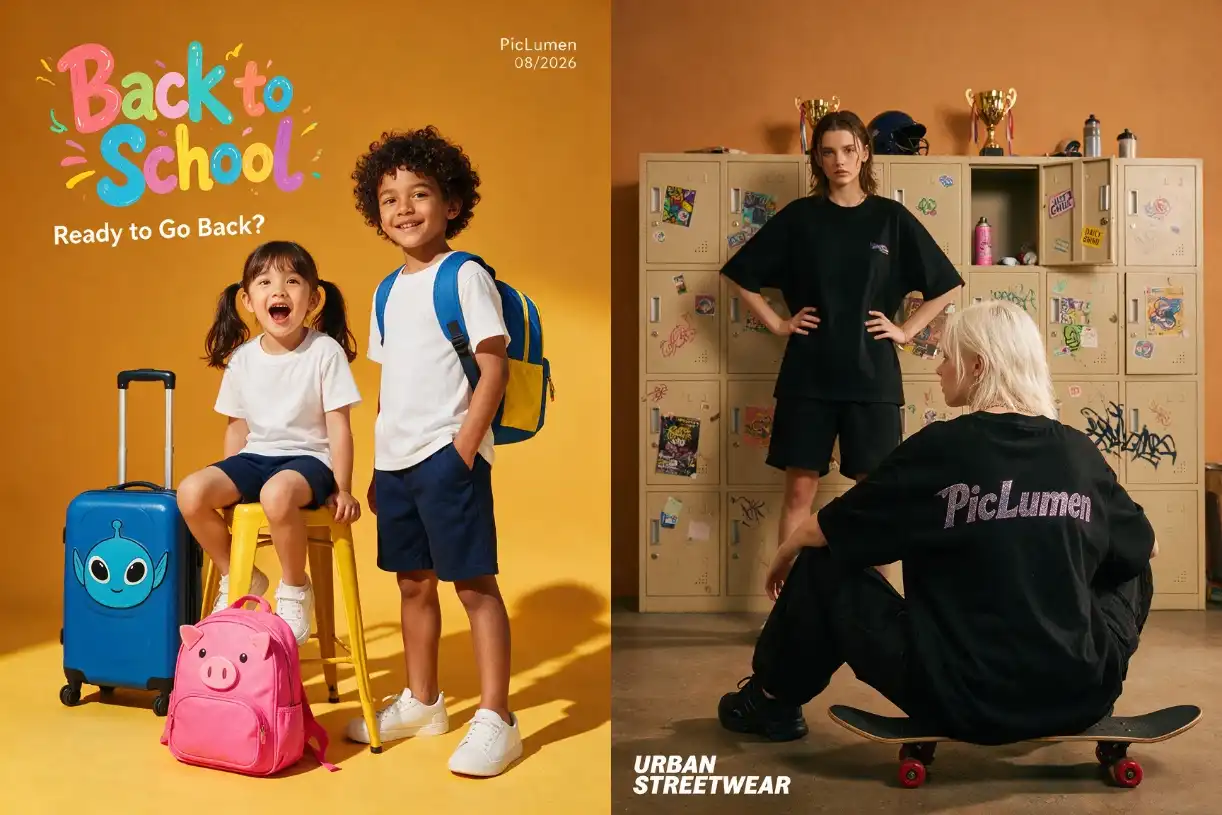
High-end commercial fashion photography, two diverse kids in white tees, navy shorts and white sneakers against a warm orange-yellow studio backdrop, hard dramatic shadows, girl sitting on a yellow metal stool, boy standing with a blue-and-yellow backpack, playful editorial styling, colorful doodle typography "Back to School" and white text "Ready to Go Back?"
Photorealistic streetwear promo, two gen z models in oversized black outfits in front of a wide grid of beige lockers covered in pop-art stickers and graffiti, one sitting backwards on a black skateboard with red wheels, one standing with hands on hips, trophies and water bottles on top of the lockers, warm studio lighting with deep earthy tones and cinematic shadows, "PicLumen" glittery silver-purple text on the shirt, sticker "JUST CHILL" on the open locker door, slogan "URBAN STREETWEAR" bottom left.
3. Social Media Promo Post (for Instagram or Facebook campaigns)
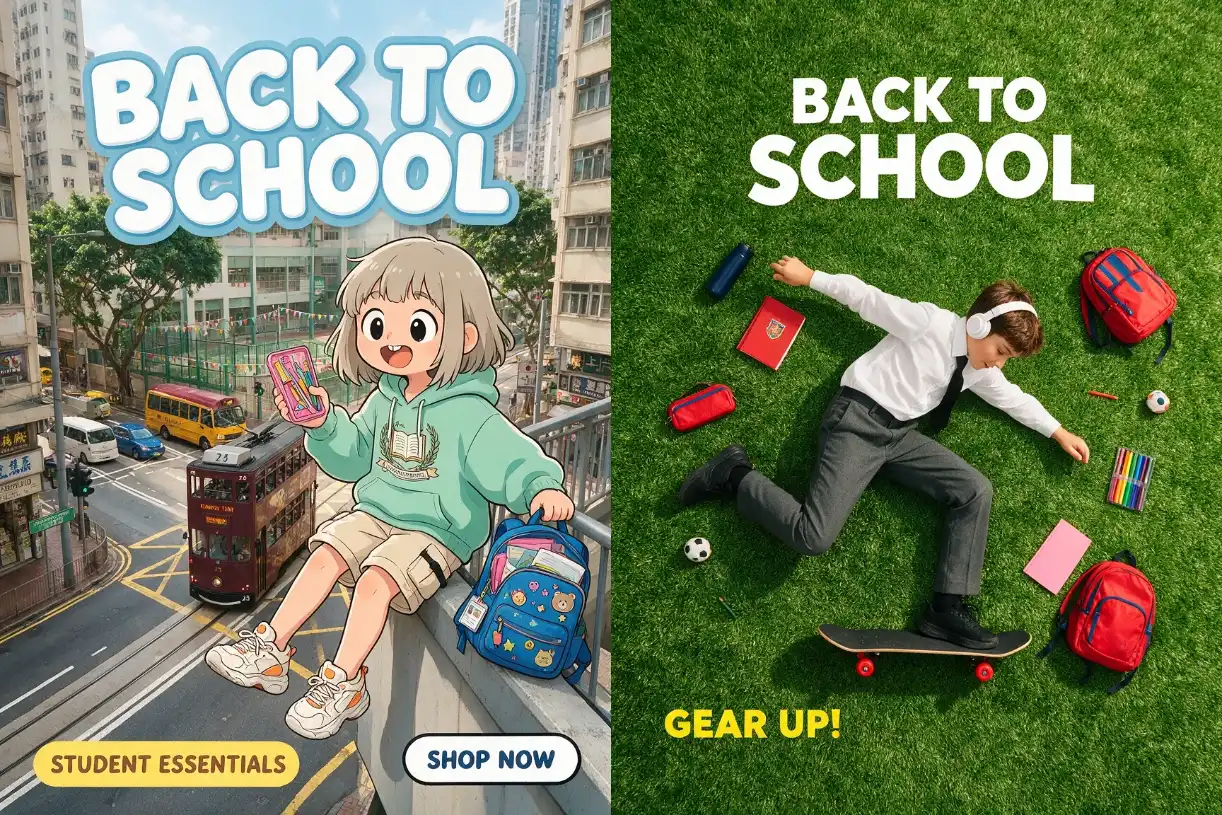
Commercial poster, realistic Hong Kong urban street with an anime-style girl in an oversized mint-green hoodie and beige cargo shorts sitting on a footbridge railing, holding a pink geometry box, blue backpack with pins beside her, vintage red double-decker tram passing below, yellow school bus and school building in the background, flat cel-shaded cartoon over a sharp photographic scene, bold white "BACK TO SCHOOL" top center, yellow "STUDENT ESSENTIALS" pill badge and white "SHOP NOW" button.
Top-down scrapbook flat lay, bullet-journal aesthetic on white lined notebook paper, Polaroid photo of three girls on a striped picnic blanket clipped on with a silver paperclip, pink and green post-it notes, yellow masking tape, watercolor splatters in pastel tones, handwritten faded formulas top left, bold black calligraphy "Back to School" and a serif quote at the bottom, red ribbon bow with "
For schools:
4. Welcome Back Poster (for school events and posters)
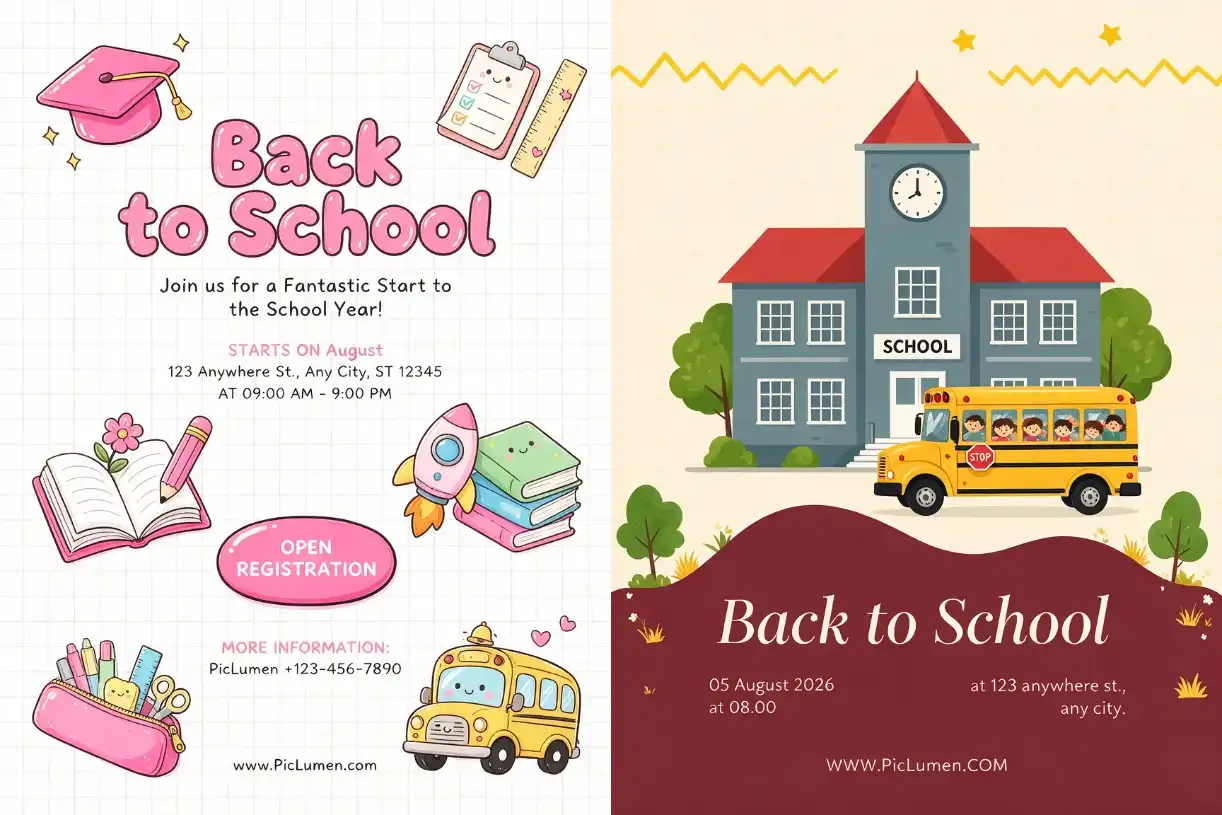
2D kawaii doodle illustration, hand-drawn line art with thick black outlines and pastel pink flat fills on white grid paper, symmetrical layout — graduation cap and stars top left, checklist and ruler top right, open book and pencil mid left, rocket and stacked books mid right, pencil case and school bus at the bottom — large pink bubbly "Back to School" title.
Flat vector poster, cream background with a yellow zigzag line and stars at the top, grey-blue school building with clock tower and "SCHOOL" sign, yellow school bus with smiling kids in front, deep maroon wavy bottom band with large white serif "Back to School", event date and address text.
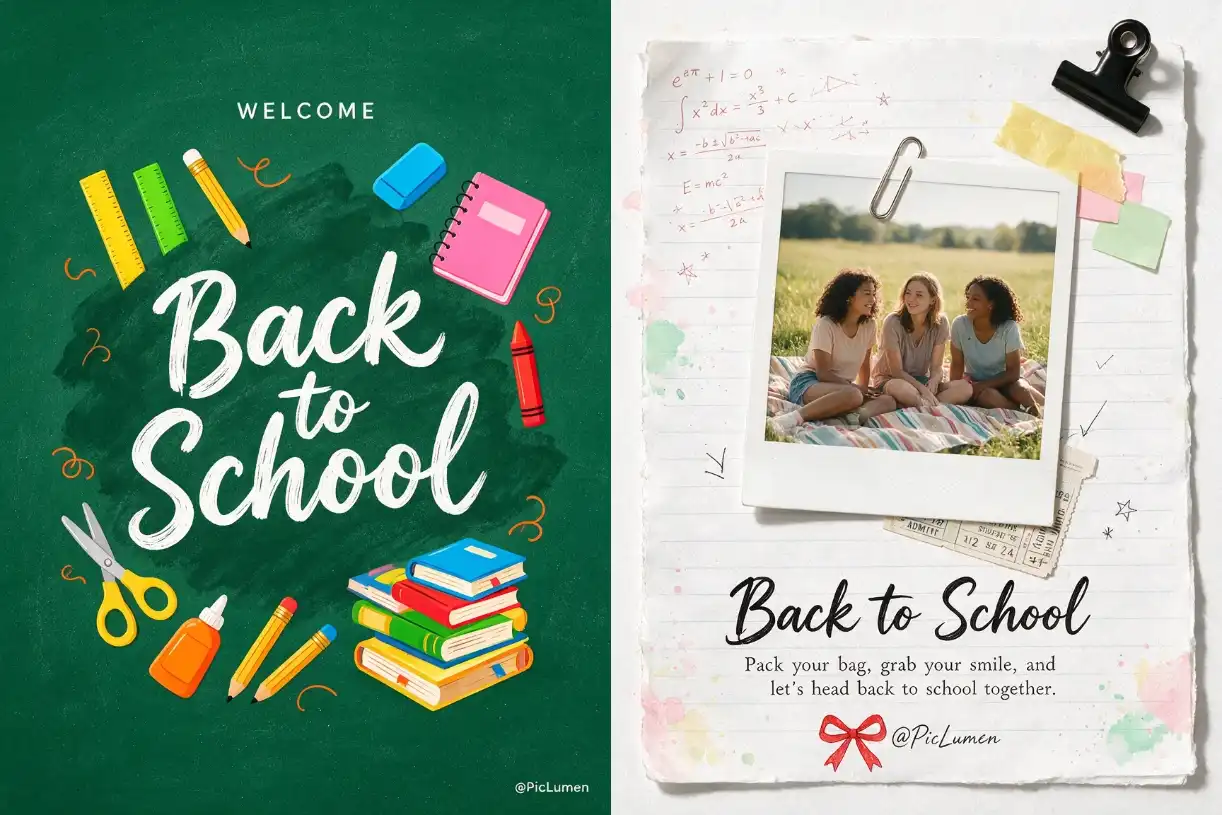
Back to school poster, dark green chalkboard texture background, "WELCOME" in small white sans-serif top center, large white hand-drawn brush-script "Back to School" center, "@PicLumen" bottom right, surrounded by colorful flat vector school supplies — rulers, eraser, pink notebook, pencils, scissors, glue bottle, crayons, stacked books — bold outlines, vibrant, playful commercial 2D vector style.
Flat vector poster, cream background with a yellow zigzag line and stars at the top, grey-blue school building with clock tower and "SCHOOL" sign, yellow school bus with smiling kids in front, deep maroon wavy bottom band with large white serif "Back to School".
Who Needs Visual Content During Back to School Season-and Why It Matters?
"Back to school" marks the start of the academic year. It is typically around August to September in most countries. And it is a time when students, teachers, and families shift back into school mode. It's also one of the busiest visual content periods of the year:
Schools need welcome banners, event announcements, and hallway posters.
Teachers prepare bulletin boards, worksheets, and classroom decorations.
Brands and stores run enrollment campaigns, seasonal sales, and social media pushes.
Because everyone communicates visually during this window, demand for posters and flyers spikes dramatically. And that demand needs fast, customized solutions.
Common Mistakes & How to Fix Them
Even with a good prompt, things don't always come out right the first time. Here are the most common problems people run into, and how to fix them fast.
Problem | Why it happens | What to do |
Text in the image comes out garbled or misspelled | AI models aren't super great at rendering words | Don't fight it — generate the visual first, then add your text in an editor |
Result looks cluttered and messy | The prompt tries to cram in too many elements | Cut it down to 3–4 core elements and regenerate |
Style is completely different from what you wanted | No style word was included in the prompt | Always specify one: cartoon, watercolor, 3D, realistic... |
Everything looks too realistic or too stylized | Wrong model for the job | Go back to Step 1 and switch models — it only takes a minute |
Image to Image result doesn't look like your reference | The transformation instruction was too vague | Say exactly what to keep and what to change, e.g. "keep the composition, change the background to a classroom" |
Output is blurry or lacks detail | Resolution is set too low | Bump up the resolution in Step 2 before regenerating |
A quick rule of thumb: change one thing at a time. If you tweak the prompt, the settings, and the model all at once, you'll never know which one fixed it. Adjust a single factor, regenerate, and see what changes.
FAQ
1. How do I create a back to school poster with AI?
Open PicLumen image generator, write a prompt with the subject, elements, style, and colors, then generate. Use Image to Image feature afterward to fine-tune the result. You can finish a usable poster in about 10 minutes.
2. Can I use AI to make back to school flyers and marketing materials?
Absolutely. AI works well for event flyers, sale banners, clip art and social media posts. Generate the visual first, then add your event details and text in an editor.
3. Can AI add text to my images?
Yes. Advanced models such as GPT Image 2 and Seedream 5.0 Pro handle text rendering well, especially for short titles and slogans. If the first result is not quite right, refine the prompt or generate another version to improve the spelling and layout.
4. Can I upload my own image to improve a design?
Yes, that's exactly what Image to Image feature is for. Upload a photo or sketch, describe what to change, and the AI reworks it while keeping the parts you want.
5. Can I use the images I generate for a school website or newsletter?
Yes. Generated images can be used for school websites, newsletters, and social channels. Just double-check the commercial-use terms if the school site runs ads.
.png)
 (1)_compressed.jpg)