
AI Video Background Changer for Any Scene
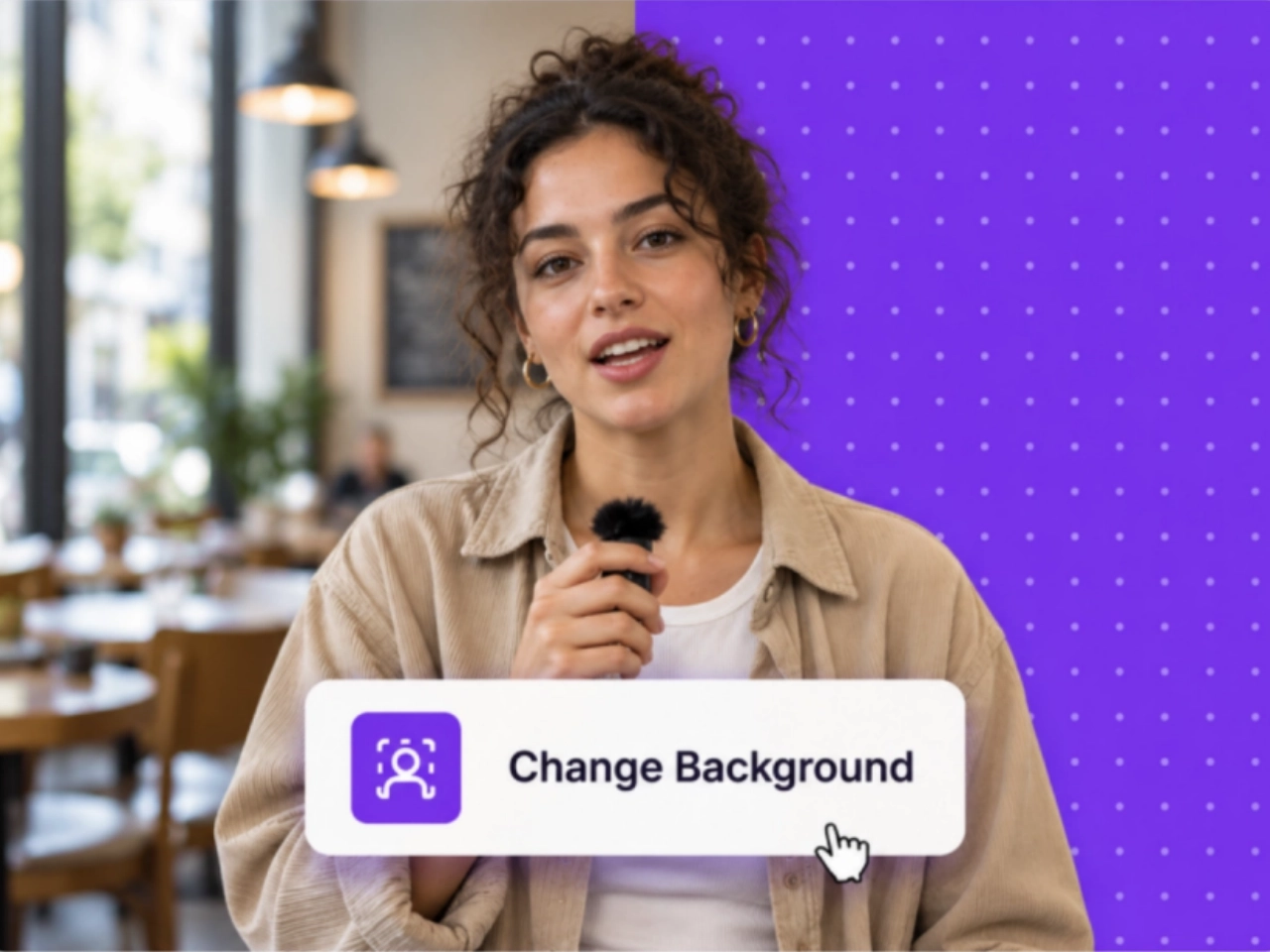
The shot works. The background doesn't. Replace a cluttered room with a clean studio, or give a product demo a setting that fits what you're selling. PicLumen's AI video background changer works from your existing clip. Describe the new scene or upload a reference image to guide the look.
Change Video Backgrounds with a Text Prompt
Describe the scene you want, from a quiet room with soft window light to a rooftop overlooking the city. PicLumen's video background changer uses your instructions to generate a new setting around the footage. Include the location, materials, colors, and atmosphere that matter to your shot. For a close-up, focus on the area behind the subject. For a wider view, describe the floor and surrounding space as well. You can also request a background with fewer details or room beside the speaker for text added later. These choices help the scene serve the video rather than compete with it.
Use a Reference Image to Guide the New Background
Have a location or visual style in mind? Use the AI video background changer with a reference image to show the room layout, architecture, scenery, or color palette you want. Add a short prompt explaining which elements to follow and what to change. Choose a reference whose viewpoint suits the source clip, and describe lighting that complements the subject. An eye-level scene is a more suitable starting point for an eye-level recording than an overhead view. If you need a custom reference, develop one with PicLumen's AI picture generator before using it to guide your video background replacement.

Build a New Setting Around Your Subject
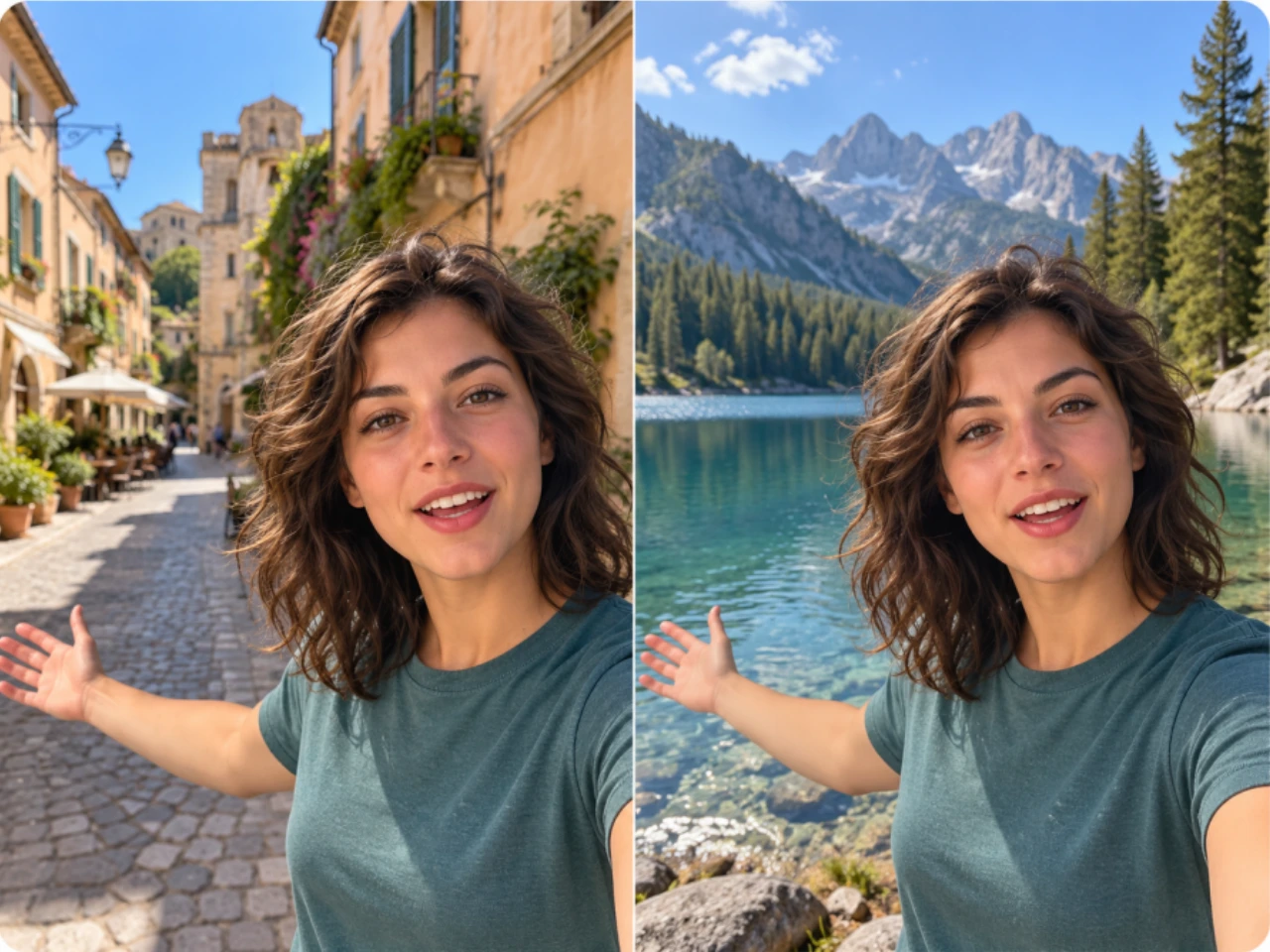
Use a recorded explanation, demonstration, or performance as the starting point for a different scene. With PicLumen's video background changer, you can ask for a new environment while identifying the person, product, and actions you want to retain. For a presenter holding a bottle, specify both the presenter and the bottle as foreground elements. For a tabletop demonstration, include the hands and the item being used. Describe how the new setting should relate to the original framing and camera movement. Review the generated clip through turns and gestures to check faces, product details, and moving edges.
Create Background Variations from One Video
Explore several visual directions without organizing a separate shoot for each backdrop. Use the same original clip in the video background changer to compare an uncluttered setting with a more detailed environment, or test different locations for a campaign. Change one element at a time, such as the palette, scenery, or amount of decoration. Keep your instructions about the subject consistent so the results are easier to compare. This approach helps you assess what the background contributes: clearer product context, a different mood, or more space around the speaker. Review each version before selecting one for your final edit.
A Video Background Changer for Creators and Marketing Teams
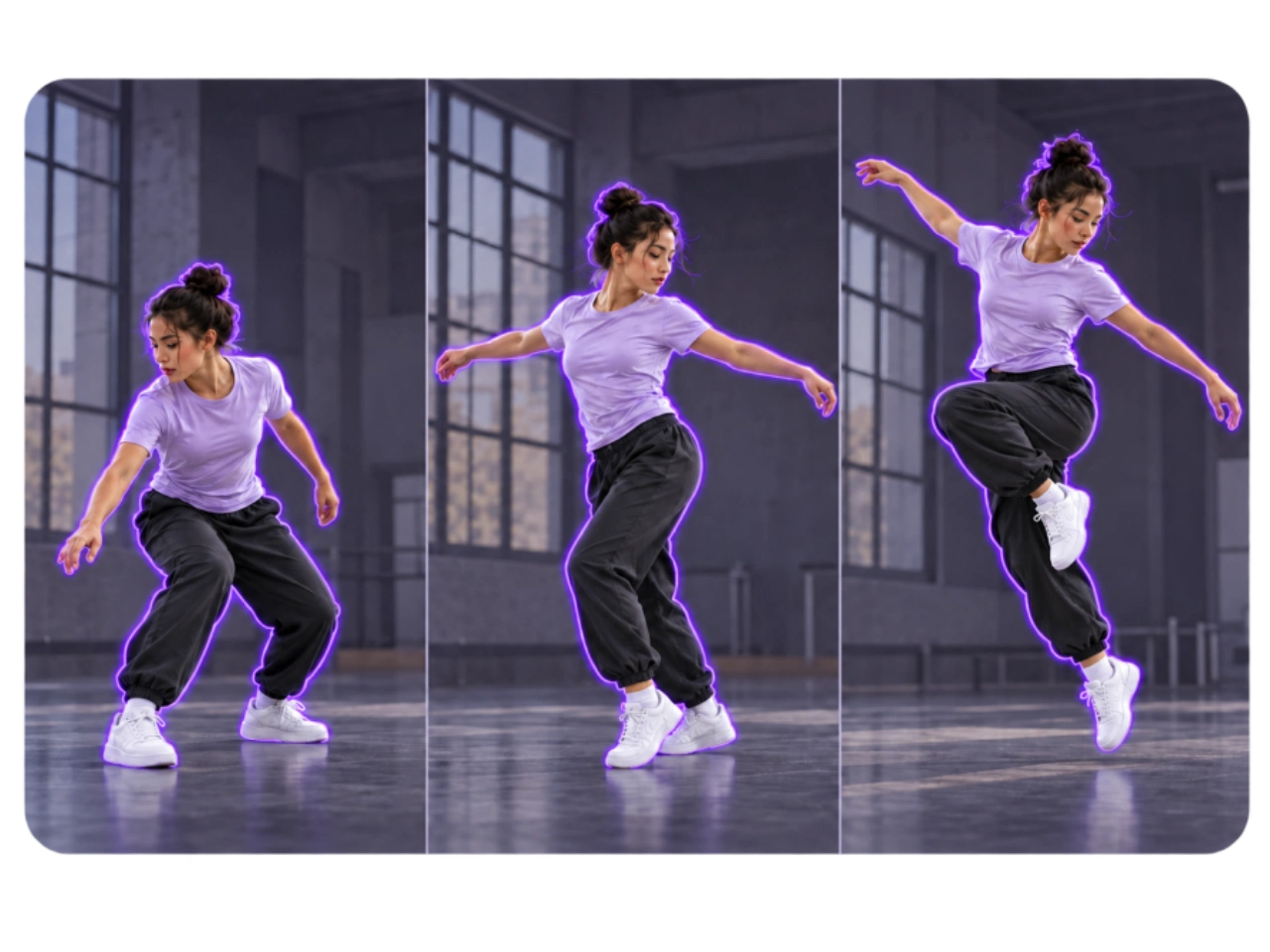
The right surroundings can help a viewer understand the product, follow the speaker, or recognize a campaign's visual style. Use existing footage to complete the task at hand.
Social Media Videos
Use a video background changer for talking-head clips, commentary, and creator updates. Replace distracting shelves, laundry, or unrelated activity behind the speaker with a backdrop that fits the topic and keeps attention on the message.
UGC Ads and Product Demos
Change a product video's background to show where the item belongs: cookware in a kitchen, skincare near a bathroom vanity, or camping equipment outdoors. Give the demonstration context while checking that the product and its use remain accurate.
Courses and Business Presentations
Bring lessons and company updates filmed in different rooms toward a shared visual style. Use a reference to guide the surroundings, keeping the area around the presenter simple enough for gestures and supporting text to remain clear.
Seasonal Campaigns
Adapt existing footage to a holiday promotion or a new collection. Update the décor or scenery, then add the current offer in your final edit. Check that packaging, clothing, and other foreground details still fit the campaign.
How to Use PicLumen's Video Background Changer
Upload Your Video
1Add your source clip and start with well-lit footage where the person or product is clearly visible. A single continuous shot is a useful starting point for evaluating the edit.
Describe the New Scene
2Write a prompt with the location, lighting, and style you want. To change a video background using an image, add it as a reference and explain which details to follow. Specify the foreground elements you want to keep.
Generate, Review, and Download
3Watch the generated video from beginning to end. Check the background during movement, along with faces, hands, and product details. Refine the prompt if needed, then download the version you want to use.
Prompts to Try with the AI Video Background Changer
Three Background Edits to Try
Each example describes a replacement scene and identifies what to keep from the source clip. Adjust the lighting and perspective instructions to suit your own footage.
From Home Office to Simple Studio
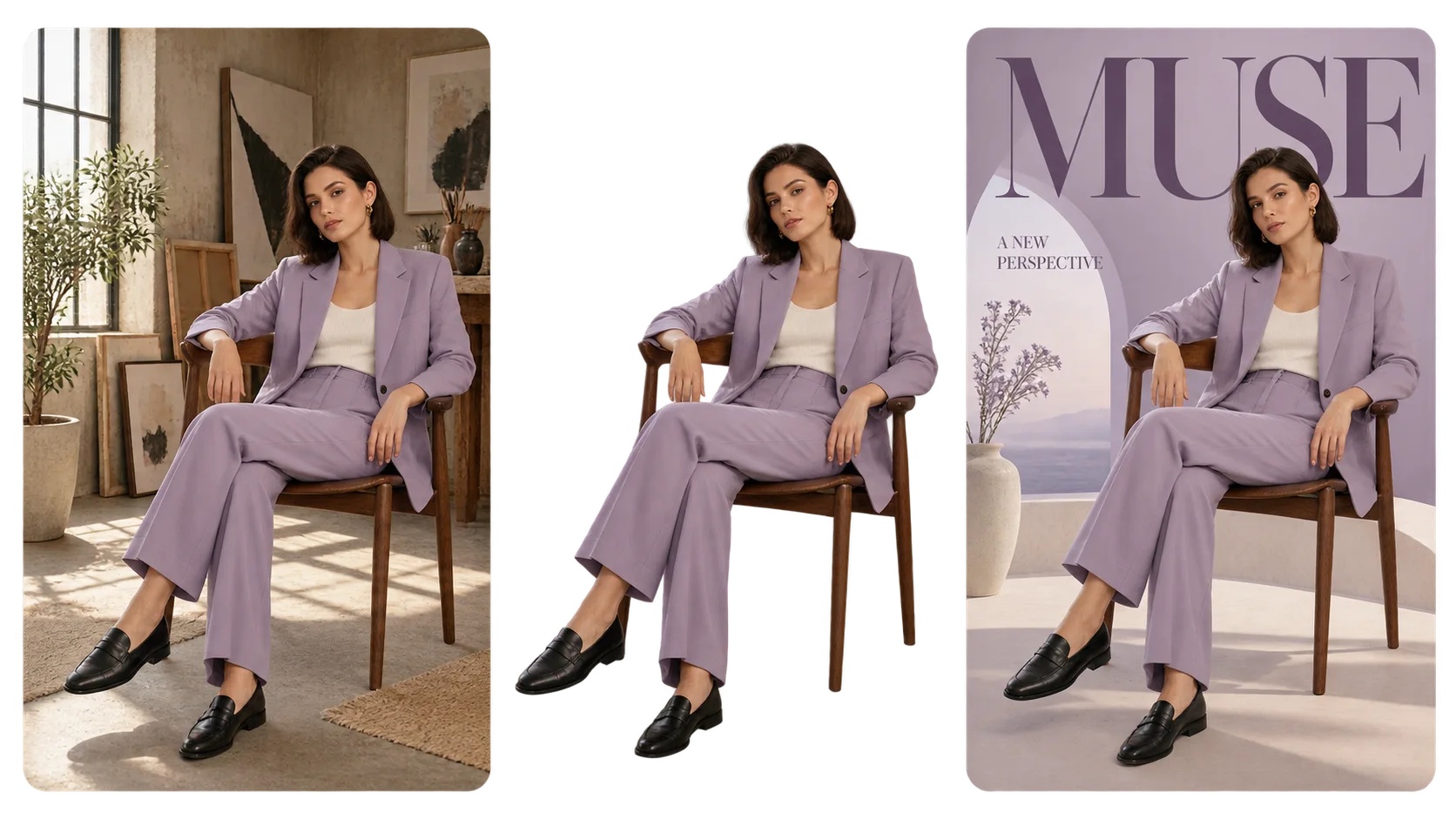
“Replace the home office background with a warm gray studio wall. Use soft daylight from the left and keep the space uncluttered. Keep the presenter, hairstyle, outfit, speaking gestures, and original camera framing.”
From Plain Room to Product Setting
“Change the background to a bright bathroom with pale stone tiles and a softly blurred mirror. Keep the person and the skincare bottle they're holding in the foreground. Preserve the original hand movements and camera angle.”
From Everyday Backdrop to Holiday Scene
“Use the reference image to guide a warm holiday interior with subtle decorations in the background. Match the room's perspective to the source video. Keep the presenter, outfit, and gestures, with no decorations overlapping the subject.”


Loved by Creators Worldwide
Real feedback from designers, marketers, and hobbyists sharing their PicLumen experience on Trustpilot.
jordi AlcarazI have really enjoyed using this site…
I've had a really positive experience with Piclumen. The platform offers excellent features for creating AI images and videos, with impressive quality and a wide range of creative possibilities. It's very easy to use, even when experimenting with more complex ideas, and the whole process is both intuitive and enjoyable. excellent customer service. The team replies very quickly, is always friendly, and genuinely tries to solve any issues you may encounter they care about their users. Overall, Piclumen is an innovative, user-friendly, and exciting AI platform. I highly recommend it to anyone interested in AI image and video creation.
Awesome program easy to use a little…
Awesome program easy to use a little disappointment in the fact you can’t buy lumies
 Brijesh Chikhaliya
very good
very good , Excellent Experience
 Alexsander Luís
cool it's a good ai creator but create…
cool it's a good ai creator but create imagens for cinema
 Menu Lawrence
Very fantastic app
Very fantastic app. I love it. I will like everyone to use this App
 Pino Calambrogio
Good over other applications
Good over other applications
 Yll
YllIs very good program for ai
Is very good program for ai
This app work’s really good
This app work’s really good
Darius SalahshoriGood
Very good and I work very hard.
Alishba MukhtarWonderful experience I’ve ever had
Wonderful experience I’ve ever had
 Zain Ali
This is the best ai in the world
This is the best ai in the world
Ts is so skibbidy dop dop yes yes
Ts is so skibbidy dop dop yes yes
Video Background Changer FAQ
What is an AI video background changer?
An AI video background changer edits the surroundings in an existing video. PicLumen uses a text prompt or reference image to guide a replacement scene. You can use it to clear distractions behind a speaker, give product footage a more relevant setting, or try a new location for a creative project.
Can I change a video background without a green screen?
Yes. PicLumen's video background changer works with ordinary footage, so you don't need to film against a green screen. Upload your clip and describe the new scene. Clear lighting and a distinct subject provide a better starting point than dark footage, heavy motion blur, or a foreground that blends into its surroundings.
Can I replace a video background with my own image?
Yes. Add your picture as a reference and explain how it should guide the new background. Point to specific details, such as the room layout, scenery, or lighting. This is generative video background editing: the AI may adapt or reinterpret the reference rather than place an exact copy behind the subject.
Will the video background changer keep the person or product unchanged?
Exact preservation isn't guaranteed. Generative editing can alter foreground details even when the prompt requests only a background change. Identify the person and objects you want to keep, then review the result in motion. For commercial footage, check labels, logos, proportions, and hand interactions against the original before publishing.
How is a video background changer different from a background remover?
A video background remover isolates a subject so it can be placed in another composition. A video background changer creates a replacement setting. PicLumen's prompt-based workflow focuses on generating the edited scene. If your project requires a transparent video for further compositing, confirm that your chosen tool and export format support transparency.
What footage works best for AI video background replacement?
Start with clear, evenly lit footage and a visible subject. Test a continuous shot before attempting a clip with frequent cuts. Fast movement, overlapping people, reflective surfaces, and objects passing in front of the subject can make the edit harder to control. Try a shorter section or simpler scene description if the result is inconsistent.
Can I use the same video with different backgrounds?
Yes. Reuse the source clip in PicLumen's video background changer with a different prompt or reference for each version. Keep foreground instructions consistent while changing the surroundings. This lets you compare alternatives for an ad, social post, or campaign. Each generation can vary, so review every version separately.
How can I make a replacement video background look more natural?
Match the requested scene to the original viewpoint, light direction, and framing. If the subject is lit from the right, describe similar lighting in the new environment. Keep the scale believable and the area around the subject clear. Watch for background shifts and edge changes as the person or camera moves.
Put Your First Clip in a New Setting
Start with a video you've already recorded. Use PicLumen's video background changer to describe what should be behind the subject, add a reference if you have one, and generate a new version. See whether a different setting gives your clip a place in your next project.
- AI Ad Video Generator
- AI Dance Video Generator
- AI Explainer Video Generator
- AI Faceless Video Generator
- AI Gif Generator
- AI Influencer Generator
- AI Kissing Video Generator
- AI Lip Sync Video Generator
- AI Product Video Generator
- AI TikTok Video Generator
- AI UGC Video Generator
- AI YouTube Video Maker
- AI Facebook Ad Video Maker
- Photos to Watercolor
- Black Friday Ads
- AI Character Generator
- AI Background Remover