
DeepAI Image Generator
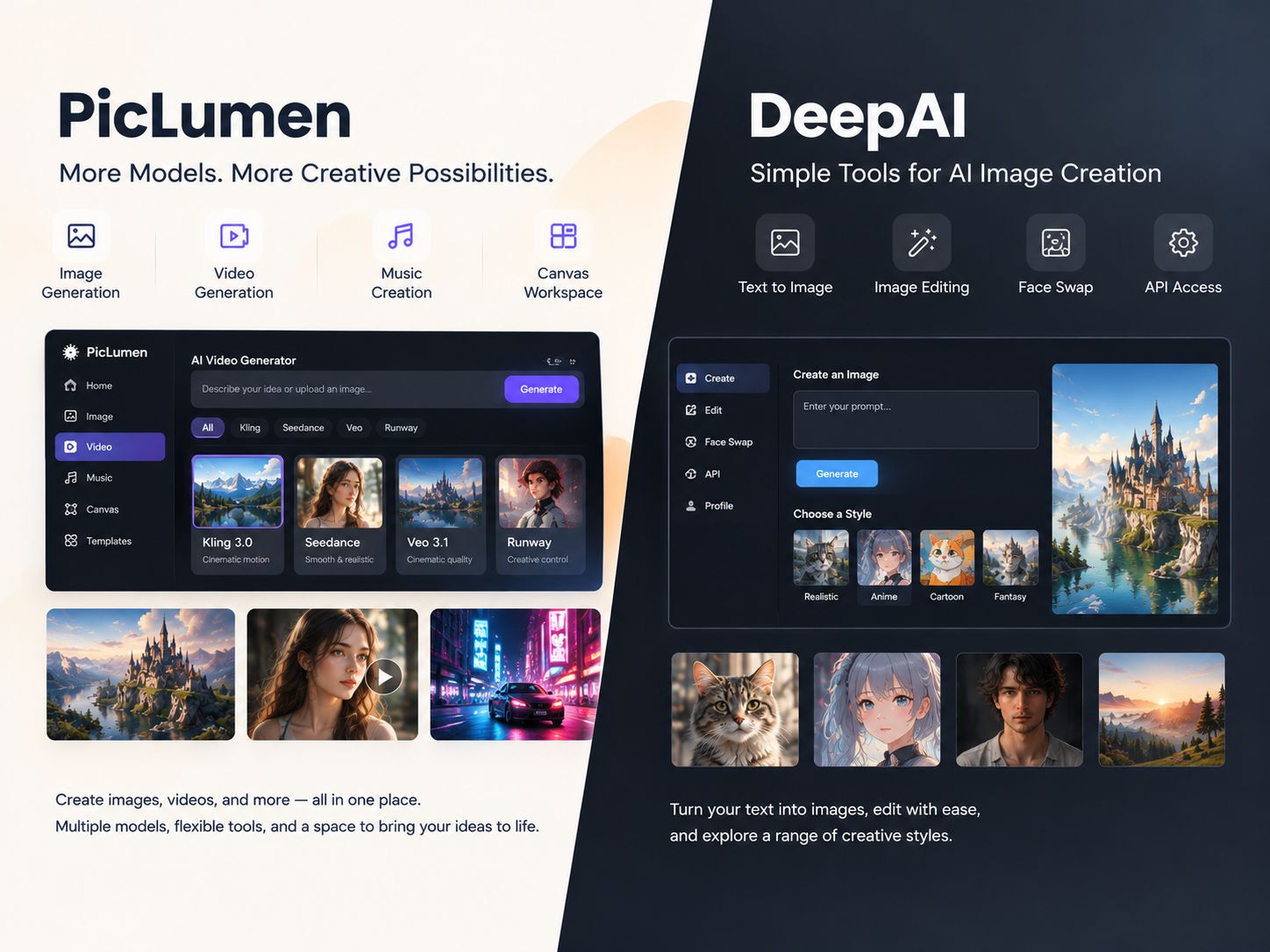
DeepAI is a solid starting point if you just need to generate an image from a prompt or tweak an existing one using plain-language text commands. It covers the basics of text-to-image and AI photo editing. But if you need to test different image models side-by-side, rely heavily on reference images, or build visuals for a specific campaign, PicLumen offers a more focused workflow. It gives you direct access to multiple models and a canvas where you can keep your generations connected.
Hot Video Effects
Turn your photos into fun dance clips, surprising transformations, and shareable moments with trending AI video effects.
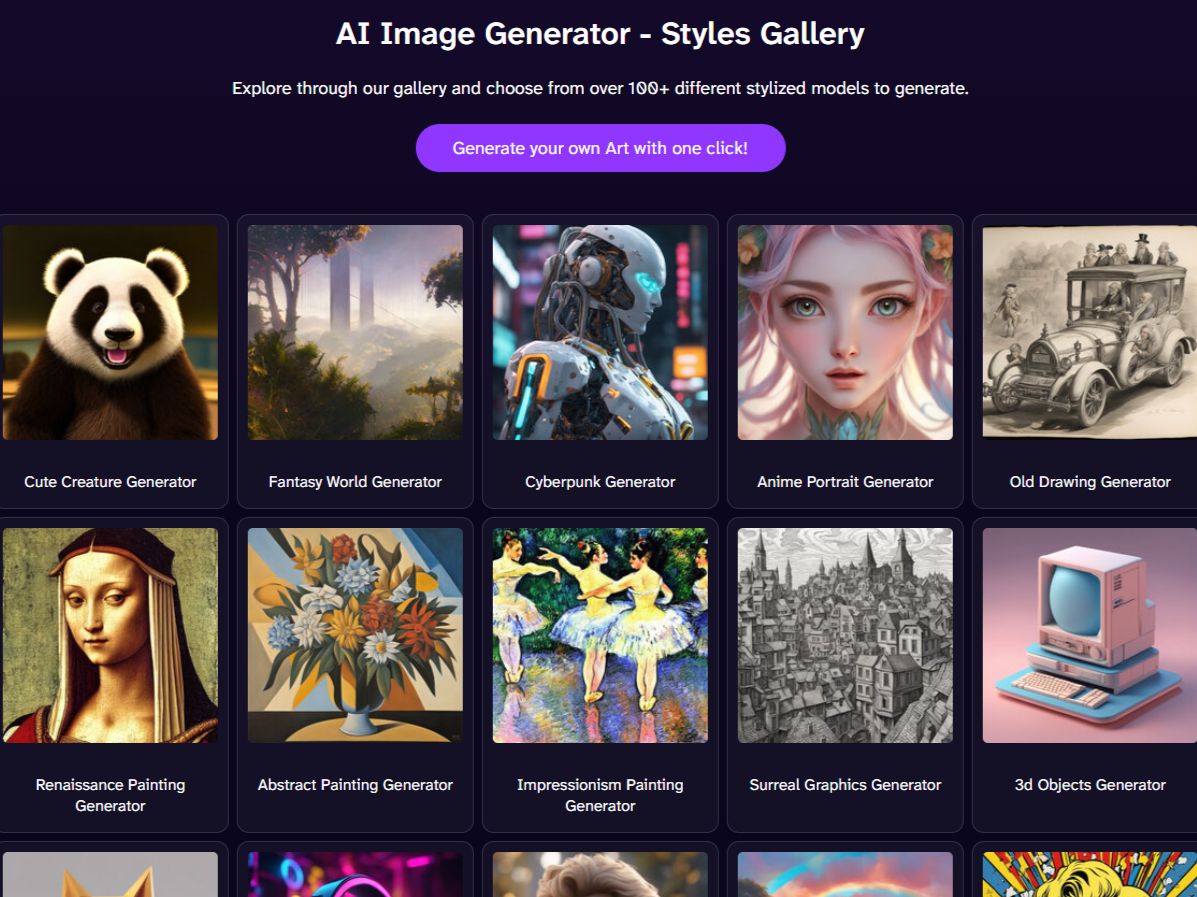
Choose From More Than 100 Image Styles
DeepAI’s image generator supports styles such as Anime, Photography, Cinematic, Graphic Design, and Classic, with more options available in its style selection. You can start with a subject or scene, then use a style to steer the overall look. The available generation modes also give you different output options, depending on your access level. This setup works well for exploring visual directions without building every detail into a prompt. For example, you can try the same fantasy character in an anime style and a cinematic style to see which better fits your project.
Edit Images by Describing What Should Change
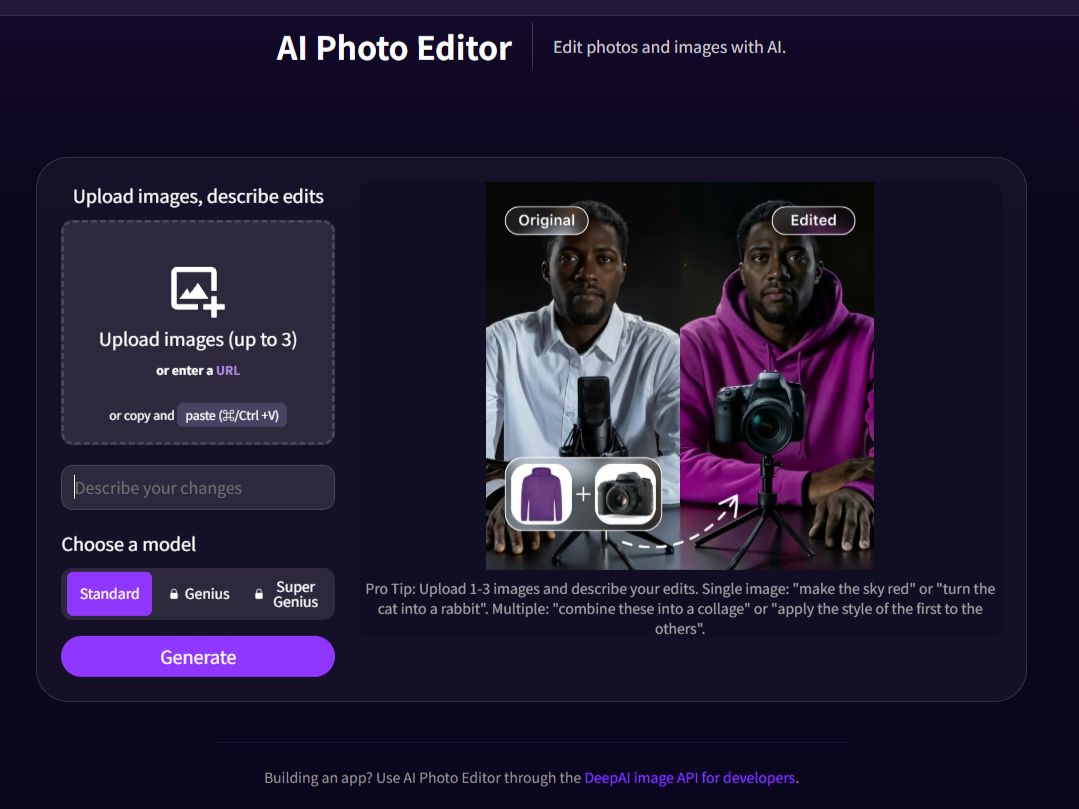
DeepAI’s AI Photo Editor lets you upload up to three images and describe the changes you want. You can change the color of a sky, swap one object for another, or combine images into a collage. It's a quick way to execute an idea when you already know what you want to change, without having to manually mask or layer everything yourself. Because it relies on text instructions, though, complex edits might need a few tries to get right.
Generate Larger Images With Higher-Tier Modes
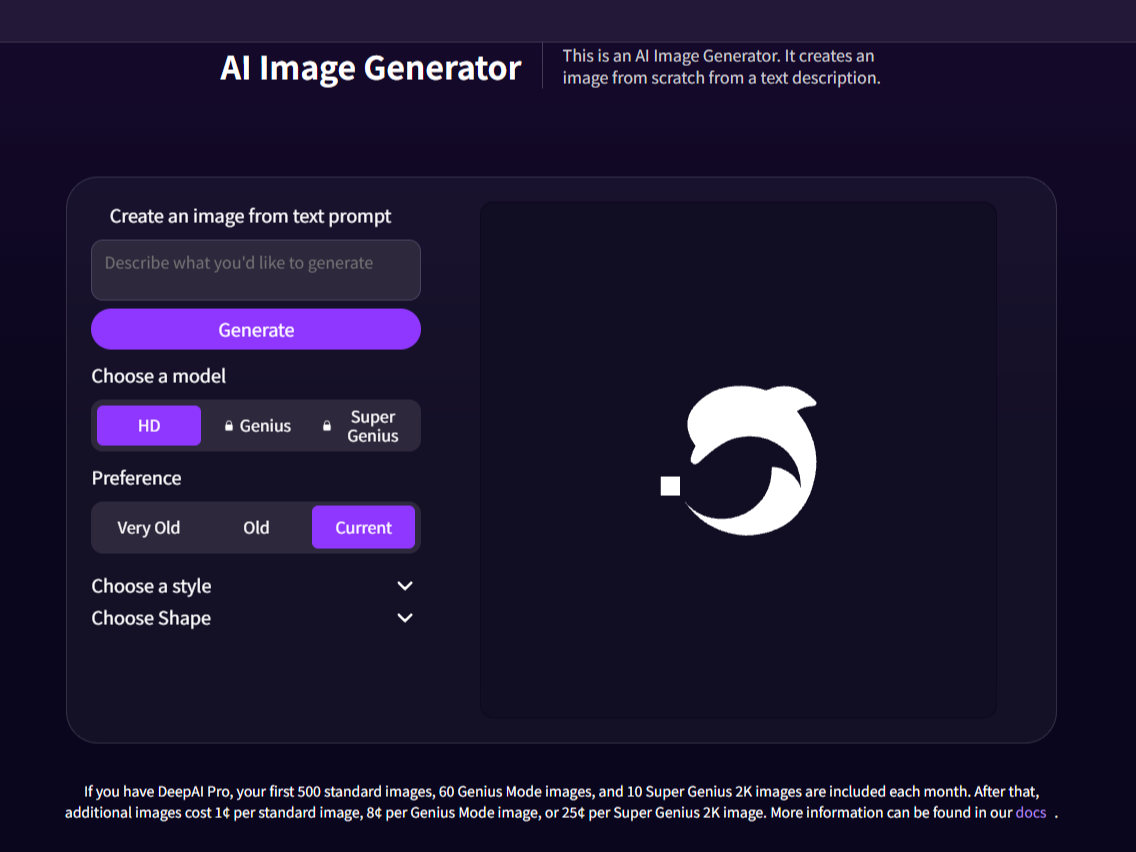
DeepAI offers several image-generation modes, including HD, Genius, and Super Genius. Looking at their published examples, the jump in resolution is pretty clear: HD gives you 640 × 640, Genius bumps it to 1024 × 1024, and Super Genius pushes out 2K images. You will likely need a paid plan to access the higher-tier modes. This tiered system is straightforward: if you just need a quick draft, HD works. But if the image is destined for a larger layout or a print piece, jumping to Genius or Super Genius saves you from generating something that ends up being too blurry to use.
Connect Image Generation to Your Own Application
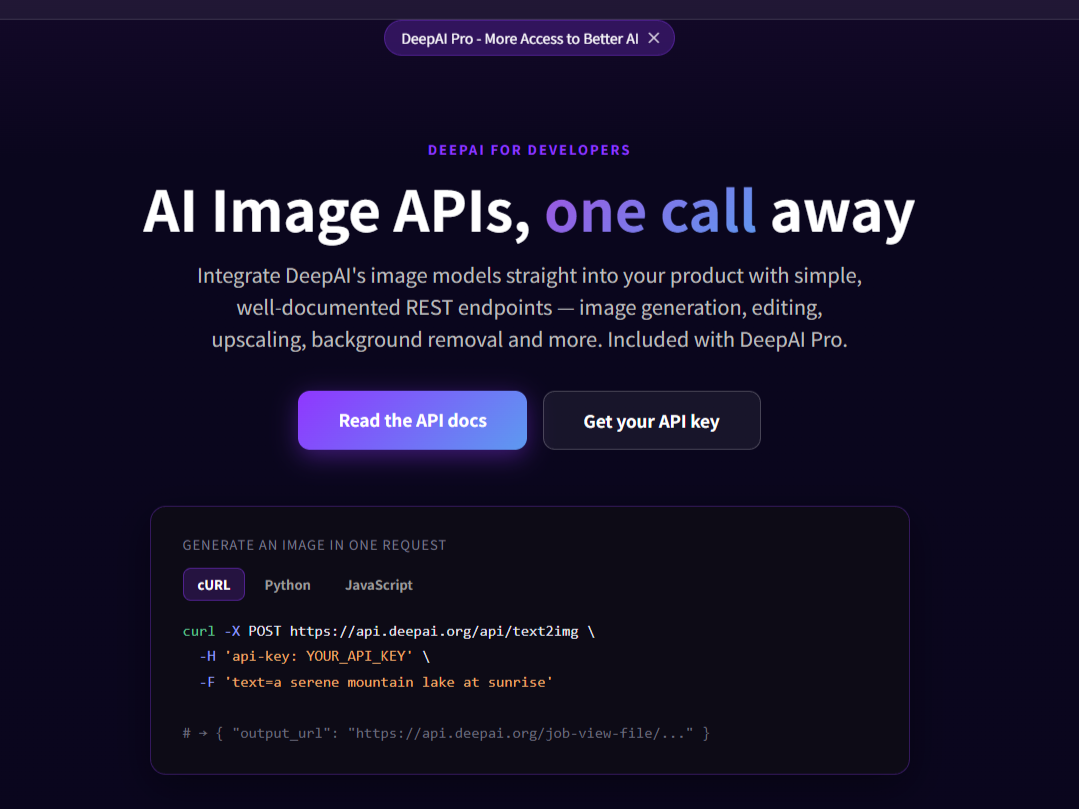
DeepAI also provides an API for developers who want to build image generation directly into their own apps or automated workflows. Instead of manually typing prompts into the web interface, you can send requests programmatically and pipe the generated images straight into your application. It's built for people who need to process images at scale or automate a pipeline, rather than just making one-off visuals. If you're just testing out prompts for a single project, the standard web interface is the easier place to start.
What People Create With DeepAI?
Exploring Characters and Fictional Worlds
A writer or game designer has a rough idea for a character but needs to see it to make it real. They describe the appearance, clothing, and setting, then push the prompt through different art styles—anime, cinematic, or sketch—to see which one fits the story best. It’s a fast way to build a visual reference before committing to a final design.
Developing Product and Brand Concepts
Before booking a photo studio, a marketer can generate visual directions to pitch a campaign. They might test a product against a clean studio backdrop, a messy lifestyle kitchen, or a seasonal setup. It helps the team align on the vibe long before the actual photoshoot happens.
Reworking Existing Photos
Instead of starting from a blank canvas, you can feed an existing image into the editor and change one specific thing. Swap a cloudy sky for a sunset, change the color of a jacket, or blend two references together. It’s about making a targeted fix without opening Photoshop to mask and layer everything manually.
Creating Visuals for Presentations and Drafts
Generated images work well as mood-board material or placeholder art for a pitch deck. When you need to explain a concept quickly, you can generate several different styles and compositions to see what communicates the idea best. It saves you from hunting through stock photo sites for something that’s close enough.
DeepAI and PicLumen: Which Workflow Fits Your Project?
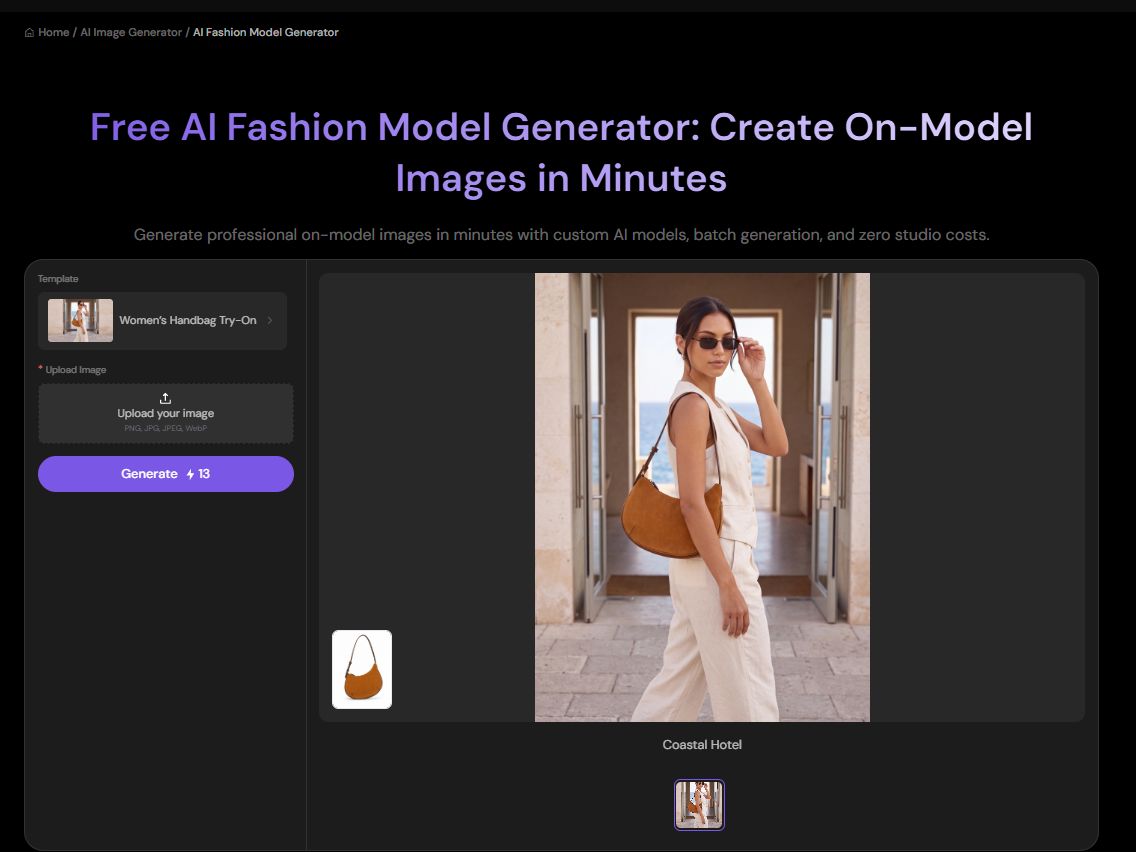
DeepAI keeps things simple. If you have a text idea, you generate an image. If you have an existing picture, you type instructions to edit it. It’s a direct tool for getting a single visual done. PicLumen is built for the times when a single image is just one part of the puzzle. A character concept, an e-commerce product gallery, and a short social video each require a different set of tools. Instead of forcing everything through one generic text box, PicLumen gives you dedicated workspaces for specific outputs. If you need to dress a virtual model for a fashion campaign, prep clean product shots for a listing, or animate an image into a video, you can jump straight into that specific workflow. When your project grows into multiple stages, the Canvas workspace keeps all those pieces connected.
Explore Different Models for the Same Image Idea
The same prompt can produce noticeably different results across image models. PicLumen lets you explore model options and use text prompts or reference images to guide your creation. This is useful when you have a clear concept but are still deciding on the right visual treatment. For example, you could use a reference image to guide a character’s appearance, then adjust the prompt to explore different outfits, settings, or art directions. If you are building a recurring character, a dedicated AI Character Generator can provide a more focused starting point.
Remove Backgrounds Before Using an Image Elsewhere
A messy background usually means the image can't be used for much else. PicLumen's background-removal workflow isolates the main subject, so you can drop it onto a clean white backdrop for a store listing or composite it into a totally different scene. If you need to clean up a product cutout for a catalog, you can pull the subject out here and layer it into your design.
Change an Outfit Without a Photoshoot
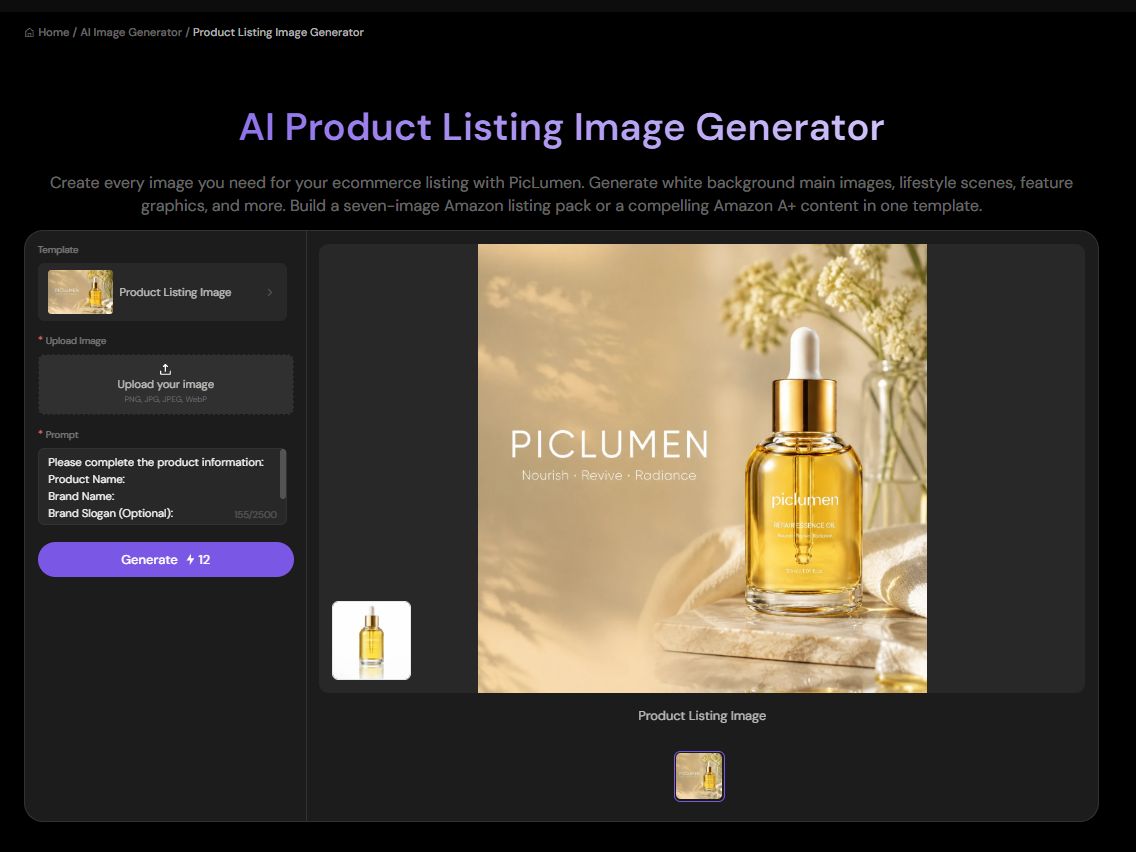
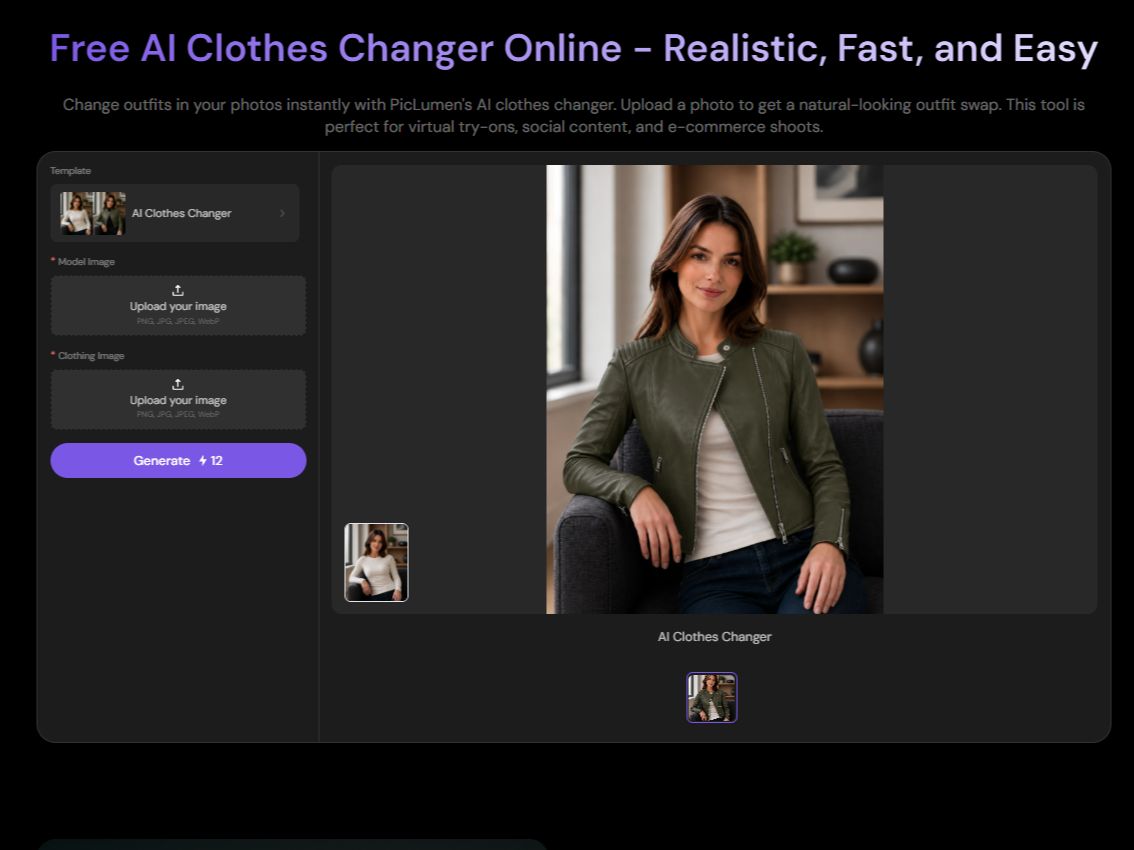
If you need a character or model to wear a specific piece of clothing, PicLumen’s AI Clothes Changer lets you swap outfits on an existing image. Instead of trying to describe every detail of a jacket in a text prompt, you upload the base image and the clothing reference. The AI does the heavy lifting—matching the lighting and making the fabric drape naturally on the subject. It’s a fast way to test fashion concepts or generate consistent looks for a character.
Keep Creative Assets Together in Canvas
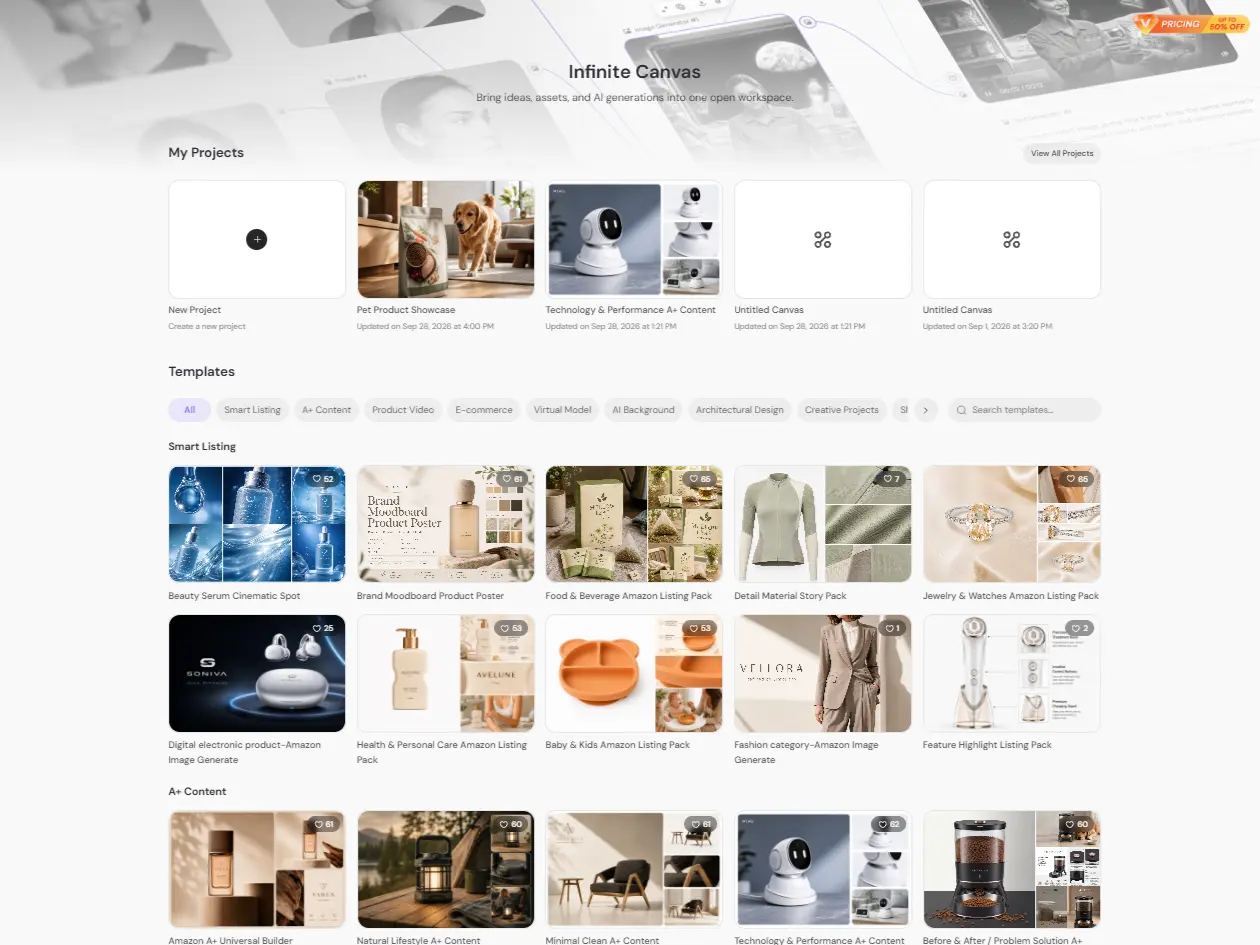
When you're generating dozens of variations, it's easy to lose track of which prompt produced the best result. The Canvas workspace acts as a visual board where you can pin reference images, compare model outputs, and build an idea across multiple stages. Instead of treating every generation as a throwaway task, you can keep the winning pieces connected in one project.
How to Rework an Existing Image in PicLumen
Step 1 Start With Your Source Image
1DeepAI’s editor usually starts with a single upload. PicLumen works similarly, but the entry point depends on what you want to fix. If you’re trying to isolate a product for a clean listing, open the Background Remover. If your photo doesn’t fit the format you need for a social post, go straight to the Image Extender.
Step 2 Keep What Works, Fix What Doesn't
2Instead of typing a long paragraph to describe the whole image again, focus your instructions on the actual problem. If the product looks great but the background is messy, just use the background removal tool. You don't need to regenerate the subject from scratch, which saves you from losing details you already liked.
Step 3 Set Up the Canvas for the Final Output
3If you’re extending an image, think about where it's going to be posted. Set the new canvas to 9:16 for a vertical story, or 16:9 for a wider banner. The AI will generate the missing parts to fit that frame, rather than forcing you to crop off the edges of your original shot.
Step 4 Check the Edges and Download
4Once the edit is processed, zoom in on the transition areas. If you removed a background, check the edges of the subject. If you extended the image, make sure the new generated pixels match the original lighting and shadow. Once it blends in naturally, download the clean version for your project.


Loved by Creators Worldwide
Real feedback from designers, marketers, and hobbyists sharing their PicLumen experience on Trustpilot.
 jsbsbsbs hdhdhshwhw
Very cool i like it it's so smooth
Very cool i like it it's so smooth
 Crispee
Easy to use.
Easy to use. Great layout love it!
Ibrahim OnuhSo very powerful and interesting
So very powerful and interesting
Kura AdityaThe best experience ever w
The best experience ever w
 Bohdan Lesyk
Great and fast
Great and fast, would be much better with some more free credits
 Zara
Piclumen still remains the best…
Piclumen still remains the best with image references. I don't have any complains using Piclumen. It makes my work easier
Incredibly detailed and actually…
Incredibly detailed and actually creates what I want. Absolutely love. Just wish I could get more free coin things.
 Piye Chauhan
Nice app generate to google
Nice app generate to google
Eman RizwanGreat job u should try it in order to…
Great job u should try it in order to Create images
 Enzo Piriou
The very good experience for AI
The very good experience for AI
 Yasir Ali
My exprienxe was geat.This compony was…
My exprienxe was geat.This compony was good.
 Headphonlessness Meditations
hi i am @VbsRedlof on twitter
hi i am @VbsRedlof on twitter
Frequently Asked Questions
Is DeepAI an AI Image Generator?
Yes. DeepAI has a text-to-image generator where you can type a prompt, pick a style, and get a result. It also has a separate AI Photo Editor if you want to tweak an image you already have rather than starting from scratch.
Can DeepAI Edit an Existing Image?
Yes. Its AI Photo Editor lets you upload up to three images and describe what you want to change in plain text. You can swap an object, adjust the lighting, make a collage, or apply the style of one image to another.
Does DeepAI Support High-Resolution Image Generation?
It does, but the resolution depends on the mode you pick. HD gives you 640 × 640, Genius bumps it to 1024 × 1024, and Super Genius outputs at 2K. Keep in mind the higher-tier modes usually require a paid plan.
Can I Create Images From Text and References With PicLumen?
Yes. You can generate an image entirely from a text prompt, or upload a reference image to guide the composition and style. What you can do depends on the specific model you select in the workspace.
Can PicLumen Help Prepare Product Images for an Online Store?
Yes. You can use it to generate new backgrounds or lifestyle scenes around a product reference. Just double-check the final output to make sure the product details and proportions haven't shifted.
How Do I Fit a Wide Image Into a Vertical Social Post in PicLumen?
Instead of cropping the sides and losing half your subject, use the AI Image Extender. It generates new pixels above and below the frame to fill out the vertical aspect ratio, keeping your original composition intact.
Is PicLumen affiliated with Deepai?
No. PicLumen is an independent AI creation platform and is not affiliated with, sponsored by, or endorsed by Deepai. Any references to Deepai are for informational purposes only. All trademarks belong to their respective owners.