Krea AI Image Generator for Text and Reference Images
Explore the Krea AI image generator for turning a written idea or reference image into photos, illustrations, and design concepts. Compare visual directions, adjust the composition, and refine a promising result within Krea. If you also want to develop campaign artwork in PicLumen, start with a prompt or uploaded reference, then organize variations and prepare selected images for your next creative project.
Hot Video Effects
Turn your photos into fun dance clips, surprising transformations, and shareable moments with trending AI video effects.
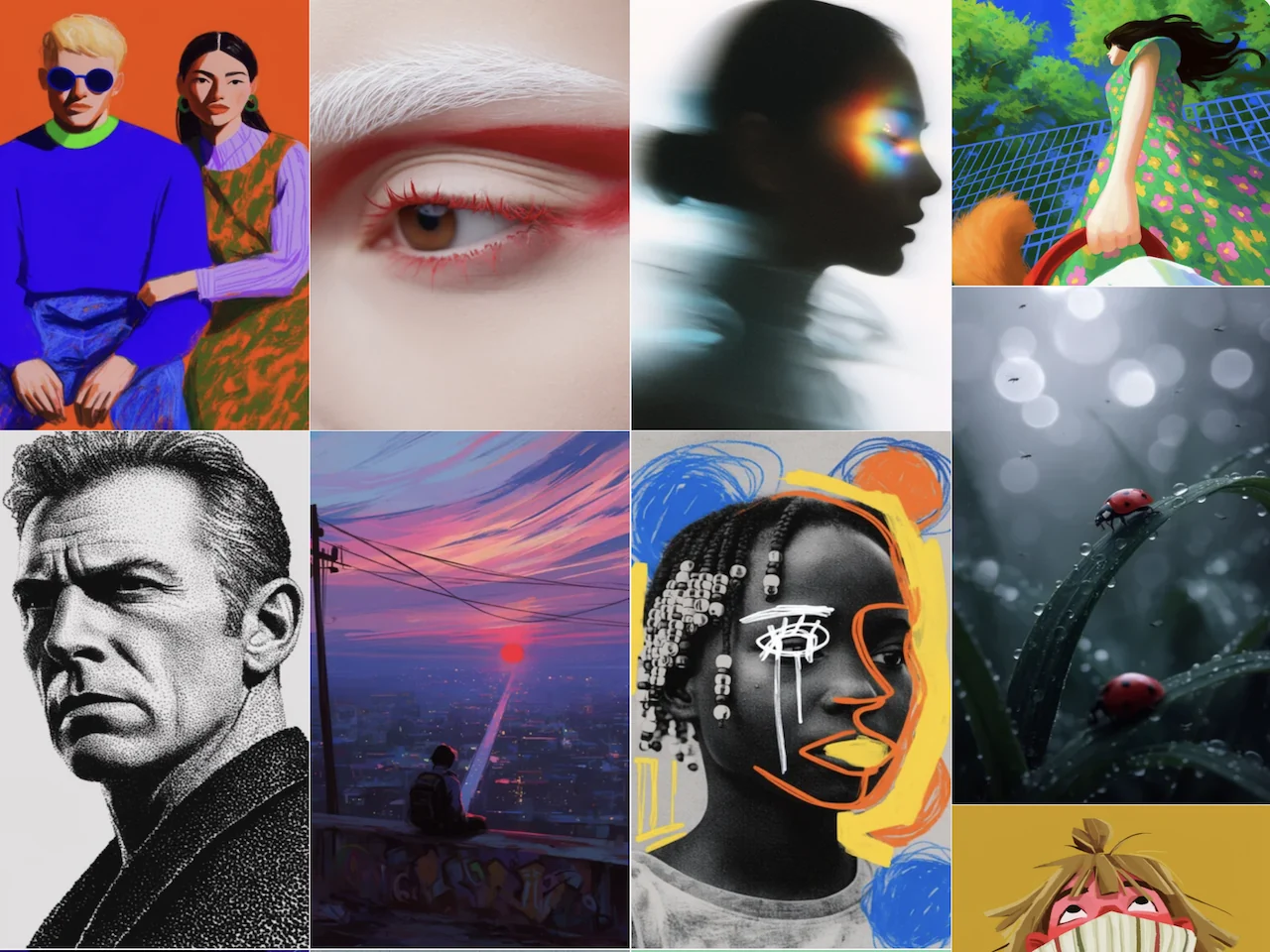
Generate Visual Directions From a Text Prompt
Krea turns descriptions into images you can compare and refine. Start with the subject and explain how the scene should look: an overhead arrangement of ceramics, soft morning light, and a pale blue tabletop. Add the intended style and framing to make the brief more useful. The same idea can produce different compositions, so review the subject placement and overall mood before choosing a direction. For campaign planning, use these early images to decide which visual treatment deserves further development.
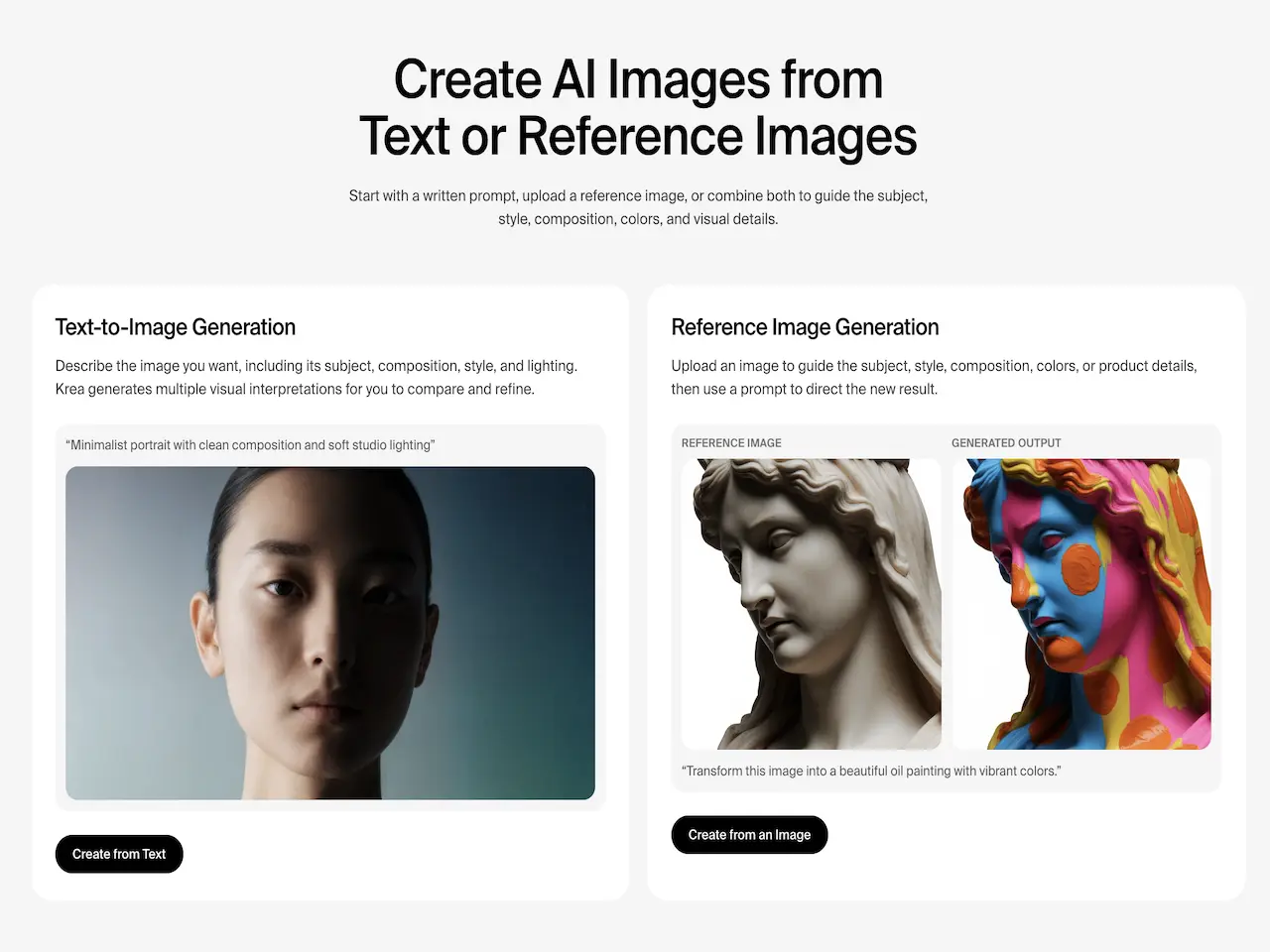
Guide a New Image With a Visual Reference
Upload a reference image in Krea and use a prompt to explain the direction you want to explore. The reference can guide the subject, composition, colors, or product details. A photographed sculpture, for example, can become the starting point for a painted interpretation. This Krea AI image-to-image workflow is useful when a written description alone leaves too much open to interpretation. Choose a reference that clearly shows what matters, then describe the intended change rather than expecting an exact copy.
Compare Image Models in One Workspace
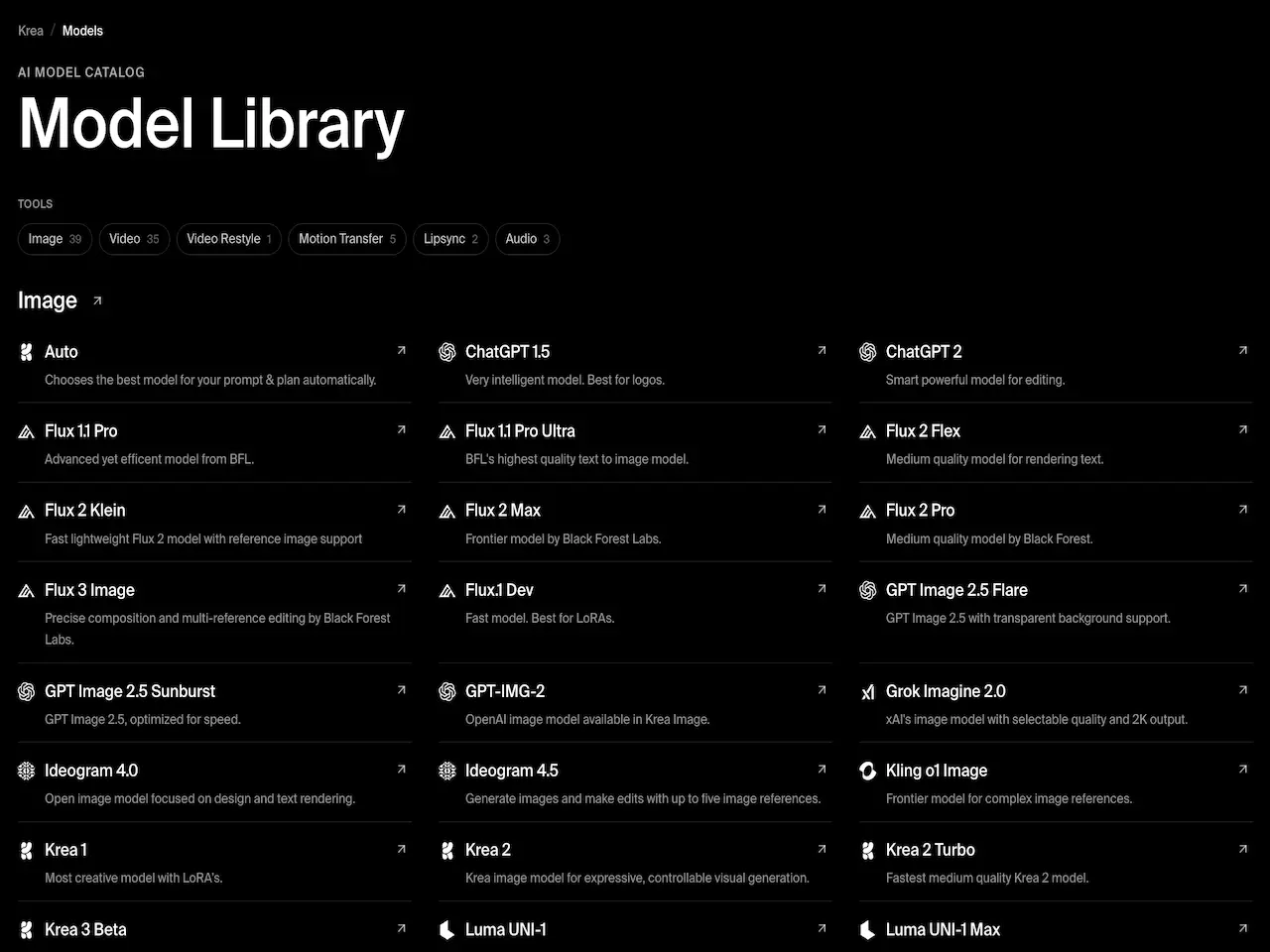
Krea brings multiple image-generation models into one workspace, so you can test how different models interpret a creative brief. A photographic product concept and a loose editorial illustration may call for different visual approaches. Compare results using the same subject and composition requirements, then judge the details that matter to your project. Look at material texture, the focal point, and the balance of the frame. Model access depends on the plan; select from the options available to your account.
Refine Details and Upscale Selected Images
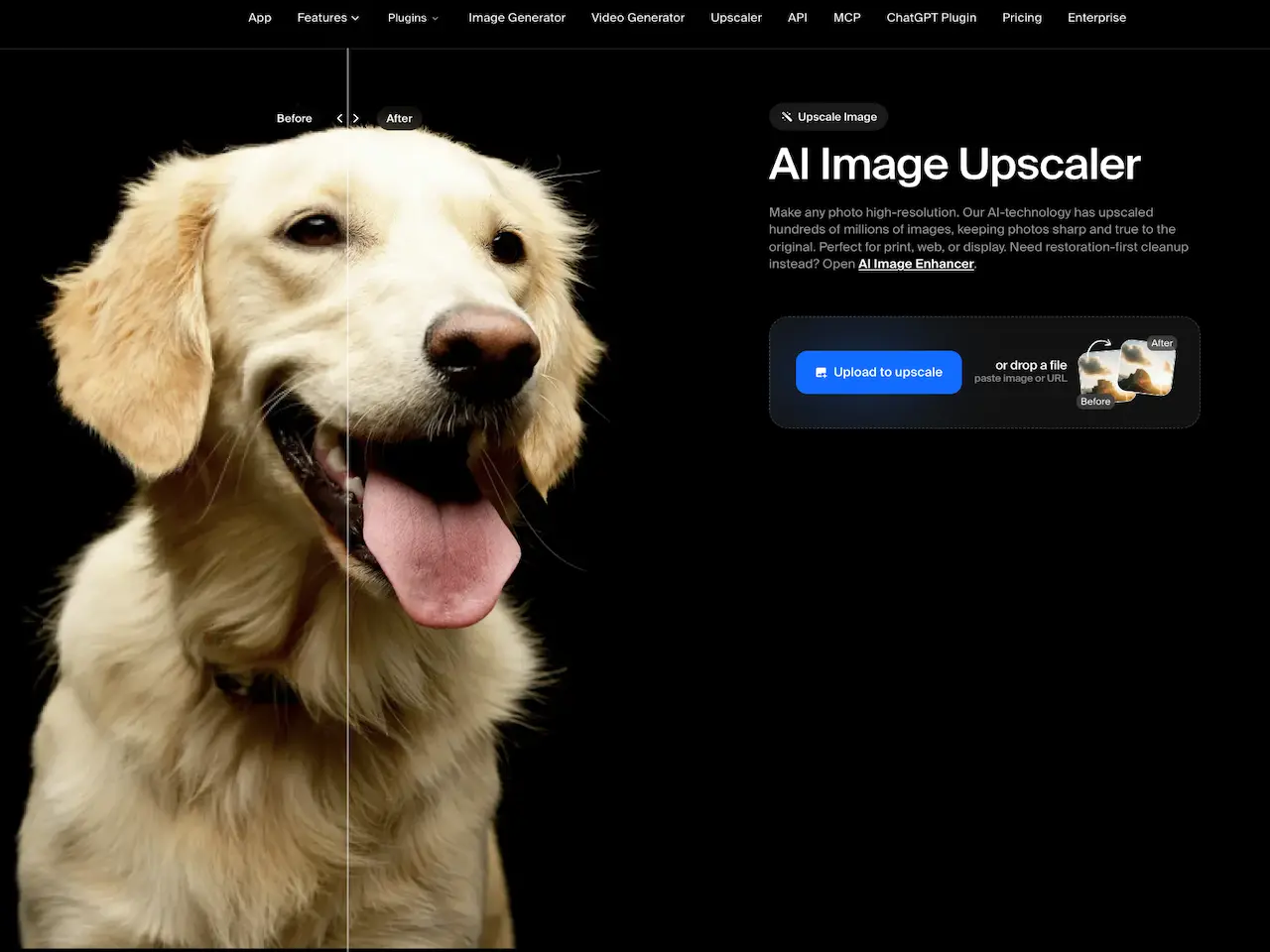
After choosing a direction, Krea provides editing and enhancement paths for further work. Its image editor supports changes to specific areas, including adding, removing, or replacing elements. The Krea AI image upscaler offers a separate way to improve detail, clarity, and resolution before a larger-format use. These tools address different stages: editing changes the content, while upscaling prepares the chosen image for closer viewing. Check the finished result at its intended display size, especially around small objects and detailed textures.
What You Can Create With Krea?
Social Posts With Deliberate Framing
A social media manager can use a campaign idea to generate square feed artwork or a vertical story visual in Krea. Describe the subject placement and leave room for captions added during layout. Compare variations for legibility at phone size, then choose the composition that supports the message without crowding the frame.
Product Concepts for a Creative Brief
A small business owner can explore a packaging direction or proposed product scene before commissioning final production. Start with a description or product reference and test different surroundings in Krea. Use the images to discuss materials, lighting, and presentation with a designer. Treat generated concepts as proposals that need checking against the actual product.
Editorial Artwork for Articles and Campaigns
A content creator can turn an article theme into an illustration with a recognizable subject and a specific visual style. Krea supports photographic and artistic directions, making it useful for exploring how the same story might look across a website banner and promotional artwork. Match the composition to the available layout before adding final typography.
Character and Environment Concept Studies
A designer developing a fictional world can explore a character silhouette, costume direction, or setting in Krea. Describe the scene clearly and use a reference when a visual starting point matters. Compare the resulting studies in a creative brief, then select details to develop further. These images can support discussion before more detailed illustration or asset production.
Krea and PicLumen for Image Creation
Krea and PicLumen both support creating images from text prompts and visual references. Krea combines model comparison with routes into targeted editing and image enhancement.
PicLumen also offers multiple image models, alongside focused tools such as background removal. Its Infinite Canvas connects prompts, references, and generated results so earlier versions remain visible while you explore another direction. Choose according to the task and the controls available for your selected model.
To test a campaign brief in a second workspace, try PicLumen's AI image generator and compare how it interprets your subject, framing, and lighting requirements.
.jpg)

Turn a Campaign Brief Into Original Artwork
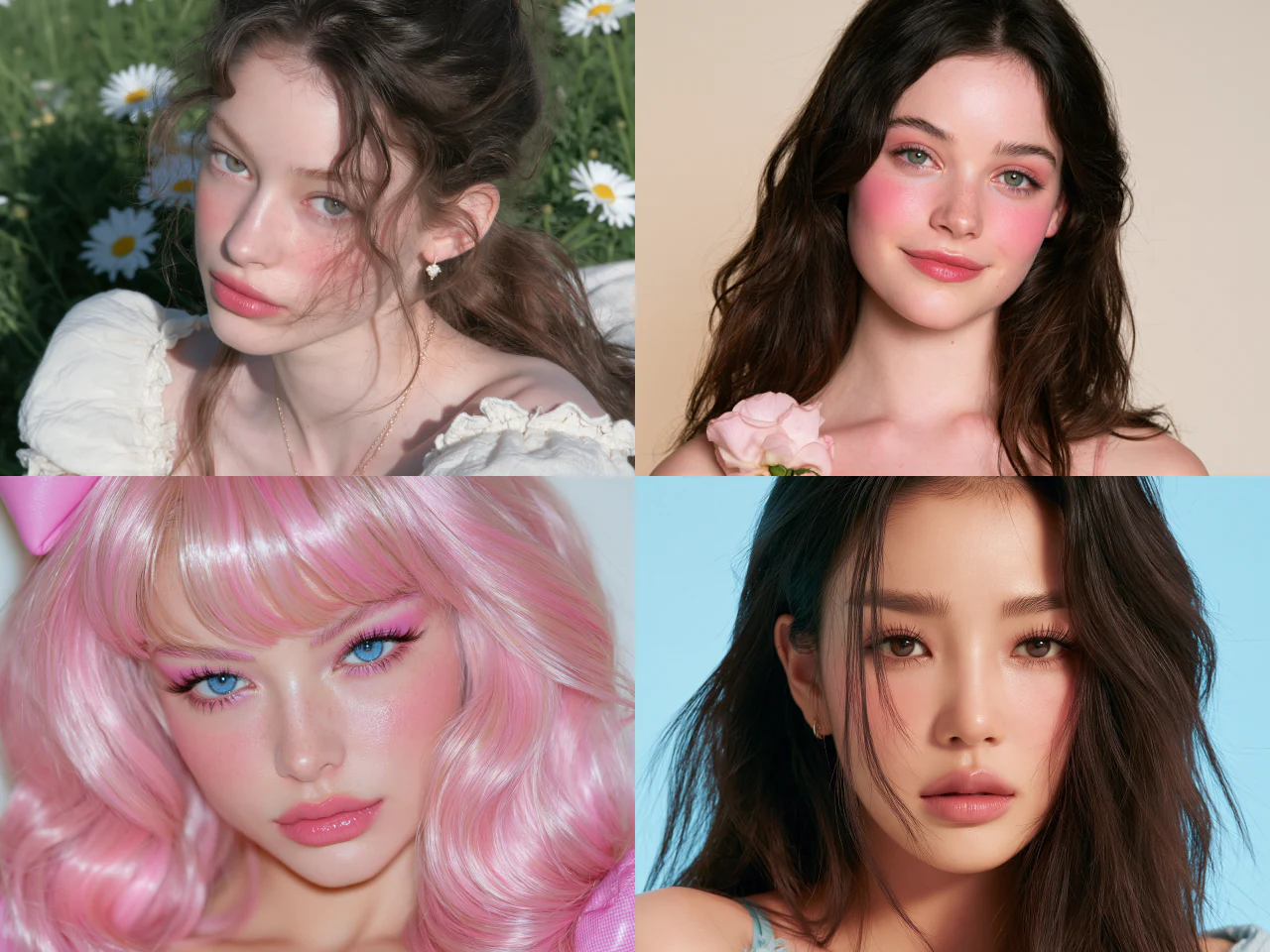
Start with the message your campaign needs to communicate, then describe an image that supports it. PicLumen's text-to-image generator creates visuals from prompts that specify style, lighting, colors, and mood. For a neighborhood café promotion, explore an illustrated breakfast table with a warm palette and space for a headline. Generate variations and compare how well each composition fits the planned layout. Keep the most useful direction as the basis for your design rather than changing the whole brief after every result.
Develop a New Look From Your Reference Image
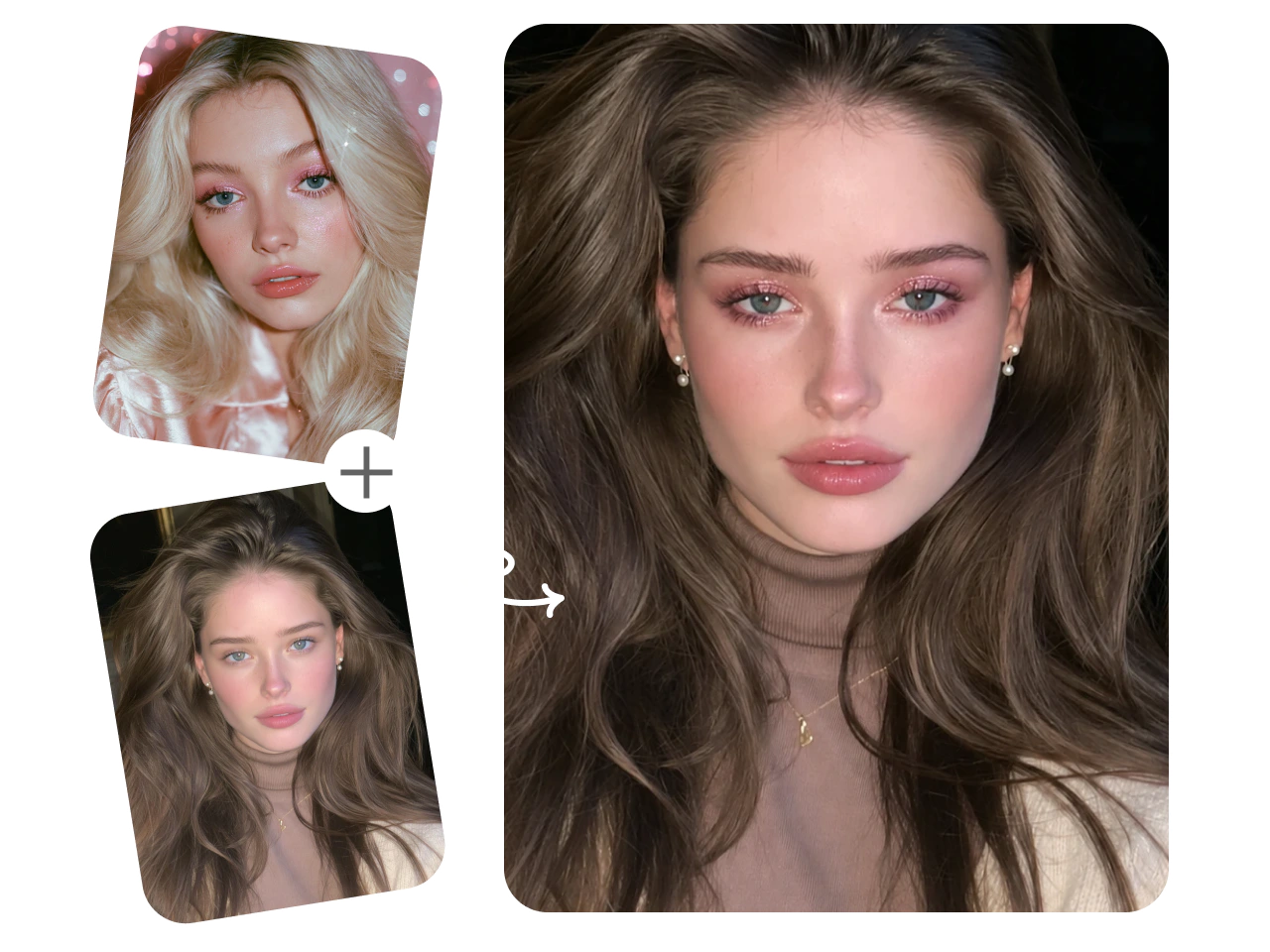
Bring an existing photo or sketch into PicLumen when the starting subject already exists. Use reference-image creation to guide a new visual direction, then describe the changes you want. A portrait can become an illustrated profile image, or a rough concept can guide a more developed scene. Focus the prompt on the transformation and identify the details you want to retain. Review each result against the reference before using it, particularly when recognizable faces, product shapes, or brand details matter.
Separate a Subject From Its Background
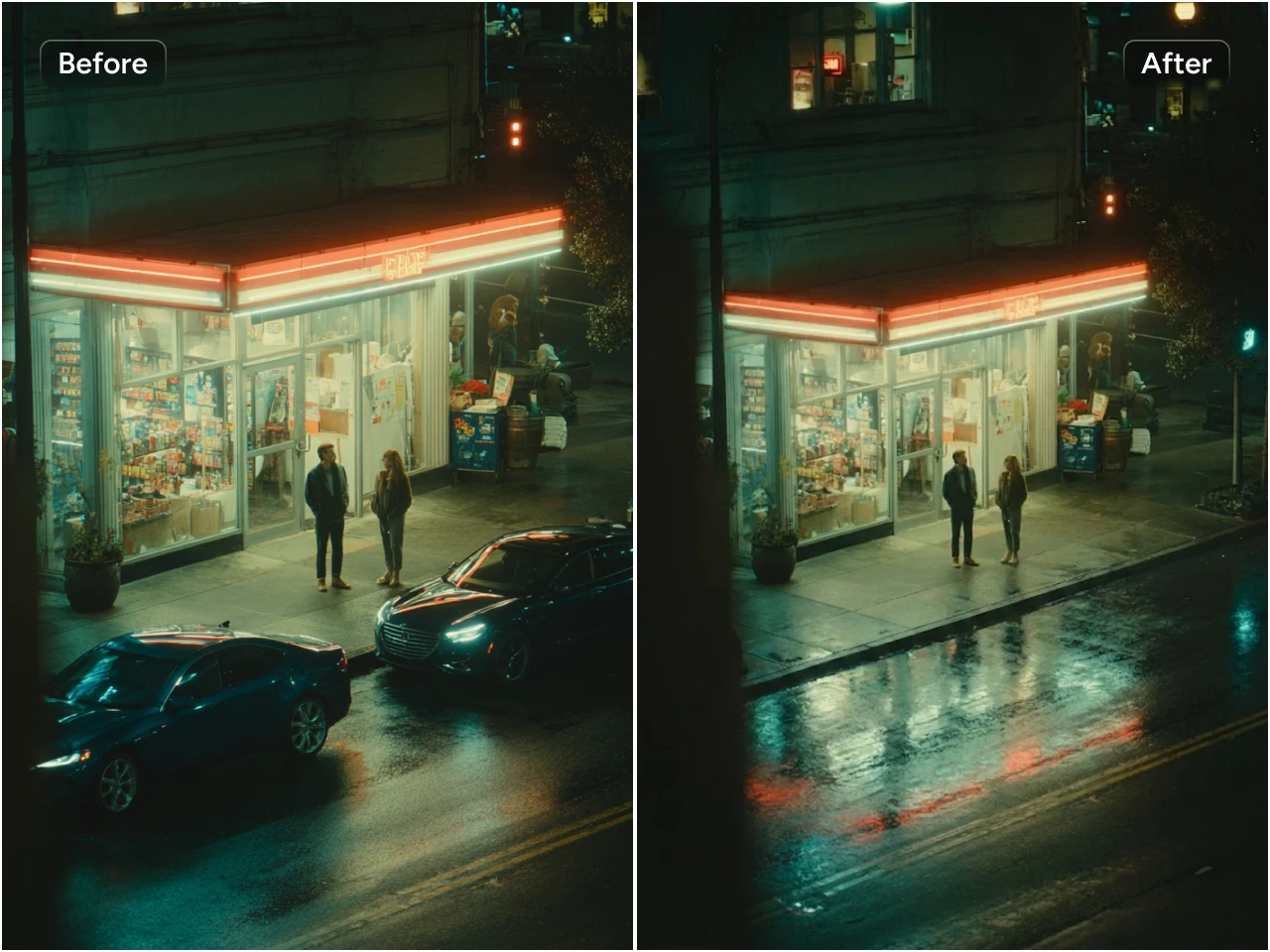
A selected image may have the right subject but a background that competes with your layout. PicLumen's background remover extracts the foreground from an uploaded image or a selected creation. Use the resulting cutout in a presentation, promotional graphic, or another design layout. For example, isolate a ceramic vase before arranging it beside campaign copy in your design software. Inspect the outline around handles and other fine details before placing the cutout on a contrasting background. This is a focused preparation step after choosing the image.
Keep References and Variations Together on Canvas
Use PicLumen Infinite Canvas when a project needs several visual directions from the same starting material. Connect a prompt or reference to an image-generation stage, retain its results, and branch into another version. A designer exploring a headphone campaign can keep the original reference beside different scene treatments and see which inputs produced each image. Earlier work stays available for comparison. This structure helps you return to a useful direction and continue developing it without losing track of the creative decisions behind the output.
How to Create Images With PicLumen?
- STEP 1Choose the Right Model
Open PicLumen's image-generation workspace and choose an available model for your intended visual direction. Decide whether you need a photographic scene, an illustration, or a concept study. Review the model's supported inputs and access conditions before starting, especially when working from an existing reference image.
- STEP 2Enter a Prompt or Upload References
- STEP 3Set the Aspect Ratio and Quality
- STEP 4Generate, Download, and Share


Loved by Creators Worldwide
Real feedback from designers, marketers, and hobbyists sharing their PicLumen experience on Trustpilot.
Isuru NilankaIt's easy to use
It's easy to use, they have different AI models, good prices, and a nice community page.
 chelsienner
This is my favorite AI Image generator
This is my favorite AI Image generator
 ClashOf Clans
Excellent platform to fantasy
Excellent platform to fantasy
George PricePicLumen's support team replies quickly…
PicLumen's support team replies quickly to your help requests and they are clear in what they require of you for them to help you. They usually diagnose your problem and offer a solution in less then 24 hours. Stellar service!
 Narender Khatana
I love this app I love this very very…
I love this app I love this very very much this is help in make a videos
Nice creations and bright
Nice creations and bright
 Eli Kofsky
The images that come out are really…
The images that come out are really good.
The best app ever in history
The best app ever in history
 Tufail Khan
I love it this helps me to create all i…
I love it this helps me to create all i want ai videos ai images thanks piclumen
AK Editing ZoneNice ai image generation
Nice ai image generation
 Muhammad Hafiz
i rate this app five star
i rate this app five star
Amazing work!
Amazing work!! Love it already made some art and people love will be making more!
FAQs About Krea AI Image Generator
What Is Krea AI?
Krea AI is a creative platform with tools for image generation, editing, enhancement, and other visual workflows. The Krea AI generator accepts text prompts or reference images to create photos, artwork, and concepts. Its image workspace offers multiple models and variations, with related tools for refining selected results. Your choice of model and input helps shape the creative direction.
How Do I Use Krea AI to Generate an Image?
Open Krea's image tool, choose an available model, and enter a description of the image you want. Add a reference image if it will help communicate the subject or style. Choose the framing, generate options, and compare the results. Refine the prompt or use Krea's editing tools to develop your selected direction before downloading it.
Is Krea AI Free to Use?
Yes. Krea offers a free plan with a daily compute allowance for trying basic features. Free access has limits, including restrictions on some tools and model access. Paid plans expand the available features. Check the current plan details against the workflow you want to try, especially if your project needs a particular model, substantial upscaling, or commercial licensing.
How Does Krea AI Image-to-Image Generation Work?
Krea uses an uploaded reference image to guide a new generation, with a prompt describing the intended result. The reference can communicate the subject, composition, colors, or visual style. For example, you can explore a painted treatment of a photographed object. Review the output against your source because reference guidance does not guarantee exact reproduction of every detail.
What Does the Krea AI Image Upscaler Do?
The Krea AI image upscaler increases image resolution and works on detail and clarity. It is useful after you have chosen a composition and need to prepare it for a larger display or closer inspection. Check the limits available under your plan and inspect the enhanced result. Upscaling serves a different purpose from editing the subject or changing the scene.
Can I Try PicLumen With My Own Prompts and Images for Free?
Yes. PicLumen offers free exploration, and new accounts receive a welcome offer to start creating. Enter your own prompt or use a supported reference-image workflow. Generation and editing consume Lumens, with costs depending on the model or action. Continued creation may require a Lumen pack or plan, and commercial permissions depend on the applicable subscription license.
Is PicLumen affiliated with Krea AI?
No. PicLumen is an independent AI creation platform and is not affiliated with, sponsored by, or endorsed by Krea AI. Any references to Krea AI are for informational purposes only. All trademarks belong to their respective owners.