
Pica AI Image Generator
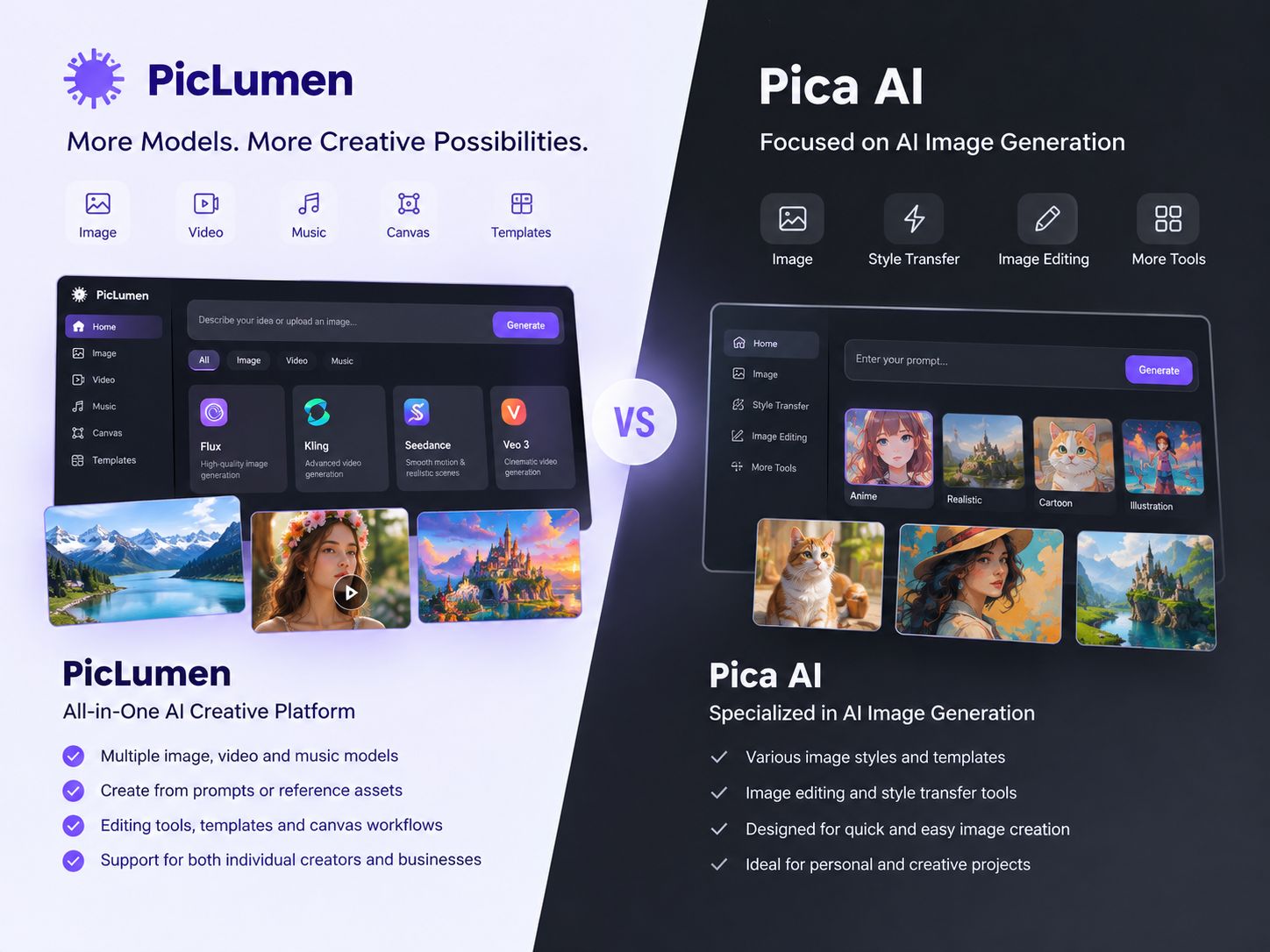
Pica AI brings together face swapping, photo enhancement, and AI headshot generation in a browser-based toolkit. PicLumen takes a different approach: you can create images from prompts or references, then use them as starting points for video generation. The better fit depends on whether you need to edit an existing photo or develop a visual into a larger project.
Hot Video Effects
Turn your photos into fun dance clips, surprising transformations, and shareable moments with trending AI video effects.
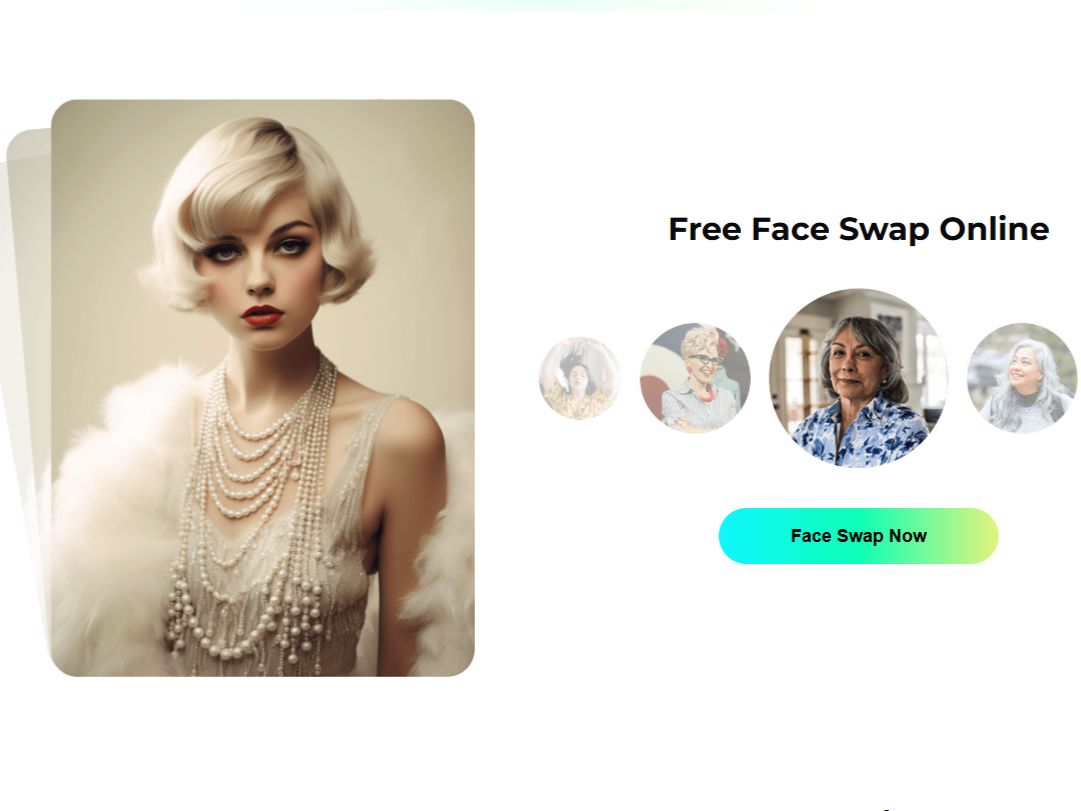
Swap Faces Without Manual Editing
Pica AI's face swap tool detects faces in the uploaded images and blends the selected face into the target photo. Lighting, skin tone, and facial angle can all affect how well the result fits the original scene. It's useful for making memes, reworking a movie-poster image, or trying out a different look for a creative project.
Clean Up Low-Resolution and Pixelated Images
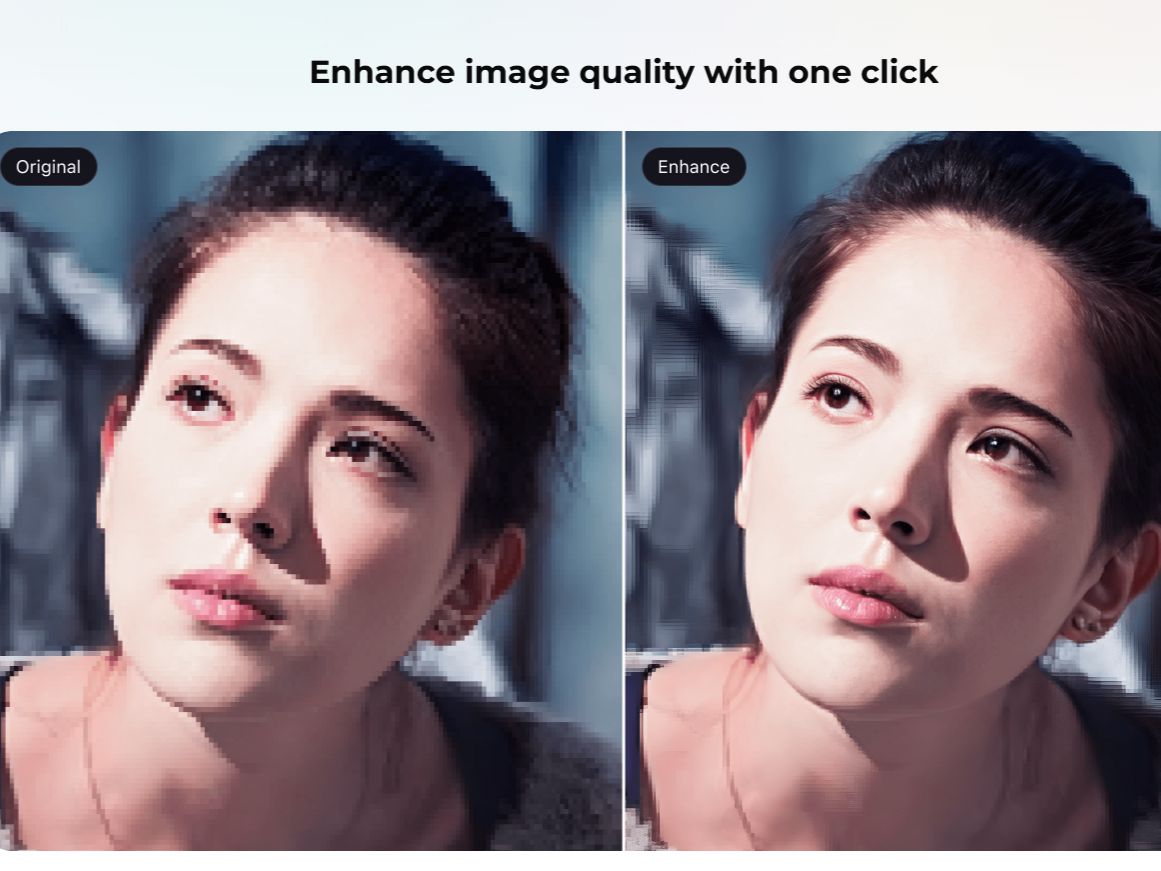
If you have a compressed social media image or an old photo with visible pixels, Pica AI’s photo enhancer smooths out blocky artifacts while preserving detail. It shows a before-and-after preview in the browser. The tool can also upscale an image up to 4 times its original size, which helps for printing or resizing without losing sharpness.
Turn a Selfie Into a Professional Headshot
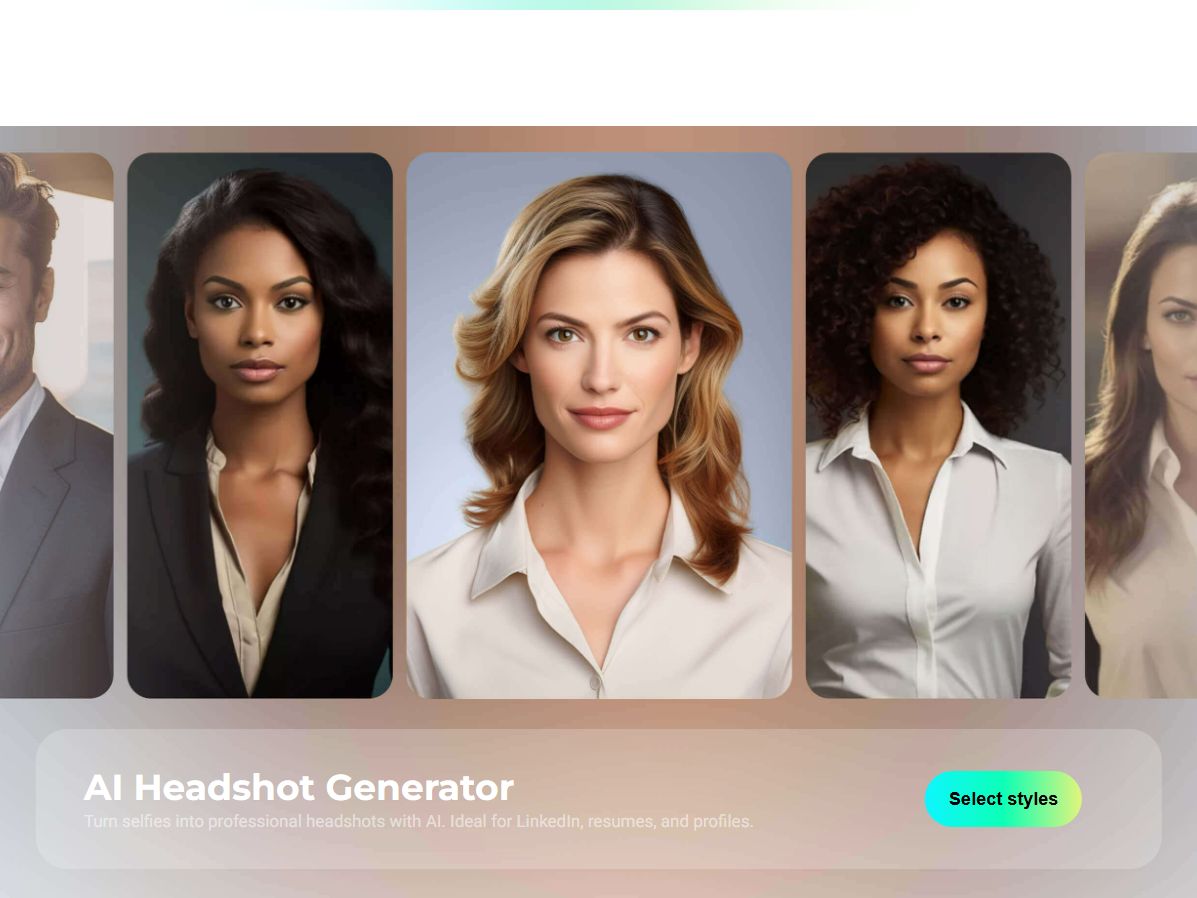
Pica AI’s headshot generator takes a casual selfie and adjusts lighting and framing to make it look like a studio portrait. It’s aimed at people who need a polished profile photo for LinkedIn or a resume without booking a photographer.
Swap Gender in Photos and Short Videos
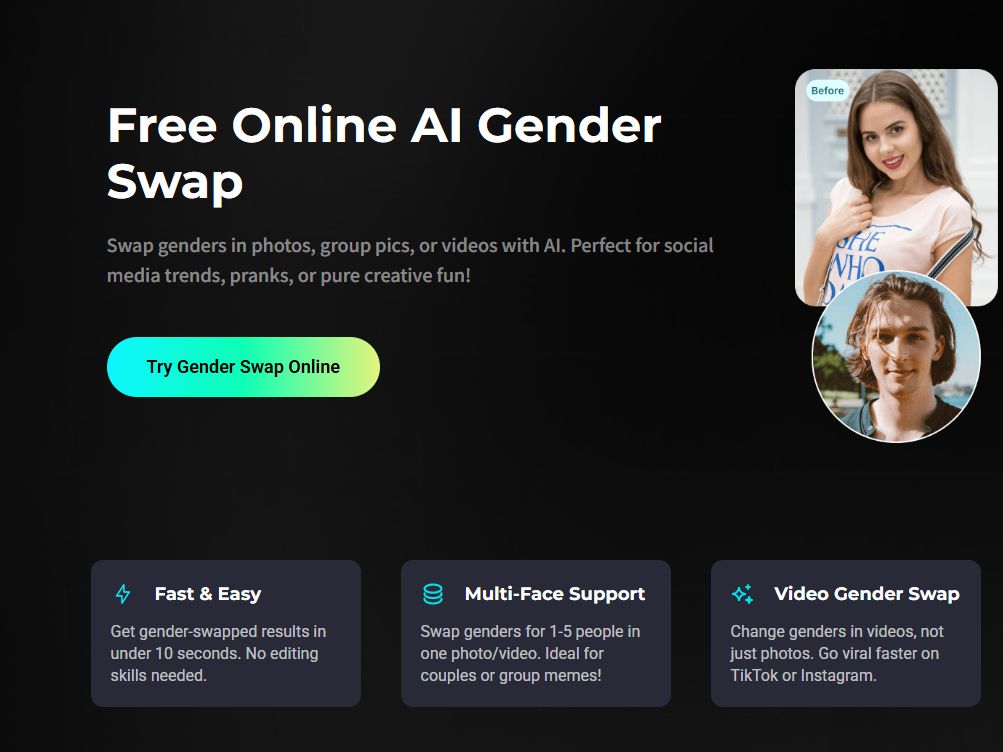
Upload a photo or a supported video to change a person's gender presentation. The tool handles both solo portraits and group images, which makes it easy to create social posts or playful visual experiments. Because it relies on the source material, the final output will vary based on image quality and how clearly the faces are visible.
What People Use Pica AI For
Making Memes and Social Posts
A social media user wants their face in a movie poster or a trending meme template. They upload the template and their face, and Pica AI blends the two into a shareable image.
Restoring Old Family Photos
Someone finds a low-resolution photo of a relative from decades ago. They upload it to Pica AI’s enhancer, which removes pixelation and sharpens facial details. The restored version can be printed or shared.
Making a Professional Profile Photo
A job seeker needs a polished headshot for LinkedIn but doesn’t want to pay for a studio session. They upload a clear selfie, and Pica AI generates a portrait with improved lighting and framing.
Gender Swap for Social Content
A creator wants a gender-swapped version of a photo or short video for TikTok or Instagram. Pica AI processes the face and produces a result that keeps the original person recognizable while changing the gender presentation.
Pica AI and PicLumen for Image Creation
Pica AI focuses on editing and transforming uploaded photos, with tools for face swapping, enhancement, headshots, and gender-swap effects. PicLumen is geared toward a different workflow: generating images from prompts or references, refining character concepts, and turning selected images into video clips. Its Canvas workspace also helps keep related prompts, references, and outputs together. If your starting point is an existing photo, Pica AI's focused tools may be enough; if you're developing a visual across several stages, PicLumen offers more ways to continue the process.
Keep a Character Consistent Across Images
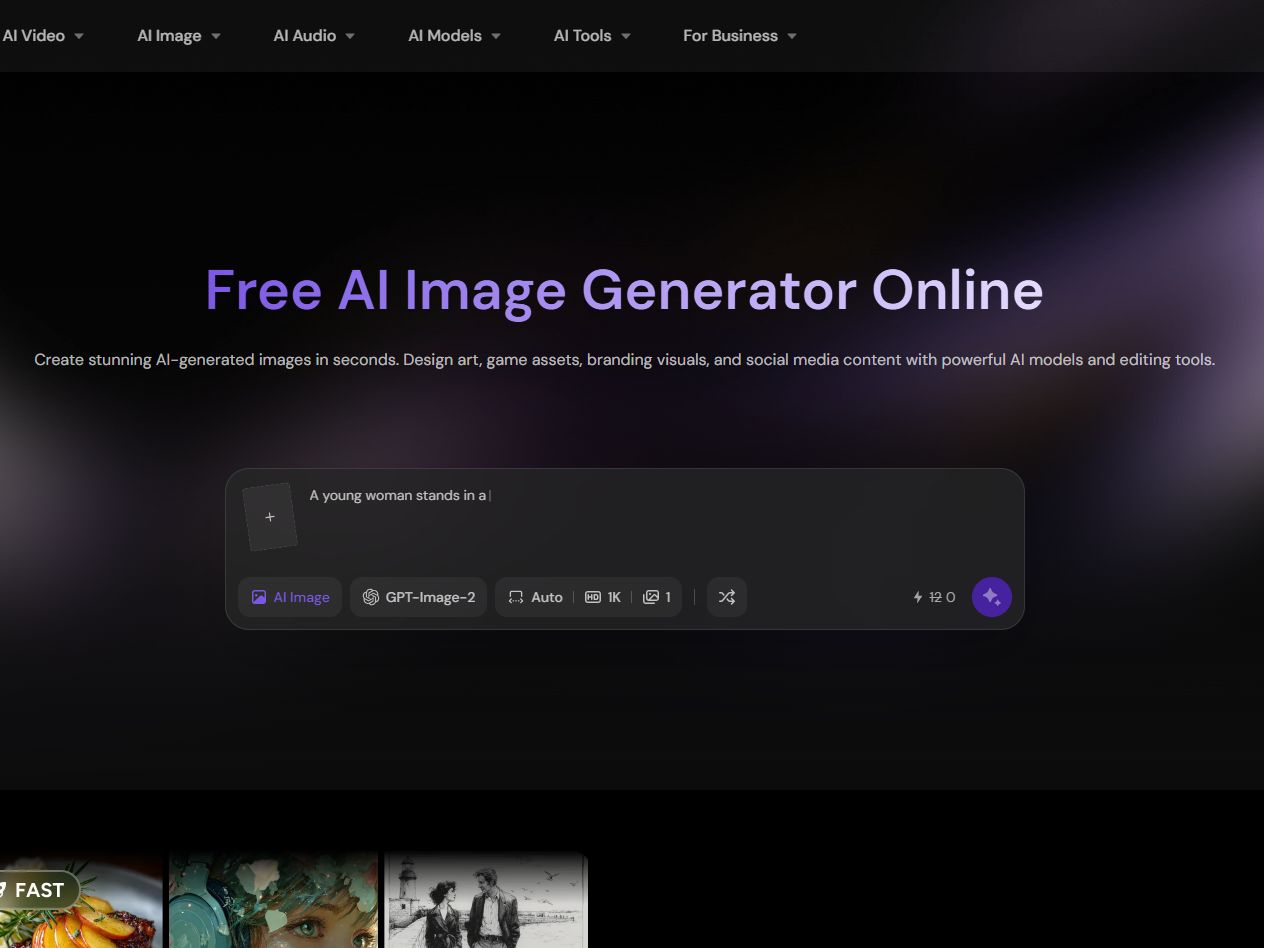
Type a description of what you want, or upload a reference and let the model work from it. PicLumen's image generator handles both. For character work, the Character Reference option keeps the same face across multiple generations, which matters if the character needs to appear in more than one image. You can also generate several variations at once and compare them side by side before picking one.
Turn a Still Image Into a Moving Clip
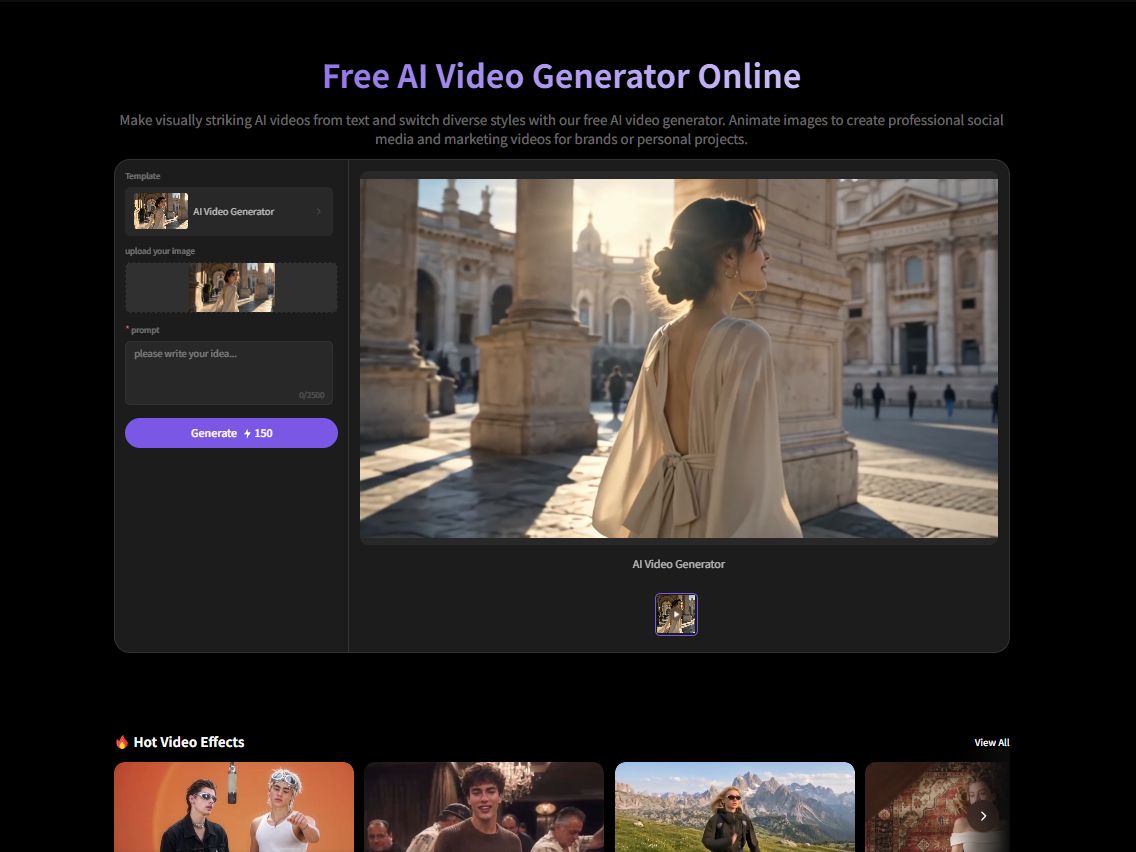
Once you have an image you're happy with, upload it to the image-to-video workflow and describe what should move. A slow push-in, a hand gesture, a product rotating on a surface — the source image stays recognizable while the motion is added. This is useful when a static image isn't enough and you want a short clip for a post or a simple visual story.

Keep Track of Which Reference Made Which Result
Canvas holds your prompts, uploaded references, generated images, and video outputs in one workspace. You can branch from an earlier generation, compare two versions, and see which reference informed which output. For a project that moves through several stages — character design, scene building, then animation — keeping everything connected makes it easier to go back and adjust one part without losing the rest.
Output Sizes for Every Platform
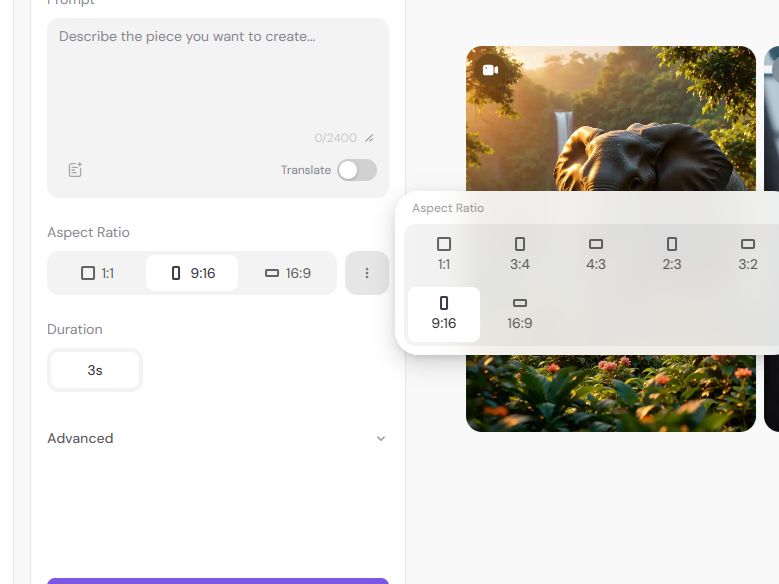
PicLumen's image and video tools support 1:1 for social posts, 16:9 for YouTube or banners, and 9:16 for TikTok and Reels. Choosing the ratio before generating helps frame the subject correctly, especially when you're creating for a specific platform and don't want to crop afterward.
How to Create an Image and Video with PicLumen
Step 1 Choose the Right Model
1Open PicLumen’s image workspace and look at the available models. For a realistic portrait or product shot, pick a model suited to that style. For character work or anime, switch to a model tuned for that look. If you plan to animate the result later, start with an image model that produces clean, well-defined subjects.
Step 2 Enter a Prompt or Upload References
2Type a description of the subject, setting, and style. If you already have a reference image, upload it and choose the Character Reference or Style Reference option depending on what you want to carry over. For a character, upload a clear, unobstructed face photo so the model can maintain consistency across generations.
Step 3 Set the Aspect Ratio and Quality
3Pick the aspect ratio based on where the image will be used — 1:1 for a social post, 16:9 for a banner, 9:16 for a vertical feed. Adjust the number of outputs if you want to compare variations. Higher quality settings produce more detail but take longer.
Step 4 Generate, Download, and Share
4Generate the image and review the result. If the composition or lighting isn’t right, adjust the prompt or reference and try again. Once you have an image you want to keep, download it. To turn it into a video, upload it to the image-to-video workflow and describe the motion you want.


Loved by Creators Worldwide
Real feedback from designers, marketers, and hobbyists sharing their PicLumen experience on Trustpilot.
Alfred Rangel RA wonderful range of options to create…
A wonderful range of options to create truly dreamlike visual effects with all those colors; only imagination is the limit.
jordi AlcarazI have really enjoyed using this site…
I've had a really positive experience with Piclumen. The platform offers excellent features for creating AI images and videos, with impressive quality and a wide range of creative possibilities. It's very easy to use, even when experimenting with more complex ideas, and the whole process is both intuitive and enjoyable. excellent customer service. The team replies very quickly, is always friendly, and genuinely tries to solve any issues you may encounter they care about their users. Overall, Piclumen is an innovative, user-friendly, and exciting AI platform. I highly recommend it to anyone interested in AI image and video creation.
A New TV Episodes Of Ninja Sweetie On…
A New TV Episodes Of Ninja Sweetie On Paramount+
 Mubashir Ahmed
This web is very help and free
This web is very help and free
 rockstar gaming
Value For Money
its value for money i fully recommend you to try this one time you will like it...
Menu LawrenceVery fantastic app
Very fantastic app. I love it. I will like everyone to use this App
 Etna
Very satisfied with the best…
Very satisfied with the best performance for me at the moment.
Great platform to create awesome…
Great platform to create awesome content and see other imaginations come to life
 Abdul Rafay
Best wishes for the developer
Best wishes for the developer
 Tufail Khan
I love it this helps me to create all i…
I love it this helps me to create all i want ai videos ai images thanks piclumen
 Its aarohi
This is a great app for creating images…
This is a great app for creating images and ai videos i just love this app
 Govind Aariya
Naic
Veri nice 👍 Bhot acha ap he
Frequently Asked Questions
What Is Pica AI Used For?
Pica AI is an online image editing platform with tools for face swap, photo enhancement, AI headshot generation, and gender swap. It handles quick, single-purpose edits on uploaded photos and produces still images or short video clips.
Can Pica AI Swap Faces in Photos?
Yes. Pica AI’s face swap tool detects faces automatically and blends the source face into the target image by matching skin tone, lighting, and angle. You upload the source face and the target photo, and the result keeps a natural look.
Does Pica AI Have a Free Trial?
Pica AI offers free credits for new users to try its tools. The exact amount and whether it includes face swap or other features depends on the current sign-up offer.
Can I Create Images From Text With PicLumen?
Yes. PicLumen’s AI image generator accepts text prompts and produces images in a range of styles. You can describe the subject, setting, and composition, then choose a model and generate.
Can I Animate an Image With PicLumen?
Yes. Upload an image to PicLumen’s image-to-video workflow and describe the motion you want. The tool animates the source image while keeping the subject recognizable, producing a short video clip.
What Is PicLumen’s Canvas Used For?
Canvas is a workspace for connecting prompts, reference images, generated images, and video outputs in one project. You can branch into variations and pull from earlier results without starting over. It’s useful for projects with multiple stages, like designing a character and then animating it.
Is PicLumen affiliated with Pica AI?
No. PicLumen is an independent AI creation platform and is not affiliated with, sponsored by, or endorsed by Pica AI. Any references to Pica AI are for informational purposes only. All trademarks belong to their respective owners.