
PixAI Image Generator
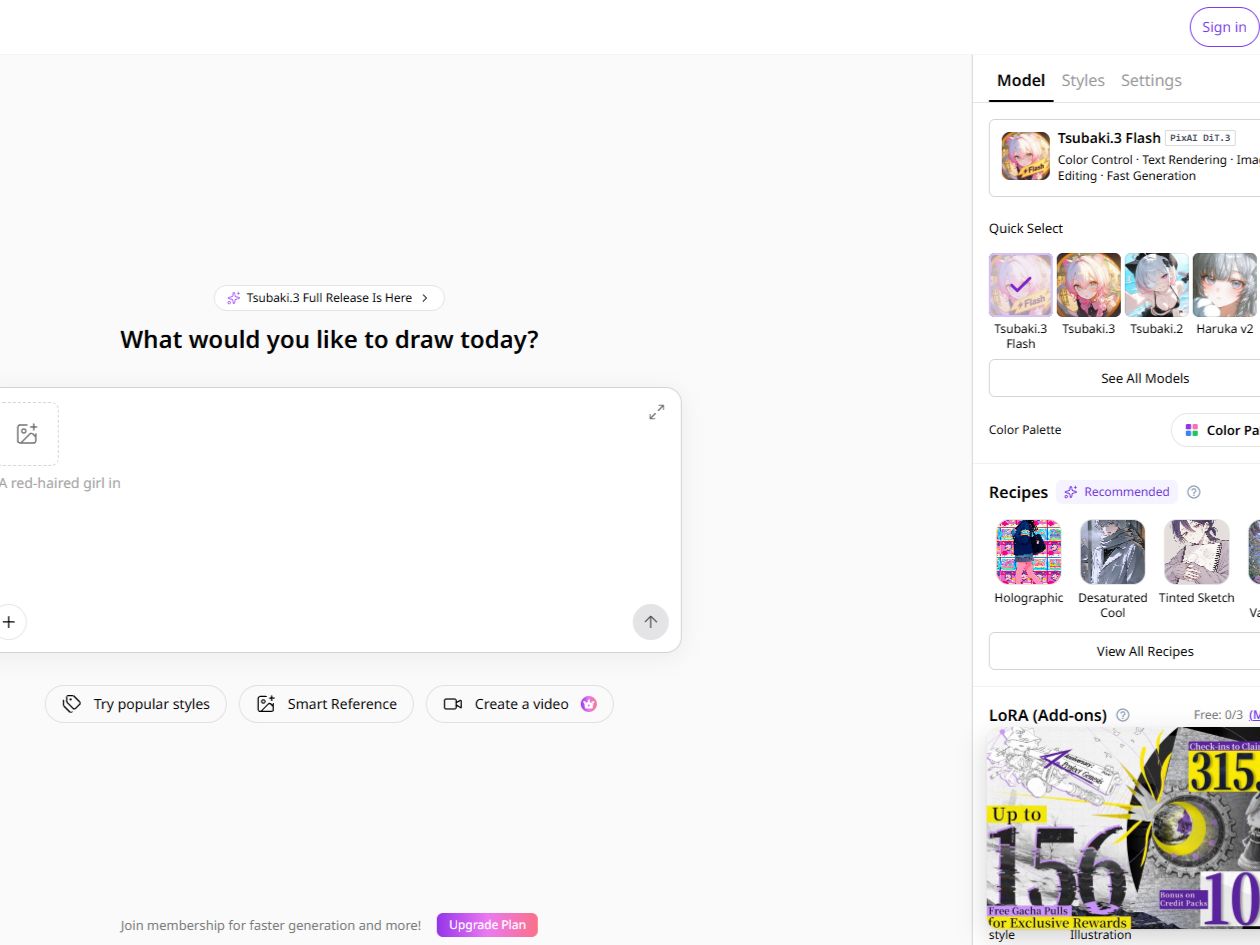
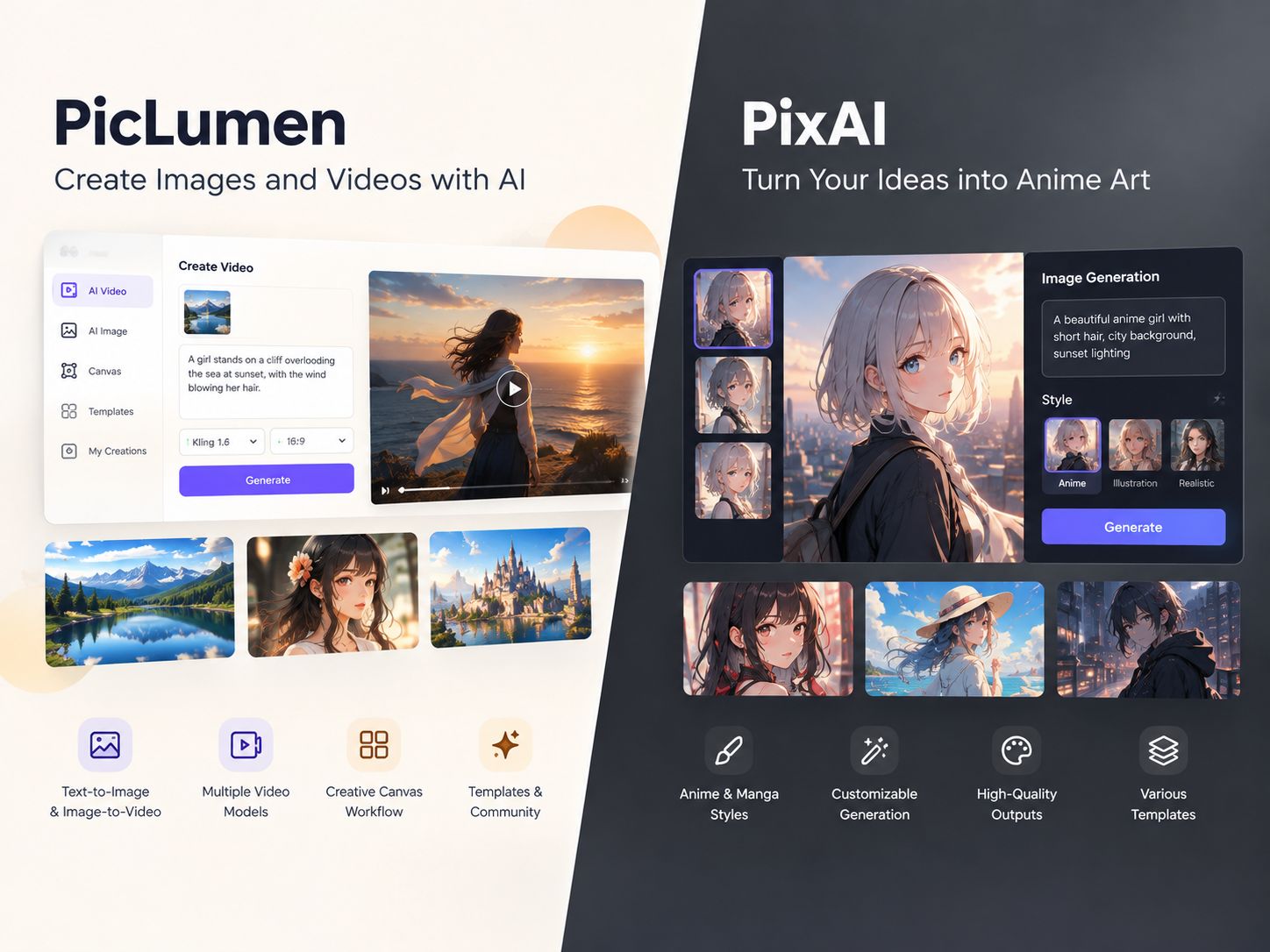
PixAI is aimed at anime and OC creators. The draw is community LoRAs and a consistency workflow that keeps a character recognizable across scenes. PicLumen handles consistency differently — through a Character Reference option that carries the same face across images and into video. If your project stays inside still images, PixAI's LoRA system is more specialized. If you need the character to move, PicLumen keeps the whole thing in one workspace.
Hot Video Effects
Turn your photos into fun dance clips, surprising transformations, and shareable moments with trending AI video effects.
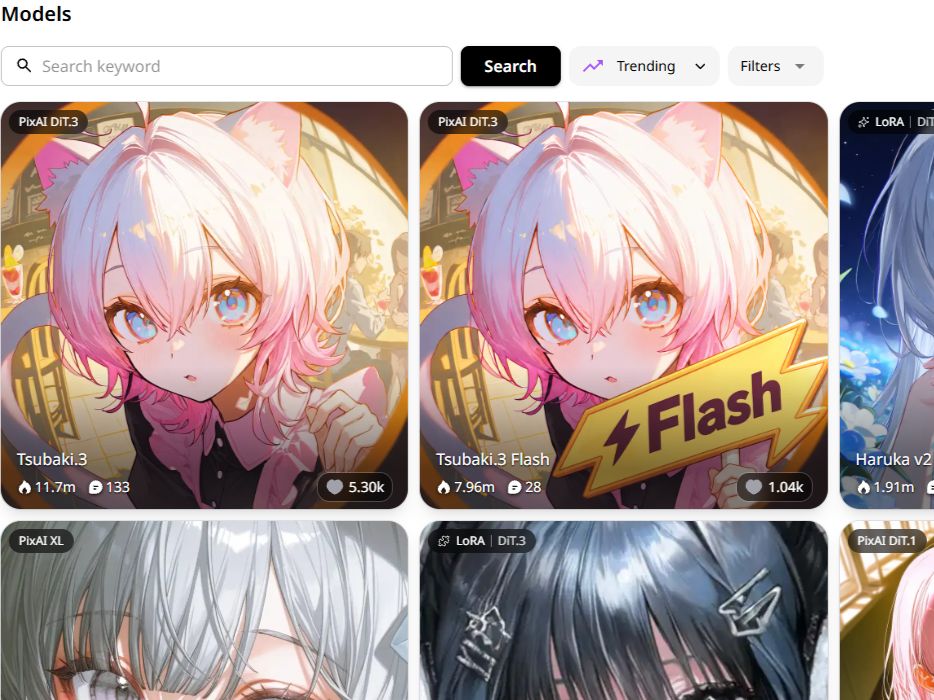
Anime Models Tuned for Different Styles
PixAI splits its models into two families. One reads tag lists and has more community LoRAs for specific styles. The other reads full sentences, handles multiple subjects better, and can put short text inside the image. Which one you use depends on whether style variety or scene complexity matters more to you.
Train a LoRA So the Model Remembers Your Character
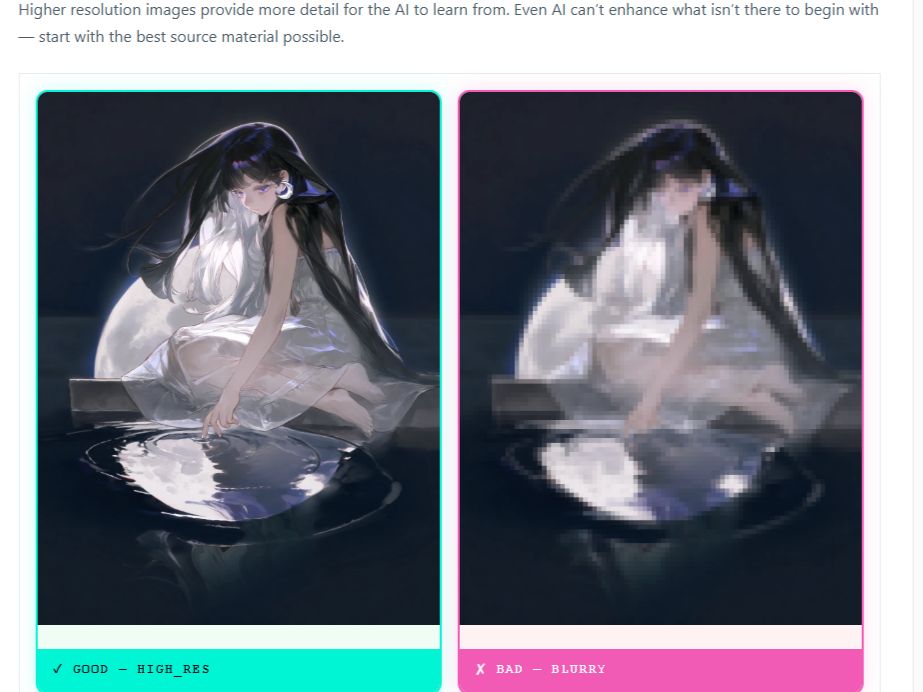
PixAI lets users train a reusable LoRA from 15–30 images of the same character. Once trained, it can help generate new poses and outfits without requiring a reference image for every generation. The quality of the source set matters: inconsistent faces, angles, or clothing can carry into later results. This approach is especially useful for creators who expect to reuse the same character across a comic, illustration series, or collection of character art.
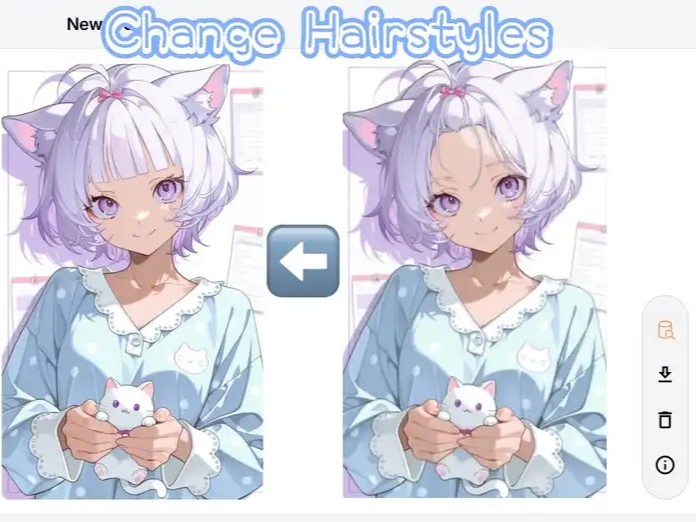
Make Targeted Changes to an Illustration
When an illustration is close to the intended result, a targeted edit can be more useful than generating the entire image again. Use the available editing controls to adjust the specific area that needs work, then review the character's face, clothing, and surrounding details to make sure the change fits the rest of the image.
Give a Character Image Some Movement
Any image you generate on PixAI can be pushed into the image-to-video workflow. Add a camera move, or animate a character's gesture from a still frame. If you already have a character image and want a short clip for social or a story beat, this saves you from switching to another tool just to make it move.
What People Use PixAI For
Building an OC Sheet With Turnaround and Expressions
A creator needs a reference sheet for their original character. They generate a front view, side view, and back view, then use editing tools to produce a range of facial expressions. The sheet becomes the visual anchor for future generations.
Keeping a Character Consistent Across a Comic or Story
A webcomic artist has a recurring cast. They train a character LoRA for the main character so the same face and outfit appear in every panel, then use reference images for supporting characters that appear less often.
Multi-Character Scenes and Short Text
A creator wants two characters interacting in one image, or a manga panel with a short line of dialogue. They use a DiT-family model, which handles separate character descriptions and readable in-image text better than tag-based models.
Fixing a Generation Without Starting Over
An illustrator has a near-perfect image except for the outfit color. Instead of rerolling the whole prompt, they use PixAI's editing tools to change just that detail while preserving the pose, lighting, and composition.
PixAI and PicLumen for Character Projects
PixAI is a strong fit for artists building a recurring anime character, especially when they want to train a LoRA and reuse it across different poses and scenes. PicLumen takes a different route: you can start with a character reference, develop new images, and continue into video creation. The main choice is whether your project depends on a specialized anime-character workflow or needs image and video creation in the same workspace.
.jpg)
Describe a Character and Get One Back
You type out the appearance, outfit, expression, and background, and the character generator produces an image. If you already have a design, upload it as a reference instead. This is a direct starting point for an OC — no need to build the character in another tool first, then import it.
Add Motion to a Photo
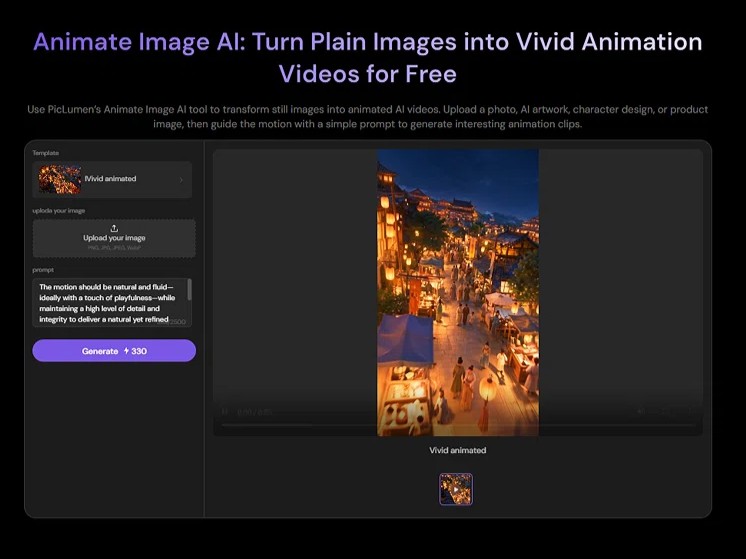
You have a finished character image and want it to move. Upload it to the animate image tool, describe the motion — a slow push-in, a head turn, a hand gesture — and the source image stays recognizable while the movement is added. It's useful when a static image isn't enough for a post or a story beat.
.jpg)
Apply a Cartoon Style to an Image or Prompt
The cartoon generator takes a photo or a text prompt and produces a stylized illustration. A realistic portrait becomes a cartoon character, or a prompt becomes a cartoon visual from scratch. Clean outlines, saturated colors, and a consistent illustrated look — the same subject can be pushed through the tool more than once and still read as the same character.
Generate a Song From a Description
Describe the genre, mood, lyrics, or musical direction, and Suno v6 on PicLumen generates a full song or vocal track. If your character video needs a theme song or a background bed, this covers that step without leaving the platform. The output can be a complete track or just the instrumental layer, depending on what you describe in the prompt.
.jpg)
How to Create an Anime Character and Video with PicLumen
Step 1 Choose the Right Model
1PicLumen lists models that each produce a different look. For anime and illustration, start with one tuned to that style. For a realistic character, switch to a portrait model. If you plan to animate the result later, pick a model that renders clean outlines and a well-defined subject — the image holds up better once it starts moving.
Step 2 Enter a Prompt or Upload References
2Describe the character: hair color, outfit, expression, setting. If you already have a design, upload it as a Character Reference instead, and the model carries the face forward across generations. A clear front-facing reference works better than a profile or a full-body shot for keeping the face consistent.
Step 3 Set the Aspect Ratio and Quality
3Pick the ratio based on where the image is going: 9:16 for a vertical feed, 1:1 for a social post, 16:9 for a banner. A character sheet usually reads better in 1:1 or 16:9, where there's room for a full-body composition. Higher quality takes longer but holds up better when the image is animated.
Step 4 Generate, Download, and Share
4Generate the image and check the face, outfit, and composition. If one detail is off — the eyes, the background, a hand — adjust the prompt or use an editing tool to fix that part instead of rerolling the whole image. Once it looks right, download it. To animate it, upload the image to the animate image tool and describe the motion you want.


Loved by Creators Worldwide
Real feedback from designers, marketers, and hobbyists sharing their PicLumen experience on Trustpilot.
 Isuru Nilanka
It's easy to use
It's easy to use, they have different AI models, good prices, and a nice community page.
A New TV Episodes Of Ninja Sweetie On…
A New TV Episodes Of Ninja Sweetie On Paramount+
 Sara Frandsen
Excellent customer service
Excellent customer service! The support team was incredibly fast, polite, and helpful. They handled my request quickly and professionally without any hassle. It is rare to see such great and honest support these days. Highly recommended!
Narender KhatanaI love this app I love this very very…
I love this app I love this very very much this is help in make a videos
 Menu Lawrence
Very fantastic app
Very fantastic app. I love it. I will like everyone to use this App
Great platform
Ease of use,and great models
 Selvakumar MSK
Good website.
Good website. Website for creating images.
 KHILADI
Now i started using of piclumen in…
Now i started using of piclumen in starting it looks perfect
 Edwin Capdepomt
Strong aesthetic ability.
Piclumen gives the impression of being a capable and expressive image generator with a refined aesthetic. If it maintains this level of quality in other types of scenes, it will become one of the most interesting visual tools available today.
Samaneh Habibiuseful
useful. great for graphists
Sheikhvery user friendly
very user friendly, easy to use.
 Lalith Perera
I loved it thank you so much for the…
I loved it thank you so much for the images
Frequently Asked Questions
What Is PixAI Used For?
PixAI is an AI anime art platform. It supports text-to-image generation with multiple anime-focused models, community and custom LoRAs, inpainting and editing tools, and image-to-video animation. It is built for character creators, OC artists, and manga or illustration projects.
What Can I Create With PicLumen's Character Generator?
You can generate a character from a text description — appearance, outfit, expression, background — or upload a reference image and let the model work from it. The result is a still image you can download, edit, or animate in a later step.
Can I Keep the Same Character Across Multiple Images?
Yes. Upload a clear, front-facing reference and choose the Character Reference option. The model carries the face forward across generations. It works best when the reference has even lighting and no obstruction over the face.
How Long Does It Take to Animate a Character Image?
Generation time depends on the model and the length of the clip. A short motion like a head turn or a slow push-in is faster than a more complex sequence. You can try a shorter duration first to check whether the motion works before committing to a longer render.
Can I Adjust the Cartoon Style or Is It Fixed?
The style depends on the prompt and the model you choose. Describing the look you want — line weight, color palette, level of detail — gives you more control over the result. Generating a few variations and comparing them is the fastest way to find the style that fits.
Can I Export Vocals and Instrumentals Separately?
PicLumen's audio tool generates a complete track from your description. Whether you can separate the vocal and instrumental layers depends on the output options available for the specific model. Check the current workspace controls before generating if you need separate stems.
Is PicLumen affiliated with PixAI?
No. PicLumen is an independent AI creation platform and is not affiliated with, sponsored by, or endorsed by PixAI. Any references to PixAI are for informational purposes only. All trademarks belong to their respective owners.