AI Video Extender Online: Keep Your Scene Going
Make your clip longer by creating what happens next. With PicLumen’s AI video extender, you can continue a scene from your existing footage, guide the action with a prompt, and choose the duration, resolution, and audio for your next take.
Why Choose PicLumen’s AI Video Extender?

Start Without Editing Experience
Upload your clip, describe what happens next, and choose your settings in PicLumen. You can generate an extension without learning a timeline editor.

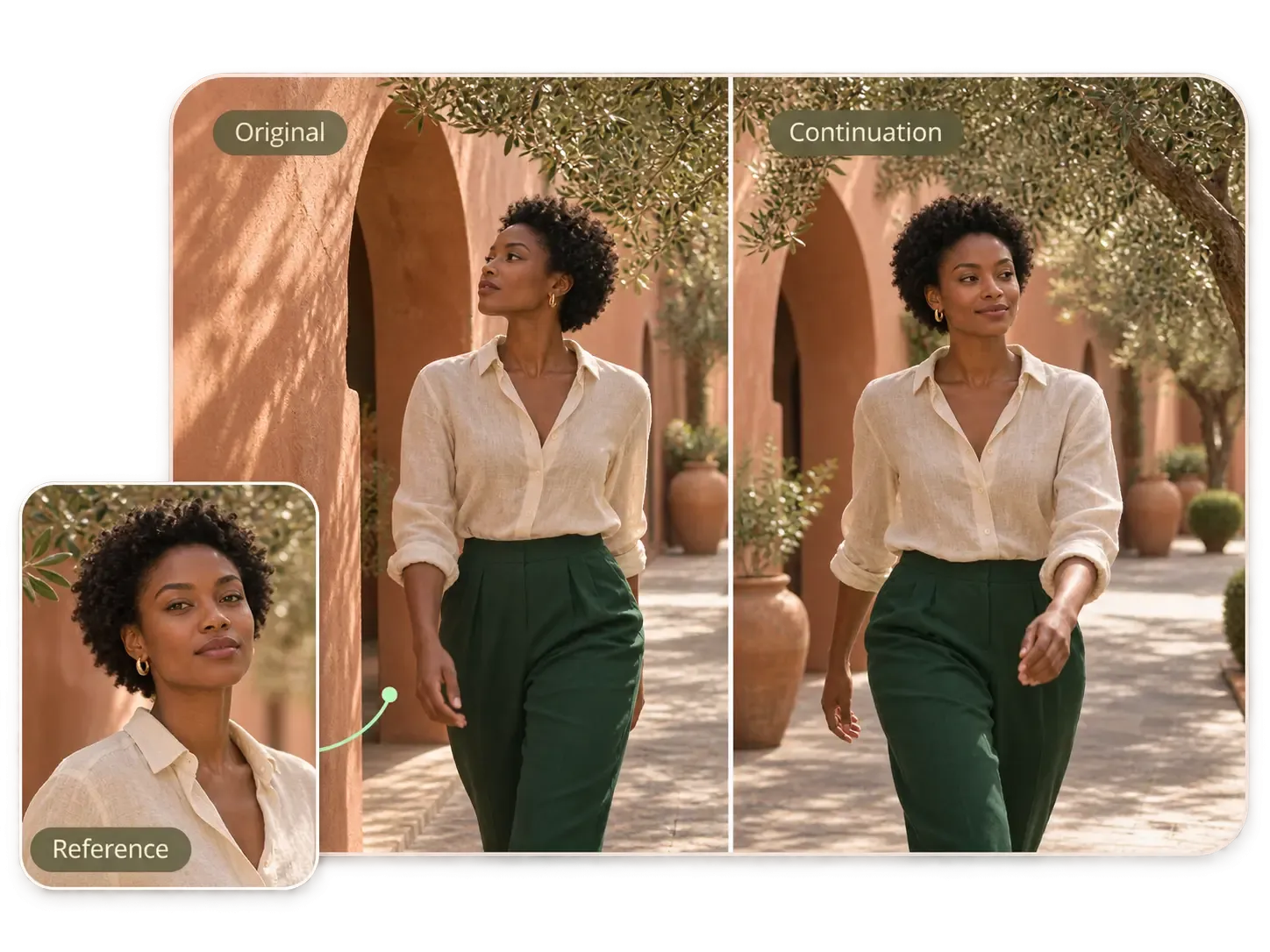
Keep Your Character Consistent
Use your source video and additional character images with Seedance 2.5 on PicLumen to guide your character’s face, hairstyle, and clothing.

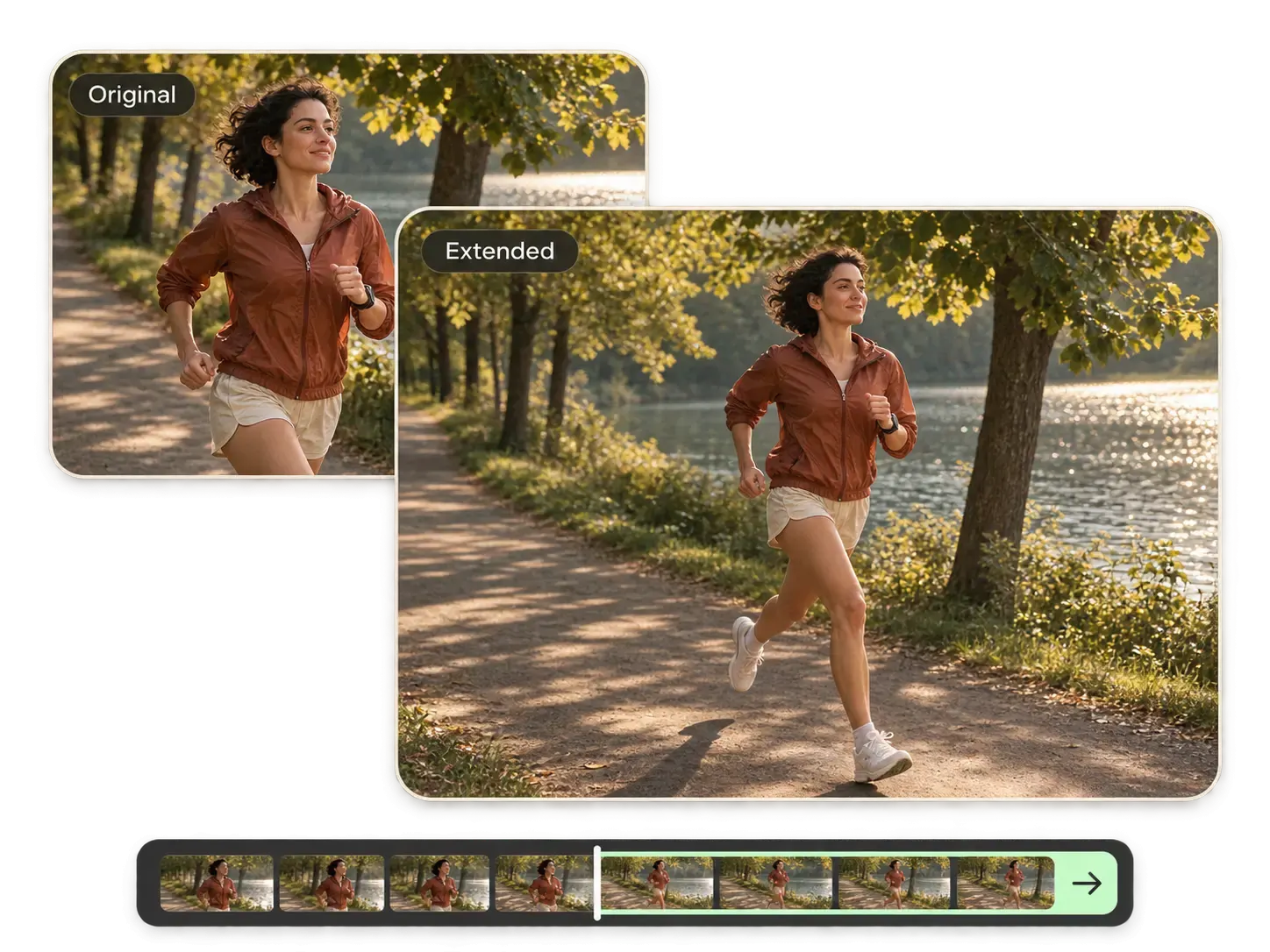
Keep the Action Connected
Continue a walk, gesture, or camera move from your original clip. PicLumen uses your source footage and prompt to guide what follows.

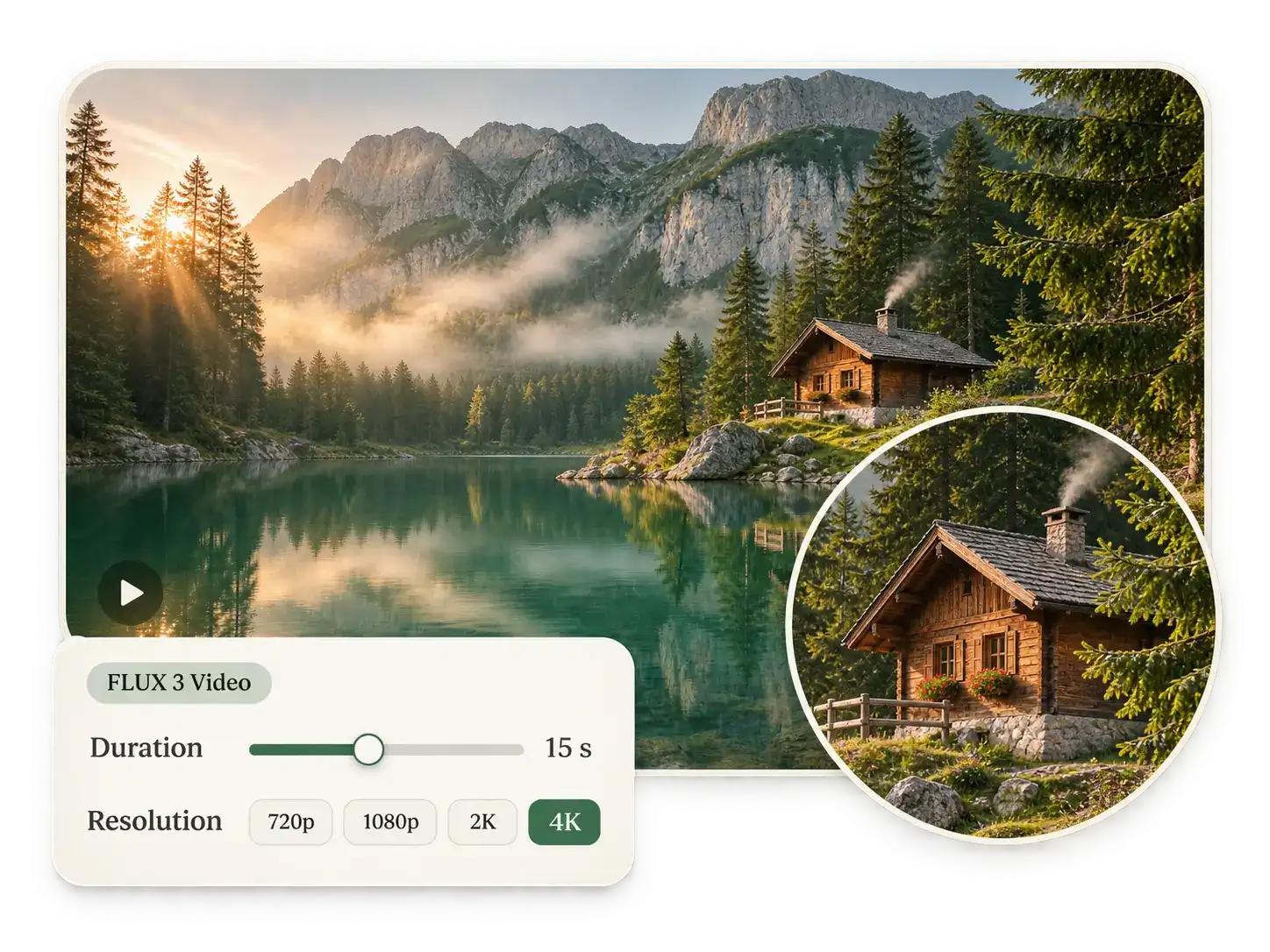
Match Your Final Resolution
Choose output up to 4K with FLUX 3 Video, or 480p, 720p, and 1080p with Seedance 2.5 on PicLumen.

Stay in the Same Scene
Use your original clip in PicLumen to guide the lighting, setting, and color of the continuation.
Extend Your Video Beyond the Last Frame
Your clip ends before your voiceover, product reveal, or character action is finished. With PicLumen's AI video extender, you can generate new footage to carry the moment forward. Continue the movement already underway and give yourself more material for the final edit. You can make your video longer without slowing down the action or replaying the same few seconds.
Keep Your Scene Visually Connected
Want the extra footage to feel like part of the same shot? Use your original video as a reference for the subject, lighting, background, and camera movement. With Seedance 2.5, you can also add a character or product image to guide the details you want to retain. Keep your prompt focused on the action you want to continue and the appearance you want to preserve.
Guide What Happens Before or After
You have a specific continuation in mind, but you do not have the footage. Describe the next action and camera movement to guide your video extension. With Seedance 2.5, you can also describe what happens before your source clip. Show a character approaching before an entrance, or carry the action forward after the original ending. You can build a setup or ending around the moment you already have.
Choose Your Length and Resolution
Need a quick test or higher-resolution footage for your final edit? With PicLumen's AI video extender, you can choose your output settings before generating. Select FLUX 3 Video for duration settings from 5 to 15 seconds and resolutions up to 4K, or Seedance 2.5 for 4 to 30 seconds and up to 1080p. Choose the settings that suit the footage you need for your project.
Increase Video Length with AI for Your Next Project

Product Ads
Give your audience more time to see your product. Extend a bottle rotation, jewelry close-up, or packaging reveal, then place your offer or call to action over the footage in your edit. You can add a product image as a reference with Seedance 2.5 to help communicate the details you want to keep.

Short Films and Drama
Let your character finish a movement or pause before the next cut. You can extend an entrance, a walk, or a quiet reaction to adjust your story's pacing. Use the continuation alongside the scenes you create in PicLumen Drama when you assemble your short film.

Reels and YouTube Shorts
Keep your chosen visual on screen until your message lands. If your narration runs beyond the clip, you can generate a continuation and trim it to the final line or musical cue. You get more footage to shape around your post's timing.

Travel Videos and B-Roll
Stay with a location while you finish describing it. Continue a slow view across a coastline, mountain ridge, or city street, then choose your cut around the narration. You can build a longer visual sequence from a shot that already suits your video.
How to Extend a Video with AI on PicLumen
Step 1 Choose Your Model and Upload
1Open PicLumen's AI video extender and select FLUX 3 Video or Seedance 2.5. Upload your source within the model’s file size and duration limits. With Seedance 2.5, you can also add image, video, or audio references.
Step 2 Describe What Happens Next
2Write one clear action and specify your camera movement. With Seedance 2.5, use @ to select your uploaded video and include "extend" or "continue" in your prompt. State whether you want footage before or after your clip.
Step 3 Choose Your Output Settings
3Set your duration and resolution, then turn Generate Audio on or off. You can choose up to 4K with FLUX 3 Video or up to 1080p with Seedance 2.5. Review the required Lumens and click Generate.
Step 4 Review and Download Your Take
4Watch how the generated section connects to your source. Check your subject, movement, and audio, then download your preferred result. You can trim the footage in your video editor to match your project's final timing.


Loved by Creators Worldwide
Real feedback from designers, marketers, and hobbyists sharing their PicLumen experience on Trustpilot.
Isuru NilankaIt's easy to use
It's easy to use, they have different AI models, good prices, and a nice community page.
 Crispee
Easy to use.
Easy to use. Great layout love it!
 by Neefa
i love it and easy to use
i love it and easy to use
 George Price
PicLumen's support team replies quickly…
PicLumen's support team replies quickly to your help requests and they are clear in what they require of you for them to help you. They usually diagnose your problem and offer a solution in less then 24 hours. Stellar service!
 Ai Hack
Great tool
I would really recommend this website to content creation
Brijesh Chikhaliyavery good
very good , Excellent Experience
Zakirya GabolGood best
Good best Good good best
Great platform to create awesome…
Great platform to create awesome content and see other imaginations come to life
I like this app its a veey good…
I like this app its a veey good experience
a great creative app
This is such a great creative app it really brings out the artist in you
Everything
Everything, keep up the good work
 Buzás Lili
Im only doing this for the free stuff
Im only doing this for the free stuff
Frequently Asked Questions
What can I create with PicLumen’s AI video extender?
You can generate a continuation for an existing clip, including an AI-generated video. Use your footage and a prompt to carry on a product reveal, character action, or camera movement. With Seedance 2.5, you can also describe footage to generate before your source clip.
Can I extend a video with AI without slowing it down?
Yes. You can generate new footage to continue the action while keeping your original clip at its existing playback speed. Use PicLumen’s video extension workflow when you want more of a scene, such as a longer product turn or an ongoing walk.
What duration and resolution can I select?
With FLUX 3 Video, you can select duration settings from 5 to 15 seconds and resolutions from 720p to 4K. With Seedance 2.5, you can select from 4 to 30 seconds and choose 480p, 720p, or 1080p. Check your account for access to your preferred settings.
Which videos and reference files can I upload?
With FLUX 3 Video, you can upload one video up to 50 MB and 15 seconds long. With Seedance 2.5, you can upload up to 10 MP4 or MOV videos at 24–60 fps, up to 200 MB each. Keep each video between 2 and 30 seconds, with a combined duration of up to 30 seconds. You can also add up to 30 images and 10 audio references with Seedance 2.5.
Can I generate audio with my extended video?
Yes. You can enable Generate Audio with either model and add audio references with Seedance 2.5. Preview the generated sound with your footage before using it in your edit. If you need your original voiceover or music unchanged, keep that track in your editing project.
How can I keep my subject and scene consistent?
Choose clear source footage and describe a simple continuation. Specify the appearance, lighting, background, and camera position you want to retain. With Seedance 2.5, you can add image references for further guidance. Review faces, hands, products, and the transition between sections before choosing your take.
Can I try PicLumen’s AI video extender for free?
You can check your available Lumens and generation cost in your PicLumen account before starting. Your ability to generate without a purchase depends on your balance, selected model, and settings. Choose your duration, resolution, and audio options to review the cost before you proceed.
How do I choose the best AI video extender for my project?
On PicLumen, you can choose FLUX 3 Video for single-clip continuation with resolution options up to 4K. Try Seedance 2.5 when you need multiple references, before-or-after instructions, or duration settings up to 30 seconds. Use your own clip to compare the movement, subject details, and transition, then choose the result that suits your edit.
Give Your Clip the Ending You Had in Mind
Keep the footage you like and create the next part with PicLumen's AI video extender. Upload your video, describe the continuation, and choose your output settings. Start with one shot and turn it into a longer scene you can use in your next project.