
FLUX 3 AI Video Generator with Sound
Turn a text prompt or photo into a video with FLUX 3 on PicLumen. Plan the action and camera movement, include dialogue and background sound, and choose a look from handheld footage to animation.

Create Multi-Shot Scenes from Text
FLUX 3 text to video generation supports changes of scene and camera angle within a single clip. You can start with a wide view, cut to a detail, and finish on a reaction. Write the shots in order so each one has a purpose. For a café promo, open on a customer arriving at the counter, move to a close-up of the coffee being poured, then end on the customer taking the first sip. Give each action enough time within the selected duration. Use PicLumen’s text-to-video generator to turn a written scene into footage for a pitch, a social post, or a larger edit.
Animate Your Photos and Illustrations
FLUX 3 image-to-video generation makes your uploaded image the first frame. That gives you a defined composition to work from when a product, person, or illustrated character already has an established look. A watch photo could become a slow camera move across the dial. A landscape illustration could gain drifting clouds and moving water. A portrait could begin with a small change in expression. PicLumen’s image to video generator lets you try several motion ideas from the same asset. In your prompt, explain what moves, what stays still, and where the shot should end. A small movement is often a useful first test before requesting a larger change of viewpoint.

Generate Dialogue, Effects, and Ambient Sound
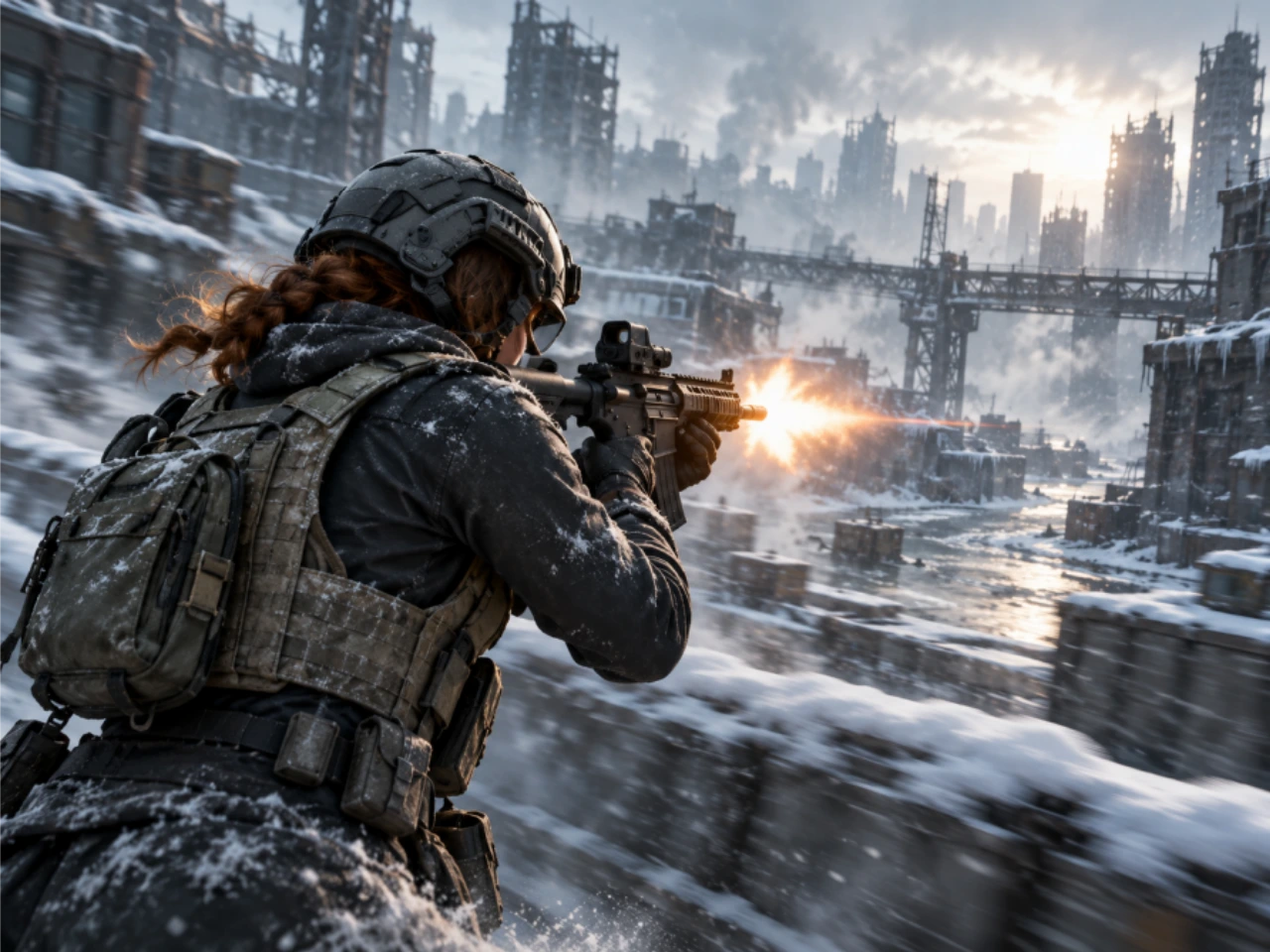
FLUX 3 generates audio alongside the video frames. A scene can include a character’s voice, sounds from the action, and the background noise of the location. For a rainy train-platform scene, you could ask for rolling suitcase wheels, an approaching train, and a traveler saying, “We made it.” For a studio product shot, you might want only the click of a watch clasp and a quiet background. Include the sounds that matter in your FLUX 3 prompt. You can also request dialogue in different languages or turn audio off when the project already has a voiceover, music track, or sound mix.
Choose a Cinematic, Handheld, or Animated Look
FLUX 3 can produce casual handheld footage, cinematic scenes, animation, and graphic treatments. Describe the visual choices that define the look: camera steadiness, lighting, color, texture, and how the subjects move. A travel clip might use loose framing and available light. A paper-cut animation could use flat colors, visible paper edges, and simple movement. A beauty campaign might call for a fixed camera, soft side lighting, and a restrained palette. FLUX 3 also supports lettering within moving scenes. You can request a shop sign, a title card, or an animated poster concept with specific words. Keep exact campaign typography and layout in your finishing workflow when they need precise control.

What Can You Make with FLUX 3?
Create the individual shots your project is missing, from a product detail to a short character exchange. Use FLUX 3 clips on their own or combine them with your existing footage.
Product Ads and Launch Videos
Make a reveal for a new accessory, show a product in a seasonal setting, or create a close-up for a product page. Add your logo, price, and offer in the final edit so campaign details remain under your control.
Reels, TikTok, and YouTube Shorts
Generate a vertical opening, a visual joke, or a transition for your next post. Choose 9:16 before creating the shot, and leave room in the composition for captions. FLUX 3 can supply a short scene without requiring you to film the entire idea.
Short Films and Story Previews
Work through a character’s entrance, an exchange, or the moment before a reveal. Share a FLUX 3 video with collaborators to discuss pacing and framing. It can serve as a production reference or become one shot in a longer edited story.
Animation and Motion Design
Try a moving illustration, a graphic transition, or a title-sequence concept. See how the design reads over several seconds, then choose the version that fits your project. These clips can support music visuals, explainers, and animated social posts.
How to Use FLUX 3 on PicLumen
Choose the Model and Add Your Input
1Open PicLumen’s AI video generator and select the available FLUX 3 model. Enter your scene description or upload an image to use as the first frame.
Describe the Shot and Choose Your Settings
2Specify the subject’s action, camera movement, and any dialogue or sound. Choose the available duration, aspect ratio, resolution, and audio options for your clip.
Generate, Review, and Download
3Click Generate, then play the full result. Check the subject details, motion, cuts, and audio timing. Adjust your prompt if needed, or download the take you want to use.


Loved by Creators Worldwide
Real feedback from designers, marketers, and hobbyists sharing their PicLumen experience on Trustpilot.
 Isuru Nilanka
It's easy to use
It's easy to use, they have different AI models, good prices, and a nice community page.
 Bet AW
Nice good appp creat inmage
Nice good appp creat inmage
Good 👍 perfomense web site good images…
Good 👍 perfomense web site good images good
by Neefai love it and easy to use
i love it and easy to use
Ibrahim OnuhSo very powerful and interesting
So very powerful and interesting
 next frame
best ai web creation site
best ai web creation site
The best app in the place
The best app in the place
 Final Project
Really good image generation Tool
Really good image generation. I love the way they have daily reward system that help beginners to make creative content before spend money on it. 100% recommended.
 Headphonlessness Meditations
hi i am @VbsRedlof on twitter
hi i am @VbsRedlof on twitter
RaidenI haven’t tried yet so wait
Its actually really useful
 Le crouton enragé
Very good application to do whatever…
Very good application to do whatever you want
 Eri Sudirjo
First
First, I thought Piclumen not too populer because people never talk about it. But now more more I love it. Like canva, Piclumen also all in one (sora, banana, and midjourney inside). Thanks for make it easier
Frequently Asked Questions About FLUX 3
What is FLUX 3, and is it an image or video model?
FLUX 3 is Black Forest Labs’ model family for image, video, and audio generation. FLUX 3 Video creates moving scenes with generated sound; FLUX 3 Image generates and edits still pictures. For video, you can start with a text prompt or an image and describe the action that follows. Choose the version that matches the type of content you want to make.
Is FLUX 3 free on PicLumen?
FLUX 3 video generation uses Lumens. Model access and the amount required depend on your account and generation settings. Check the displayed cost before you generate, particularly when changing the clip length or output resolution. You may need a subscription or additional Lumens. PicLumen’s pricing page lists the current plans and allowances.
What video lengths and resolutions does FLUX 3 support?
BFL’s FLUX 3 documentation lists 5–20-second clips for text-to-video and image-to-video generation, at 24 frames per second. The documented workflow renders at HD and uses video upsampling for Full HD, 2K, and 4K outputs. These higher-resolution options should be described as upsampled output. Common framing options include landscape 16:9, vertical 9:16, and square 1:1; check your selected model for the available settings.
Can I set a start frame, end frame, or multiple keyframes?
Yes. The FLUX 3 workflow documented by Black Forest Labs supports one starting image, a start-and-end pair, or up to ten keyframes. These images define moments within the clip. For a product transition, you might specify a closed package at the beginning and an open package at the end. FLUX 3 generates the movement between those moments. A keyframe sequence is different from supplying general style references.
Which languages can FLUX 3 use for dialogue?
Black Forest Labs lists English, Spanish, French, German, Japanese, Chinese, Portuguese, and other languages among FLUX 3’s dialogue capabilities. Write the spoken line in the intended language and identify the speaker. A short sentence gives the scene room for pauses and expressions. Listen to the complete result to check pronunciation and speaker assignment, and review lip timing when the person’s mouth is visible.
What does FLUX 3 Draft Mode do?
In BFL's workflow, Draft Mode produces a quicker preview at a lower generation cost. You can choose a draft and use the dedicated enhancement step to render that at full quality. Submitting the prompt as a fresh generation can give you a different result. Draft Mode is useful for comparing creative directions before paying for a full-quality version.
Can FLUX 3 extend or edit an existing clip?
FLUX 3’s continuation mode generates footage after an existing clip, using the source video and audio to guide what happens next. You could use it to carry an entrance into the next action. Changes to footage already recorded use a separate editing workflow. Black Forest Labs documents FLUX Video Edit as a distinct tool for tasks such as changing elements in a source clip.
How can I get more accurate results from a FLUX 3 prompt?
Start by identifying what went wrong. If the camera circles a product that should rotate in place, specify a fixed camera and a rotating subject. If the clip rushes through several events, reduce the number of actions or allow more time. For image-based generation, check that the source shows the parts needed for the movement. Change one instruction per attempt so you can judge its effect.
How is FLUX 3 Max related to FLUX 3?
FLUX 3 Max is a version of FLUX 3 Video post-trained by fal Research in collaboration with Black Forest Labs. The additional work focuses on visual quality, following prompts, and generation speed. It belongs to the same family, with its own available settings. Performance figures published for Max describe that version and test setup; they should not be applied to every FLUX 3 workflow.
Create Your Next Video with FLUX 3
Bring your prompt or image to PicLumen and turn it into a scene with movement and sound. Use FLUX 3 to make the product shot, character moment, or animated clip you need, then download your chosen take for the final edit.
- Kling 4.0 AI Video Generator
- Minimax H3 AI Video Generator
- Seedance 2.5
- Wan 3.0 AI Video Generator
- AI Video Generator
- AI Movie Maker
- AI Product Video Generator
- Magical Santa Gifting
- AI Short Film Generator
- AI Talking Avatar Video Generator
- AI TikTok Video Generator
- AI UGC Video Generator
- AI Video Extender
- AI Video Face Swap
- AI YouTube Video Maker
- AI Baby Dance Video Generator
- AI Educational Video Maker
- AI Facebook Ad Video Maker
- AI Landscape Generator
- Black Friday Ads
- Image to Image AI
- AI Illustration Generator