AI Video Editor for the Changes You Have in Mind
Change a dress color, update an object’s appearance, or try a new visual direction with PicLumen’s AI video editor. Upload your video and describe the edit to create another version for a product ad, YouTube clip, or creative project.
Why Choose PicLumen's AI Video Editor?

Keep Using Your Existing Footage
You can try a visual revision with the clip you already have before arranging another recording session.
Start Without a Complicated Setup
You can work in your browser, with your model, reference video, and prompt in one panel.
Explain the Edit in Your Own Words
You can describe the result you want without learning specialized editing commands.

Choose Around Your Project
You can compare the two models’ listed capabilities and credit rates before selecting one for your shot.
Learn with One Small Change
You can begin with a single color edit, review what worked, and use that experience to guide your next attempt.
Make Your Edit with a Text Prompt
Need a small change in a clip you otherwise like? Describe it in PicLumen's AI video editor and generate a revised version. Name the subject, explain the change, and include any details you want to retain. Start with a focused request, then adjust your prompt after reviewing the result.
Try a New Color on Your Footage
Great take, wrong color? Turn a cream dress blue or a red apple green using your existing video as the starting point. Test a different palette for your product ad or fashion concept before planning another shoot. Preview the full clip to see how the new color looks in motion.

Choose More Room for Longer Scenes
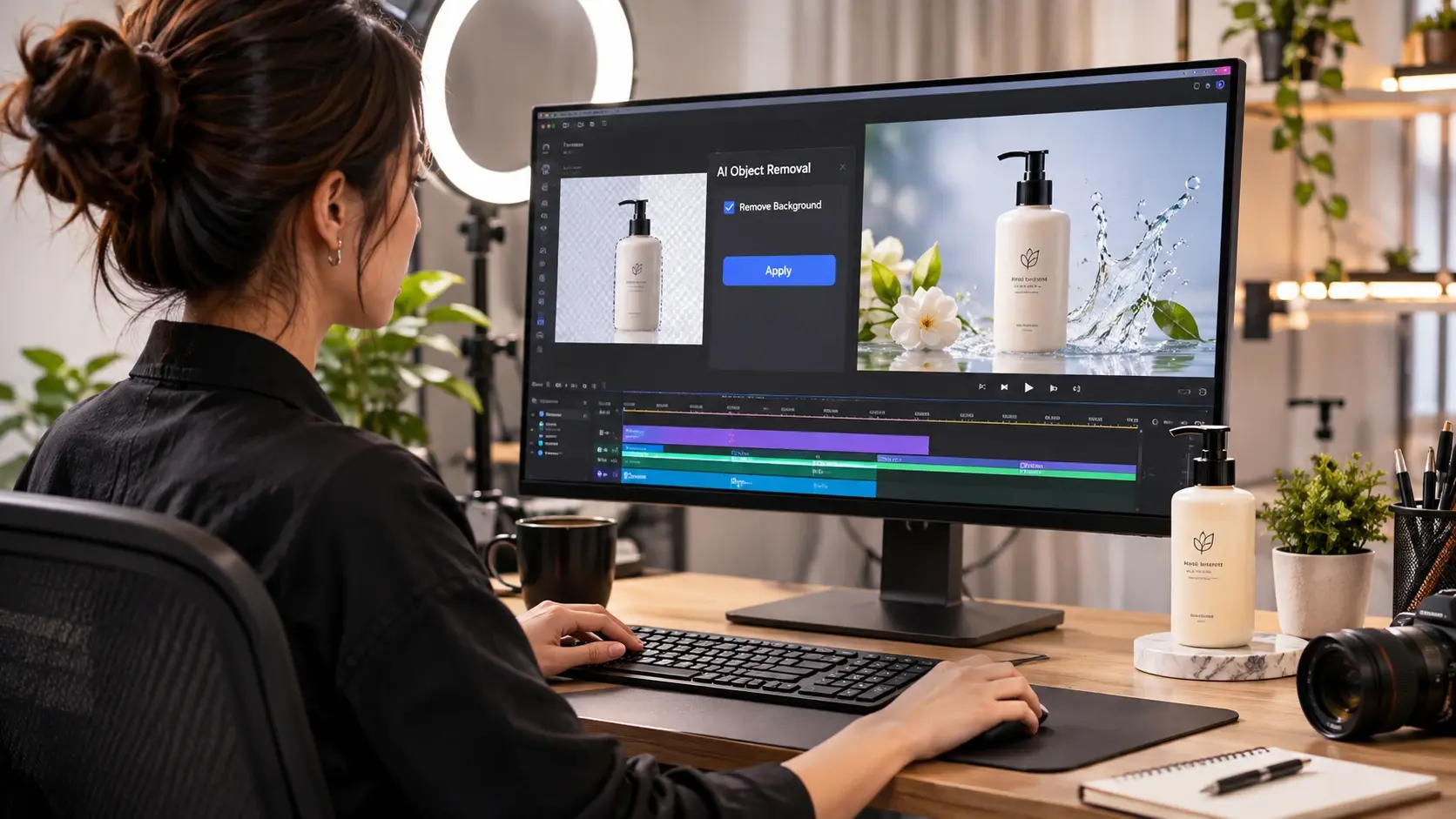
A quick product shot and a longer story scene call for different options. Match your project to Flux Video Edit for a single clip up to 15 seconds, or choose Seedance 2.5 for its listed 4–30-second range and multiple-input support. Compare the output options too: approximately 720p with Flux Video Edit, or 1080p with Seedance 2.5.
Keep Your Clip's Timing and Sound
Keep a revised shot in step with the sequence you've already built. With Flux Video Edit, your output follows the source video's duration and aspect ratio, so the new version fits the same place in your edit. Your original audio carries through unless the prompt requests sound or dialogue changes; silent source clips stay silent.
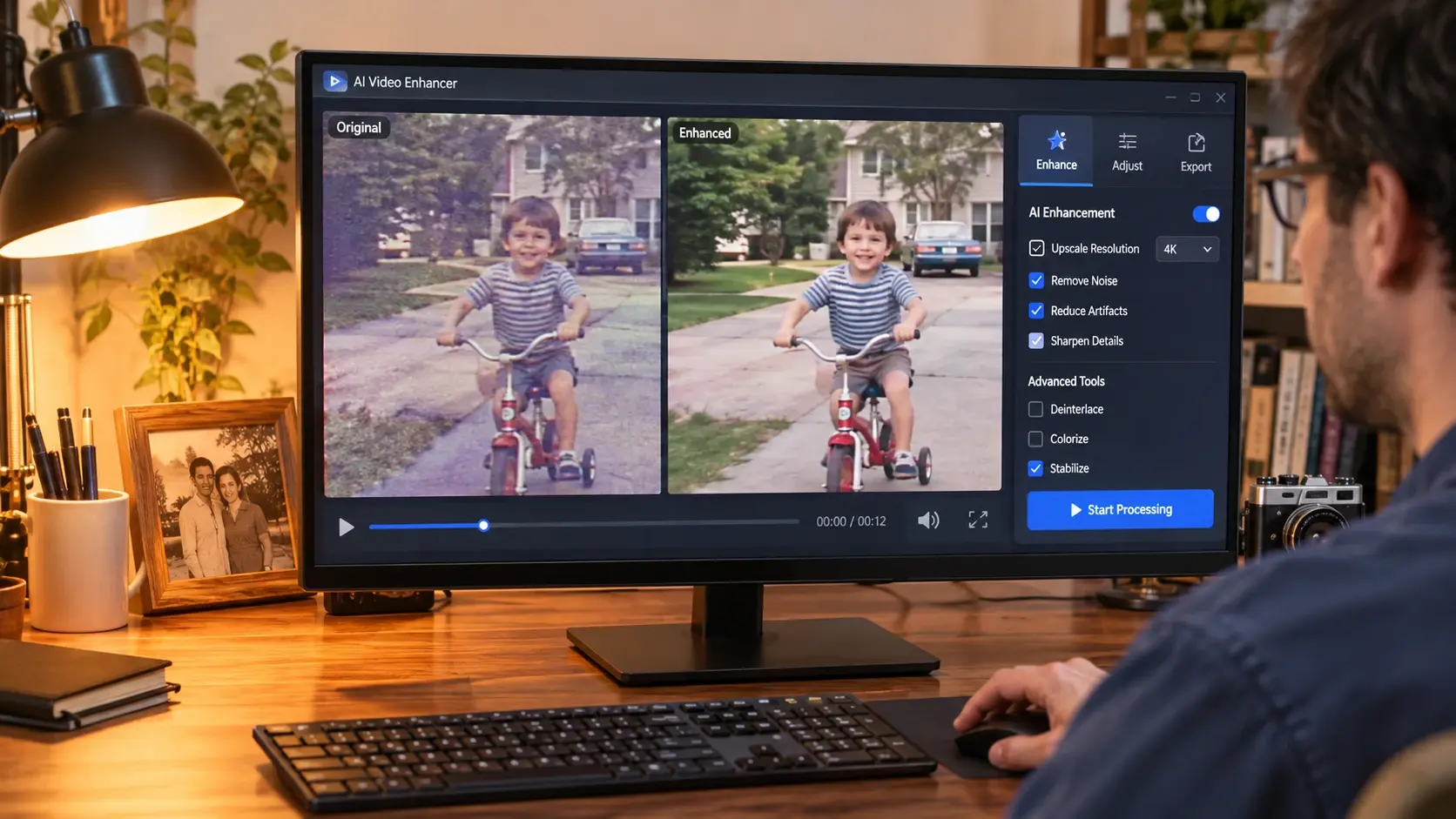
How to Edit Videos with AI on PicLumen
Step 1 Choose Your Video Editing Model
1Select Flux Video Edit or Seedance 2.5 from the model menu. You can compare the listed duration, resolution, and credit rate to choose the option that fits your clip and the edit you want.
Step 2 Upload Your Source Video
2Add the video you want to edit under References. For Flux Video Edit, you can upload one MP4 file up to 50 MiB, from 17 frames to 15 seconds long, with both width and height at least 160 pixels.
Step 3 Describe Your Change
3Enter your instruction in the Prompt box. You can start with a clear request, such as changing the woman’s dress from cream to blue. For better direction, you can identify the subject, specify the change, and describe the details you want retained.
Step 4 Click Edit and Review Your Video
4Click Edit to create your new version. Once it is ready, you can check the changed area throughout the clip, along with the subject’s appearance and movement. You can refine your prompt if needed, then download the version you want to use.
Put Your Existing Footage to Work
Product Color Previews
Explore a new color for a product already captured on camera. Use your edited clip to compare campaign concepts or present an early idea before arranging another shoot. Before publishing a product ad, check the generated color and details against the real item.
Fashion Campaigns
Try a different dress color against the same setting to see how it fits your campaign. Compare a bold shade with a softer palette, or test a seasonal direction using a model clip you already have.
YouTube Videos and Shorts
Give an opening shot, product insert, or visual example a different look. Use PicLumen as your AI video editor for YouTube clips that need a visual revision, then bring the selected result into your main edit for captions, sequencing, and audio.
Social Campaigns
Refresh the featured item in your own social footage for a new campaign idea. Start with one color change, compare it with the original, and decide which version works better with your post’s message.
Hot Video Effects
Turn your photos into fun dance clips, surprising transformations, and shareable moments with trending AI video effects.


Loved by Creators Worldwide
Real feedback from designers, marketers, and hobbyists sharing their PicLumen experience on Trustpilot.
Alfred Rangel RA wonderful range of options to create…
A wonderful range of options to create truly dreamlike visual effects with all those colors; only imagination is the limit.
 Ayan Samanta
Awesome experience just looking wow
Awesome experience just looking wow
My experience
Itis a really good website n really ideal to use theres only one con and that the AIS sometimes create wrong images but that doesnt happen frequently
Good 👍 perfomense web site good images…
Good 👍 perfomense web site good images good
 by Neefa
i love it and easy to use
i love it and easy to use
 Pino Calambrogio
Good over other applications
Good over other applications
Great tool
Great tool, I made fantastic results with it.
 Darius Salahshori
Good
Very good and I work very hard.
The Uncharted TimelineThis ai
This ai generated image very natural and beautiful HD quality
 Mickael TONGASOA
best but free mod need to fix and add…
best but free mod need to fix and add more credits for the starter
PrintWiz DesignsAll in one platform
I love it as it become more sn all in one platform , great generations, high value , generous free plan ....
 Tim Olukayode Ajayi
Amazing Platform
Honestly, I was wowed the moment I land on PicLumen and tested their platform. I wanted to pay for the popular one before but had to stop and I am loving it all the way. I totally recommend PicLumen guys!
Frequently Asked Questions
Can I use PicLumen if I’m new to video editing?
When trying AI video editing tools for beginners, start with one short clip and a simple request, such as changing a dress color. In PicLumen, choose yo
Can I edit videos online for free?
For a quick edit to one clip up to 15 seconds, choose Flux Video Edit, with output up to approximately 720p. For longer scenes or a 1080p option, try Seedance 2.5, listed with a 4–30-second range. Compare the per-second credit rates in your model menu before selecting.
What video files can I upload?
For Flux Video Edit, upload one MP4 video up to 50 MiB. Your clip must contain at least 17 frames—about 0.7 seconds at 24 fps—and run no longer than 15 seconds. Keep both width and height at 160 pixels or above. For Seedance 2.5, follow the upload requirements shown for that model.
Can I keep my original duration and aspect ratio?
With Flux Video Edit, your output follows the uploaded video’s duration and aspect ratio. Use it for a visual revision that fits the same place in your sequence. For trimming or a different crop, make those adjustments in your usual video editor.
What resolution and frame rate will I get?
With Flux Video Edit, your output runs at 24 fps. If your source exceeds the approximately 720p pixel limit, it is scaled down while preserving its aspect ratio. For example, a 1920 × 1088 upload produces 1248 × 704 output. For the 1080p option, select Seedance 2.5 in your model menu.
Can I keep my video's original audio?
With Flux Video Edit, your source audio carries through unless your prompt requests sound or dialogue changes. A silent upload produces a silent result. Keep your instructions focused on the visual edit when you want to retain the existing soundtrack.
Can I use AI for video editing on my YouTube channel?
Use PicLumen to revise individual shots for your videos and Shorts, such as testing a new color for a product or outfit. Download the selected clip and add it to your main project, then finish the sequence, captions, and audio in your usual editor.
How do I choose the best AI video editor for my project?
Start with the change you need. Try PicLumen for prompt-based visual edits to existing short clips. To see whether it fits your workflow, test a representative shot and compare the result, resolution, and credit cost. Review faces, movement, and fine details before using the output in your final project.
Try a New Look on Your Next Clip
Start with footage you already have. Upload a short video, describe the change, and create a fresh version with PicLumen’s AI video editor.