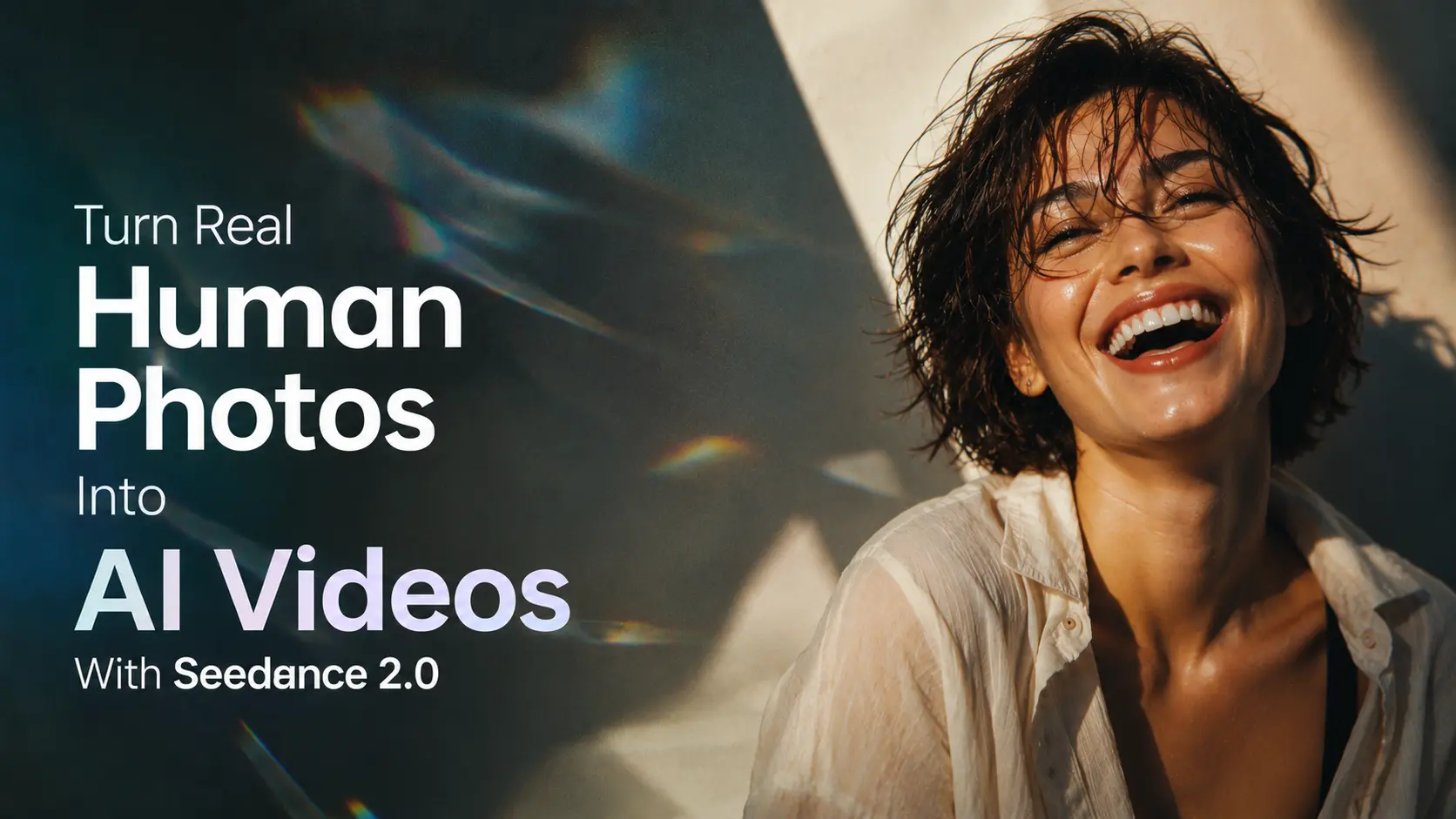
A generic AI face can't replace a real person when a video is built around a creator, a model, a spokesperson, or a client. The face needs to stay recognizable, and the movement needs to feel natural — not a synthetic stand-in wearing someone's likeness.
That's often where it gets difficult. A quick head turn can change the face. A big smile can distort the mouth. Fast movement can throw off the hands, clothing, or background. And on some official Seedance 2.0 access points, reference files containing real human faces may be restricted at the input stage in the first place.
On PicLumen, you can use authorized real human photos and videos as references for Seedance 2.0. Upload your files, describe the scene, and generate a clip with facial motion, body movement, camera work, and a changing environment. This guide covers the full workflow and includes three prompts built for more cinematic results.
What Seedance 2.0 Can Read From Your References
Seedance 2.0 accepts images, videos, and audio as references, and can guide:
Face and identity
Hairstyle and clothing
Body pose and movement
Background and lighting
Camera angle and motion
Overall visual style
Match your source to what you're trying to generate. A close-up portrait works well for blinking, eye movement, and small head turns. A half-body image gives the model more to work with for gestures or product shots. A full-body photo or video supports walking, turning, and larger movement.
On PicLumen's Seedance 2.0 workspace, you can add up to 15 reference files — a mix of images, videos, and audio — in a single generation, with each reference video capped at 15 seconds. Each file does a different job: one image can lock in the face, another can show the outfit, a short video can set the camera move or motion style, and audio can guide voice or sound design.
Only upload files you own or have explicit permission to use.
How to Use Real Human References With Seedance 2.0 on PicLumen
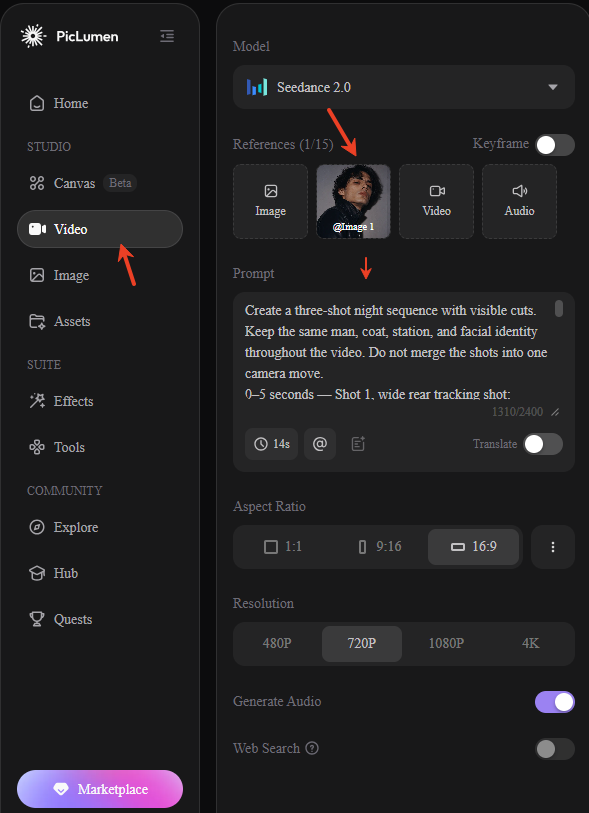
Step 1: Select Seedance 2.0
Open the Video workspace on PicLumen and choose Seedance 2.0 from the model menu.
Step 2: Upload Your References and Write a Prompt
Add your reference files under the References panel — Image, Video, and Audio each have their own upload slot. Pick files where the person is clearly visible: avoid heavy blur, very dark lighting, or shots where hair, hands, or objects cover the face.
If you're combining files, decide what each one is for — face, outfit, location, camera reference — and use "@" in the prompt box to point directly at a specific uploaded file when you need the model to follow it precisely.
Then write a prompt describing what happens in the scene. A prompt that works well usually covers, in order: main action, facial expression, body movement, camera motion, and scene detail.
For example:
Create a three-shot night sequence with visible cuts. Keep the same man, coat, station, and facial identity throughout the video. Do not merge the shots into one camera move.
0–5 seconds — Shot 1, wide rear tracking shot:
A man runs into an empty outdoor train platform at night. His long coat moves behind him. A train is already leaving in the distance. The camera follows him from behind at waist height. He slows down as the final carriage disappears into the fog. Wet platform lights reflect on the ground.5–9 seconds — Shot 2, medium side shot:
He stops beside a bench and looks at the empty tracks. He checks an old paper ticket in his hand. His breathing settles. The camera stays at his side while thin fog crosses between him and the tracks. Keep his body movement natural and restrained.9–14 seconds — Shot 3, front close-up:
He hears a faint sound behind him and slowly turns toward the camera. On the bench, a small red suitcase that was not there before is now visible. He looks from the suitcase to the camera with a quiet, uncertain expression. The station lights flicker once. Stable facial identity, natural coat movement, soft film grain, deep night atmosphere.
Keep each action clear. Even a creative prompt shouldn't stack too many large movements into one short clip.
Step 3: Set Your Video Parameters
Choose aspect ratio based on where the clip is going — 16:9 for websites and YouTube, 9:16 for TikTok and Reels, 1:1 for square posts — along with duration and resolution (up to 4K). If you want the clip to carry sound, toggle Generate Audio on.
Review your references and prompt once more, then hit Generate.
Step 4: Review and Export
Preview the result. Check whether the face stays recognizable, and look closely at the eyes, mouth, hands, clothing, background, and camera movement.
Once it holds up, download the clip, share it on social media, or publish it to the PicLumen community.
If something looks off, the faster fix is usually reducing the movement or swapping in a clearer reference — not rewriting the whole prompt from scratch.
Responsible Use:
Only use a photo or video you own, or one you have explicit permission to use. Don't use someone's likeness to impersonate them, mislead viewers, or create content they haven't agreed to. For commercial use — an ad, a branded post, anything public-facing — make sure you hold the rights to the reference material and the person's likeness before publishing.
Start Creating With Seedance 2.0
Common Problems and Quick Fixes
Problem | Likely Cause | Fix |
Face changes mid-shot | Head or camera turns too far | Reduce the angle, keep the face in frame |
Face changes between shots | Transition is too sudden | Slow the transition, keep a similar camera angle |
Blinking looks unnatural | Eye movement isn't specified | Ask for one slow blink at a set moment |
Mouth looks distorted | Expression is too large | Use a small, closed-mouth smile |
Body looks stiff | Movement lacks detail | Add a natural pace and relaxed arm movement |
Hands lose their shape | Gesture happens too fast | Slow it down, keep fingers visible |
Product changes shape | Turns too quickly | Keep it near its original pose, turn slowly |
Reflection creates a second face | Reflective scene is too complex | Keep the reflection soft or slightly out of focus |
Hair covers the face | Wind is too strong | Ask for only a few strands to move |
Background warps | Camera move is too wide or fast | Use a slow push-in or simple tracking shot |
Shots feel disconnected | Locations or lighting change too much | Anchor the scene in one setting with a clear transition |
Motion feels too fast | Prompt doesn't set a pace | Add "slowly," "gently," or a specific timing cue |
Create Your AI Video on PicLumen
Seedance 2.0 on PicLumen can use real human references to guide facial movement, body action, camera work, lighting, and scene changes. A strong result starts with one clear idea, not a long list of effects — pick a single main human action, then let setting, light, and camera give the scene its character.
Open the PicLumen Video workspace, select Seedance 2.0, upload your references, and turn a photo into a scene with a clear point of view.
Frequently Asked Questions
Can Seedance 2.0 create videos from real human photos?
On PicLumen, yes — you can upload authorized real human photos or videos and use them as references for Seedance 2.0.
How many reference files can I upload?
Up to 15 in total per generation, combining images, videos, and audio — each reference video can be up to 15 seconds long.
Can I write prompts with several shots?
Yes. Keep them inside one clear scene, use simple transitions, and limit the person to a few controlled actions.
What kind of reference works best?
A clear, well-lit file where the face and body are easy to see, with framing that matches the action and camera angle in your prompt.
How do I keep the face consistent?
Small expressions, slow movement, and clear camera direction. Fast head turns, large mouth movement, and objects crossing the face are the usual causes of drift.
Can I use someone else's photo or video?
Only with their explicit permission and the right to publish the result.