Remove People from Photos with AI for Free
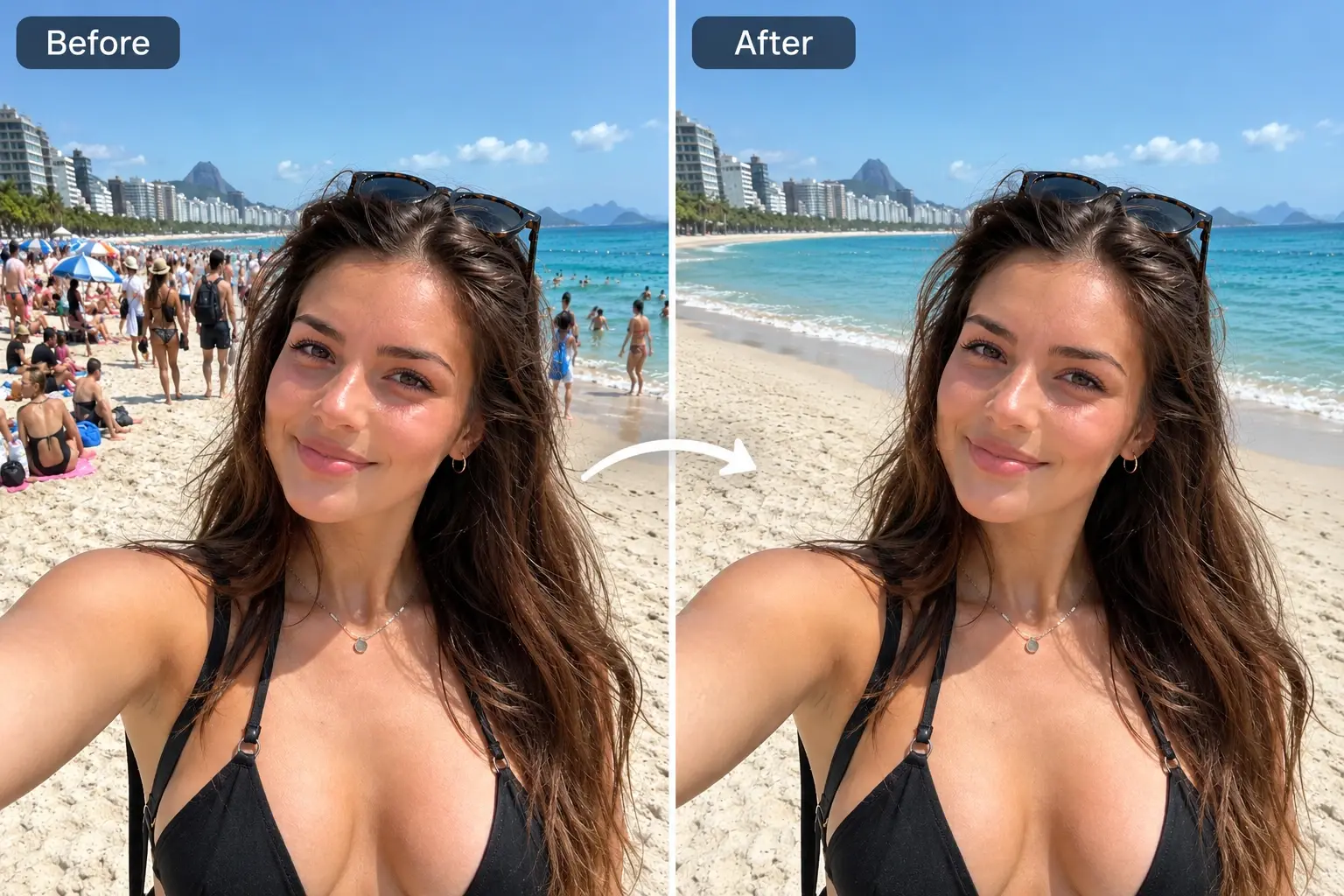
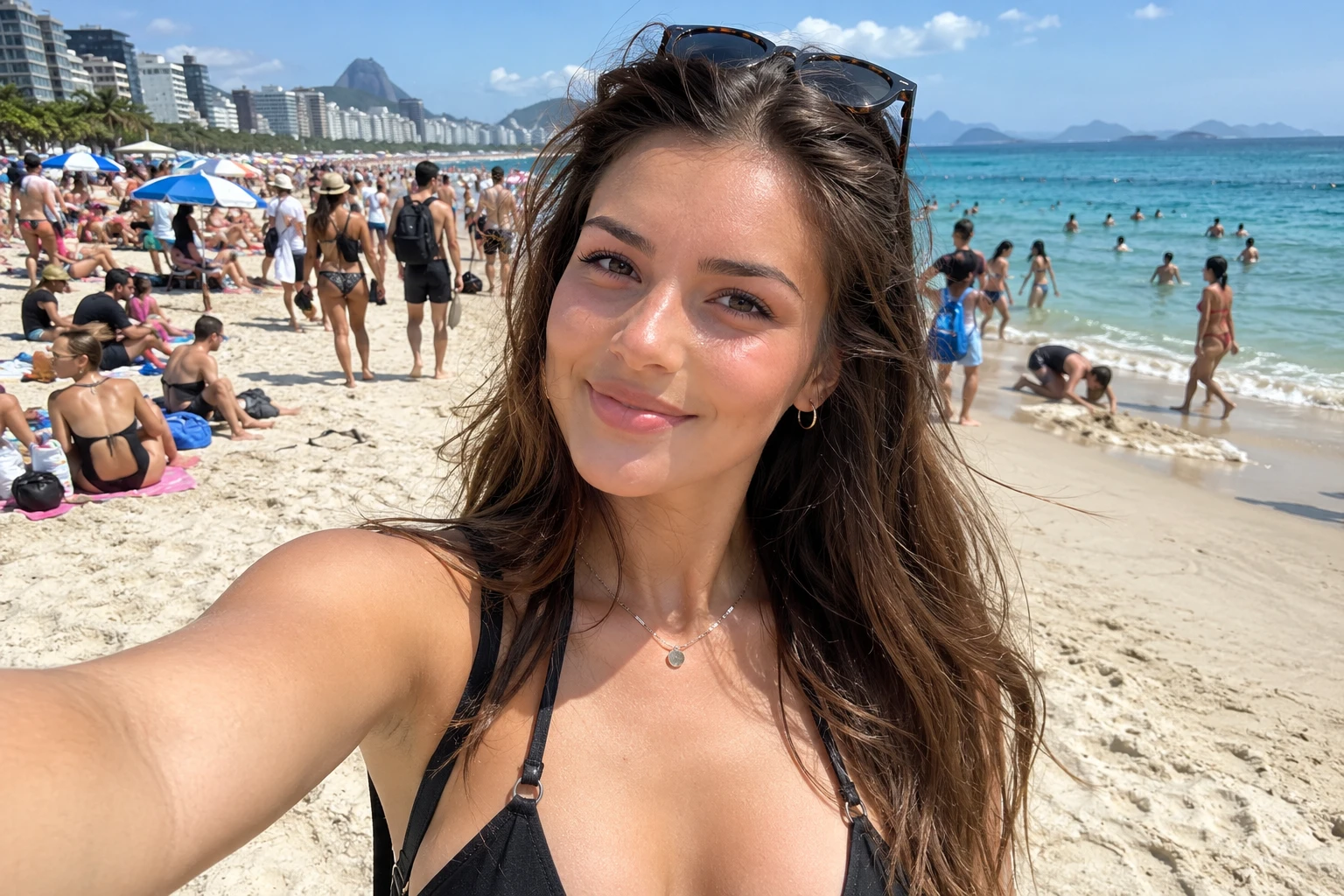
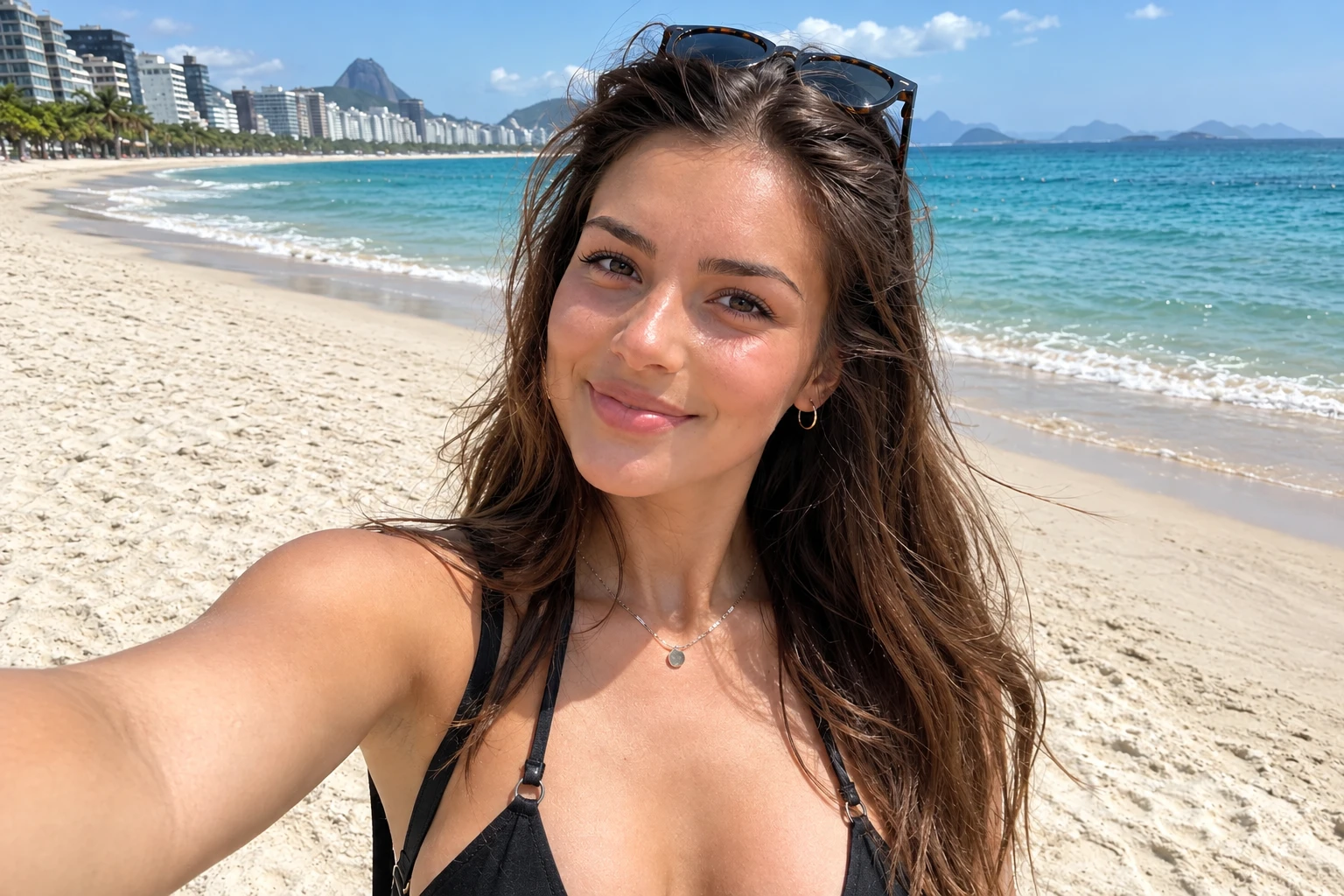
How to Remove People from Photos
Upload Your Image
Upload the photo you want to edit. Choose a clear image so the people you want to remove and the surrounding details are easy to distinguish.
Describe the People to Remove
Describe the person or people you want to erase, such as “the crowd behind the woman,” then click Generate. AI fills the affected area using the surrounding scene as a guide.
Download Your New Photo
Review the edited area and the people you want to keep. When you’re happy with the result, download your new photo to save or share.
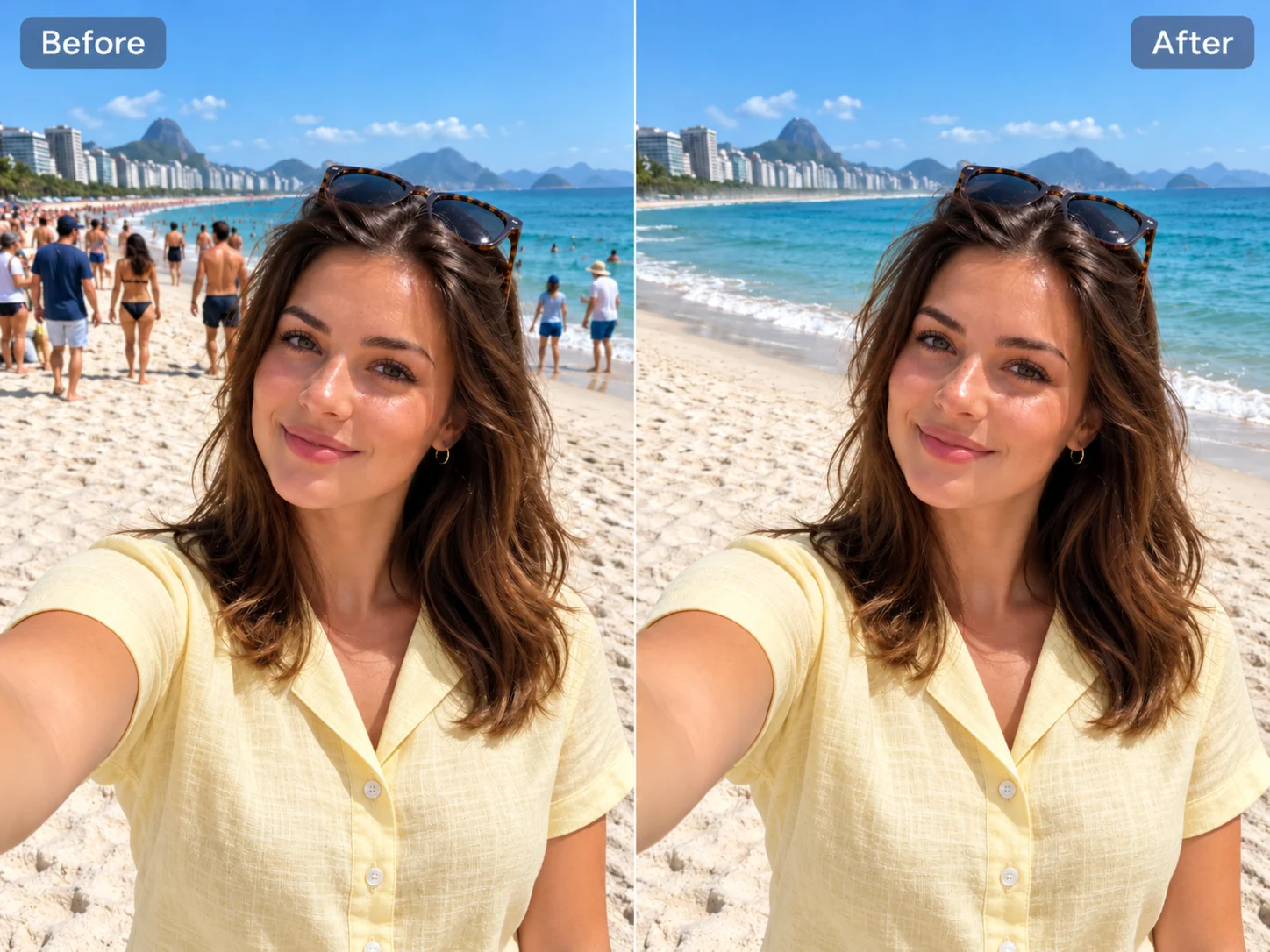
Erase People While Preserving the Background
Remove an unwanted person while keeping the setting that made your photo worth taking. PicLumen fills the selected area to blend with nearby colors, textures, and lighting, helping the edit fit naturally into the scene. Keep more of a garden, beach, or café interior instead of cutting away a large part of the picture. This approach is useful when someone steps into an otherwise well-composed shot. Keep your original framing while drawing more attention to the main subject and preserving the scene’s atmosphere.
Remove Tourists from Travel Photos
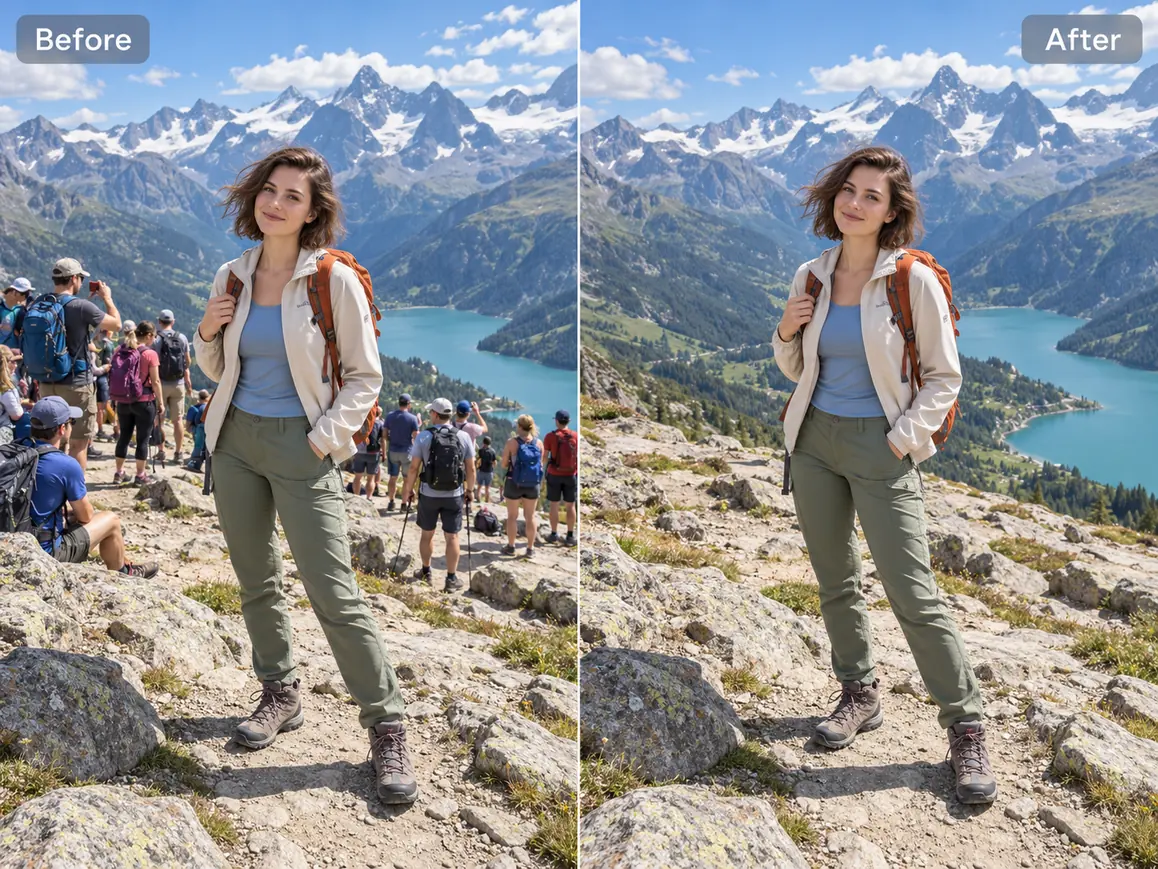
Bring the landmark, landscape, or person you traveled to photograph back into focus. PicLumen’s AI background people remover helps clear tourists from scenic viewpoints, historic squares, and popular attractions. Select the visitors you want to remove and let AI fill the selected areas with details that blend into the setting. Keep the wide view of a mountain trail or the open space around a monument without cropping closer than you intended. Even when you couldn’t wait for a quieter moment, you can give a favorite travel photo a less crowded finish.
Remove Specific People from Group Photos
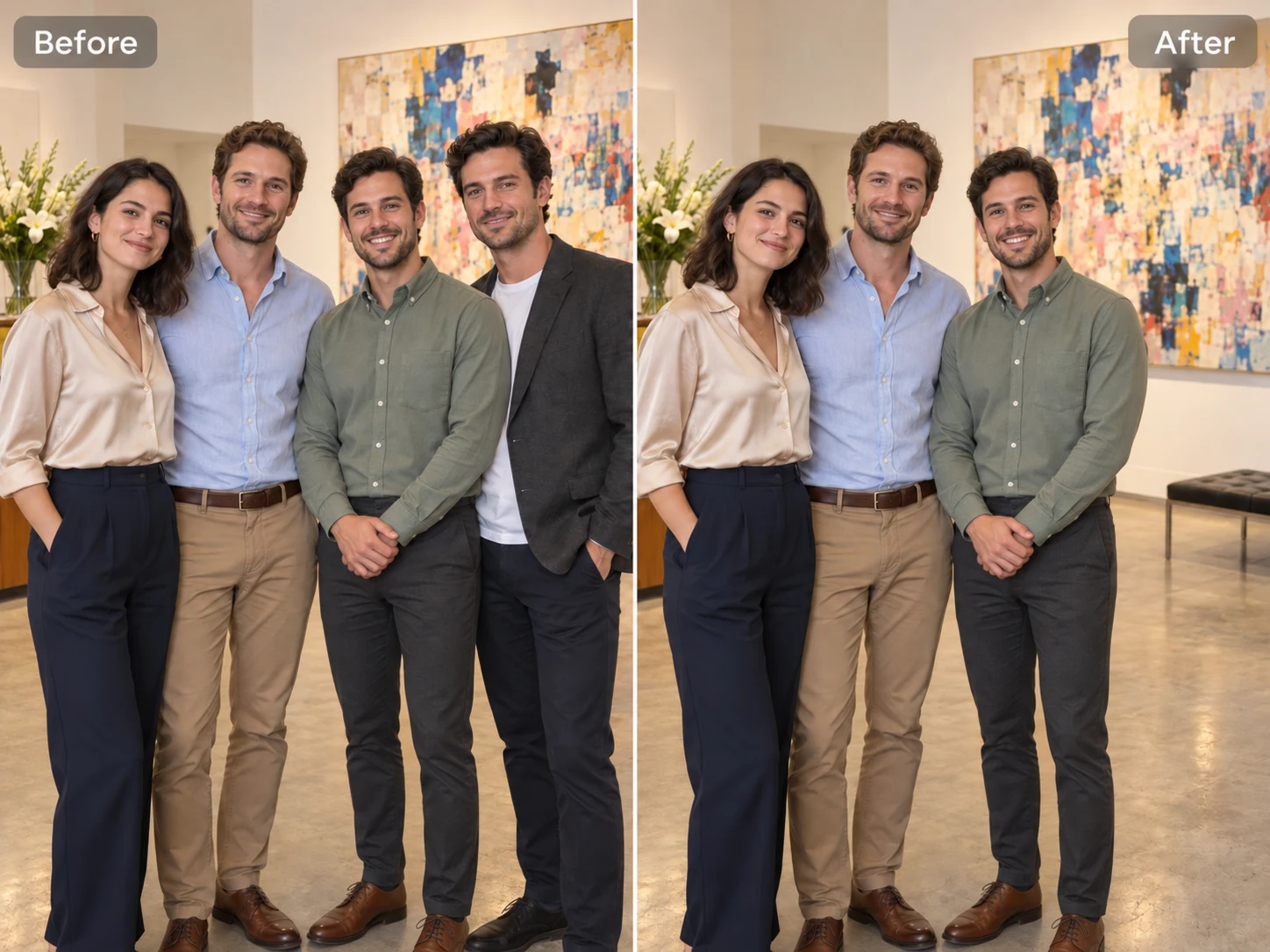
Keep the people you want in a group photo and remove a specific person before sharing it. Perhaps a friend prefers to stay off social media, or someone at the edge of the frame distracts from the group. PicLumen lets you select that person for removal while retaining the wider composition. This is especially useful when cropping would also cut out another friend or an important part of the setting. Create a version that suits your audience and sharing preferences while keeping the moment centered on the people who remain.
Clear Distractions from Street Photos
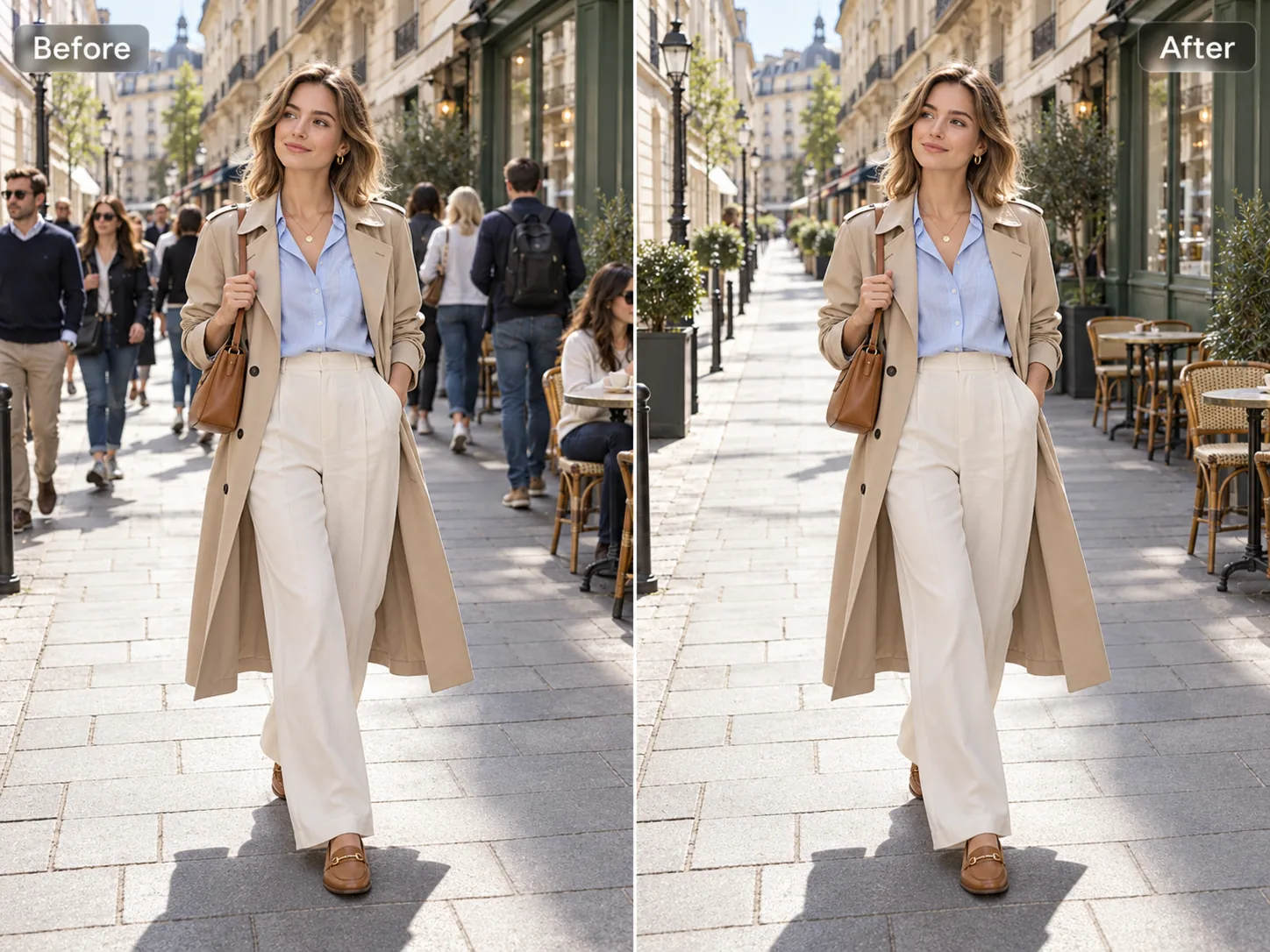
Let architecture, storefronts, and street details carry the composition. A passing pedestrian can draw attention away from a doorway, interrupt the lines of a building, or crowd an otherwise balanced frame. Use PicLumen to remove people from the background and give those details more room to stand out. Select unwanted bystanders while keeping the street scene’s overall character, whether you’re photographing a colorful façade or a quiet side road. The result can better reflect the composition you had in mind, with fewer unwanted people competing for the viewer’s attention.
Why Choose PicLumen’s AI People Remover?

Fast Photo Cleanup
Spend less time fixing photos with unwanted people. Select the areas you want to remove and let AI handle the background fill, helping you prepare images for your next post, album, or project sooner.

Easy to Use
Clean up your photos without learning professional retouching techniques. It’s easy to get started with this tool, whether you’re editing a personal snapshot or preparing an image for work.
Select Who to Remove
Choose a specific person or several unwanted bystanders instead of removing everyone in the scene. Keep the focus on the people you want in your photo, with more control over who appears in the version you share.

Natural Background Fill
AI uses nearby colors, textures, and lighting to guide the background fill. This helps the edited area blend into the surrounding scene, giving your photo a more natural finish after someone is removed.

Keep Your Original Framing
Remove people without cropping away the edges of your photo. Keep more of the setting, surrounding space, and original composition, especially when a tighter crop would leave out details you want to include.
Give Your Photos More Ways to Shine
Make your subject stand out by removing unwanted people from the frame. From personal updates to business visuals, PicLumen helps you prepare images with fewer distractions. Explore six ways to put your edited photos to use.
Share More Focused Social Posts
Make your favorite photos feel more personal before posting them. A stranger behind your shoulder or someone walking through the frame can compete with the outfit, activity, or moment you want to share. Use PicLumen to remove those distractions from a café snapshot, weekend outing, or casual portrait. Keep more of the setting when a tighter crop would lose the mood of the picture. Your edited photo can then become the centerpiece of an Instagram post, a trip recap, or a profile update that keeps attention on your story.
Create Cleaner Photos for Product Listings
Give shoppers a more focused view of the item you’re selling. Product photos taken in shops, markets, or outdoor settings may include people who have little to do with the listing. Remove bystanders from the background of a photo featuring a chair, handbag, or handmade accessory so the product is easier to notice. PicLumen helps you reuse an otherwise useful image when the surrounding activity makes it feel too busy. Prepare the edited photo for a marketplace listing, online catalog, or product gallery while keeping the setting that supports the item’s style.
Showcase Spaces in Property Photos
Help viewers concentrate on the space you want to show. Someone crossing a living room, standing on a terrace, or walking past a building can distract from the layout and atmosphere. Use PicLumen to remove unwanted people from property photos before adding them to a listing or presentation. An unobstructed view gives furniture placement, room proportions, and outdoor features more attention. This is useful for rental hosts, property managers, and agents who want to make existing photos more usable when arranging another visit or photo session would be inconvenient.
Refine Wedding and Event Albums
Keep attention on the people and moments that matter in your album. A guest crossing behind the couple or a stranger near a celebration can distract from an otherwise meaningful picture. PicLumen helps remove unwanted people from selected wedding, birthday, and graduation photos while retaining the wider setting. Keep the decorated venue, garden, or celebration backdrop that helps tell the story. Use the edited image in a personal album, thank-you card, or slideshow when you want a more focused version of the moment alongside your original photographs.
Refresh Photos for Business Websites
Show your business with photos that keep attention on what you offer. A passerby near a shop entrance or a visitor in the background can make a website image feel busier than intended. Remove unwanted people from photos of your storefront, studio, or workspace before choosing images for your site. PicLumen helps small business owners put existing photography to use across service pages, location guides, and company introductions. With fewer distractions, visitors can more easily notice the entrance, interior design, or working environment you want the image to communicate.
Make Room for Creative Layouts
Give headlines and design elements more breathing room in your next visual project. A photo may have the right colors and setting but include someone where you want to place text. Remove that person to create a less crowded area for a title, invitation message, or presentation heading. PicLumen helps you adapt existing images for posters, digital cards, slides, and blog covers. Keep the parts of the scene that support your design, then arrange your text around the edited photo to build a composition with a stronger focal point.


Loved by Creators Worldwide
Real feedback from designers, marketers, and hobbyists sharing their PicLumen experience on Trustpilot.
 Alfred Rangel R
A wonderful range of options to create…
A wonderful range of options to create truly dreamlike visual effects with all those colors; only imagination is the limit.
 Ayan Samanta
Awesome experience just looking wow
Awesome experience just looking wow
Just amazing website a must try.
Just amazing website a must try.
 Prabhat Ranjan Singh Chauhan
Very smooth and very helpful for…
Very smooth and very helpful for everyonr who have creative mind. Thank you 👍
Ibrahim OnuhSo very powerful and interesting
So very powerful and interesting
next framebest ai web creation site
best ai web creation site
good ai i like using this a lot.
good ai i like using this a lot.
 Adrienne Igo
I love PicLumen it is one of my…
I love PicLumen it is one of my favorite AI image generators!
 GPS BelAR
I tried the tool for fun and only used…
So far, I've only tried PicLumen for fun and used the free ‘basic option’. Even as an AI design novice, you can achieve great results. It should be emphasised here that if you choose a simple AI, the coins are enough to just give it a try (unlike some other tools). I like the community concept; the opportunity to get inspiration for your own ideas in the image gallery, as well as the option to ‘like’ and comment on other users' creations. The result depends, of course, on the quality of the prompt entered, but ‘practice makes perfect, as we all know!’ The only reason for the one-star deduction is that I can't try everything with the free access and can't comment on the paid options.
 Minnies
I love the app but it was more better…
I love the app but it was more better when they didn't charge you lumen to make pictures or give you a limitation but it works amazing and it gives you very neon pictures...../ and for some reason on New Year's Eve today it won't let me make pictures
Alishba MukhtarWonderful experience I’ve ever had
Wonderful experience I’ve ever had
Everything
Everything, keep up the good work
FAQs About Removing People from Photos
What is an AI people remover?
An AI people remover erases selected people from an image and fills the space with generated content based on the surrounding scene. It helps remove photobombers, tourists, and other unwanted people without cutting away the entire area around them.
How do I remove people from photos with PicLumen?
Upload your photo, select the people you want to remove, and start the removal. Review the result, then download the edited image when you’re happy with it.
Will the original background stay exactly the same?
The tool aims to preserve the surrounding scene, but the area covered by the removed person must be reconstructed. AI generates a plausible fill to help the edited photo look natural.
Can I remove just one person from a group photo?
Yes. Select the specific person you want to remove. If they overlap with someone you want to keep, the edit may be more difficult because AI needs to reconstruct the areas they covered.
Is removing someone the same as cropping them out?
No. Cropping cuts away part of the image and changes its framing. Removing someone edits the selected area within the photo, which can help retain more of the original composition.
What kind of photo works best?
Start with a clear photo where the unwanted person has a distinct outline. Visible background details around them help guide the fill. Heavy blur, large crowds, and overlapping subjects can make a natural result harder to achieve.
Do I need photo editing experience?
No. You select the people you want to remove, and AI handles the background fill. You don’t need to manually copy textures or paint over each part of the person.