Free AI Text Remover for Images
Hot Video Effects
Turn your photos into fun dance clips, surprising transformations, and shareable moments with trending AI video effects.
How to Remove Text from an Image
Upload Your Image
Upload the photo, screenshot, or graphic that contains the text you want to remove.
Let AI Remove the Text
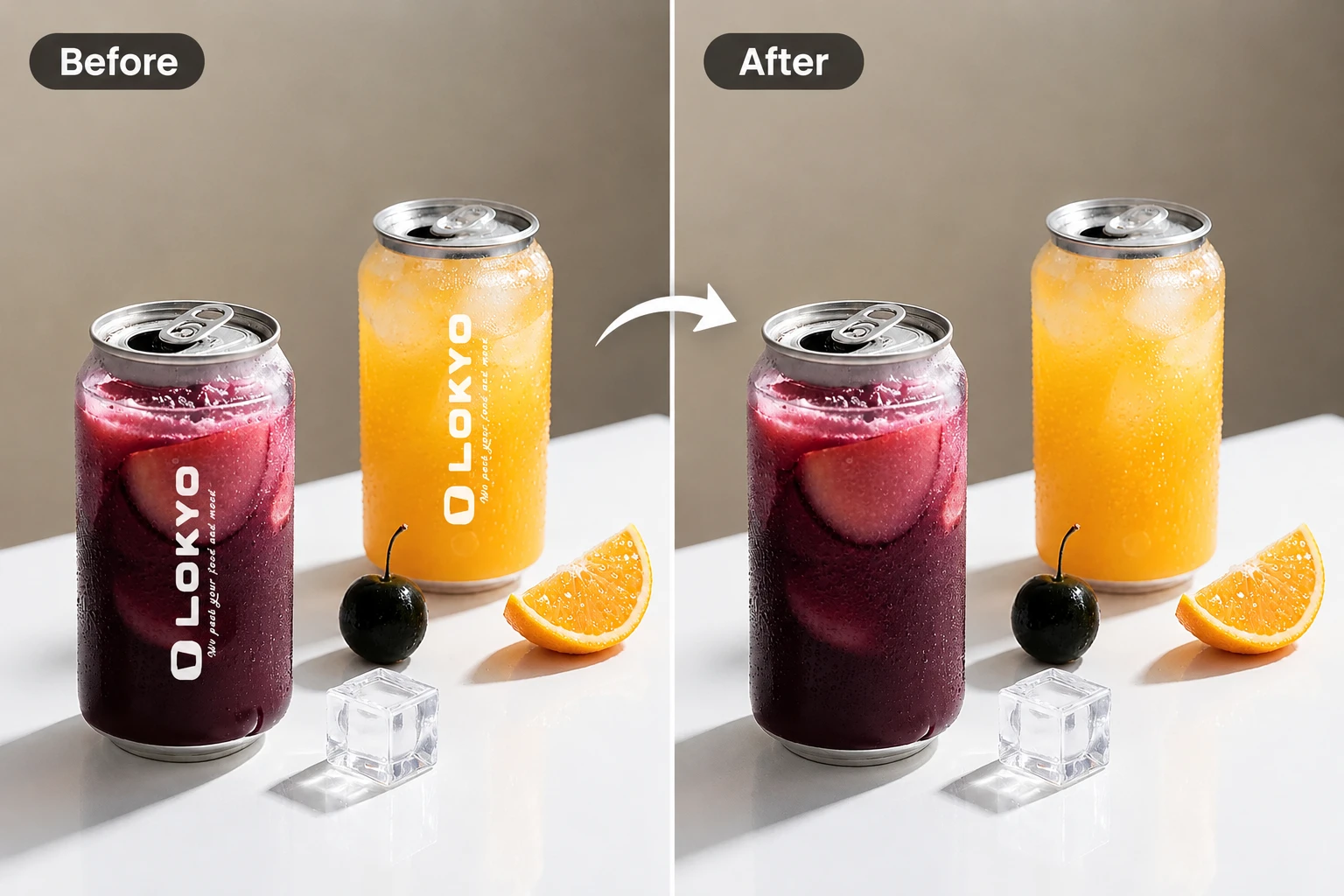
Start the removal in one click. PicLumen detects and erases the text automatically, then fills the area where the lettering appeared.
Preview and Download
Preview the edited image, then download it when you’re happy with the result.
Why Choose PicLumen for AI Text Removal?

Fast Text Removal
Upload a photo, screenshot, or graphic and start the edit with one click. PicLumen detects and removes visible text automatically.

Natural-Looking Background Fill
AI uses nearby colors and textures to fill in the area where the text appeared, helping the edit blend into the image.

Keep the Full Frame
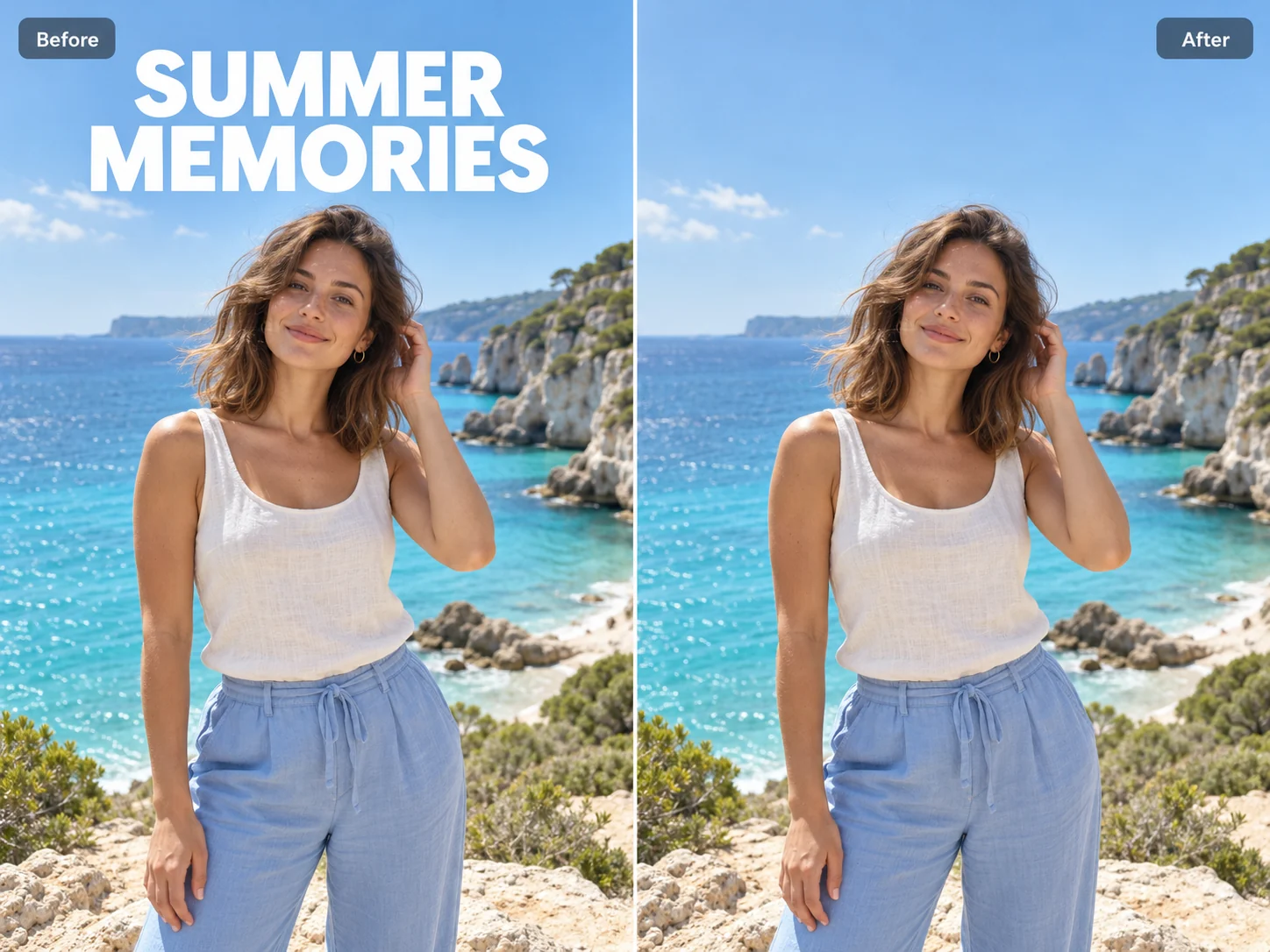
Clear captions or date stamps near the edge of a photo while keeping the full scene in view.
Remove Text with AI in One Click
An old caption can get in the way of a photo you’d otherwise be ready to share. Upload your image and start the removal in one click. PicLumen detects visible text and clears it automatically, saving you the work of tracing every letter by hand. The same steps apply to a date stamp in one corner or a few lines of copy on a graphic. If a stray caption turns up while you’re assembling a gallery, you can make the edit and get back to choosing the shots you want to share.
Keep the Background Looking Natural
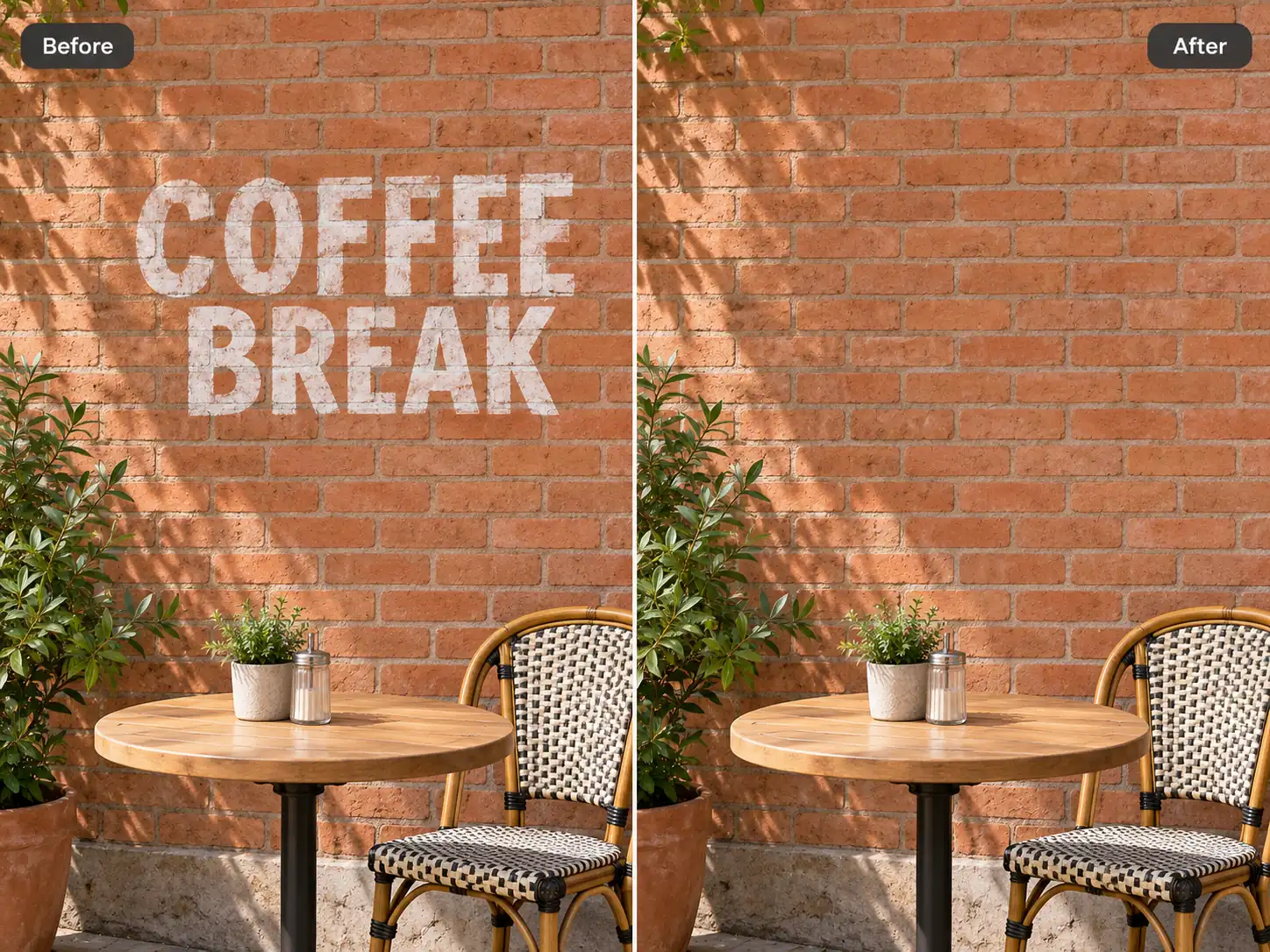
Keep the scene looking cohesive when text runs across a textured wall, a tabletop, or a piece of fabric. PicLumen uses the surrounding colors, textures, and edges to fill the area where the lettering appeared. In a tabletop photo, for example, the fill can carry the grain of the wood through the spot that a caption covered. That helps the edited area blend into the scene, especially when the background fills much of the frame, as it often does in a wide photo or website banner.
Clean Up Photos for Product Listings
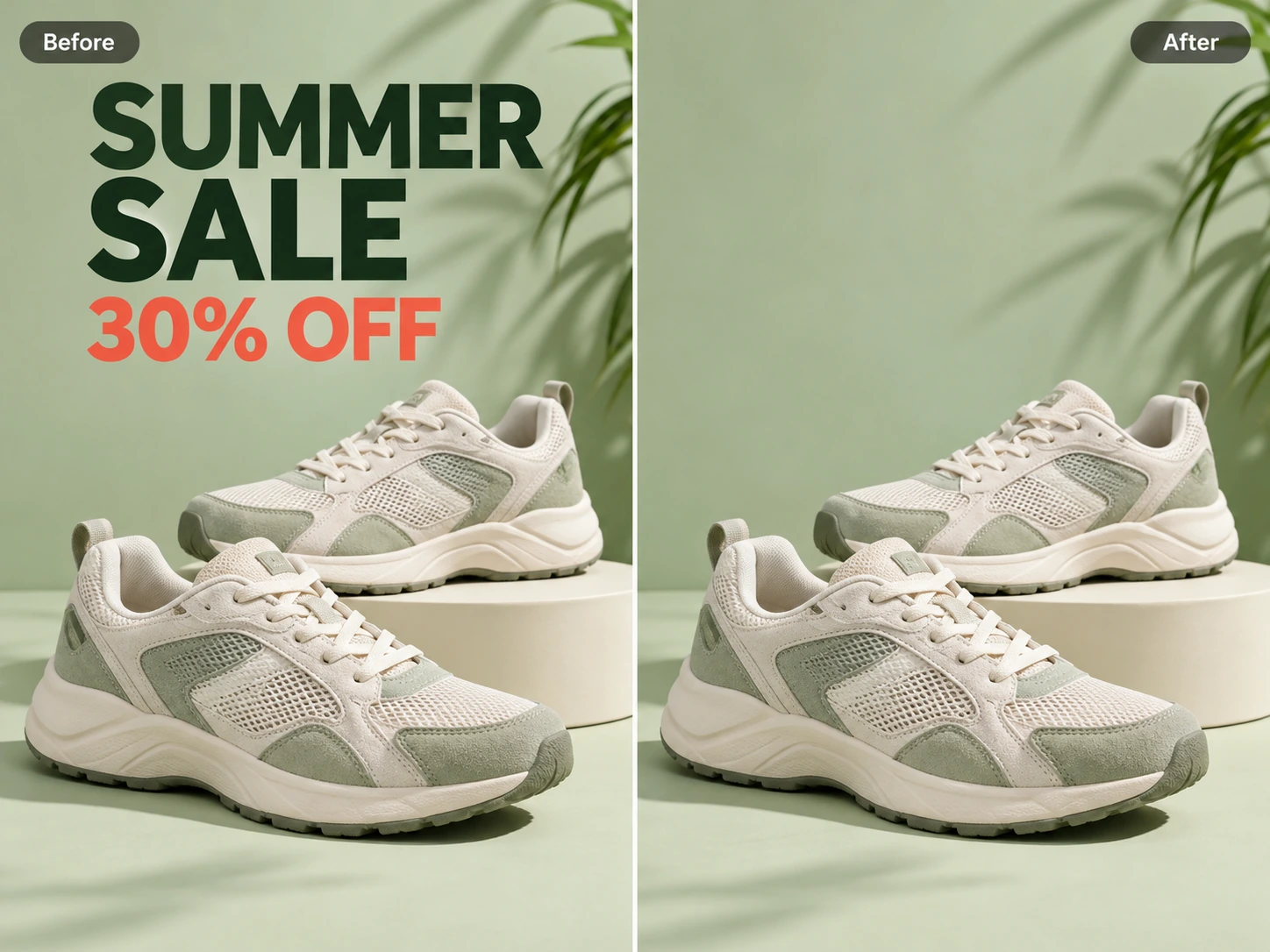
Give shoppers a better view of your product when a photo still carries an outdated price or a seasonal headline. Clearing the added wording makes details like the stitching on a bag, the finish of a desk lamp, or the profile of a sneaker easier to see. This is especially helpful on mobile, where the image may take up only part of the screen and overlaid text can crowd the product. Use the edited photo in your listing gallery or on a collection page where the item needs to be recognizable at a glance.
Remove Captions and Date Stamps
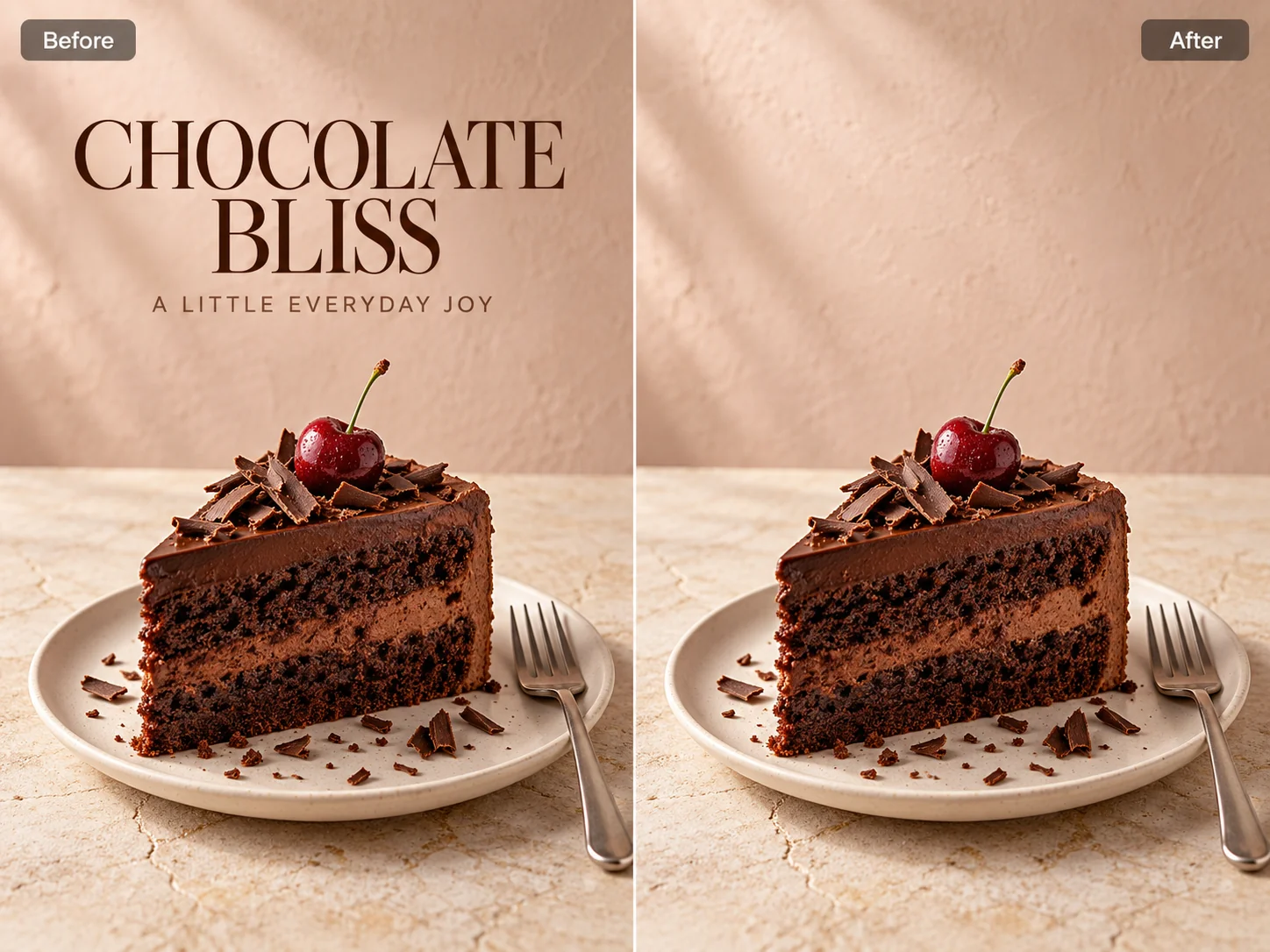
Give photos and screenshots a clean look by removing the text that was added to them. Use PicLumen to erase a date stamp from a favorite snapshot, clear a location label from a travel photo, or remove subtitles from a saved video frame. A caption that worked in the original post can feel out of place when you share the image on its own. With the text gone, you can print the photo, add it to a digital album, or turn the video still into a cover for a new post.
Create New Versions of a Graphic with Text Edits
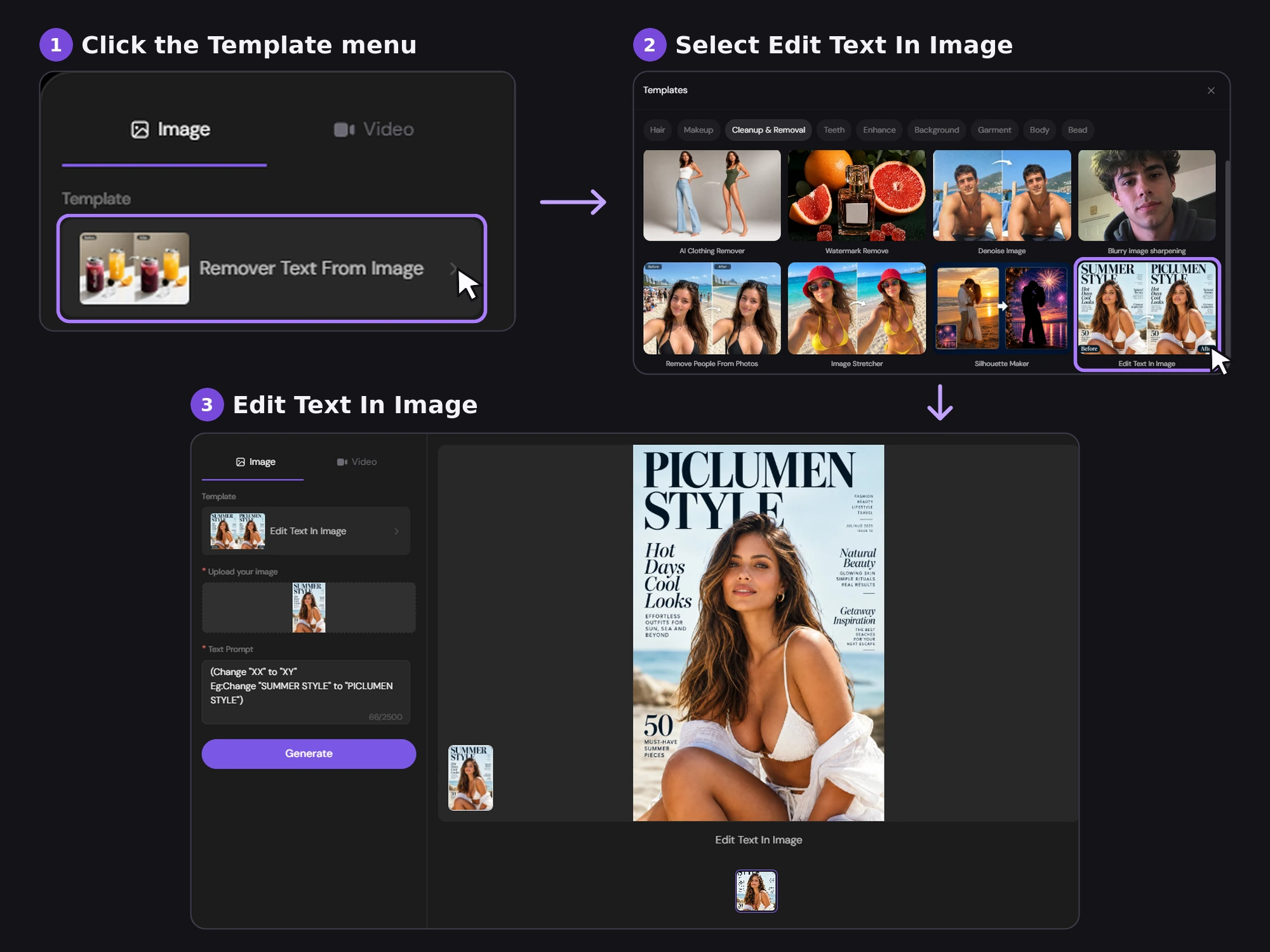
Keep working from the artwork you already have when a date or headline needs an update. Open the Template menu and select Edit Text in Image. Use it to correct a speaker’s name on an event graphic, change the wording of an offer on a promo card, or update a thumbnail headline for a new audience. When the existing text sits in a small box or narrow banner, try a replacement of similar length so the wording has room to fit.
Remove Text from Images for Your Next Creative Project
A product photo can still suit your catalog long after the sale ends, and a vacation snapshot can be worth printing years after you shared it. PicLumen helps you remove the old offers, captions, and date stamps that tie an image to its original use. Start your next campaign, layout, or photo book with a picture you already have.
Keep Product Catalogs Consistent
Build a catalog around product photography you can use all season. If your best shot of a bag came from a holiday sale, clear the discount text and bring the photo into your wholesale line sheet. Pair it with the SKU, color options, and current ordering details. You can use the same shot in a seasonal lookbook or buyer portal, with the right information for each audience. A consistent set of images makes it easier to update your catalog when terms change or a new retail partner comes on board.
Test New Headlines with One Photo
A lifestyle shot from a past sale can give your next ad test a head start. Clear the old discount and build both ads around that image. Keep the offer and call to action the same so you can compare how the two headlines perform. The edited shot also gives you a starting point for another language or ad format. With the copy on its own layer, you can make room for a longer translation or move the headline to fit a vertical ad.
Show the Space in Property Listings
Give prospective renters a sense of the home before they walk in. A wide shot of a living room can show where the daylight comes in and how the space connects to the kitchen. If an old open house date is printed across the photo, clear it before you add the image to a new listing gallery or leasing brochure. With rent and viewing times in the listing copy, renters can focus on the space as they browse and find the current details when they’re ready to book.
Build Clearer Slides and Handouts
Make a good teaching image work both on a slide and on paper. If you’re reusing a close-up from a past sewing workshop, clear the old session title or step number printed on the photo. The image can show the stitch on screen and illustrate the instructions participants take home. On the slide, a short label can direct attention to the detail you’re demonstrating. In the handout, a longer caption can explain how to repeat the step when participants try the stitch on their own.
Turn Event Artwork into Recap Graphics
Carry the look of an event from the invitation into the recap. A fundraiser graphic might still show a ticket price or registration deadline long after the doors have closed. Clear those details and use the familiar artwork as the lead image on your recap page or in a thank-you email. Use the new layout to share the amount raised, spotlight a speaker quote, or link to the photo gallery. Attendees can recognize the event at a glance and see what their participation helped make possible.
Get Favorite Photos Ready to Print
Put the photo you keep coming back to in an album or on the wall. An orange date stamp can draw attention away from a birthday moment, and a caption added for the family chat can feel out of place in a frame. Clear the lettering from a copy before you add it to a photo book, use it in a slideshow, or send it for printing. A note in the album margin or on the back of the print can record who was there, where you went, or when it happened.
Build Cleaner Mood Boards
Make it easier for clients and teammates to see what caught your eye. A styling photo might have a caption over a fabric pattern, while a screenshot from a design article could show a headline across a wall color you like. Use PicLumen to clear the added text before placing the references side by side on a mood board. A close-up of green upholstery next to a warm wood finish, for example, can show how two materials work together while you’re still exploring the direction for a room or campaign.
Repost Photos from Instagram Stories
Turn a photo from a saved Instagram Story into a feed post. An outfit photo might still say “Today’s look,” or a picture from a DIY series might have “Part 1” across the bottom. Remove the old caption with PicLumen so you can use the photo in an outfit roundup or a post about the finished project. Add a caption below the image with details people might want to save, like where you found the pieces or which supplies you used.
AI Tools You May Also Like
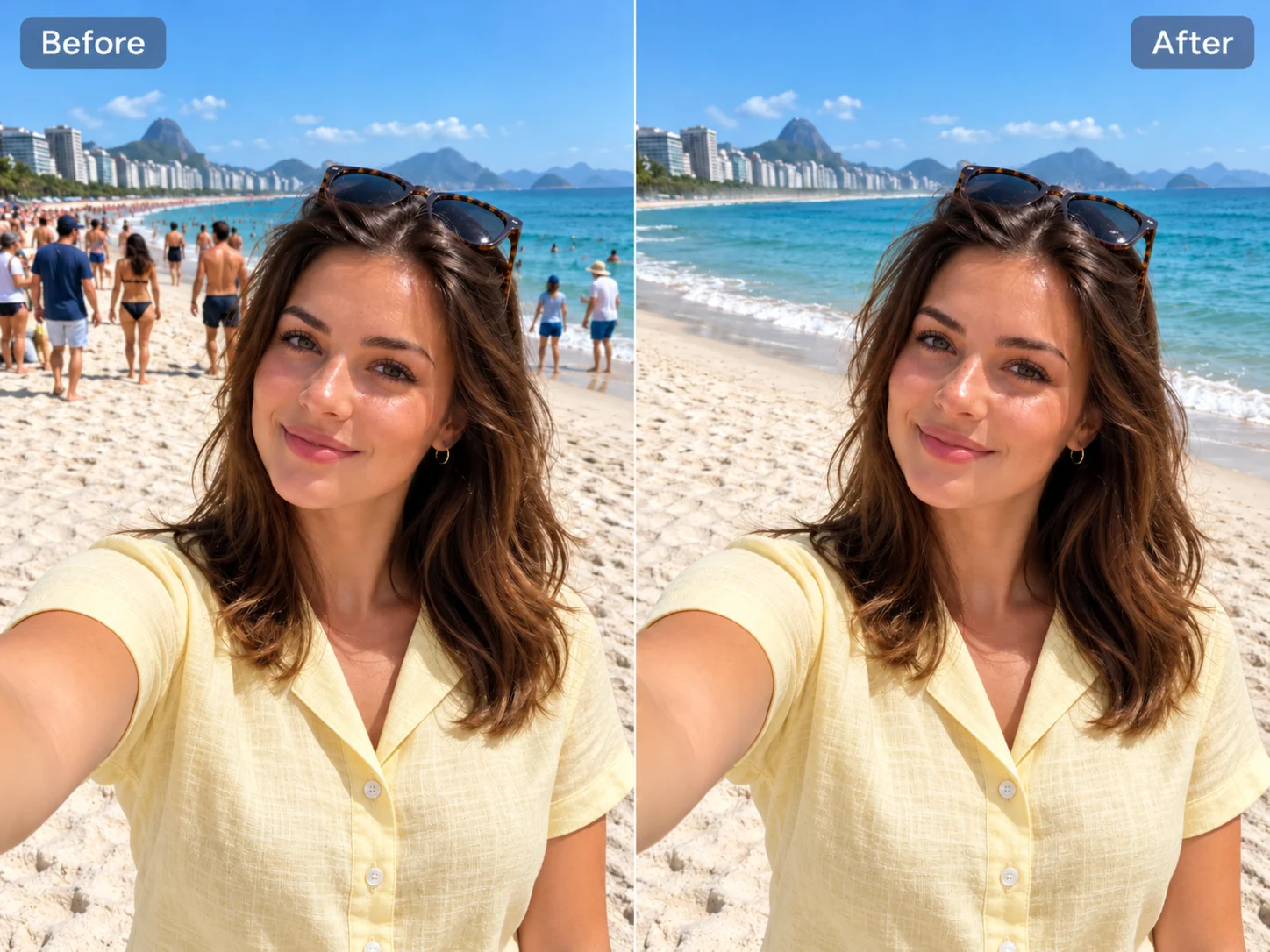
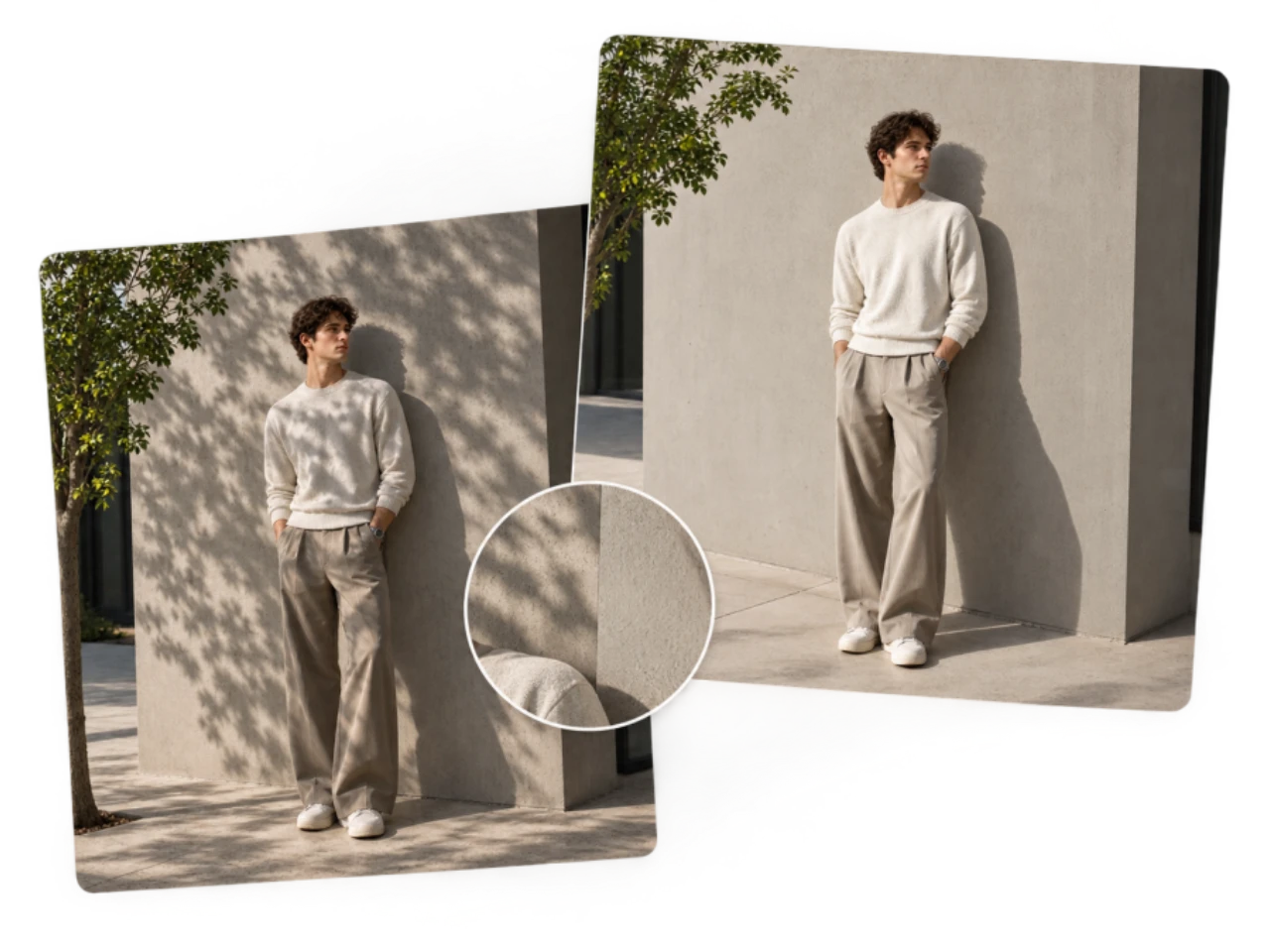
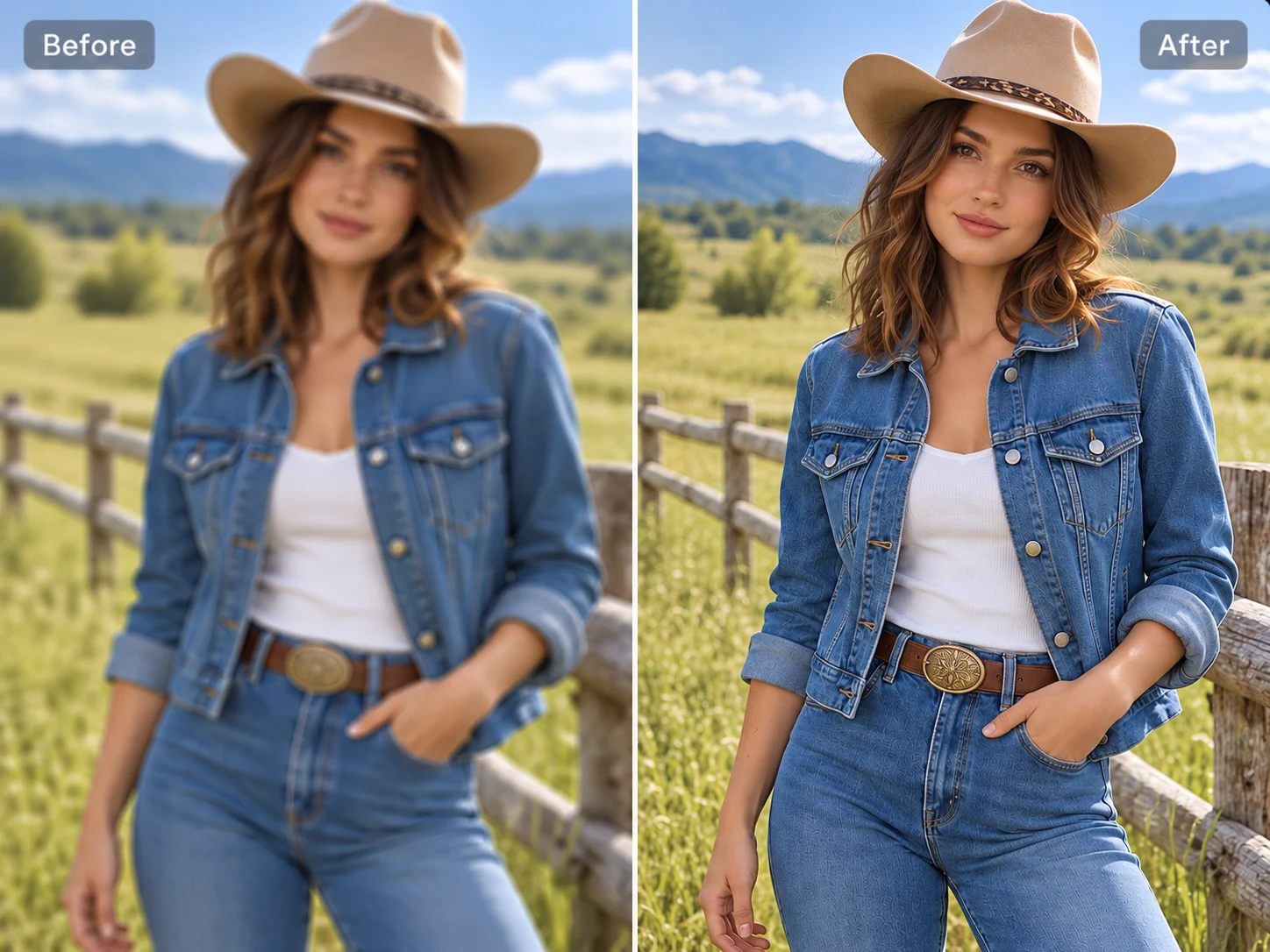
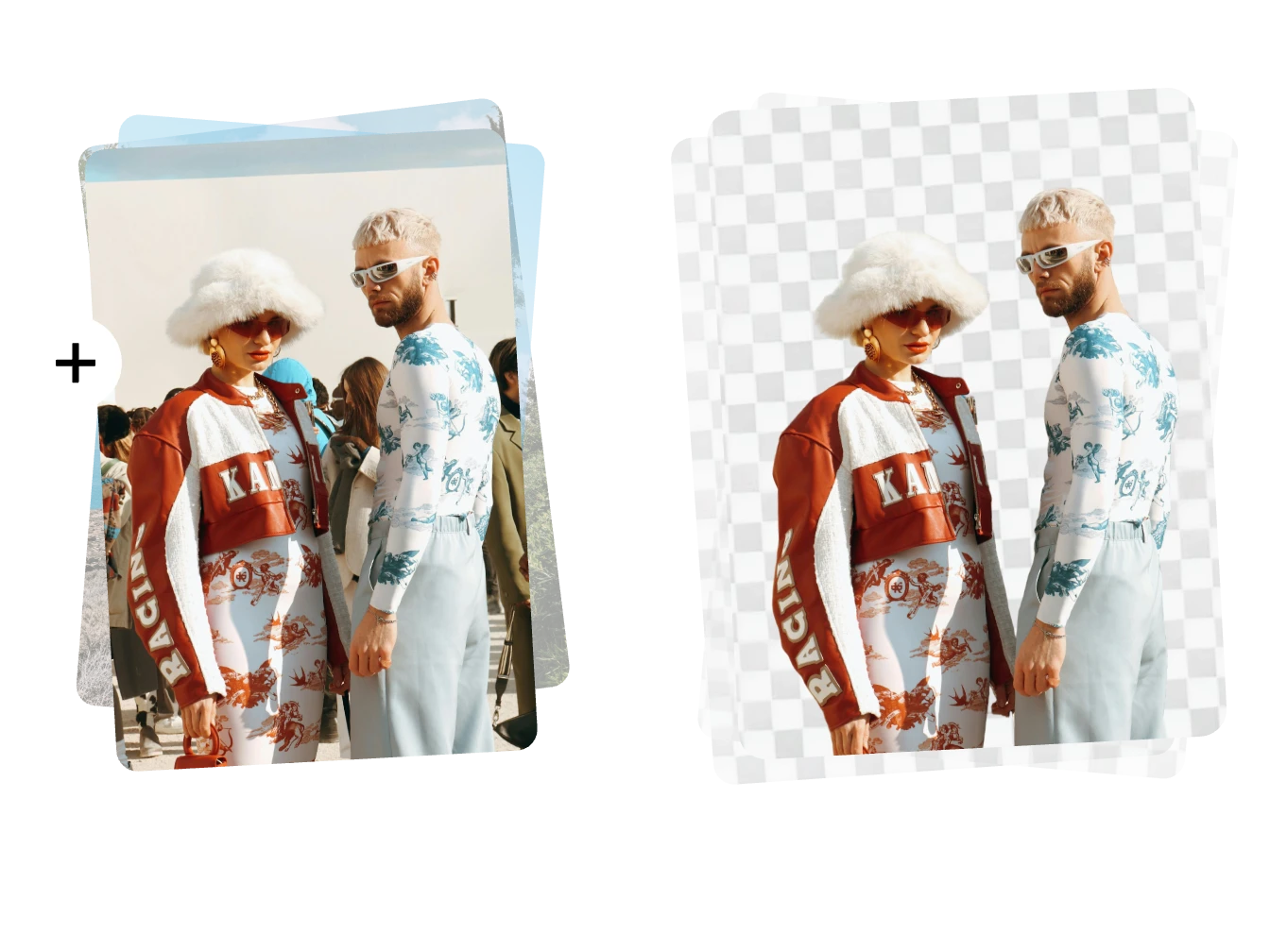


Loved by Creators Worldwide
Real feedback from designers, marketers, and hobbyists sharing their PicLumen experience on Trustpilot.
Isuru NilankaIt's easy to use
It's easy to use, they have different AI models, good prices, and a nice community page.
Jon JonVery good website
Very good website. Different models, good job
 Crispee
Easy to use.
Easy to use. Great layout love it!
Awesome program easy to use a little…
Awesome program easy to use a little disappointment in the fact you can’t buy lumies
amazing
amazing! this is just so good! WOWOW!!
 Ms. Bliss
Just getting started
Just getting started, thus far it's really good. Going to continue to review and will update.
 DeeDee Mays
good app so much fun making photos of…
good app so much fun making photos of avatars
In terms of the customer service
In terms of the customer service, is outstanding, I will say if you had any doubts they clarified it, and the next day you have an answer. When it comes to the APP it is friendly to use, however there is not any box to tick ☑️ to allow the machine to stick to your character constantly.This allow that sometimes you upload your image and your prompt but the machine generates something completely different and you lost your credit 🙁 I think that this needs to be fixed this happens in a few PicLumen models.
 Aleks Visha
Great kompany in the world
Great kompany in the world
 pixai
great chatgpt image alternative
great chatgpt image alternative
Edwin CapdepomtStrong aesthetic ability.
Piclumen gives the impression of being a capable and expressive image generator with a refined aesthetic. If it maintains this level of quality in other types of scenes, it will become one of the most interesting visual tools available today.
 Yasir Ali
My exprienxe was geat.This compony was…
My exprienxe was geat.This compony was good.
FAQs About Removing Text from Images
What is an AI text remover?
An AI text remover erases visible lettering from a photo or graphic and fills the edited area using details from the surrounding image. It works on text that’s part of the picture itself, such as an overlaid caption saved with the photo.
Can I remove text from a picture without cropping it?
Yes. PicLumen fills the area occupied by the text, so you can clear a caption near the edge and keep the full composition in view. That’s useful when the lettering is close to a detail you want in the finished picture.
What kinds of text can I remove from an image?
Common examples include date stamps, captions, headings, and promotional copy. Plain lettering that stands out from the image is usually easier to detect than faint, highly stylized, or partly obscured text.
Can I remove lettering from a photo of a sign or package?
You can try the text remover on lettering photographed on a surface, such as a sign or a box. The fill may be more noticeable where the lettering follows a curve, crosses a fold, or covers a detailed pattern.