Remove Shadow From Photo Without Changing the Rest
Clean up unwanted shadows without rebuilding the entire image. Upload a portrait, selfie, product photo, or everyday picture, describe the shadow you want to remove, and PicLumen edits the affected area while keeping the rest of your image natural.
Hot Video Effects
Turn your photos into fun dance clips, surprising transformations, and shareable moments with trending AI video effects.
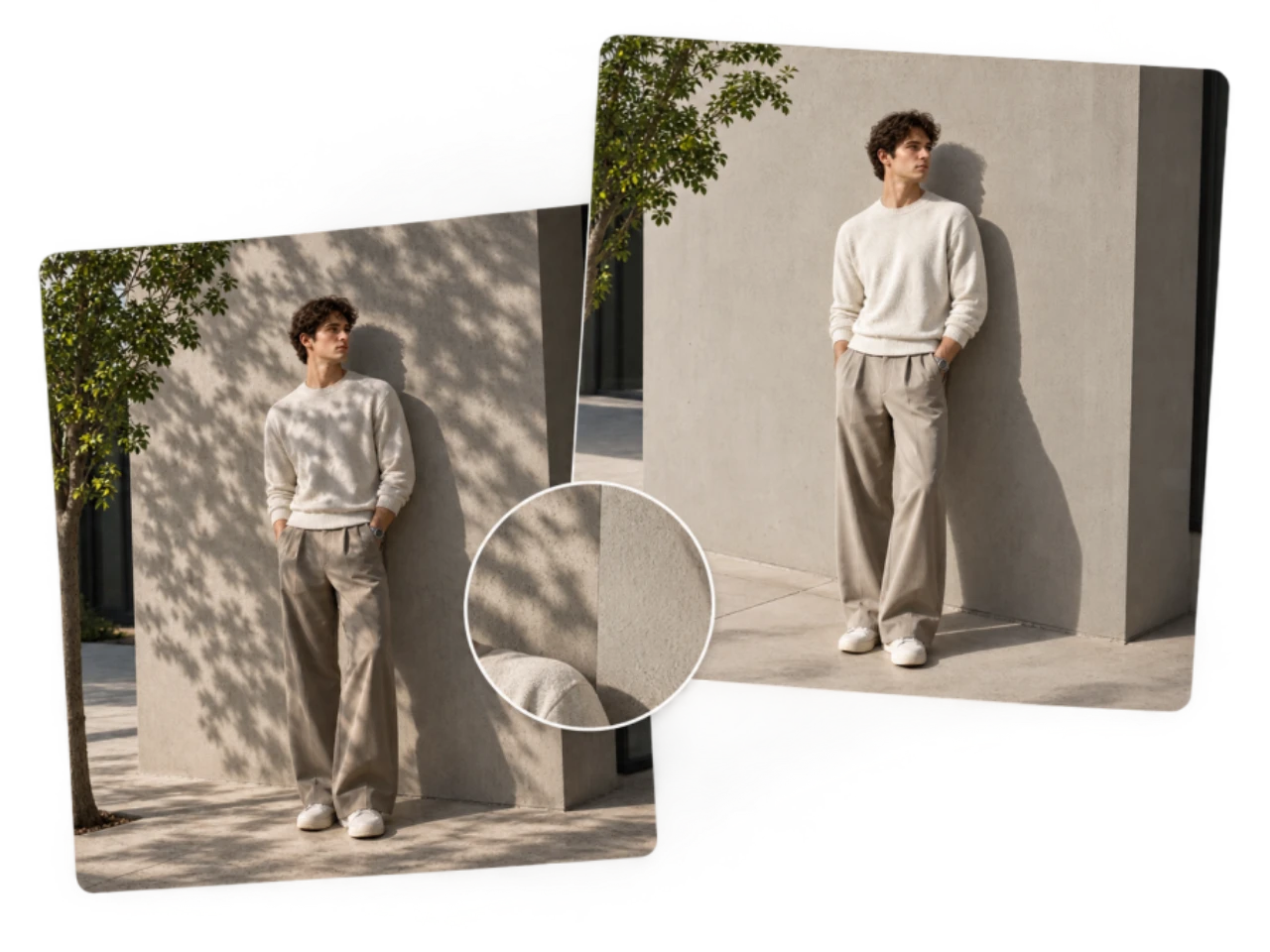
Remove harsh shadows from faces
Strong sunlight and directional lighting can leave dark areas under the eyes, across the cheeks, around the nose, or beneath the chin. Simply increasing brightness can wash out the properly exposed parts of the portrait while leaving the uneven lighting problem behind. Use PicLumen to remove shadow from face in photo by describing the affected area and the result you want. It works well for selfies, portraits, headshots, profile pictures, and outdoor photos where harsh lighting creates distracting facial shadows.
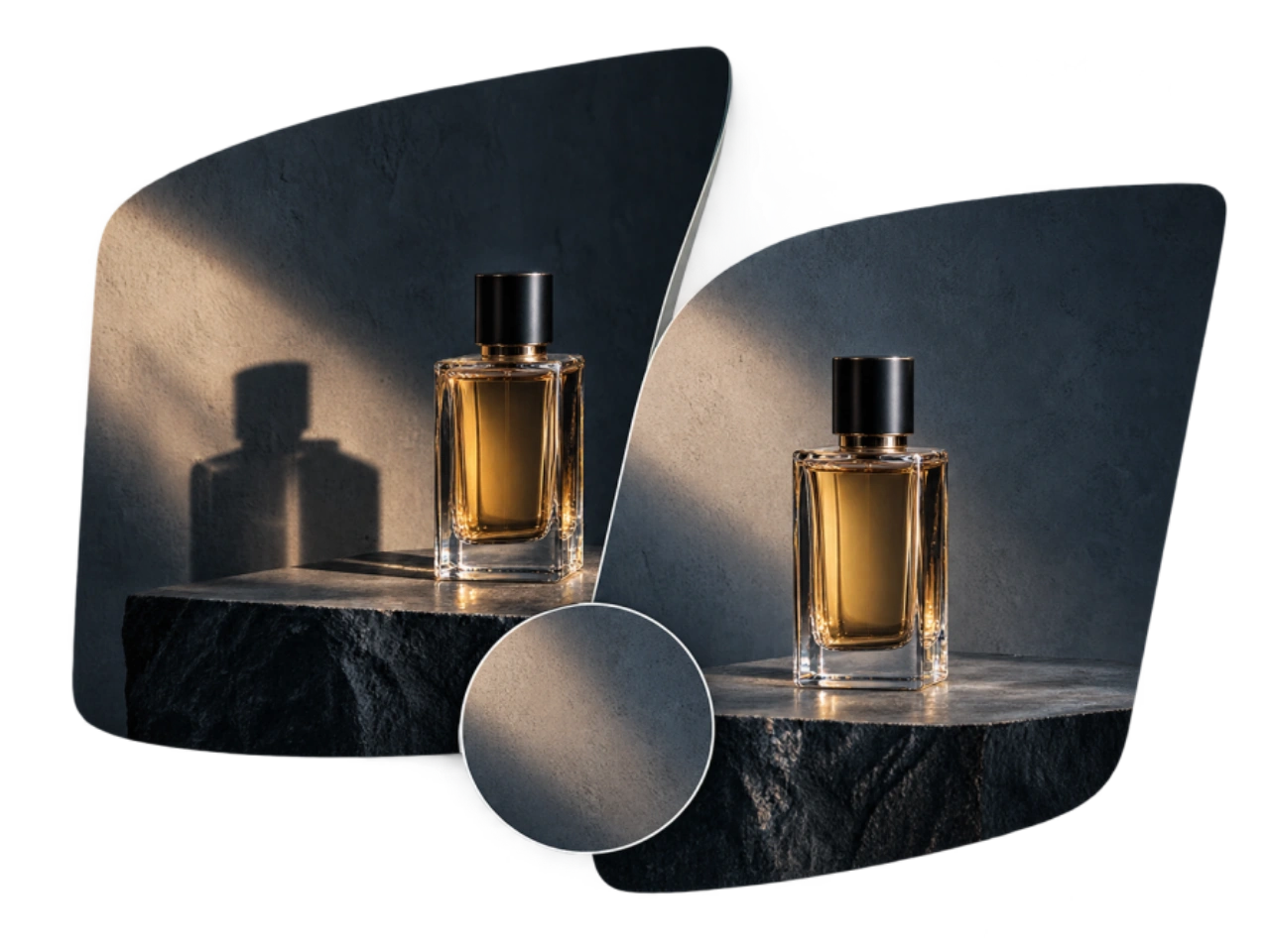
Clean up shadows in product photos
A dark shadow beneath or beside a product can make an otherwise clean image look dull, dirty, or unevenly lit. This can be especially noticeable around shoes, clothing, cosmetics, packaging, furniture, and other products photographed for online stores and marketplaces. When you remove shadow from product photo, you can describe the area that needs cleaning while keeping important visual elements such as the product shape, logo, label, color, and material consistent. This makes shadow removal useful for ecommerce listings, catalogs, and product marketing images.
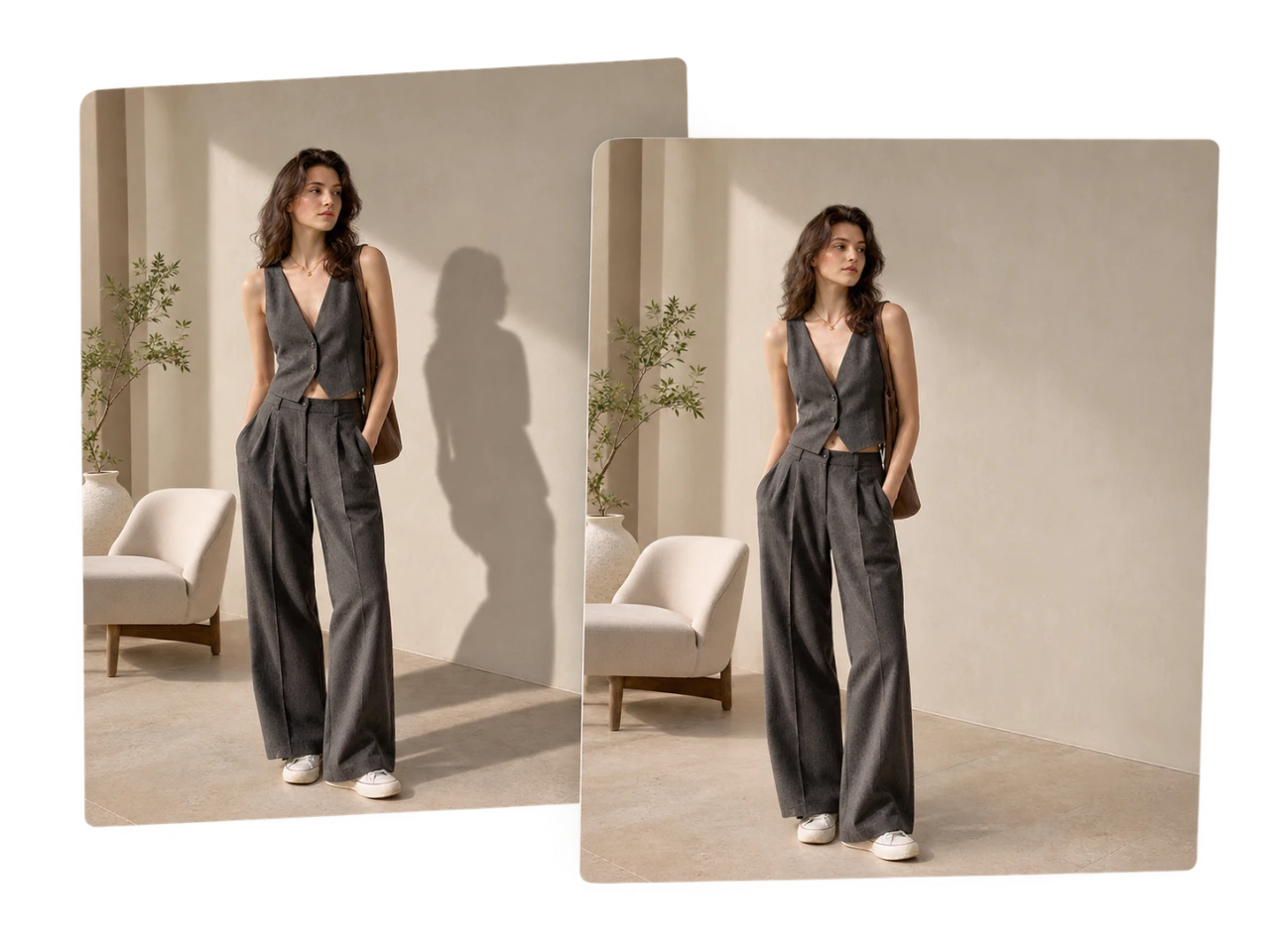
Remove cast shadows from walls, floors, and backgrounds
People, cameras, lamps, and nearby objects can cast unwanted shadows across walls, floors, tables, pavement, and other surfaces. These shadows can become distracting when the main subject itself is already properly exposed. PicLumen lets you remove cast shadow from photo by identifying the unwanted dark area and describing what the surrounding surface should look like. Clean up the background without cropping away useful parts of the original composition.
Fix the shadow without changing the rest
The biggest challenge in photo shadow removal is not making a dark area brighter. It is correcting the shadow without unnecessarily changing everything around it. PicLumen using image to image works from your original image and lets you describe both what should change and what should stay. This targeted approach helps preserve facial features, product details, textures, edges, logos, and other important elements while you remove shadow from photo.
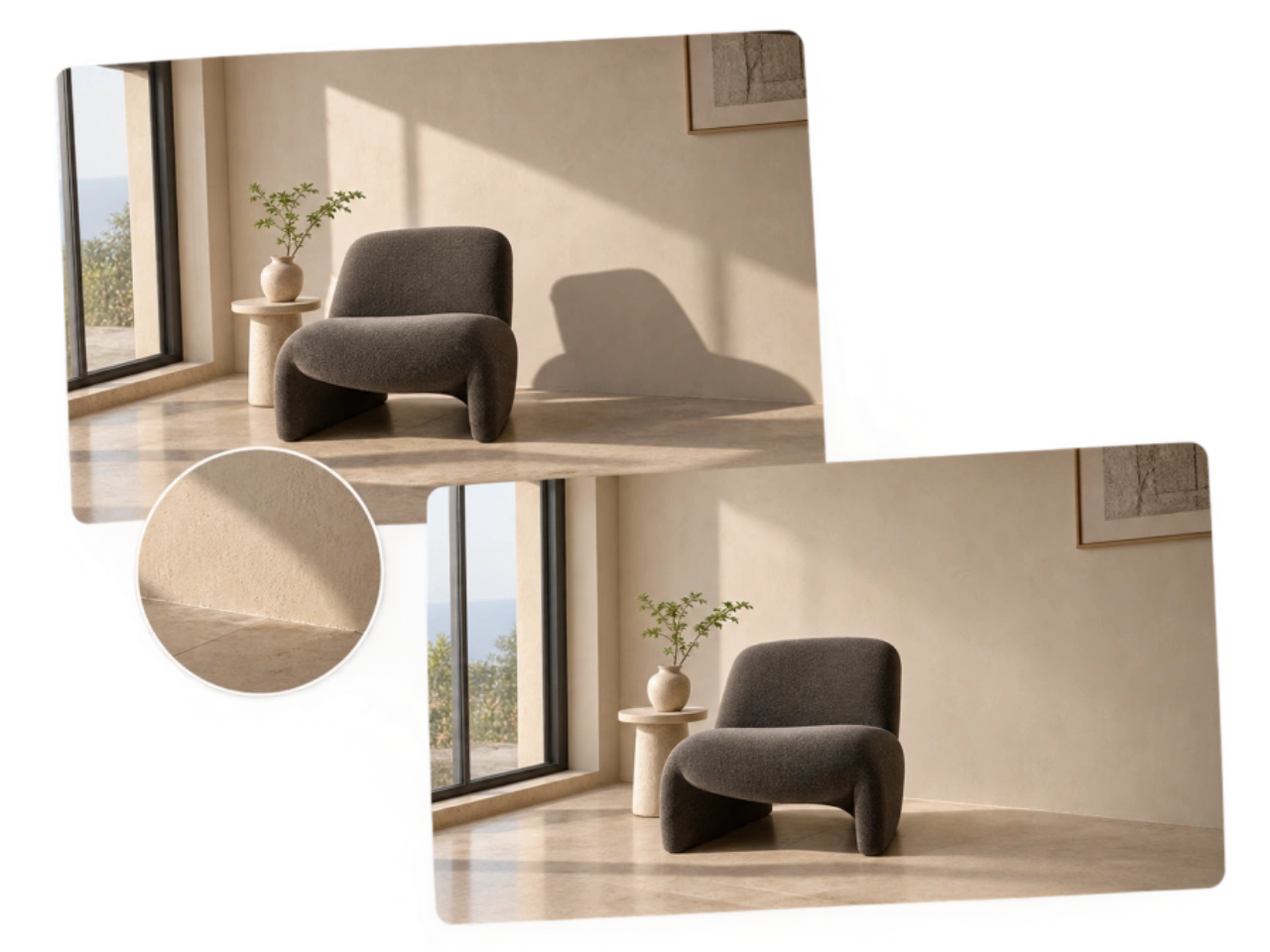
Remove Shadow From Photo for Different Situations

Faces, selfies, and portraits
Harsh sunlight, overhead lighting, and uneven indoor light can leave distracting shadows under the eyes, across the cheeks, or beneath the chin. Use PicLumen to remove shadow from face or clean up a selfie, portrait, headshot, or profile picture without changing the entire lighting of the photo.

Product photos for online stores
A person, camera, lamp, or nearby object can cast unwanted shadows across walls, floors, tables, pavement, and other surfaces. Use PicLumen to remove cast shadow from photo and clean up the affected background without cropping out useful parts of the image.

Cast shadows on backgrounds
A person, camera, lamp, or nearby object can cast unwanted shadows across walls, floors, tables, pavement, and other surfaces. Use PicLumen to remove cast shadow from photo and clean up the affected background without cropping out useful parts of the image.

Clean backgrounds and surfaces
Sometimes the subject looks fine, but a dark patch or unwanted shadow makes the surrounding background distracting. Remove shadow from background areas such as walls, floors, studio surfaces, and outdoor scenes to create a cleaner-looking image.

Documents and flat objects
Shadows from hands, phones, lamps, or nearby objects can make photos of documents, receipts, books, and forms harder to read. Use PicLumen to remove shadow from document photo and clean up the page without recreating the entire image.
How to Remove Shadow From Photo in Three Steps
1 Upload the photo
1Upload the image you want to edit. You can use a portrait, selfie, product image, outdoor photo, document, or everyday picture with an unwanted shadow. If you want to remove shadow from picture, start with the original image whenever possible. A clear view of the shadow makes it easier to describe the area you want to change.
2 Describe the shadow
2Tell PicLumen what shadow you want to remove and where it appears. You can also describe important parts of the image that should remain unchanged. For example: Remove the harsh shadow across the person's face while keeping the facial features, expression, and skin texture unchanged. Specific instructions can make remove shadow from photo edits more focused than a general request such as “make the photo brighter.”
3 Generate and review the result
3Generate the edited photo and compare it with your original. Check the area where the shadow was removed as well as the surrounding subject and background. If the result needs another adjustment, refine your instruction by identifying the exact shadow, its location, and what should remain unchanged. You can then generate another version until the photo matches your intended edit more closely.


Loved by Creators Worldwide
Real feedback from designers, marketers, and hobbyists sharing their PicLumen experience on Trustpilot.
chelsiennerThis is my favorite AI Image generator
This is my favorite AI Image generator
My experience
Itis a really good website n really ideal to use theres only one con and that the AIS sometimes create wrong images but that doesnt happen frequently
 Scottie Grace
Very affordable and high quality
Very affordable and high quality
 Kura Aditya
The best experience ever w
The best experience ever w
 rockstar gaming
Value For Money
its value for money i fully recommend you to try this one time you will like it...
Nice creations and bright
Nice creations and bright
Super shuper super ai
Super shuper super ai Thanks for wachong
Great AI program
Great AI program, easy to work with.
 Scott Chamberlain
Great system
Great system. Easy to use. Great results.
 Yasir Ali
My exprienxe was geat.This compony was…
My exprienxe was geat.This compony was good.
Zain AliThis is the best ai in the world
This is the best ai in the world
Rabbi HasanNice application for all user
Nice application for all user
Frequently Asked Questions About Removing Shadows From Photos
What is the best way to remove shadow from photo?
The best method depends on the type of shadow and where it appears. A harsh shadow across a face is different from a product shadow beneath an object or a cast shadow across a wall. PicLumen lets you describe the unwanted shadow and the area it affects, making it possible to remove shadow from photo without applying a blanket brightness adjustment to the entire image.
Can I remove shadow from a photo online?
Yes. PicLumen is an online photo shadow remover that lets you edit a photo directly in your browser. Upload your image, describe the shadow you want to remove, and generate an edited version without manually painting over the shadow or rebuilding the image from scratch.
How do I remove shadow from face in a photo?
Upload the portrait or selfie and describe where the unwanted facial shadow appears, such as under the eyes, across the cheeks, around the nose, or beneath the chin. PicLumen can help remove shadow from face areas caused by direct sunlight, overhead lighting, windows, or other uneven light sources while keeping the rest of the portrait consistent.
Can I remove shadow from a product photo?
Yes. PicLumen can remove shadow from product photo by targeting unwanted shadows beneath, beside, or behind an item. This is useful for ecommerce images, Amazon listings, Shopify stores, catalogs, and social media, especially when a shadow makes the product look darker or distracts from its shape, color, packaging, or visible details.
How can I remove a cast shadow from a photo?
A cast shadow can stretch across a wall, floor, table, pavement, or other surface and may be caused by a person, camera, lamp, vehicle, or nearby object. To remove cast shadow from photo, upload the image and describe the unwanted dark area and the surrounding surface you want to clean up. This lets you target the cast shadow instead of brightening the entire scene.
Is removing a shadow the same as brightening a photo?
No. Brightening changes the overall exposure or light level of an image, while shadow removal focuses on a specific unwanted dark area. If the subject, highlights, and background are already correctly exposed, increasing brightness can make the entire photo look washed out. Removing the shadow is a more targeted way to correct the affected area.
Can I remove shadow from photo without changing the rest of the image?
Yes. PicLumen uses your uploaded photo as the visual reference during image-to-image editing. In your prompt, you can identify the shadow you want removed and mention important elements that should remain consistent, such as facial features, product shape, logos, labels, textures, colors, and the overall composition.
Can I remove shadow from picture for free?
Yes! You can try PicLumen's free shadow removal capabilities online, subject to the current generation options, credits, and usage limits available on the service. Upload a picture, describe the unwanted shadow, and check the available editing options before generating the result.
Remove the Shadow, Keep What Matters
You do not need to retake a photo or rebuild the entire image because of one unwanted shadow. Remove shadow from photo with PicLumen and clean up the area that gets in the way while keeping the rest of your image natural.
- AI Image Generator
- AI Art Generator
- AI Landscape Generator
- AI Wallpaper Generator
- AI Background Remover
- Image to Image AI Generator
- AI Image to Video Generator
- Photo to Art Converter
- Text to Image AI Generator
- AI Watermark Remover
- Online Chibi Maker
- AI Surrealism Art Generator
- AI Fantasy Character Generator
- AI VTuber Maker Online
- AI Age Progression
- AI Background Generator
- AI Embroidery Generator
- AI Emoji Generator
- AI Food Image Generator
- AI Product Photo Generator
- Celebrity AI Image Generator
- AI Virtual Try On
- AI Faceless Video Generator
- Visual Solution for Amazon