Free AI Roblox Profile Picture Maker from Photos and Prompts
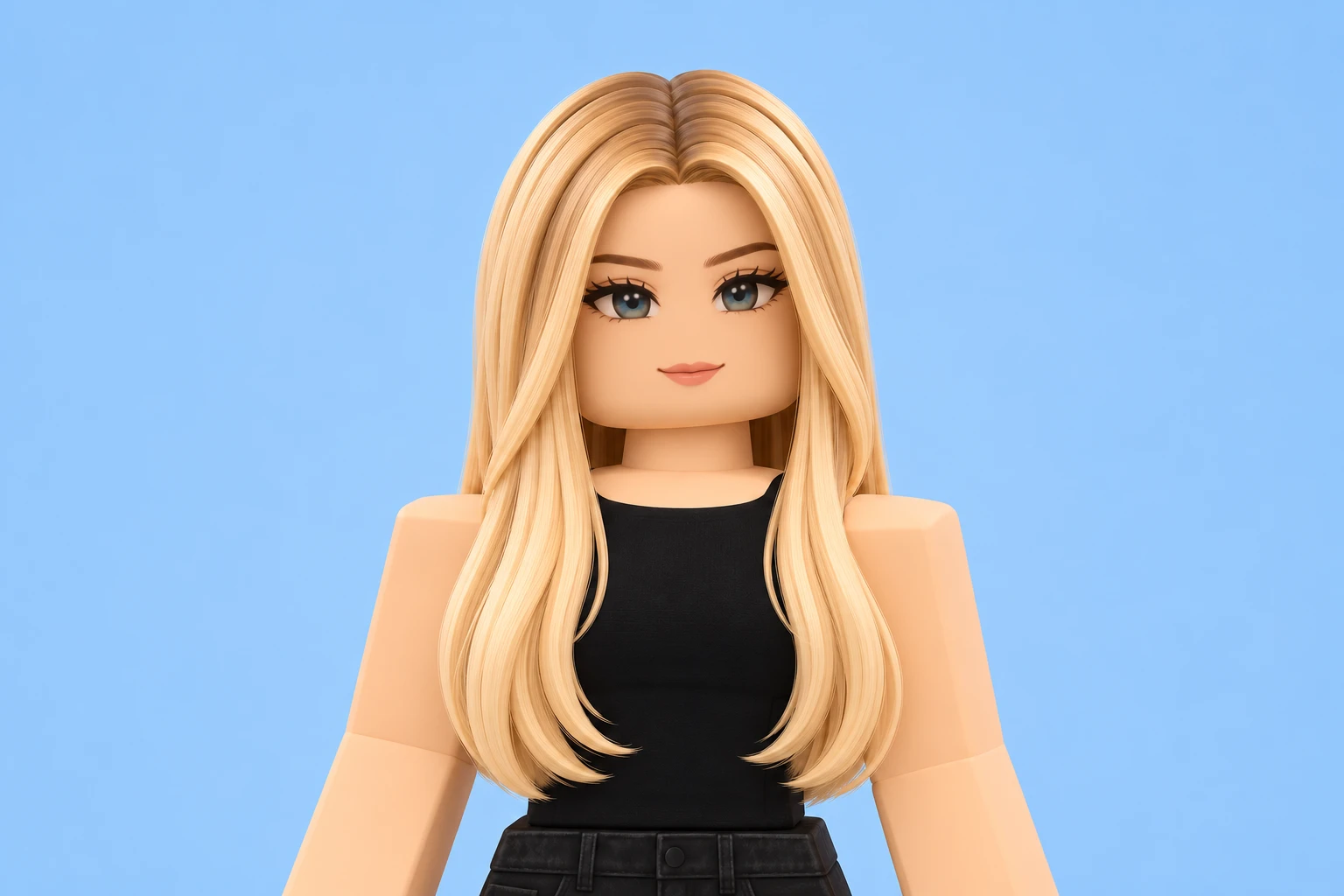
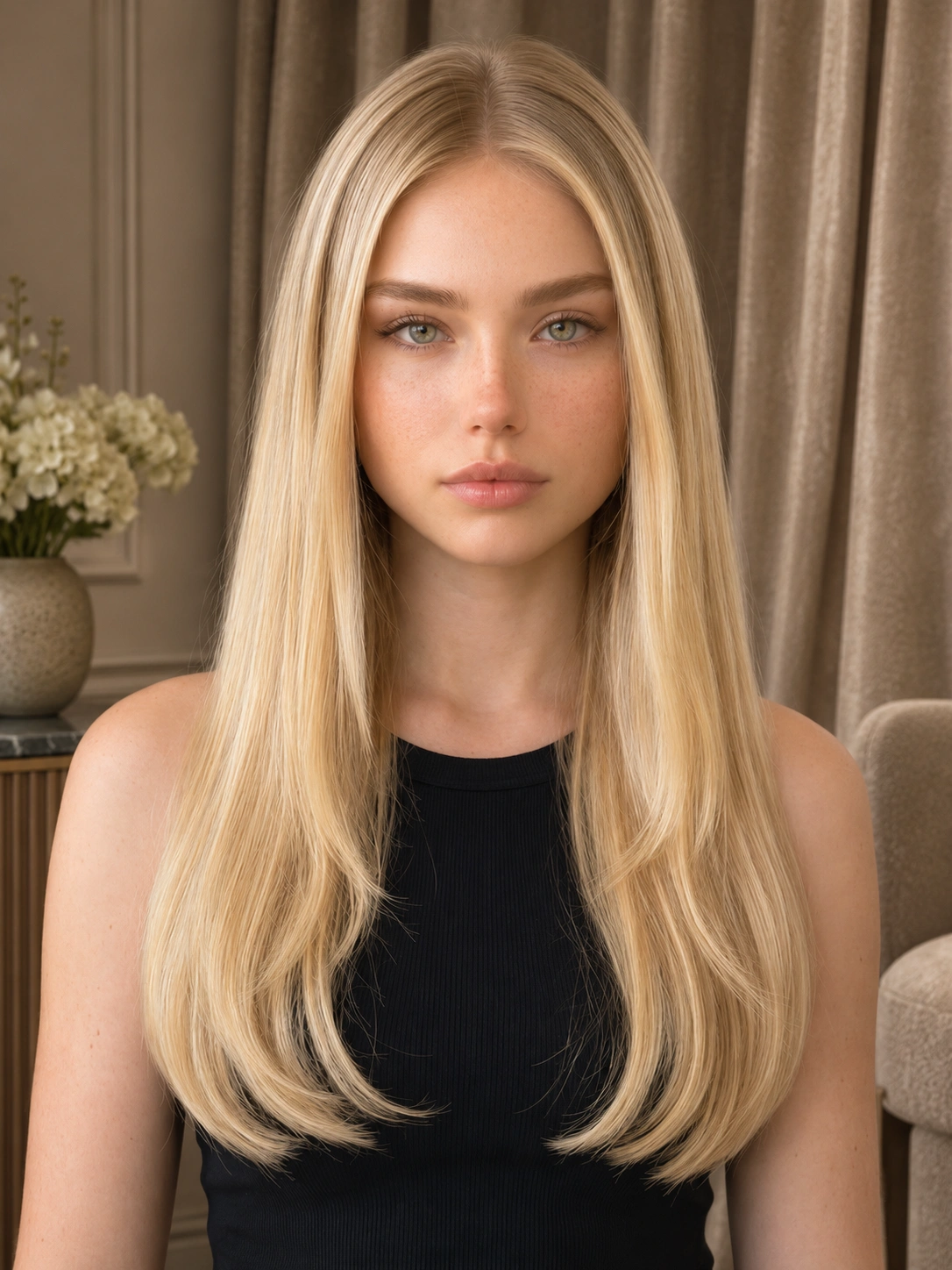
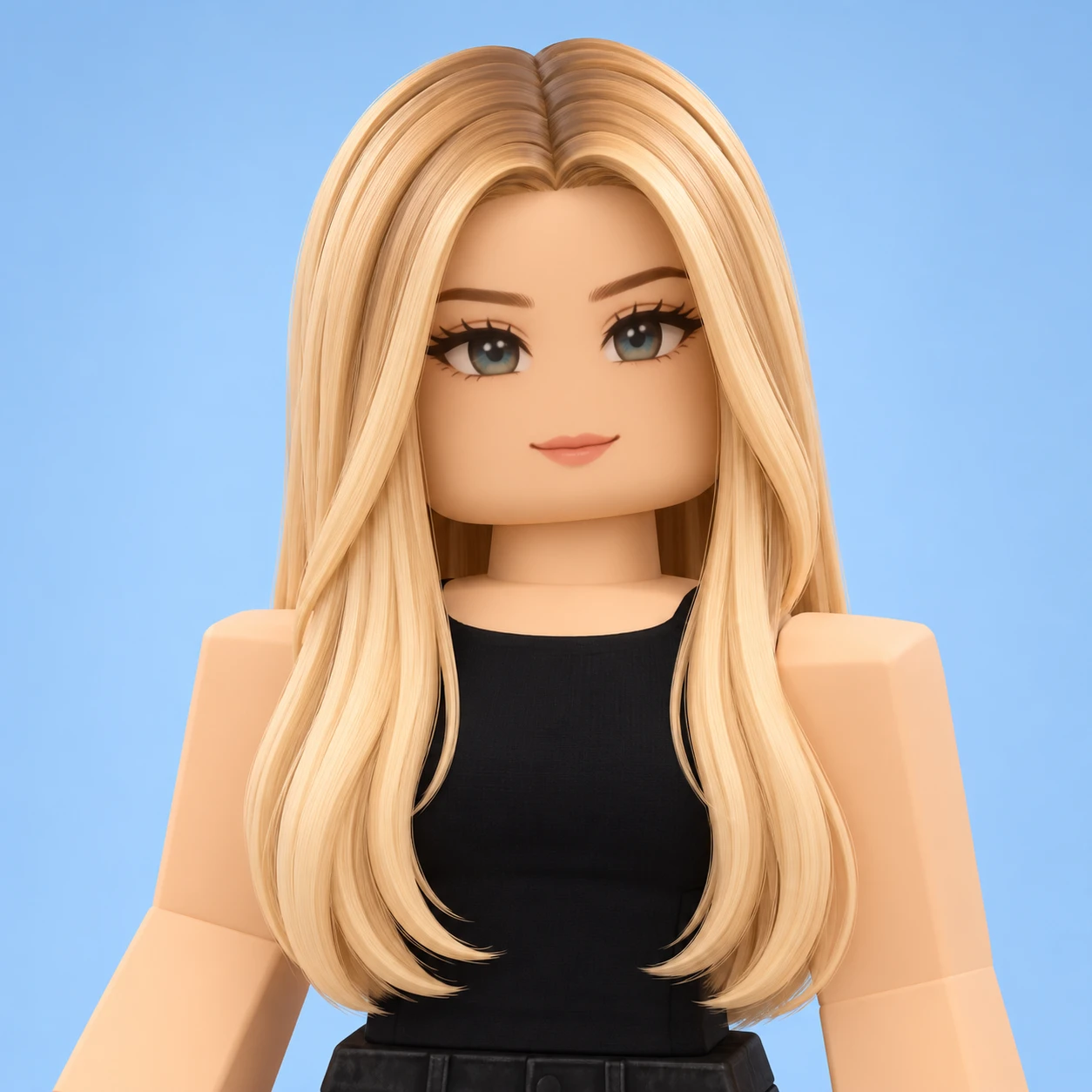
How to Make a Roblox Profile Picture
Enter a Prompt
Describe your Roblox-style character. Include details like the hairstyle, outfit, expression, and background you want.
Upload a Reference Image (Optional)
Add a selfie or a screenshot of your Roblox avatar if you want the portrait to reflect details from that image.
Generate and Download
Click Generate, preview your Roblox PFP, and download it when you’re happy with the result.
Turn Text Prompts into Roblox PFPs
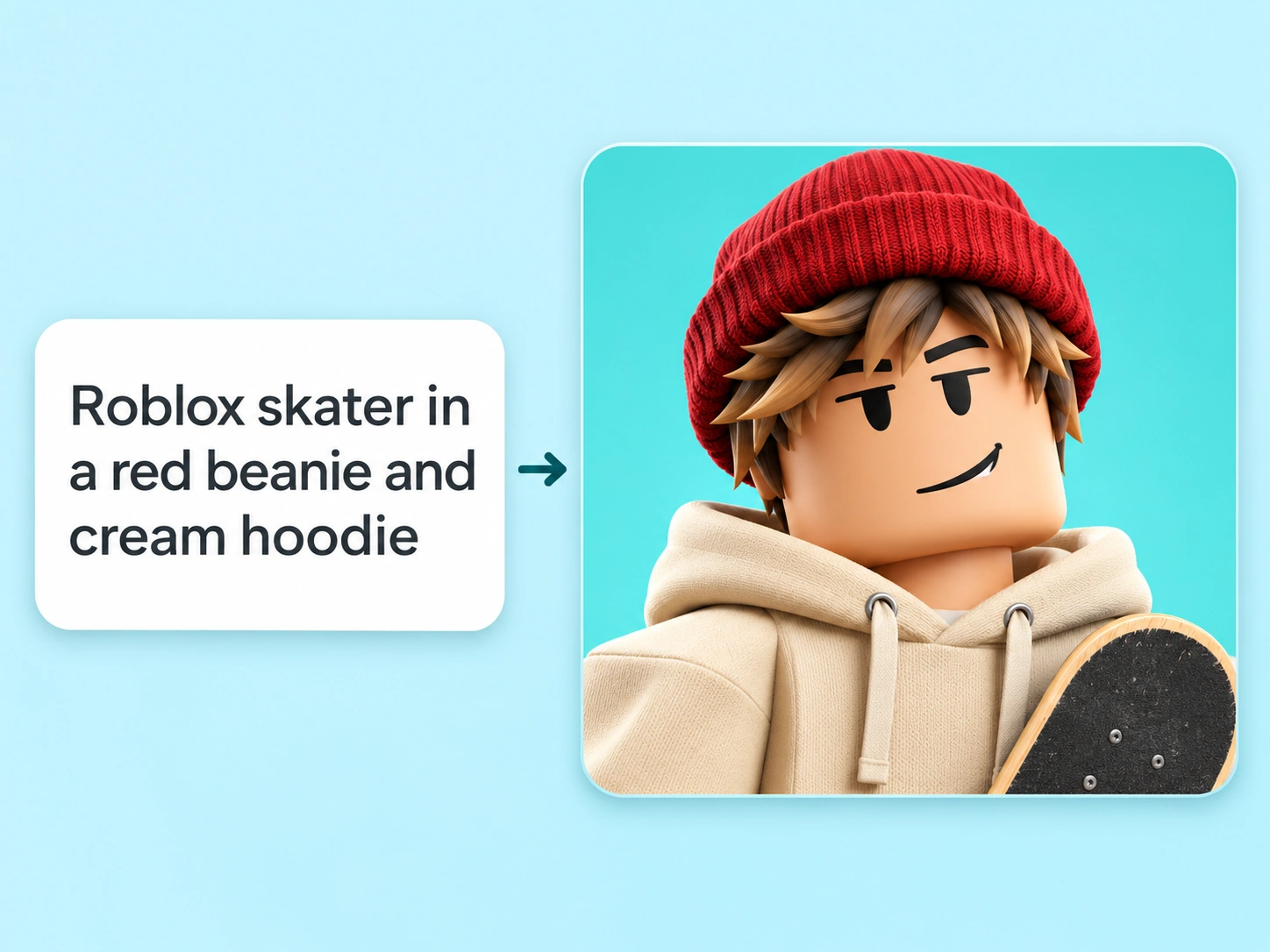
Start with a character idea and turn it into a portrait with PicLumen’s Roblox PFP generator. Describe the hairstyle, clothes, pose, and expression that suit the personality you have in mind. A skater might wear a red beanie and tilt their head. A chef could have a flour-dusted apron and a proud grin. If you’re designing a character around a username, use the name to inspire an outfit or expression. For a beach-themed name, try a bucket hat and a sun-faded tee. Give the portrait one signature detail people can remember.
Turn Selfies into Blocky Portraits
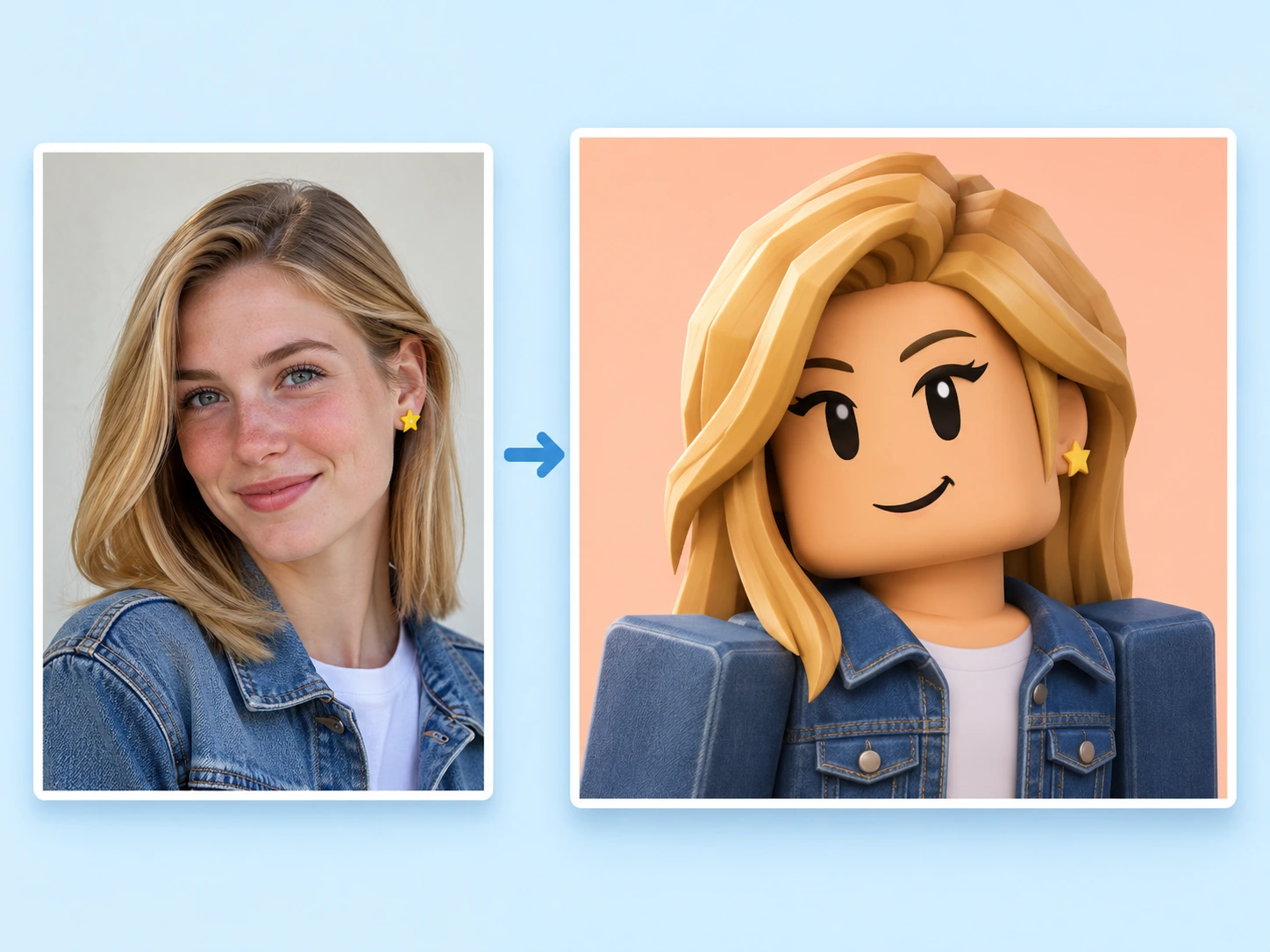
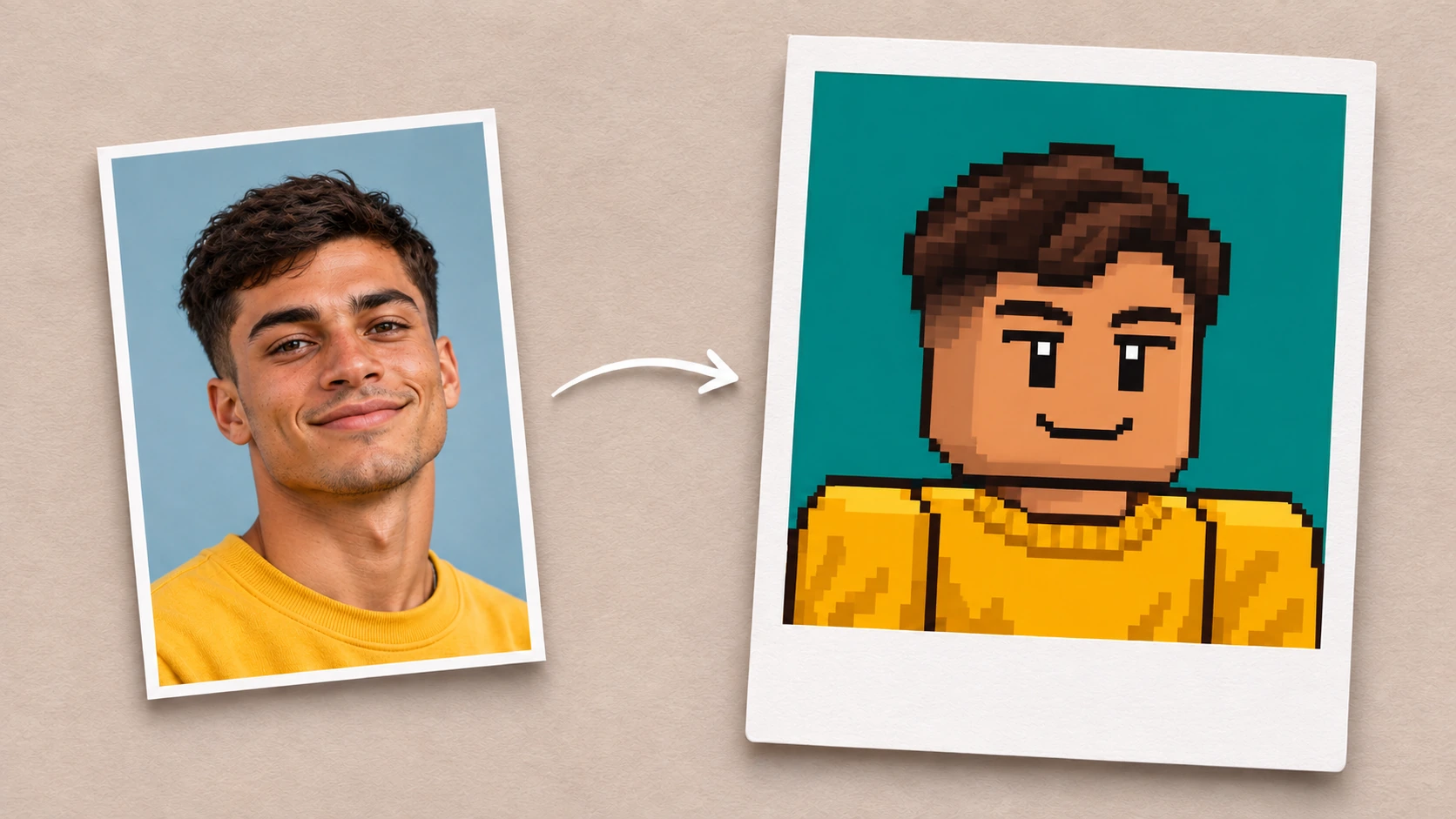
Use your own photo to bring familiar details into a Roblox-style portrait. Upload a selfie and name the features you want the AI to carry over, such as curly hair, round glasses, or the color of a favorite jacket. You can also use a screenshot of your existing Roblox avatar and describe a new pose or setting for the character. Pick a close-up if your hairstyle or expression matters most. Choose a wider shot if you want more of your outfit to guide the design.
Explore 3D, Cartoon, and Pixel Art
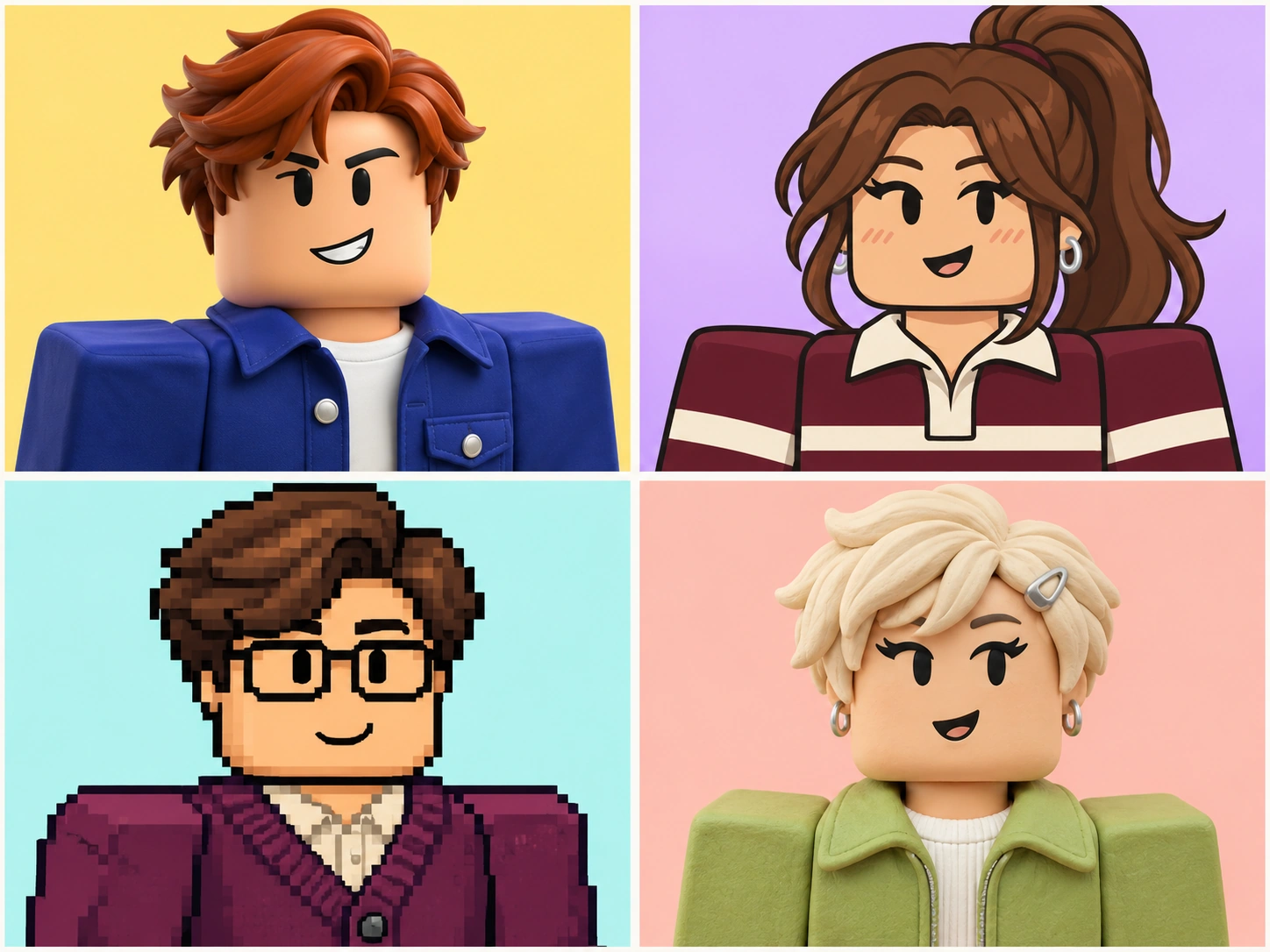
Give the same character a few different looks with the Roblox PFP maker. For a polished 3D portrait, ask for smooth blocky shapes and soft studio lighting. For a cartoon, request bold outlines, an exaggerated grin, and flat colors. Try pixel art for a retro game look with a limited palette and crisp edges. Keep your character description and change the art style in the prompt to see which version fits your profile. You might pick a playful cartoon for a group chat and a moody 3D portrait for your channel.
Frame Your Avatar for Small Icons
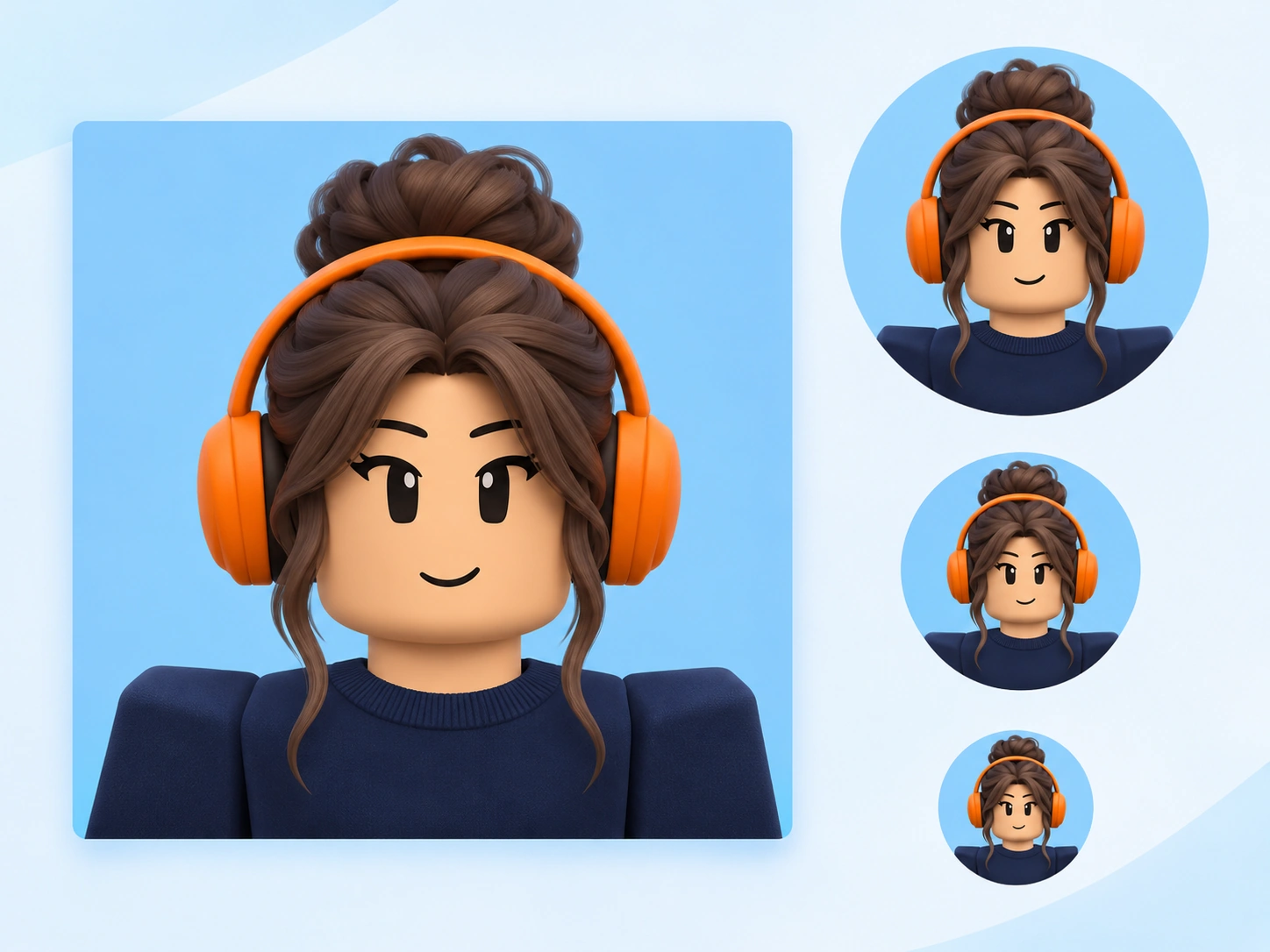
Design your PFP with the size of a chat icon in mind. Ask for a centered head-and-shoulders portrait with extra space around the hair, hat, or headphones. A simple background and strong contrast help the face stay visible when the image is small. If you plan to use a circular crop, keep the details you care about close to the center. Before setting the image as your profile picture, view it at thumbnail size and check that your character’s expression and main accessory are still easy to see.
Create Roblox PFPs for You and Your Crew
Use a Roblox-style portrait to refresh your gaming profile, introduce a character, or give your community a face members can recognize.
Roblox Players
Give people you play with an easy way to recognize you across gaming spaces. Start with the Roblox avatar you already use and turn a familiar detail, like your red cap or chunky headphones, into the focus of your PFP. Use the portrait in a gaming forum or as the icon friends see beside your messages. If you like to change your look for events, create a few versions with the same character. A winter scarf or a spooky backdrop can give your usual avatar a seasonal update.
Gaming Content Creators
Make a character portrait that fits the content you post. If you create Roblox challenge videos, speed builds, or game reviews, give viewers a face they can associate with your channel. A deadpan expression can suit comedy clips. For an upbeat series of obby runs, try a bright outfit and a big grin. Use the Roblox avatar maker to design a profile portrait around a color or accessory you can echo in thumbnails and stream overlays. That recurring detail can tie your channel artwork together as you switch games or formats.
Discord Community Managers
Give your Discord server a mascot members can spot in a crowded server list. A building group could give its mascot a yellow hard hat. A racing server might choose a red helmet and a checkered scarf. Use the character portrait for your server icon and bring it into event graphics for build contests, race nights, or community milestones. Keep the mascot’s face and signature colors consistent across those materials. When a member sees an event post, that familiar character helps them recognize which group it’s from.
Roleplayers and Storytellers
Put a face to each character in your Roblox roleplay. A nervous apprentice might peer out from under an oversized wizard hat. A space captain could wear a scratched helmet and a confident grin. Use the Roblox avatar creator to turn those details into portraits for character sheets or cast introductions. Choose a different expression for each role so new players can get a feel for the characters before joining a scene. For a group story, repeat the framing across portraits to make your cast sheet easy to scan.
Roblox Experience Developers
Show players who’s behind your Roblox experience with a portrait that fits the world you’re building. For an island adventure, give your character a sun hat and a folded map. For a café simulator, try a blocky barista in an apron that matches the colors in your game. Reuse your portrait as a byline image in devlogs or include it in team introductions and playtest announcements. Players can connect the updates they see between releases with the people working on the game.
Friends Making Matching PFPs
Create matching PFPs for your co-op partner, siblings, or the friends you game with every weekend. Start with a shared theme, like varsity jackets or explorer gear, and write a separate prompt for each person. Repeat the background color and lighting, then give each avatar its own hairstyle, color accent, or accessory. A shared background makes the portraits feel like a set, and the personal details help friends tell each avatar apart in chat. Try a matching set for a tournament weekend, a birthday, or the start of your next co-op game.
Roblox PFP Prompts to Try with Your Photo
3D Collectible Portrait
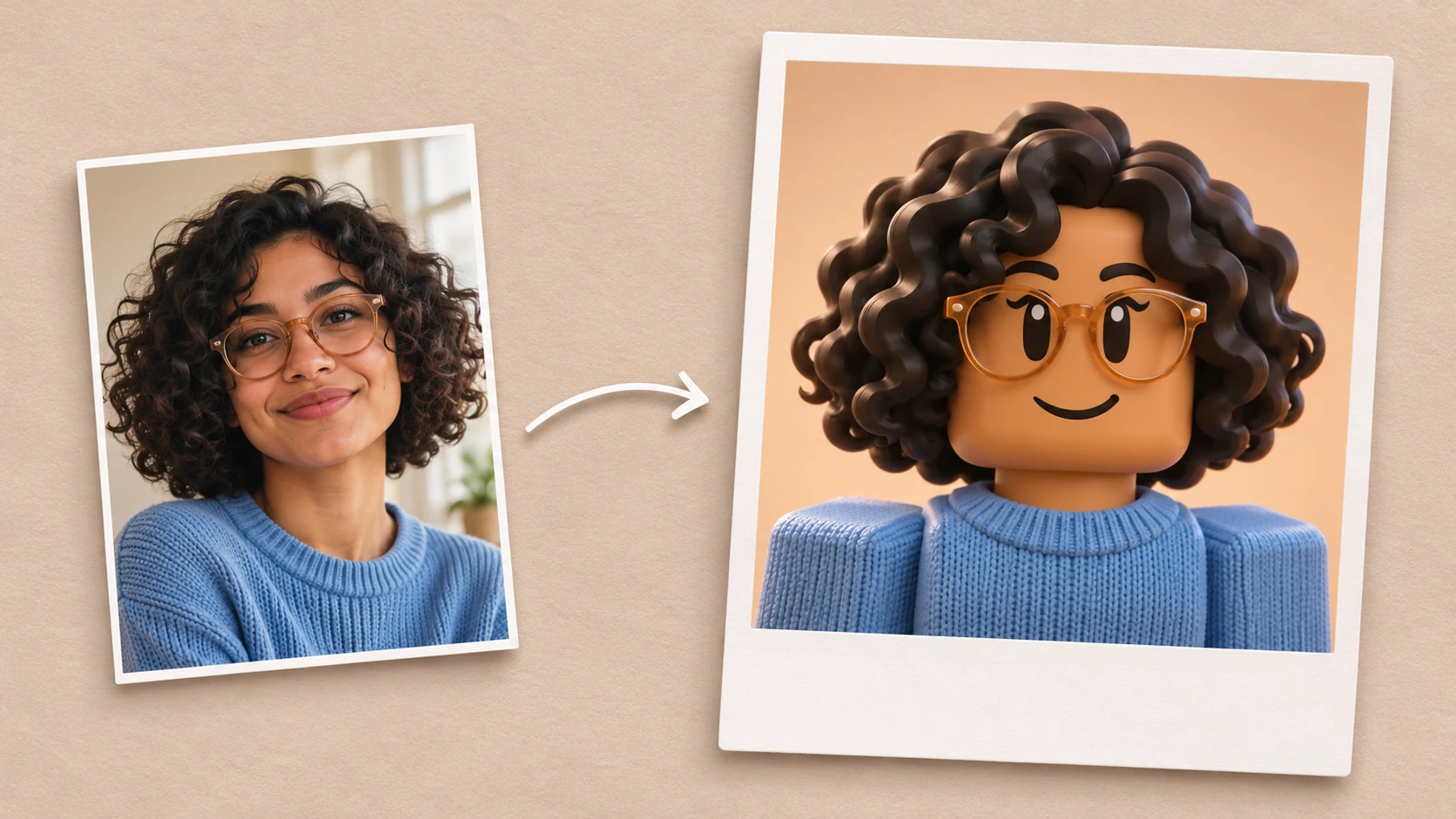
Create a 3D Roblox-style vinyl collectible based on the reference photo. Preserve the subject’s hairstyle, hair color, and main outfit color. Give the avatar a blocky head and a relaxed smile, lit by soft studio lighting. Use a square head-and-shoulders crop with space around the hair.
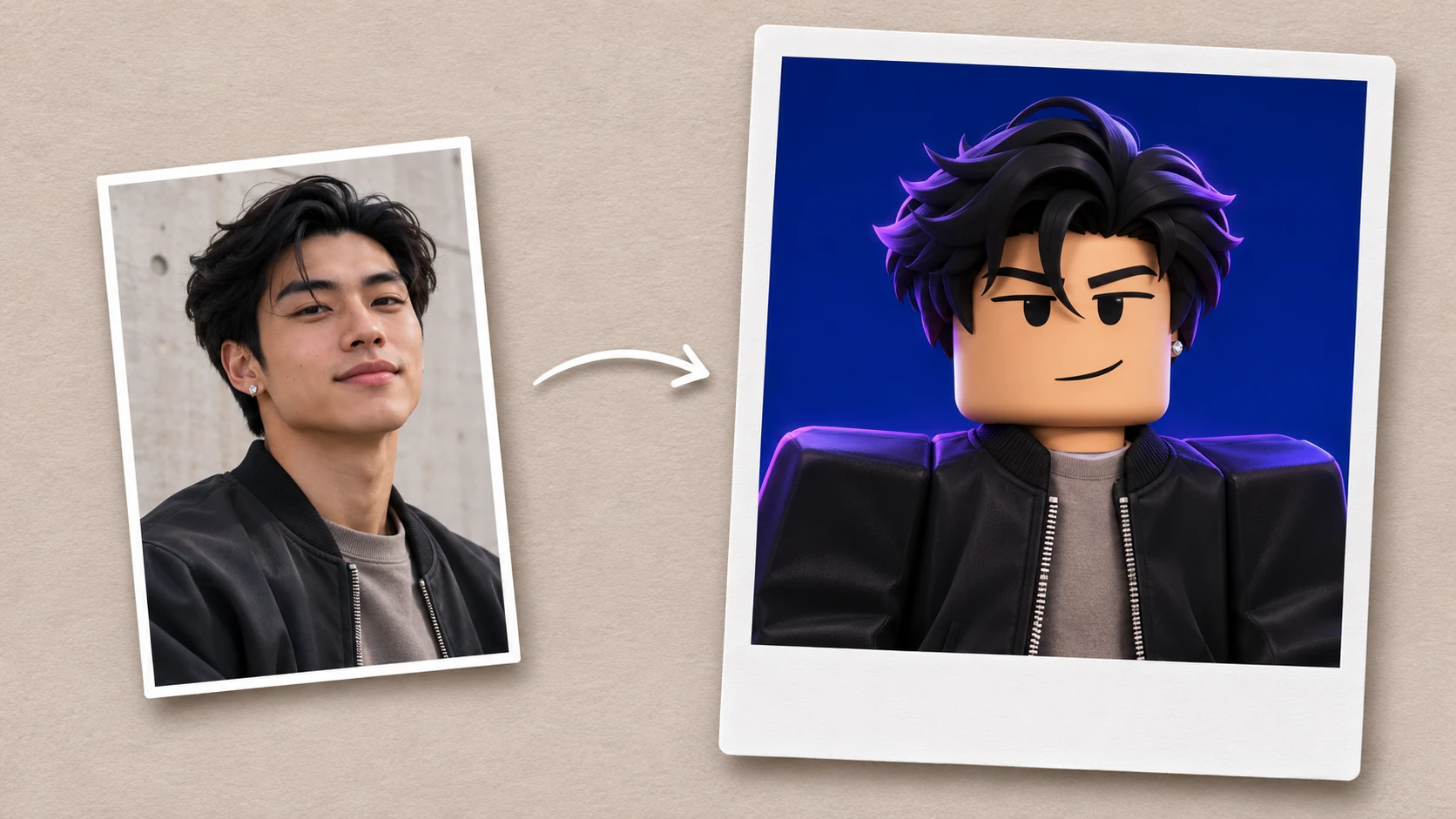
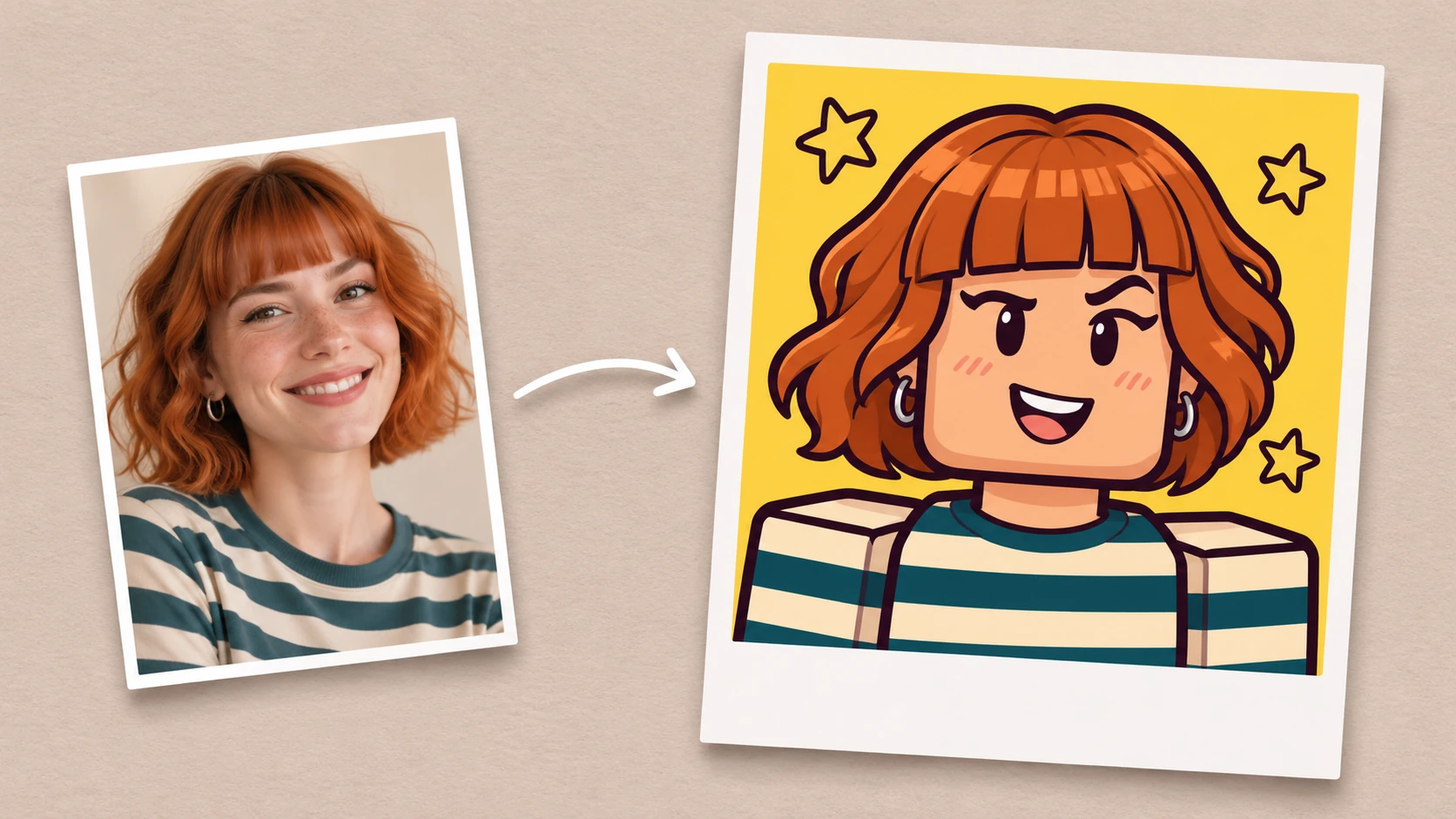
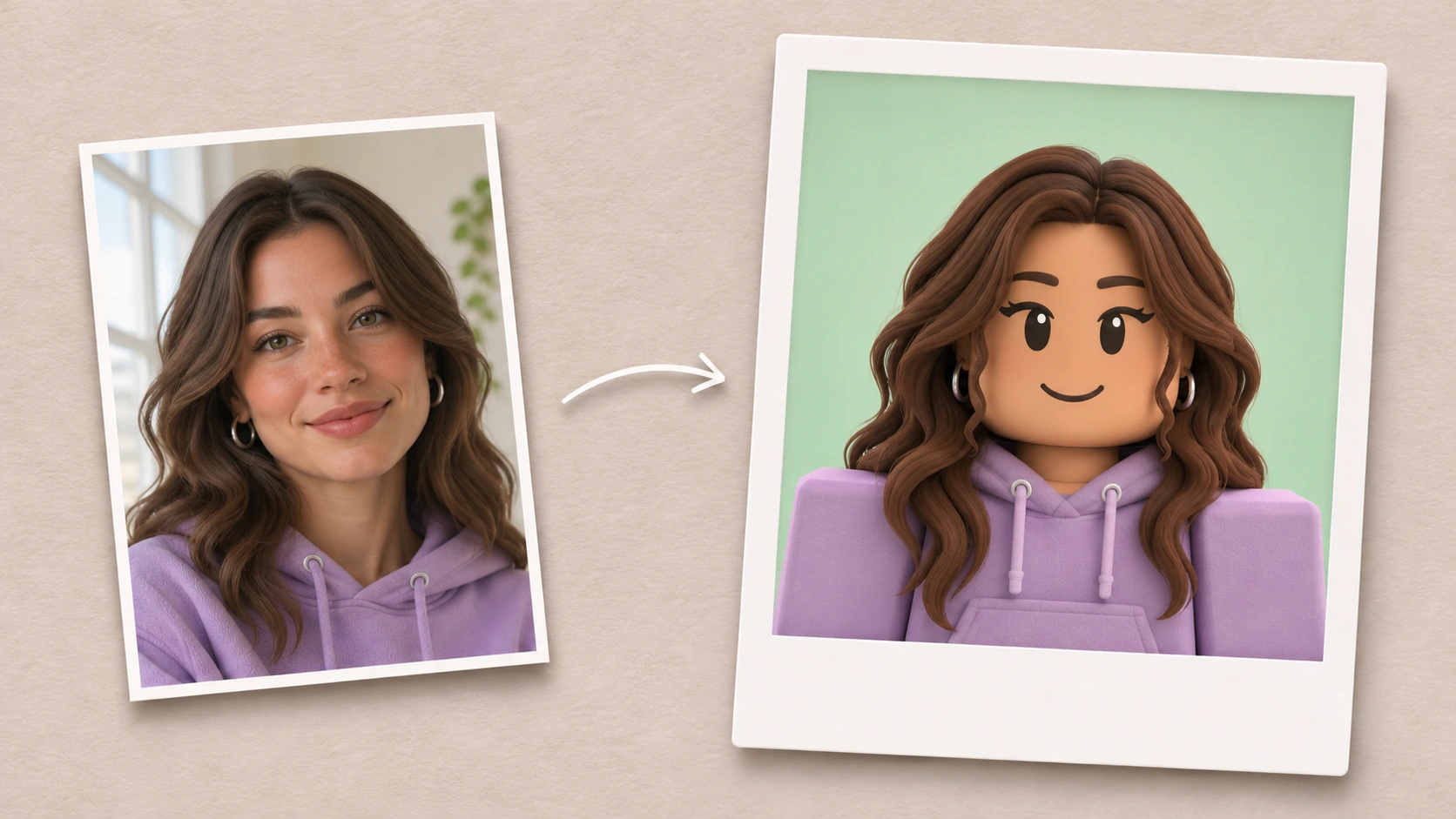
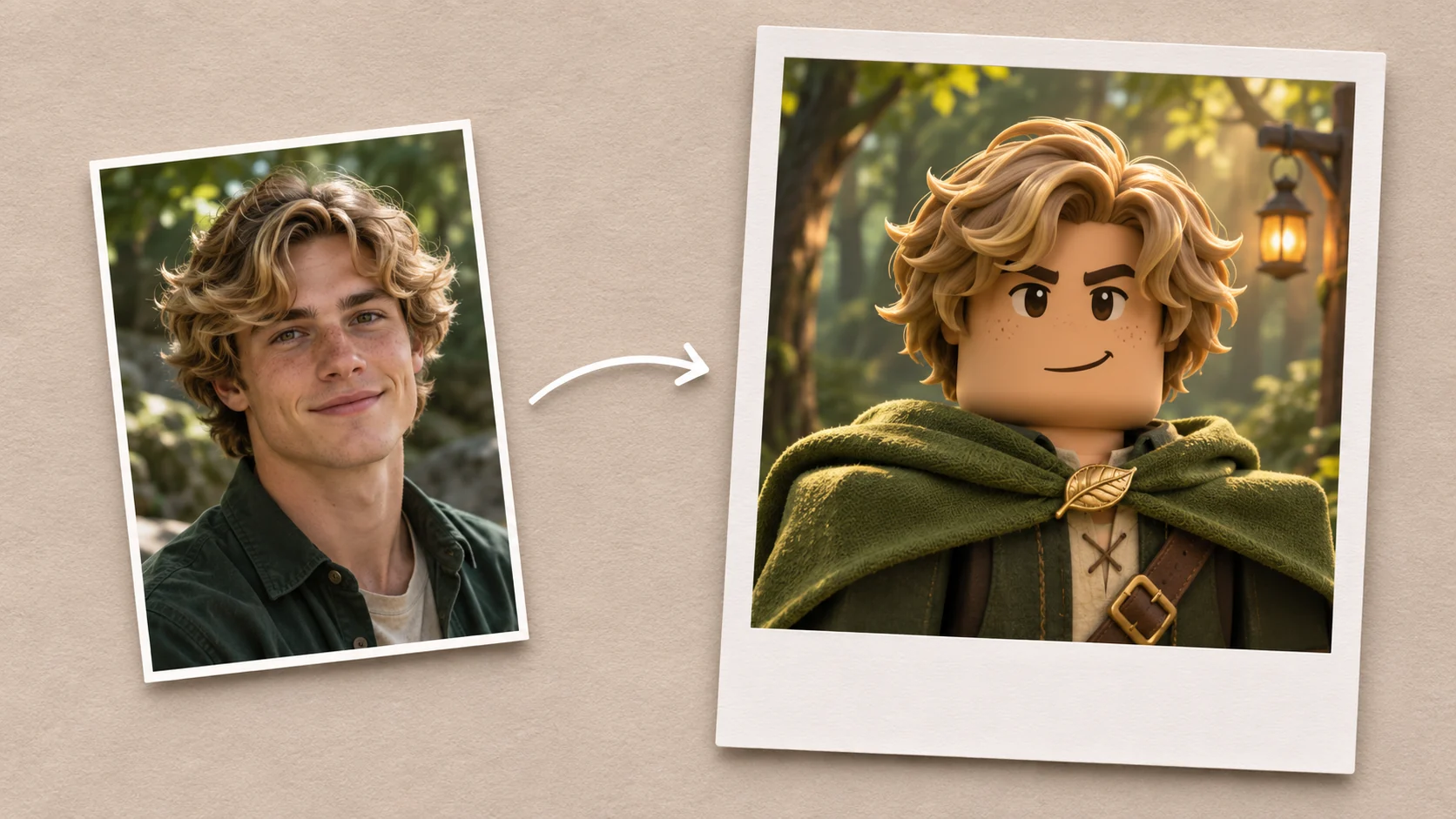
Fantasy Forest Adventurer
Transform the subject into a Roblox-style forest adventurer wearing a moss-green cloak with a gold leaf clasp. Preserve the hair color and expression from the reference photo. Use warm lantern light and a softly blurred tree line. Keep the face and clasp visible in a square crop.


Loved by Creators Worldwide
Real feedback from designers, marketers, and hobbyists sharing their PicLumen experience on Trustpilot.
jsbsbsbs hdhdhshwhwVery cool i like it it's so smooth
Very cool i like it it's so smooth
chelsiennerThis is my favorite AI Image generator
This is my favorite AI Image generator
A New TV Episodes Of Ninja Sweetie On…
A New TV Episodes Of Ninja Sweetie On Paramount+
 Crispee
Easy to use.
Easy to use. Great layout love it!
 ClashOf Clans
Excellent platform to fantasy
Excellent platform to fantasy
 Ms. Bliss
Just getting started
Just getting started, thus far it's really good. Going to continue to review and will update.
 Jonathan Kauan da Silva
good i like create images
good i like create images
GPS BelARI tried the tool for fun and only used…
So far, I've only tried PicLumen for fun and used the free ‘basic option’. Even as an AI design novice, you can achieve great results. It should be emphasised here that if you choose a simple AI, the coins are enough to just give it a try (unlike some other tools). I like the community concept; the opportunity to get inspiration for your own ideas in the image gallery, as well as the option to ‘like’ and comment on other users' creations. The result depends, of course, on the quality of the prompt entered, but ‘practice makes perfect, as we all know!’ The only reason for the one-star deduction is that I can't try everything with the free access and can't comment on the paid options.
amazing image creation app for me-5*…
amazing image creation app for me-5* rating...
Very cool and love the events
Very cool and love the events
 Charan Balivada
It's a good ai and create to make ai…
It's a good ai and create to make ai pic in different ways and different styles
Really incredible work
Really incredible work, I love it so much, it's easy and intuitive
FAQs About Roblox PFP Maker
What is a Roblox avatar profile picture maker?
It creates a downloadable portrait of a Roblox-style character. In PicLumen, you can design an original avatar from a text prompt or use a photo or screenshot to guide its appearance.
Can I make a Roblox PFP with just a text prompt?
Yes. Describe your character’s hair, outfit, expression, and the art style you want. A reference image is optional.
What kind of photo works best as a reference?
Choose a sharp, well-lit photo that shows your face and hairstyle clearly. A solo portrait gives the AI a clear subject. If you want to include specific glasses, a hat, or part of your outfit, use a photo where that detail is visible and mention it in your prompt.
Can I make a PFP from my existing Roblox avatar?
Yes. Describe the portrait you want, then add a clear screenshot of your avatar as the reference. Mention the outfit, hairstyle, or accessories you want to carry over and describe any changes to the pose or background.
Can I choose the colors and art style of my Roblox PFP?
Yes. Include both in your prompt. For example, ask for a flat cartoon portrait in orange and cream or a polished 3D portrait with teal lighting and a silver jacket.
Where can I use my Roblox PFP?
Use your downloaded image on Discord, YouTube, or a gaming forum that accepts profile picture uploads. On Roblox, use the platform’s profile picture settings to customize how your avatar appears.