
Choosing the best AI image upscaler depends on what you need. Some tools are better for photos, while others work better for AI-generated images, illustrations, or product pictures.
In this guide, we compare 8 AI image upscalers in 2026, looking at their features, output quality, pricing, free plans, and ease of use. Whether you need to improve a low-resolution photo or upscale AI-generated artwork, you’ll find a tool that fits your needs.
Quick Comparison: Best AI Image Upscalers in 2026
Tool | Best for | Approach | Max scale / output | Free option | Starting price |
Topaz Gigapixel | Photos, print, restoration | Faithful | Up to 6x, 32,000 px wide (Gigapixel Pro page) | No free plan | $149/year |
Magnific | AI art, illustrations; photos in Precision mode | Creative and faithful modes | Precision up to 16x; Creative at 2x or 4x | Credit-based plans | Credit-based |
PicLumen | AI-generated images, product and social images | Faithful modes (Standard, High Fidelity, Art & CGI) | Up to 8x | Welcome offer for new accounts | $6.09/month billed yearly (Lite) |
Let's Enhance | Browser-based upscaling, product images | Several modes, faithful to creative | Up to 256 MP output on personal plans | 10 credits, watermarked | From $9/month |
Krea Enhancer | AI-generated images | Generative and neutral models | Free: 2048 px; paid: 8K and above | 100 compute units/day | Free plan, paid tiers |
Upscayl | Free, local upscaling | Faithful | 4x native models | Free desktop app | $0 |
Photoshop / Lightroom | People already on Adobe | Faithful and generative | 2x or 4x; Firefly model up to 6144 px | Requires an Adobe plan | Included with plan, uses credits |
Luminar Neo | Photographers who edit in Luminar | Faithful |
Faithful vs. Creative: Pick the Type Before the Tool
A faithful upscaler adds pixels while trying to leave the content alone. Edges get cleaner, noise drops, and a face still looks like the same face. A creative upscaler treats the larger canvas as room to add texture and detail that were never in the original.
Magnific's documentation draws this line directly: Creative mode is meant for art, illustrations and other creative content, where the model is expected to add detail, while Precision mode is meant for photos, products and print, where the output should match the input. Krea's Enhancer exposes the same trade-off as a setting. Its Resemblance control decides how close the result stays to the source, and lower values give the model more freedom to change the image.
That matters most for AI-generated images. An illustration has no "true" detail to protect, so a creative pass can improve it. A product photo or a portrait does, so a creative pass can quietly alter logos, text and faces.
Topaz Gigapixel: Best for Photos and Print
Topaz Gigapixel is a desktop app for Mac and Windows built around a long list of models, each aimed at a different kind of image: Standard, Standard Max, High Fidelity, Low Res, Text & Shapes, Art & CG, Recover, Redefine, Face Recovery, and the newer Wonder models. Rendering runs locally with no usage cap.
.webp)
Key features
Separate models for faces, text and shapes, digital art and heavily damaged images
Unlimited local rendering on the desktop app
Gigapixel Pro adds batch processing, RAW and CMYK support, plugin support and seat management
Topaz Gigapixel is also the engine behind Adobe's Generative Upscale at 2x and 4x in Lightroom
Pros
Model choice lets you match the tool to the image instead of using one setting for everything
Files stay on your machine
Pro tier lists output up to 32,000 px wide
Cons
No free plan
The personal plan carries limited commercial use; full commercial use is on the Pro plan
Pricing is split across Gigapixel, Pro and bundles, and it shifts with promotions
Pricing: Gigapixel is $149/year billed annually. Gigapixel Pro is $499/year. Topaz Studio, which bundles Gigapixel with the other Topaz apps, is $399/year.
Best for: Photographers and designers who need the output to stay true to the source and process images locally.
Magnific: Best for AI Art and Creative Detail
Magnific is the upscaler that made creative upscaling popular. Freepik renamed its whole AI platform Magnific on April 28, 2026, so the upscaler now sits inside a larger creative suite.
.webp)
Key features
Creative mode with Creativity, HDR and Resemblance sliders, each running from -10 to +10
An "Optimized for" menu with 13 content categories, including Illustrations, 3D Renders and Video Games
Optional text prompt to describe what the image contains
Precision mode with Magnific v2 models (sublime, photo, photo denoiser) and presets for portraits and grainy analog photos
Pros
One tool covers both approaches, so you can switch from creative to faithful on the same image
Resemblance and Creativity sliders give real control over how far the output drifts
Precision mode supports up to 16x with Sublime mode
Cons
Creative mode is designed to add detail, so it is the wrong choice for logos, text or faces that must not change
Creative mode works at 2x or 4x in the scale picker; larger factors belong to Precision
Credit-based pricing means the cost of each upscale depends on output size and scale factor, which makes a monthly budget harder to predict
Pricing: Credit-based plans. The older standalone upscaler plans were retired in the 2026 rebrand, so older reviews quote prices that no longer apply.
Best for: AI artists and illustrators who want the upscaler to improve the image, and anyone who wants creative and faithful modes in one place.
PicLumen: Best for Upscaling AI-Generated Images in the Browser
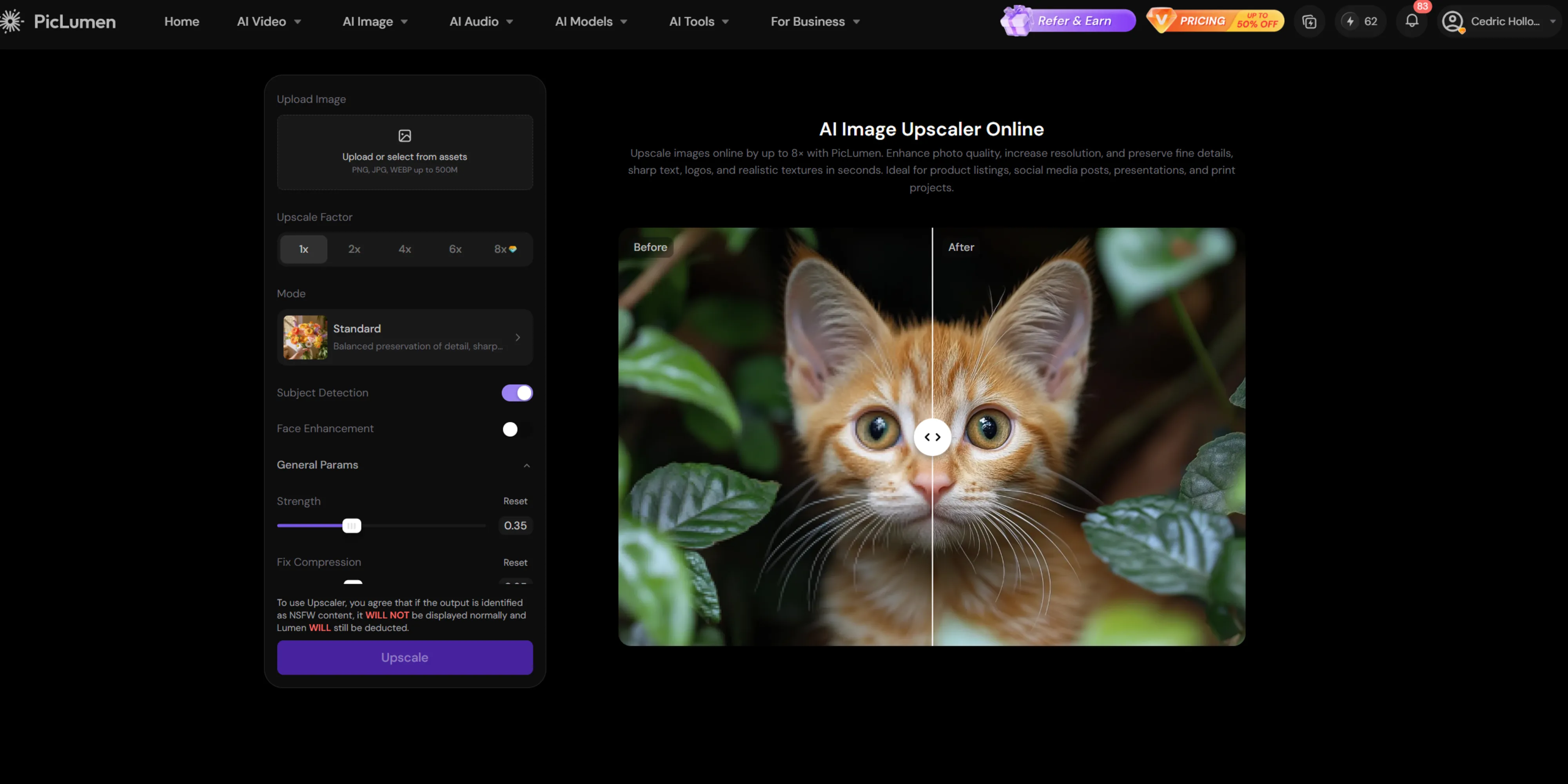
PicLumen is a browser-based platform can editing images, and its upscaler works at 1x, 2x, 4x, 6x or 8x. It is our own product, so the notes below stick to what its pages state. The upscaler has three modes: Standard for balanced detail and natural texture, High Fidelity for RAW files and other high-quality photos where the original look should stay, and Art & CGI for illustrations, digital paintings and renders where clean edges and flat color areas matter.
Key features
Face Enhancement and Subject Detection toggles
Strength, Fix Compression, Denoise and Sharpen controls
Upscaling sits next to PicLumen's image generators, so a generated image can be enlarged in the same account
Pros
Nothing to install
A dedicated mode for line art and CG, separate from the two photo-oriented modes
Scales up to 8x
Cons
Each upscale uses Lumens, PicLumen's credits. New accounts get a welcome offer, and continued use needs a Lumen pack or a plan
Basic accounts have no commercial use rights; paid plans do
Files are processed in the cloud. PicLumen says uploads are processed securely and not shared
The upscaler page does not state a maximum output resolution
Pricing: Lumens-based subscriptions. Billed yearly, Lite is $6.09/month (750 Lumens), Standard is $19.99/month (2,500 Lumens) and Pro is $37.49/month (6,000 Lumens), before tax. Lite carries a limited commercial license; Standard and Pro carry a full one.
Best for: People who generate images and want a browser upscaler in the same account, and sellers preparing product and social images.
Let's Enhance: Best Browser-Based Upscaler
Let's Enhance runs in the browser. You upload an image, pick a model, and download the result. The default model, Prime, aims for natural texture. Gentle is the fidelity-first option, Strong and Ultra push toward heavier reconstruction, and Digital Art and Old Photo cover illustrations and archival scans.

Key features
Seven models: Prime, Gentle, Balanced, Strong, Ultra, Digital Art and Old Photo
Input up to 64 MP or 50 MB; output up to 256 MP on personal plans and 500 MP on business plans
API access for business use
Unused credits roll over on personal plans, up to six times the monthly allowance
Pros
Nothing to install
High output ceiling for a web tool
Model list maps neatly to content type
Cons
Images made with free credits carry a watermark until you buy a plan or credit bundle
Credits are charged by output size: a Prime upscale costs 1 to 10 credits, and most cost 1 or 2
Files are uploaded to the cloud
Pricing: 10 free credits at sign-up. Paid plans start at $9/month, and pay-as-you-go bundles are available.
Best for: Occasional users who want a web tool with several modes, and small teams processing product images.
Krea Enhancer: Best for AI-Generated Images
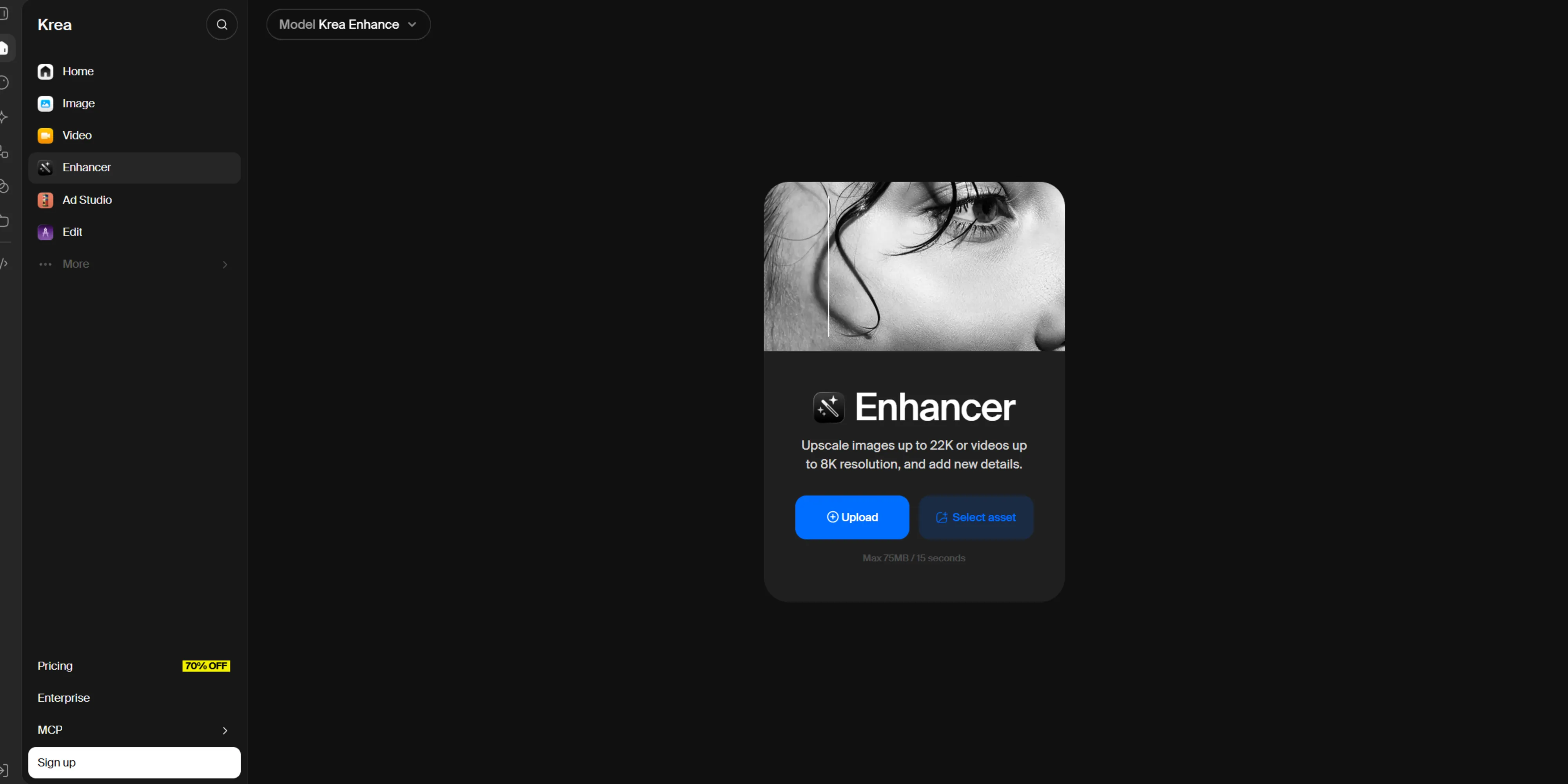
Krea's Enhancer lives inside its AI image platform, so you can generate an image and upscale it in the same place. Krea's documentation lists four models: Krea Enhance, a generative upscaler suited to adding detail to lower-resolution AI images (up to 8K); Upscale V1, a fast, neutral option that preserves existing detail (up to 8K); Bloom, a creative upscaler (up to 10K); and Topaz, with advanced controls (up to 22K).
Key features
Resemblance, Clarity, Sharpness and Match color controls on Krea Enhance
2x, 4x or 8x scaling, or 1x to enhance without enlarging
API access
Pros
2x upscaling in Standard quality works without an account
Neutral and generative models in the same tool
Convenient if you already generate images in Krea
Cons
Free use is capped at 2048 px on the longest side; 4K and 8K need a paid plan
4x, 8x and High quality need a free account
Compute-unit pricing is harder to translate into a cost per image than a flat plan
Pricing: The free plan includes 100 compute units per day. Paid plans unlock higher resolutions.
Best for: People who work with AI-generated images and want a generative upscaler with a dial for how much it changes.
Upscayl: Best Free AI Image Upscaler
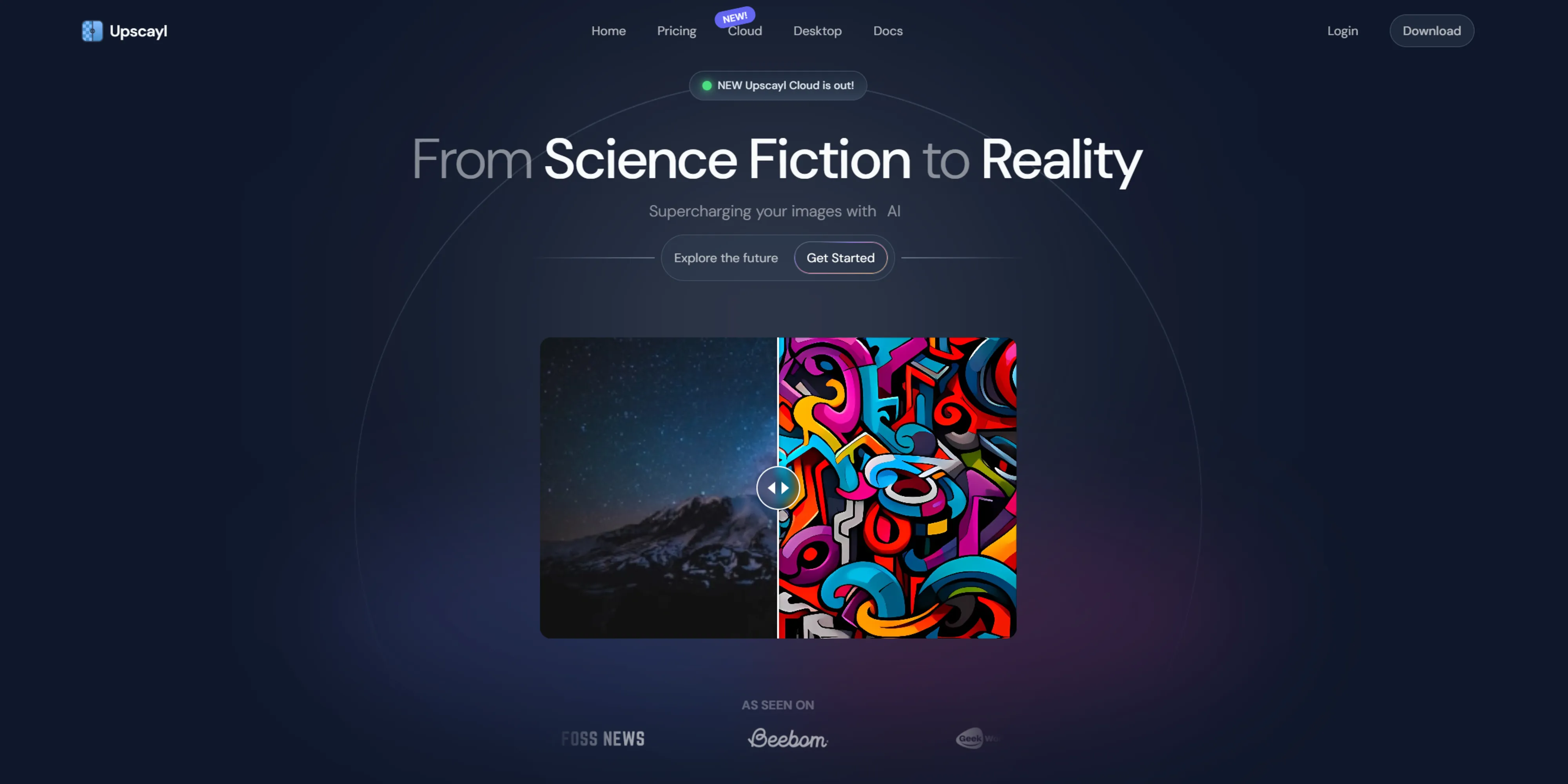
Upscayl is a free, open-source desktop app for Windows, macOS and Linux. It uses Real-ESRGAN models and runs entirely on your computer, so there are no credits and no upload. The backend is open source under the AGPLv3 license.
Key features
Batch upscaling
Support for custom models, loaded from a folder
A command-line tool, upscayl-ncnn, for scripting
Pros
Free with no daily limit, since processing happens on your own hardware
Private by design
Open source, with community models
Cons
Needs a Vulkan-compatible GPU; the project warns that many CPUs and integrated GPUs do not work
The default models upscale at 4x only; other scales are produced by downscaling the 4x result
Enlarges low-resolution and pixelated images but cannot fix an out-of-focus shot
Fewer controls than paid tools
Pricing: The desktop app is free. Upscayl also runs a separate cloud service on credits, with a 10-credit trial.
Best for: Anyone who wants a no-cost, offline upscaler and has a reasonably modern GPU.
Adobe Photoshop and Lightroom: Best for Adobe Users
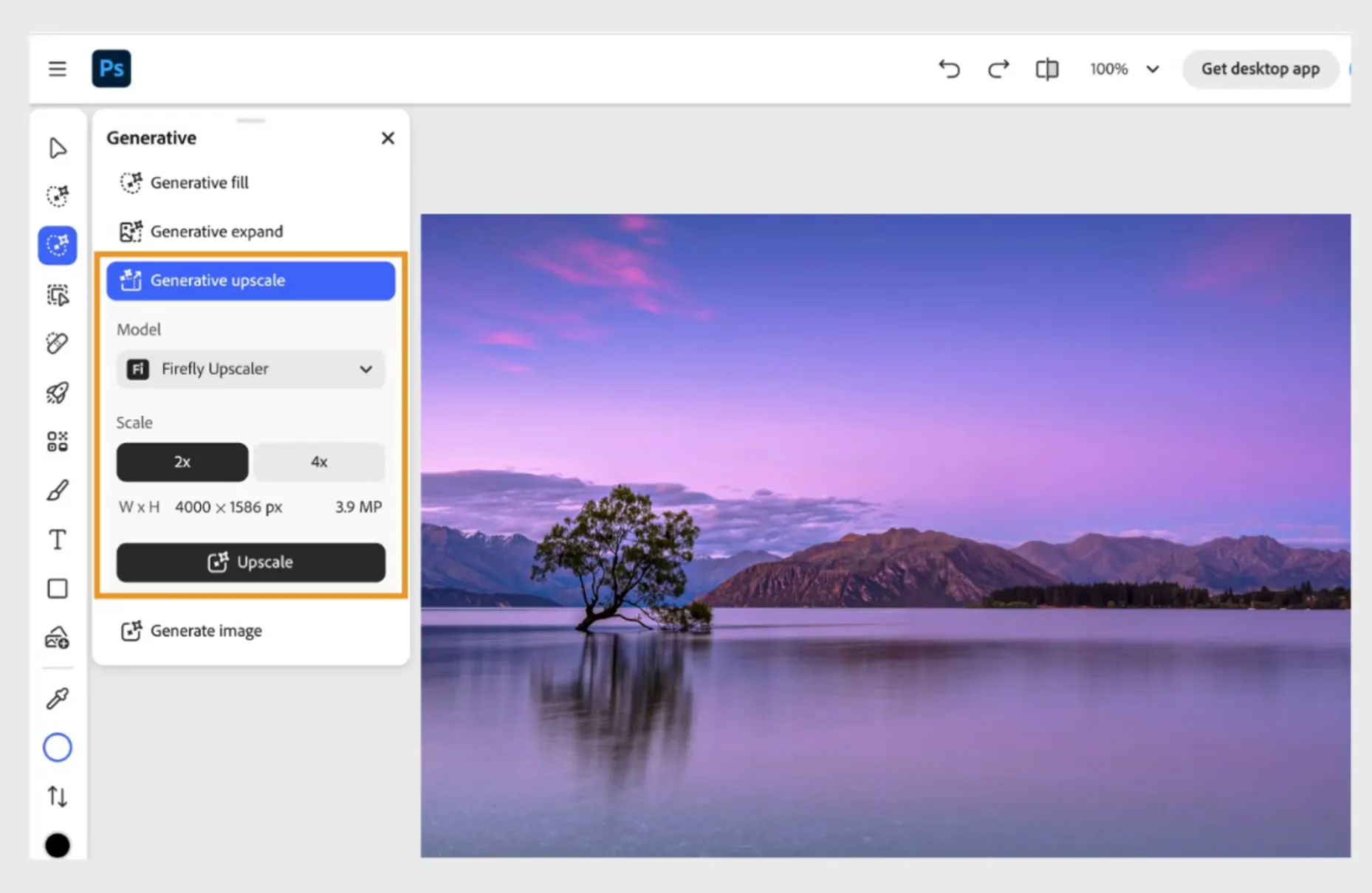
Adobe has two separate upscaling paths. In Photoshop, Generative Upscale (Image > Generative Upscale) offers 2x or 4x output and lets you pick a model: Adobe's Firefly Upscaler for up to 6144 × 6144 px, premium Topaz Gigapixel for up to 56 MP, or premium Topaz Bloom for up to 9 MP and added creative detail. In Lightroom, Super Resolution is a different tool.
Key features
Generative Upscale in Photoshop and Lightroom, powered by Topaz in Lightroom
Lightroom Super Resolution for a 2x upscale in a RAW-first workflow, with no generative credits used
Output is created as a new file, so the original stays untouched
Pros
No extra app if you already edit in Adobe software
Firefly upscaling is a standard feature
Cons
Generative Upscale spends generative credits: with the Firefly model, 5 credits for files from 1 to 9 MP and 10 credits for 10 to 20 MP
Super Resolution is limited to 2x
Adobe does not sell the upscaler on its own
Pricing: Included with an Adobe subscription, with generative credits depending on your plan.
Best for: Photographers and designers who already work in Photoshop or Lightroom.
Luminar Neo: Best for Photographers Who Already Edit in Luminar
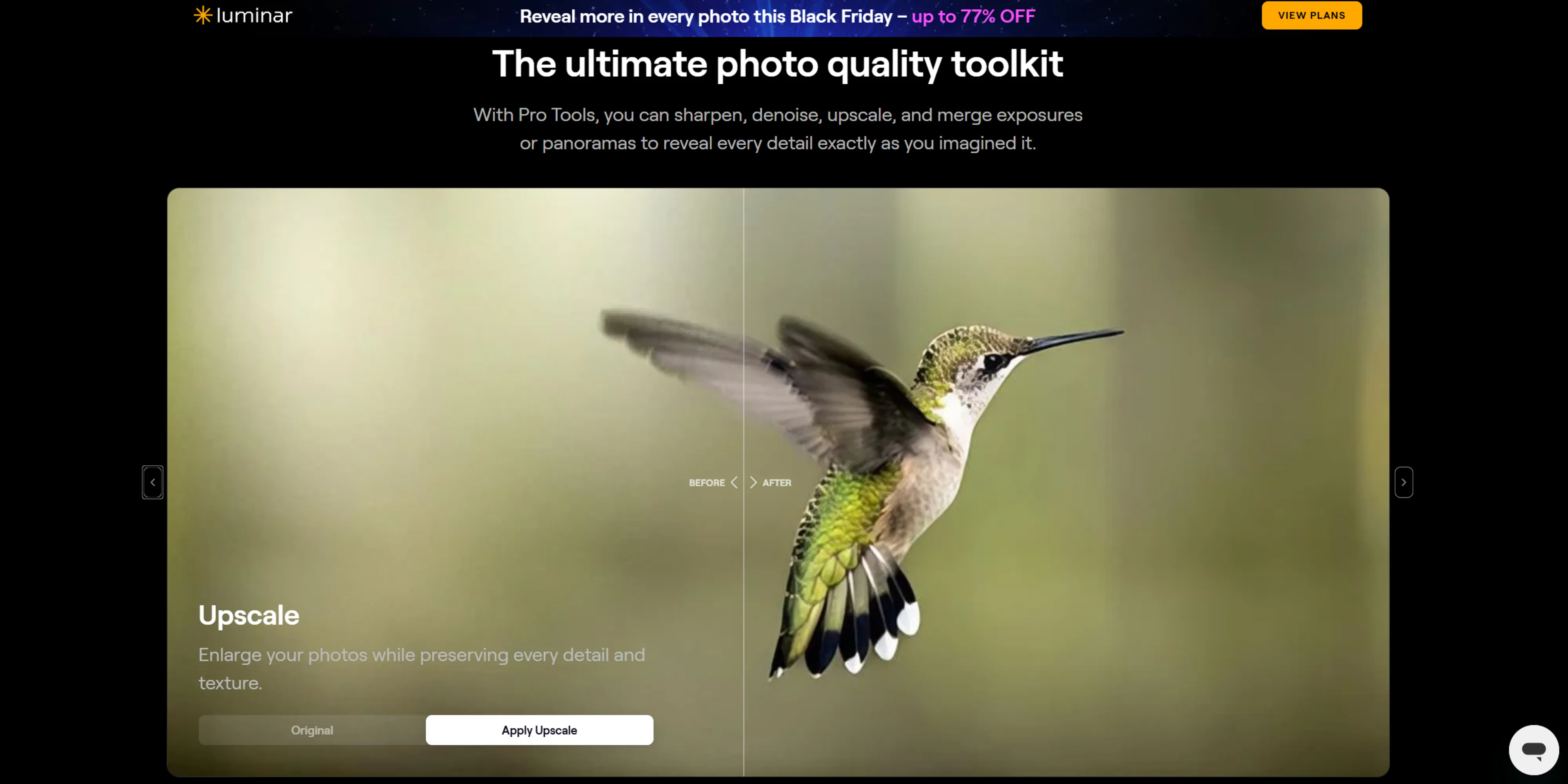
Luminar Neo is Skylum's AI photo editor, and Upscale AI is one of its tools. It enlarges photos at 2x, 4x or 6x and works on raw and non-raw files. Before upscaling, it exports the image so the edits already made to the original are kept. Skylum itself points to 2x and 4x as the settings that give the best results.
Key features
2x, 4x and 6x upscaling
Desktop app for Windows and macOS, and a plugin for Apple Photos, Lightroom and Photoshop
Part of a wider editor with tools such as GenErase, GenExpand and SkyAI
Pros
Upscale without leaving your editing workflow
Handles raw files
Plugin support for other editors
Cons
The upscaler is one tool inside a full photo editor, so you buy the whole app
Tops out at 6x, and Skylum recommends 2x or 4x for the best results
Pricing: Skylum's checkout page lists a perpetual desktop license at $119, which includes one year of its generative tools, and an optional auto-upgrade renewal at $69 per year. Skylum runs frequent promotions, so the figure moves.
Best for: Photographers who already edit in Luminar Neo and want upscaling in the same app.
Best Free AI Image Upscaler: What "Free" Actually Means
Tool | Sign-up needed? | What you get for free |
Upscayl | No | Unlimited use of the desktop app; needs a Vulkan-compatible GPU |
Krea Enhancer | Not for 2x Standard; free account for 4x, 8x and High quality | 100 compute units per day, results up to 2048 px |
PicLumen | Yes | A welcome offer for new accounts; continued use needs Lumens |
Let's Enhance | Yes | 10 credits at sign-up; downloads are watermarked until you purchase |
Topaz Gigapixel | n/a | No free plan |
For unlimited free use with no watermark, Upscayl is the answer. For a quick one-off upscale without installing anything, Krea works at 2x without an account. For occasional paid use, Let's Enhance at $9/month is the cheapest entry point of the paid tools here, and Topaz at $149/year makes more sense once you upscale regularly.
Workflow and Accessibility
Tool | Runs where | Install needed? | API or scripting |
Topaz Gigapixel | Desktop (Mac, Windows), with local and cloud rendering | Yes | Plugin support on Pro |
Magnific | Browser | No | API |
PicLumen | Browser | No | None listed on the upscaler page |
Let's Enhance | Browser | No | API |
Krea Enhancer | Browser | No | API |
Upscayl | Desktop (Windows, macOS, Linux) | Yes | Command-line tool |
Photoshop / Lightroom | Inside Adobe apps | Adobe app | No standalone API |
Luminar Neo | Desktop (Windows, macOS) | Yes | Plugin for Lightroom, Photoshop, Apple Photos |
How to Choose the Best AI Image Upscaler
If you are... | Look for | Good starting points |
A casual user | A free tier, no install, no sign-up | Krea (2x without an account), Let's Enhance trial, PicLumen welcome offer |
A photographer | Faithful models, natural skin, noise handling | Topaz Gigapixel, Luminar Neo, Lightroom Super Resolution |
An AI artist | Style preservation, controllable added detail | Magnific Creative, Krea Enhance, PicLumen Art & CGI mode |
An e-commerce seller | Edge and material accuracy, volume, API | Let's Enhance, Magnific Precision, PicLumen |
A professional designer | Output size, file support, workflow fit | Topaz Gigapixel Pro, Photoshop Generative Upscale |
Privacy-minded | Processing that stays on your computer | Upscayl, Topaz Gigapixel |
Upscale Your Images with Piclumen
Already created an AI image but wish it had more detail and a higher resolution? PicLumen makes it easy to upscale your images directly in your browser.
With multiple upscaling modes, including Standard, High Fidelity, and Art & CGI, you can choose the right settings for different types of images. You can also adjust sharpness, denoise, and enhancement strength to get the results you want.
What’s more, PicLumen brings AI image generation and upscaling together in one platform, so you don’t need to switch between different tools to complete your workflow.
Ready to make your images sharper and clearer? Try PicLumen’s AI Image Upscaler today!
Try Piclumen's AI Image Upscaler
FAQ
What is the best free AI image upscaler?
Upscayl, if your computer has a Vulkan-compatible GPU. The desktop app is free and open source and runs offline with no credits. If you would rather not install anything, Krea's Enhancer handles 2x upscaling without an account, capped at 2048 px on the longest side.
Which AI is best for upscaling images?
It depends on the image. For photos that must stay true to the original, Topaz Gigapixel, Luminar Neo or Upscayl. For AI-generated art, Magnific's Creative mode or Krea Enhance if extra detail is welcome, and PicLumen's Art & CGI mode if the style and line work should stay as they are. For people already editing in Adobe software, Generative Upscale or Lightroom Super Resolution.
How can I upscale an image to 4K?
4K UHD is 3840 × 2160 px. A 1920 × 1080 image reaches it at 2x, and a 960 × 540 image reaches it at 4x. Krea's free use stops at 2048 px, so 4K there needs a paid plan. Upscayl's 4x models and the paid tools above can reach it too.
Can AI upscalers improve blurry images?
Partly. Upscayl's maintainers say it enlarges low-resolution and pixelated images but cannot fix an out-of-focus photo. Some tools add a separate enhance step: Krea's Enhancer can run at 1x to reduce blur, noise and compression artifacts without enlarging the image.
Does AI upscaling reduce image quality?
Upscaling adds pixels, so it does not lower the resolution of your file. The risk is content change. Creative modes invent detail, which can alter faces, text and line work. Magnific recommends Precision mode for photos, products and print, and Krea's Resemblance setting controls how close the output stays to the source.
What is the difference between AI upscaling and image resizing?
Resizing in a standard editor stretches existing pixels, so the larger image looks soft. An AI upscaler generates new pixels based on what it has learned about textures and edges, so the larger image can look sharp at the new size.
Is it safe to upload private photos to online AI upscalers?
Cloud tools such as Let's Enhance, Magnific, Krea and PicLumen process your file on their servers. For private photos, a local option keeps the file on your computer: Upscayl and Topaz Gigapixel both render locally.