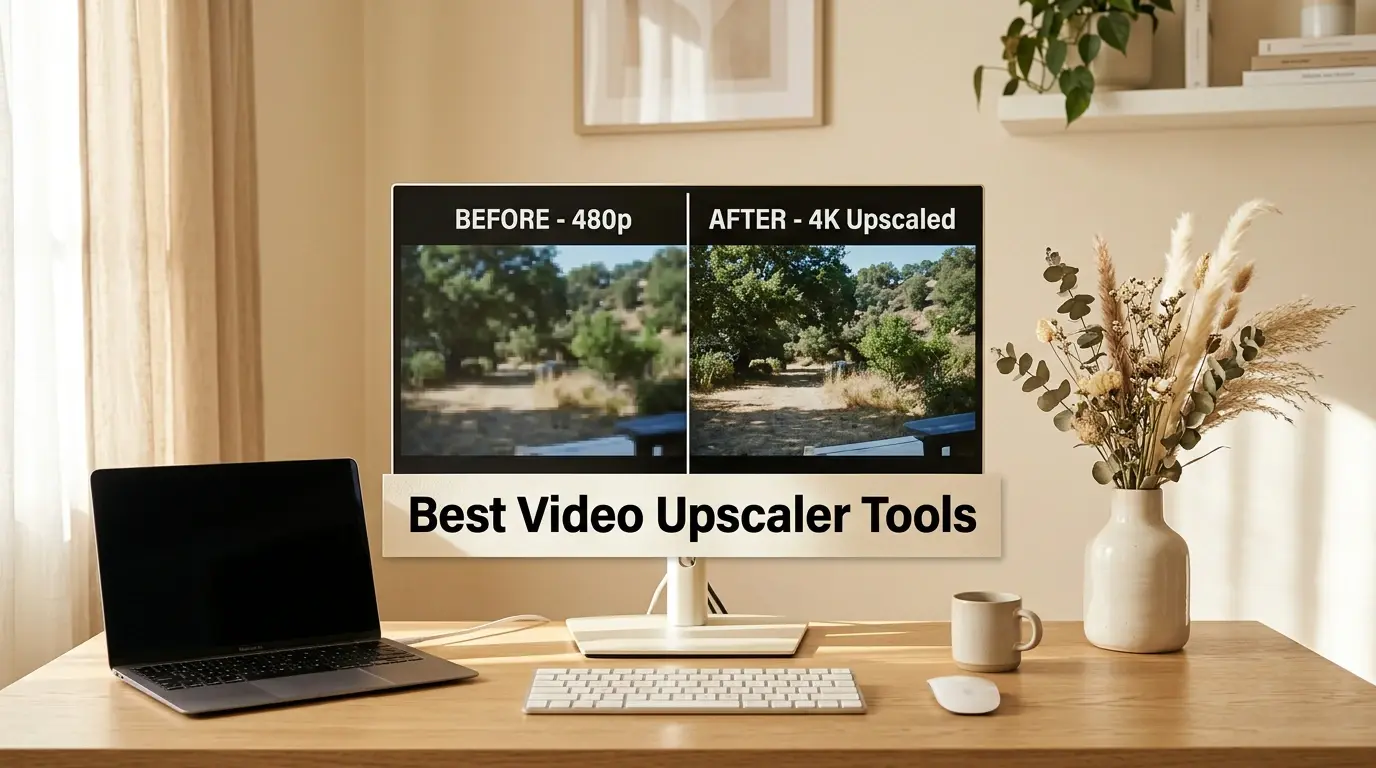
A video may look sharp at first, but its finer details can tell a different story. Skin can lose texture, surfaces may look artificial, and noise can make the footage appear soft.
AI video upscalers aim to improve these issues while increasing resolution. But a higher-resolution export does not always look better.
I tested five tools on the same 360p clip. I compared image clarity, detail recovery, noise reduction, and motion consistency. I also recorded processing time and free access.
Best Video Upscaler Tools at a Glance
The table below shows the basic specs for each tool.
Tool | Output Resolution | Test Speed | Free Access |
1080p | About 1 min | Free credits | |
CapCut | 1080p | About 2 min | Free access available |
Upscaler Video | 1080p | About 1 min | Free |
Wink | 1080p | About 1 min | Free access; watermark applies |
FreeUpscaler | 1080p | About 30 sec | Free |
Tips: Video quality is rated on clarity, noise reduction, and visible artifacts. High means the output looks clean and sharp. Medium means there is a visible improvement, but noise or softness remains. Detail recovery is rated on how natural skin, hair, and texture look after processing. Motion consistency is rated on whether the output stays stable in moving scenes.
What Is a Video Upscaler?
A video upscaler increases a video's resolution, such as from 360p to 1080p or from 1080p to 4K. AI-based tools can also reduce noise and reconstruct details to make footage look clearer.
How I Tested the Best Video Upscaler Tools
Testing Method
I used the same 11-second, 360p close-up of a woman's face for all five tools. Each tool processed the clip and produced a 1080p output. I ran each tool once and recorded the processing time and any free-tier restrictions.
The close-up made it easier to inspect skin texture, hair edges, and fine details. I also watched the processed clips to check for visible changes during motion.
Evaluation Criteria
I compared the results using three criteria:
Video Quality: Overall sharpness, noise reduction, and visible artifacts.
Detail Recovery: How well the tool preserved facial detail and fine details without making them look overly smooth or grainy.
Motion Consistency: Whether details stayed visually stable during playback, without obvious flickering, shaking, or distortion.
5 Best Video Upscaler Tools Tested
PicLumen
Test Results
PicLumen delivered a clear, realistic result in my test. Processing took about one minute, and the video reached 1080p. Noise reduction worked well. Skin retained realistic texture instead of looking overly smooth. Moving details also stayed stable, with no visible flickering, shaking, or distortion in the tested clip.
Pros
Clear 1080p output with effective noise reduction
Natural skin texture and convincing detail recovery
Consistent motion in the tested video
Cons
Free use is limited by the available credits
CapCut
Test Results
CapCut took about two minutes to process the video and produced a 1080p result. The image looked clear, and noise reduction was effective. Skin details were generally well preserved, though some areas looked slightly smoothed out. Motion remained stable, with no visible flickering, shaking, or distortion.
I had to download the app to process the video rather than use the tool directly in a browser.
Pros
Clear output with effective noise reduction
Good skin detail recovery in most areas
Stable motion in the tested clip
Cons
Requires a separate app download
Some skin details appeared smoothed out
Took longer than several other tools in this test
Upscaler Video
Test Results
Upscaler Video processed the clip in about one minute and offered free 1080p output. The output looked sharp, and noise reduction was effective. However, strong sharpening made some skin details look rough or artificial.
I did not notice flickering, shaking, or distortion in the tested clip.
Pros
High perceived sharpness
Effective noise reduction
Stable motion in the tested clip
Cons
Some skin details looked rough
Over-sharpening made parts of the video look unnatural
Wink
Test Results
Wink took about one minute to process the clip and produced a free 1080p result. The image looked clear, with effective noise reduction and well-preserved skin details. Motion also stayed consistent. I did not notice flickering, shaking, or distortion.
The main limitation came at the download stage. Removing the watermark required a membership, so the free result may not suit users who need a clean export.
Pros
Sharp output with effective noise reduction
Good recovery of skin details
Stable motion in the tested clip
Cons
Watermark on free downloads
Paid plan required to remove the watermark
FreeUpscaler
Test Results
FreeUpscaler was the fastest tool in my test. Processing took about 30 seconds, and it did not require an account. The improvement was more modest than with the other tools. Skin texture looked rough, with a noticeable grainy quality. Noise reduction was also less effective.
Motion stayed stable, however. I did not see flickering, shaking, or distortion in the processed clip.
Pros
Fast processing
No login required
Stable motion in the tested clip
Cons
More limited improvement in clarity
Grainy skin texture
Average noise reduction
Best Video Upscaler Tools Compared
Tool | Skin Texture | Noise Reduction | Main Trade-Off |
PicLumen | Natural and realistic | Effective | Free use is limited by available credits |
CapCut | Mostly natural, with some smoothing | Effective | Requires a separate app download |
Upscaler Video | Rough in some areas | Effective | Strong sharpening can make details look artificial |
Wink | Good detail preservation | Effective | Watermark-free downloads require a membership |
FreeUpscaler | Grainy in places | Less effective | Image improvement is more limited |
Can AI Upscale Video Quality?
Yes, but the result depends on the tool.
In my test, all five tools converted the same 360p clip to 1080p. The differences showed up in skin texture and sharpening.
PicLumen and Wink kept the face looking natural. CapCut softened some details. Upscaler Video was sharper but over-sharpened in places. FreeUpscaler improved clarity only a little, and the texture looked grainy.
What none of the tools can do is recover detail that was not in the original clip. A 360p source will look better, but it will not match native 1080p footage.
Conclusion
After testing all five tools on the same 360p clip, PicLumen stood out for keeping skin detail natural and motion stable. It also processed the clip in about one minute.
If you want to try it yourself, PicLumen's video upscaler is a good place to start.
FAQ
What is the best video upscaler?
It depends on your needs. PicLumen and Wink handled facial detail well in this test. CapCut may suit users who already use its editing tools. Upscaler Video offers free 1080p output, though some details looked over-sharpened. FreeUpscaler is worth considering for quick tests without signing in.
Can I upscale a video to 4K?
Yes, if the tool supports 4K output. Upscaling a 720p video to 4K increases its resolution, but it does not guarantee the detail or fidelity of footage recorded natively in 4K. Check the tool's output options and plan limits before processing your video.
Is there a free video upscaler?
Yes. All five tools in this test offered some form of free access. PicLumen, CapCut, Upscaler Video, and FreeUpscaler processed without a watermark. Wink added a watermark on free downloads.
Is AI video upscaling worth it?
AI video upscaling can be useful when footage looks soft or noisy and you need a clearer output. The improvement depends on the source video and the tool. My test showed that higher resolution does not always mean a more natural-looking video.
Does AI upscaling work on AI-generated videos?
Yes. AI upscaling can also increase the resolution of AI-generated videos. It can improve clarity, but it may also make textures look overly smooth or artificial.