I needed to turn a normal lifestyle clip into an anime-style video, and I already had the footage and liked the camera movement — I just wanted the look changed. Simple enough, or so I thought. It ended up being a decent excuse to actually sit down and write this DomoAI review properly instead of just skimming the landing page. I spent an afternoon on it — mostly bouncing between Video to Video and Frames to Video, poking at the smaller tools around them, and trying to figure out the credit system before I accidentally burned through it. DomoAI is easy to pick up in the first five minutes. Getting it to leave small details alone is where the afternoon actually went.
What Is DomoAI, and What Does It Actually Do?
DomoAI is an AI animation platform launched in 2023 by Singapore-based DOMOAI PTE. LTD. It started out narrowly focused on turning videos into anime, but the platform now covers a lot more ground than that name suggests. The current lineup includes Video to Video, Image to Video, Text to Video, Character to Video, Frames to Video, Talking Avatar, image generation, lip sync, restyling, and upscaling. DomoAI claims over 30 styles and more than five million users — I can't verify the user number, but the style list checks out from what I saw in the app. Formally, that's "what DomoAI is." In practice it still feels like a style-first tool built around footage you already have. Anime is clearly still the main draw, even with everything else bolted on around it.
DomoAI Anime Video Generator Review 2026: My First Test
For the first test I used a six-second vertical clip of a woman walking along a train platform at night — nothing polished, closer to what someone would actually film and post, not a stock reel. One person, a slow camera drift, visible hands, moving clothes, long background lines. I picked those details on purpose, because they're the first things that break in a restyle. The Prompt I Used
Transform the footage into hand-drawn 1990s anime. Keep the original walking speed, beige coat, shoulder-length dark hair, train platform, and camera position. Use clean line art, soft cel shading, warm station lights, and subtle film grain. Do not add accessories or change the outfit.
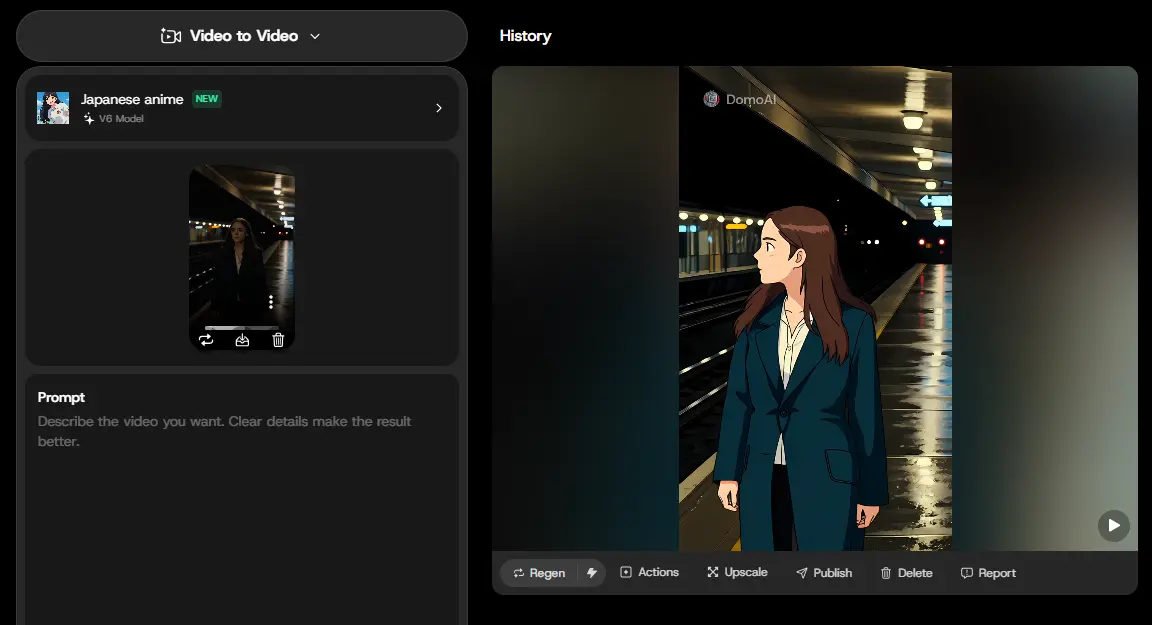
I wasn't just checking whether it looked like anime. I was watching the face, the coat, the hands, the walking pace, and whether the platform lines stayed straight. Generation took right around 10 minutes for a six-second clip — worth knowing going in, since it's not the kind of tool you queue up and get an answer from in thirty seconds.
What I Saw in the Result
The camera position, platform lighting, and overall pose came through cleanly — the line art was tight and the warm station lights translated well into cel shading. But two things in the prompt didn't survive: I'd asked for a beige coat, and what came back was a dark teal, almost blue-green trench coat instead. The hair drifted too — I'd specified shoulder-length and dark, and the result was noticeably longer, past the shoulder, in a reddish-brown rather than dark tone. Neither change ruined the clip. It still read as "the same scene, anime-fied." But if this were a recurring character where coat color or hair length actually mattered — brand mascot, OC, whatever — those are exactly the two details I'd have had to fix in a second pass. This part matters more than the first impression does. An anime restyle can look convincing in motion and still be quietly rewriting details between frames — hair growing a few inches, fingers merging, a button disappearing, a background sign turning into an unreadable smear. For a fan edit, none of that matters. For a recurring character or a client's branded outfit, it matters a lot. DomoAI behaved better, oddly, when I gave it less to be precise about. The more I leaned on words like "exact," "unchanged," and "identical," the more carefully I ended up having to check the output — almost like the model treated those words as a challenge.
My DomoAI Frames to Video Review
This was the tool I was actually curious about going in. A regular Image to Video tool starts from one image and improvises everything after it. Frames to Video flips that — you supply the moments the video needs to hit. DomoAI takes two images as start and end frames, or up to eight in Multi-frame mode with a separate prompt and duration per transition. I kept it simple and stuck with the basic two-frame version, mostly to see how much DomoAI could infer on its own between just a start and an end point, rather than holding its hand through every step.
The Two Frames I Used
1. A plain coffee cup and saucer sitting on a sunlit wood table 2. The same cup and saucer, now topped with a scatter of coffee beans, with a small pastry and folded napkin set beside it
Same cup, same table, same light — deliberately, since a big jump between the two source images tends to give the model more room to improvise than I actually wanted. First attempt didn't even get to the generation stage. One of my images got bounced with "Image can't be used. Use an image 300–6000 px wide that isn't too tall or too wide." Nothing wrong with the photo itself — it just came out of my camera roll at a slightly odd aspect ratio, and DomoAI has clear limits on that instead of just quietly cropping or resizing for you. A quick resize fixed it, but it's the kind of error you won't see coming until it happens.
Prompt (typed as one block, since Multi-Frame Mode was off and I only had the one transition to describe):Slowly push the camera forward as the lid lifts. Keep the tin shape, label, and lighting unchanged. Roasted coffee beans rise from the tin in a controlled circular motion. Keep the product centered and preserve the label. The beans settle beside the tin as a warm cup of coffee appears. Keep the same counter, camera angle, and warm lighting.
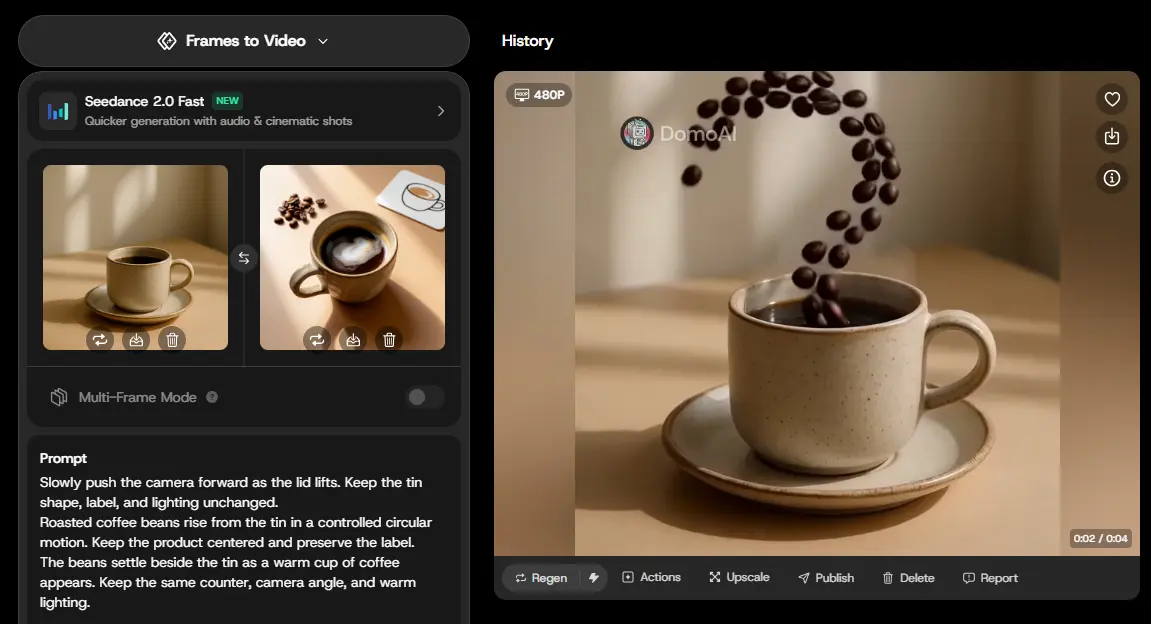
Once the images actually went through, the clip generated in about 6 minutes — faster than the anime clip, which makes sense given it's stitching between two fixed points rather than inventing a style from scratch. The model listed for this generation was Seedance 2.0 Fast, DomoAI's newer, quicker option built for exactly this kind of short cinematic shot.
Was the Two-Frame Setup Enough
Better than I expected, honestly. The beans didn't just fade in — they traced a loose spiral through the air before settling into the cup, which is a more deliberate piece of choreography than I'd assumed a two-frame job could pull off. The cup and saucer held their shape and position the whole way through, and the warm, sunlit tone from both source images carried straight into the result without shifting. The output capped out at 480p and four seconds in this preview — fine for judging motion and consistency, but worth knowing if you're expecting a longer or higher-res clip straight out of the gate. The basic logic here won me over, even before I saw the result. Instead of asking DomoAI to invent an entire clip from nothing, I got to set the two checkpoints and let it figure out the path — closer to a rough storyboard than a blind prompt. It's not full control, though. DomoAI still fills in the movement between the frames on its own, and it doesn't always fill it in the way I'd have chosen. Still, easier to direct than a single-image animation by a wide margin — and I'd want to try the eight-frame Multi-Frame mode next time to see how much more precisely it can be steered with more checkpoints instead of just two. I'd reach for Frames to Video for short character sequences, transformations, product concepts, simple story beats. I'd skip it for anything where an object needs to follow one exact path — it's a director, not a rigger.
DomoAI Ease of Use Review: Simple Until You Need Precision
Getting the first generation running took almost no time. Pick a workflow, upload the file, write a prompt, hit generate. Nothing about the interface felt cluttered. Where it got confusing was right before the second test, once I actually had to choose which tool to use. Image to Video, Video to Video, Character to Video, Frames to Video, Text to Video, Talking Avatar — several of these can solve versions of the same problem, and it took genuine thought to figure out which one gave me the kind of control I wanted for the coffee sequence. So my honest take on ease of use is split down the middle: the interface itself is friendly, the decision about which workflow to use is the part that slows a new user down — along with the occasional upload error, like the image dimension rejection I hit during the Frames to Video test, that assumes you already know DomoAI's file requirements before you find out the hard way. Prompting turned out to be less complicated than I first made it, too. Longer prompts didn't reliably help. What actually moved the needle was covering four things clearly:
What should move
How the camera should move
What visual style I wanted
Which details should stay unchanged The real time sink came after generation — sitting through the whole clip, pausing on the frames that looked off, and deciding whether the problem was worth burning another credit on. That's not unique to DomoAI. It's just how AI video works right now, and it directly affects whether the credit system feels generous or stingy.
DomoAI Pricing Review: Cheap to Try, Easy to Burn Credits
New users get 25 trial credits to start. At the time I checked, Basic ran $9.99/month, or $8.99/month billed annually, for 500 monthly credits. Standard was $27.99/month (or $19.99 annually) for 1,500 credits plus unlimited eligible generations through Relax Mode. Pro sat at $69.99/month (or $49.99 annually) with 4,000 credits, Relax Mode, longer Fast Mode videos, and higher limits on tools like Talking Avatar and upscaling.

Basic is fine if anime clips are an occasional thing for you. Standard is the more realistic tier if you're actually creating weekly — Relax Mode is slower, but it buys you room to test ideas without staring at your credit balance every generation. Pro is built for high-volume creators and teams; I wouldn't recommend it for a handful of casual videos a month. Here's the part that actually matters, though: the price of one generation isn't the real cost. The real cost is how many attempts it takes to get something usable. One clip might work on the first try. The next might take three, because a face, a hand, a label, or the motion itself drifted somewhere along the way. That makes the effective price harder to pin down than the plan page suggests. Plans and discounts change, so check DomoAI's own pricing page before you subscribe to anything.
Is PicLumen a Good DomoAI Alternative?
Not every DomoAI alternative is trying to solve the same problem, which is worth saying before comparing anything directly. DomoAI makes the most sense when you already have footage or a character and want to animate or restyle it — anime transformation is baked into its identity. PicLumen sits a step earlier in the process. PicLumen is an all-in-one multimedia creative platform combining AI image generation, AI video generation, and community sharing, aimed at creators, designers, marketers, anime fans, and anyone building visual ideas from scratch rather than from existing footage.
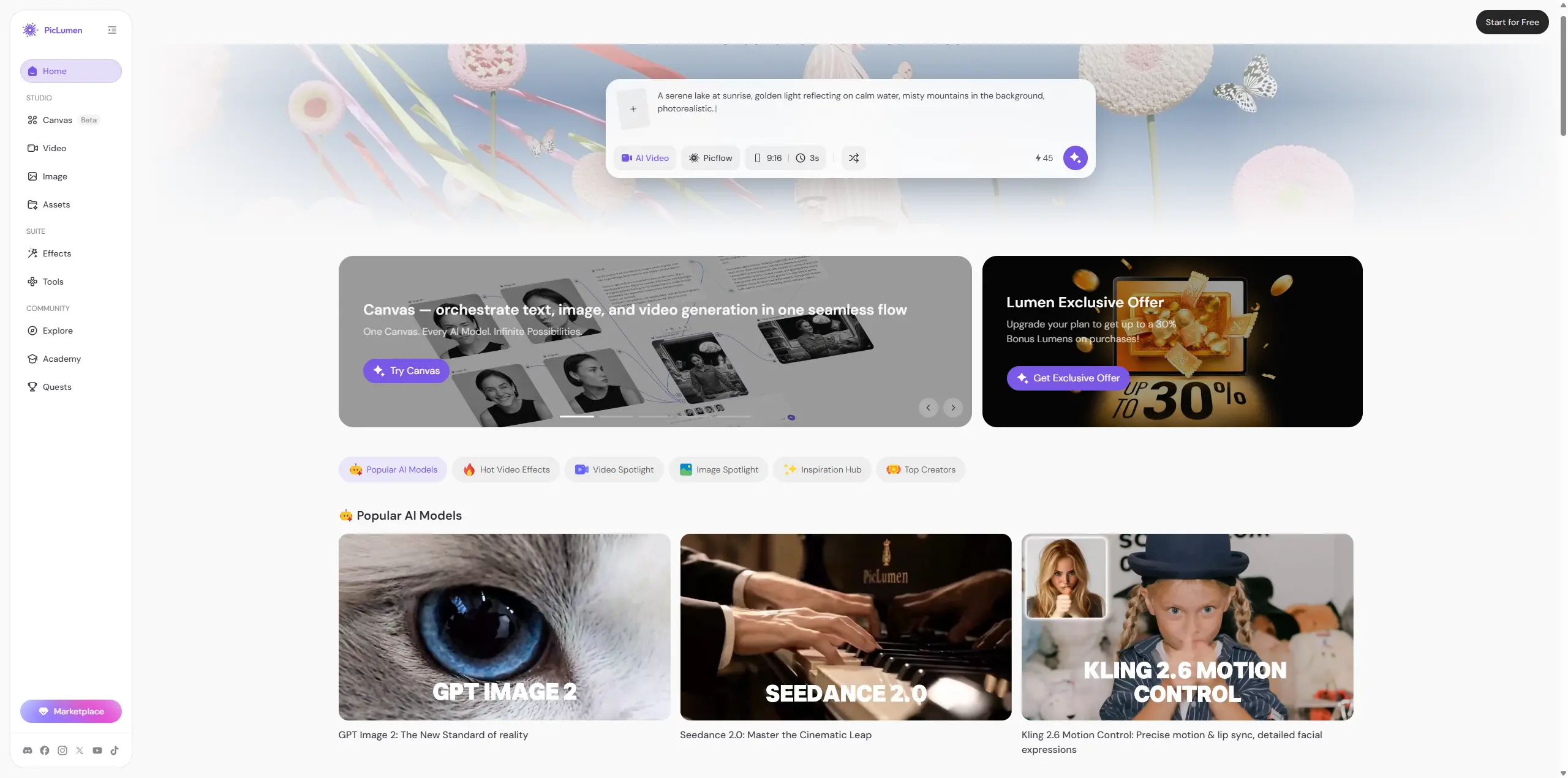
The difference shows up at the very start of a project. With DomoAI, you're usually beginning with an asset you already made or shot. With PicLumen, you can start from a prompt or reference image, generate the core visual, pick a video model, animate it, and share or browse the creator community — and it supports several image models rather than locking you into one visual direction. That's genuinely more useful for a marketer juggling product stills, social images, realistic scenes, anime visuals, and short videos in the same campaign, especially when the right direction isn't obvious yet.
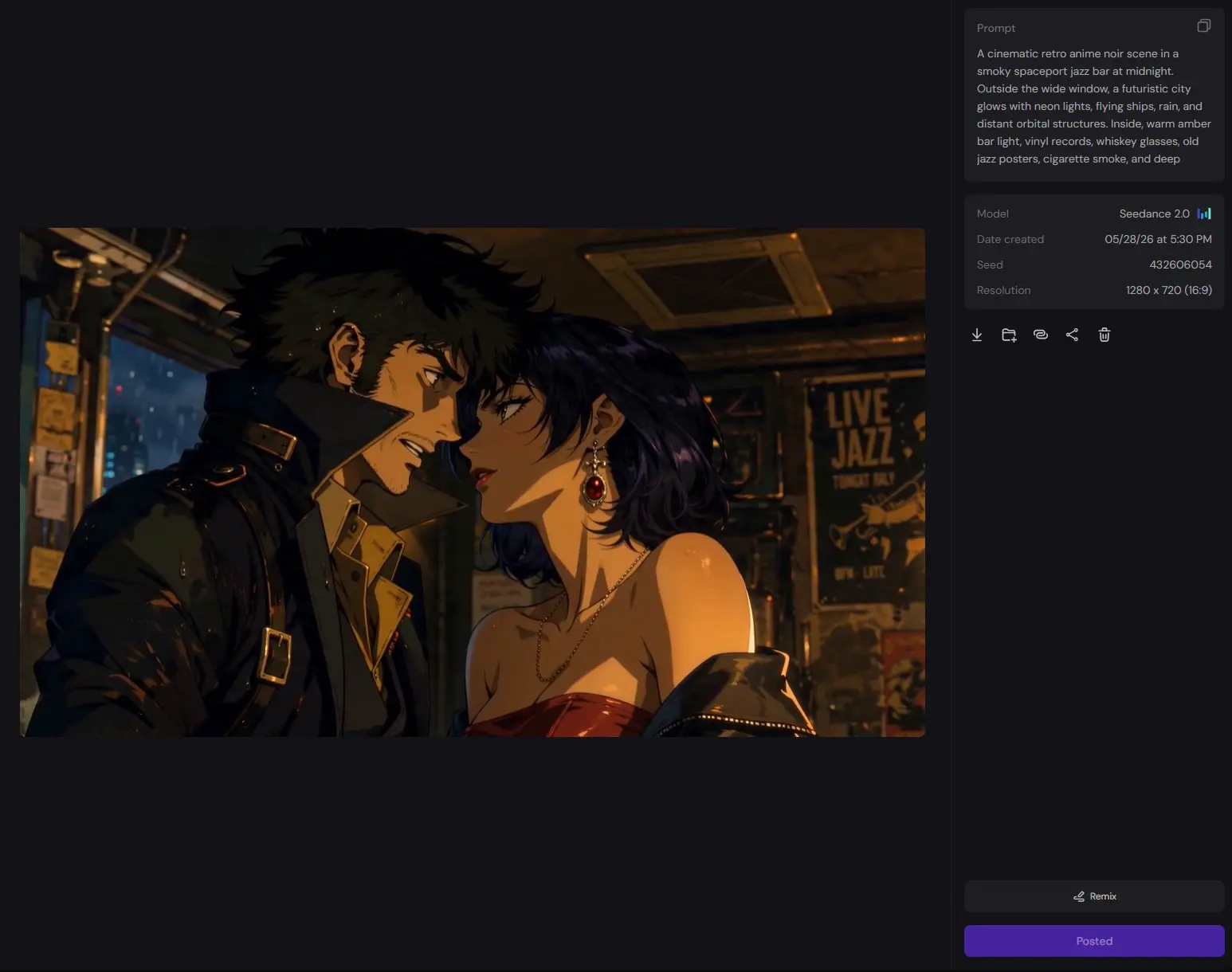
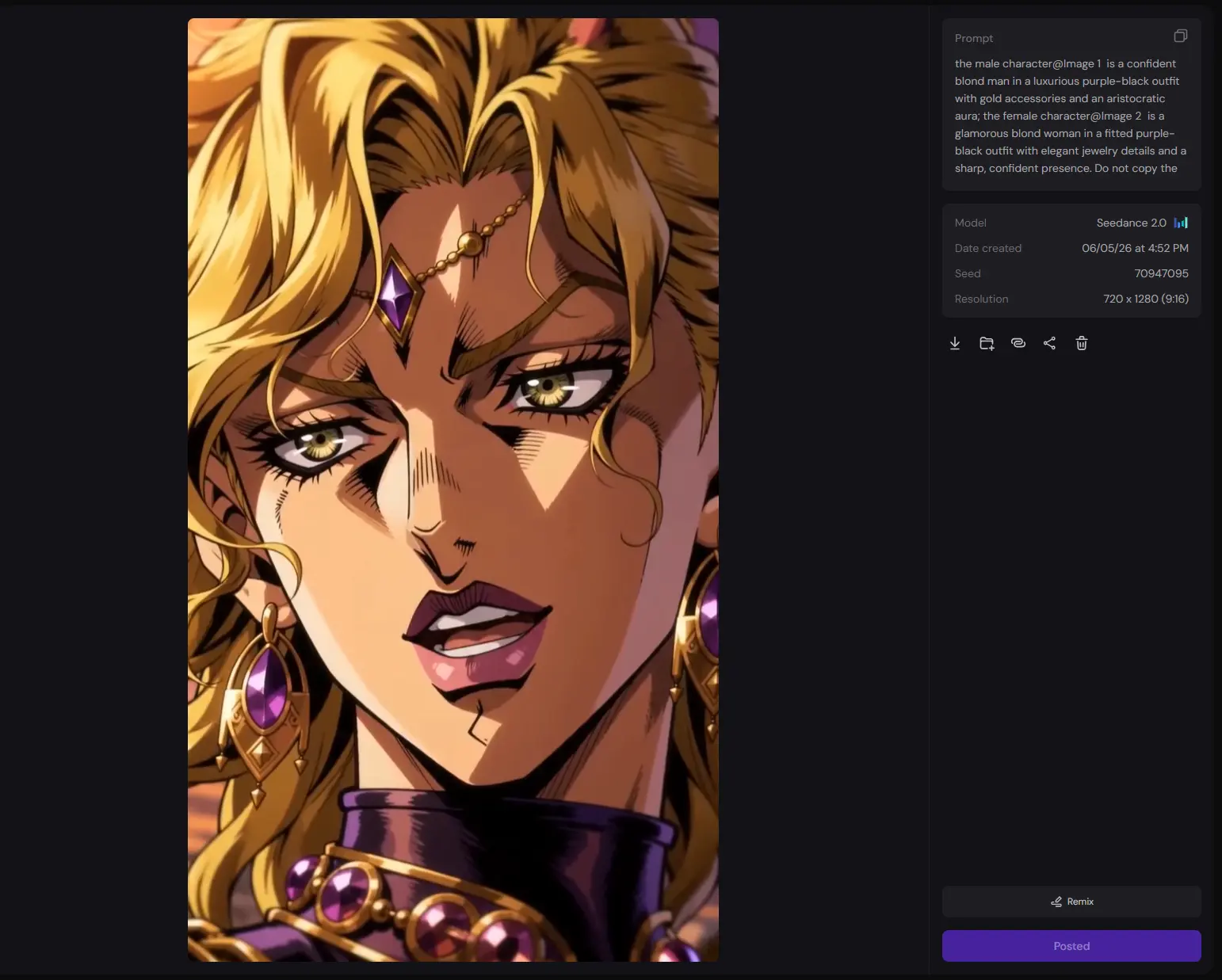
DomoAI still wins on focused video restyling and anime-led animation specifically. PicLumen is the better pick when a project needs to move between image generation, video generation, and testing different models before anything is locked in. There isn't one correct answer here — it depends on whether the job is "restyle this clip" or "build a set of visuals from nothing."
DomoAI Review FAQs
Is DomoAI free?
There's a free trial with 25 credits, and you'll need a paid plan once those run out. How many videos that actually gets you depends on the model, duration, and generation mode you pick.
What is DomoAI mainly used for?
Generating, animating, and restyling video — turning live-action footage into anime, animating static images, swapping characters, building talking avatars, and stitching keyframes into a single clip.
Is DomoAI good for anime videos?
Yes, and it's arguably the platform's clearest strength. It does best on short clips where keeping the main motion intact matters more than preserving every small detail exactly.
How many images can DomoAI Frames to Video use?
Two as start/end frames, or up to eight in Multi-frame mode, each transition with its own prompt and duration.
What is the best DomoAI alternative?
PicLumen, if you want AI image generation, AI video generation, multiple models, and community sharing under one roof. DomoAI stays the more focused choice for anime animation, character motion, and video restyling specifically.