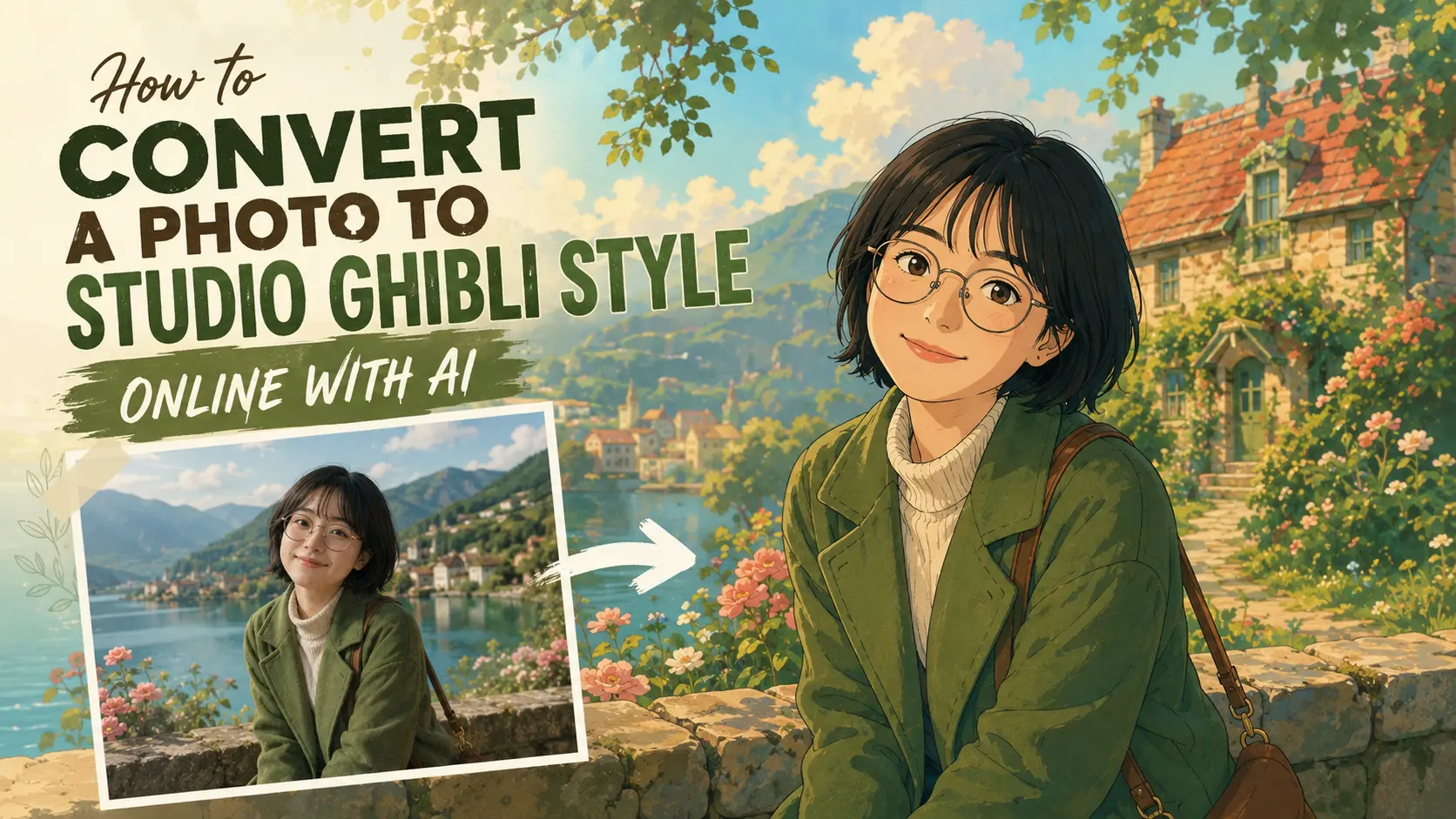
The fastest way to convert a photo to Studio Ghibli style online is to use an image-to-image model. Upload your photo, tell it what to keep, then describe the softer colors, painted background, and gentle lighting you want. If you'd rather build a scene from nothing — no reference photo — text-to-image is the better starting point. PicLumen supports both workflows and gives you access to several image models, including GPT Image 2.0, Seedream 5.0 Pro, Nano Banana 2, and Midjourney V8.1, so you can compare outputs without leaving the platform.
Quick answer: Upload your photo to PicLumen's image-to-image tool, pick a model, and write a prompt that explicitly says "Studio Ghibli style." List what needs to stay — face, pose, hairstyle, clothing, background — before describing the new look. Then generate at least 2–3 versions before judging the result.
A note on naming: PicLumen is not affiliated with Studio Ghibli, and this style of prompt has been a point of public tension — Hayao Miyazaki has spoken critically about AI-generated imagery that mimics hand-drawn animation. "Studio Ghibli style" here refers to an independent AI-generated visual treatment inspired by that aesthetic, not an official or licensed product. Keep that distinction in mind, especially for anything you plan to publish or sell.
What Actually Makes an Image Read as "Ghibli-Style"
It's not the eyes. Plenty of generic anime filters give a face bigger eyes and call it a day — the background stays flat, the lighting stays digital, and the result doesn't hold together. What actually sells the style is the environment carrying as much weight as the character:
- Soft, hand-painted backgrounds instead of clean digital ones
- Warm sunlight or overcast, diffused light — rarely harsh or directional
- Watercolor-adjacent color blending, not flat fills
- Natural, understated facial expressions
- Small environmental detail: plants, food, cluttered furniture, weather
- Slightly imperfect edges — outlines that aren't razor-sharp
If your output nails the face but the background looks like a video game render, the prompt needs more environmental description, not more face description.
2 Ways to Create Studio Ghibli-Style AI Art
Method 1: Create a New Scene with Text-to-Image
Text-to-image works from a written description alone, with no photo reference. It's the right tool for original characters, storybook landscapes, cozy interiors, and illustration-style social posts — not for preserving your own likeness, since there's no photo to anchor it to.
Step 1: Choose a Model Different models interpret the same prompt differently — one tends toward richer backgrounds, another sticks closer to the literal character description. Open PicLumen's text-to-image tool and test 2–3 models with the same prompt each time. This makes it obvious which model works best for your idea, rather than mixing prompt changes with model changes. Step 2: Write Your Prompt with "Studio Ghibli Style" Explicitly Vaguer phrases — "anime style," "Japanese animation," "hand-drawn cartoon" — tend to pull toward generic or glossy digital anime instead. Always include "Studio Ghibli style" directly, then support it with concrete details: Subject + action + setting + weather/time + lighting + color mood + "Studio Ghibli style" + painted texture detail
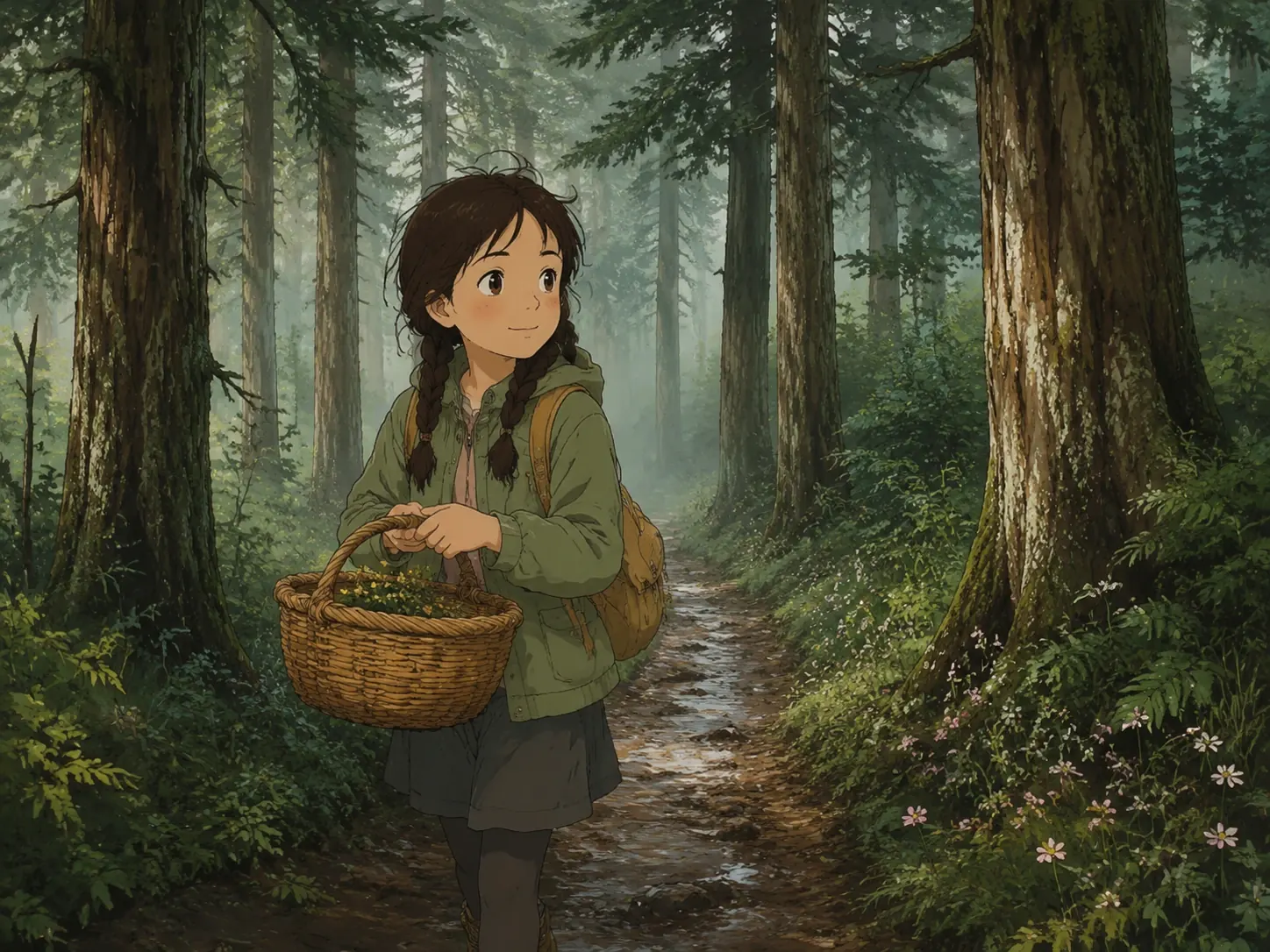
Weak prompt: Anime girl in a forest. Stronger prompt: A young girl carrying a woven basket through a damp cedar forest after rain, soft fog between the trees, small wildflowers beside the path, gentle natural expression, muted green and brown palette, warm diffused light, Studio Ghibli style, hand-painted animation background, soft watercolor texture, quiet cinematic mood.
The second version gives the model a complete scene instead of a loose style label.
Step 3: Choose Your Aspect Ratio Match the ratio to what you're building:
- 1:1 — Profile or avatar-style images
- 3:4 — Character portraits and tall compositions
- 4:3 — Interiors and balanced scenes
- 16:9 — Landscapes and cinematic wides
- 9:16 — Mobile wallpapers and vertical compositions Wide images give the setting more breathing room; tall images keep focus on the character.
Step 4: Generate, Compare, and Refine Create at least 2–3 versions. Look at facial expression, background depth, hand quality, color softness, and lighting consistency. If the composition is already working, tweak only the weaker element of the prompt — a complete rewrite usually loses what was already right.
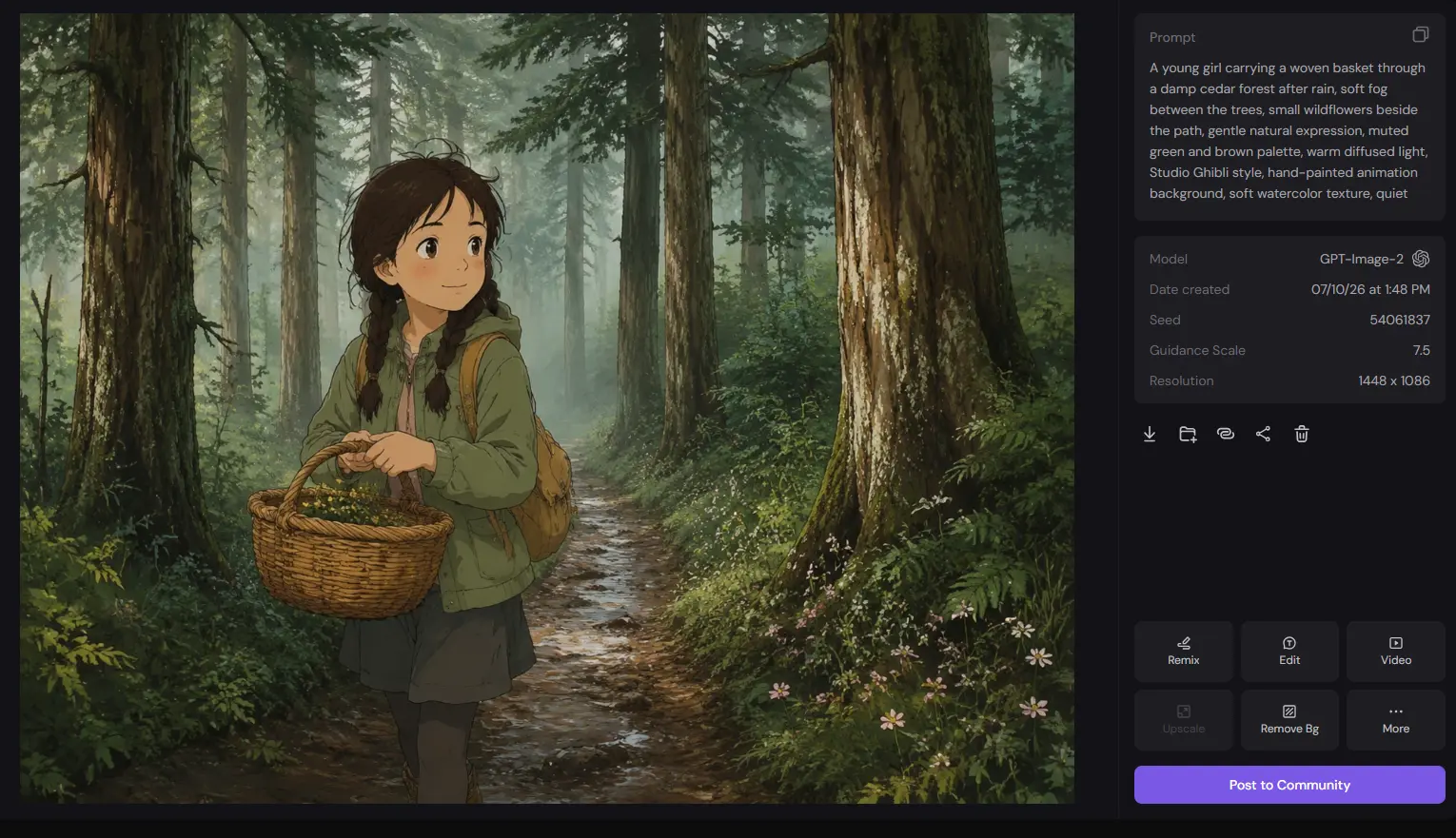
Method 2: Turn a Photo into Studio Ghibli Style with Image-to-Image
This is the workflow for selfies, couple photos, family portraits, pets, travel shots, and buildings — anything where you need the output to still be recognizably your photo. Step 1: Upload a Clear Photo Start with the highest-resolution file you have. Blurry or heavily compressed photos give the model too much room to guess, and it usually guesses toward a more generic face or flatter background. Screenshots from social media are the most common source of disappointing results — export the original file if you can.
- For portraits: Face should be unobstructed, well-lit, and free of heavy beauty filters.
- For pets: Eyes, ears, and distinctive markings should be clearly visible with minimal motion blur.
- For buildings/landscapes: Keep watermarks and app UI out of frame; avoid extreme wide-angle distortion.
Step 2: Write Your Prompt with Preservation Instructions Don't just say "turn this into Studio Ghibli style." Tell the model what must stay the same first, then describe the transformation:
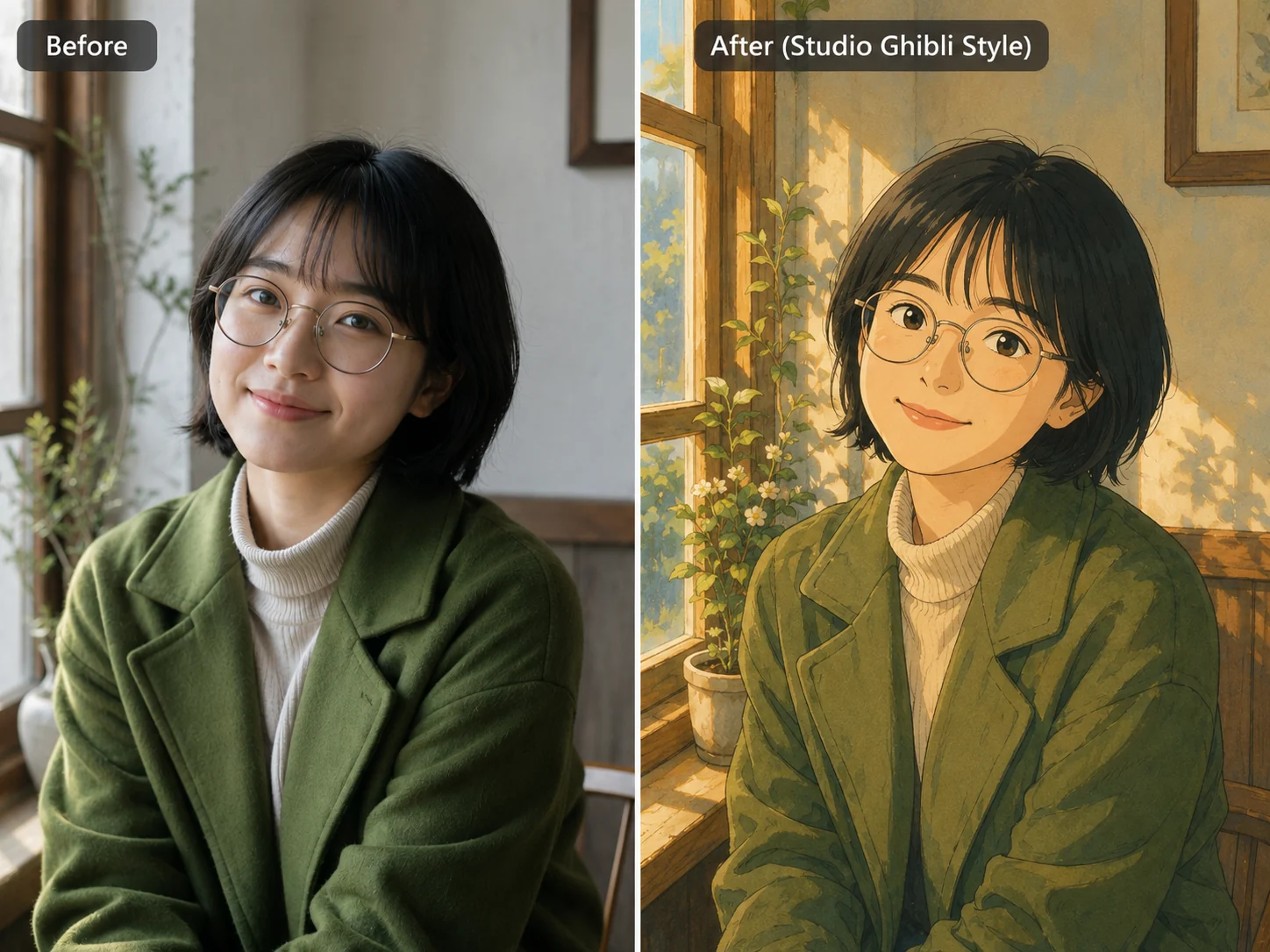
For a portrait: Preserve her round glasses, short black hair, green coat, relaxed smile, facial structure, and original seated pose. Convert the photo into Studio Ghibli style, with a hand-painted animation background, soft watercolor texture, warm afternoon light, natural facial proportions, muted colors, and a quiet countryside atmosphere. For a pet: Preserve the dog's golden fur, white chest marking, floppy ears, blue collar, and original seated pose. Turn the photo into Studio Ghibli style, with soft hand-painted details, warm garden light, delicate plants, gentle shadows, recognizable features, and a calm storybook mood. For a building/landscape: Keep the original architecture (roofline, windows, street layout) and woman's beige coat and beret. Reimagine in Studio Ghibli style, with softly painted surfaces, warm afternoon light, watercolor texture, and a peaceful atmosphere.
Step 3: Choose Your Aspect Ratio and Transformation Strength Pick the ratio that matches your original photo — 3:4 for portraits, 16:9 for landscapes, 4:3 for balanced scenes. For transformation strength, start at the midpoint (around 50%) and adjust based on results:
Output doesn't look recognizable: lower to 40% and rewrite the preservation clause more specifically Output still looks too photographic: raise to 60% and add more style language ("hand-painted," "soft watercolor," "matte colors") Don't push strength above 70% if keeping likeness is important — you'll end up with a new character loosely inspired by the photo, not a conversion of it. Step 4: Generate, Compare Models, Then Download Create 2–3 versions with the same settings. If the structure looks good but colors feel off, don't rewrite the prompt yet — switch models first. One model holds facial structure better; another produces stronger painted backgrounds. Once you find the model that preserves the key details, color tweaks in the prompt are easy to fix. When you're happy with the result, download the highest-resolution file available.
10 Best Studio Ghibli AI Prompts
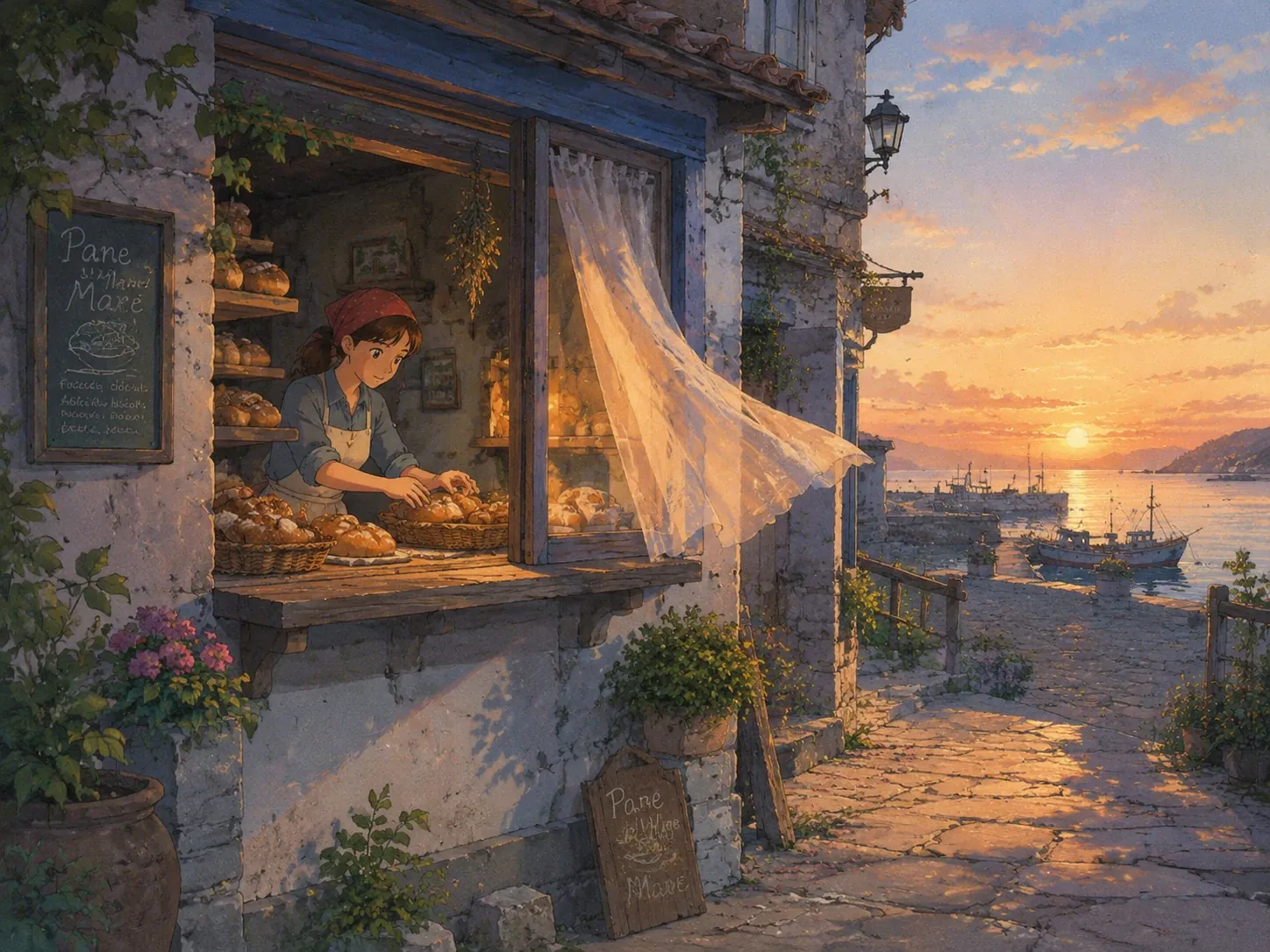
Each prompt below includes Studio Ghibli style to reduce the chance of getting a generic anime result. 1. A Seaside Bakery at Sunrise: A tiny seaside bakery opening just before sunrise, a young baker placing warm bread beside an open window, pale orange light spilling onto a narrow stone street, linen curtains moving in the ocean breeze, fishing boats in the distance, Studio Ghibli style, hand-painted animation background, delicate watercolor texture, soft blue and apricot palette, quiet cinematic atmosphere.
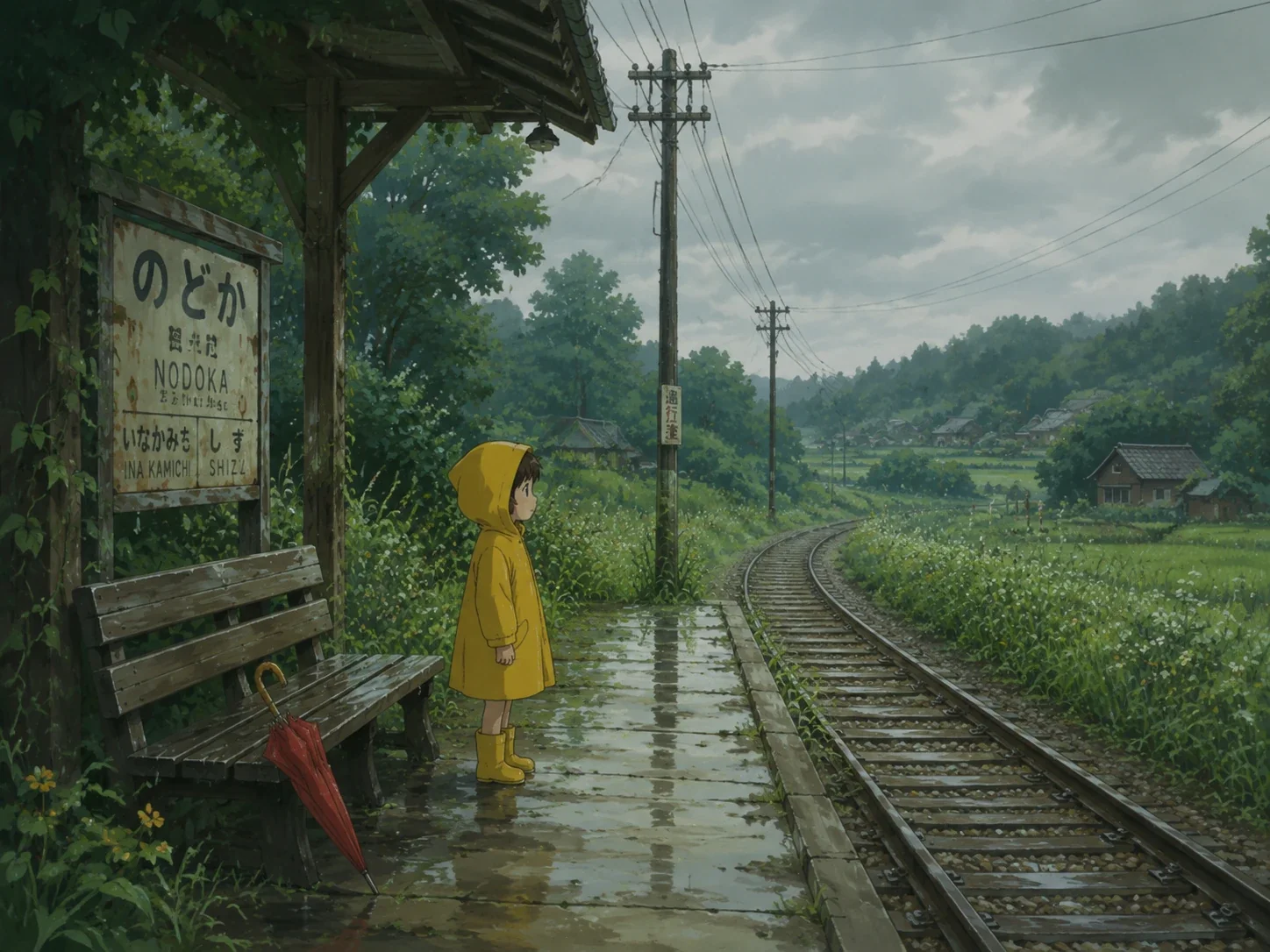
2. A Child at a Rural Train Stop: A child in a yellow raincoat waiting at an old countryside train stop after a summer shower, wet wooden benches, tall grass covered in raindrops, telephone wires crossing a pale gray sky, a small red umbrella resting nearby, Studio Ghibli style, soft hand-drawn animation, muted green tones, gentle natural light, detailed rural background, patient and slightly mysterious mood.
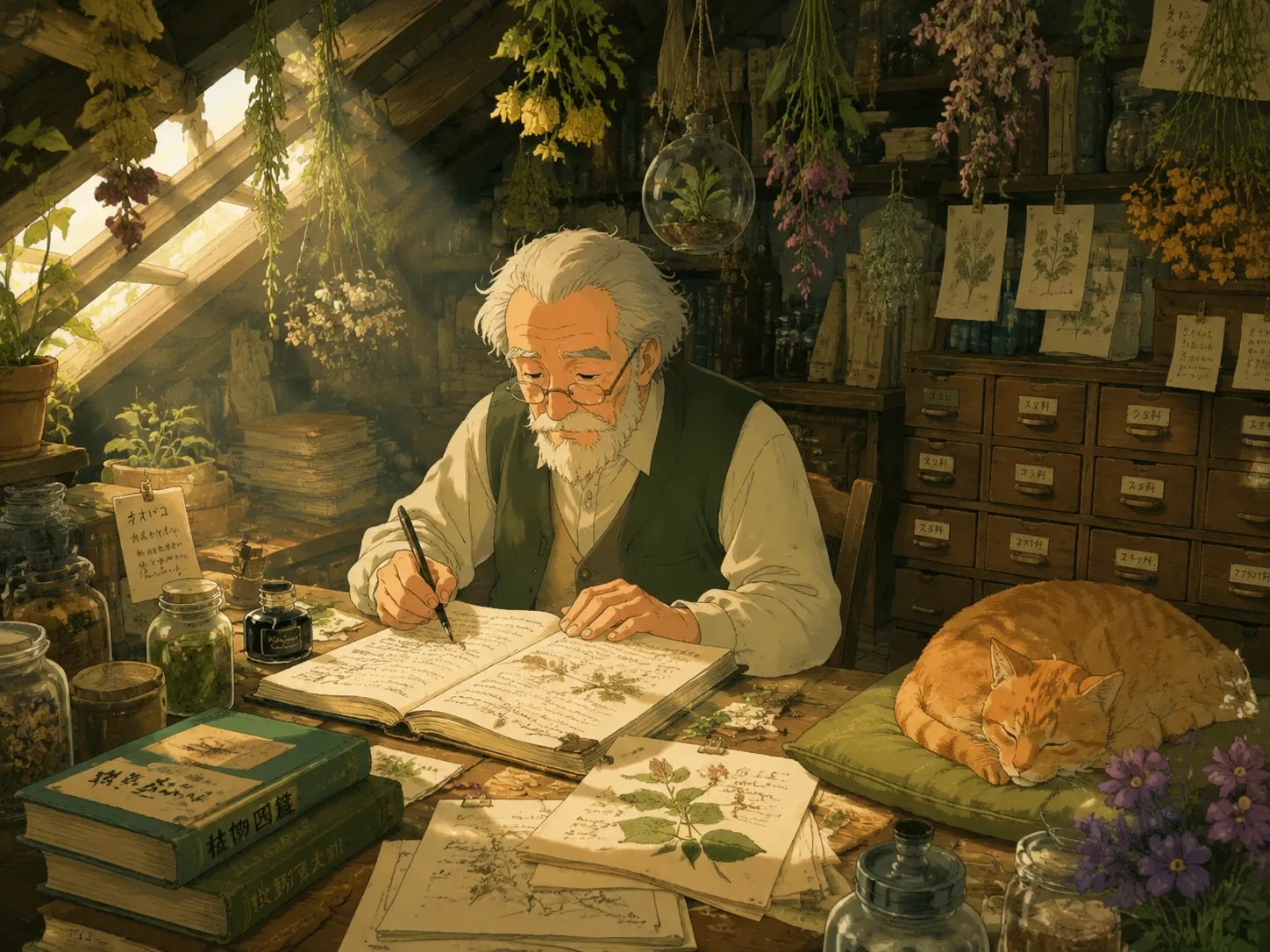
 3. The Botanist's Attic: An elderly botanist working in a crowded attic filled with hanging plants, handwritten notebooks, glass jars, pressed flowers, and old wooden drawers, narrow sunbeams cutting through dust in the air, a sleepy orange cat curled beside the desk, Studio Ghibli style, painterly animation background, warm olive and amber colors, intricate everyday details, peaceful storybook feeling.
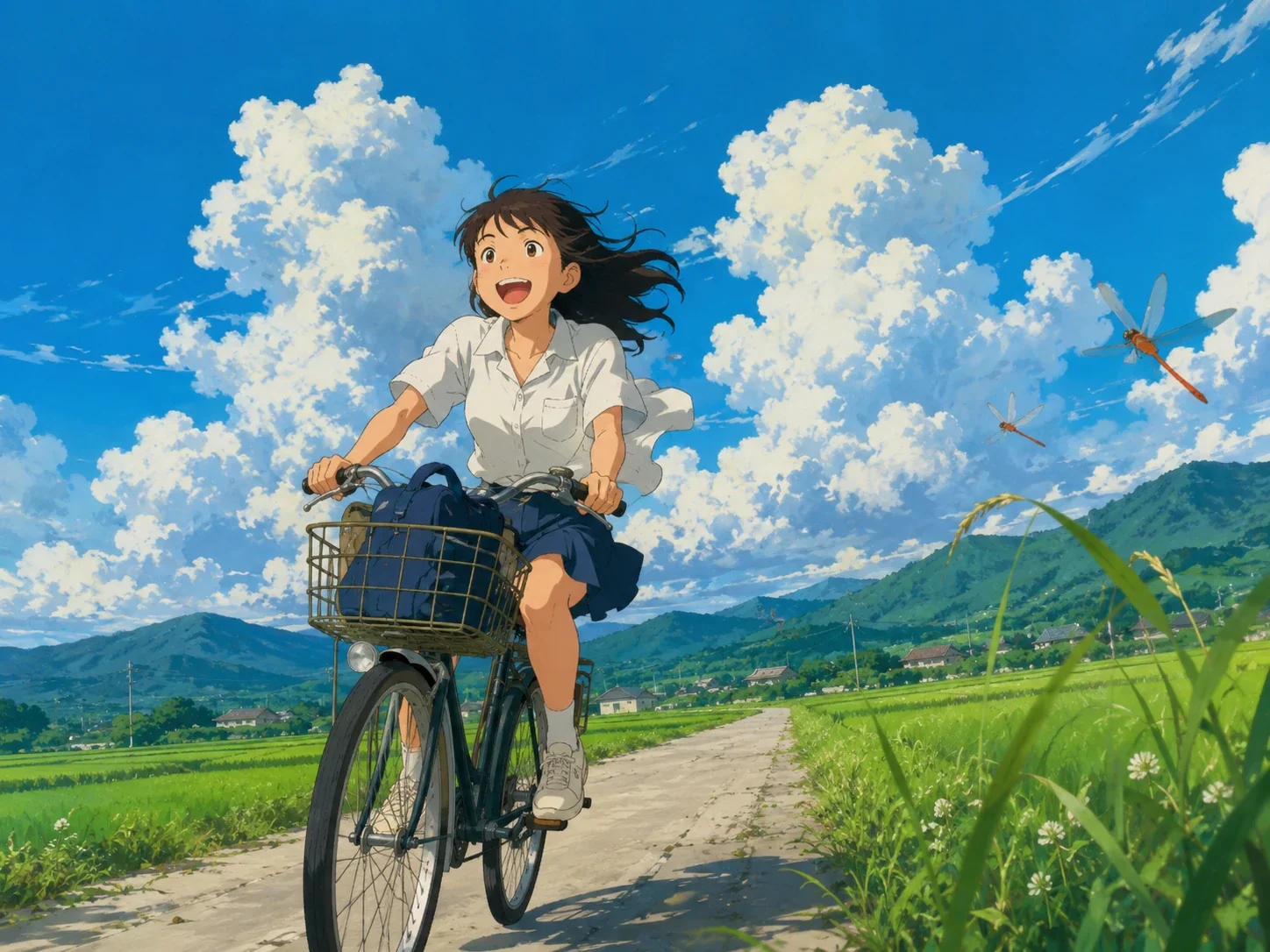
4. Cycling Through the Rice Fields: A teenage girl cycling down a narrow road between bright green rice fields, her loose white shirt and dark hair moving in a strong summer wind, enormous clouds rising above distant mountains, dragonflies near the roadside, energetic low camera angle, Studio Ghibli style, hand-painted countryside scenery, fresh blue and green palette, gentle sunlight, strong sense of freedom and movement.
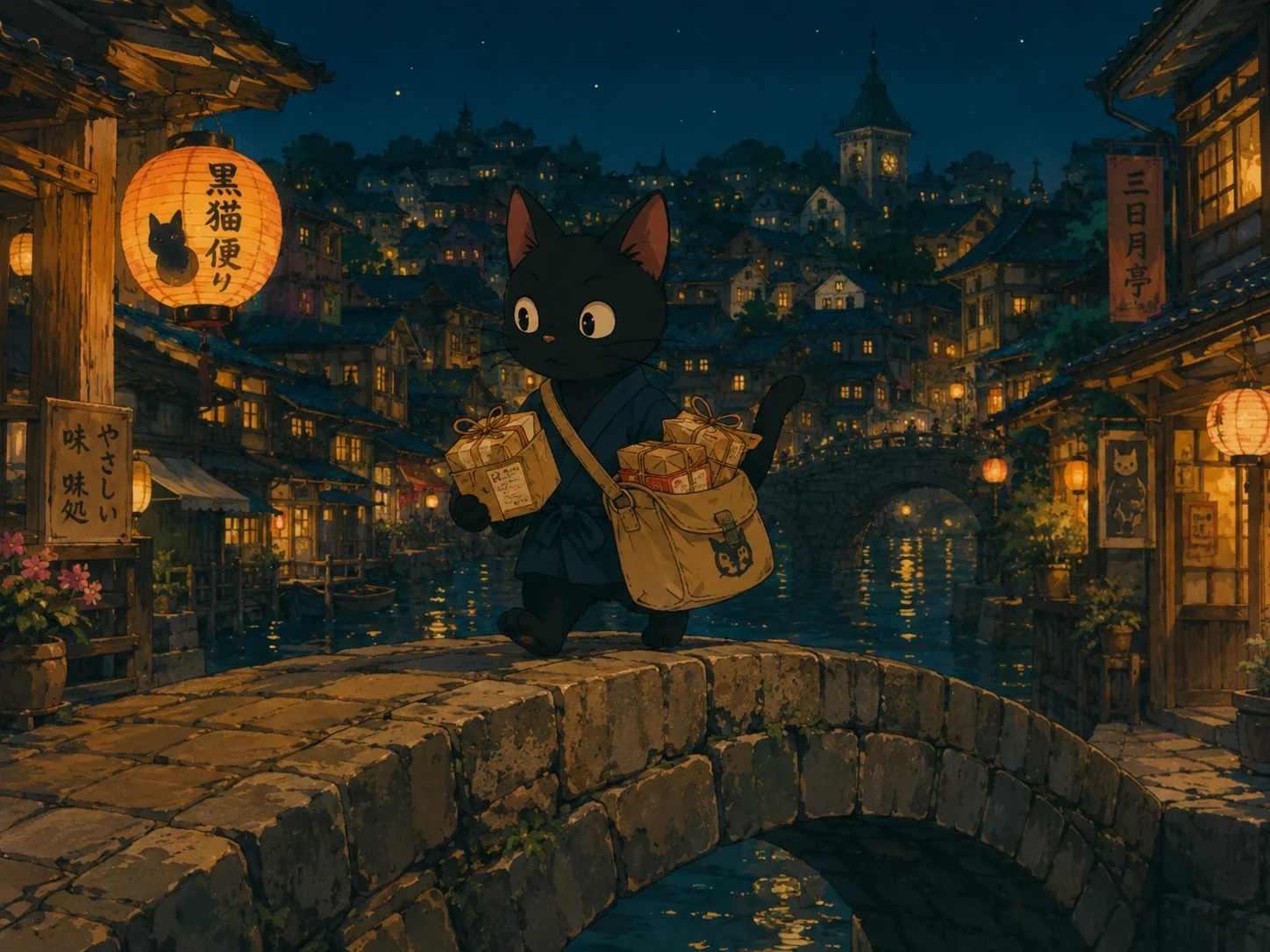
 5. The Cat Courier and the Lantern Bridge: A small black cat courier carrying a canvas satchel across an old arched bridge at night, paper lanterns glowing beneath wooden shop roofs, tiny parcels tied with string, river reflections moving below, whimsical fantasy town, Studio Ghibli style, expressive animal character, soft ink outlines, warm gold light against deep teal shadows.
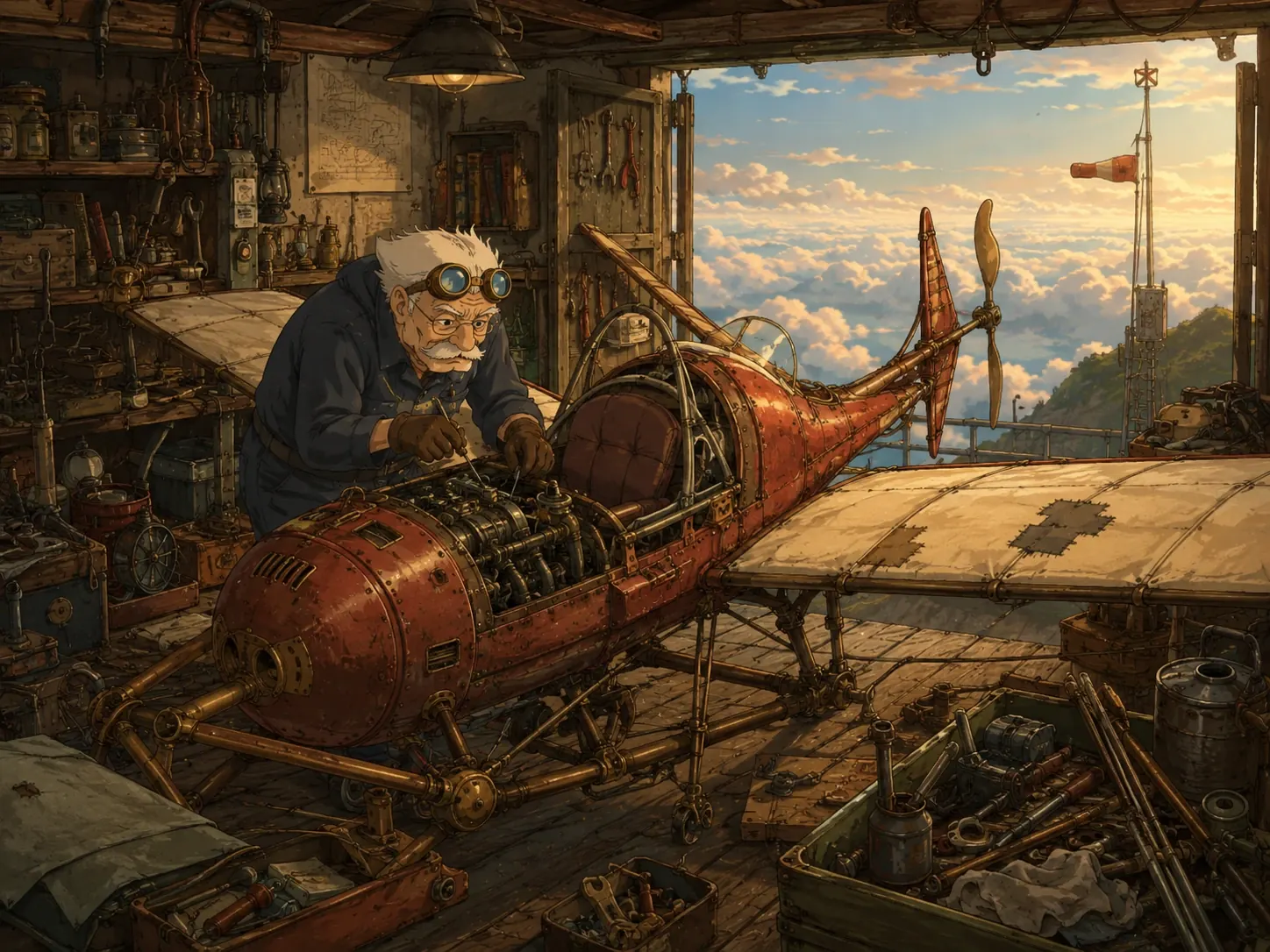
 6. Repairing a Tiny Flying Machine: An elderly mechanic repairing a tiny one-person flying machine inside a cluttered hilltop workshop, brass tools, patched wings, oil-stained gloves, open doors revealing clouds far below, late afternoon light touching the metal frame, retro fantasy engineering, Studio Ghibli style, detailed hand-drawn machinery, dusty red and warm brown palette.
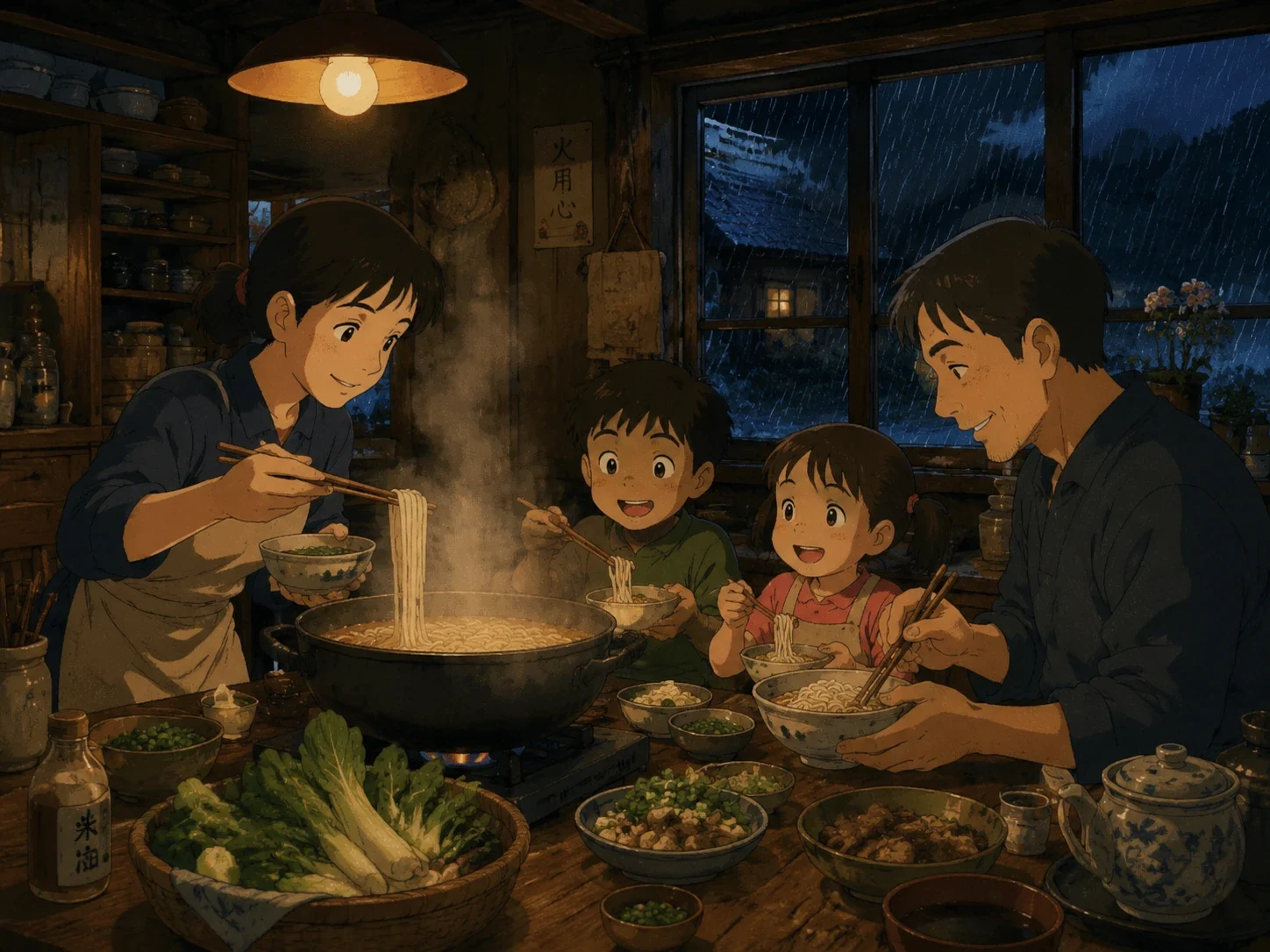
 7. Dinner During a Thunderstorm: A family cooking noodles together in a small wooden kitchen during a thunderstorm, steam rising from a large pot, rain running down the dark windows, bowls and vegetables spread across the table, warm lamps glowing indoors, natural family expressions, Studio Ghibli style, detailed hand-painted interior, stormy blue light outside and warm orange light inside.
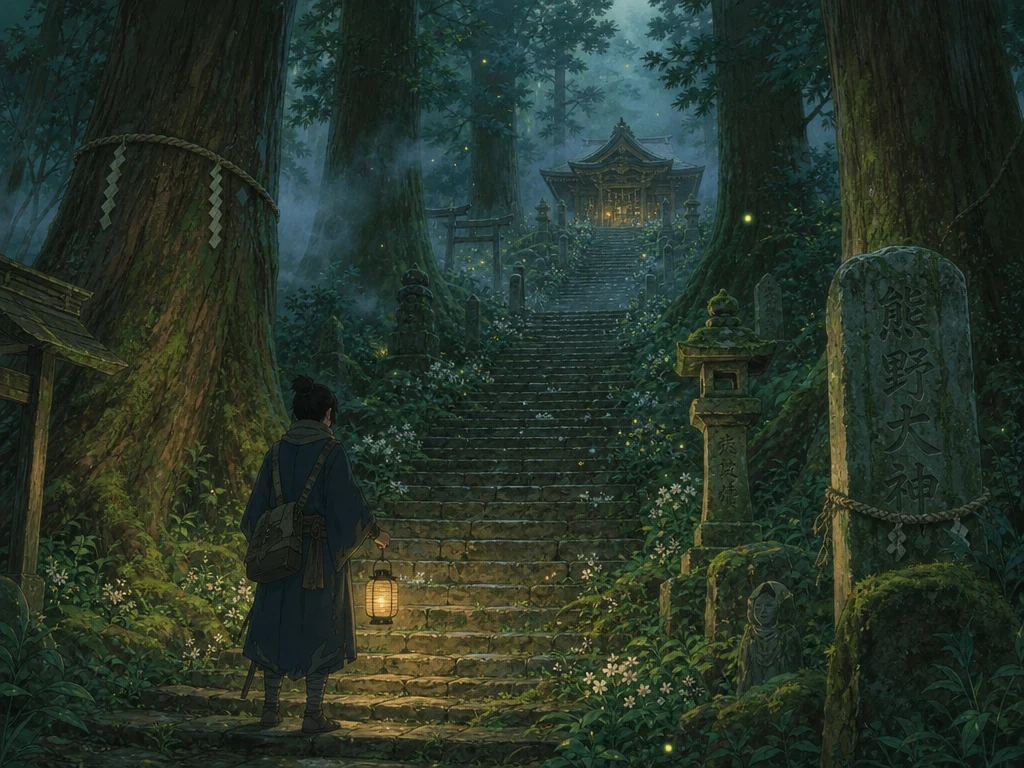
 8. The Hidden Forest Shrine: A moss-covered forest shrine hidden beyond a long stone staircase, a traveler holding a dim lantern beneath ancient cedar trees, small white flowers growing between the steps, fireflies appearing as evening fog gathers, restrained fantasy elements, Studio Ghibli style, rich hand-painted foliage, deep green and silver palette, quiet sacred atmosphere.
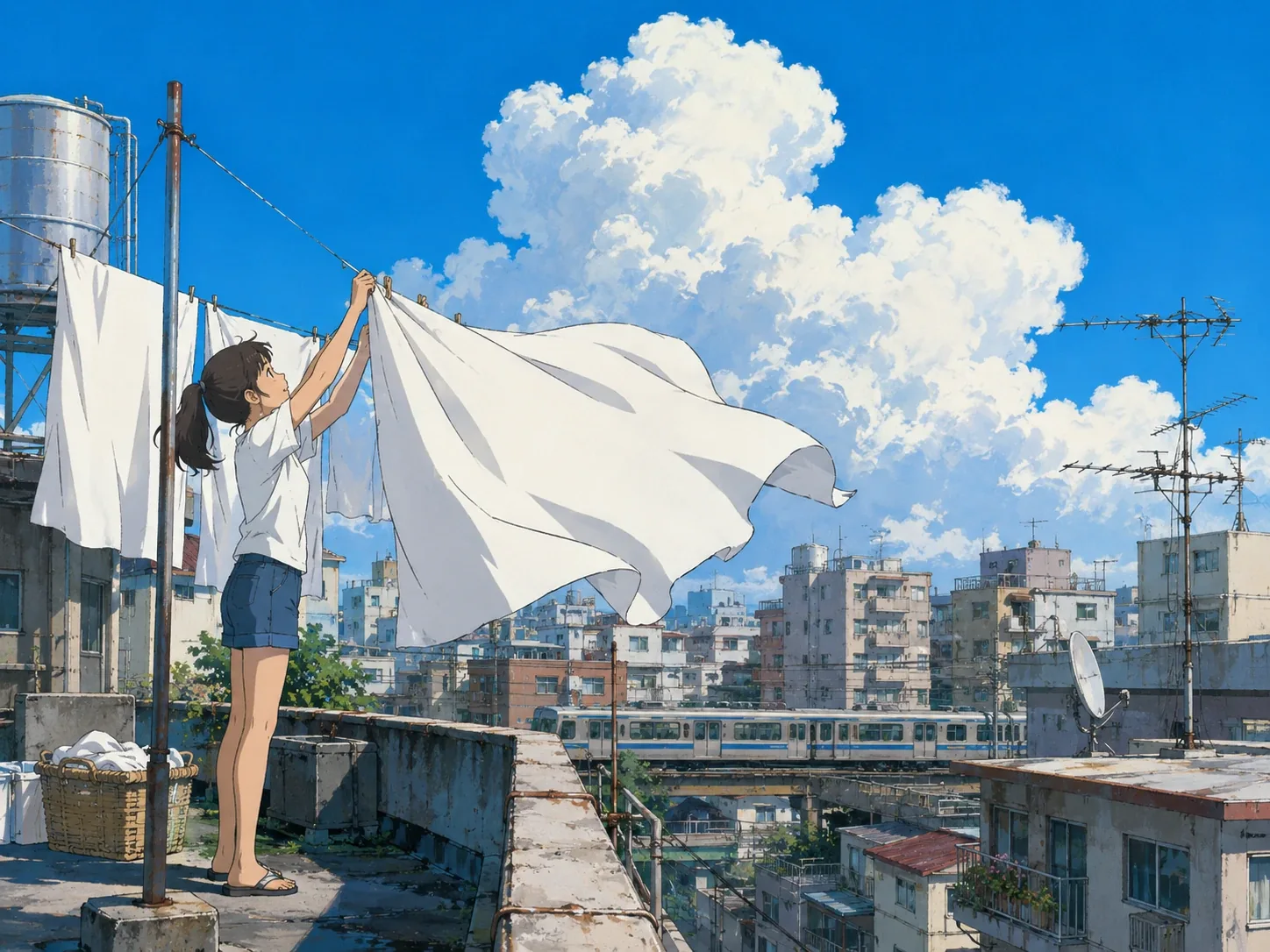
 9. Laundry Beneath Summer Clouds: A young woman hanging white bedsheets on the rooftop of an old apartment building, bright fabric lifting in the wind, water tanks and television antennas nearby, huge summer clouds rising above the city, a distant train passing between buildings, Studio Ghibli style, clean hand-painted animation, crisp blue and white palette, ordinary city life made quietly beautiful.
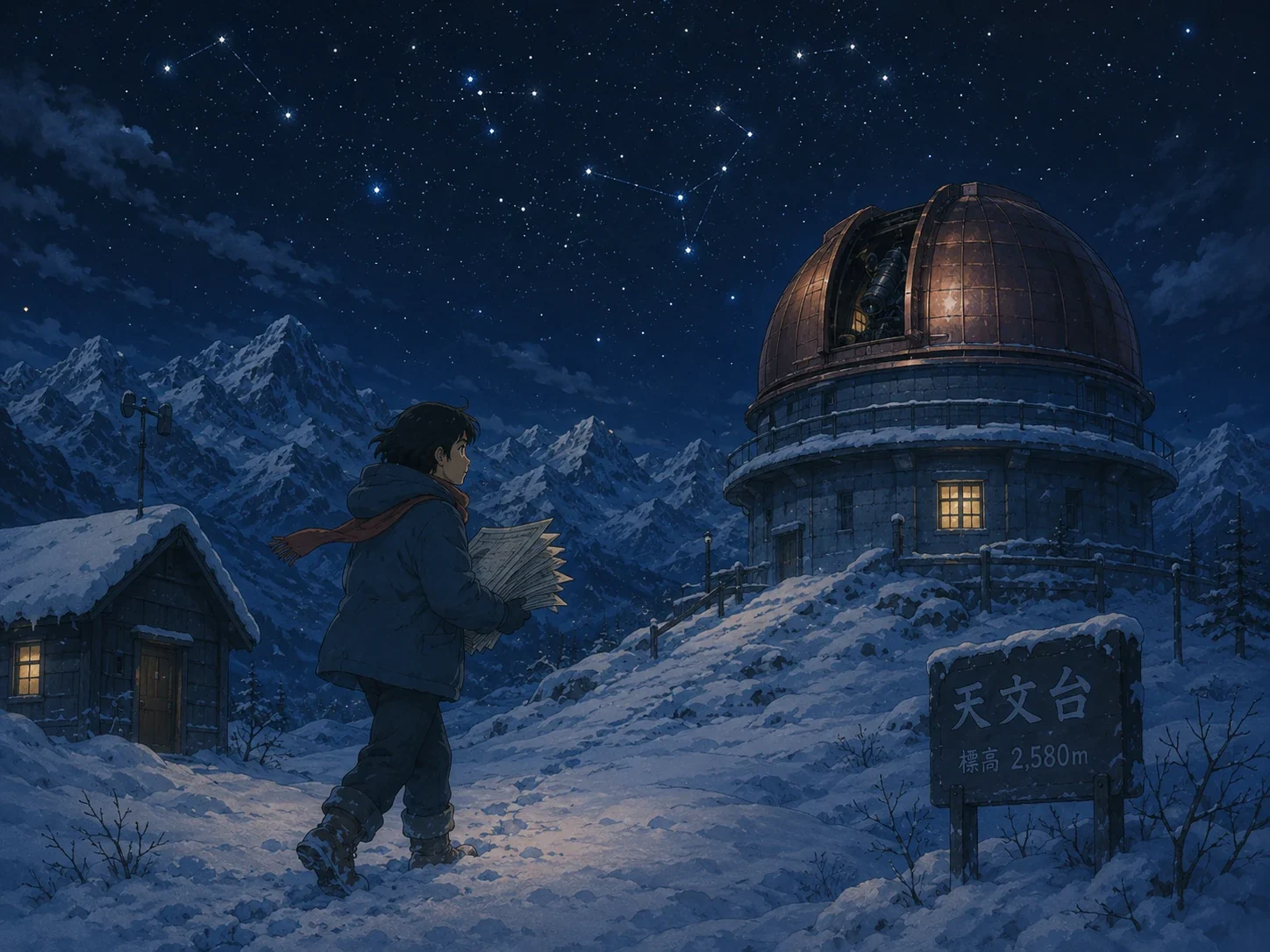
 10. The Snowbound Observatory: A remote observatory covered in deep snow at midnight, one warm window glowing beneath a rotating copper dome, a young astronomer carrying a stack of star charts through the wind, footprints leading from a small cabin, clear constellations above icy mountain peaks, Studio Ghibli style, detailed hand-painted animation, cool indigo night with restrained golden light.
Tips for Better Ghibli Results
Use the original file, not a screenshot. Compression artifacts read as noise to the model and tend to get exaggerated, not smoothed out. Avoid modern-digital-art vocabulary. Words like hyper-detailed, ultra-sharp, glossy, HDR, neon, Unreal Engine, or 3D render pull the output toward contemporary digital illustration — the opposite of what you want. Stick to hand-painted animation background, soft watercolor shading, gentle natural light, matte colors, delicate ink outlines. Use a negative prompt if the model keeps defaulting to generic anime:
generic anime, modern anime illustration, glossy digital anime, 3D anime render, cel-shaded 3D, plastic skin, neon colors, oversaturated colors, sharp digital outlines, exaggerated anime eyes, photorealistic, harsh shadows, distorted hands, extra fingers, duplicate face, watermark Add terms only when they're addressing something actually wrong in your results — a long negative prompt with untested terms doesn't help and can flatten the output.
Before and After: 5 Photo-to-Ghibli Tests
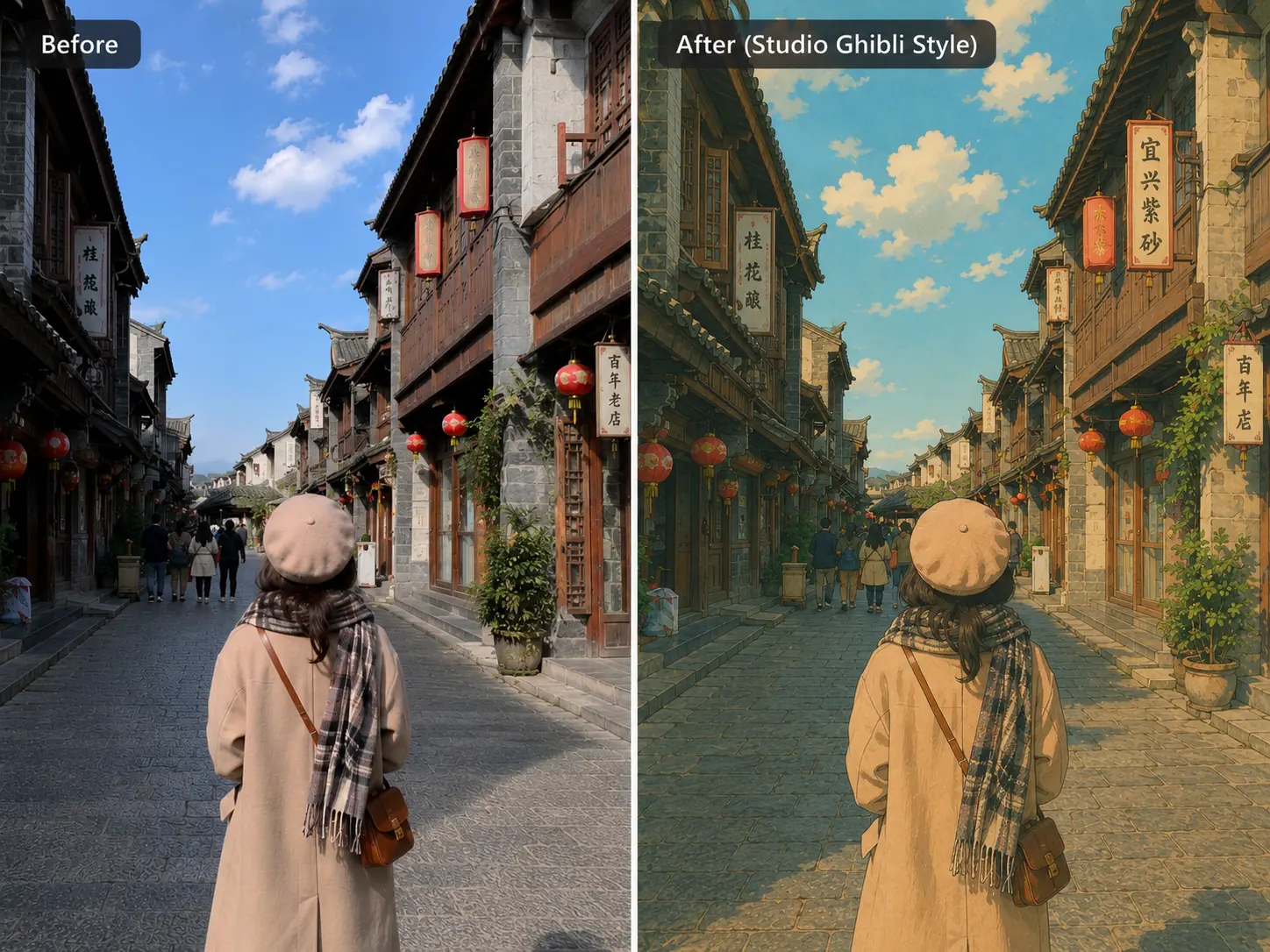
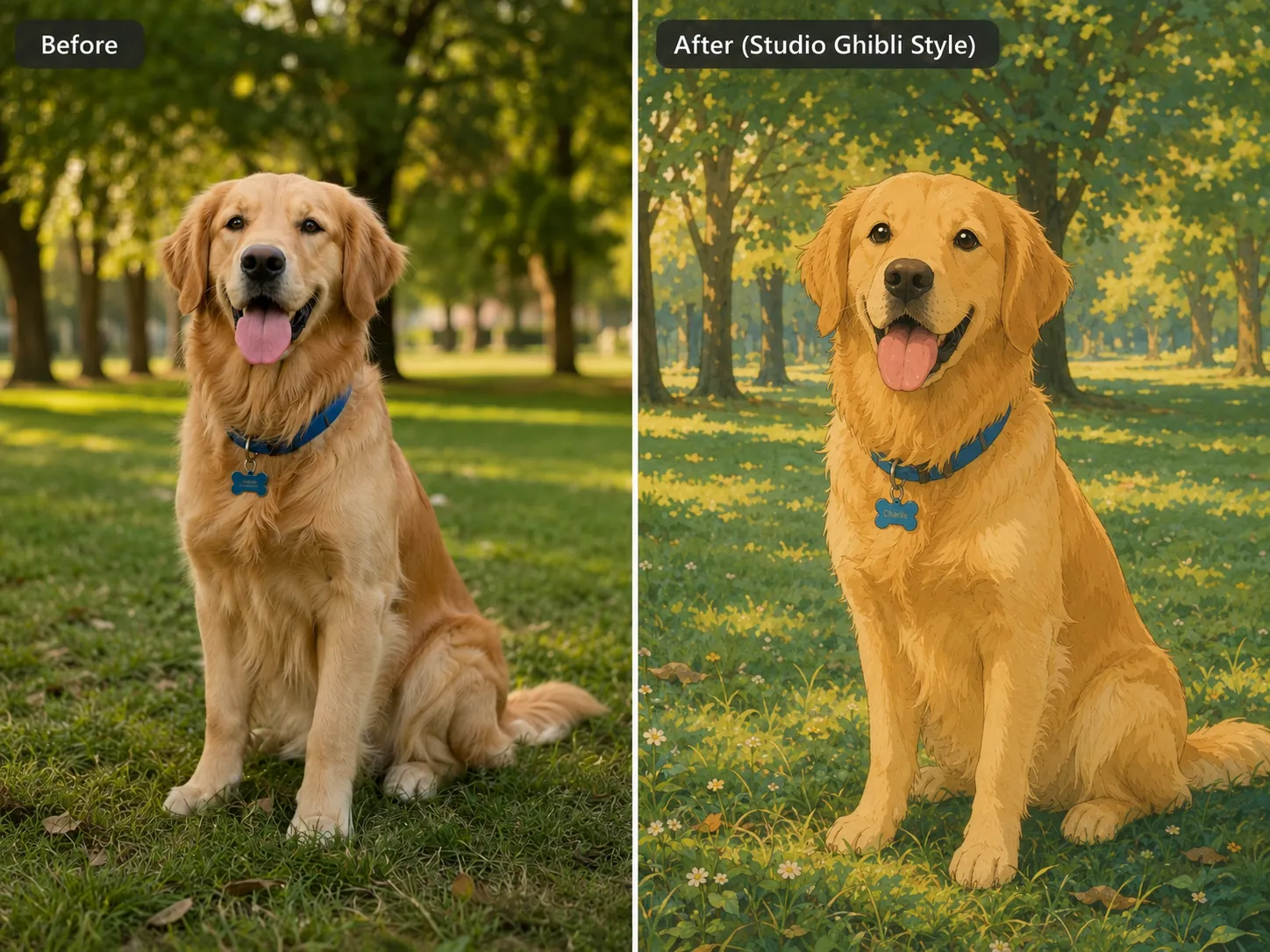
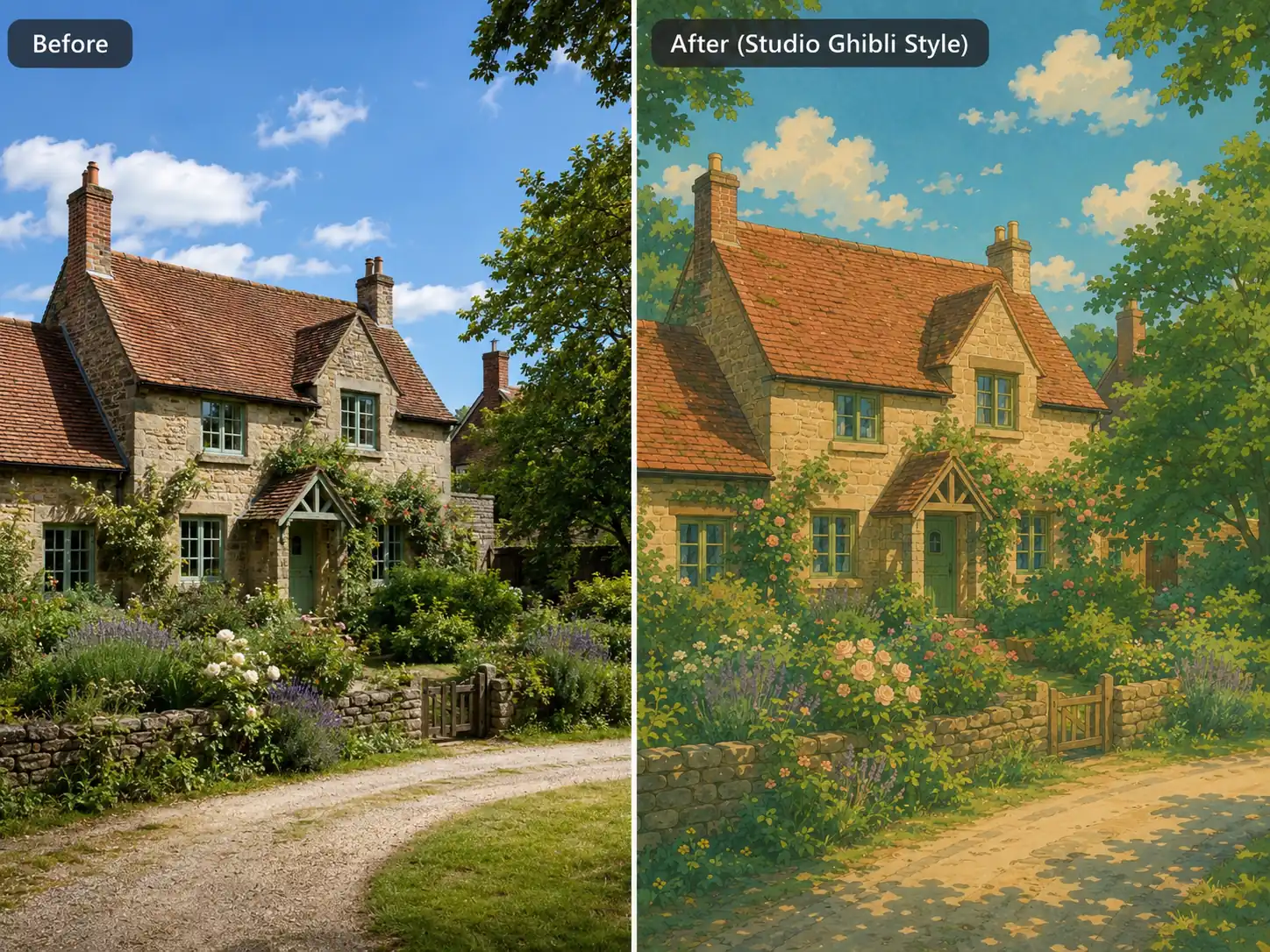
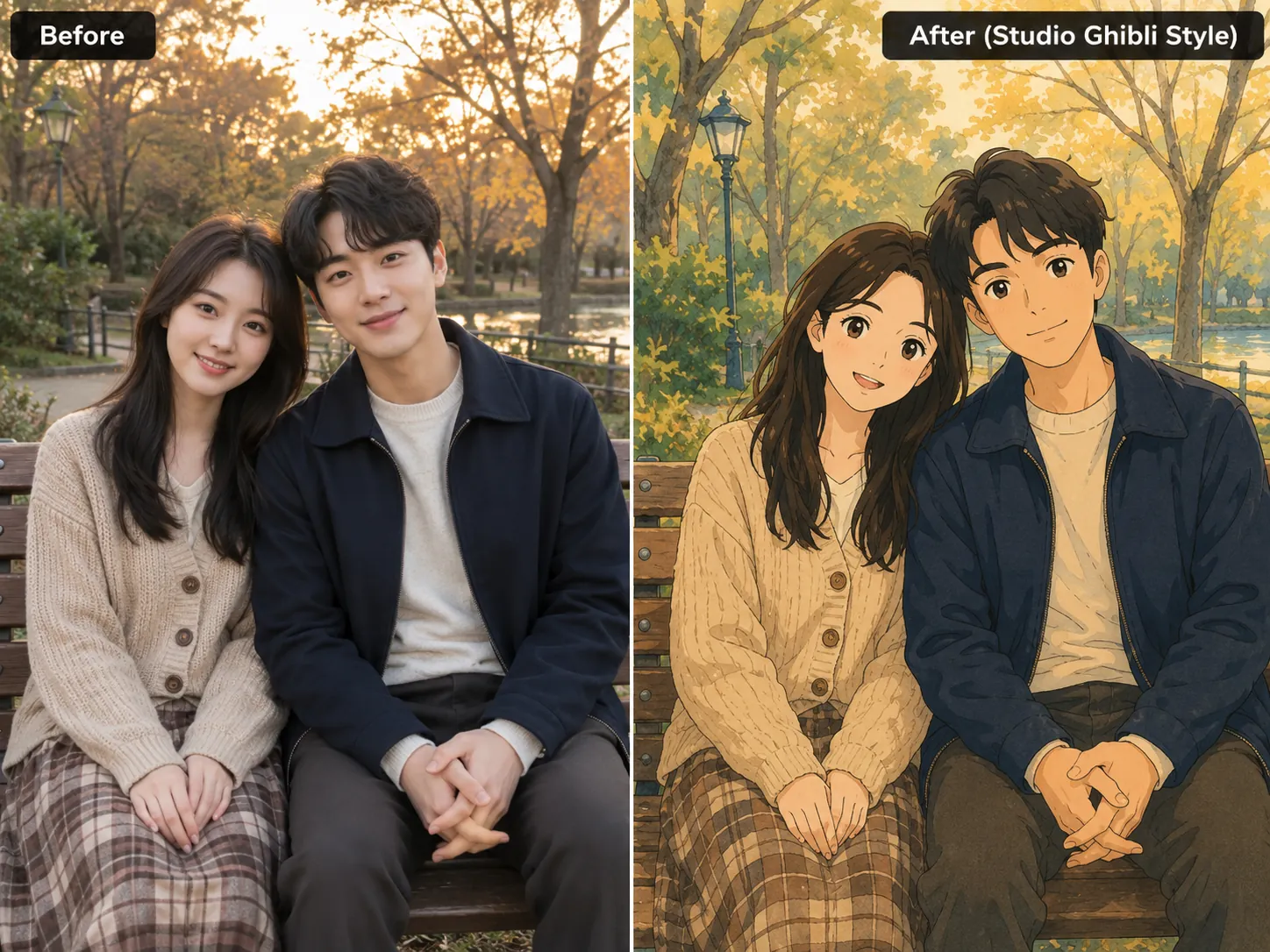
Ghibli vs Shinkai vs Disney Style: Choosing a Direction
These three reference styles get mixed up often, mostly because all three sit under the broad "anime-influenced" umbrella. The differences that actually matter for your prompt:
| Style | Main traits | Lighting | Best for |
|---|---|---|---|
| Ghibli-inspired | Painterly, natural, story-focused | Soft and warm | Nature, pets, family, travel |
| Shinkai-inspired | Detailed skies, rain, reflections | Bright and dramatic | Cities, romance, sunsets |
| Disney-inspired | Smooth shapes, bright colors | Clean and controlled | Avatars and playful scenes |
Ghibli-inspired prompts put weight on the environment — plants, food, weather, clutter — over the character. Shinkai-inspired prompts push hardest on sky and light detail. Disney-inspired prompts favor rounder shapes and stronger, more exaggerated expressions. You can test all three from the same source photo just by changing the style language and palette cues.
Can You Use Ghibli-Style AI Images Commercially?
Whether you can use a Ghibli-inspired output commercially depends on your PicLumen plan, the source photo's ownership, and what's actually in the final image. As a baseline, avoid:
- Recognizable Studio Ghibli characters or scenes from actual films
- Studio Ghibli logos or branding
- Product names or listings implying official endorsement
- Anything likely to confuse a buyer about where the image came from
Original characters and original scenes are the safer path for commercial work. Always check PicLumen's current license terms before using an image in advertising, merchandise, or client deliverables — this section is general information, not legal advice.
Frequently Asked Questions
Will my uploaded photo be saved or used for training?
Check PicLumen's current privacy policy for the specifics — this can vary by plan and may change over time, so it's worth confirming before uploading anything sensitive.
Which model should I use?
There's no universal best option. Test the same photo and prompt across two or three models and pick whichever holds facial/structural accuracy best — color and lighting issues are easier to fix afterward than a wrong face.
My result looks like generic anime, not Ghibli. What's wrong?
The prompt is almost always too broad. Add explicit style language — "Studio Ghibli style, hand-painted animation background, soft watercolor texture, muted natural colors, gentle light" — and put "generic anime" and "glossy digital anime" in the negative prompt.
Can a generation be edited further, or do I have to start over?
his depends on the specific tool and model you're using within PicLumen — some support iterative refinement on the same output, others require a fresh generation. Check the interface for a "refine" or "edit" option before restarting from scratch.
What if the generation stalls or fails outright?
Try lowering the transformation strength or simplifying the prompt first — overly long or contradictory prompts are the most common cause. If it persists, switching models usually resolves it.