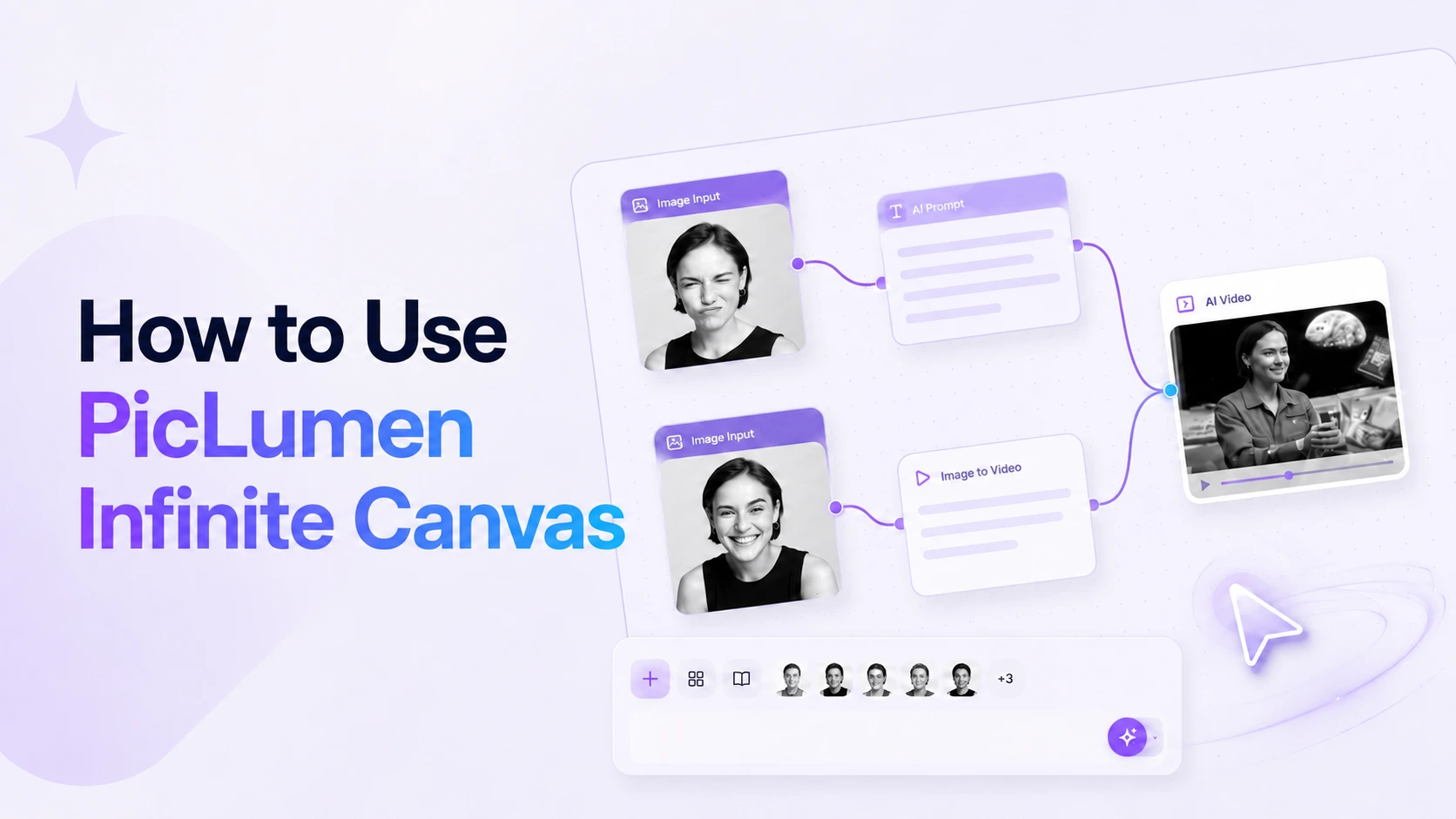
Creating an AI video usually takes more than one prompt. You may need a reference image, a storyboard, a video prompt, and several rounds of testing.
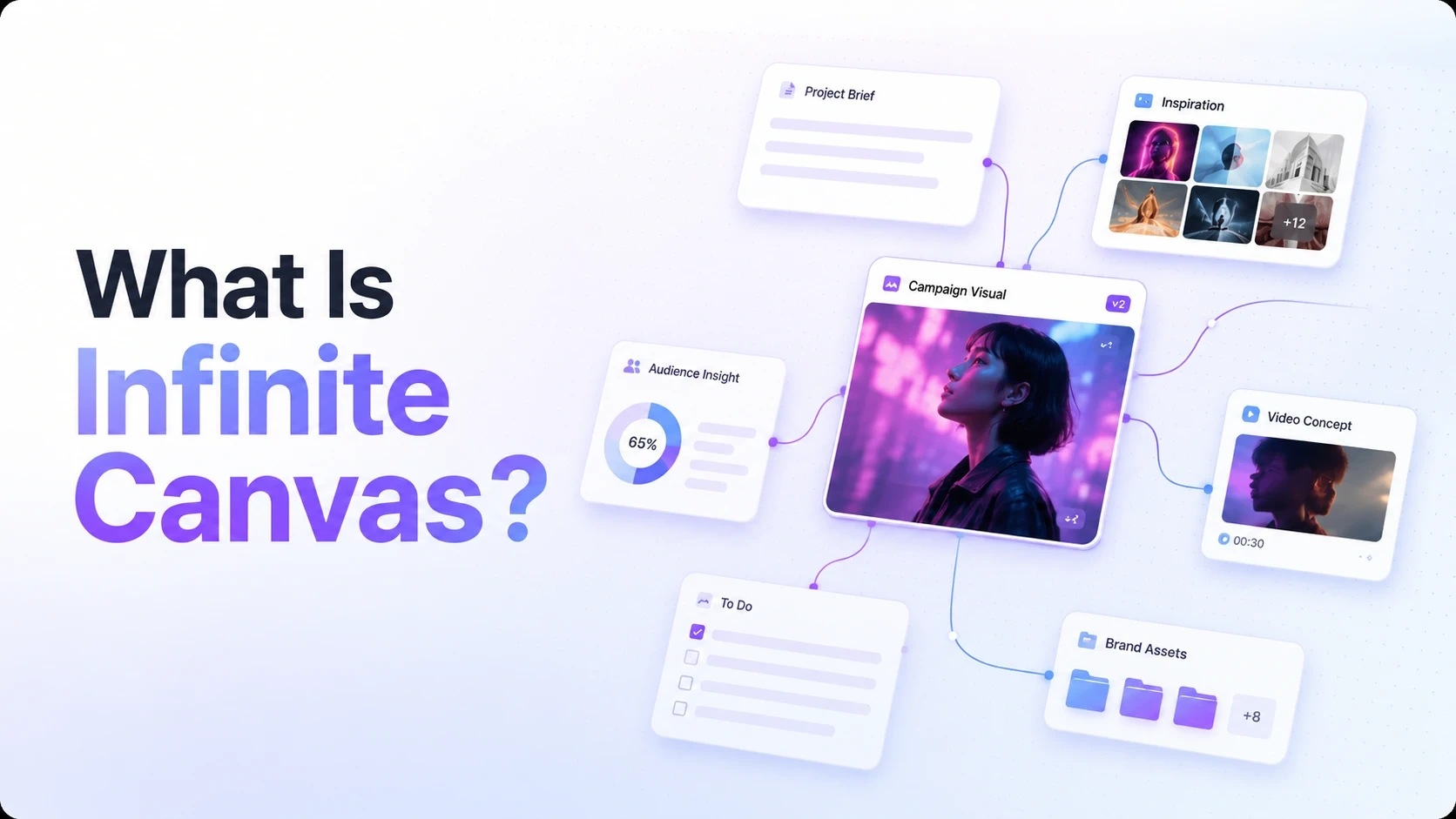
PicLumen keeps these steps in one open workspace. You can upload media, generate images, write prompts, create videos, and continue from any result without losing the earlier stages of your workflow. Connections between nodes also show which inputs were used for each output.
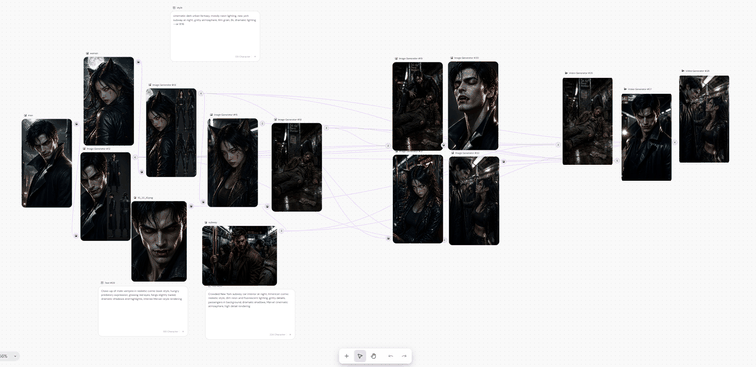
In this tutorial, we will turn a headphone product image into a short social media video:
Reference Image → Storyboard → AI Video
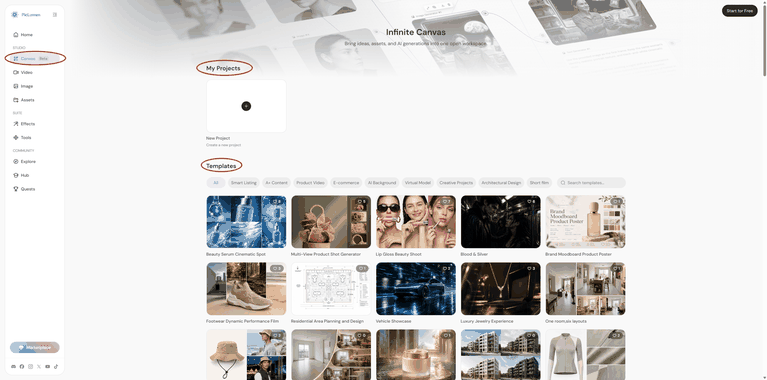
Start Creating with a Template or Blank Canvas
PicLumen Infinite Canvas provides templates for a range of commercial and creative projects. These cover areas such as e-commerce, product videos, AI backgrounds, virtual models, architectural design, creative content, and short films.
Choose a template that fits your project, then replace the sample images and prompts with your own content. This gives you a ready-made workflow without requiring you to arrange every step manually.
You can also select New Project and build the workflow from a blank canvas.
How to Create an AI Video with Infinite Canvas
Step 1: Add or Generate a Reference Image
Click the "+" button at the bottom of the canvas, or right-click anywhere on the canvas to upload an image.
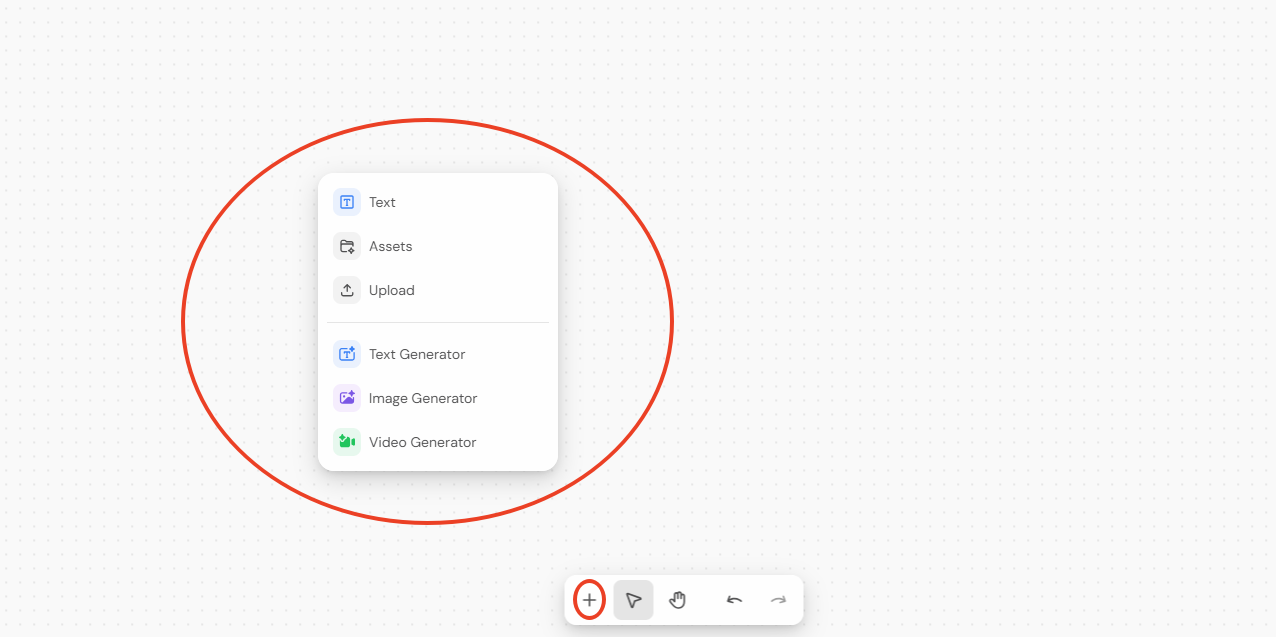
Use a clear image that shows the subject's main shape, colors, materials, and design details. A strong reference makes it easier to keep the product consistent in later generations.
If you do not have a suitable image, select Image Generator and create one directly on the canvas.
Enter a prompt, then choose your preferred:
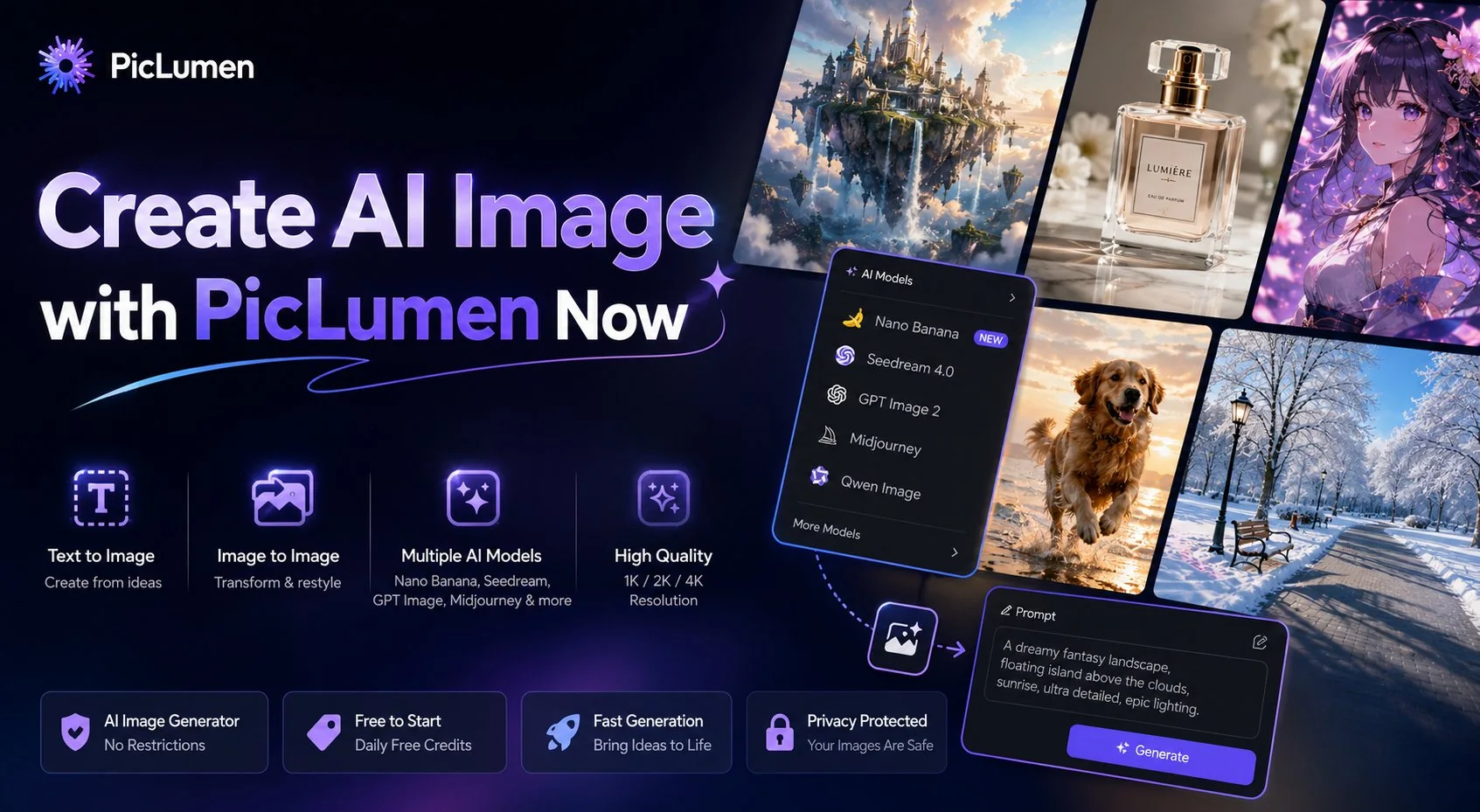
AI image model (Nano Banana 2, GPT Image 2.0, Midjourney V8.1, Seedream 5.0, etc.)
Aspect ratio (1:1, 4:5, 3:4, 2:3, 9:16, 21:9, etc.)
Resolution (1K, 2K, 3K, 4K)
Other available settings
PicLumen's Image Generator includes multiple image models and supports different ratios and resolutions up to 4K.
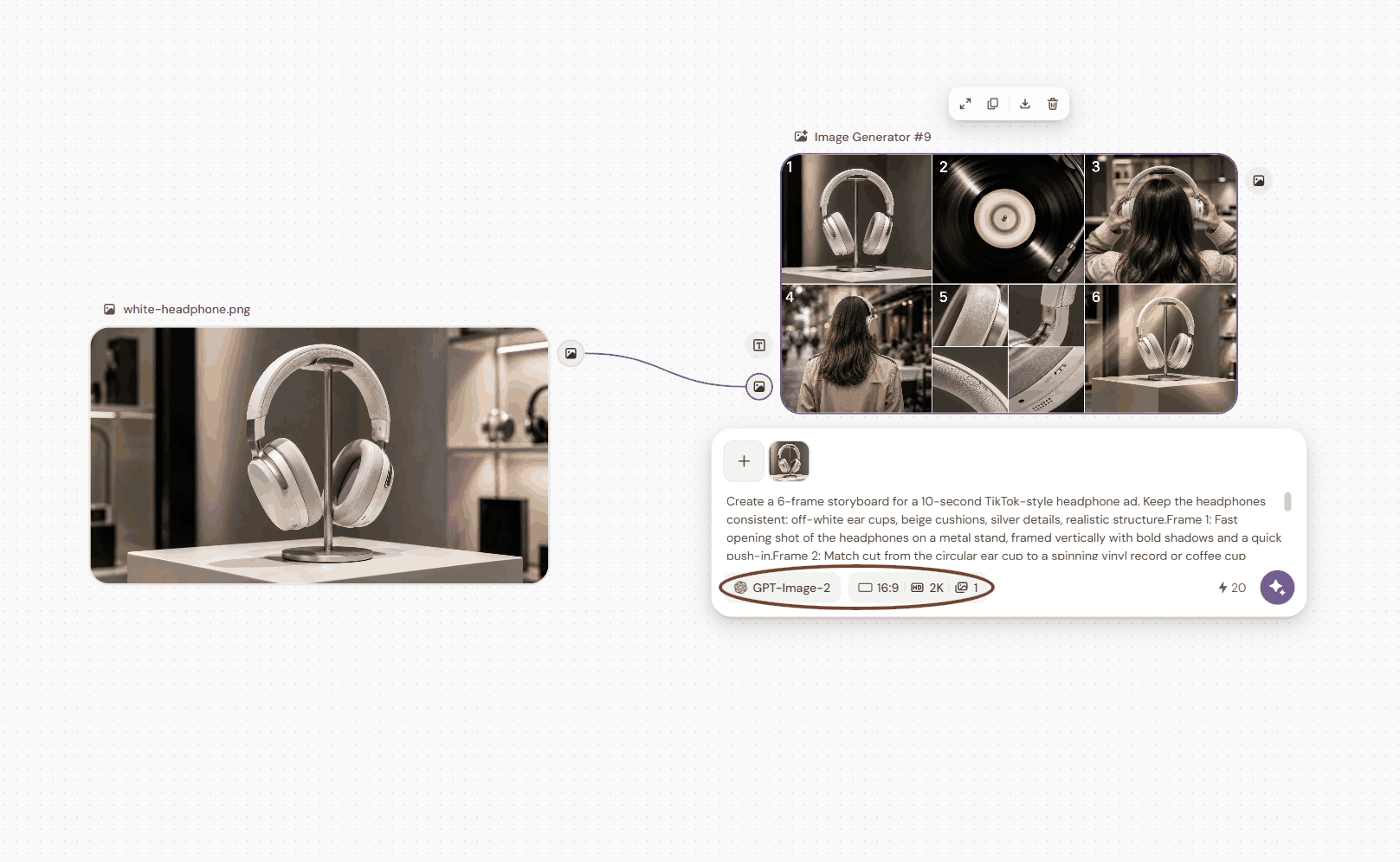
A simple prompt could be: A realistic product image of modern over-ear headphones with warm white ear cups, beige cushions, and silver metal details.
When you do not know how to structure the prompt, open Text Generator. Briefly describe the subject or scene you need, and it will turn your idea into a fuller prompt.
Keep the final reference image on the canvas so you can use it in the next step.
Step 2: Generate a Video Storyboard
Once the reference image is ready, click the image icon with a + in its upper-right corner and select Image Generator.
Enter a prompt describing the storyboard you want. Include the number of frames, intended video length, camera angles, visual style, transitions, and any details that must remain unchanged.
For example:
Create a six-frame storyboard for a short social media headphone ad. Keep the headphone design consistent. Use playful compositions, product close-ups, flowing sound waves, a cropped hand lifting the headphones, and a rear-view person wearing them. Make the visuals fashionable, slightly dreamy, and focused on immersive sound. Do not show a visible face.
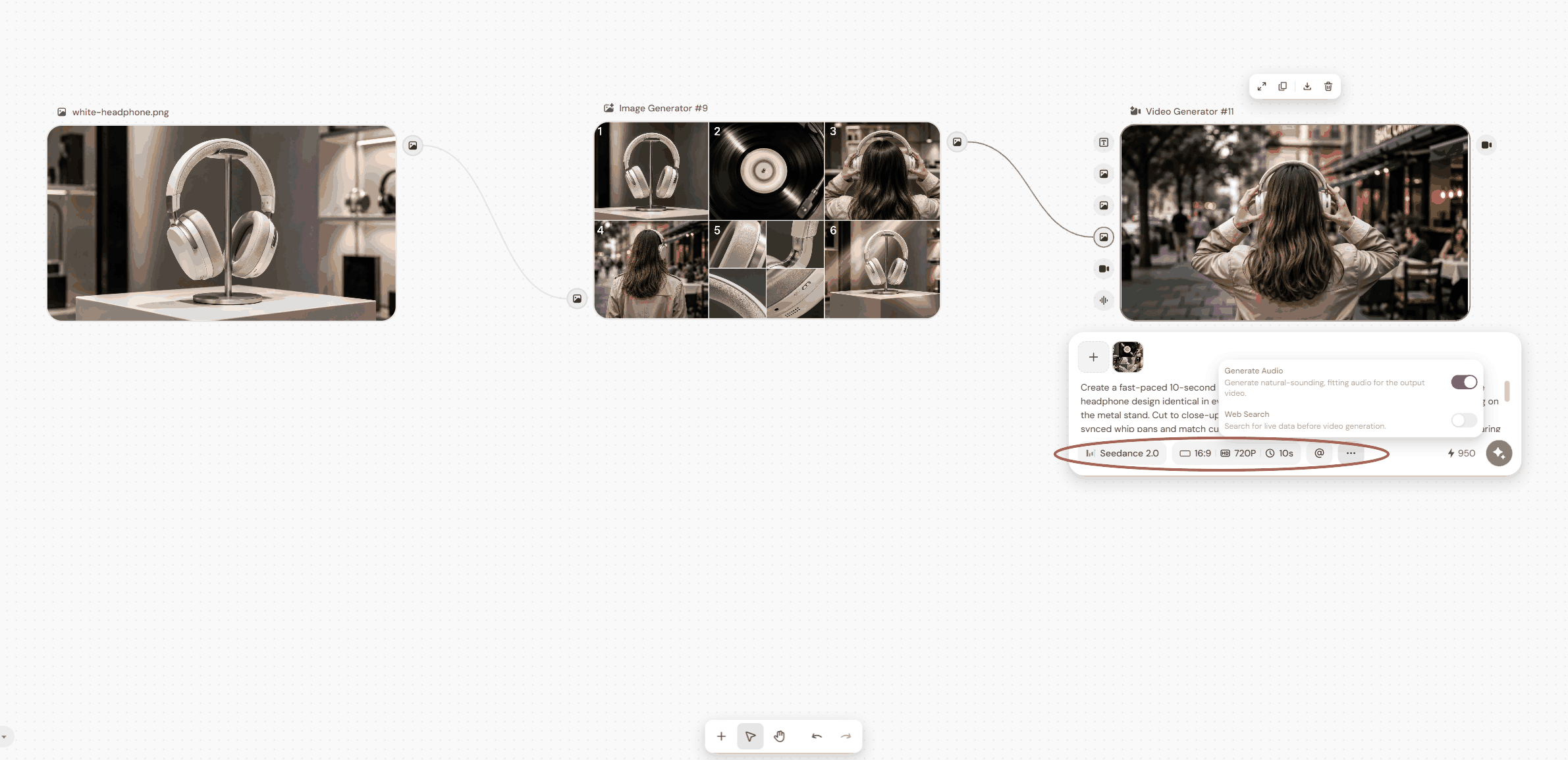
You can also use Text Generator to develop the storyboard prompt from a shorter idea, such as:
A 10-second social media headphone ad that highlights sound quality.
After generating the storyboard, check:
Whether the product design stays consistent
Whether each frame has a clear purpose
Whether the sequence feels connected
Whether the movements are physically possible
Whether the ratio suits the final platform
You do not need to delete an earlier result before trying another direction. Keep it on the canvas and branch from the same reference image. This makes it easier to compare variations and return to a stronger result later. PicLumen Infinite Canvas is designed to keep references, prompts, generated images, and videos visible throughout the workflow.
Step 3: Turn the Storyboard into an AI Video
Select the storyboard image and choose Video Generator.
Enter a final prompt explaining how the storyboard should move and how the shots should connect.
For example:
Create a fast-paced social media ad based on the storyboard. Keep the headphone design consistent. Show soft sound waves spreading from the ear cups, close-ups of the cushions and speaker housing, and a cropped hand lifting the headphones. Follow with a rear-view person wearing them as the environment becomes wider and more immersive. Use rhythmic cuts, smooth match transitions, and subtle speed ramps. End with a clean product hero shot. Do not show a visible face, text, logos, floating parts, or product deformation.
Next, choose the video model (such as Seedance 2.0, Wan 2.6), resolution (up to 4K), aspect ratio, duration (up to 15s), and other available settings.
Start the generation. Generation often takes a few minutes, depending on the selected model, duration, resolution, and current demand.
When the result is ready, check:
Product shape and color
Subject consistency
Hand and body movement
Camera motion
Shot transitions
Video pacing
Unexpected deformation
If something does not look right, adjust the video prompt or settings and generate another version from the same storyboard.
Try PicLumen Infinite Canvas Now
Why Use Infinite Canvas for This Workflow?
A single image-to-video prompt may be enough for a simple animation. A connected canvas workflow is more useful when you need to plan several shots, preserve a product design, compare results, or reuse the same reference across multiple versions.
Infinite Canvas supports prompts, text, uploads, assets, generated images, and generated videos as connected nodes. Generated results can stay visible and become inputs for the next stage.
Common workflows include:
Prompt → Image
Prompt → Image → Video
Upload → Prompt → Image → Video
Asset → Prompt → Image or Video
These workflows are useful for product ads, social media content, e-commerce visuals, character animation, and short-form videos.
Frequently Asked Questions
What is PicLumen Infinite Canvas?
PicLumen Infinite Canvas is an open workspace for building connected AI image and video workflows. It lets you keep prompts, uploaded media, existing assets, generated images, and videos on the same canvas.
Does Infinite Canvas provide templates?
Yes. PicLumen provides templates for different commercial and creative workflows, including product content, e-commerce, AI backgrounds, virtual models, architecture, creative projects, and short films.
You can also start with a blank project when you need a custom workflow.
Can I generate a reference image inside Infinite Canvas?
Yes. Add an Image Generator node, enter a prompt, and choose an image model, resolution, and aspect ratio. The generated image can then become the input for your storyboard.
Can Text Generator help me write prompts?
Yes. Give Text Generator a simple description of the subject or result you want. It can expand the idea into a more detailed prompt for an image, storyboard, or video.
Can I use different image and video models?
Yes. PicLumen supports multiple image and video models. You can select a model for each generation stage and compare different results on the same canvas.
Can I make vertical videos for TikTok or Reels?
Yes. Select a 9:16 aspect ratio for the reference image, storyboard, and final video. Using the same ratio throughout the workflow helps keep the framing consistent.