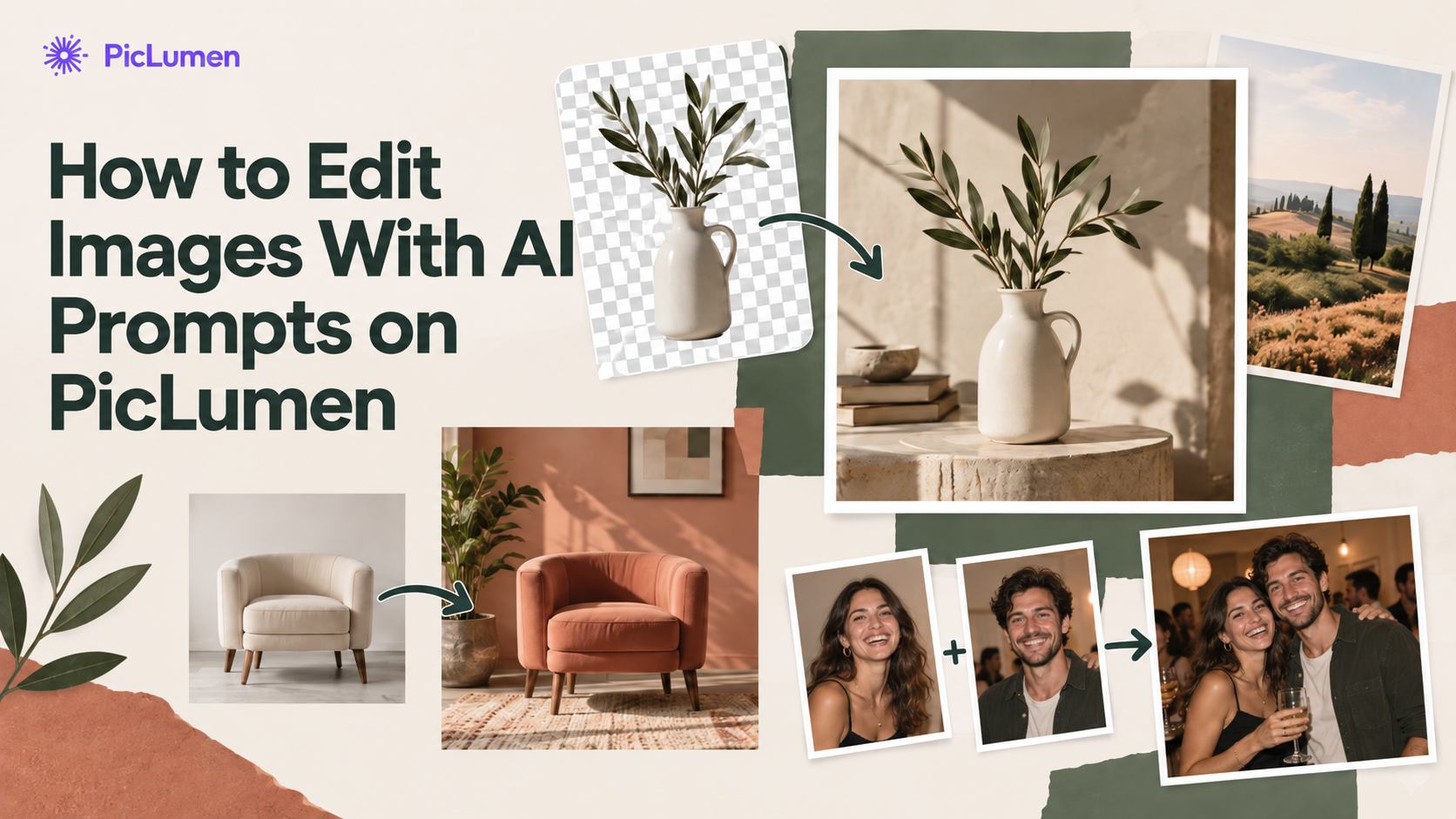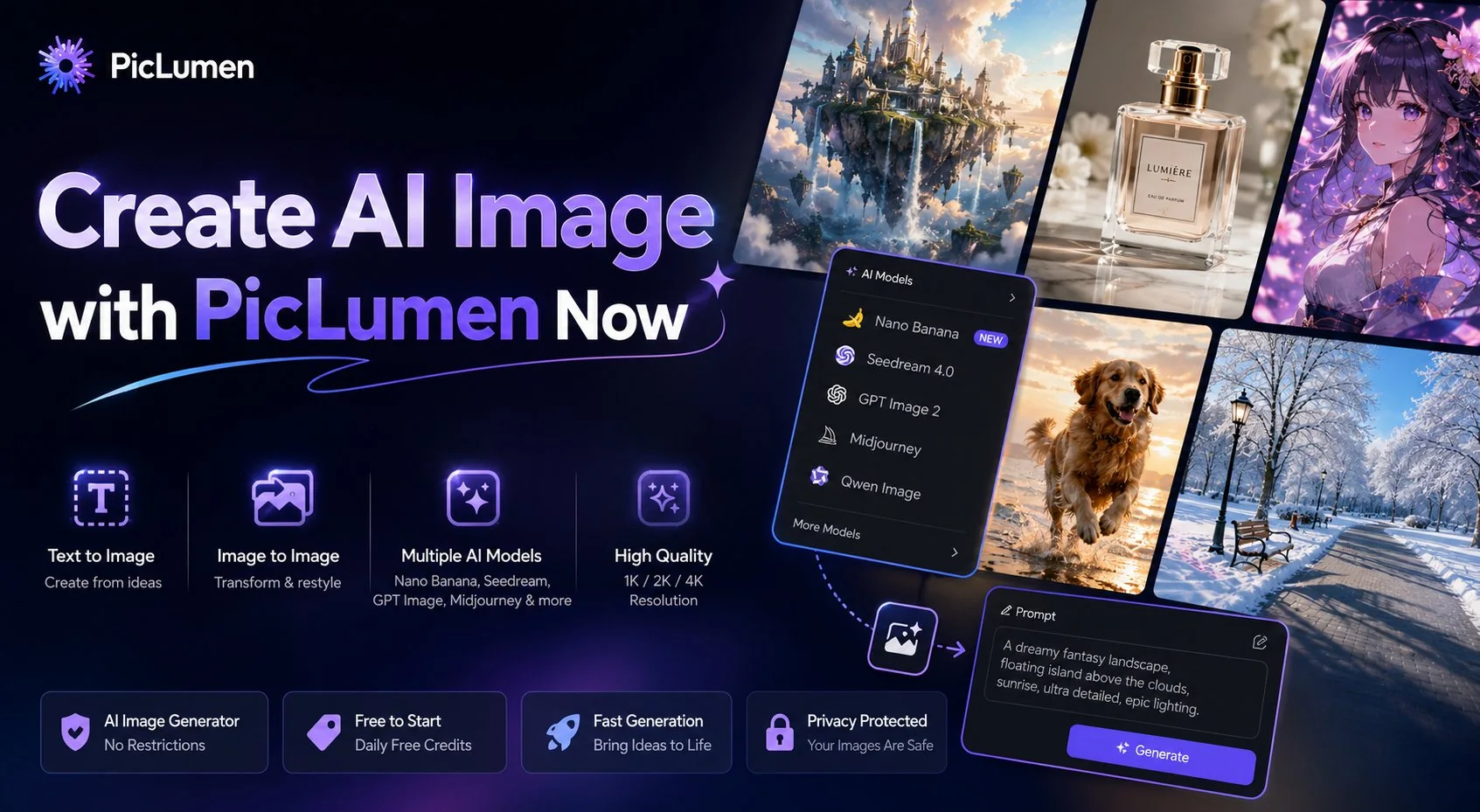
An AI Image Generator turns text descriptions or existing images into new visuals using AI. With PicLumen, you can create images from text prompts (Text to Image) or transform uploaded pictures into new styles and variations (Image to Image). PicLumen supports multiple leading models, including Nano Banana, Seedream, GPT Image, Midjourney, Qwen, and more, making it easy to generate artwork, realistic photos, illustrations, and creative designs. In this tutorial, you'll learn how to use both generation modes, choose the right model, write effective prompts, and create high-quality AI images step by step.
What Is PicLumen AI Image Generator?
PicLumen AI Image Generator lets you create images in two ways. You can start with a text prompt or upload an existing image as a reference. Choose the mode that best fits your creative needs.
Feature | Text to Image | Image to Image |
Input | A text prompt | An uploaded image + a text prompt |
Best for | Creating a new image from scratch | Editing or restyling an existing image |
How it works | AI generates an image based on your description | AI keeps the original image as a reference and applies your requested changes |
Common uses | AI art, illustrations, characters, product images, landscapes | Style transfer, background replacement, color changes, image enhancement, creative variations |
Need to upload an image? | No | Yes |
Choose Text to Image if you have an idea but no image.
Choose Image to Image if you already have an image and want to transform it.
How to Use Text to Image on PicLumen
Follow these steps to create an AI image from a text prompt in PicLumen.
Step 1. Open Text to Image
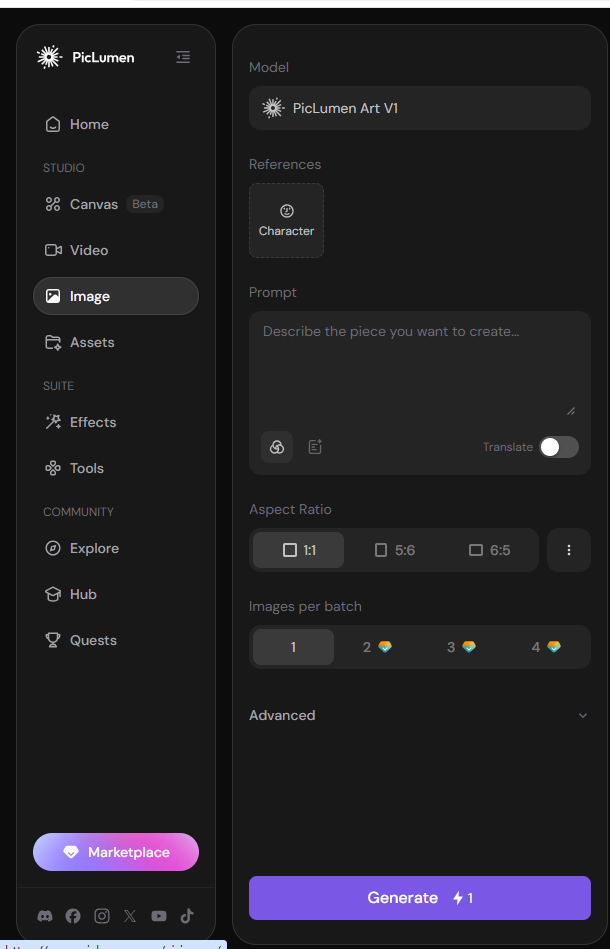
From the left sidebar, click Image to open the AI Image Generator.
Step 2. Choose an AI Model
Click Model and select the AI model you want to use.
PicLumen offers multiple image models for different styles and creative needs. You can choose from models such as GPT-Image-2, Nano Banana, Seedream, Midjourney, and more.
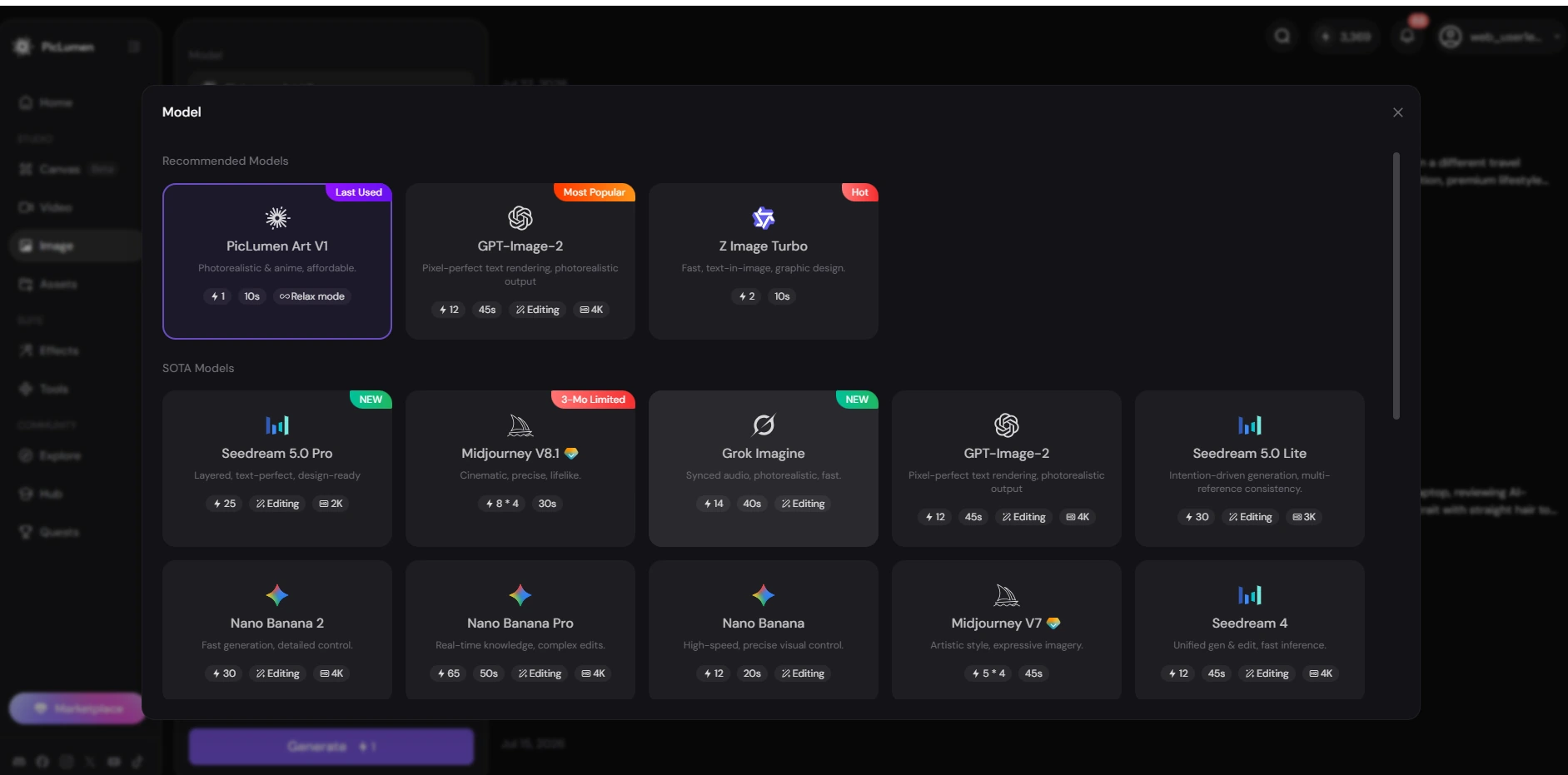
Tip: Different models are designed for different image styles and creative tasks. If you're not sure which model to choose, start with the default option and try other models to compare the results.
Step 3. Write Your Prompt
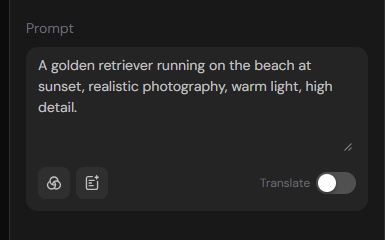
Enter a description of the image you want to create. A clear prompt usually produces better results. Include details like the subject, style, lighting, colors, or background.
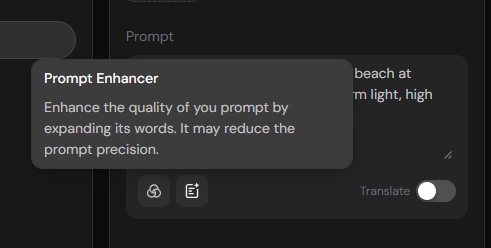
You can also turn on Prompt Enhancer to improve your prompt before generating the image.
Example Prompt
A golden retriever running on the beach at sunset, realistic photography, warm light, great detail.
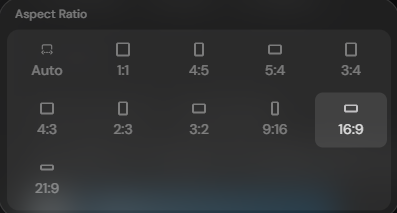
Then you can select an Aspect Ratio that fits your project.
Common options include:
1:1 – Social media posts
4:5 – Instagram posts and portraits
16:9 – YouTube thumbnails and presentations
9:16 – TikTok, Reels, and Shorts
21:9 – Wide banners and cinematic scenes
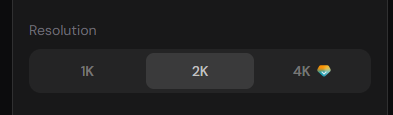
Select the output resolution for your image.
1K – Faster generation
2K – Balanced quality and speed
4K – Higher image quality
Step 4. Generate Your Image
Click Generate to create your image.
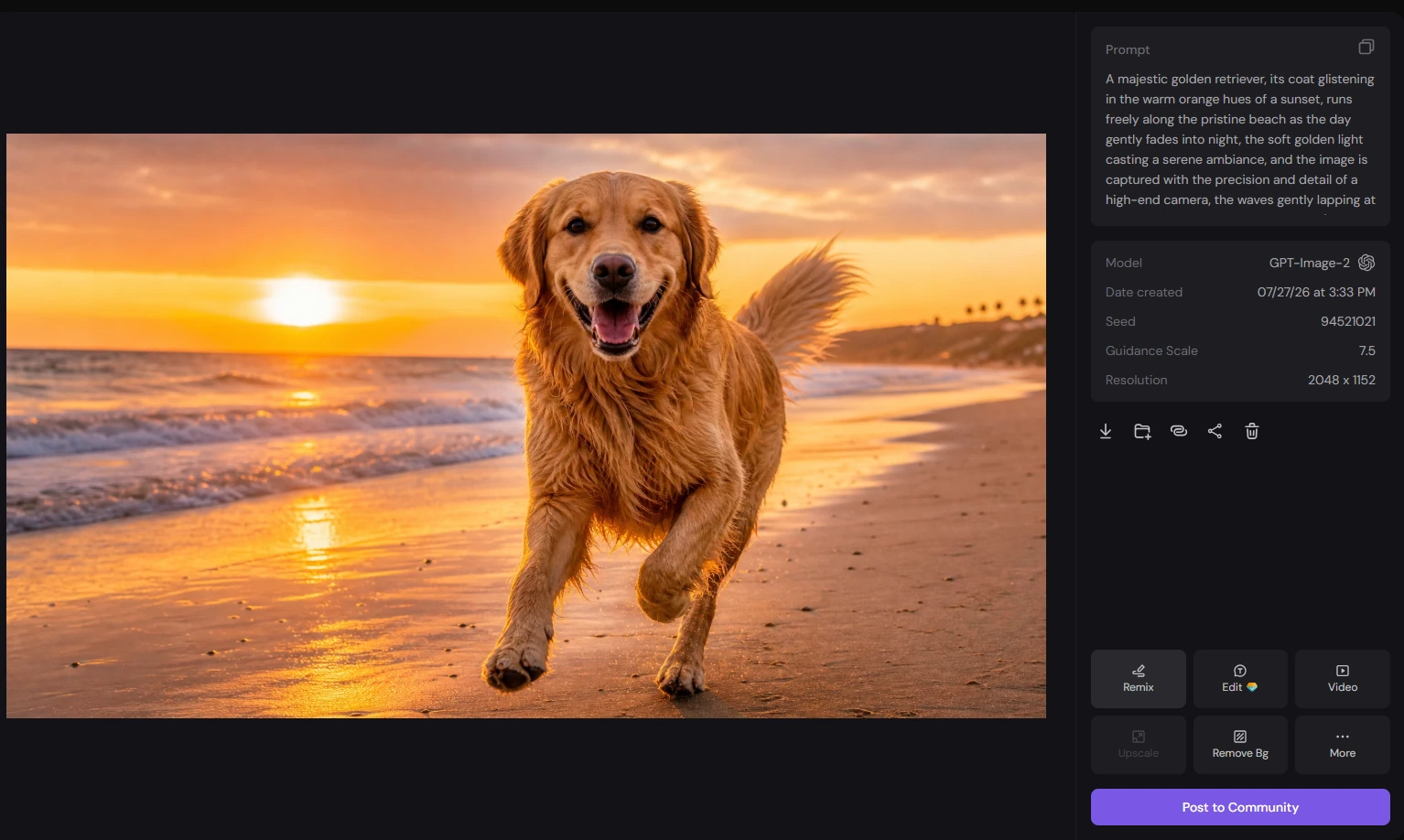
After the image is generated, you can preview it and use the built-in tools to continue editing or create more variations.
Feature | What it does |
Remix | Generate new variations based on the current image. |
Edit | Open the image editor to modify or refine your image. |
Video | Turn your image into an AI-generated video. |
Remove the image background with one click. | |
More → Add to Canvas | Open the image in Canvas for further editing. |
More → Describe | Generate a text prompt based on the current image. |
Post to Community | Publish your image to the PicLumen Community. |
PicLumen Text to Image Examples for Different Styles
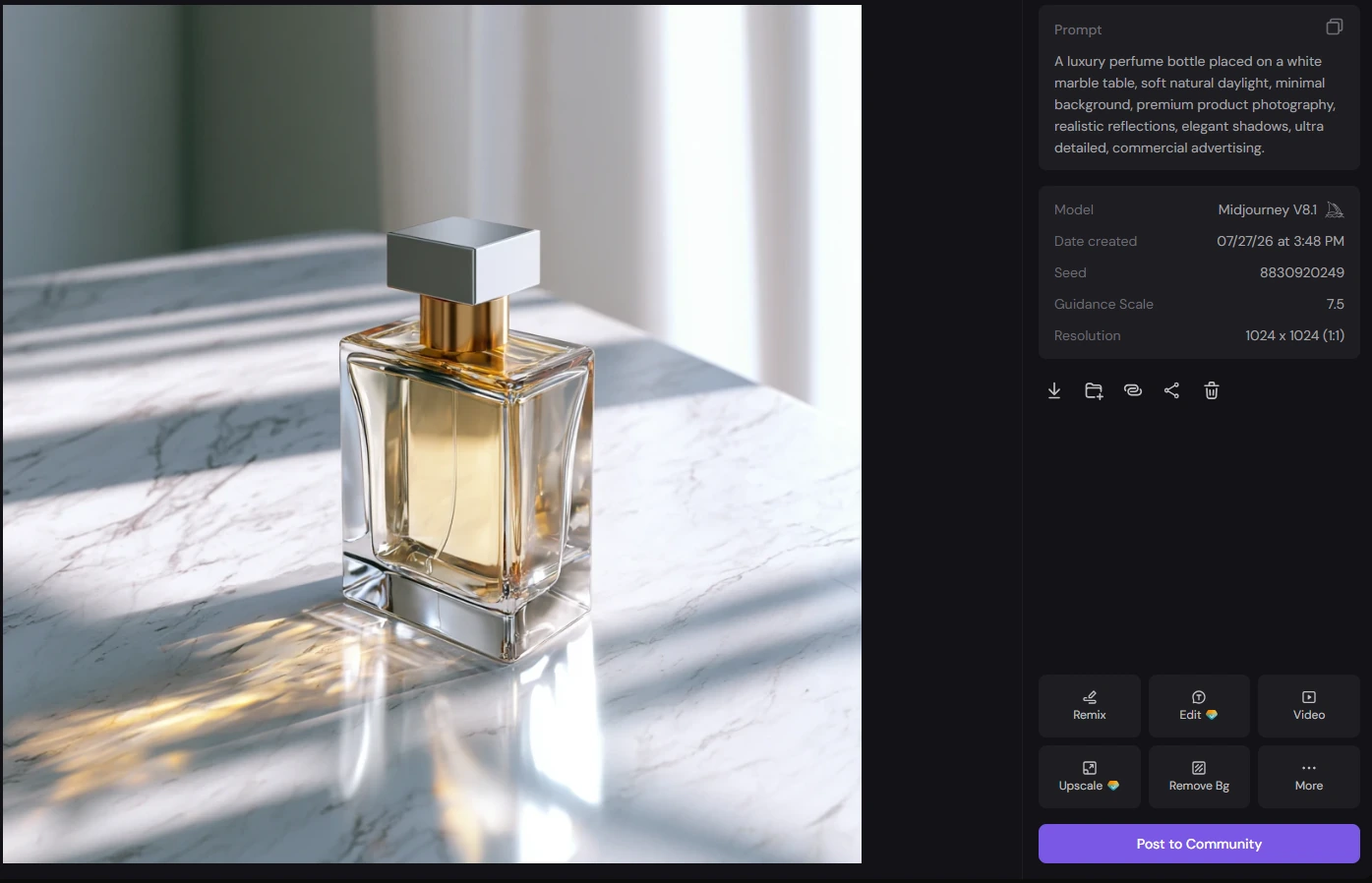
Example 1. Minimalist Product Photography
Prompt Used
A luxury perfume bottle placed on a white marble table, soft natural daylight, minimal background, premium product photography, realistic reflections, elegant shadows, ultra detailed, commercial advertising.
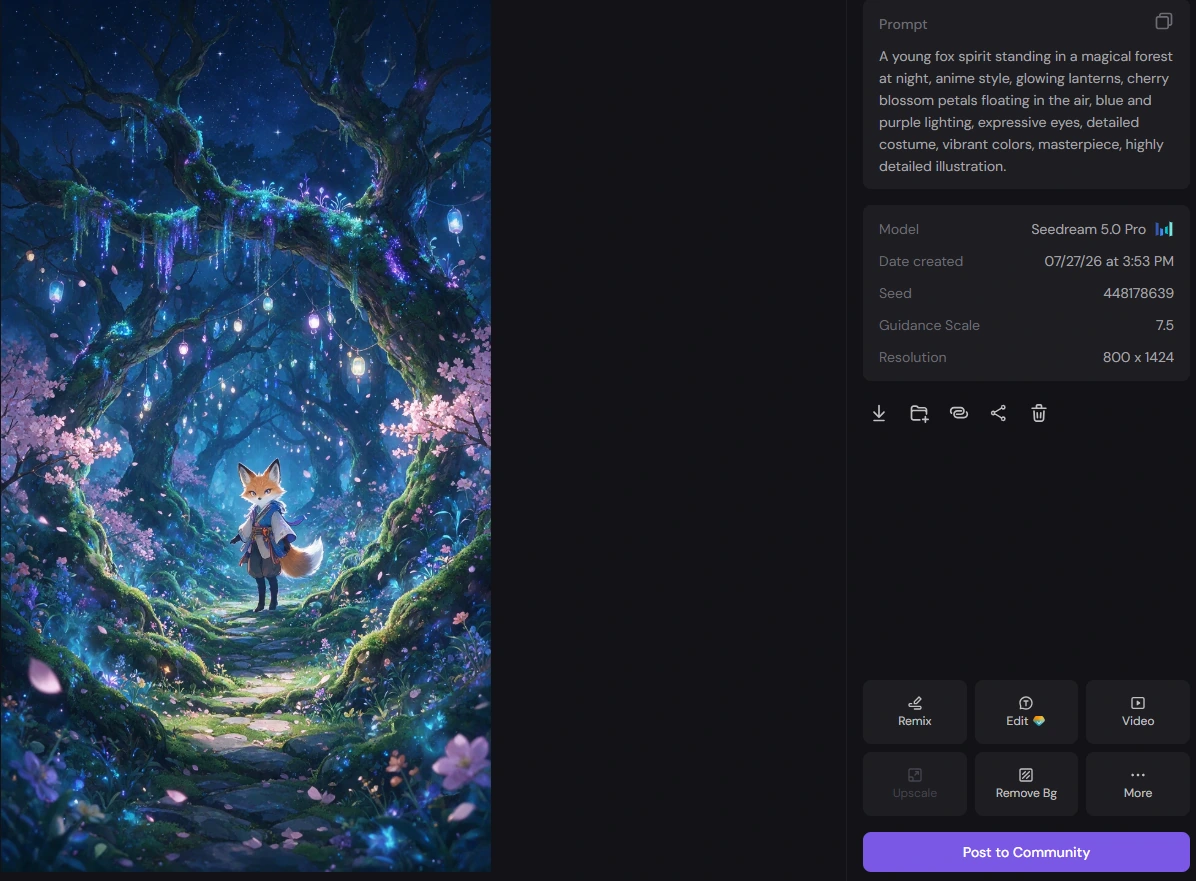
Example 2. Anime Fantasy Character
Prompt Used
A young fox spirit standing in a magical forest at night, anime style, glowing lanterns, cherry blossom petals floating in the air, blue and purple lighting, expressive eyes, detailed costume, vibrant colors, masterpiece, highly detailed illustration.
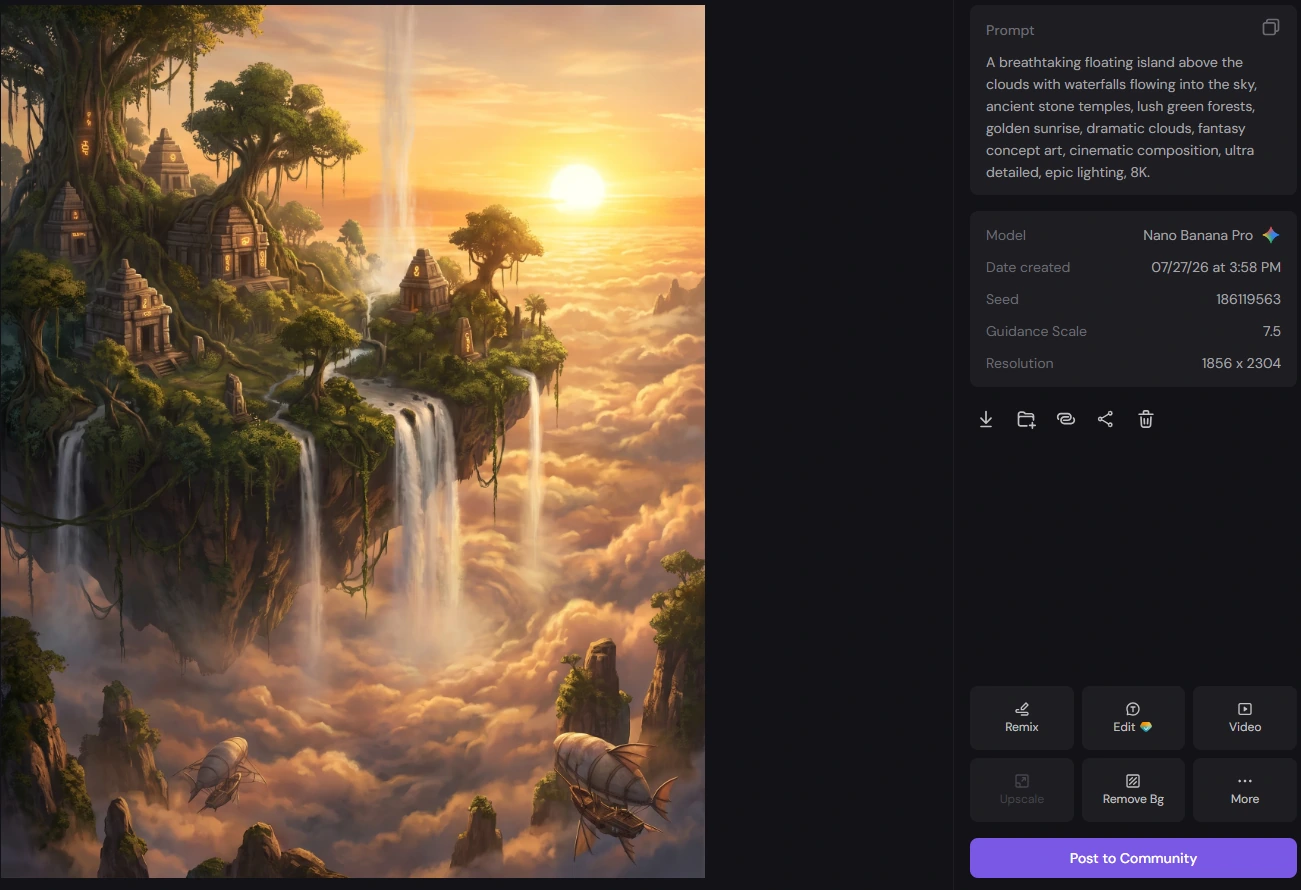
Example 3. Fantasy Floating Island
Prompt Used
A breathtaking floating island above the clouds with waterfalls flowing into the sky, ancient stone temples, lush green forests, golden sunrise, dramatic clouds, fantasy concept art, cinematic composition, ultra detailed, epic lighting, 8K.
Create AI Image with PicLumen Now
How to Use PicLumen Image to Image Generator
Image to Image follows the same workflow as Text to Image, with one extra step: upload a reference image before generating.
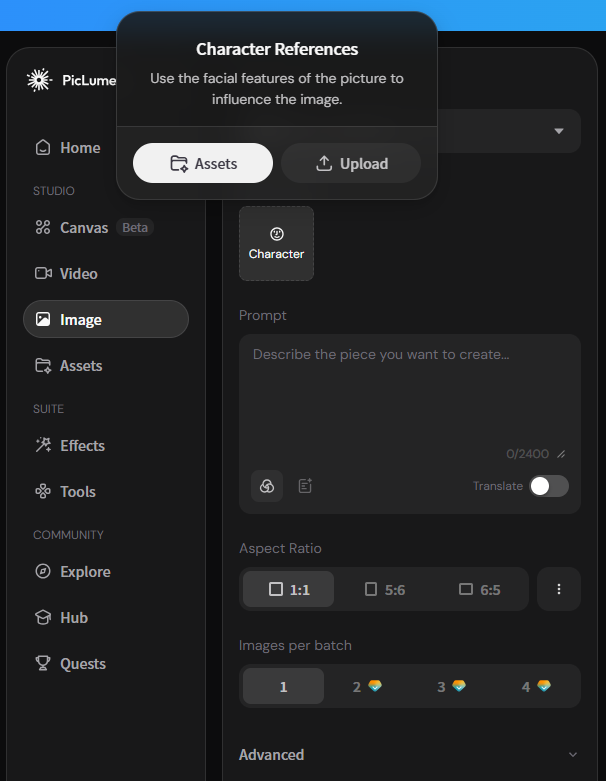
Step 1. Add a Reference Image
Click the Image reference box, then choose one of the following options:
Assets – Select an image from your PicLumen Assets.
Upload – Upload an image from your device.
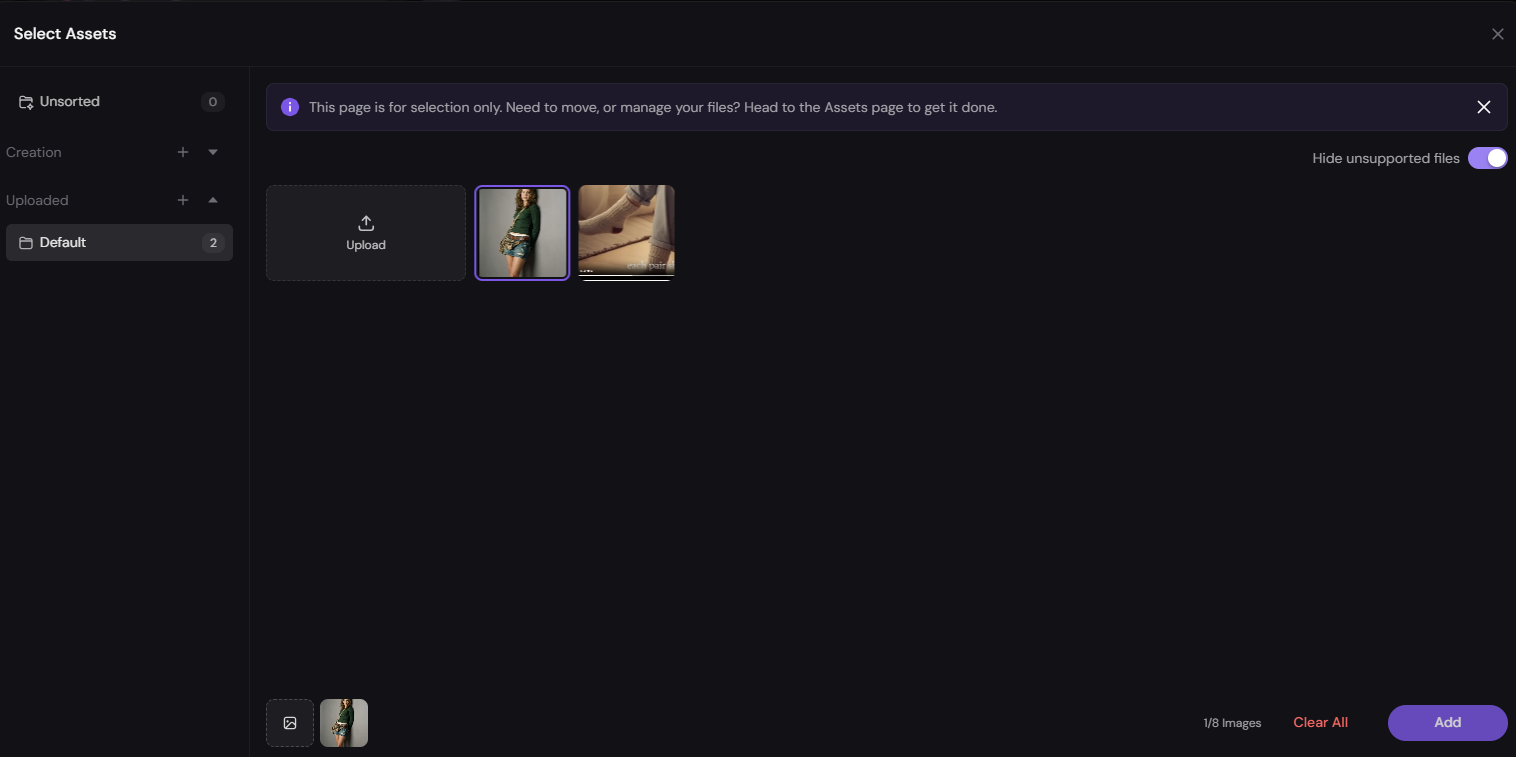
Step 2. Select Your Image
Choose the image you want to use as a reference, then click Add.
The selected image will appear in the References section.
Step 3. Continue with the Text to Image Workflow
After adding your reference image, follow the same steps as Text to Image:
Choose an AI model.
Enter your prompt to describe the changes.
Select the aspect ratio, resolution, and other settings.
Click Generate to create your new image.
Tip: The reference image provides the visual base, while your prompt tells the AI what to change or preserve.
PicLumen Image to Image Examples for Different Purposes
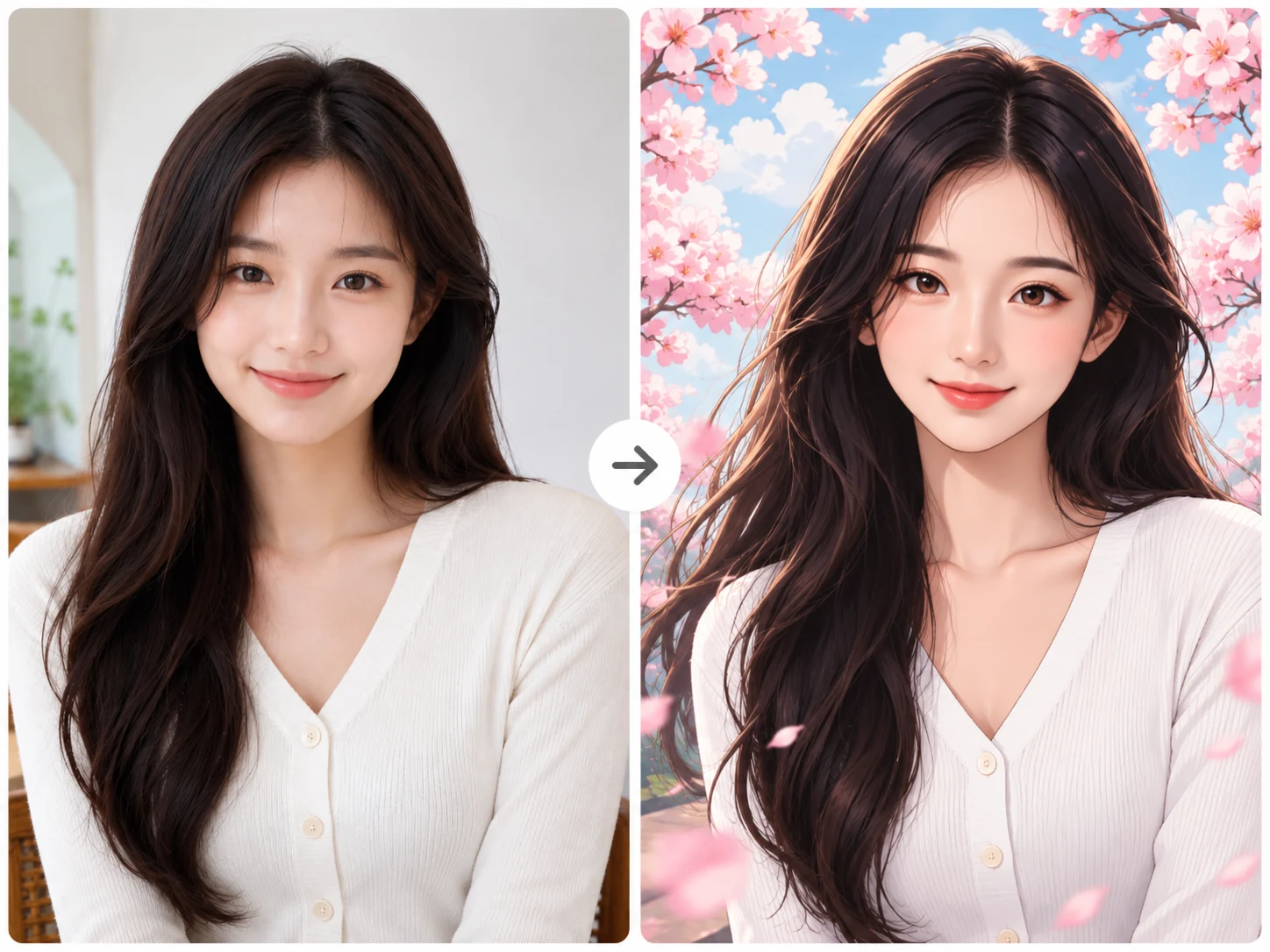
Example 1. Turn a Portrait into an Anime Illustration
Prompt Used
Transform this portrait into a vibrant anime illustration. Keep the same facial features, hairstyle, pose, and composition. Add expressive anime eyes, soft cel shading, colorful lighting, and a dreamy cherry blossom background. High-quality Japanese anime style.
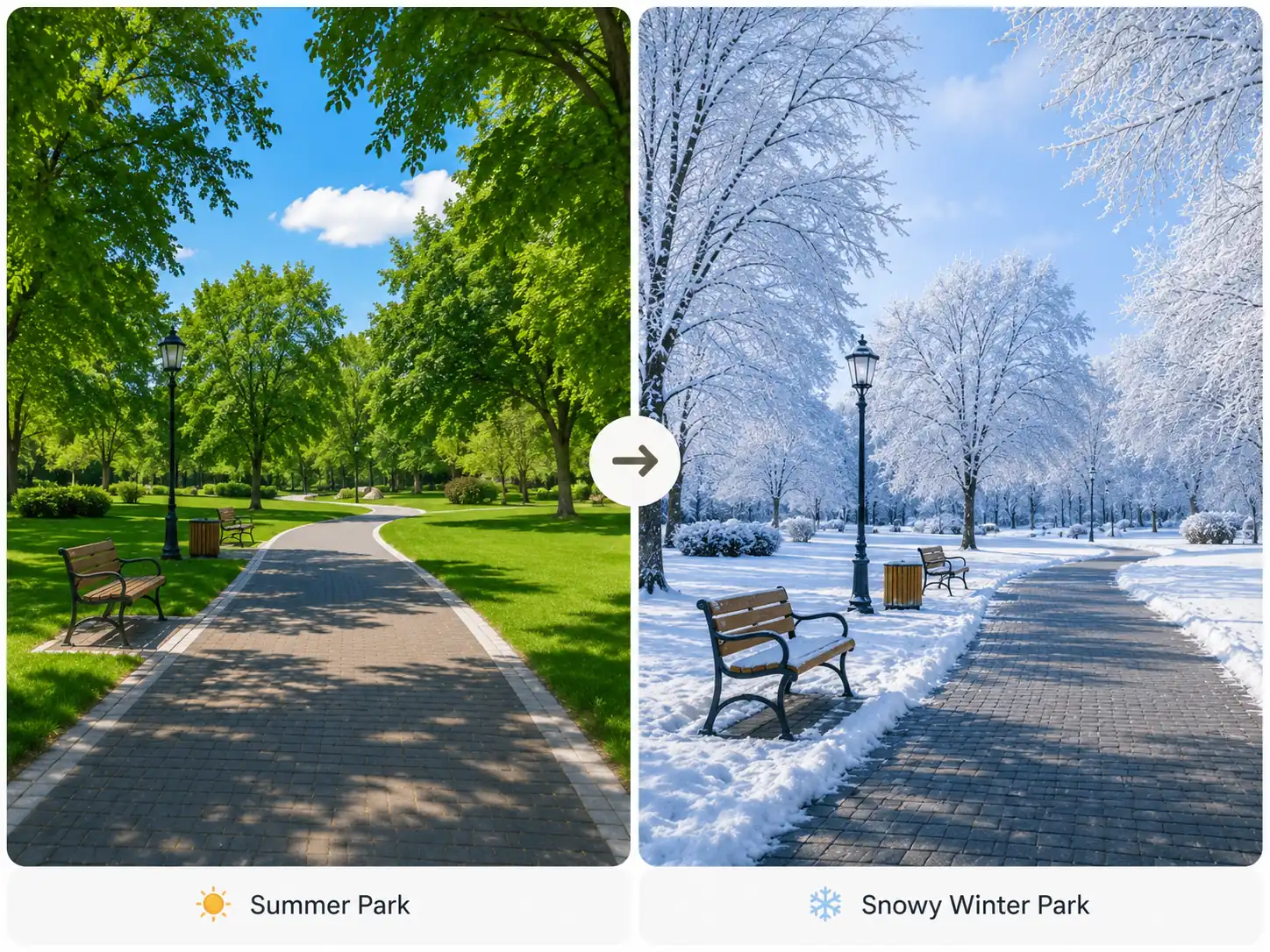
Example 2. Season Change
Prompt Used
Transform this image into a snowy winter park. Keep the same composition and perspective. Replace the green grass and trees with snow-covered landscapes, add frost, soft winter light, and a peaceful seasonal atmosphere. Preserve the original layout and create a realistic winter scene.
FAQ
How to create AI images on PicLumen?
Use PicLumen text-to-AI image generator. Simply enter a prompt, choose a model and aspect ratio, then click Generate.
Is there an AI tool to increase image quality?
Yes. Many AI tools include an AI upscaler to improve image quality. PicLumen AI image-to-image generators also enhance images while keeping the original content.
How to tell if an image is AI-generated?
Look for unusual details like extra fingers, strange text, or unrealistic lighting. You can also use an AI image detection tool for a better check.
Can PicLumen generate images for free?
Yes. PicLumen is free to start and free to use, with 10 free Lumens provided every day. You can create AI images using your daily Lumens. For more generations or heavier creative needs, you can upgrade to a subscription plan or purchase extra Lumens anytime.
How to write a good AI image prompt?
Be clear and specific. Describe the subject, style, lighting, colors, background, and camera angle. The more details you give, the better your AI image will look.
What is currently the best image generator?
There isn't one best tool for everyone. The best AI to generate images depends on your needs. If you're looking for an easy-to-use platform with multiple AI models, PicLumen is a great choice for both text-to-image and image-to-image creation.