AI Video Generator makes it easy to create videos from simple text descriptions or existing images. Whether you want to turn an idea into a short cinematic clip or bring a static image to life, AI-powered video generation can help you create engaging visual content in just a few steps.
With Text to Video, you can generate a video by describing your idea with a prompt. With Image to Video, you can animate an existing image while keeping the original visual style and composition.
In this guide, you will learn how to use PicLumen AI Video Generator step by step, including how to choose the right generation mode, select an AI model, write effective prompts, and create high-quality AI videos.
Text to Video vs Image to Video
AI Video Generator supports two main creation modes: Text to Video and Image to Video. Choose the mode that best fits your starting point and creative goal.
Feature | Text to Video | Image to Video |
Input | A text prompt describing your idea | An uploaded image with an optional prompt |
Best for | Creating new scenes from scratch | Adding motion to existing images |
Creative Control | Control the scene through detailed descriptions | Preserve the original image while adding movement |
Recommended Use Cases | Storytelling, concept videos, marketing content, creative experiments | Character animation, product showcases, image-based storytelling |
How to Use PicLumen AI Video Generator
Text to Video
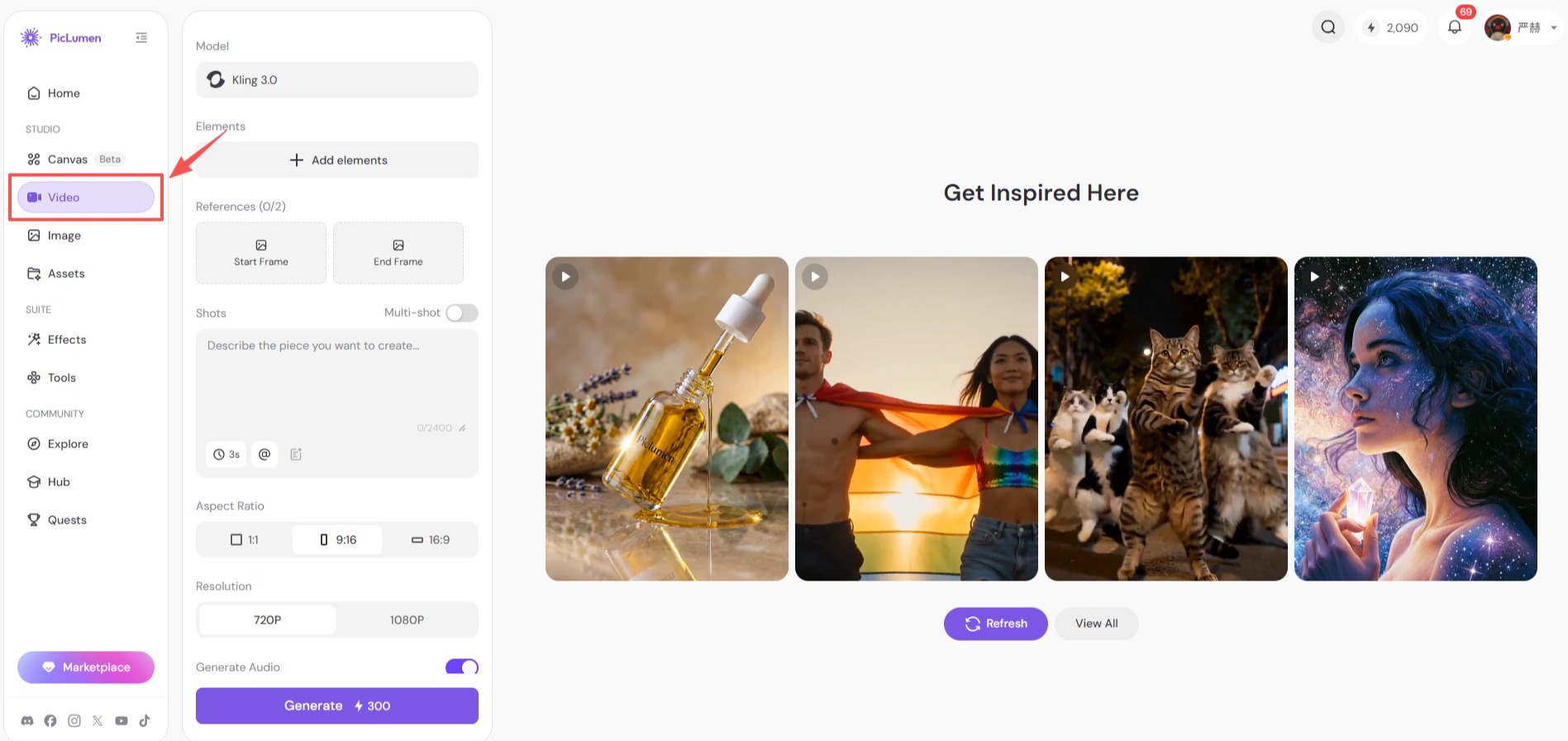
Step 1 Open PicLumen AI video generator.
Start by opening PicLumen AI Video Generator and selecting the video creation workspace. You can access all available video generation tools from this page.
Step 2 Choose a Model.
Select an AI video model based on your creative needs. Different models may offer different strengths, such as realistic motion, cinematic quality, generation speed, or additional features.
These are models available on PicLumen.
Model Series | Available Models |
Vidu | Vidu Q3 Pro, Vidu Q3 Turbo |
Seedance | Seedance 2.0, Seedance 2.0 Fast, Seedance 1.5 Pro, Seedance |
Kling | Kling 3.0, Kling 3.0 Motion Control, Kling 2.6, Kling 2.6 Motion Control, Kling 2.1 |
Grok | |
Sora | Sora 2 |
Veo | Veo 3.1 |
Hailuo | Hailuo 2.3 |
HappyHorse | HappyHorse 1.0 |
Wan | Wan 2.6 |
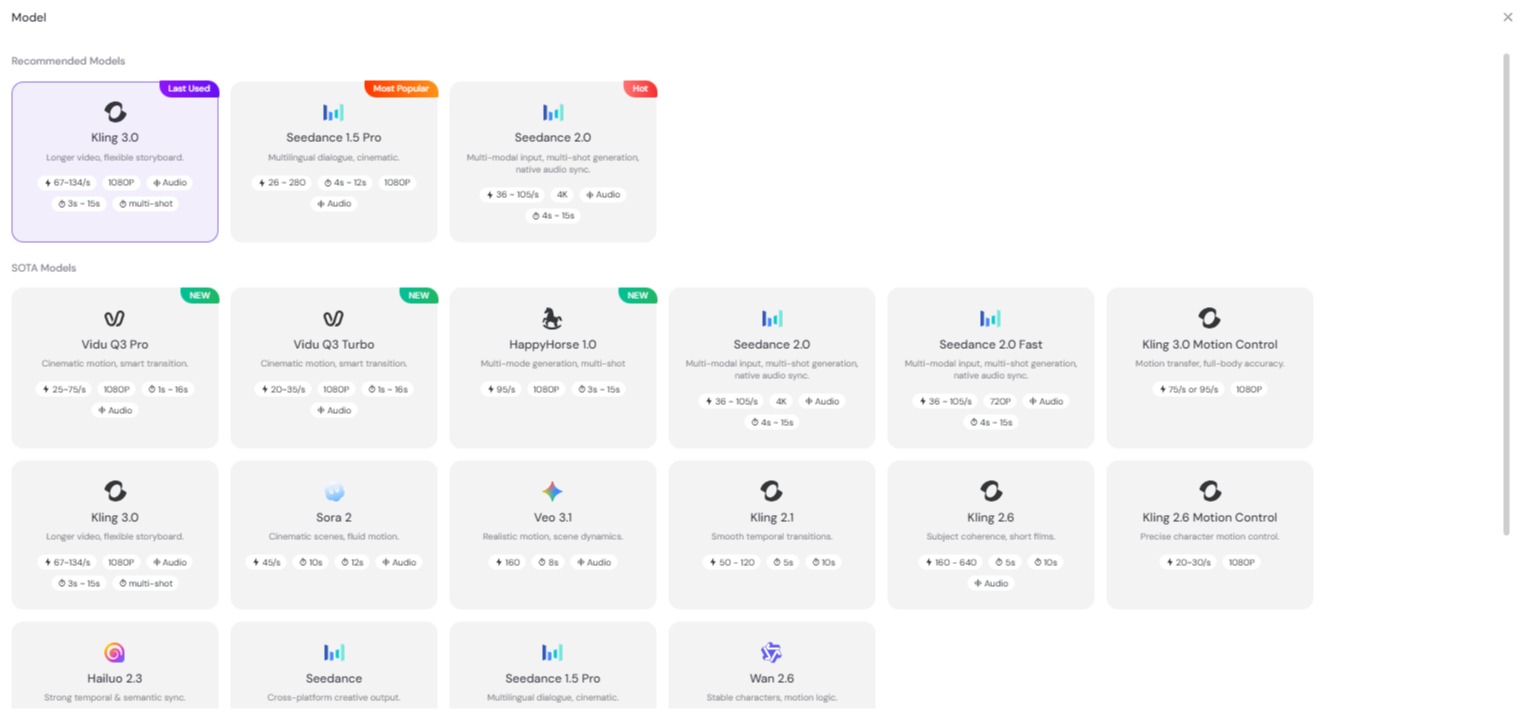
Tip: Some models support advanced features such as Video to Video, Motion Control, or Audio to Video. Check the model description before generating your video.
Step 3 Enter the Prompt and Adjust Video Settings
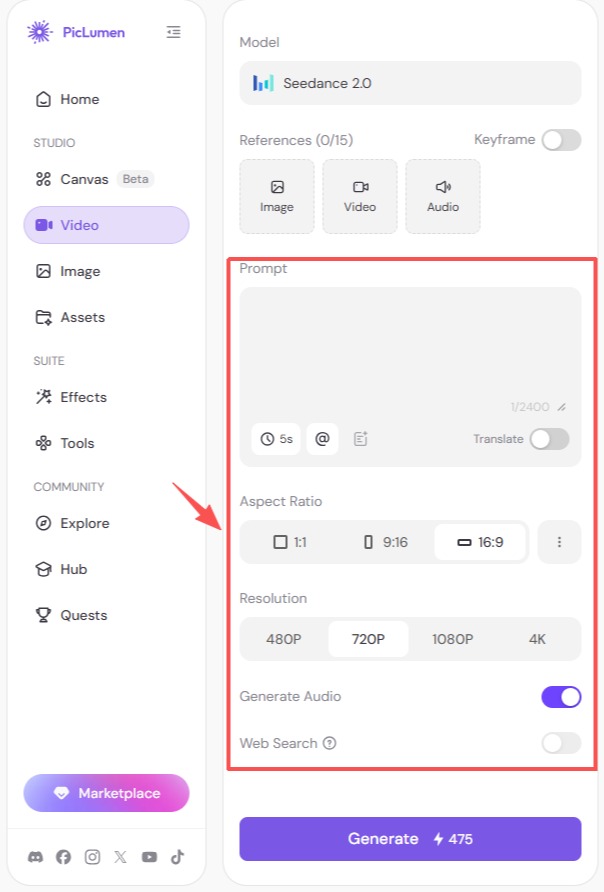
Enter a detailed prompt describing the video you want to create. For better results, include the subject, action, camera movement, lighting, and visual style.
You can also customize available video settings, such as aspect ratio, duration, or resolution, depending on the selected model.
Step 4 Generate Your Video
Click the Generate button to start creating your video. The generation time may vary depending on the selected model, video settings, and current processing demand.
Once completed, you can preview the result and download your generated video.
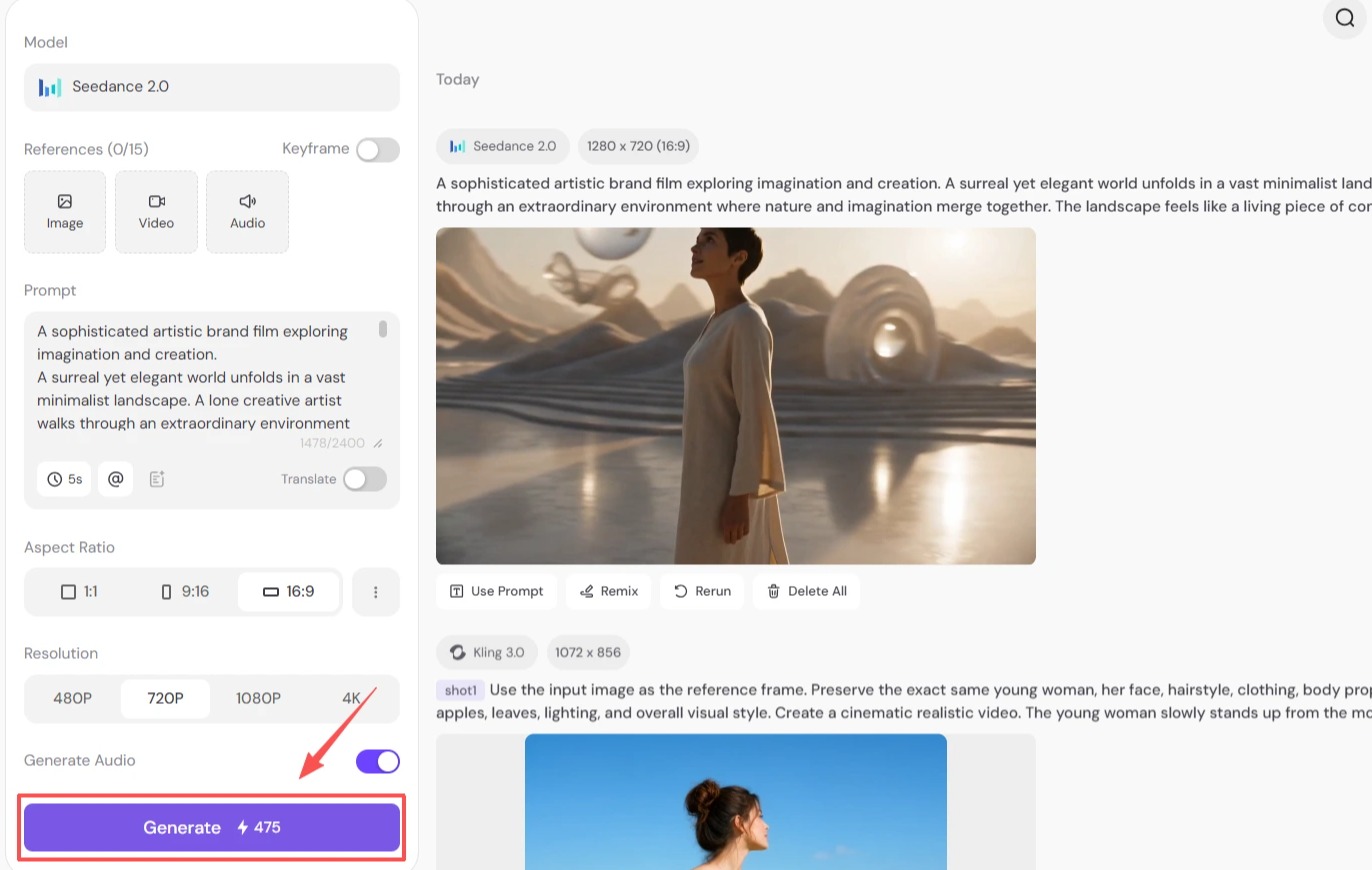
Image to Video
Step 1 Open PicLumen AI Video Generator.
Open PicLumen AI Video Generator and access the video creation workspace.
Step 2 Choose a Model
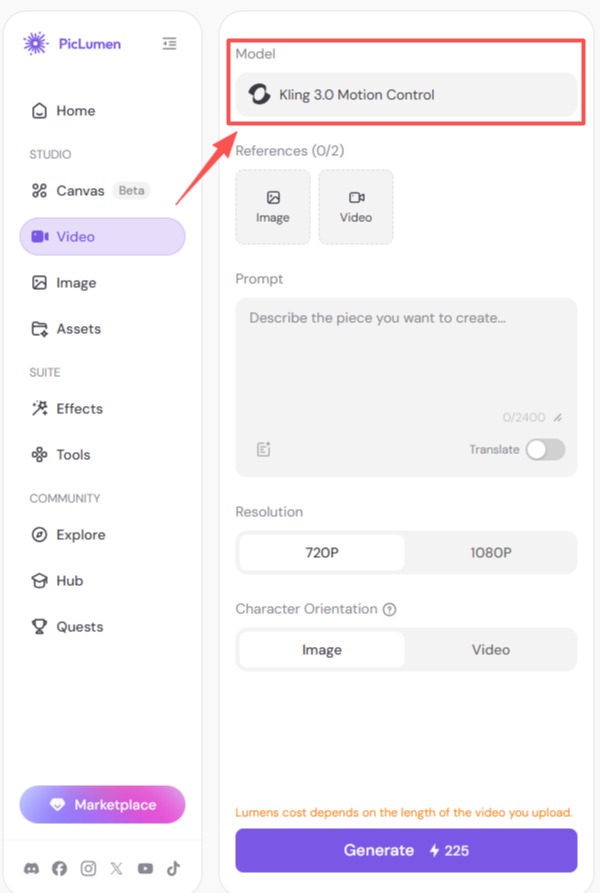
Choose an image-to-video compatible model based on your desired style and motion effects.
Some models are optimized for realistic animation, while others provide stronger creative effects or advanced motion control capabilities.
Step 3 Upload Your Reference Photo
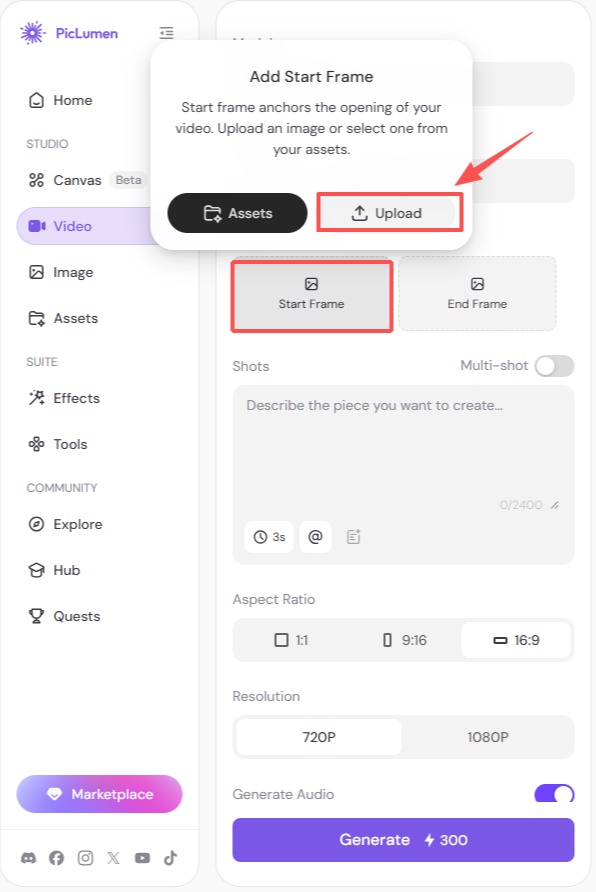
Upload the reference image. The AI will use the uploaded image as the visual reference and preserve important elements such as the subject, composition, and overall style.
For supported models, you can also upload a starting frame and an ending frame to define how the video should begin and end. This gives you more control over the camera movement and overall visual progression.
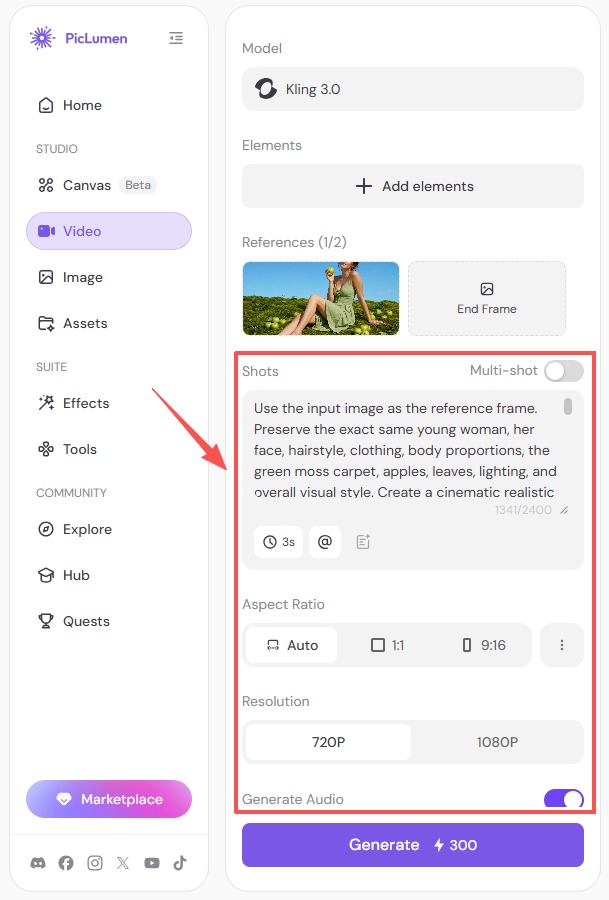
Step 4 Enter Your Prompt and Adjust Video Settings
Describe the motion and visual effects you want to add to your image. For better results, focus on elements such as subject movement, camera motion, and the overall visual style rather than simply repeating the image description.
You can also adjust available video settings based on the selected model, such as aspect ratio, duration, resolution, or other generation options.
Step 5 Generate Your Video
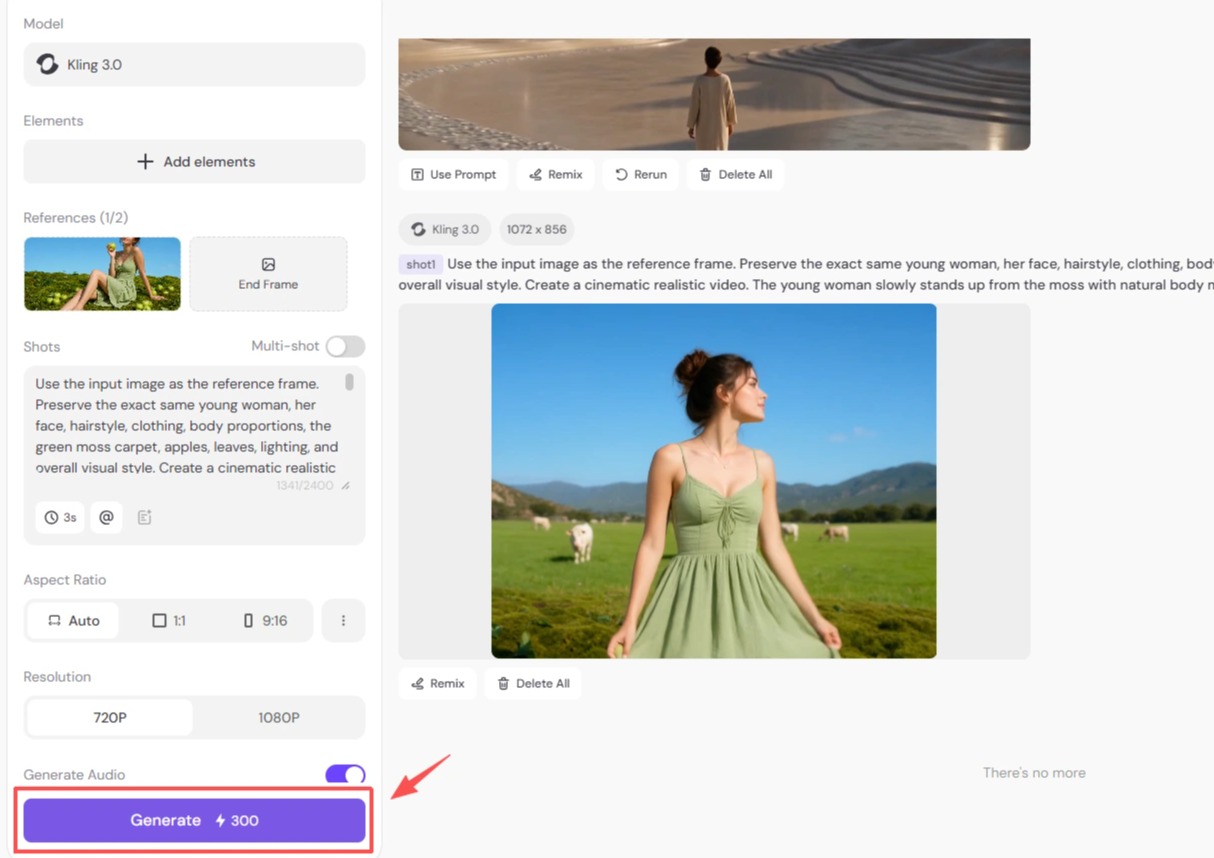
Click Generate to create your video. After the generation is complete, preview the results and make adjustments if needed.
Get Better Results with Better Prompts
Once you've learned how to generate AI videos, the quality of your results depends largely on your prompt. Here are two examples showing how detailed prompts can improve Text to Video and Image to Video generation.
Text to Video Example
Prompt: A sophisticated artistic brand film exploring imagination and creation.A surreal yet elegant world unfolds in a vast minimalist landscape. A lone creative artist walks through an extraordinary environment where nature and imagination merge together. The landscape feels like a living piece of contemporary art: sculptural mountains, flowing organic forms, floating elements, and carefully designed compositions inspired by modern art and luxury editorial photography.
The camera moves slowly and gracefully. The artist discovers a breathtaking open landscape where reality and imagination coexist. In the distance, a monumental hillside sign appears, with the word "PicLumen" elegantly displayed.
High-end art direction, contemporary visual design, luxury brand film aesthetic, surreal realism, cinematic composition, elegant camera movement, refined color palette, museum-quality visual style, 4K cinematic film.
Model: Seedance 2.0
Why it works:
It provides clear guidance on the scene, style, and camera movement, and allows the model to generate a more detailed and visually consistent video.
Image to Video Example
Prompt: Use the input image as the reference frame. Preserve the exact same young woman, her face, hairstyle, clothing, body proportions, the green moss carpet, apples, leaves, lighting, and overall visual style. The young woman slowly stands up from the moss with natural body movement, gently brushing herself off, then looks toward the distant horizon with a sense of wonder and curiosity. The camera smoothly follows her movement, transitioning from a full-body side view into a slow cinematic pan behind her shoulder, revealing the vast landscape in front of her. As the camera turns toward the horizon, reveal an endless bright green meadow stretching into the distance. Several cows are calmly grazing on the grass, moving naturally. In the far distance, among the mountain hills, reveal a large Hollywood-style hillside billboard with the word "PicLumen".
Model: Kling 3.0
Why it works:
The prompt focuses on preserving key details from the original image while adding clear movement and camera directions, which helps create a natural and consistent result.
Create AI Video with PicLumen Now
Frequently Asked Questions:
What models support Audio to Video?
Currently, Seedance 2.0 and Seedance 2.0 Fast support Audio to Video. Available features may vary by model, so check the model details before generation.
Can AI video generators create videos with audio?
Yes, a good amount of AI video models on PicLumen support audio generation. Available audio features depend on the selected model.
Can I create a video from a text prompt?
Yes. With Text to Video, you can create a video by describing your idea in a text prompt. For better results, include details such as the subject, movement, camera direction, visual style, and overall atmosphere.
Can I upload a starting frame and ending frame?
Yes, some models support starting and ending frame uploads, giving you more control over the video's beginning, ending, and transitions.
Why does my generated video not match my prompt?
Try making your prompt more specific by describing the subject, motion, camera movement, and visual style. Choosing a suitable model can also improve consistency.