AI Fisheye Filter for Bold, Curved Photo Effects
Create the Curve of a Fisheye Lens
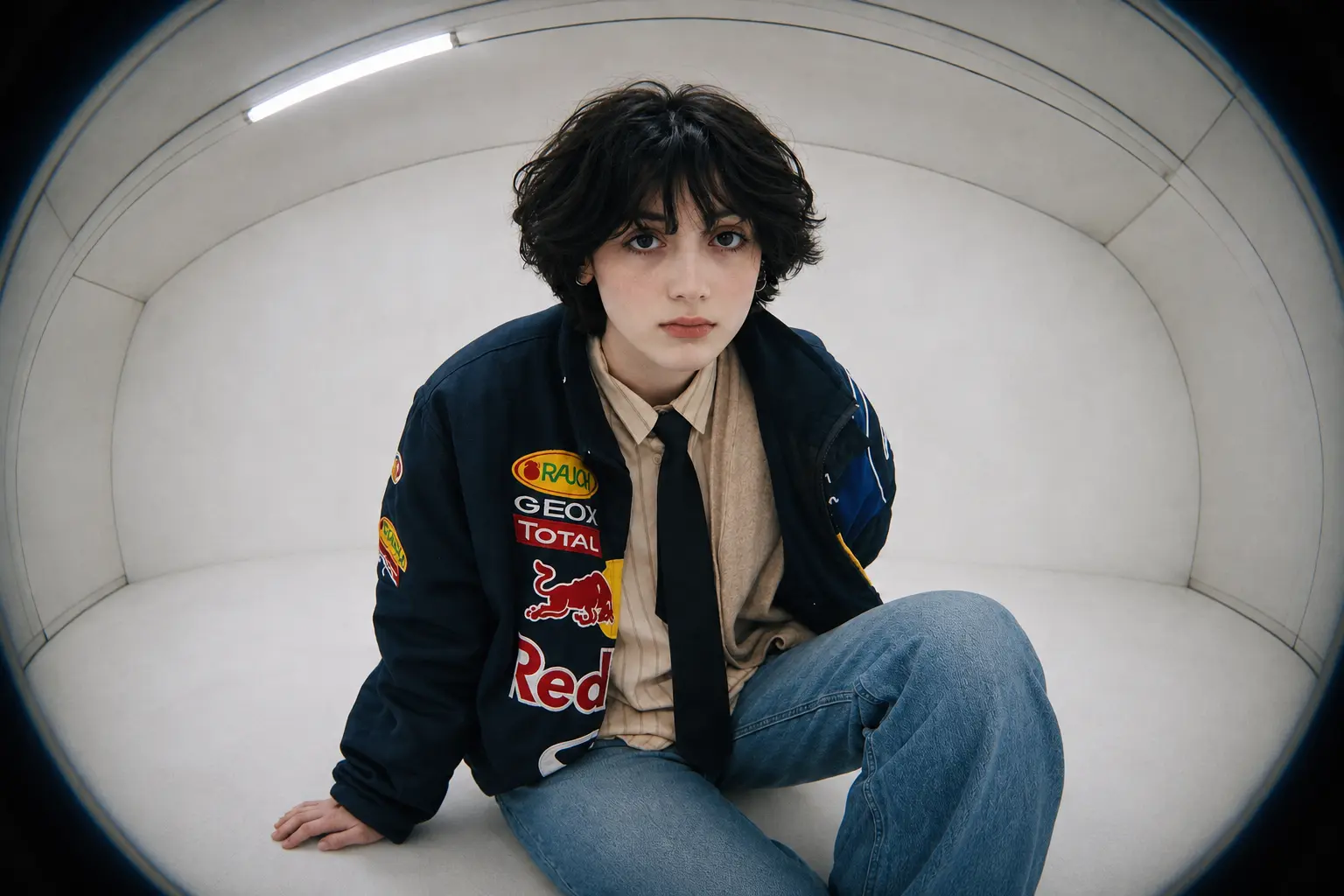
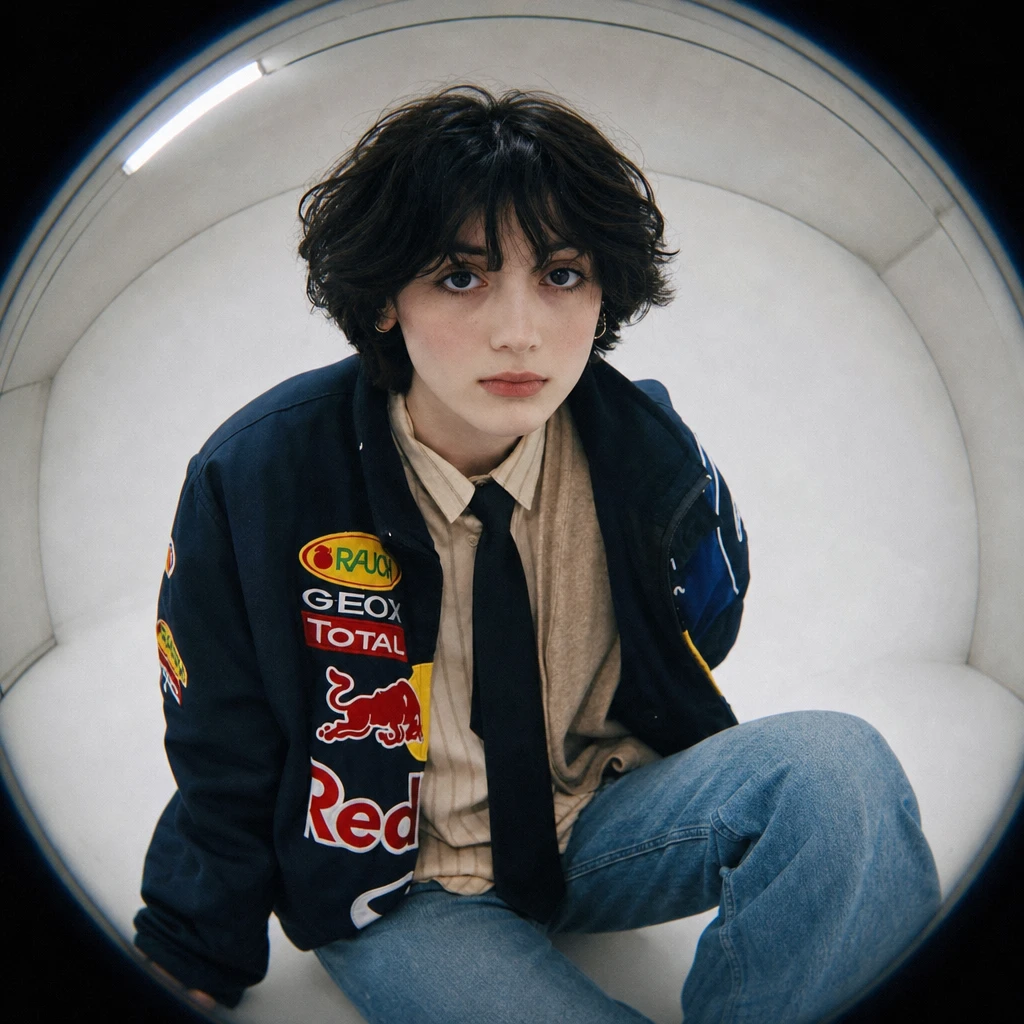
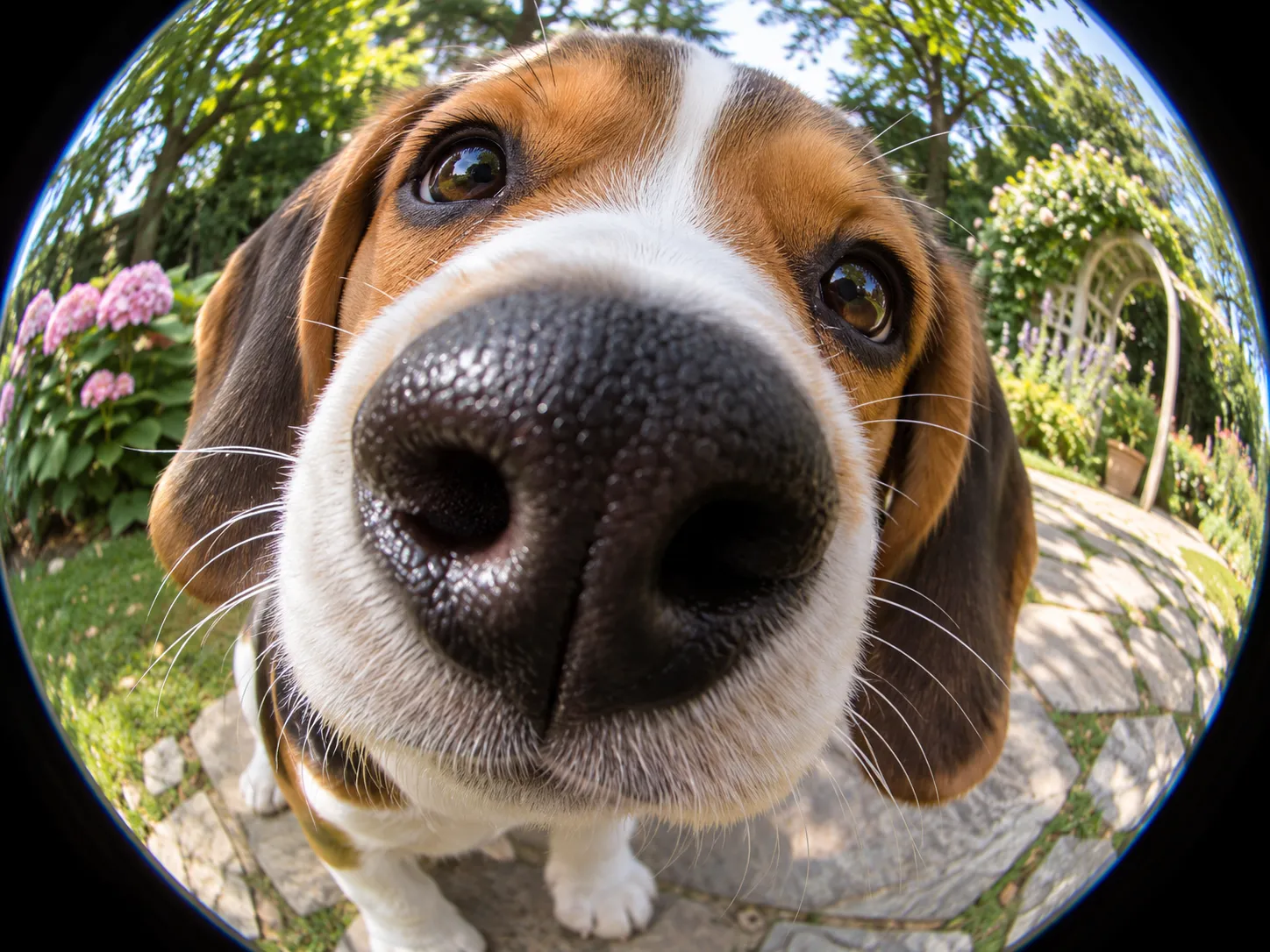
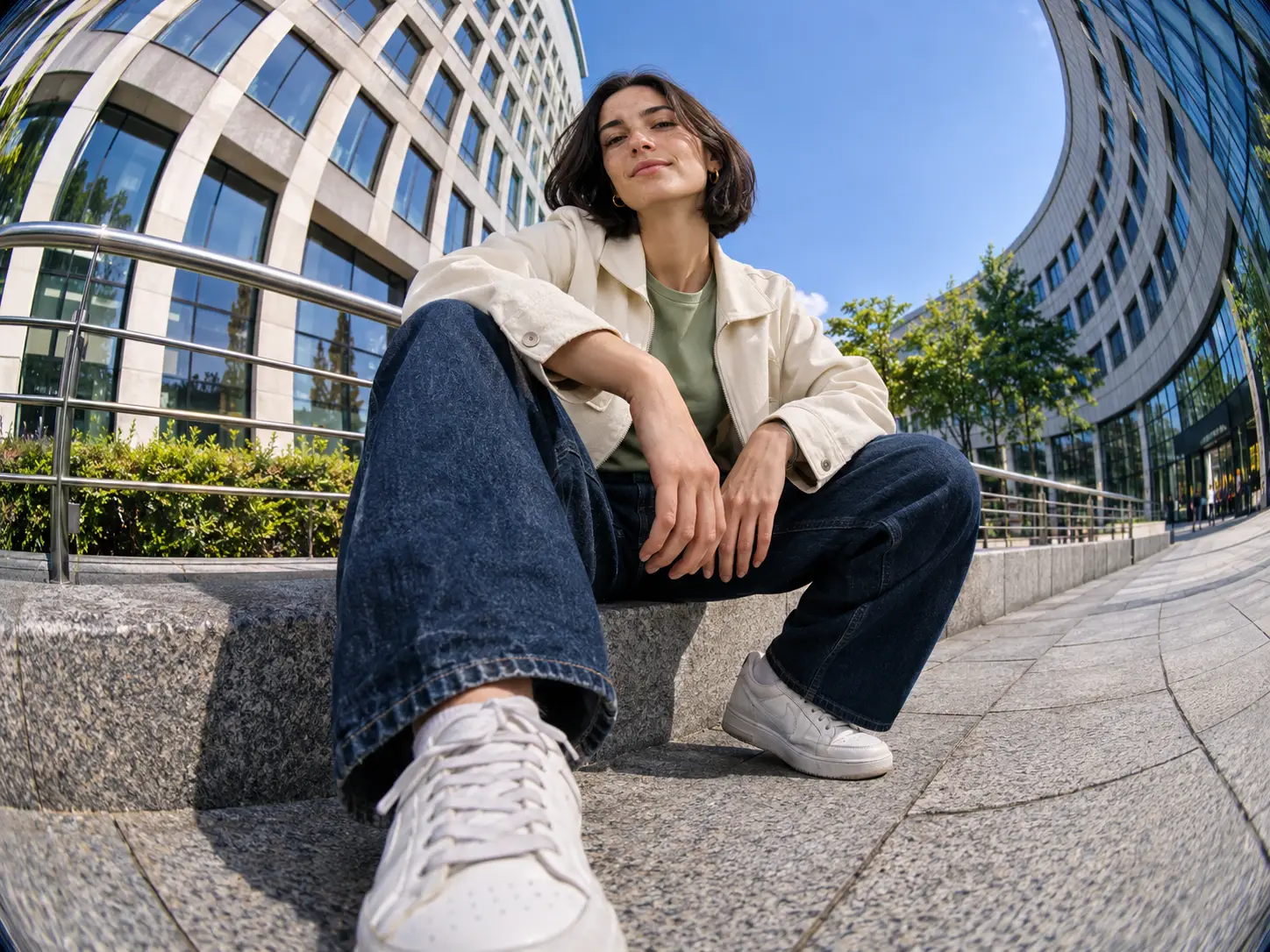
The fisheye look comes from the way lines and proportions change across the picture. A railing bows, buildings curve around the subject, and foreground details appear more prominent. Those changes give the scene its rounded camera feel. Use the AI fisheye filter to recreate that visual language in an existing photo. You might exaggerate the space around a seated portrait or make a close-up feel as though the subject is leaning toward the camera. The effect can be gentle enough for an expressive portrait or strong enough for a deliberately funny shot.
Build the Edit Around Your Own Photo
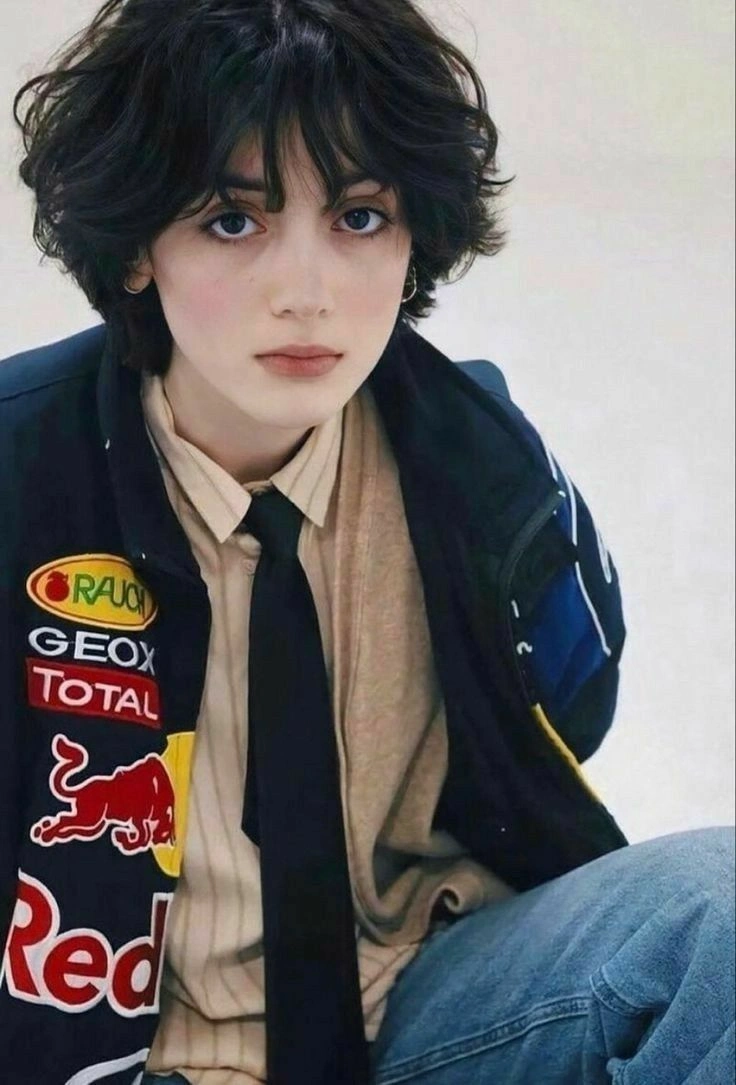
Your upload gives the AI concrete information about the subject: a person's hairstyle, the shape of a jacket, a pet's markings, or the arrangement of a room. PicLumen's image-to-image editor combines that reference with your description to generate a new version. That starting point is useful when you already have the person, outfit, or setting you want to work with. Use the AI fisheye filter to explore a different camera style around those familiar details. Your instructions can identify which elements matter most, while the reference supplies their visual appearance.
Describe the Distortion, Framing, and Light
Guide the AI fisheye lens filter with the camera look you have in mind. Ask for a subtle curve with a rectangular composition, a pronounced circular fisheye look, or a close portrait with a little more foreground emphasis. Lighting and color can help establish the mood. Direct flash and grain suit a retro camera aesthetic; softer light and a simple backdrop keep the attention on an expression.
Fisheye Photos for Profiles, Pets, and Creative Projects
Fisheye Profile Pictures With Personality
A fisheye PFP works best when the expression is the point of the picture. Think of a raised eyebrow, a sideways glance, or a face leaning toward the lens. The result can feel spontaneous and personal on a gaming profile, creator page, or social account. Use the AI fisheye filter to turn a flash-lit selfie into a stark portrait, or frame a smiling face with a curved city backdrop. A square composition gives you a useful starting point for the round avatar crop used by many platforms.
Funny Pet Photos and Reaction Images
Turn a curious pet photo into a close-up built around the nose, eyes, and expression. A dog sniffing toward the camera or a cat peering over the edge of a sofa gives a fisheye pet photo a story people can recognize immediately. These images fit pet account updates, chat reactions, and fisheye memes. A puzzled look can carry the joke on its own. When making a series, use the pet's different expressions to give each image a purpose: waiting for dinner, investigating a noise, or demanding attention.
Retro Skate, Streetwear, and Action Photos
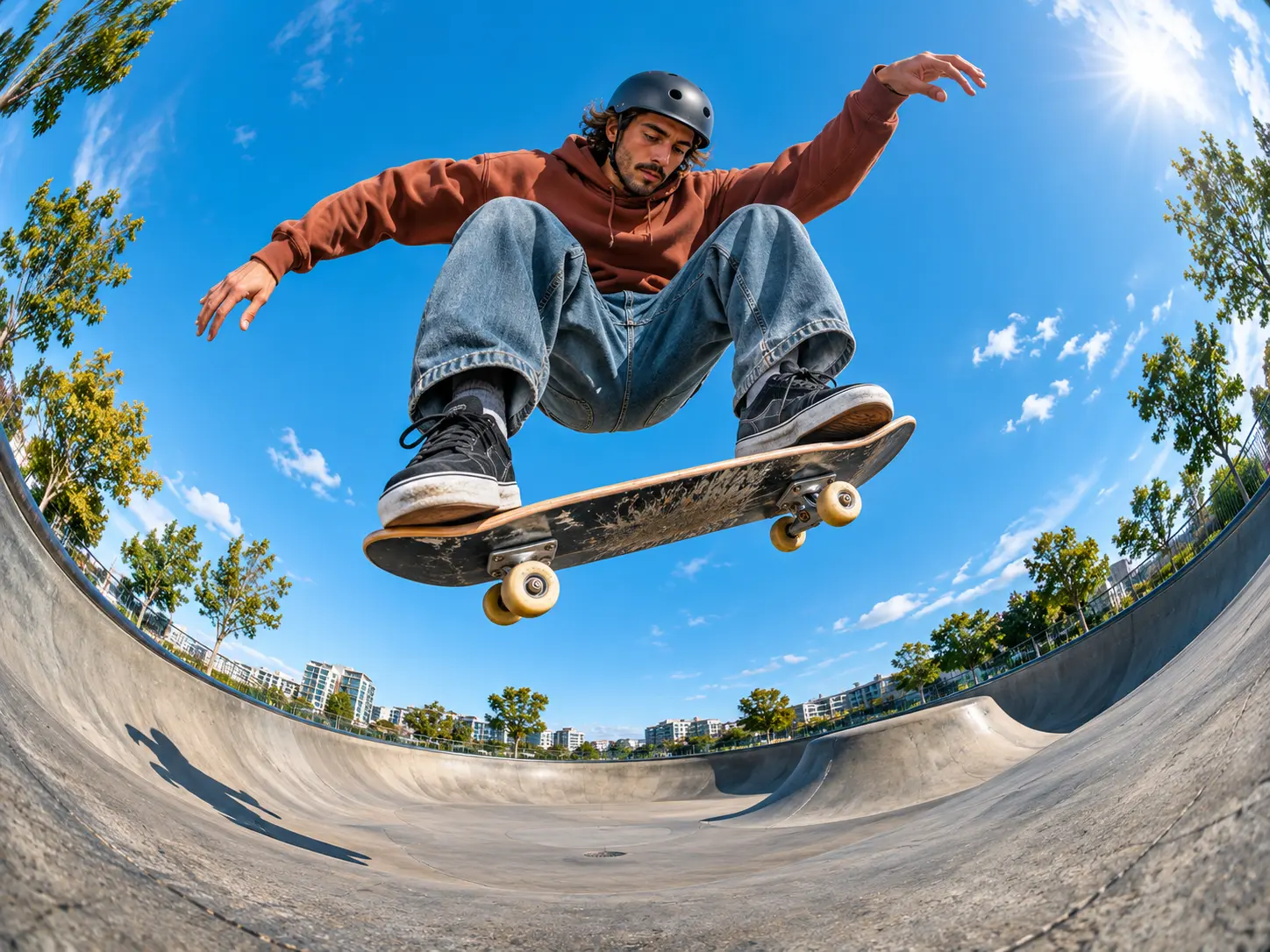
A fisheye street photo can make the setting part of the composition. A skater above a ramp, a BMX rider beside a curved railing, or a person in an oversized jacket at a crosswalk all offer different ways to use the perspective. For a 90s skate camera look, describe the low viewpoint, visible environment, and rougher photographic texture. For streetwear, give the pose, shoes, and silhouette more emphasis. The finished still can become a photo post, a lookbook image, or a thumbnail for a skate or fashion video.
Fish Eye Effects for Music Covers
Use a fisheye portrait to develop a specific mood for a single, DJ mix, or live event. A performer close to the camera can suit a direct, confrontational image. A figure surrounded by a curved night street can give the artwork more setting and atmosphere. Plan the image as part of the cover layout. An artist's face might sit below the release title, or the main subject might occupy one side of a promotional graphic. Add the final typography in your design workflow so you can position and revise it independently.
How to Use PicLumen's AI Fisheye Filter
Upload Your Reference Photo
1Open PicLumen's AI image generator and select a model that supports image editing or reference photos. Add your image through the reference-image upload. PicLumen's image-to-image workflow accepts JPG, PNG, and WEBP files. Confirm that the selected image contains the subject and composition you want to use before adding your edit instructions.
Describe the Fisheye Effect
2Tell the AI fisheye filter what should change and which details you want retained. A focused instruction is easier to assess than a long list of unrelated transformations. For example: “Apply a moderate fisheye lens effect to this photo. Curve the background lines, keep the subject centered, and retain the person's facial features, hairstyle, and clothing.” Select the aspect ratio and resolution offered by your chosen model. A 1:1 composition suits a square image; 4:5 suits a portrait post; 16:9 suits a wide thumbnail.
Generate and Check the Result
3Click Generate, then review both the main subject and the surrounding scene. Look at the expression, the strength of the curve, and any important details close to the edges. If the result needs work, identify the specific issue before editing the prompt. “Less enlargement around the nose” is more useful than “make it better.” Keep the other instructions consistent while you compare the next version.
Choose a Better Photo for Your Fisheye Edit
Start With a Clear Face or Expression
Use a photo where the important features are visible. For a portrait, that means a readable face and expression. For a pet, look for defined eyes, a visible muzzle, and recognizable coat markings. A clean original usually provides more useful information than a screenshot of an already filtered photo. Heavy blur, sunglasses, and objects crossing the face can make the reference harder to interpret. Start with one clear subject when learning how a particular model handles the effect.
Give the Background Some Structure
Choose surroundings that help show the curve: a doorway, tiled wall, fence, road, or row of buildings. These lines make the fisheye photo effect easier to see and give the composition a sense of space. A plain background is useful for a different reason: it keeps attention on the face, pose, or pet. Decide which part of the image should carry the effect before uploading. A simple headshot and a busy street photo provide different starting points.
Keep the Full Composition Available
Leave space around ears, hands, shoes, and other details you want in the result. A photo cropped through the top of a head or the edge of a skateboard gives you fewer options for the final framing. Use the wider original when you have it, then crop the finished image for its destination. A full-body reference is especially useful when clothing and pose are important. A face-only selfie provides much less information about the rest of the person.


Loved by Creators Worldwide
Real feedback from designers, marketers, and hobbyists sharing their PicLumen experience on Trustpilot.
 chelsienner
This is my favorite AI Image generator
This is my favorite AI Image generator
Awesome program easy to use a little…
Awesome program easy to use a little disappointment in the fact you can’t buy lumies
 George Price
PicLumen's support team replies quickly…
PicLumen's support team replies quickly to your help requests and they are clear in what they require of you for them to help you. They usually diagnose your problem and offer a solution in less then 24 hours. Stellar service!
 Kura Aditya
The best experience ever w
The best experience ever w
 Alexsander Luís
cool it's a good ai creator but create…
cool it's a good ai creator but create imagens for cinema
 Menu Lawrence
Very fantastic app
Very fantastic app. I love it. I will like everyone to use this App
It’s easier to use on a computer instead of a phone
Being able to generate my own art
The Uncharted TimelineThis ai
This ai generated image very natural and beautiful HD quality
Mehdi Sohrabigood
🔥good best saite and good work and good good good
Me May PhimThe new addition of models is excellent.
The new addition of models is excellent.
Really incredible work
Really incredible work, I love it so much, it's easy and intuitive
Nice app for creating videos
Nice app for creating videos
Frequently Asked Questions About the AI Fisheye Filter
How is an AI fisheye filter different from a regular distortion filter?
A conventional distortion filter bends the pixels already in a photo. It is useful when you want a direct geometric change with predictable controls. An AI fisheye filter generates a new interpretation of the image from your reference and instructions. It may alter the framing, rebuild parts of the scene, or change small details while creating the requested camera style. Use it for a creative transformation, with the original photo available for comparison.
Can the AI fisheye filter keep my face recognizable?
Your reference photo helps guide appearance, but exact likeness is not guaranteed. Larger changes to pose, viewpoint, clothing, and setting can also change the face. For a closer match, request the lens effect first and identify the facial details you want retained. Review the eyes, mouth, jawline, and hairstyle against the source. If the result drifts, simplify the request or try another model that supports reference-based editing.
How can I make the fisheye effect less extreme?
Describe the specific exaggeration you want reduced. Ask for a gentle background curve, less enlargement of foreground features, or proportions closer to the reference. For example, a request for subtle barrel distortion gives a different direction from an extreme circular fisheye. You can ask the AI fisheye filter to reduce one part of the effect while keeping the lighting and overall composition similar.
Does a fisheye effect always have a black circular border?
No. Circular fisheye images show a round view within the canvas, often surrounded by black. A full-frame fisheye image fills the rectangle while keeping the curved perspective. For a rectangular result, describe a full-frame fisheye composition without a circular border. For the round camera look, ask for circular fisheye framing. Check the generated edges before downloading, especially if you need a rectangular cover or thumbnail.
Can I use a fisheye filter on a group photo?
You can use a group image as a reference, but multiple faces make consistency more demanding. Start with a photo where everyone is visible, and specify that the same people should remain in the image. Check the number of people and each person's face after generating. People near the outer edges may look more exaggerated. If one person's appearance matters most, choose a simpler composition that gives that person enough space and detail.
Can the tool show more than the original photo captured?
AI can generate surrounding content to create the impression of a wider view. The added scenery is invented; it does not reveal what was actually outside the original frame. If you need a recognizable location, use a source that already includes the important surroundings and ask for limited changes. For purely creative work, you can describe the extra setting you want, such as a curved studio backdrop or a city street.
Can I use this fisheye photo editor on videos?
The workflow on this page creates still images. You can take a finished fisheye picture into PicLumen's separate image-to-video tool to explore motion or camera movement. Generating a clip from a picture is different from adding the same lens distortion to every frame of an existing video. Choose the workflow according to whether you are starting with a photo or footage.
Is the AI fisheye filter free, and are downloads watermarked?
You can sign up and explore PicLumen for free. Image generation and editing use Lumens, with the amount depending on the model. Check the offer available to your account before generating. Paid subscription plans include watermark-free creation. The current pricing page explains plan benefits and Lumen options; it is the place to check the conditions that apply to your use.
What image formats and resolutions can I download?
PicLumen supports JPG and PNG image downloads. Available generation sizes vary by model and may include 1K, 2K, or 4K. Choose from the options shown for the model you are using. For artwork that will be cropped or printed, consider the final dimensions before generating. Check the downloaded file's pixel size rather than assuming every image described as “4K” has the same width and height across all aspect ratios.
Give Your Next Photo the Fisheye Look
Choose a photo with an expression, outfit, or setting worth building around. Use PicLumen's AI fisheye filter to try the camera style you have in mind, refine the result, and download your favorite version.
- AI Image Upscaler
- Text to Image AI Generator
- AI Illustration Generator
- AI Anime Character Generator
- AI Full Body Character Creator
- AI Book Cover Generator
- AI Action Figure Generator
- Add Glasses to Photo
- AI Background Generator
- AI Clothes Changer
- AI Couple Photo Maker
- AI Graffiti Generator
- AI Jewelry Photography
- AI Kissing Video Generator
- AI Music Video Generator
- AI Product Video Generator
- AI Talking Avatar Video Generator
- AI Vlog Maker
- Animate Image AI
- Animate Old Photos
- AI Marketing Video Maker