Animate Old Photos with AI and See Familiar Faces Move
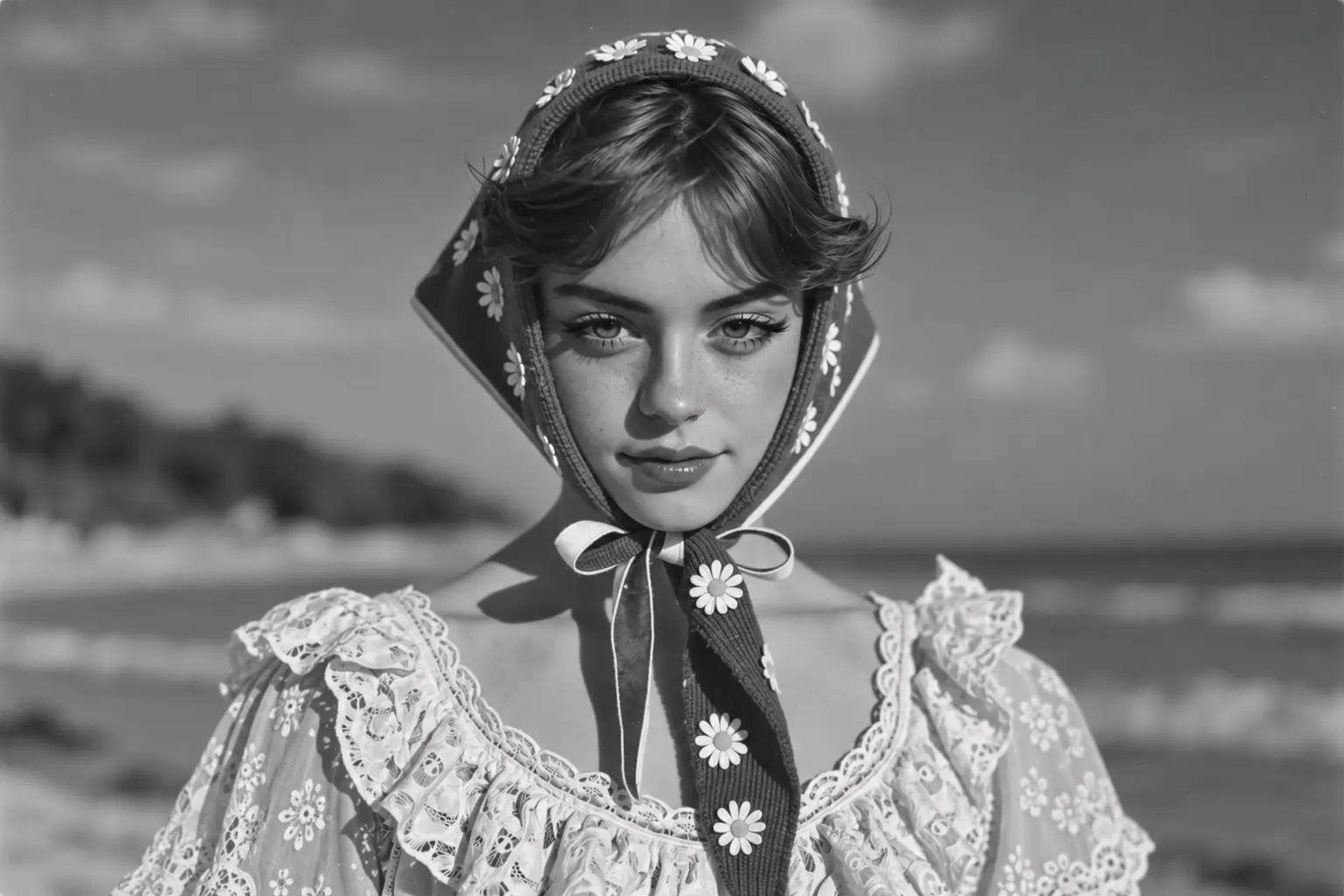
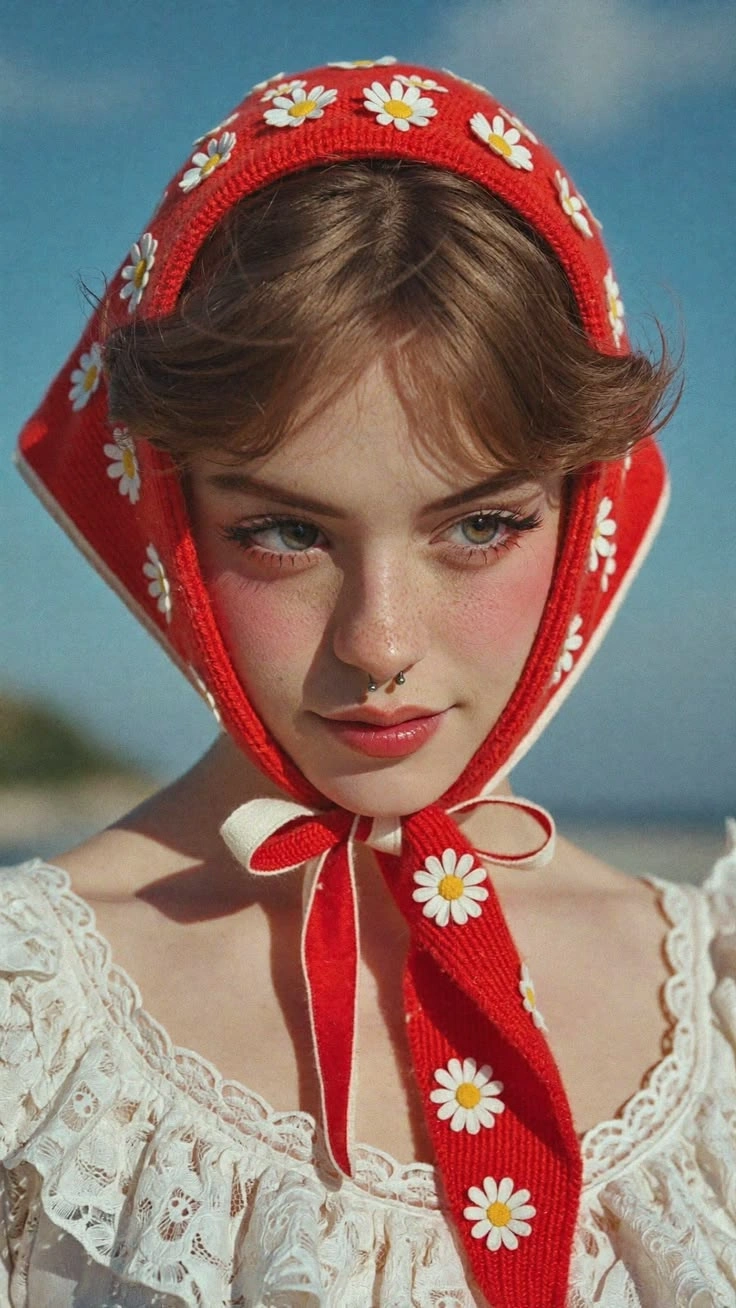
Give Old Portraits a Familiar Expression
Animate old portraits with a small smile, a blink, or a slight nod. Use the person’s existing pose as the starting point: a formal headshot may suit a quiet change in expression, while a relaxed outdoor portrait offers room for a glance toward the camera. Your description guides both the action and its pace. Ask for a brief smile followed by a pause, or a gentle head movement with a fixed camera. These choices give you different ways to bring an old portrait to life while keeping attention on the person you recognize.
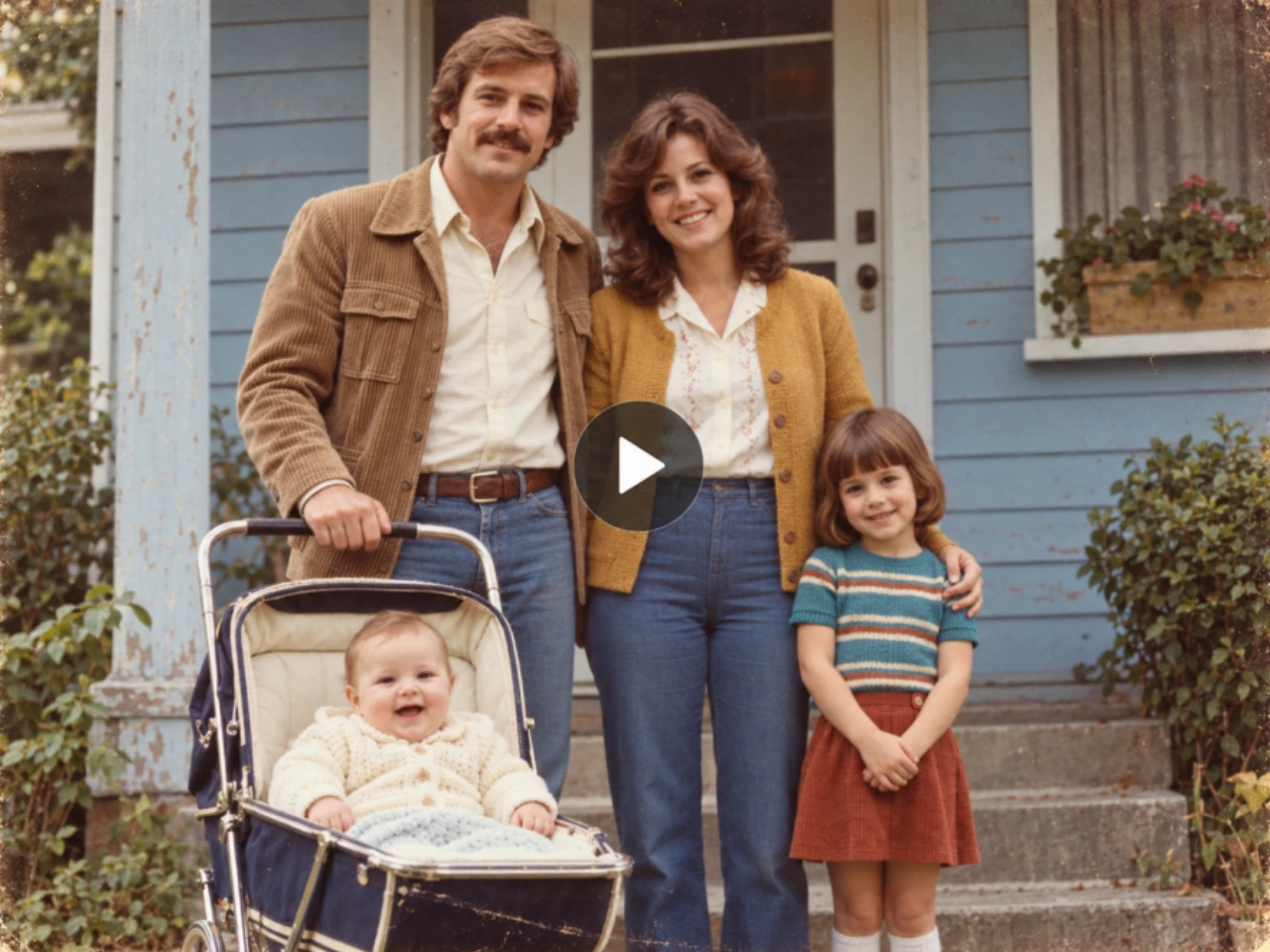
Turn Old Family Photos into Moving Scenes
Bring old family photos to life with more than a close-up face in view. Work from the full composition, including the people, their clothing, and the place where the picture was taken. A wedding portrait can become a shared glance; a family on the porch can become a scene with small gestures and a slow camera move. Describe a person’s action and the camera movement separately. You might ask for the couple to remain seated as the view moves closer, or for the person on the left to wave while the camera stays fixed. This gives your old photo video a clear focus within the wider scene.
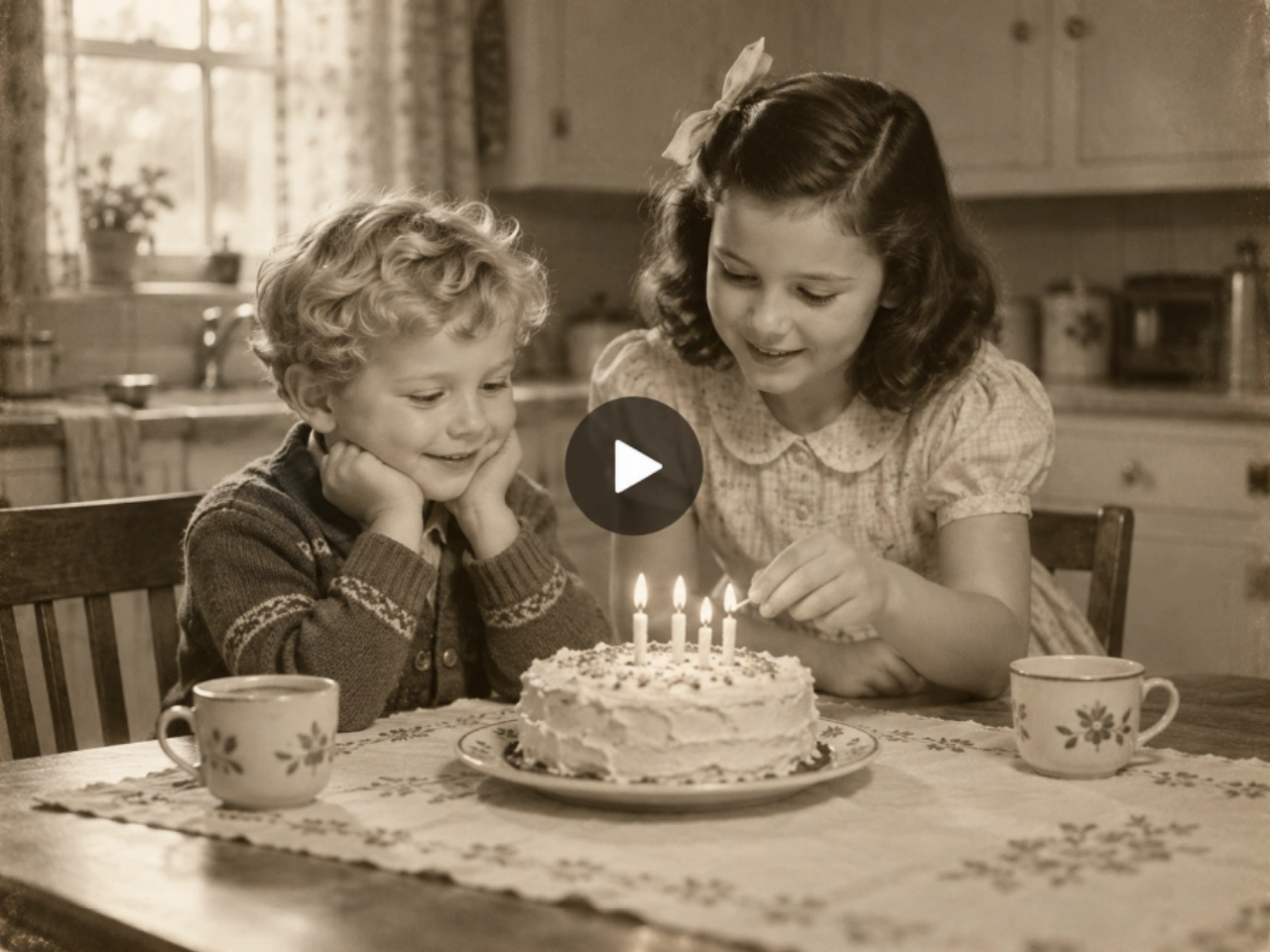
Carry the Original Photo Style into Your Animation
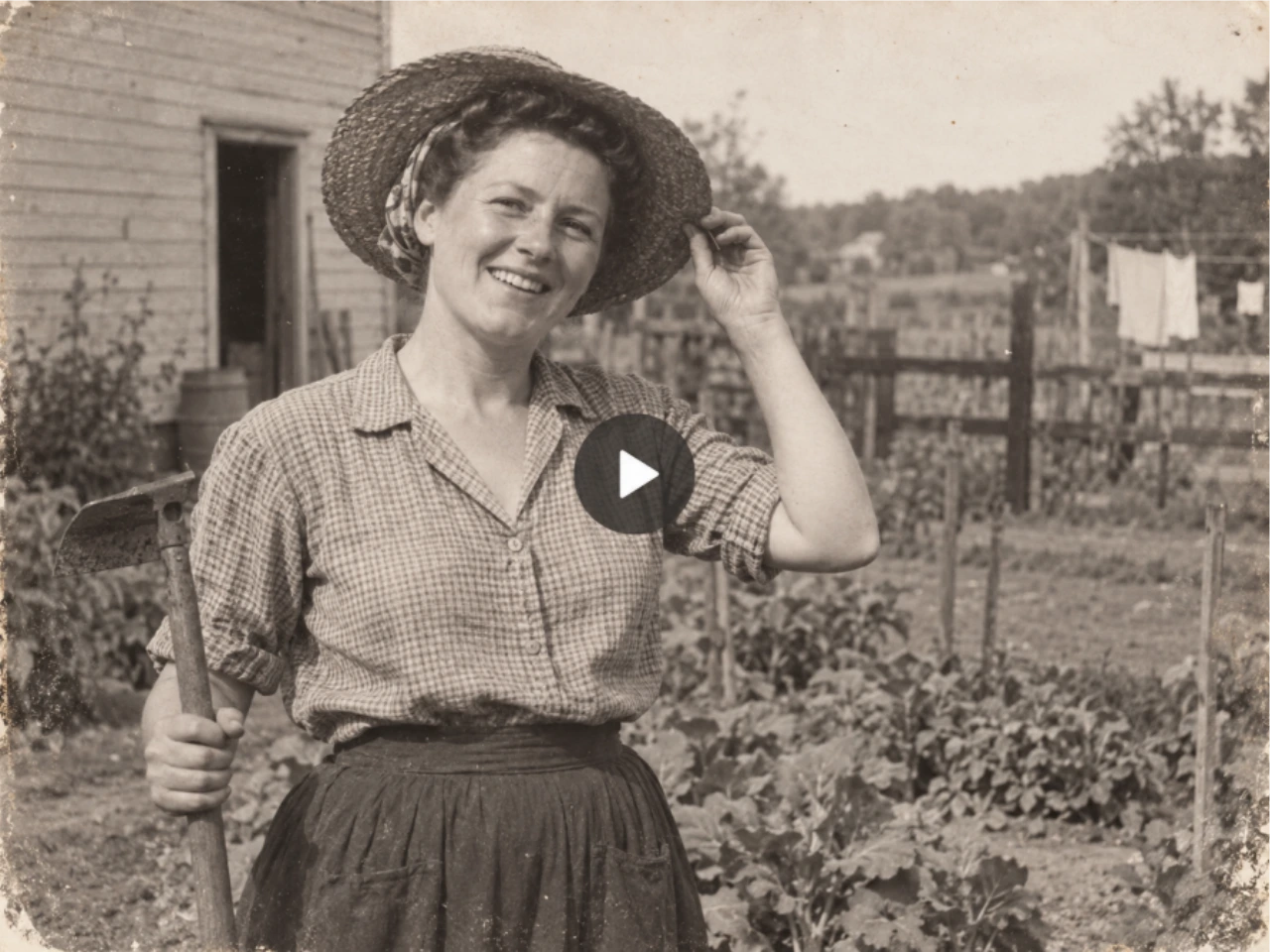
Animate black-and-white photos, sepia portraits, and vintage color snapshots using the original image as your visual reference. Describe the tones and texture you want to carry through: soft monochrome contrast, warm sepia, or the faded colors of a family print. Colorization is a separate creative choice. Start with the untouched scan to work from its existing look, or use a prepared color version for a different interpretation. PicLumen gives you a way to explore old photo animation around the photograph’s own character, including its lighting, clothing, and period setting.
Prepare Worn Prints for Old Photo Animation
Give damaged photographs a preparation step before turning them into video. PicLumen's old photo restoration tool can help repair scratches and creases and improve clarity in faded areas, particularly where wear obscures a face. Download the repaired image and use it as the starting photo for animation. You can choose between the original scan and the restored version, so restoration remains optional. Keep the original alongside the repaired copy to assess facial details before moving from a still photograph to a video.
Animate Old Family Photos for Stories and Special Occasions
Use individual animations as clips in a larger family project. After you animate old photos, combine the downloaded videos with captions, recordings, and still images in your preferred video editor.
Family History Videos
Introduce a relative with an animated portrait, then add their name, hometown, and a short account of their life. A grandparent's recorded anecdote can provide the narration. Organize each person's clip with its source photograph and any dates or places you can confirm.
Wedding and Anniversary Keepsakes
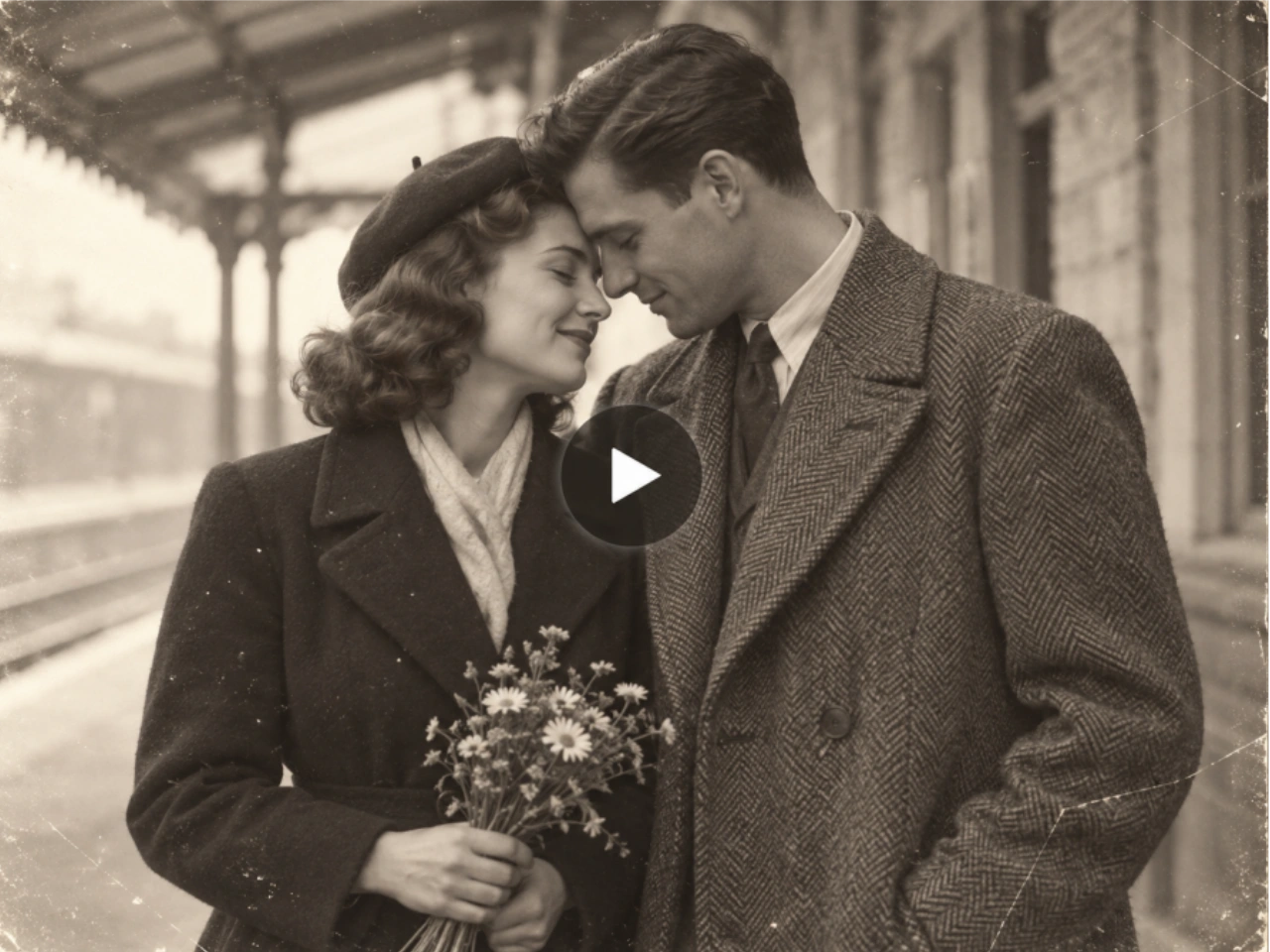
Turn an old wedding photo or an early picture of a couple into a short anniversary clip. Follow it with photographs from later years and a message from their family. A small change in expression can suit a formal wedding portrait; choose the movement to match the original pose.
Birthday and Reunion Slideshows
Use an animated childhood picture to open a birthday slideshow, or a photograph of a familiar home to introduce a reunion video. Place the clip at a specific point in the story, with still photos between animations so viewers have time to recognize people and read captions.
Memorial Tribute Videos
Create a quiet portrait clip for a remembrance video, paired with a favorite story or a relative's narration. Preview it with the family before including it in the tribute. Identify the clip as AI-generated when presenting it alongside authentic photographs and recordings.
How to Animate Old Photos with AI on PicLumen
Upload Your Old Photograph
1Open PicLumen's image-to-video tool and upload your picture. Use a straight-on scan or photograph with minimal glare. Crop out album pages and large borders while leaving room around the subject. Check that the eyes, nose, and mouth are visible.
Describe the Action and Choose Your Settings
2Select an available image-to-video model and write a short movement prompt. Begin with one main action, then add the camera position or the photo's color style if needed. Choose a frame that fits the source image and leaves the people you want visible inside the shot.
Generate, Compare, and Download
3Watch the full animation and compare it with the original photograph. Check the face, hands, clothing, and background. If an expression feels too strong or details change, try a smaller movement or a simpler prompt. Download the version you want to use in your project.


Loved by Creators Worldwide
Real feedback from designers, marketers, and hobbyists sharing their PicLumen experience on Trustpilot.
Bet AWNice good appp creat inmage
Nice good appp creat inmage
 Traci Feazelle
Fantastic Option for AI Image/Video Creation
PicLumen offers an amazing variety of ai models for some of the most reasonable pricing available! The app layout also affords ease of use.
 Sara Frandsen
Excellent customer service
Excellent customer service! The support team was incredibly fast, polite, and helpful. They handled my request quickly and professionally without any hassle. It is rare to see such great and honest support these days. Highly recommended!
 KIDSCARTOON
This ap great and amazing generate pic
This ap great and amazing generate pic
It’s way easier to use then these other…
It’s way easier to use then these other apps
Great platform
Ease of use,and great models
Aslam Khangood have a nice day.meet
good have a nice day.meet
 kola wole
Amazing
Amazing, and easy to use features
Everything
Everything, keep up the good work
Sheikhvery user friendly
very user friendly, easy to use.
it really works
it really works. i got an amazing AI tool for images
I love it
I love it. amazing image generator.
Frequently Asked Questions About AI Old Photo Animation
Does PicLumen animate just the face or the whole photograph?
PicLumen uses image-to-video models to generate a moving sequence from your photograph. Your prompt can focus on a facial expression or include body gestures, surroundings, and camera motion. This is different from applying a face-only animation effect. Other parts of the image may change as new frames are generated. The video is an AI interpretation, not recovered historical footage.
What image formats can I use to animate old photos?
The image-to-video upload supports JPG, JPEG, PNG, and WebP. For a scanned print, use the highest-quality copy you have. For a phone photograph, keep the camera parallel to the print and avoid reflections over faces. Clear eyes and mouth details matter more than simply enlarging the file. Check the upload panel for the current file-size limit.
Can I animate an old family photo with several people?
Yes, a group photograph can be used as the source image. Identify people by their positions and give each requested action a clear subject. For example, specify the woman on the left rather than asking everyone to move at once. Small, obscured, or overlapping faces are more difficult inputs. Check each person throughout the clip; results can vary within the same group.
How can I reduce face changes when I animate old photos?
Begin with a clear face and a modest action. Large head turns and open-mouth expressions require the model to generate details that may be hidden in the original image. If the likeness changes, try a fixed camera, less head movement, or a clearer source photo. When comparing versions, change one instruction at a time to see which adjustment helps.
Do I need to restore or colorize an old photo first?
A clear old photo can go straight to animation. Restoration is useful when damage hides facial features, such as a crease across the mouth or scratches over the eyes. Colorization is optional; you can animate a black-and-white photo in monochrome. Inspect any restored version before using it, since repair can introduce generated details. Keep the original scan for comparison.
Can I make an old photo talk?
Talking-photo results require a model or workflow that supports speech and suitable lip sync. Confirm those capabilities when selecting your model. A photograph cannot recover the person’s actual voice. For a family history video, an authentic recording can also be added as narration to the downloaded animation in your video editor.
Is it free to animate old photos on PicLumen?
PicLumen uses Lumens for AI generation. Whether your available balance covers an old photo animation depends on the selected model and settings. The generation interface shows the cost before you start. Allow for additional attempts if you want to compare expressions or models, and check PicLumen’s pricing plans for current subscription and Lumen options.
What video length and resolution should I choose?
Choose the length to suit the action. A brief expression needs less time than a sequence of gestures. Available durations and resolutions vary by model; select from the options shown in the workspace. For a 16:9 family slideshow, keep portrait images within margins if needed. For a 9:16 phone video, frame the shot so faces remain visible. Download the completed clip for use in your project.
What if the animation fails or looks distorted?
A failed generation and a completed video with unwanted movement are different issues. For a failed task or a question about Lumen charges, contact PicLumen support with the generation details. For a completed clip with distorted features, simplify the action or try a clearer source image. Check whether the distortion is already present in a restored photo before starting another animation.
How does PicLumen handle uploaded family photos?
Uploaded images are processed as input for AI generation. PicLumen’s Privacy Policy explains data collection, sharing, and your rights to request access, correction, or deletion of personal data. For questions about a family photograph or a deletion request, contact service@piclumen.com.
Give an Old Photo a Place in Your Next Family Video
Start with the portrait, wedding picture, or family scene you want to revisit. Describe the movement, create your animation, and download a clip to share alongside the photographs and stories that matter to you.
- AI Face Swap
- AI LinkedIn Video Maker
- AI Marketing Video Maker
- Photos to Watercolor
- Slow Motion Video Maker
- AI TikTok Watermark Remover
- Video Background Remover
- AI Video to Video Generator
- AI YouTube Outros
- AI Wedding Video Maker
- Wan 3.0 AI Video Generator
- AI Character Generator
- AI Landscape Generator
- AI Wallpaper Generator
- Black Friday Ads
- AI Text to Video Generator
- 3D Avatar Creator
- AI Full Body Character
- AI Age Progression
- AI clothes remover
- AI Business Card Maker